Large catalogs can make Product Feed Pro generation slow, or push it past your server’s time and memory limits. To avoid that, the plugin splits feed generation into batches and processes one batch at a time. This article covers how the plugin picks a batch size automatically, how it self-tunes as your feed runs, and how to set a manual batch size if you ever need a fixed value.
Version requirements
| Feature | Requires |
|---|---|
| Adaptive batch sizing | Product Feed Pro 13.5.7 or later |
| Batch size and limit shown in Manage Feeds | Product Feed Pro 13.5.9 or later |
| Manual batch size setting | All versions |
How the plugin picks a batch size
Before any run, Product Feed Pro estimates a starting batch size from your store’s published product count:
| Published products | Starting batch size |
|---|---|
| Up to 1,000 | 200 products per batch |
| 1,001 to 5,000 | 300 products per batch |
| 5,001 to 10,000 | 500 products per batch |
| 10,001 to 50,000 | 1,000 products per batch |
| Over 50,000 | 1,500 products per batch |
Adaptive batch sizing (Product Feed Pro 13.5.7+)
Starting with Product Feed Pro 13.5.7, feed generation no longer sticks to one fixed batch size for the whole run. Every batch is timed and its peak memory use measured, and the next batch is sized from what your host just proved it can handle. This is a Product Feed Pro core feature, so it applies whether or not Product Feed Elite is active.
Time budget: Each batch targets 60% of a time budget calculated from your server’s own limits, so a slow host still makes steady progress instead of timing out.
Growth and memory: The batch size can grow by up to 2x per step, but shrinks as much as needed. If a batch’s peak memory use gets close to your host’s memory limit, the next batch is cut in half immediately, regardless of timing.
Learning across runs: Once a batch completes fully within its time budget, the plugin saves that size for the feed. The next run starts near that learned size instead of back at the table above, so repeated runs on the same host keep getting more efficient.
Crash recovery: If a batch crashes (times out or exhausts memory), the plugin halves the batch size and sets a temporary ceiling so future batches don’t retry at the size that just failed. Each fully completed run afterward raises that ceiling by 25%, so it recovers gradually rather than jumping straight back to the old size.
Adaptive sizing mainly saves time by cutting the number of batches, because each batch needs its own WordPress start-up and, on low-traffic stores, a wait on WP-Cron. For the full picture on large catalogs, see Ultimate guide to scaling feeds for 10K+ products.
See the batch size and limit in Manage Feeds (Product Feed Pro 13.5.9+)
From Product Feed Pro 13.5.9, you no longer need debug logging to see what adaptive sizing is doing. The Manage Feeds screen shows it for each feed.
- Go to Product Feed → Manage feeds.
- Hover over the help icon next to the feed’s name.
- Look for the lines described below in the tooltip.
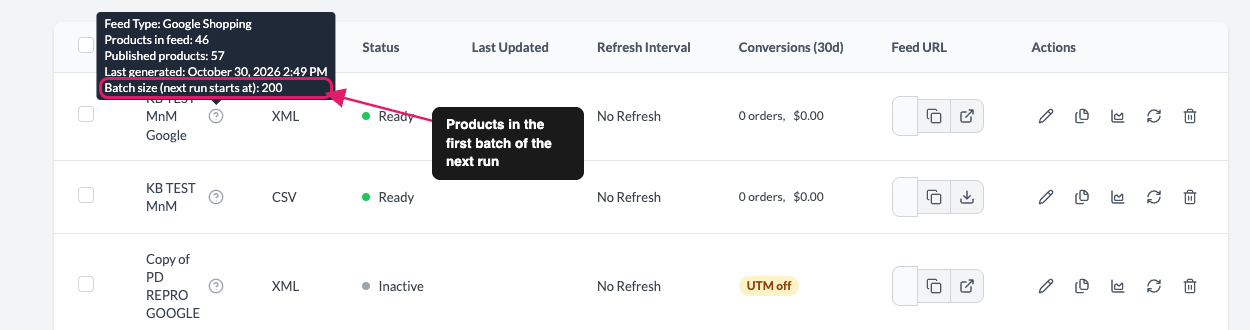
Batch size (next run starts at): the number of products in the first batch of the next run. While the feed is generating, this line reads Batch size (current run): and shows the batch size in use.
Batch size limit: the highest batch size allowed after a crash, shown as “(set by a previous crash)”. It only appears while a crash-learned limit is active.
Crashed runs in a row: how many runs in a row have crashed. It only appears when the count is above zero.
If a crash-learned limit is active and the feed isn’t generating, a warning icon also appears next to the feed’s Status. Hover over it to see the current limit.

The limit recovers gradually as refreshes complete successfully, as described under crash recovery above. To remove it sooner, click the warning icon to reset it. The reset clears the limit, the learned batch size, and the crash count, and lets a feed with paused automatic generation resume, so the next run starts from a clean slate.
Set a manual batch size
Adaptive sizing works well for most stores. Set a manual batch size only if you already know your host has a hard constraint, for example, a shared host with a strict memory cap that you want to stay well under.
- Go to Product Feed → Settings.
- On the General tab, enable Change products per batch number.
- Enter your desired value in the Insert batch size: field that appears.
- Click Save next to the Insert batch size: field.

The new value is used starting with the next refresh, manual or scheduled.
Choosing a value: Start lower (100-300) if your feed times out or hits a memory error, and raise it (1,000+) only once you’ve confirmed your server handles the current size without errors. Always test again after changing it.
Automatic feed generation paused
If a feed’s scheduled generation crashes 3 times in a row, Product Feed Pro pauses that feed’s automatic runs and shows a warning notice on the Product Feed pages, headed Product Feed Pro: automatic feed generation paused., so it doesn’t keep failing silently in the background. This only pauses scheduled (cron) generation, not a manual refresh you trigger from the Manage Feeds page.
To recover, either lower the batch size manually (above) or simply trigger a manual refresh. A single fully completed run clears the crash count, removes the notice, and lets scheduled generation resume.
Checking batch decisions in the logs
Product Feed Pro writes two different kinds of entries to WooCommerce → Status → Logs under the woo-product-feed-pro source:
- Crash and paused-generation warnings appear unconditionally. You don’t need to turn anything on to see them.
- Per-batch sizing decisions (the size chosen for each batch, and why) only appear if you’ve turned on Enable logging in the plugin’s settings.
If a feed keeps getting paused, check WooCommerce → Status → Logs even if you haven’t enabled logging. Turn logging on only if you need the batch-by-batch detail.
Troubleshooting
max_execution_time and memory limit are high enough for your catalog. See Help, my feed won’t update or is stuck processing! for the full diagnosis steps.Frequently asked questions
Need help?
If you’re on Product Feed Elite, open a support ticket, and our support team will help you tune batch size for your setup.
If you’re using the free Product Feed Pro plugin, open a new topic in the WordPress.org support forum.