
An old download link from your order email can stop working, for example after a new release. You can always get the latest version of your plugins from your AdTribes account. This guide also shows you how to check the version you have installed and whether an update is available.
Download your plugins from your account
Your account always has a working link.
- Click Login in the top menu of our site.
- Log in to your account.
- Open the Downloads tab. It lists every product you have access to, with your license information.
- Download the plugin you need.
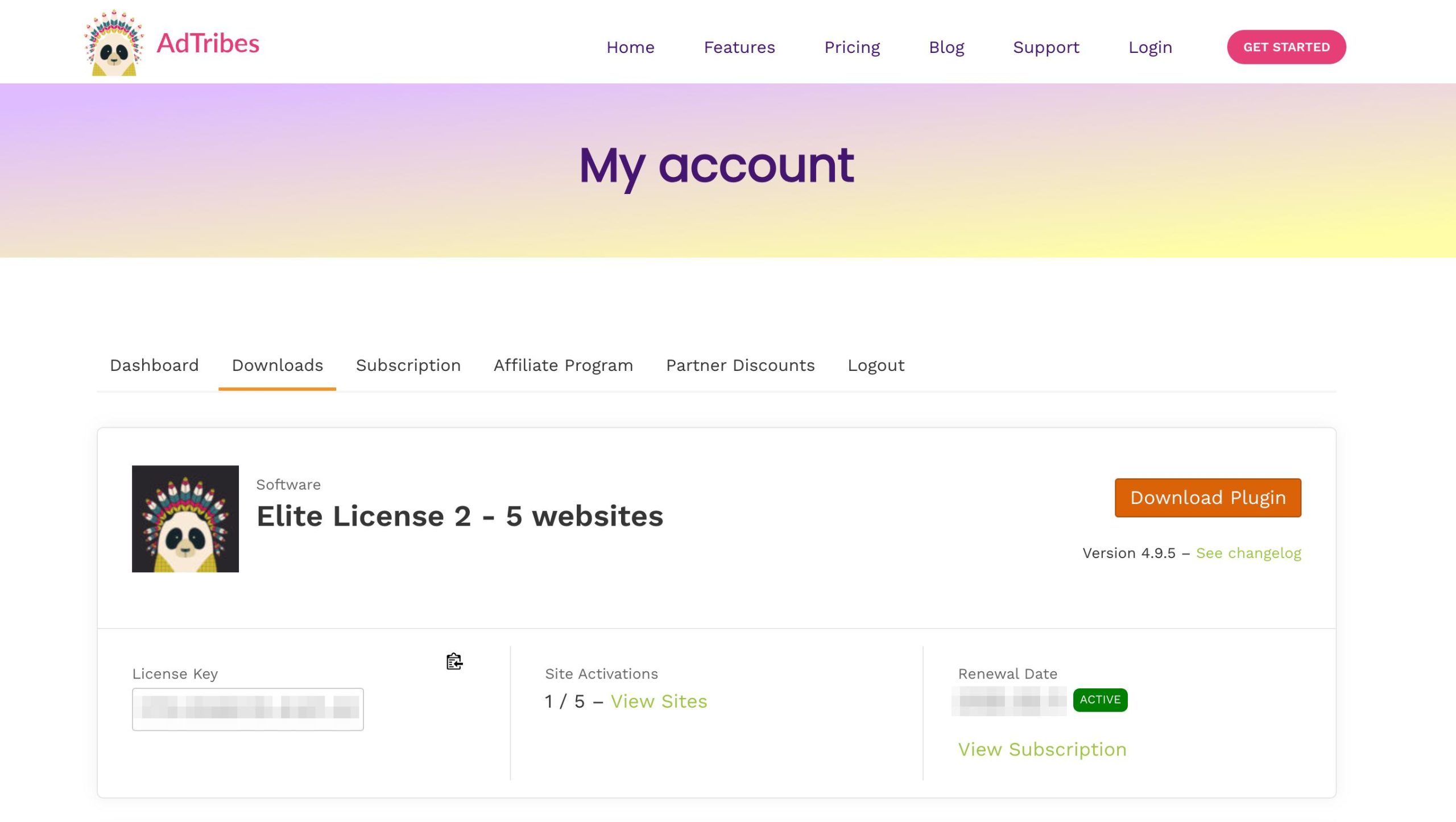
These links always point to the latest version.
Check your installed version and whether an update is available
Not sure if your site runs the newest release? You can check the version you have installed in two places in your WordPress admin.
On the Plugins screen
- In your WordPress admin, go to Plugins → Installed Plugins.
- Find Product Feed PRO for WooCommerce and, if you use it, Product Feed ELITE for WooCommerce. The version shows in the Description column, next to the author name.
When a newer release exists, WordPress shows a notice under the plugin that starts with There is a new version of. No notice usually means you already have the latest release. WordPress checks for plugin updates about every 12 hours. To check now, go to Dashboard → Updates and click Check again. For Product Feed Elite, the notice also needs an active license. See below.

In the Product Feed system check
- In your WordPress admin, go to Product Feed → Settings.
- Open the System check tab.
- Scroll down to the System Report box.
The line WooCommerce Product Feed PRO shows your Product Feed Pro version. If Product Feed Elite is active, the line WooCommerce Product Feed ELITE shows its version.
Support may ask for this report too. See how to send your debug log to support.
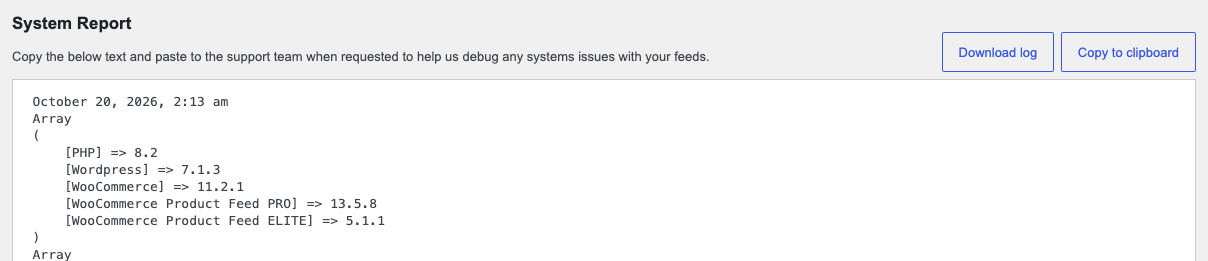
Compare your version with the latest release
Product Feed Pro and Product Feed Elite are two separate plugins, and each one has its own version number. Compare each plugin against its own changelog, never against the other plugin’s number.
- Product Feed Pro: see the Product Feed Pro changelog on WordPress.org.
- Product Feed Elite: see the Product Feed Elite changelog.
How each plugin gets its updates
The free Product Feed Pro plugin updates from WordPress.org, like any other free plugin.
Product Feed Elite checks for updates only while its license is active on your site. With an active license, the update notice shows on the same Plugins screen. If your license has expired, the update notice does not show. See What happens if my license expires? and How do I retrieve my license keys?.
Product Feed Elite runs on top of Product Feed Pro, so keep both plugins installed, active and up to date.
Need an earlier version instead?
The Downloads section always gives you the latest release. If you need a specific earlier version of Product Feed Elite, contact our support team and tell us the exact version number you need, and we will send you that version.
Using the free Product Feed PRO for WooCommerce plugin? You can grab an earlier release yourself from WordPress.org. Open the Product Feed PRO for WooCommerce plugin page, click Advanced View at the bottom, and choose the version you want under Previous Versions. The free WP Rollback plugin can also roll it back from your Plugins screen.
Once you have the file, back up your site. Then go to Plugins → Add Plugin (Add New Plugin or Add New on older WordPress versions) and click Upload Plugin at the top of the page. Upload the ZIP and choose Replace current with uploaded.
If the Automatic Updates column on your Plugins screen shows Disable auto-updates for the plugin, click it so the plugin does not update back to the newest release.
If you have trouble logging in to your account, try resetting your password. If that does not work, contact support.
Need help?
If you have a question or run into any issues, we’re here to help.
- Premium users: Open a support ticket
- Free users: Visit the Product Feed Pro community forum

