
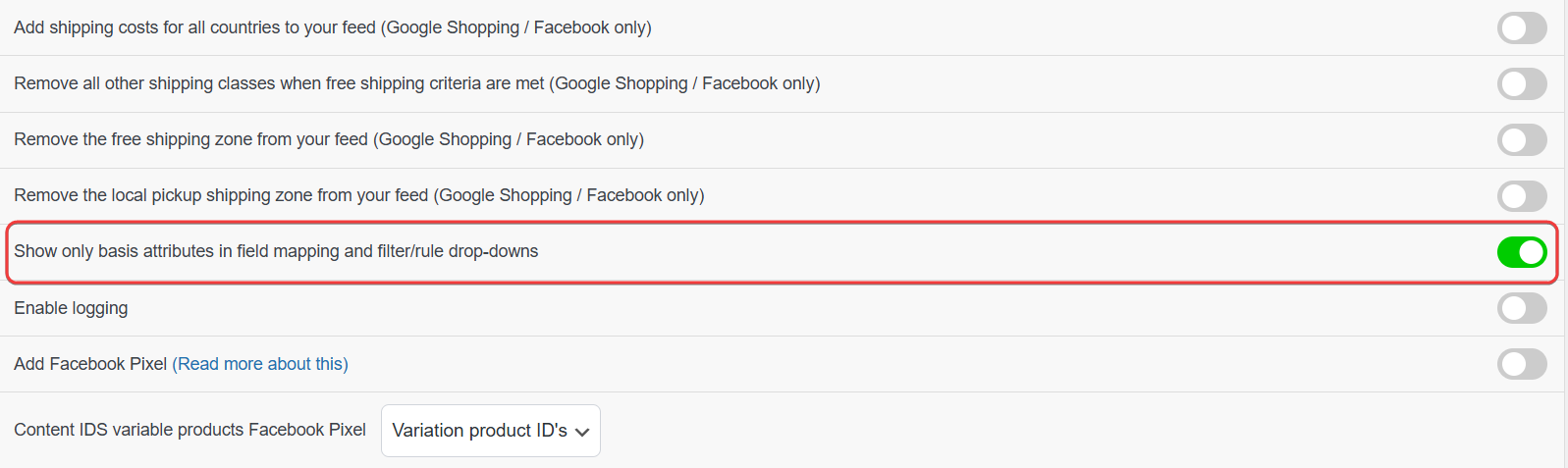
When configuring product feeds in Product Feed Pro or Product Feed Elite, you may notice a setting called “Show only basic attributes in field mapping and filter/rule drop-downs” in the plugin settings. This option controls which attributes appear in the attribute selection dropdowns throughout the plugin, specifically in the Field Mapping tab and in the Filters and Rules builders.
This guide explains what this setting does, how it affects your workflow, and when you might want to enable or disable it.
Where to Find This Setting
The setting is located in:
Product Feed → Settings → General
It appears as a switcher: “Show only basic attributes in field mapping and filter/rule drop-downs”
What Does It Do?
The plugin displays attributes in several places:
- Field Mapping tab – When you map channel fields (e.g., Google Shopping’s
g:title,g:description) to your product data - Filters tab – When you create include/exclude conditions (e.g., filter by category, price, or stock status)
- Rules tab – When you create conditional rules (e.g., “If attribute X equals Y, then do Z”)
By default, the plugin scans all products in your catalog to build the list of available attributes. This includes:
- Default attributes – Built-in fields such as Product name, Price, Category, Stock Status, etc.
- Dynamic attributes – Custom taxonomies registered in WooCommerce
- Custom attributes – Product meta keys and variation attributes used across your store
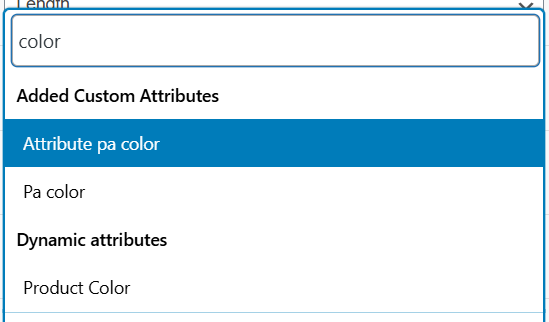
When “Show only basis attributes” is disabled (default):
- The plugin scans all published products to find every unique custom attribute.
- The dropdowns include every custom attribute used anywhere in your catalog—including Added Custom Attributes (e.g., “Attribute pa color”, “Pa color”) and Dynamic attributes (e.g., “Product Color”).
- You have full access to all custom attributes for mapping and filtering.
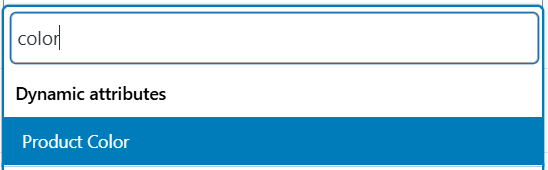
When “Show only basic attributes” is enabled:
- The plugin only uses the most recently published product to discover custom attributes.
- The dropdowns show a reduced set, primarily Dynamic attributes and default attributes. The Added Custom Attributes section is limited to attributes found on that single product.
- This reduces the number of options in the dropdowns and can improve performance on large catalogs.
When to Enable This Option
Consider enabling “Show only basis attributes” if:
- Your catalog is large – Thousands of products with many different custom attributes can make the dropdowns slow or unwieldy.
- You mainly use common attributes – If you typically map and filter by standard fields (title, price, category, stock, etc.), you may not need every custom attribute in the list.
- You want a simpler interface – A shorter list can make it easier to find the attributes you use most often.
- You experience performance issues – On shared or resource-limited hosting, limiting the attribute scan can reduce load when opening the Field Mapping or Filters/Rules tabs.
When to Leave It Disabled (Default)
Keep this option disabled if:
- You rely on custom attributes – If you map or filter by product meta or variation attributes that are only used on some products, you need the full list.
- You have diverse product types – Different product types may use different custom attributes; scanning all products ensures they are all available.
- You’re setting up new feeds – During initial setup, having all attributes visible helps you discover what data you can use.
- You don’t notice any slowdown – If the dropdowns load quickly, there’s no need to limit the attribute list.
Important Notes
- Existing mappings and rules are not changed – Enabling or disabling this option only affects which attributes appear in the dropdowns. Feeds that already use custom attributes will continue to work as long as those attributes still exist on the products.
- Clear the custom attributes cache when switching – When you change this setting (enable or disable it), you must clear the custom attributes cache for the change to take effect in the attribute dropdowns. Go to Settings → General and click the “Clear custom attributes cache” button.
- Default and dynamic attributes are always shown – The setting only affects how custom attributes (product meta keys and variation attributes) are discovered. Main attributes, image attributes, and taxonomies are always available.
Summary
| Setting state | Custom attributes in dropdowns | Best for |
|---|---|---|
| Disabled (default) | All custom attributes from your entire catalog | Full flexibility, diverse product types, custom attribute mapping |
| Enabled | Custom attributes from the most recently published product only | Large catalogs, simpler interface, better performance |
Choose the option that best matches your catalog size and how you use custom attributes in your feeds.
Need Further Assistance?
If you need help with attribute mapping or feed configuration, please create a new ticket to reach our support team.
Please note that the ticket support system is exclusive to Product Feed Elite users.
If you’re using only the Product Feed Pro plugin, feel free to open a new topic in the WordPress.org forum.