Reviewed by
What is a product feed? We’ve seen many store owners have a hard time getting more buyers—until they start using product feeds. It’s a shame more entrepreneurs don’t know how helpful this tool can be!
A product feed is a complete list of your online store’s products that sales channels use to show to their customers. But how does this help get hundreds or even thousands more people to see your store? And what part do giants like Google, Facebook, and Bing play in increasing your store’s views, visits, and sales?
Today, we’ll cover everything you need to know about product feeds. Plus, we’ll give you a step-by-step guide on how to use AdTribes, an effective product feed plugin for WooCommerce, to create, manage, and upload your feed.
So, what is a product feed? Let’s find out!
Table Of Contents
- What Is A Product Feed?
- 1. What are the benefits of product data feeds?
- 2. What can you do with product data feeds?
- 3. What do product data feeds contain?
- 4. How do product data feeds work?
- 5. How do you ensure a channel accepts your product data feed?
- 6. What do product data feeds look like?
- 7. Which formats are available for product data feeds?
- 1. What are the benefits of product data feeds?
- Product Feed Tools Compared
- How To Create A Product Feed
- How To Manage A Product Feed
- How To Upload Your Product Feed To A Channel
- Conclusion
- Frequently Asked Questions
What Is A Product Feed?
Also known as a product data feed or shopping feed, a product feed is a file containing an e-commerce business’ organized list of products and their details, allowing each product to be featured, promoted, or compared through online sales channels such as Google Shopping or Facebook.
A single feed can contain information on thousands of products and their various attributes. These attributes usually include product titles, product images, and more.
Typically, a business sends this feed to sales channels such as social media platforms, search engines, and comparison shopping sites. These channels then showcase the products to their respective customer bases. As a result, the business reaches a wider audience.
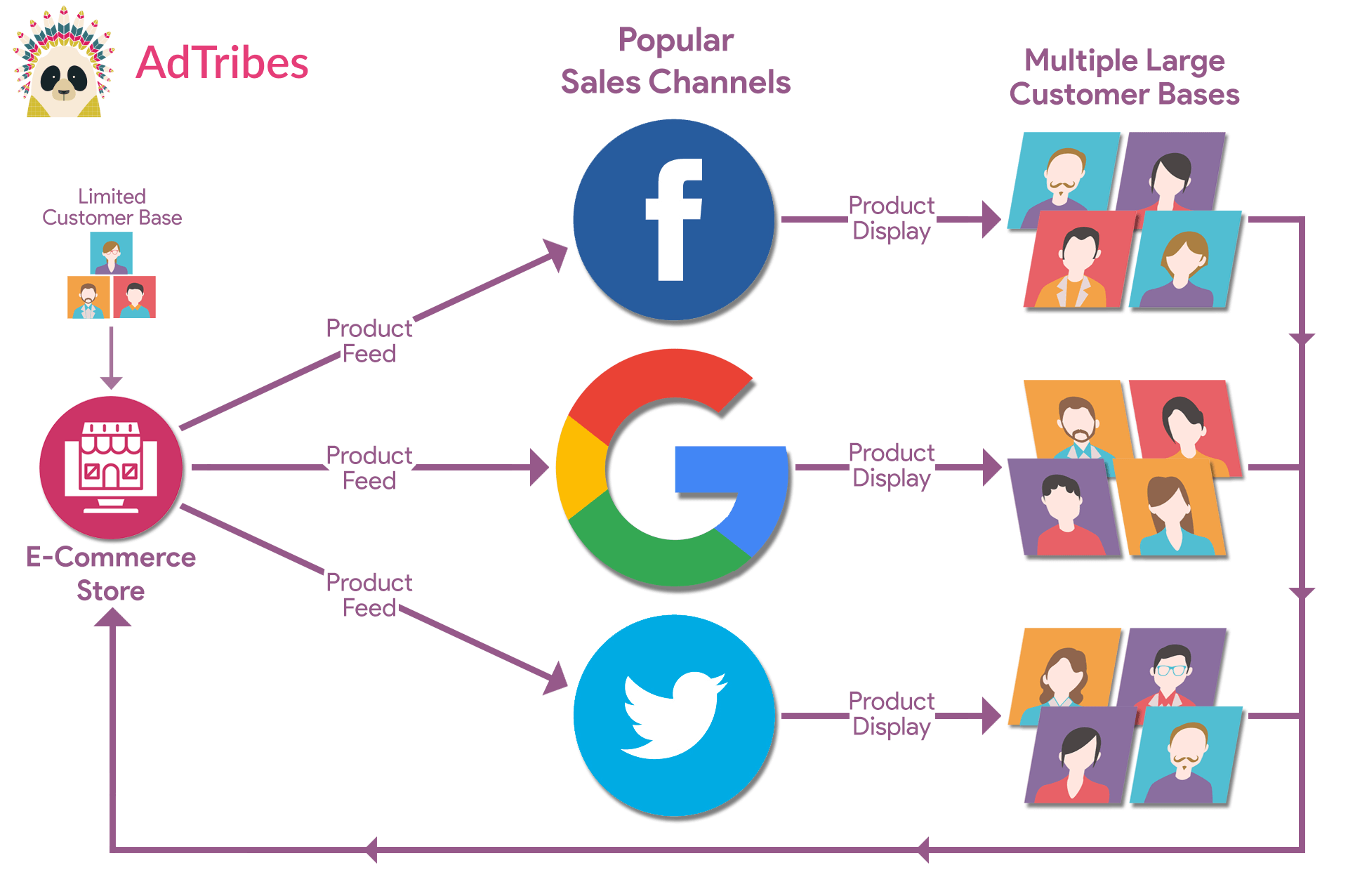
Product data feeds can be a massive boon to your e-commerce business. Which brings us to…
1. What are the benefits of product data feeds?
While “What is a product feed?” is an important question, it’s just as crucial to know why you should create product feeds.
Product feeds can bring several benefits to your business. In this article, we’ll focus on the three most important ones:
i. Boost your reach, visibility, traffic, and sales.
Product data feeds help you showcase your products clearly on many different platforms. This means more people can see them, visit your website, and make a purchase.
For example, you can create a Google Shopping feed and use it on Google Shopping. This lets your products show up in Google’s shopping results, not just on your own website. Thus, you can attract more shoppers to your store, potentially boosting your sales.
You can also create a Bing Merchant Center product feed to prepare your WooCommerce products for Bing Shopping.
Here’s a sampling of the many popular channels that can share your feed with their enormous customer bases:
- Google Shopping
- Bing Shopping
- Snapchat
- TikTok
- Shopping.com
- Wish
- idealo
- Kogan
- PriceGrabber
- Kelkoo
Product feeds are also becoming useful for newer AI shopping discovery workflows. For example, you can create an OpenAI / ChatGPT product feed to prepare structured WooCommerce product data for OpenAI’s commerce ecosystem.
ii) Automate product catalog updates
Product feeds are generally dynamic. This means changes to stocks, prices, and other details are updated automatically across all your sales channels. This helps keep your product listings accurate without needing to update them manually.
Therefore, product feed automation saves you time and effort, so you can focus on other important parts of your business.
iii) Keep your product listings accurate
By keeping your product catalog accurate, product feeds can boost customer satisfaction, improving loyalty and sales.
Also, because your product feed is the main source of information for sales channels, it’s extremely important that everything in it is accurate. When platforms like Facebook and Google see detailed and correct info in your feed, they’re more likely to accept it and show your products to shoppers.
2. What can you do with product data feeds?
You can do a lot with product data feeds, including:
- Advertise on Google, Facebook, Instagram, and other shopping channels big and small.
- Offer products on marketplaces to enhance their visibility and accessibility.
- Initiate campaigns that show your ads to people who have viewed your products before.
- Share data with retailers and distributors for seamless site updates.
- … and more!
3. What do product data feeds contain?
A product data feed normally contains product information represented by attributes such as:
- Titles
- Descriptions
- Prices
- Images
- Availability
- SKU (Stock Keeping Unit)
- Brands
- … and more!
In addition, feeds can include information about your products’ categories.
4. How do product data feeds work?
Every sales channel has unique guidelines and specifications regarding the product details you should include in your product data feed. Therefore, when you submit a feed, the receiving platform closely examines it to ensure it meets these requirements. If it does, said platform can then exhibit your products in various ways, including:
- Product listings on category pages
- Recommendations based on user behavior
- Responses to customers’ search queries
- Sponsored placements or ads
- Integration into social media posts or ads
5. How do you ensure a channel accepts your product data feed?
What is a product feed’s likelihood of getting accepted by a particular shopping channel? It all depends on the quality of your feed. Thus, make sure to:
- Supply the sales channel with all the product data it requires
- Provide accurate, updated information about your products
- Use relevant keywords
- Share content of superior caliber
Remember: the more you optimize your product feed, the sooner you can sell more!
6. What do product data feeds look like?
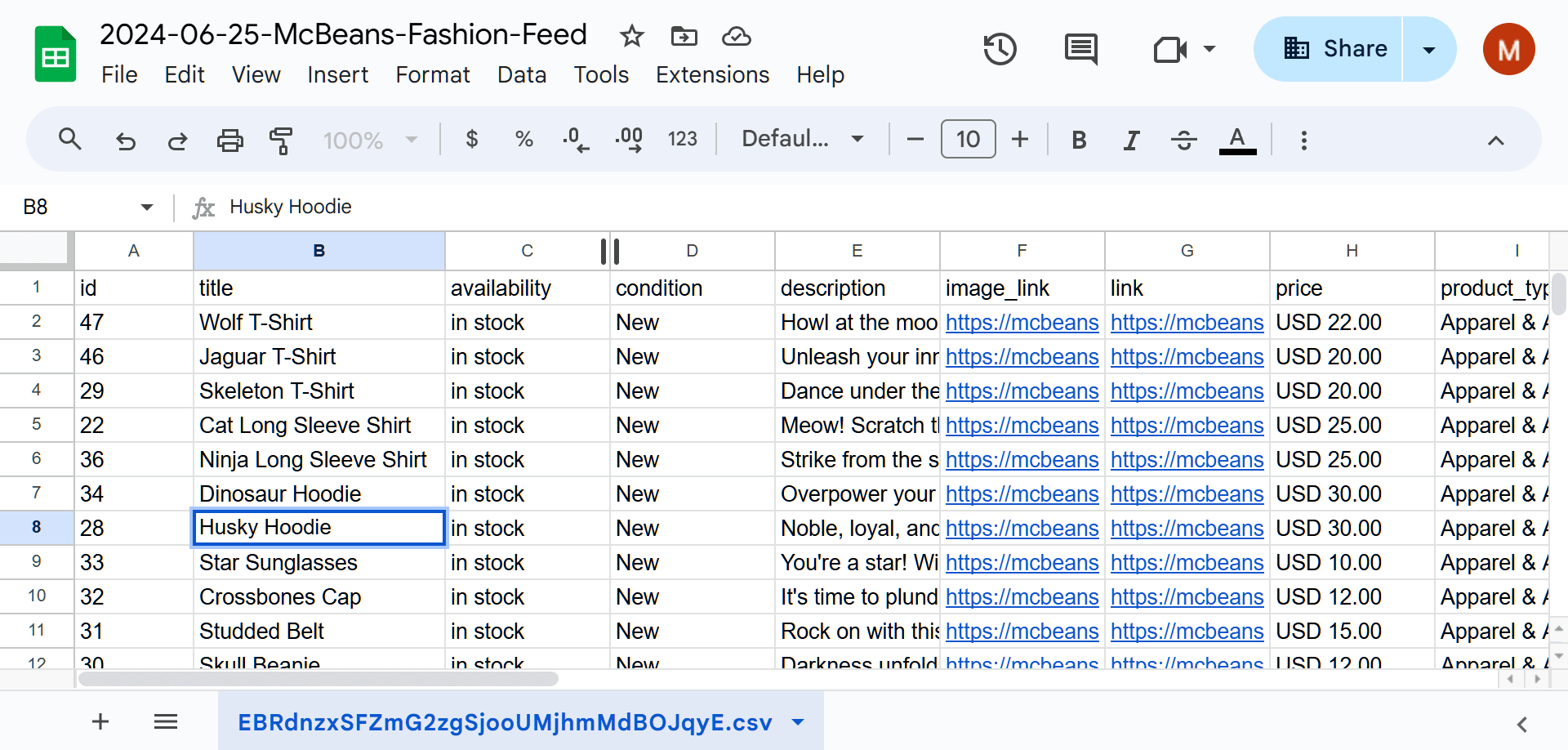
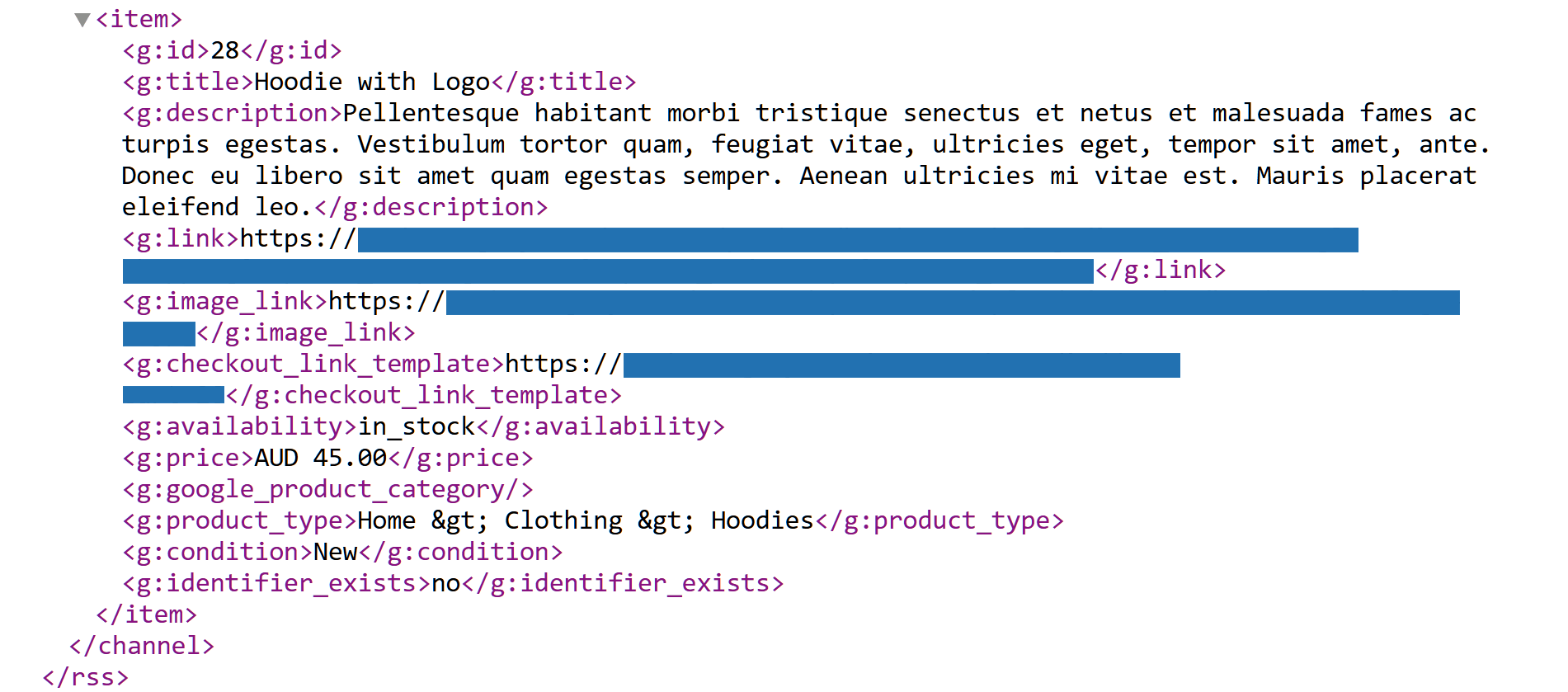
Product data feeds usually come in formats such as XML, CSV, or TXT, containing essential details like product names, descriptions, prices, and more. Each product is represented by a set of attributes, organized in a way that sales channels can easily read and display.
For example, when opened in spreadsheet software, a CSV file shows columns for each attribute and rows for each product:
On the other hand, an XML file commonly appears as a structured text document with tags that define the data’s hierarchy and attributes:
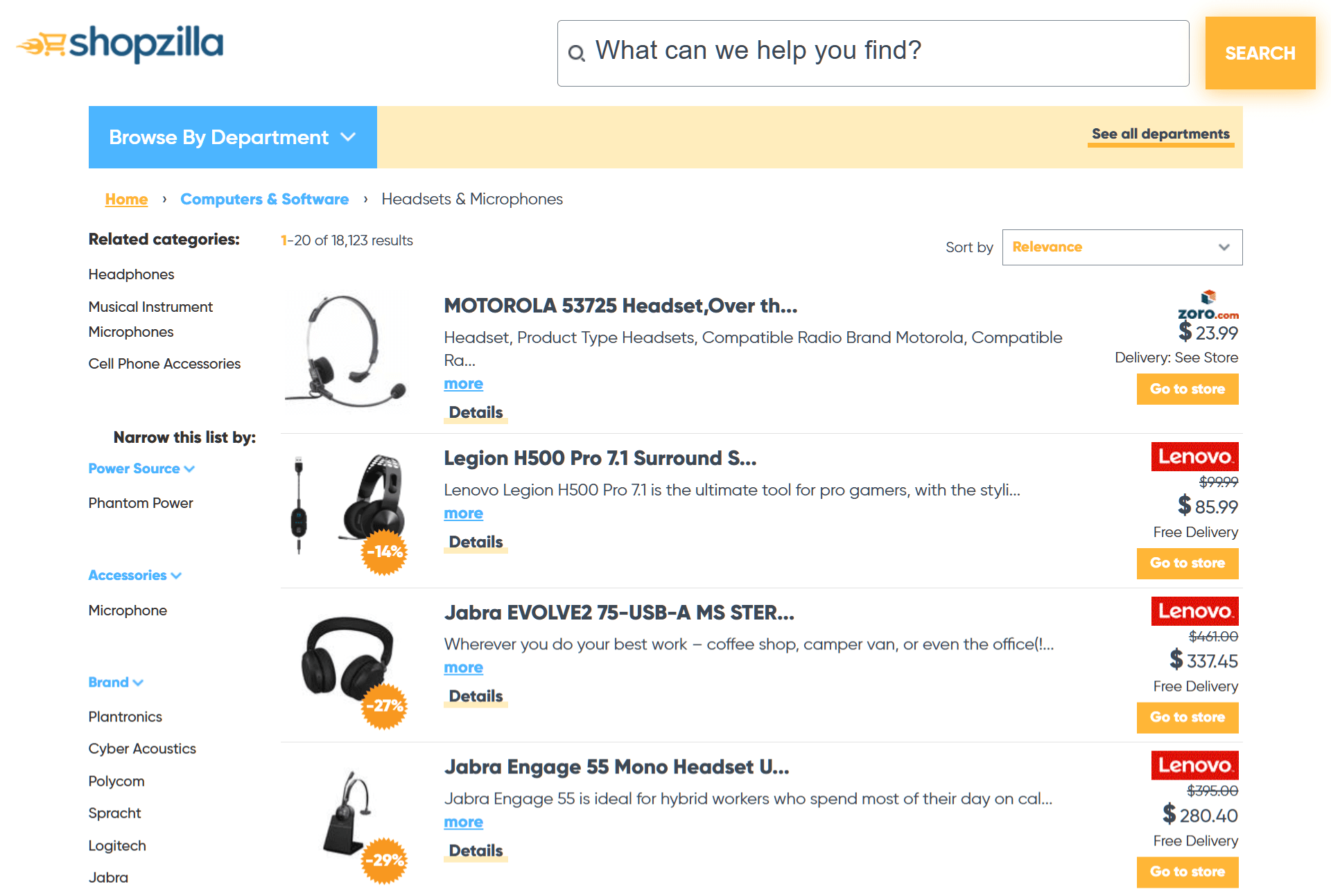
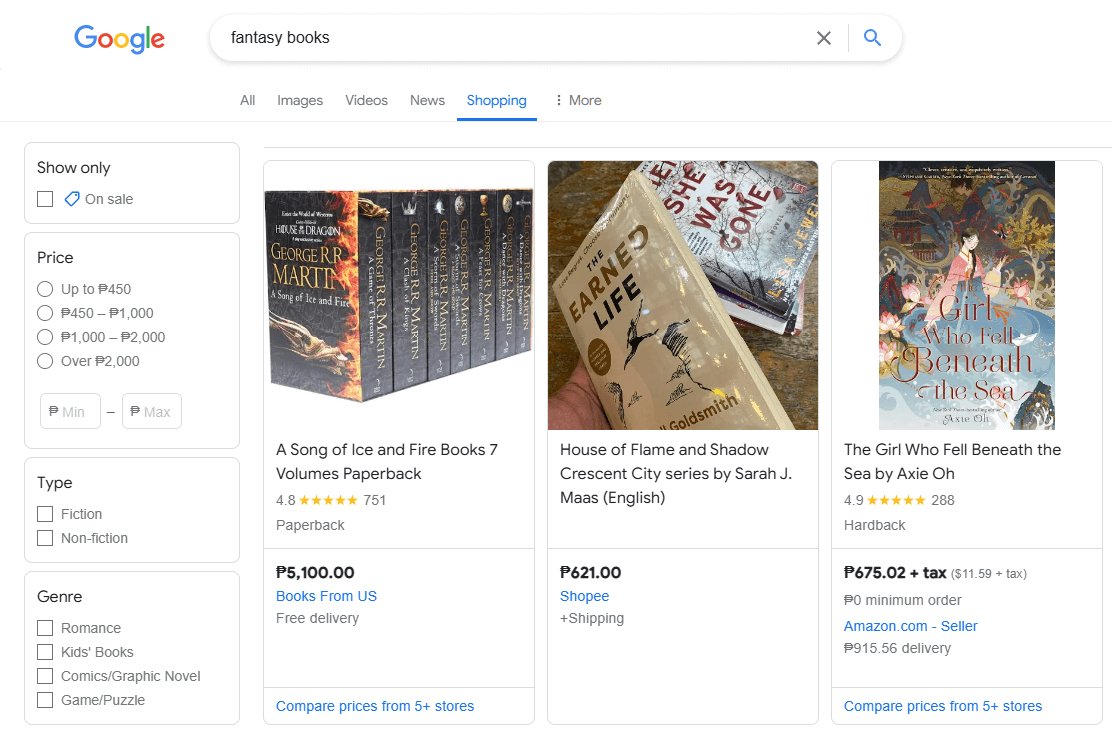
But what does a product data feed look like once a sales channel displays it?
Your feed’s appearance depends on the sales channel exhibiting it. However, feeds generally look like product listings:
7. Which formats are available for product data feeds?
Feeds usually assume the following formats:
Product Feed Tools Compared
There are different ways to create a product feed. Some store owners start with a spreadsheet, while others use a dedicated feed tool to save time and reduce manual updates. For WooCommerce stores, a plugin like AdTribes Product Feed Pro can be a practical option because it works directly inside WordPress and WooCommerce.
For real examples and downloadable templates, see our product feed examples and samples page.
Here’s a quick comparison of common product feed setup options:
| Feature | AdTribes Product Feed Pro | DataFeedWatch | Manual spreadsheet |
|---|---|---|---|
| Price | Free plugin available | Paid SaaS tool; pricing varies by plan | Free to create, but time-intensive |
| WooCommerce fit | Built for WooCommerce and WordPress | External feed management platform | Not WooCommerce-native |
| Channels supported | 250+ channel templates | 2,000+ shopping channels | Usually one feed or channel at a time |
| Feed updates | Scheduled refresh options, including hourly | Automated feed updates available | Manual updates required |
| Category mapping | Built-in category mapping options | Category mapping available | Manual mapping required |
| Best for | WooCommerce stores that want a plugin-based feed setup | Retailers managing feeds across many platforms or store systems | Very small catalogs or one-off feed uploads |
If you’re running a WooCommerce store and want to avoid maintaining product feed spreadsheets by hand, AdTribes Product Feed Pro gives you a simpler way to generate and manage feeds from your existing product data. In the next section, we’ll walk through how to create a product feed using AdTribes.
For a side-by-side comparison of the leading WooCommerce-specific options, see our roundup of the best WooCommerce product feed plugins — it covers AdTribes Product Feed Pro alongside CTX Feed, RexTheme, WebToffee, and DataFeedWatch.
How To Create A Product Feed
A product data feed extends your WooCommerce store’s reach, allowing more shoppers to see and purchase your offerings. The question is: How do you create one?
First things first, you must use a reliable tool. For this guide, we’ll use AdTribes, a top-notch product feed plugin for WooCommerce. This not only lets you create feeds, but also use product feed management tools to make sure your product catalog is showcased effectively on different sales channels.
AdTribes offers a free and premium version. While both come with many awesome tools, the latter boasts additional features allowing you to enhance your product data feeds even further.
Accessing AdTribes
To access AdTribes, navigate to your WordPress dashboard and find Product Feed Pro if you’re using the free version, or Product Feed Elite if you’re using the premium one.
You’ll notice that you have three options:
- Create feed
- Manage feeds
- Settings
For this guide, we’ll focus on Create feed but touch on Manage feeds, as well. So go ahead and click Create Feed!
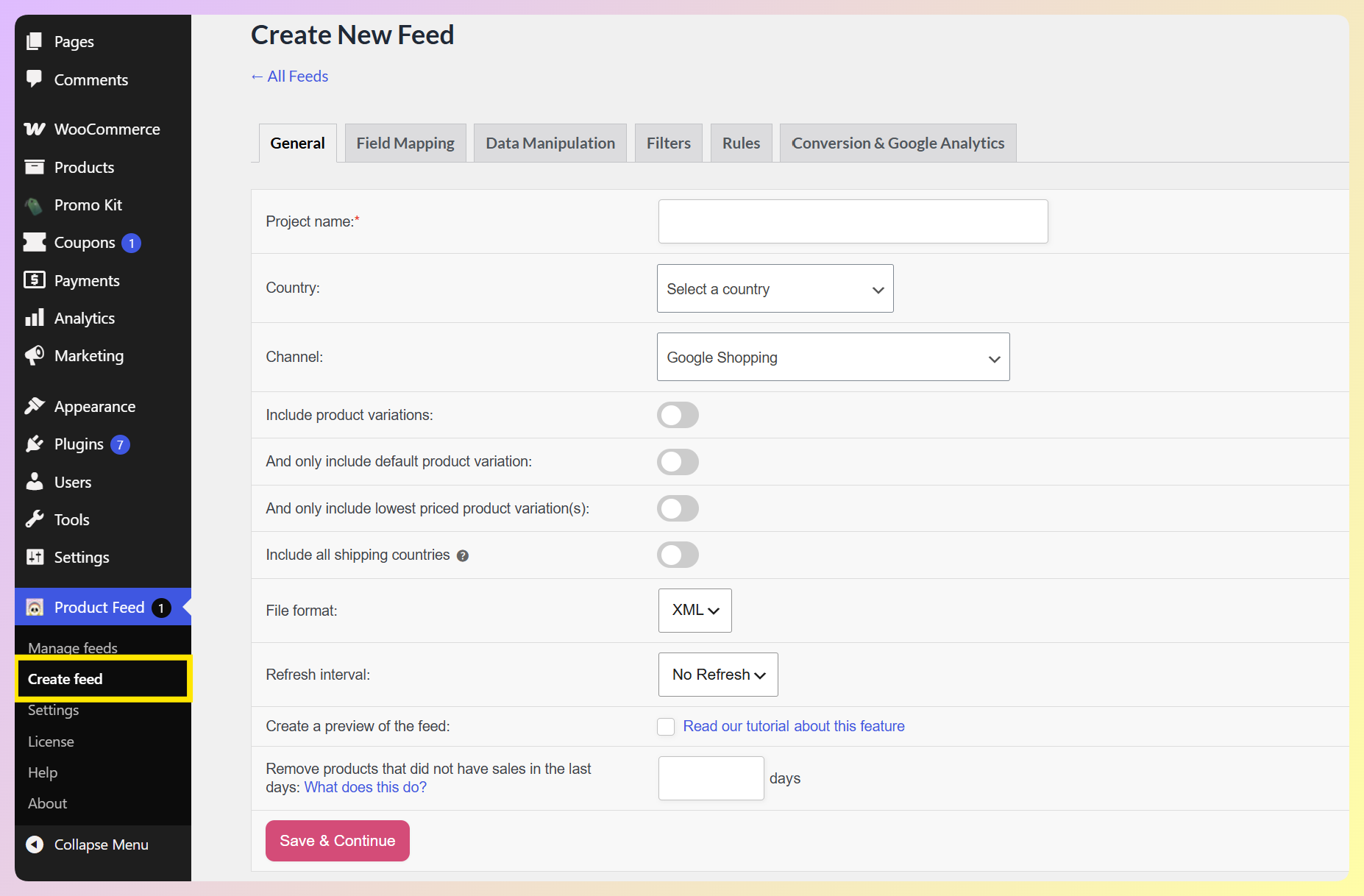
AdTribes guides you through feed creation as a set of tabs. You’ll work through six main steps: general feed settings, field mapping, category mapping, feed filters, feed rules, and conversion & Google Analytics settings. Each tab configures one part of your feed. The field mapping tab now has an upgraded builder with a live preview of your mapped output.
Product Feed Elite users also get an optional Data Manipulation tab. It stays switched off until you enable it in the plugin’s settings, so we’ve covered it as an extra below rather than as a required step.
Step 1. General feed settings
The General feed settings page lets you configure your feed’s fundamental details, including its name, channel, format, and more.
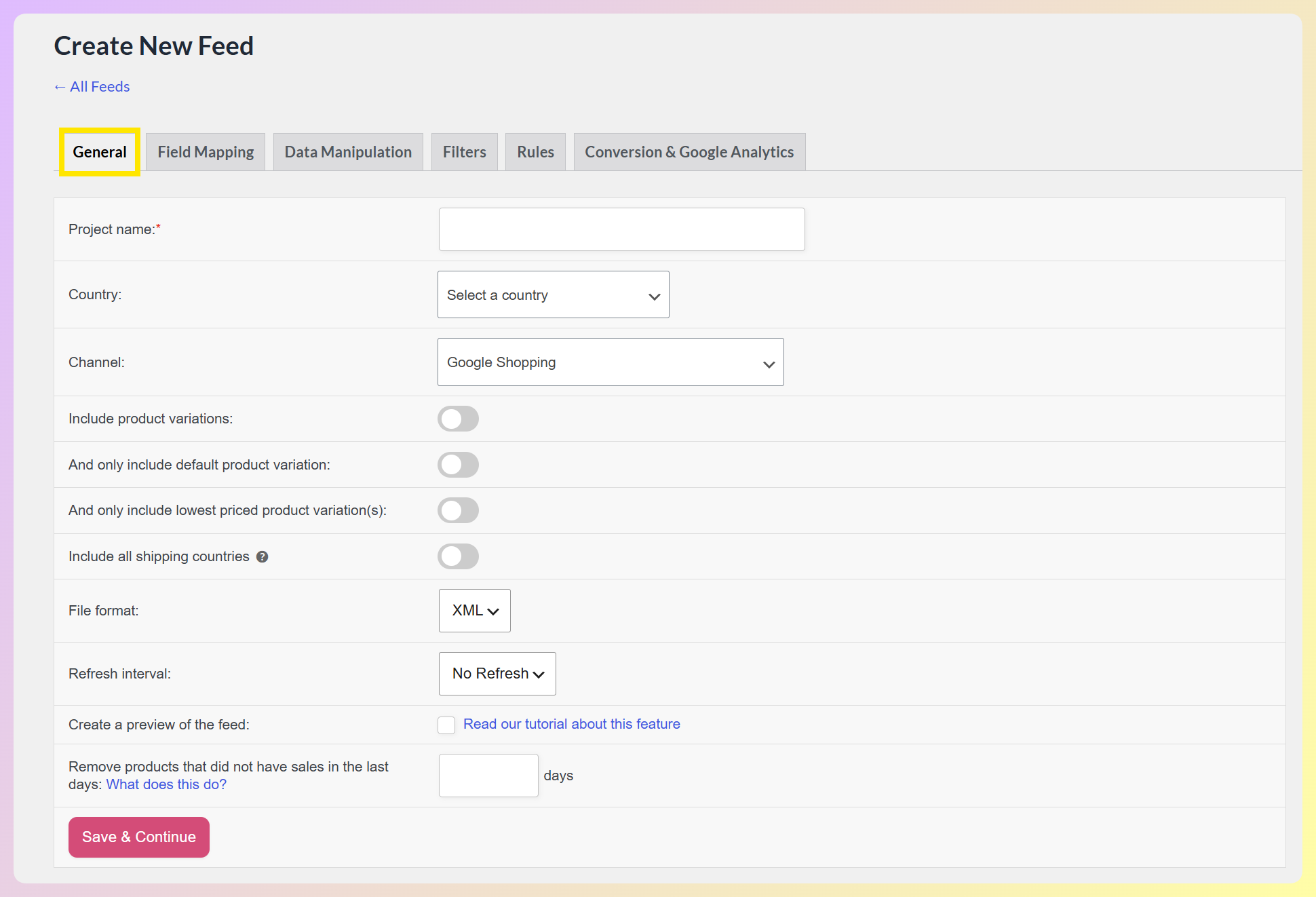
Let’s explore each detail!
i. Project name
Here, you can give your product feed a name. Since you’ll likely create many feeds for your store, we recommend making each project name unique. In addition, it’s a good idea for each name to indicate what the feed concerns.
For example, if you’re creating a Google Shopping product data feed for the Spanish market, you could enter “GS Spain” in the Project name entry field. Furthermore, if you want this feed to feature only fashion items, you could name it “GS Spain Fashion.”
Take note: the Project name must be between 3 and 30 characters long.
ii. Country
What is a product feed? It’s a strategy that lets you target specific markets with your offerings. And you can get the ball rolling by choosing the country where you want to show your product listings.
Upon clicking the Country option’s dropdown menu, you’ll gain access to a huge list of countries. Simply click your preferred country.
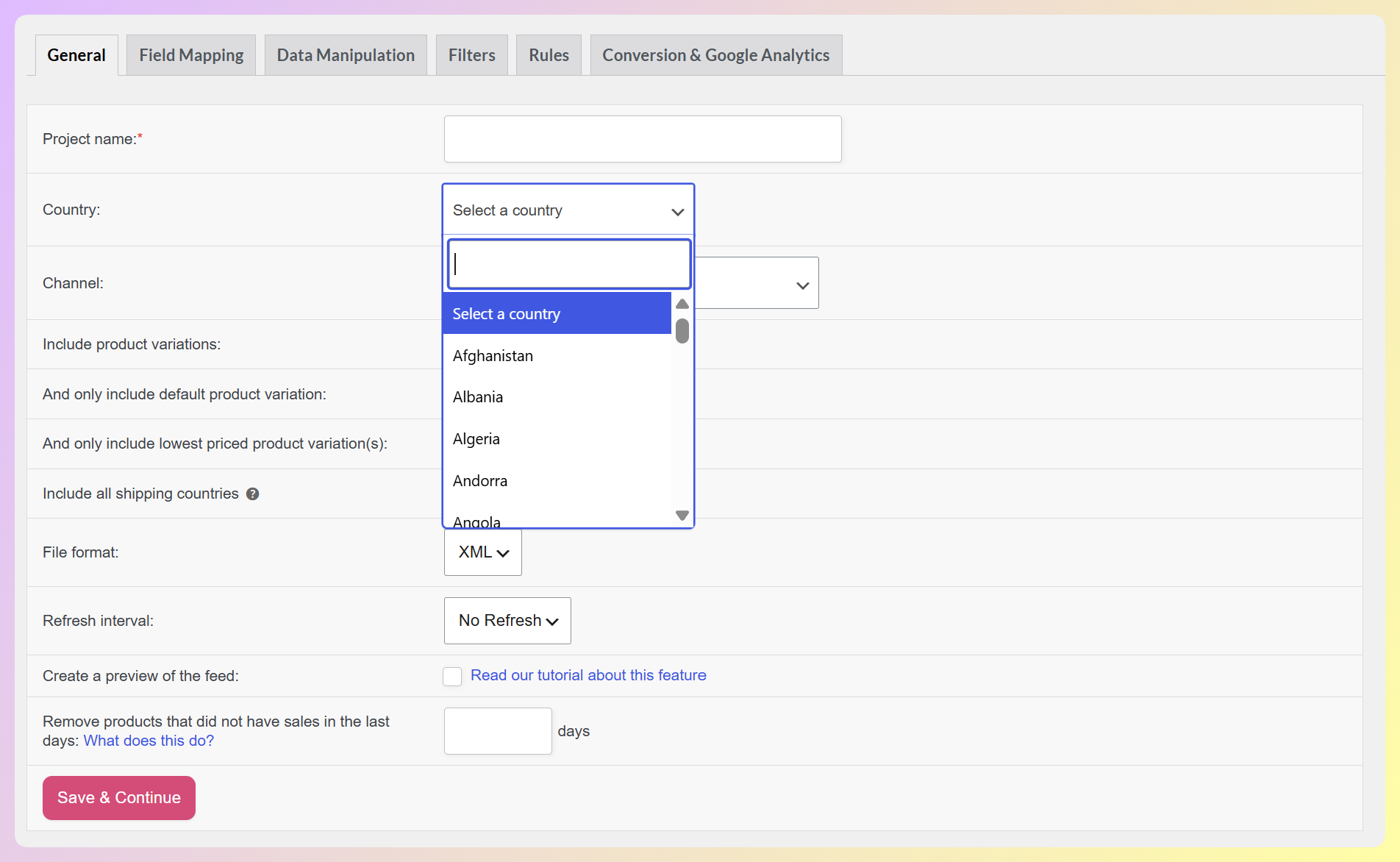
For example, in the image above, we picked Spain.
Take note that your selected country will affect the next detail’s list of options…
iii. Channel
To focus your market further, you must choose the channel where your product listings will appear.
Clicking the Channel option’s dropdown reveals all the channels available in your selected country. In other words, this list will change based on your chosen country.
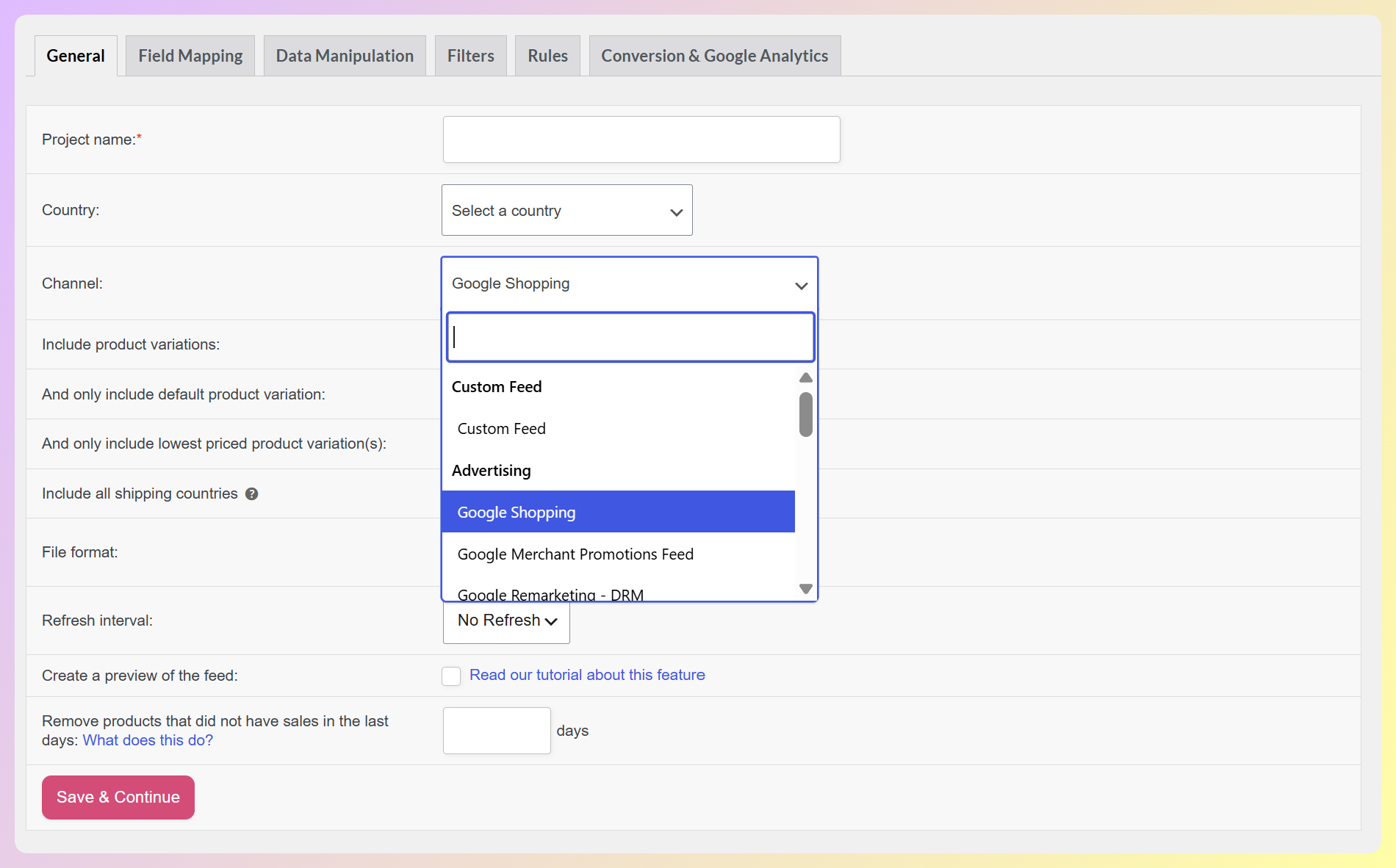
For our example, we’ll select Google Shopping.
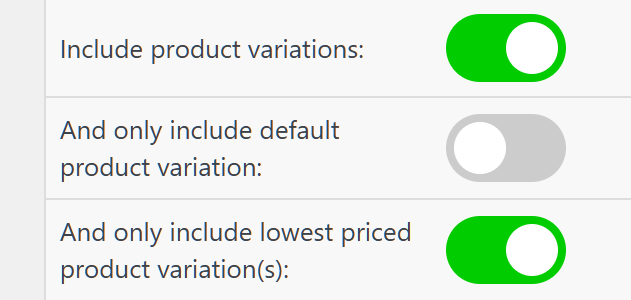
iv. Include product variations
By default, WooCommerce allows you to create two types of products: simple and variation products.
Do you wish for your product data feed to exhibit both types? Then enable this option by toggling it on.
v. Only include default product variation
While you can have more than one variation per product, it’s often a good idea to set one of them as default. So, what must you do if you want your feed to show this default variation only? Simple: enable this option. For more information, check out this document.
Take note: For this option to work, you must enable Include product variations.
vi. Only include lowest-priced product variation(s)
What if you haven’t set the default variation but don’t want your feed to include all variations? Basically, you can enable this option to showcase only your lowest-priced variations. Read this document to know more.
Take note: For this option to work, you must enable Include product variations.
vii. File format
A product data feed file format is a way of encoding product information to be stored in a computer file and to be read by a channel.
The plugin lets you create feeds in various file formats, including:
- XML
- CSV
- TXT
- TSV
To choose a format, click the File format dropdown and click your preferred format. We recommend XML as it’s the most reliable.
viii. Refresh interval
If you wish, you can instruct the plugin to update your feed at regular intervals. The Refresh interval dropdown contains the following options:
- Daily
- Twice daily
- Hourly
- Weekly
- No refresh
The interval you pick should depend on how much activity your store sees. Do you sell products or change prices multiple times a day? Then we recommend updating hourly. Otherwise, the other options should do.
Do you want to enjoy the convenience of automated product feeds? Then use this option!
ix. Refresh only when products changed
You can enable this option by ticking its checkbox.
This option can be used instead of Refresh interval. Basically, it updates your product data feed only when you make any change to your feed, such as when you add new products, change prices, etc.
For more information, read this document.
x. Feed preview?
When you enable the Create a preview of the feed option by ticking its checkbox, the plugin generates a sample of your product data feed containing only 5 products. This is useful if you want to quickly generate a feed to see if any changes you’ve made to its settings produce the desired effect.
However, we don’t recommend creating a preview of a live feed, as you can end up presenting only 5 products to shoppers. Instead, you should preview a deactivated copy of a feed. We discuss how to copy feeds further below.
For more information on feed previews, read this document.
xi. Extra options for Elite users
Product Feed Elite users get to enjoy a couple of extra options. For example, you can enable language and currency switcher integrations. These let you change the language and currency of your products to better suit the country you picked for your feed.
Check out this blog post to know more about the WPML integration, and this blog post if you’re curious about the Curcy Currency Switcher integration.
xii. Save & continue
Once you’re done configuring the General feed settings, click the Save & continue button to proceed to the next phase of product data feed creation!
Step 2. Field mapping
Field mapping ensures the right product details are sent to sales channels in the correct format they expect. This helps your products show up properly in search results or ads. In short, you need proper field mapping to create an optimized product feed.
The field mapping phase involves mapping your chosen channel’s attributes to your WooCommerce data. In other words, every Feed attribute your channel accepts gets a Source from WooCommerce, which is the store field that fills it.
So, how do you map fields? The Field Mapping tab lists your channel’s attributes in groups, like Basic product data, Price & availability, and Product identifiers. For each attribute, you simply pick the matching field from its Source from WooCommerce dropdown.
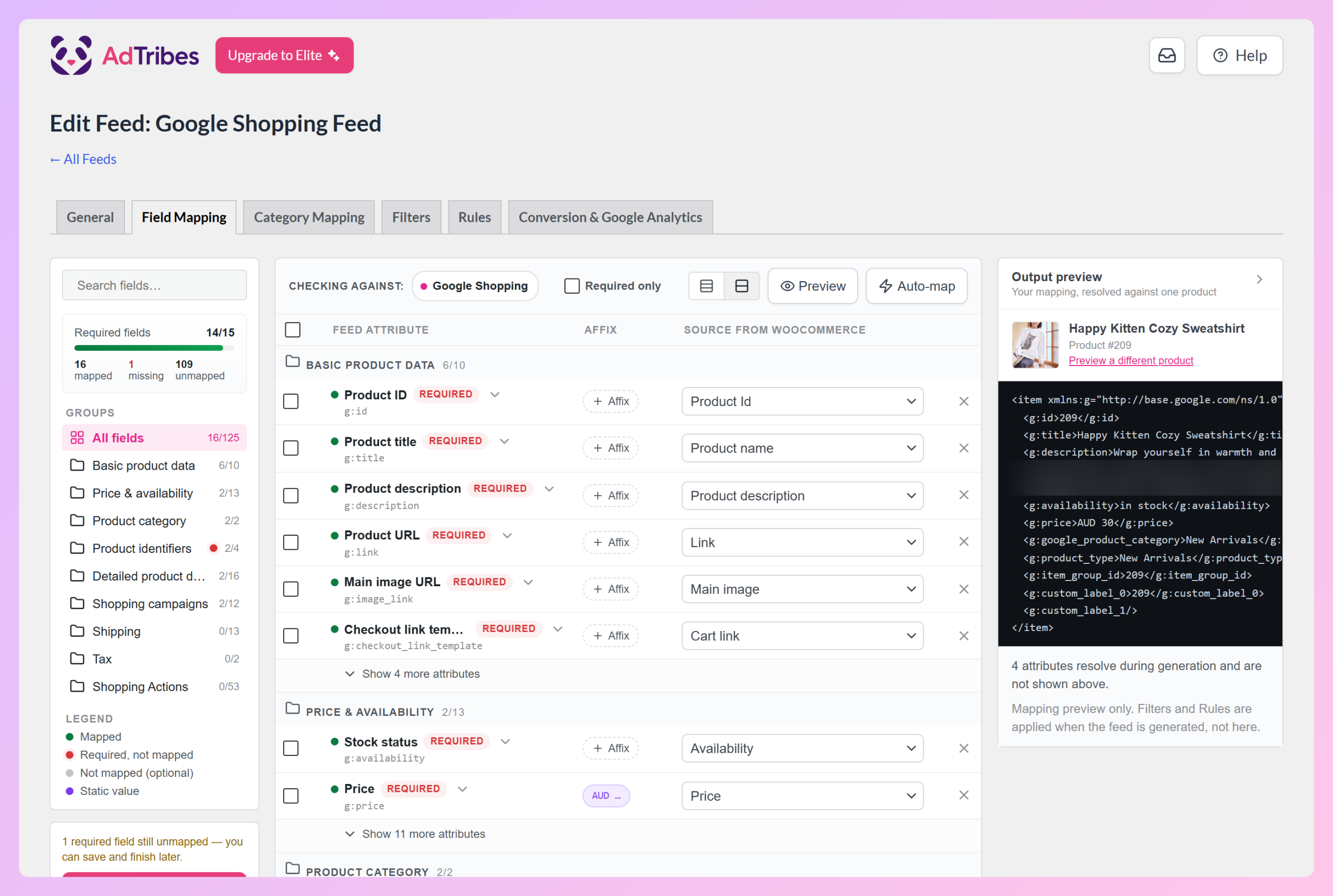
Thankfully, the plugin does most of the work for you by default. This is why, when you reach the Field Mapping page, your channel’s main attributes already have a source. For example, in the image above, Google’s “Product title” attribute is mapped to WooCommerce’s “Product name.”
The sidebar on the left also keeps count of your Required fields, so you can see at a glance when one still needs a source. If you’d like a hand, the Auto-map button fills suggested mappings for any empty fields without touching the ones you’ve set, while the output preview on the right shows how your mapping looks for a real product. Our field mapping guide walks through both.
By matching fields with attributes, you allow the marketing channel to understand data about your products. As a result, the channel accepts your products and features them on its platform. On the other hand, inaccurate mapping can cause errors, ultimately leading to the channel rejecting your products.
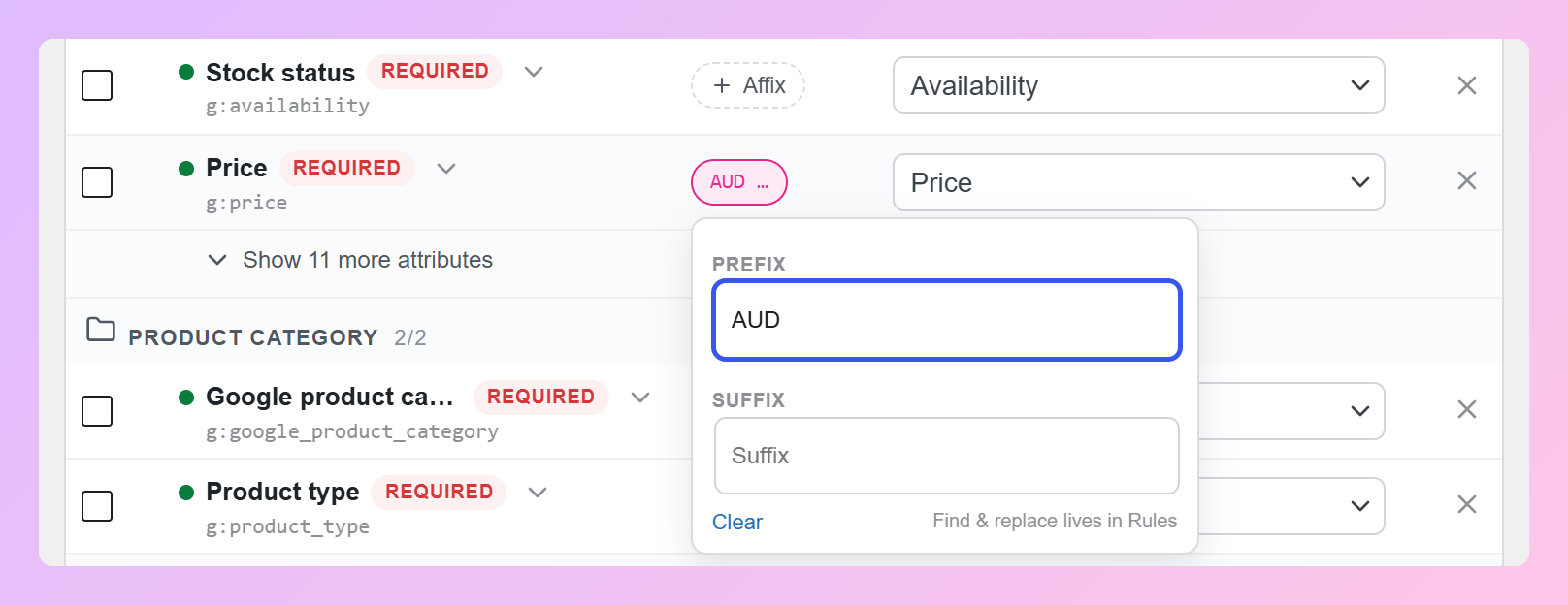
In addition, make sure to enter appropriate prefixes and suffixes wherever applicable. Just click the Affix button on any row to set them. For example, for the “Price” attribute, we should change the prefix from AUD to EUR since we picked Spain for our feed.
Now, let’s discuss your other field mapping options.
i. + Add field mapping
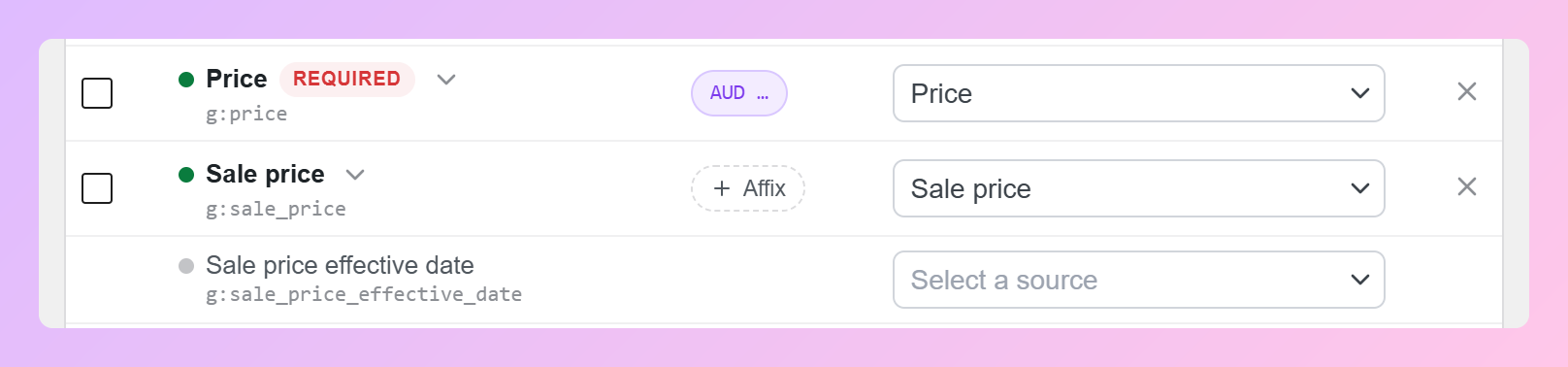
If you want to map an extra attribute, click the + Add field mapping button. This shows every attribute your channel accepts, not just the ones in use, so you can find the one you need and choose its source.
For instance, in the image below, we gave the Google Shopping attribute “Sale price” the WooCommerce source “Sale price.”
ii. + Add custom field
If you want to add your own unique fields, click the + Add custom field button.
First, enter a name for your custom field in the new row. Then, pick its source from the Source from WooCommerce dropdown.
For example, in the image below, we created a custom field named “product_tags” and picked “Product tags” as its source.
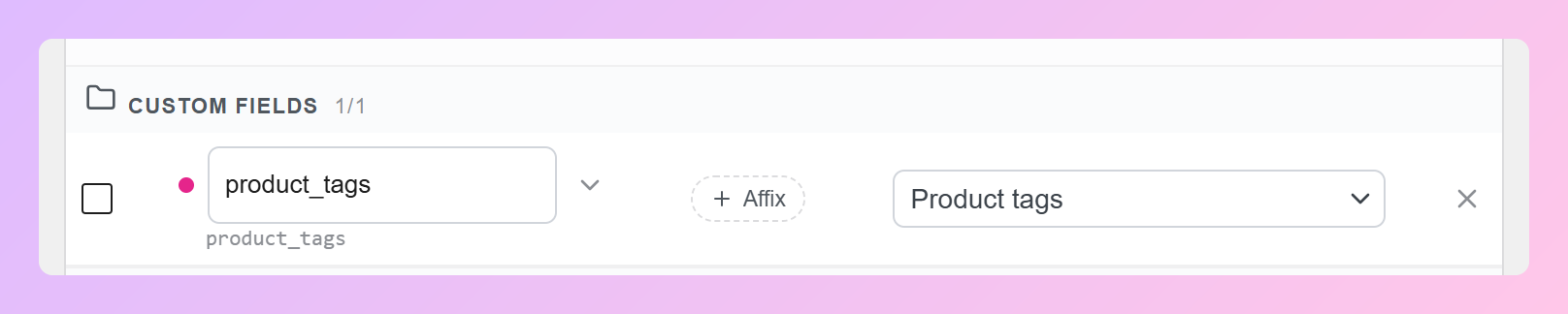
Take note: custom field names can only use letters, underscores, and hyphens. White spaces, numbers, and other special characters aren’t allowed.
iii. Delete
Do you want to remove one or more fields? Then tick their row checkboxes, followed by the Delete button. This removes them and their mapping details from your feed.
Take note: attributes marked Required are needed by your channel. Thus, we don’t recommend deleting them.
iv. Static values
Let’s say all your products have a common detail that you want your feed to include. For example, if every product you’re selling is blue, you can add “blue” as your “Static value.”
Continuing with our example, first find the “Color” attribute (click + Add field mapping if it isn’t showing yet). Then, pick “Static value” from its Source from WooCommerce dropdown. As shown below, this adds an entry field underneath, where you can write “Blue.”

Now, your feed will include “blue” as a detail that’s common to all your products.
v. Extra fields for Elite users
You may have noticed that a few attributes on the Field Mapping tab don’t have a source yet. Some of them, including Brand, Gtin, and MPN, are filled using extra product fields that are exclusive to Product Feed Elite users.
For example, in the image below, we used our status as Elite users to map the Google Shopping attributes “Brand,” “Gtin,” and “MPN” to the sources “Brand (Added Custom attribute),” “GTIN (Added Custom attribute),” and “MPN (Added Custom attribute)” respectively.
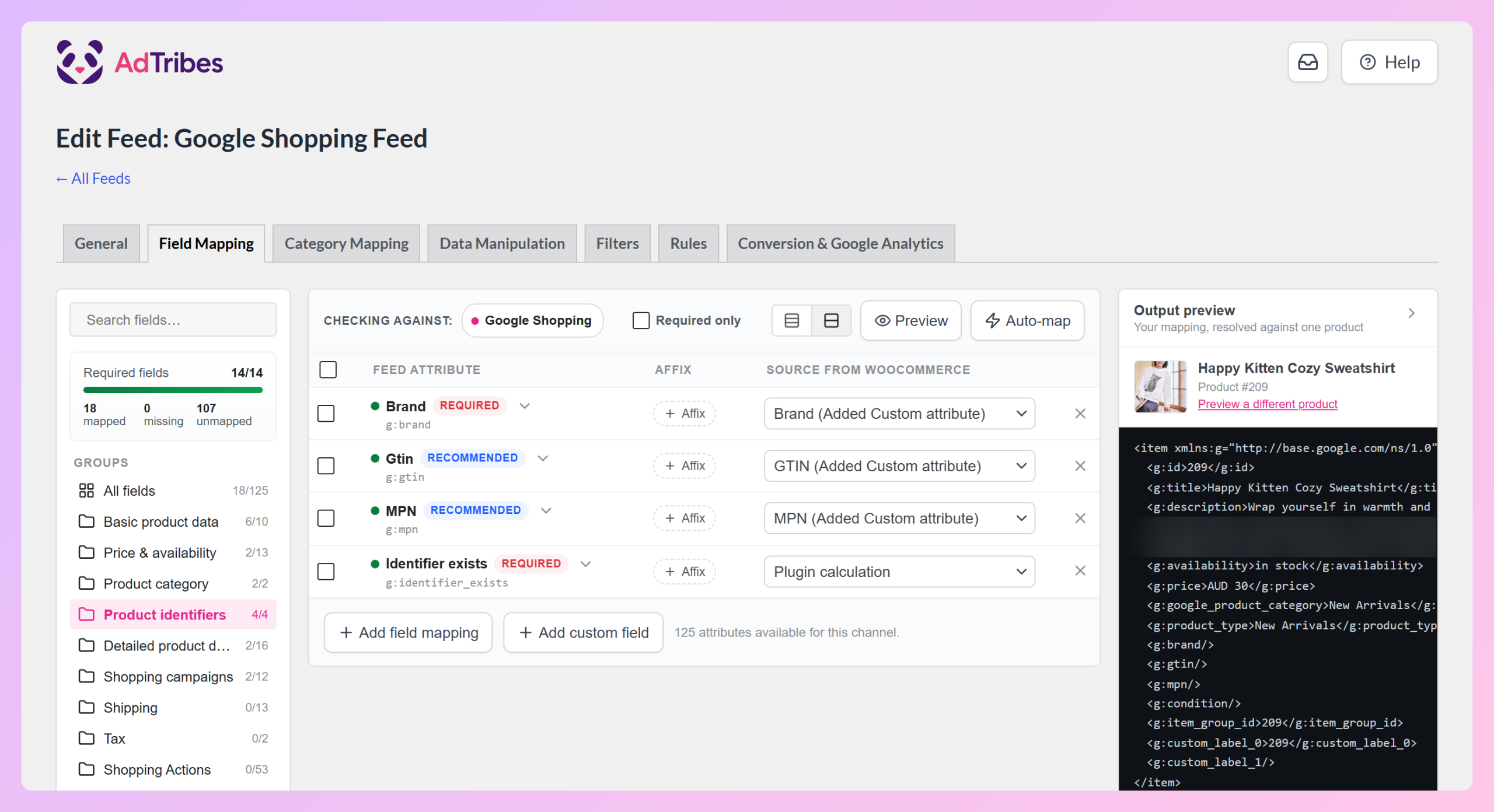
Check out this document for more information on this feature.
vi. Save Changes
Once you’re satisfied with your field mapping, click the Save Changes button to move on to the next phase! You can also save a partly finished mapping and come back to it later.
Step 3: Category mapping
What is a product feed’s category mapping phase? It’s the step that ensures your products are placed in the right categories. This helps people find them faster and improves their relevance, making it crucial to feed optimization.
Basically, it involves mapping your product categories to the appropriate product categories of your preferred channel.
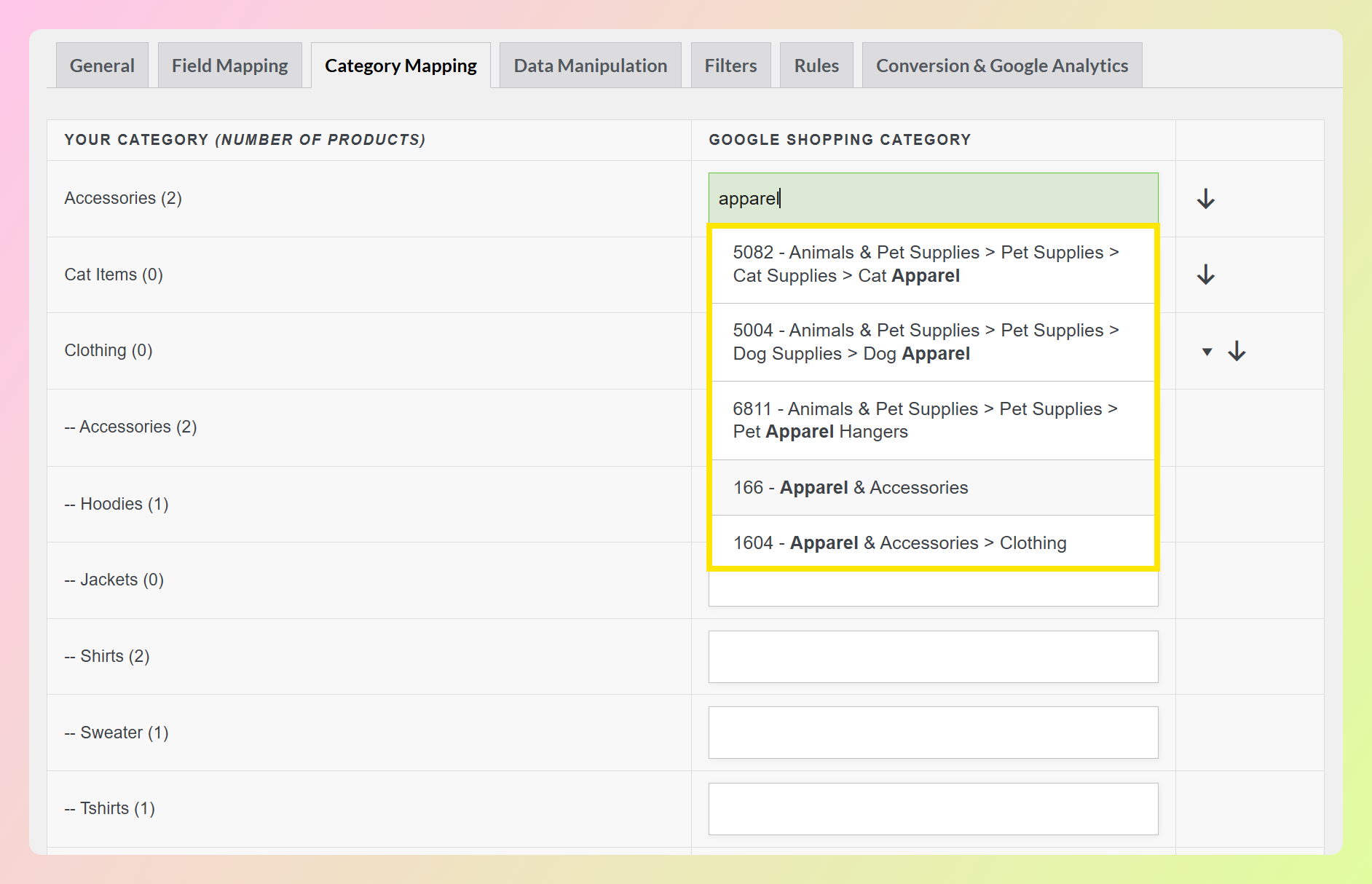
On the left side are your WooCommerce store’s categories. On the right are your preferred channel’s categories. To map the former to the latter, enter at least 4 characters (include spaces) in one of the latter’s entry fields. The plugin will then automatically suggest categories you could use. Simply pick the one that’s most appropriate for your product category.
For example, Google has various product categories and subcategories, which are listed here. If your WooCommerce store has an “Accessories” category, you can map it to the following Google category:
166 – Apparel & Accessories
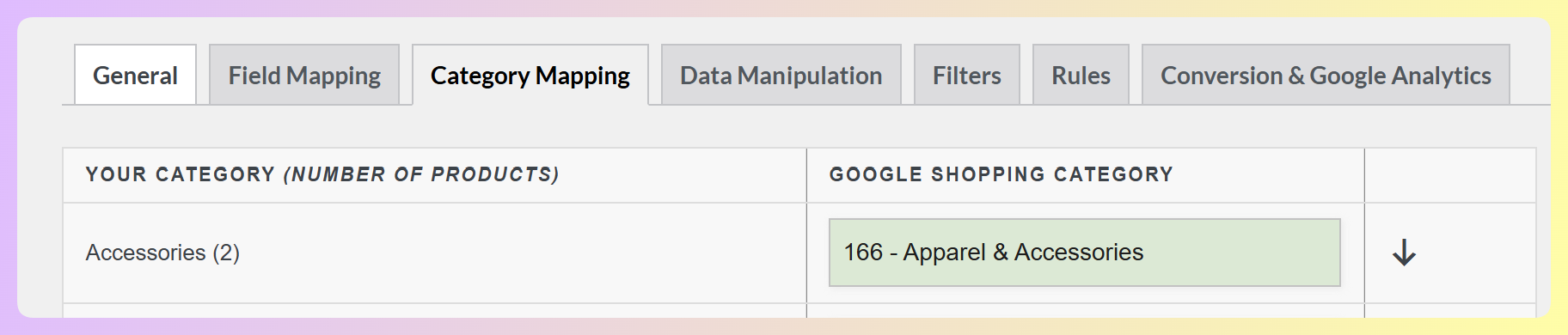
Alternatively, you can choose something even more well-defined, such as:
502988 – Apparel & Accessories > Clothing Accessories > Hair Accessories > Hair Pins, Claws & Clips
While most channels don’t require you to map all your categories, we strongly recommend doing so. This will enhance the chances of your products being shown to the right customers. As a result, it could improve your sales.
When you’re happy with your category mapping, click the Save mappings button to continue to the next step.
Optional: Data manipulation (Product Feed Elite)
Product data manipulation is a Product Feed Elite feature that lets you rebuild one attribute’s value out of your other product details. For example, you can combine your brand and product title into a single, richer title, or add your price and shipping cost together into one field.
It isn’t switched on by default. To use it, open Product Feed Elite > Settings > General and enable Product data manipulation.
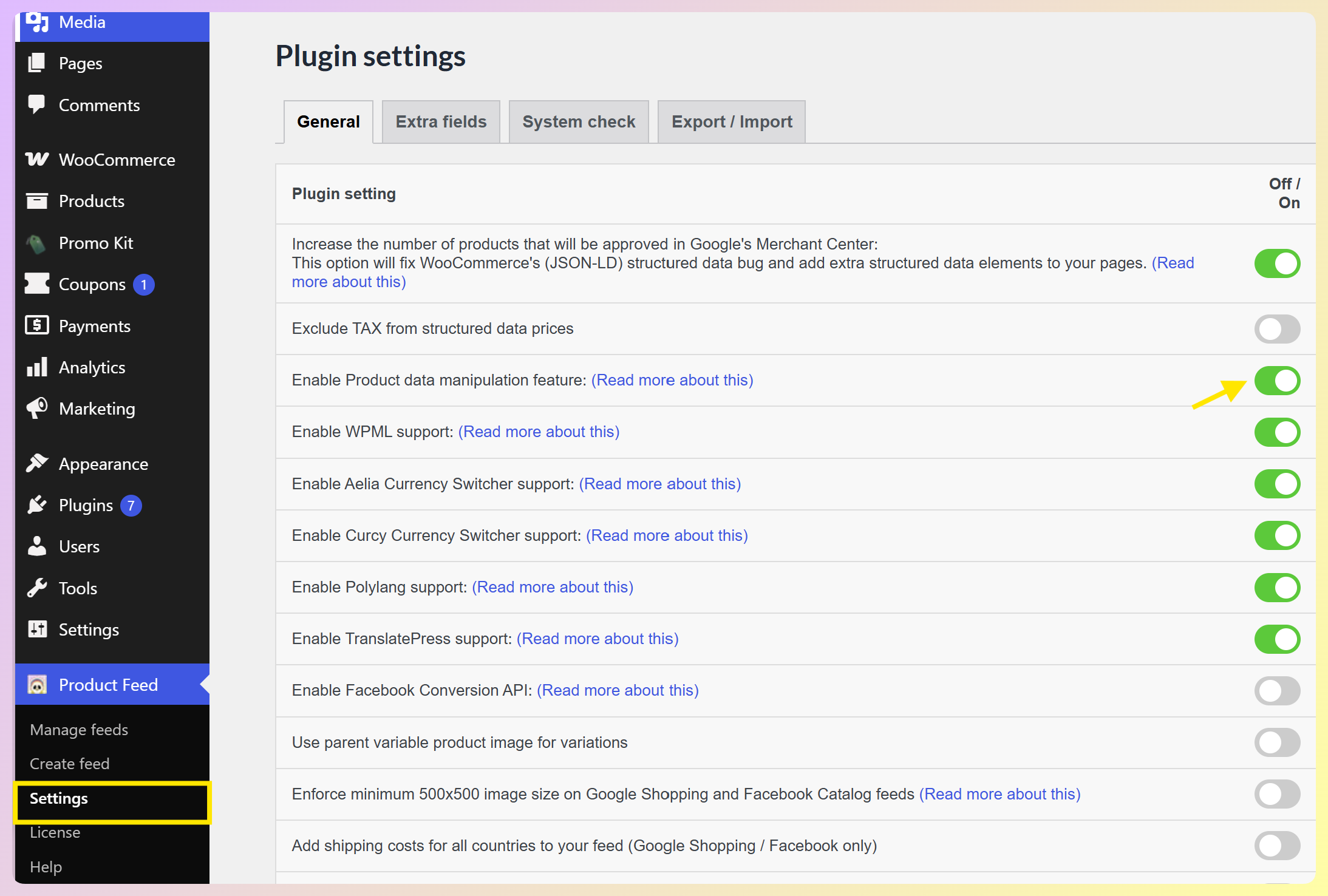
A Data Manipulation tab then appears in the feed editor, between Category Mapping and Filters.
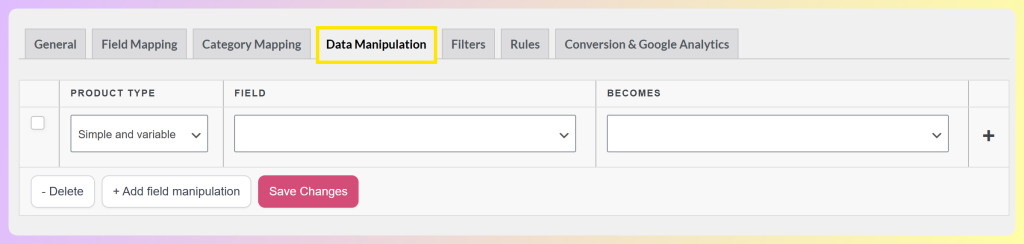
Each manipulation has three parts: the Product type it applies to (simple, variable, or both), the Field you want to change, and what that field Becomes. Click + Add field manipulation to add a row, set your values, then click Save Changes.
Step 4: Feed filters
Filters control which products appear in your feed. They now have their own Filters tab, which opens the Filter Builder. This is helpful when you only want to show certain products, like items above a set price or products that are currently on sale.
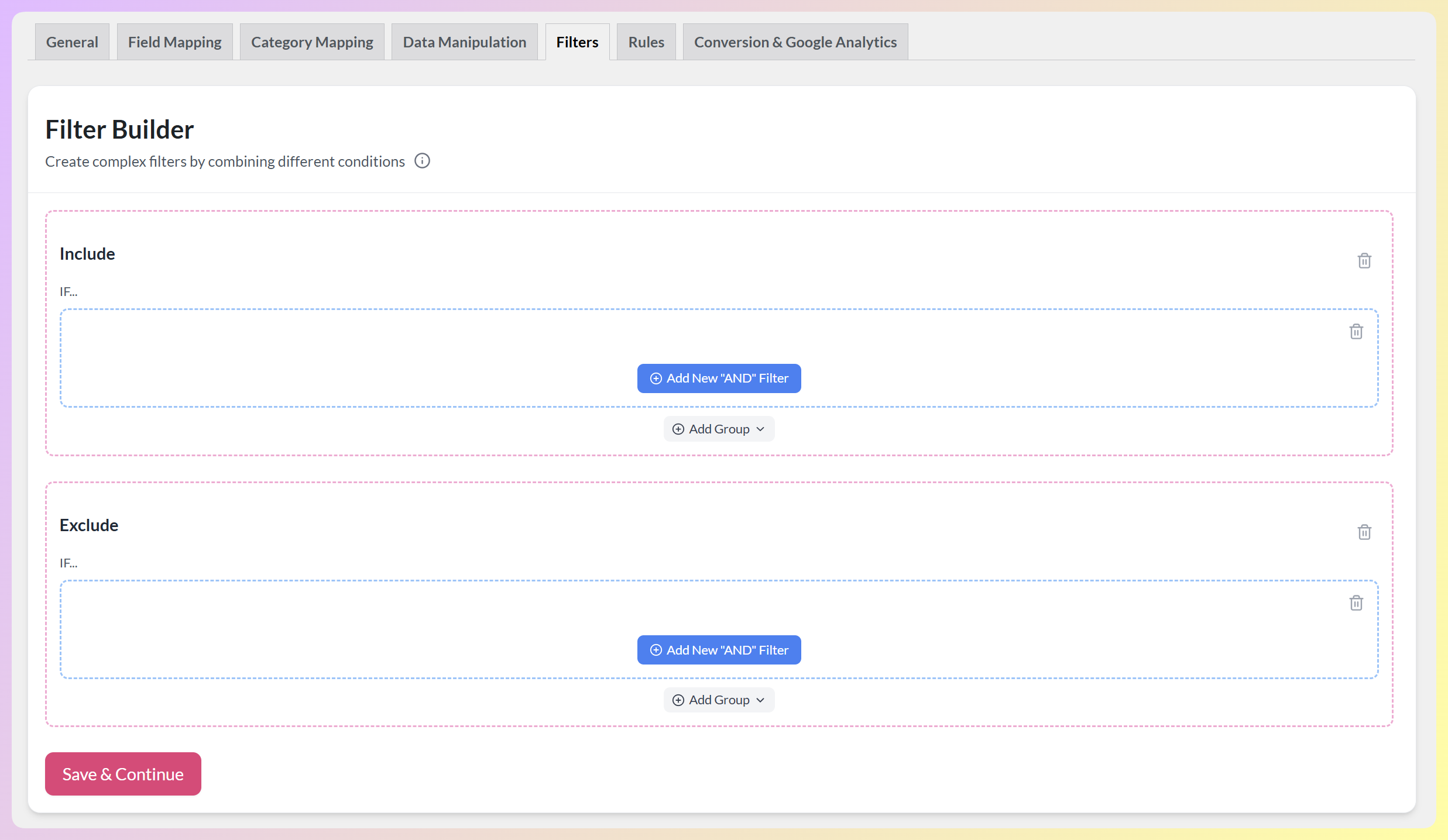
The Filter Builder has two sections:
- Include: show only the products that match your conditions.
- Exclude: leave out any products that match your conditions.
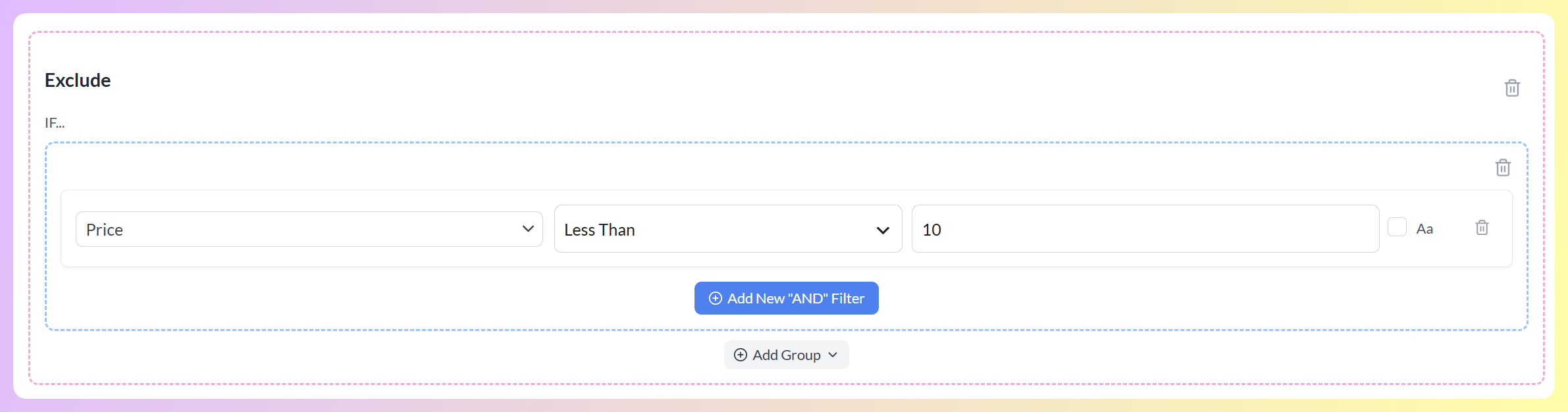
Each condition follows an if-style pattern: pick an attribute, choose an operator, and set a value. To stack more conditions in a section, click + Add New “AND” Filter, since conditions in the same box must all be true. For more advanced logic, use Add Group to combine sets of conditions.
In the example below, we set an Exclude condition: “Price” “Less Than” “10.” Our feed skips any product priced under 10 Euros and shows only those priced at 10 Euros and above.
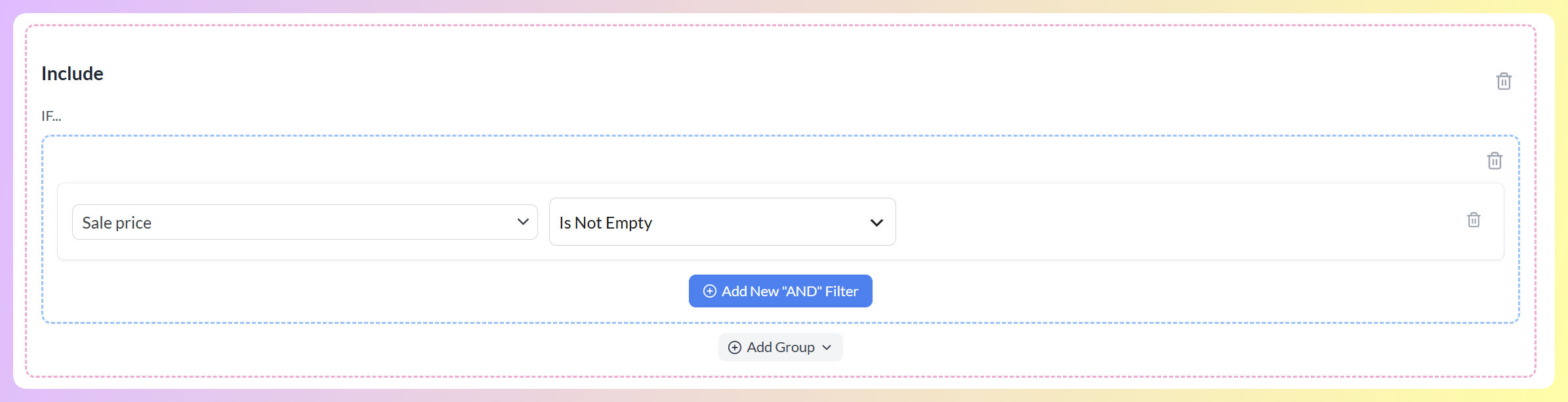
This next example uses an Include condition: “Sale price” “Is Not Empty.” That leaves us with a feed that only showcases discounted products, which is great for highlighting deals during big sales events like Christmas, Black Friday, and Halloween.
For more examples, read this guide on creating filters and this one on filtering by category. When your filters are ready, click Save & Continue.
Step 5: Feed rules
Rules sit on their own tab too, and they do something different from filters. Instead of choosing which products appear, rules change the details of the products already in your feed. You can use them to adjust prices, titles, categories, and more. The Rules tab opens the Rules Builder.
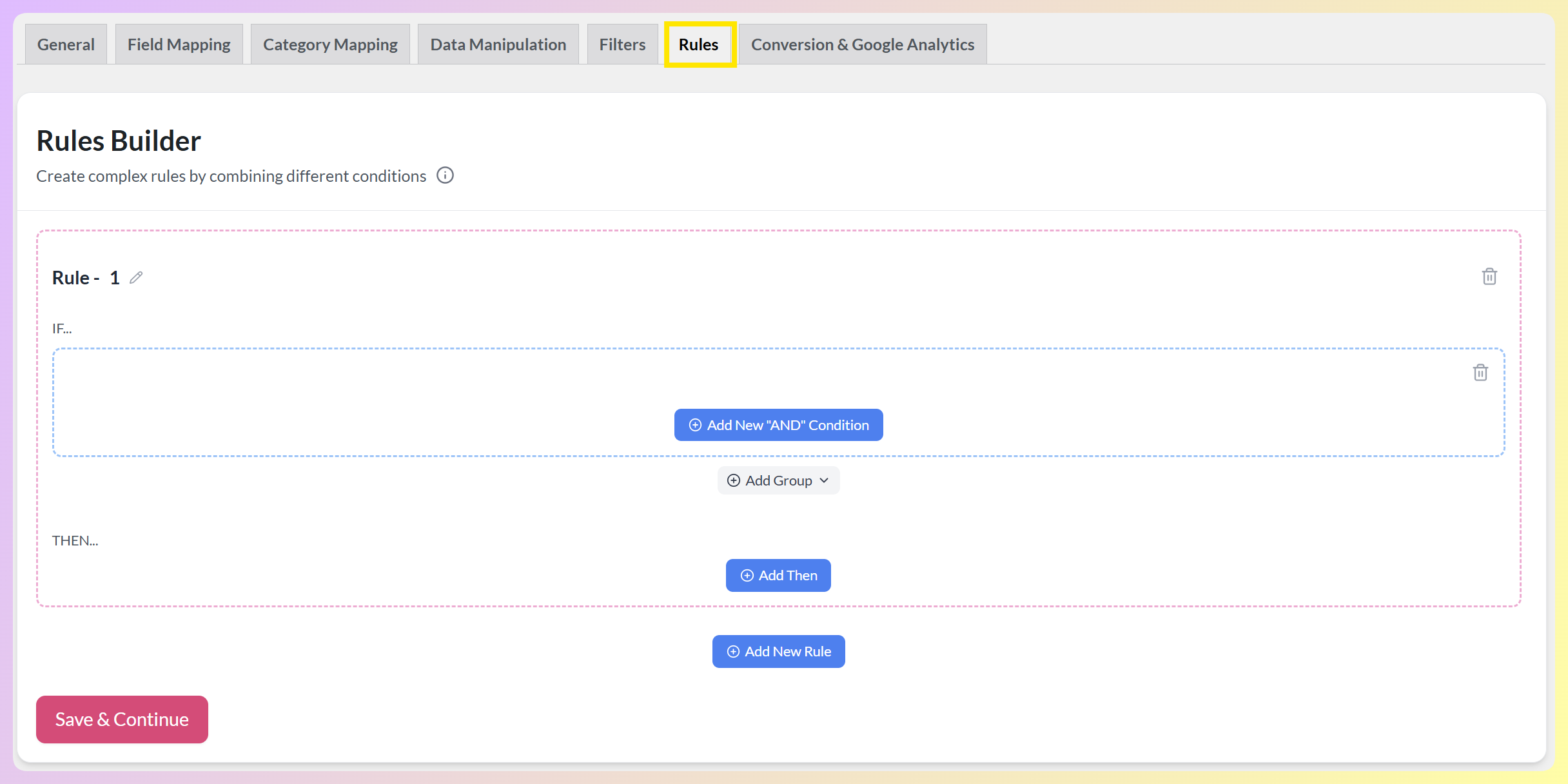
Each rule works as an if-then statement. Under IF, you set the conditions a product must meet. Under THEN, you set what should change. You can rename a rule with the pencil icon, stack conditions with + Add New “AND” Condition, and build several rules using + Add New Rule.
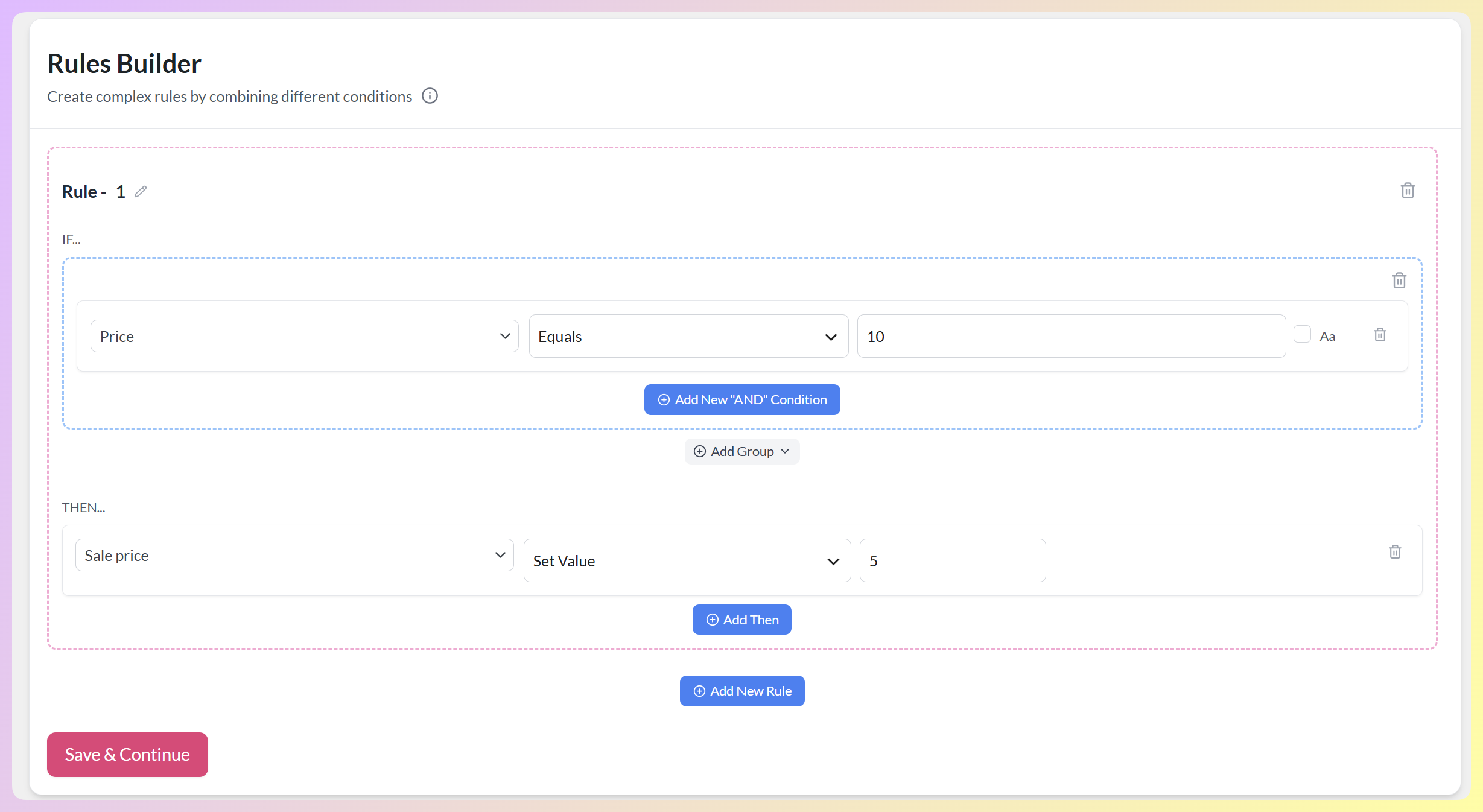
In the example below, we tell the plugin: IF a product’s “Price” “Equals” “10,” THEN “Set Value” of its “Sale price” to “5.” Any product priced at 10 Euros then gets a sale price of 5 Euros in the feed.
For more examples, check out this guide on creating rules. To remove a filter or rule, click its trash icon. Once your rules are set, click Save & Continue.
Step 6: Conversion & Google Analytics settings
We’re almost done!
However, before we create our feed, keep in mind that it helps to be able to track the results of your campaign. After all, knowing how well your feed is performing informs your decisions about which strategies to implement. For example, it could help you determine what items sell well, allowing you to make feed adjustments that can lead to more profit.
This is where the Conversion & Google Analytics settings page comes in.
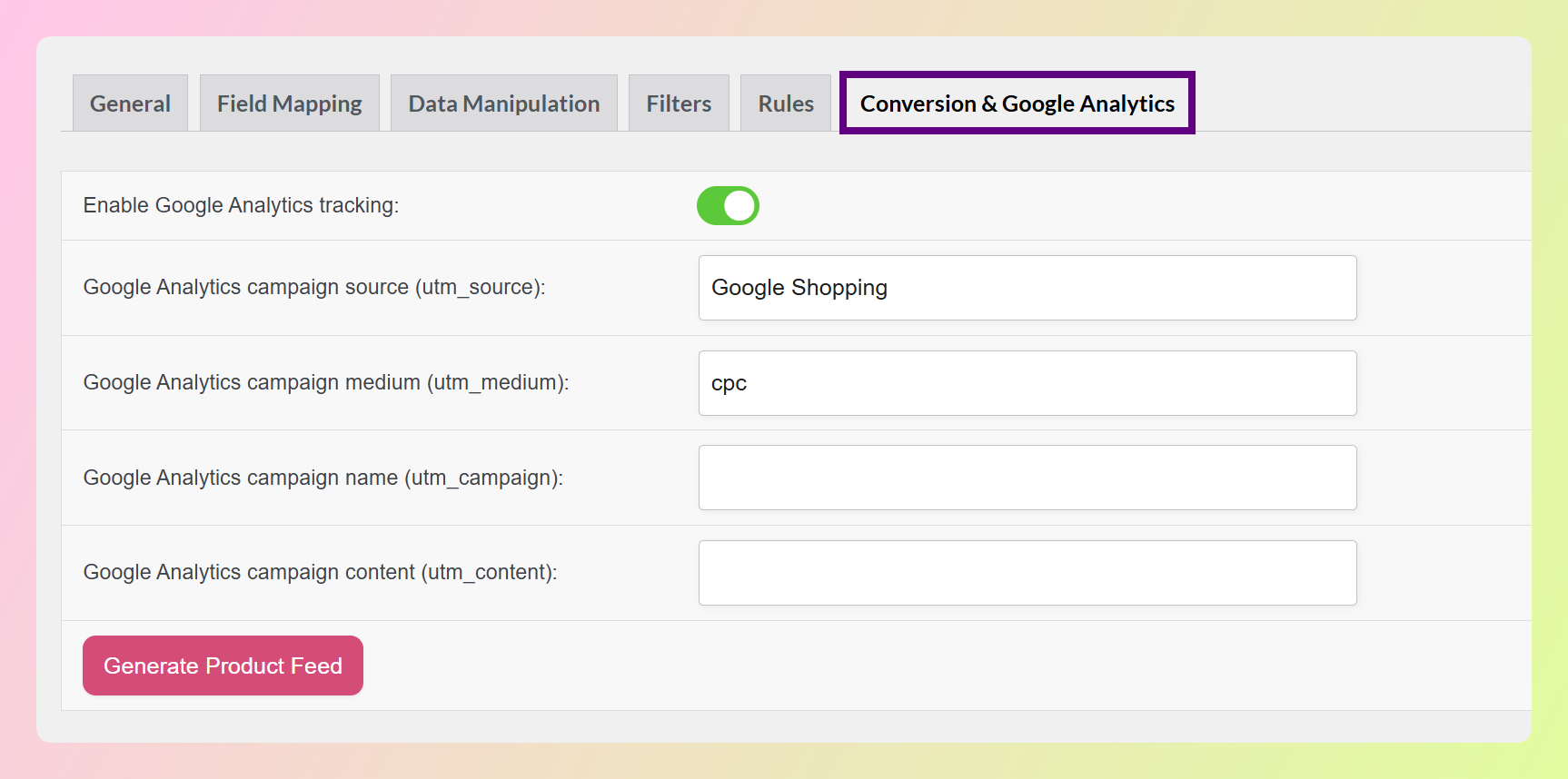
To track your feed’s performance, toggle on Enable Google Analytics tracking. This adds Google Analytics UTM parameters to your product URLs.
You can set the values for these UTM parameters in the provided fields. Most of them are already filled up, so you don’t really have to change anything.
Furthermore, you can remove non-performing products after a set amount of time. Simply enter the preferred number of days in the entry field.
And that’s it! When you’re ready to generate your feed, click the Generate Product Feed button!
How To Manage A Product Feed
The moment you generate a feed, you’ll be taken to the Manage Feeds page. This lists every feed you’ve created, along with its format, status, when it was last updated, its refresh interval, and its feed URL.
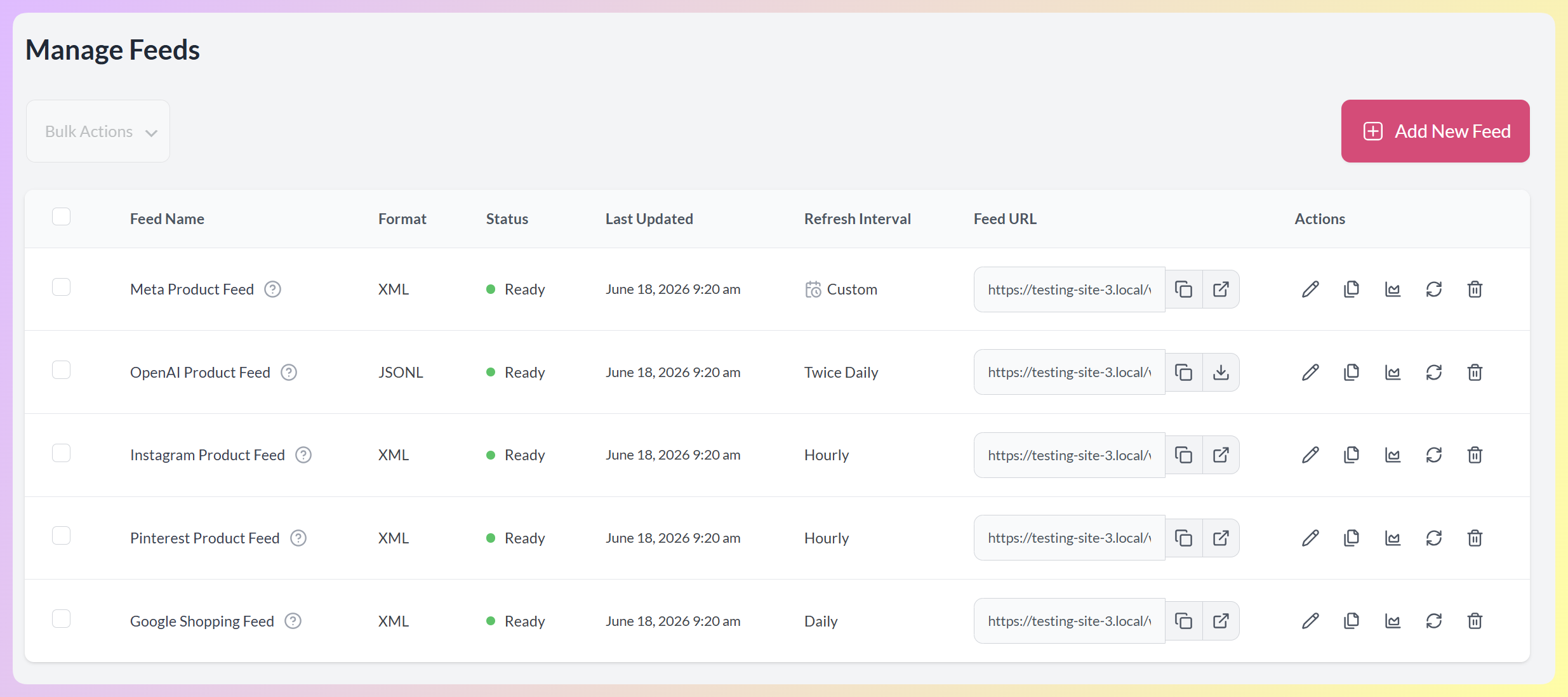
To add another feed, click Add New Feed in the top right. To work on several feeds at once, tick their checkboxes and use the Bulk Actions menu. The Feed URL column lets you copy a feed’s URL, open it in a new tab, or download the feed file.
Each feed also has a set of icons in the Actions column. Here’s what each one does.

- Edit feed (pencil): opens the feed editor, where you can revisit any tab to change your general settings, field mapping, category mapping, filters, rules, and conversion settings.
- Copy feed: creates a duplicate of the feed. Refresh your browser, and the copy appears at the bottom of the list.
- Product count (chart): opens a graph showing how many products were in the feed across its last 30 refreshes.
- Refresh feed: manually rebuilds the feed. Larger feeds take longer to finish.
- Delete feed (trash): permanently removes the feed.
How To Upload Your Product Feed To A Channel
What is a product feed for if you don’t submit it to a sales channel?
Remember: you need to upload your feed to a platform for it to showcase your products to shoppers. In this section, we’ll teach you how to do just that.
We’ll use Google Merchant as our example.
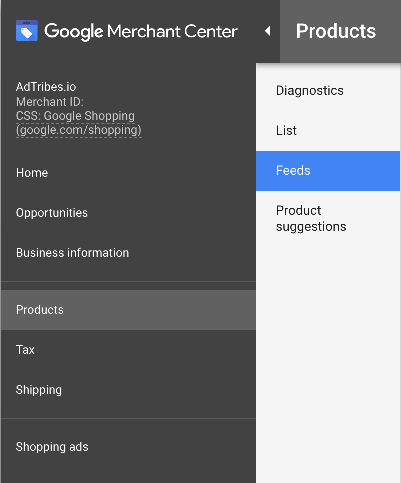
Log in to your Google Merchant Center account. Then, click Products > Feeds and add a primary feed.
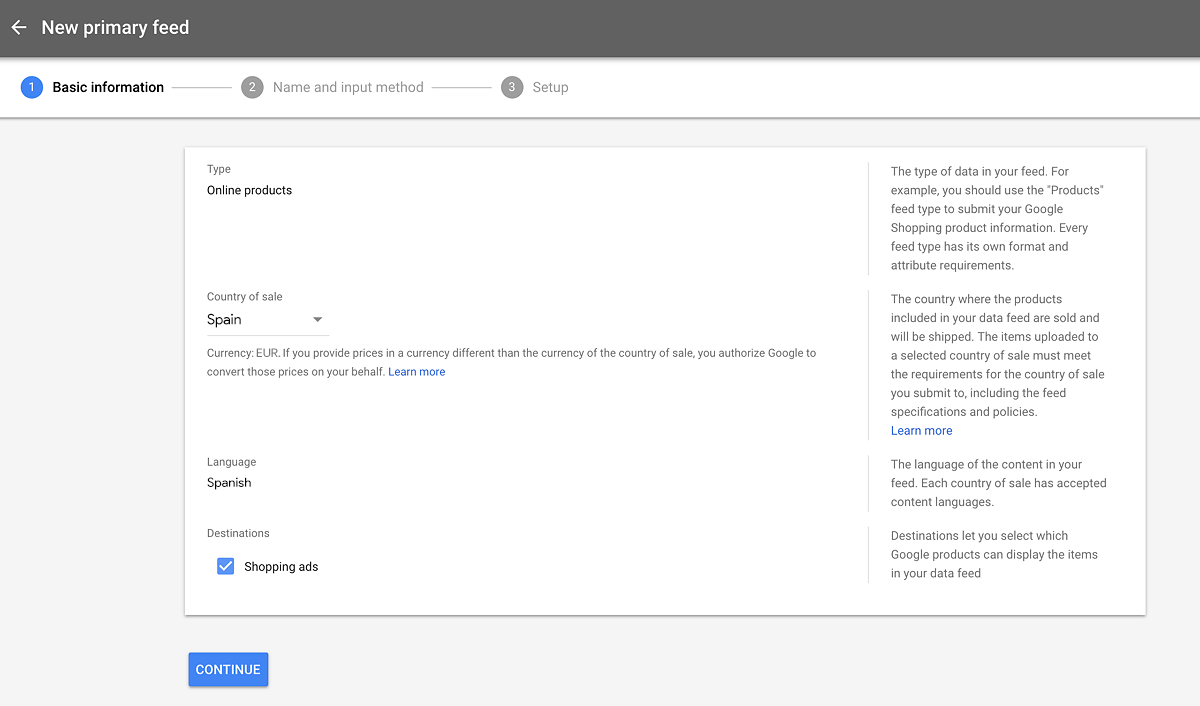
Next, select your country of sale and language:
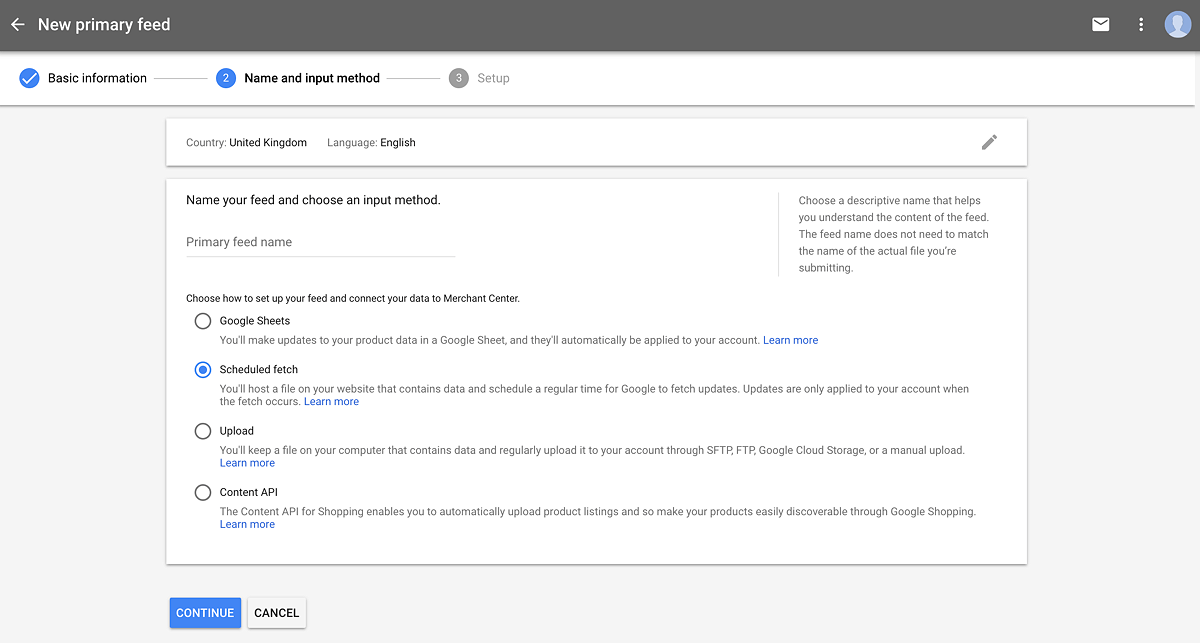
Then, select the Scheduled Fetch option.
Now, specify the frequency and timing for Google to fetch your product feed. Then, paste the URL of your product feed in the File URL field:
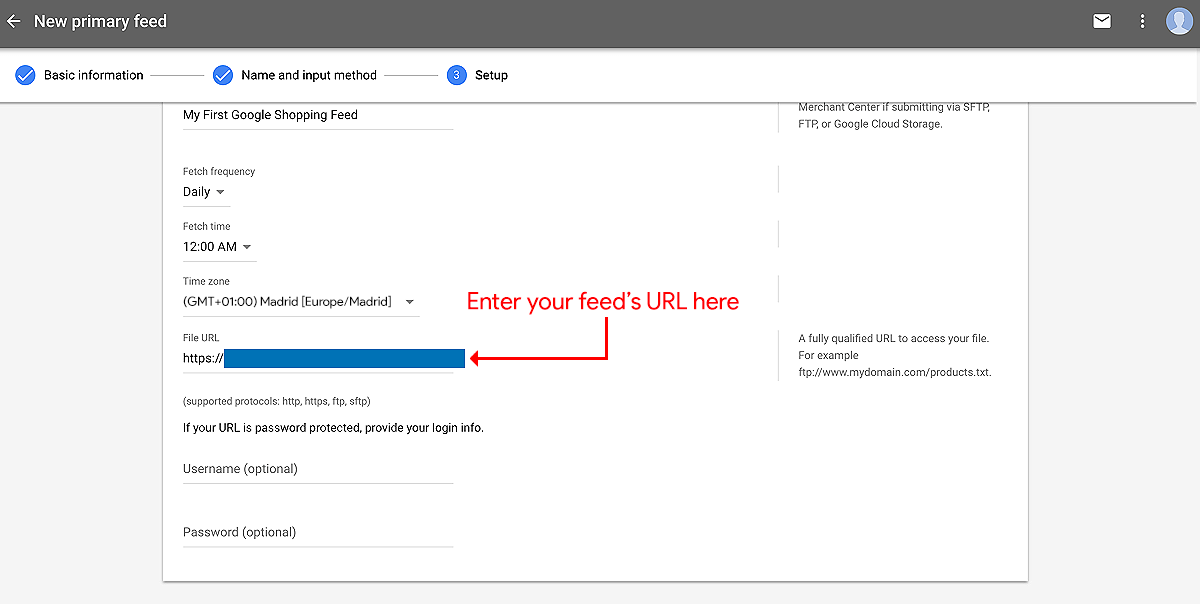
And that’s it! You’ve just created your first product data feed and informed a sales channel where to retrieve your products from.
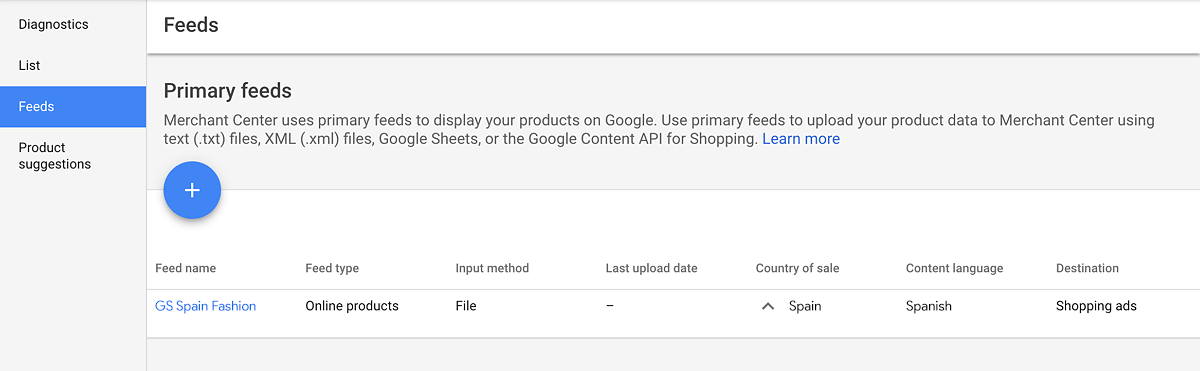
Congratulations! The sales channel is now ready to exhibit your products to its customers!
Conclusion
So, what is a product feed? It’s a detailed list of your products that you can share with platforms like Google and Facebook so that they can showcase said products to their customers. In other words, it’s a powerful strategy that can drastically boost your reach, traffic, and sales, thus ensuring the growth and success of your e-commerce business.
In this article, we discussed the following crucial concepts about product feeds:
- I. What is a product feed?
- Can product data feeds benefit your business?
- What can you do with product data feeds?
- What do product data feeds contain?
- How do product data feeds work?
- How do you ensure a channel accepts your product data feed?
- What do product data feeds look like?
- Which formats are available for product data feeds?
Furthermore, we gave you a step-by-step tutorial on how to create, manage, and upload a product data feed:
- II. How to create a product feed
- III. How to manage product feeds
- IV. How to upload your product feed to a channel
We hope we’ve answered the question, “What is a product feed?” If you’d like to know more, leave a comment below!
Frequently Asked Questions
What is a product feed?
A product feed is a file that lists all the products from your online store, along with important details like the name, price, image, and description of each item.
This file helps you share your products with other sales channels like Google Shopping, Facebook, TikTok, and more. Instead of adding products one by one to each channel, the feed sends all the info at once and keeps it updated for you.
What are the benefits of product feeds?
Product feeds help you reach more shoppers, save time with automatic updates, and keep your listings accurate so sales channels accept and promote your products.
Which sales channels can you send your product feeds to?
You can send your product feeds to many popular sales channels, such as Google Shopping, Facebook, Instagram, Bing Shopping, Pinterest, X, Snapchat, TikTok, Wish, Kogan, PriceGrabber, and Kelkoo.