
You’ve run your feed and it contains far fewer products than your store has, or it’s completely empty. In most cases, a setting in your feed configuration is filtering products out without you realizing it.
This guide covers the most common causes. Work through each one that applies to your setup until your product count is correct.
Common causes
- “Include product variations” is disabled
- “And only include default product variation” is enabled
- “And only include lowest priced product variation(s)” is enabled
- Both “And only include default product variation” and “And only include lowest priced product variation(s)” are enabled
- “Create a preview of the feed” is enabled
- The
item_group_idattribute is removed from Field Mapping - Incorrect filter configuration
- A caching plugin is serving an old version of the feed
- Products excluded by total sales or date range filters
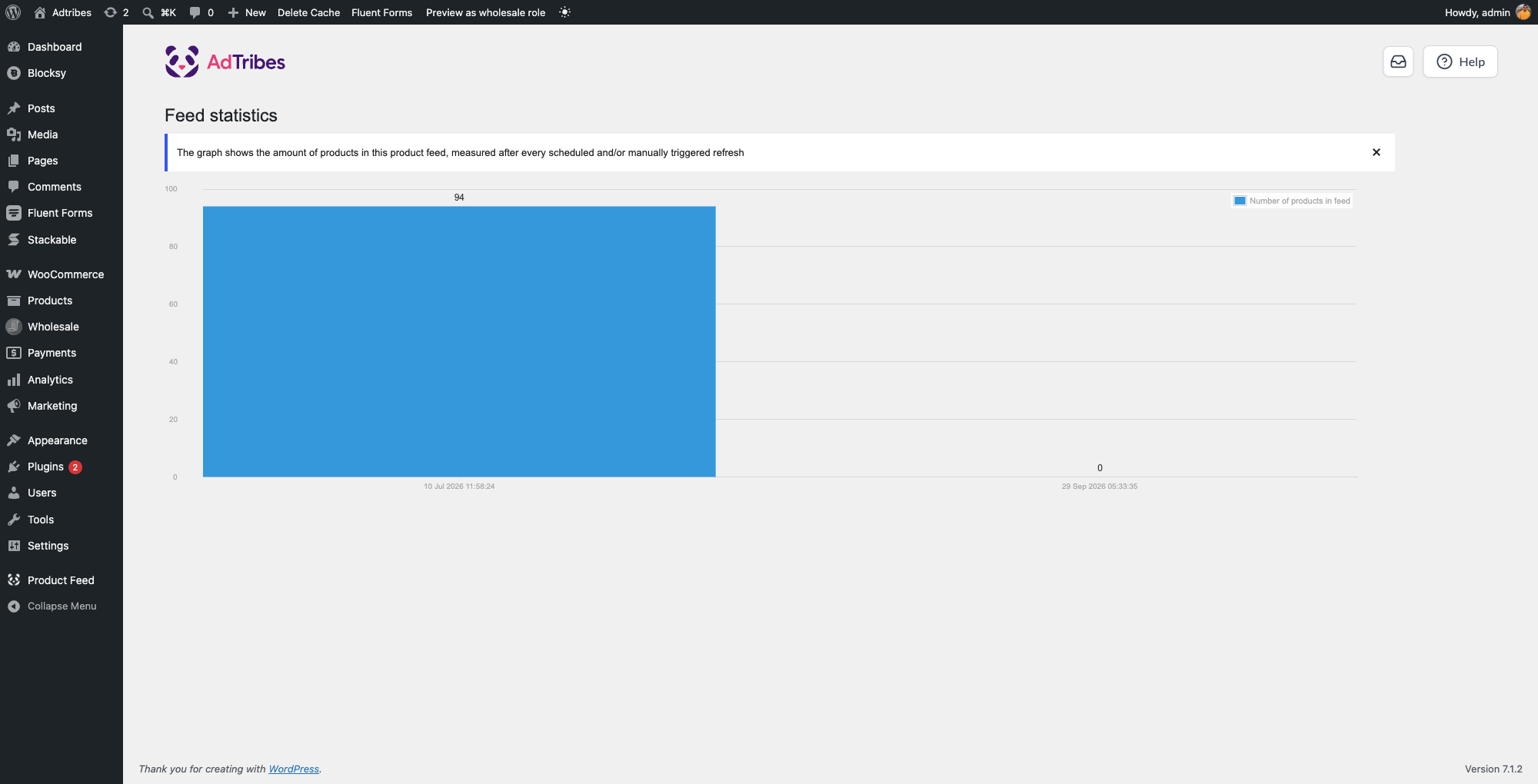
- Feed statistics show zero products for JSONL or gzip format feeds (Elite)
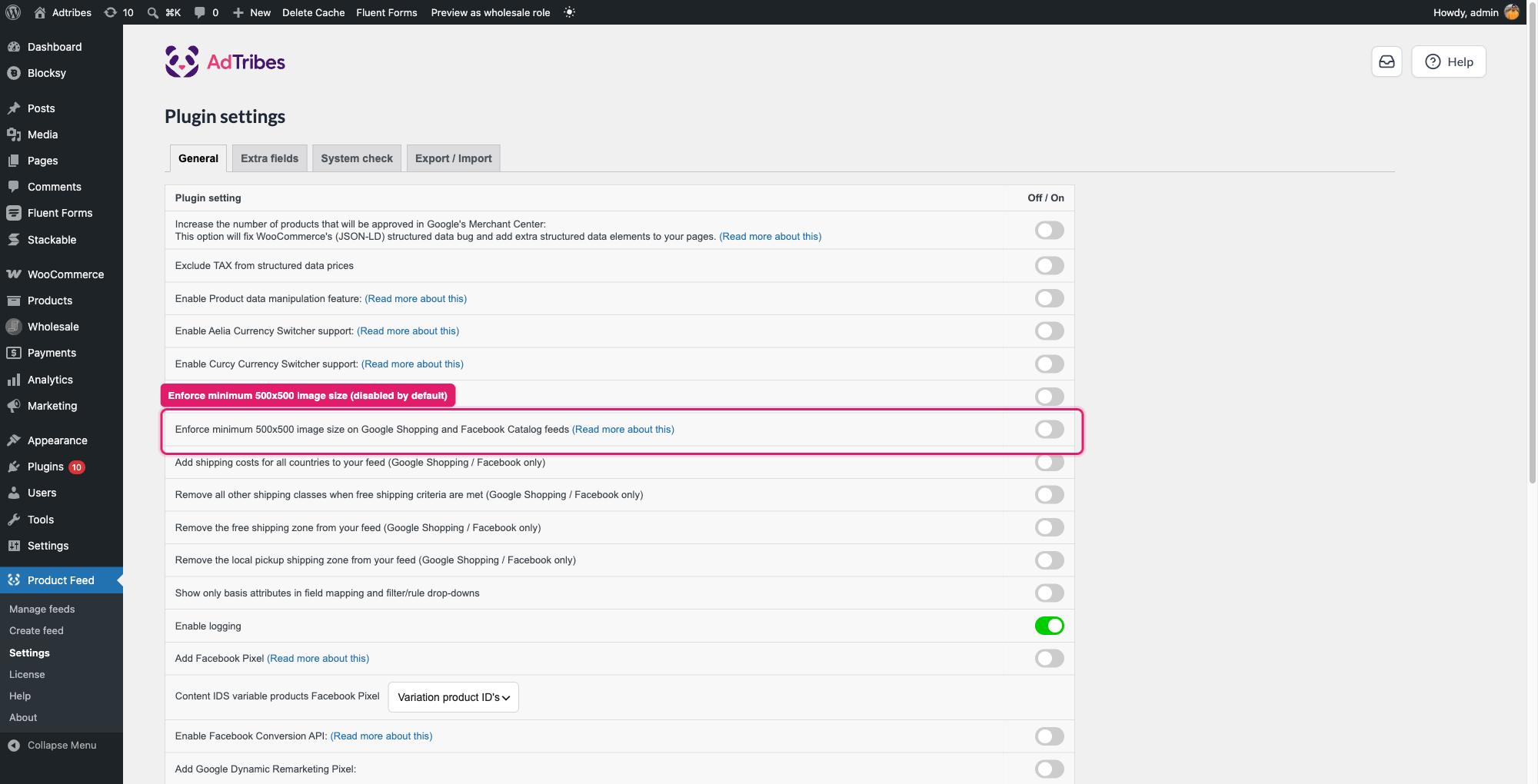
- Your product’s images are smaller than 500×500 pixels (Google Shopping and Facebook Catalog only)
- A variation is published, but its parent product isn’t
How to fix each cause
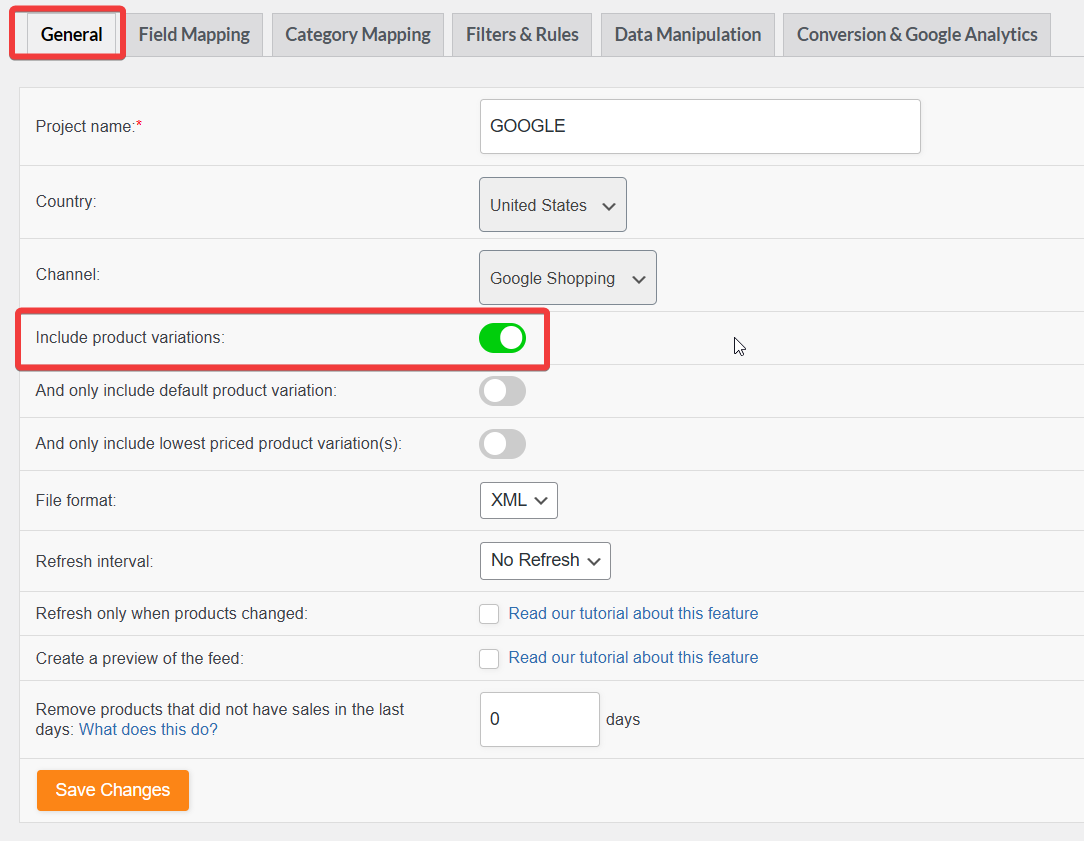
“Include product variations” is disabled
If your store has both simple and variable products and you want both in your feed, the Include product variations option must be enabled.
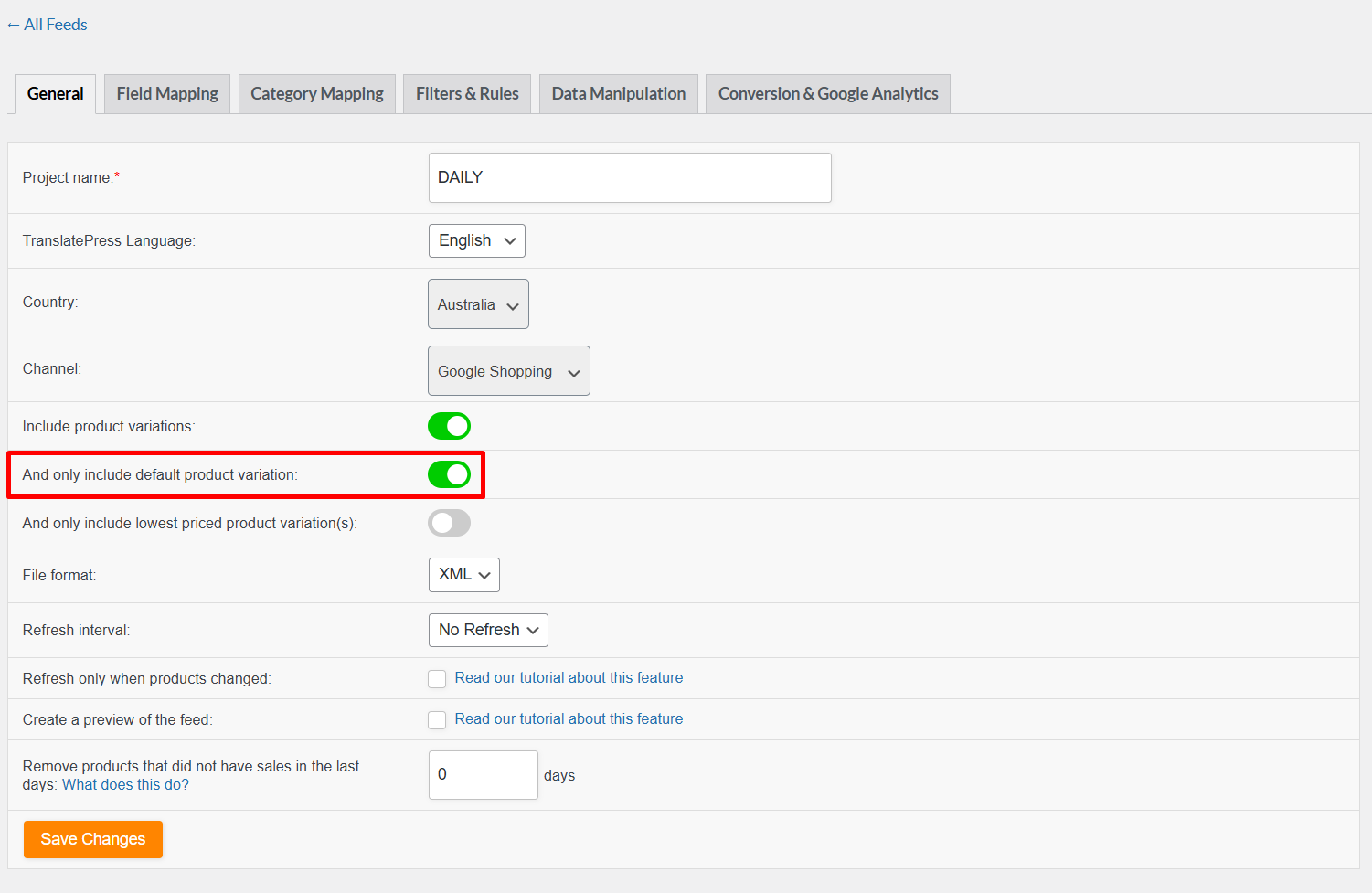
“And only include default product variation” is enabled
When And only include default product variation is enabled, the plugin checks each variable product for a default variation. If it finds one, that variation is included. If not, the entire variable product is excluded.
“And only include lowest priced product variation(s)” is enabled
When And only include lowest priced product variation(s) is enabled, the plugin scans each variable product and includes only the variation(s) with the lowest price.
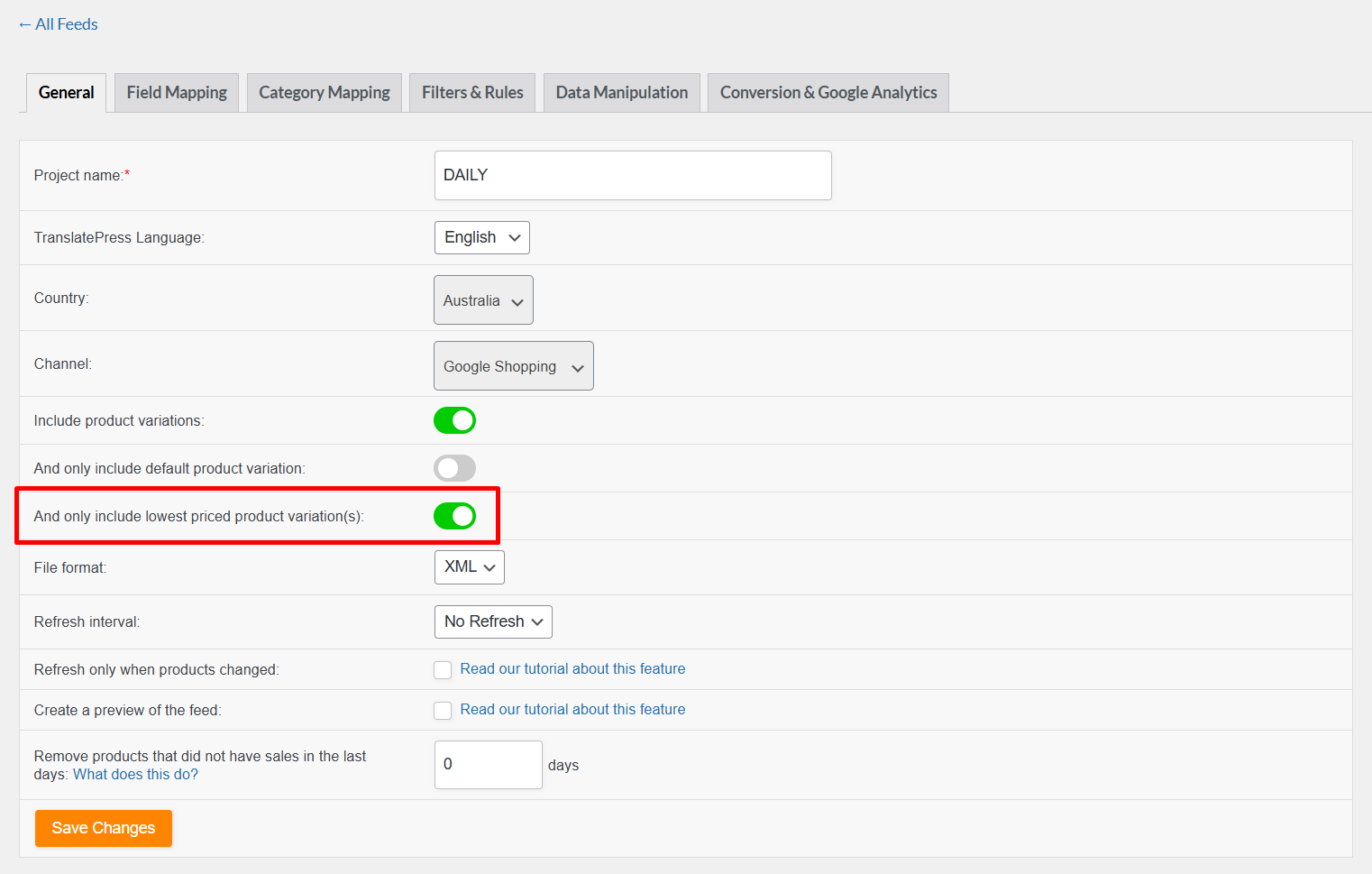
If multiple variations share the same lowest price, all of them are included. If all variations have the same price, all variations are included.
Both “And only include default product variation” and “And only include lowest priced product variation(s)” are enabled
When both options are enabled, the plugin applies them as an AND condition:
- It identifies the default variation for each variable product.
- It checks whether that default variation is also the lowest-priced variation.
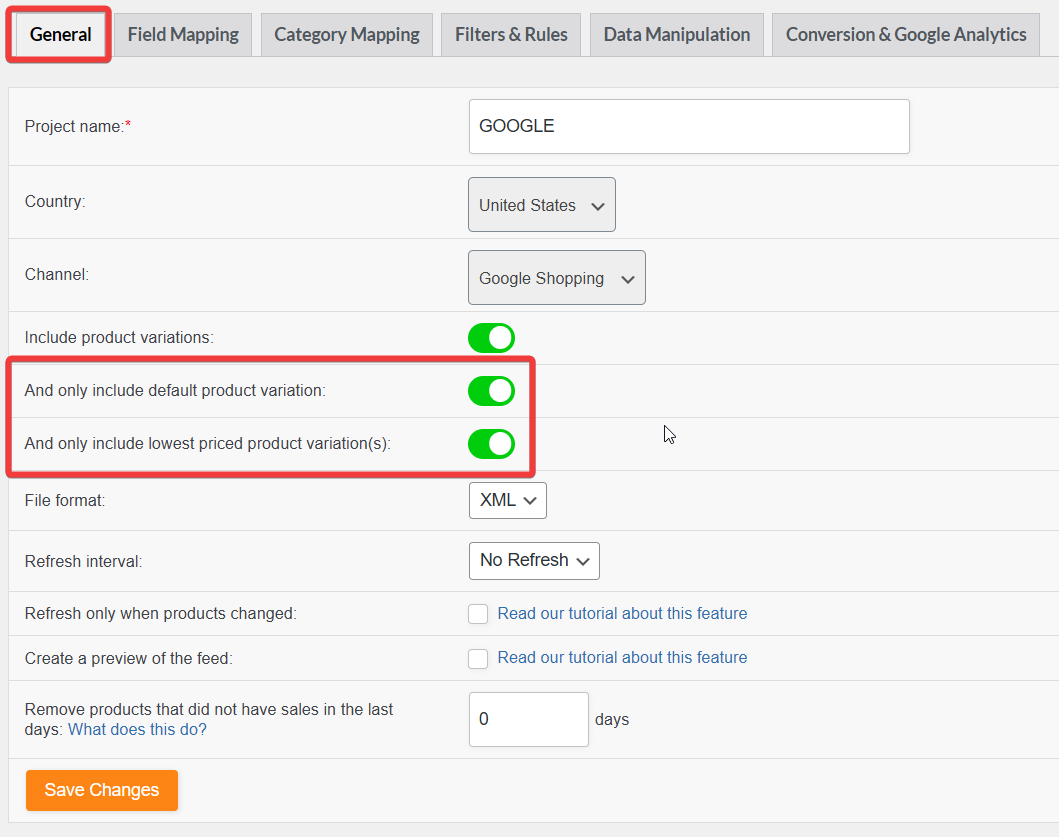
A product is included only when both conditions are true. If either fails, the entire variable product is excluded.
“Create a preview of the feed” is enabled
The Create a preview of the feed option generates a limited preview containing only the first five products. If the first product is variable, the feed may include five or fewer variations depending on its structure.
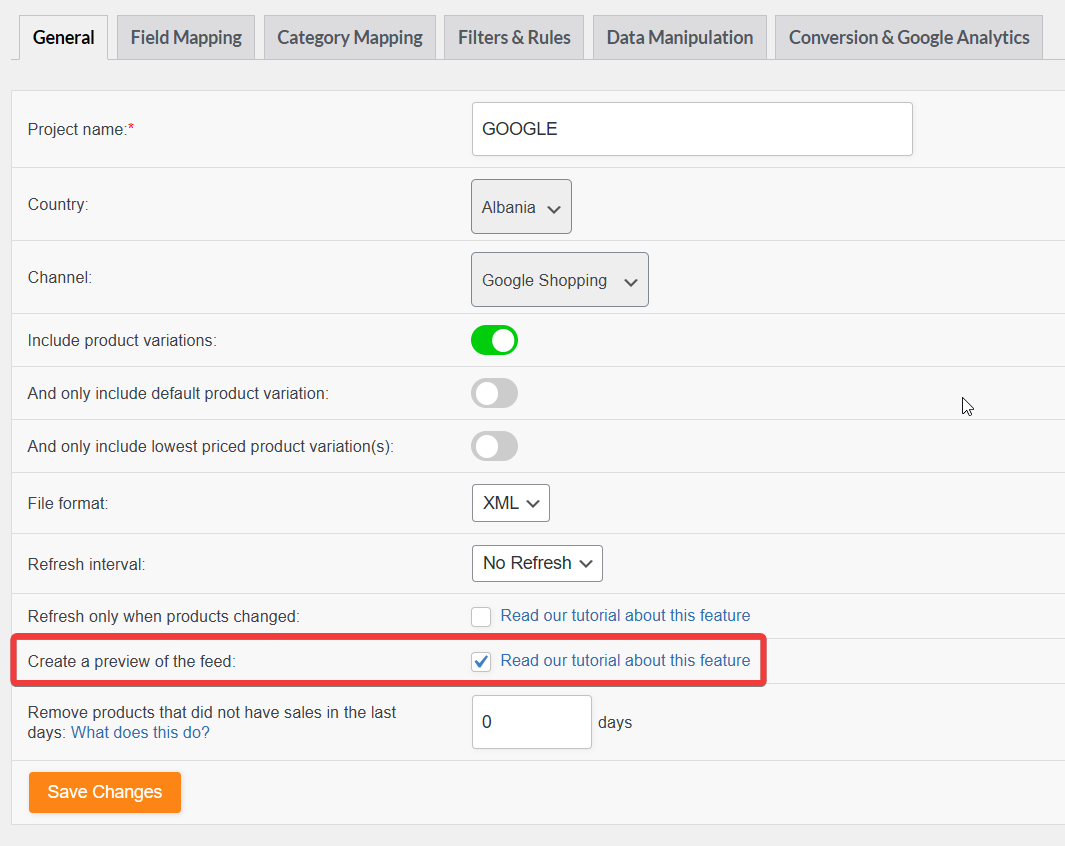
This option is for testing only. If it’s accidentally left on, the feed will look incomplete even though your store has many more products.
The item_group_id attribute is removed from Field Mapping
By default, Product Feed Pro includes a mapping for the item_group_id field. This field tells platforms like Google Shopping and Facebook which variations belong to the same parent product, so they can group them correctly.

When generating feeds for Google Shopping or Facebook, always keep the default item_group_id mapping enabled.
Incorrect filter configuration
Filters let you include or exclude products based on conditions such as category, attribute, or tag. When filters are misconfigured, they can silently exclude products you intended to include. The result is an empty or incomplete feed.
One common issue is using the include_only filter more than once in the same feed. For example, if you want to include both Clothing and T-shirts, you might add two separate include_only filters:

This doesn’t work. The include_only filter can only be used once per feed. When applied twice, the conditions conflict and products that don’t match both simultaneously are excluded.
Recommended fix: Create two separate feeds, each with a single include_only category filter.
For detailed instructions, see How to create filters for your product feed.
A caching plugin is serving an old version of the feed
Caching plugins can serve a saved (cached) version of your feed instead of the latest generated one. After you refresh your feed, the cached version may still appear until you clear the cache.
To fix this:
- Clear or purge the cache in your caching plugin and your browser after updating the feed.
- If the issue continues, temporarily disable the caching plugin to confirm it’s the cause.
- To avoid clearing the cache repeatedly, exclude your feed folder from being cached. Add this URL pattern to your caching plugin’s exclusion list:
yourdomain.com/wp-content/uploads/woo-product-feed-pro/*The * wildcard covers all feed files under that folder.
Products excluded by total sales or date range filters
Product Feed Pro can filter products based on their total sales count or sales within a specific time window. If you’ve enabled these filters and your products don’t meet the criteria, they’re excluded from the feed, which can leave it smaller or empty.
For example, if you’ve set a minimum of two total sales and most of your products have fewer, those products won’t appear.
For detailed instructions on how these filters work, see Create a Feed With Performing Products Only.
Feed statistics show zero products for JSONL or gzip format feeds (Elite)
If you’re using Product Feed Elite and the Feed statistics panel shows zero products for a feed you know has generated successfully, check the feed’s file format.
Product Feed Pro versions before 13.5.4 don’t count products in JSONL, JSONL.GZ, or CSV.GZ feeds. Feeds in those formats recorded a count of zero in the statistics view even though the feed file on disk was correct and complete.
This issue is most common with OpenAI Product Feed feeds, which use the JSONL.GZ or CSV.GZ format by default.
Your product’s images are smaller than 500×500 pixels (Google Shopping and Facebook Catalog only)
Google Merchant Center and Facebook/Meta Catalog reject product images smaller than 500×500 pixels. Product Feed Pro can enforce this minimum for you, but it’s an opt-in setting: Enforce minimum 500×500 image size on Google Shopping and Facebook Catalog feeds, under Product Feed → Settings → General. It’s disabled by default.
When enabled, the plugin checks a product’s featured image and gallery images (and, for variations, the parent product’s images too) against the 500×500 minimum:
- If at least one image meets the minimum, that image is used in the feed automatically, even if it isn’t the product’s featured image.
- If none of a product’s images meet the minimum, the product is excluded from that feed.
A variation is published, but its parent product isn’t
A product variation can stay Published even after its parent product is switched to Draft, Pending, or Private: WooCommerce doesn’t cascade that status change down to variations automatically. A feed can never include a variation in that state, because it has no published product page behind it, so it’s always excluded, even though the variation itself still shows as published.
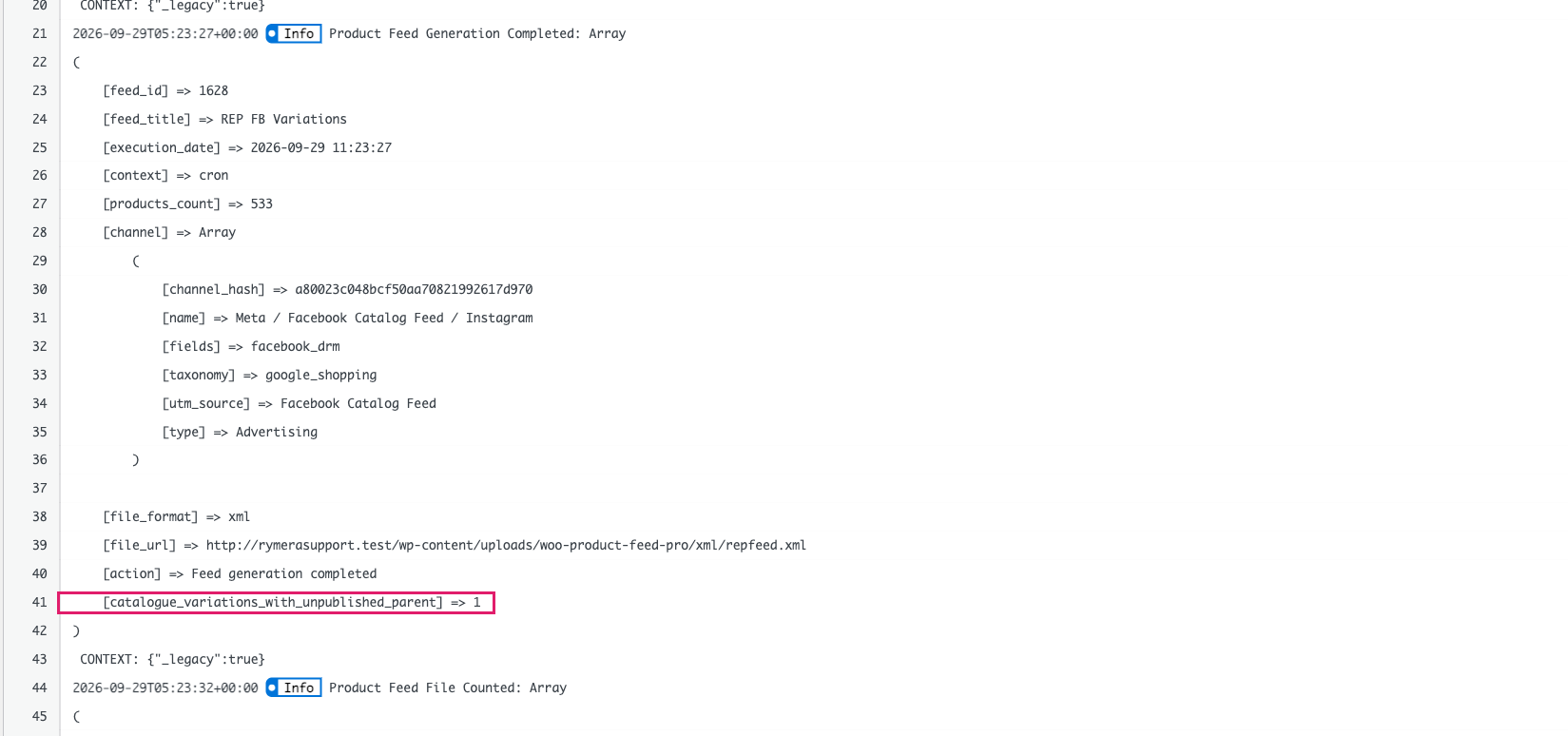
To fix this: publish the parent product, or exclude the orphaned variation’s product line from your feed if it’s meant to stay unpublished.
Need more help?
If you’ve worked through all of the above and products are still missing, reach out with your Feed URL and the plugin Feed System Log.
You can find the system log under Product Feed → Settings → System check. Click Copy to clipboard to copy the details, then share them in your support request.
If you’re a Product Feed Elite user, open a support ticket.
If you’re using the free version of Product Feed Pro, create a new topic on the WordPress.org forum.

