Reviewed by
Good news for wholesale sellers! AdTribes Product Feed Pro now includes a built-in Merkandi channel, so you can list your WooCommerce products on one of Europe’s biggest B2B marketplaces. You map your products to Merkandi’s fields, generate the XML feed in a few clicks, and submit it through your Merkandi account. No more hand-built XML files.
That matters because Merkandi opens your store up to a different kind of customer: business buyers purchasing in bulk. Instead of building a separate wholesale operation, you can put your existing catalog in front of an audience that’s already there to buy stock to resell.
Here’s what the new Merkandi channel does, why it’s worth adding to your sales mix, and how to set up your feed step by step.
What Is A WooCommerce Merkandi Product Feed?
A WooCommerce Merkandi product feed is an XML file that lists your WooCommerce products in the format the Merkandi marketplace expects. Merkandi is a B2B wholesale and clearance marketplace popular across Europe, and it reads your feed to list your products for the buyers browsing there.
For this channel, AdTribes Product Feed Pro creates a Merkandi XML feed from your WooCommerce product data. That means you can send your product details in a structured format without writing the XML yourself.
How does it work?
AdTribes Product Feed Pro takes your WooCommerce product data, maps it to Merkandi’s fields, and generates the XML feed for you. From there, you submit the feed through your Merkandi account and use the import options available for your plan.
This keeps you in control: you decide which products go to Merkandi and when, and you keep managing everything from WooCommerce as usual.
Why Sell On Merkandi From Your WooCommerce Store?
Adding Merkandi opens up a different kind of customer for your store: business buyers purchasing in bulk. Here’s why this update is worth a look.
Tap into a fast-growing B2B market
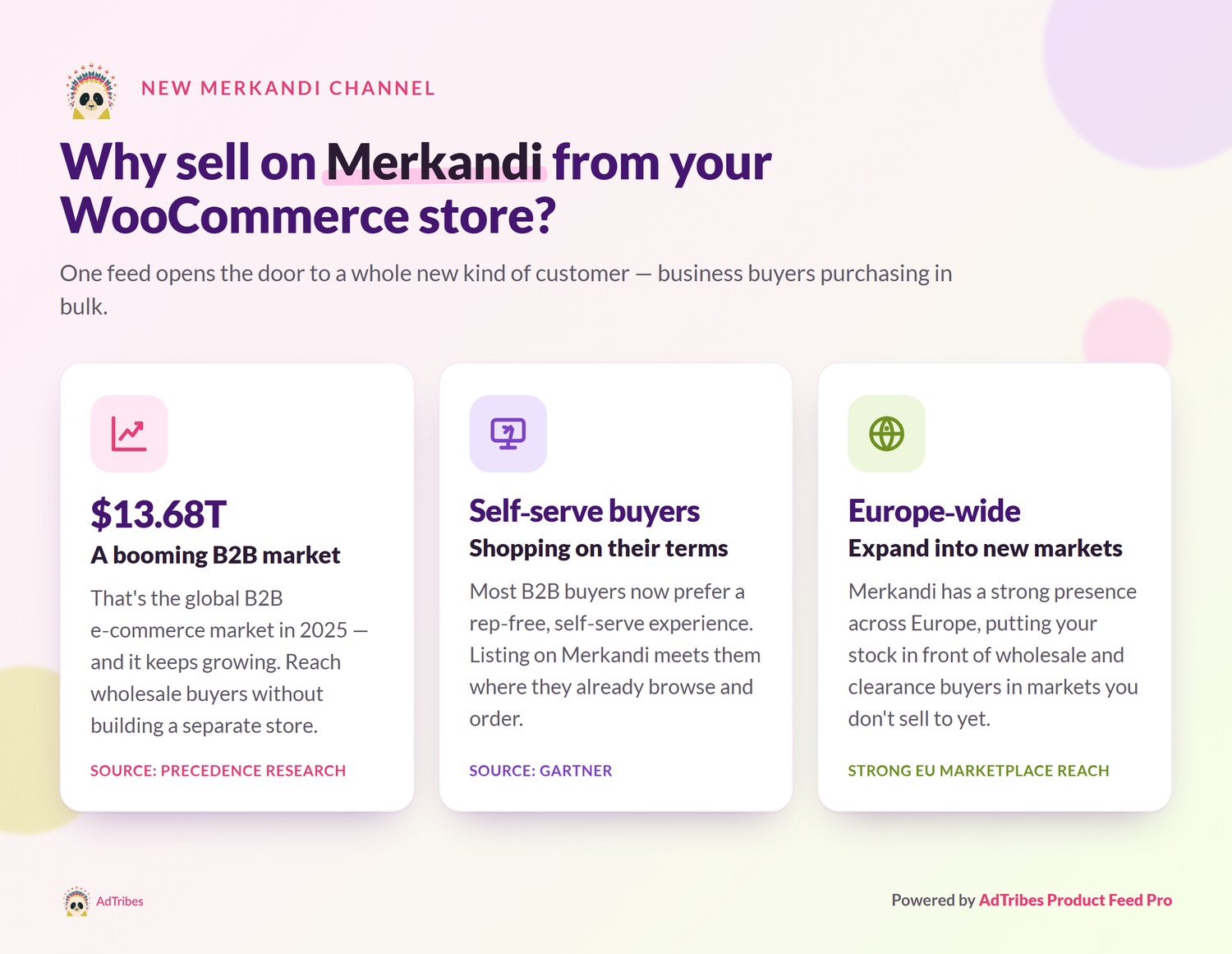
Selling wholesale online is booming. According to Precedence Research, the global B2B e-commerce market was valued at $13.68 trillion in 2025 and is projected to keep growing through 2035. A dedicated B2B marketplace like Merkandi gives your store another way to reach wholesale buyers without building a separate wholesale storefront from scratch.
Reach buyers who’d rather shop online
Business buyers increasingly want to research and order on their own, without waiting on a sales rep. According to Gartner, most B2B buyers now prefer a rep-free, self-serve buying experience. Listing your products on Merkandi meets those buyers where they already are, with your product details ready for them to browse and order.
Expand into European markets
Merkandi has a strong presence across Europe, which makes it a natural way to reach wholesale and clearance buyers in markets you might not be selling into yet. Instead of building local awareness from zero, you tap into an audience that’s already shopping the marketplace for stock to resell.
How To Create A WooCommerce Merkandi Product Feed With AdTribes (Step-by-Step)
Setting up your Merkandi feed works just like any other channel in AdTribes Product Feed Pro. Here’s how to do it.
Step 1: Create a new product feed
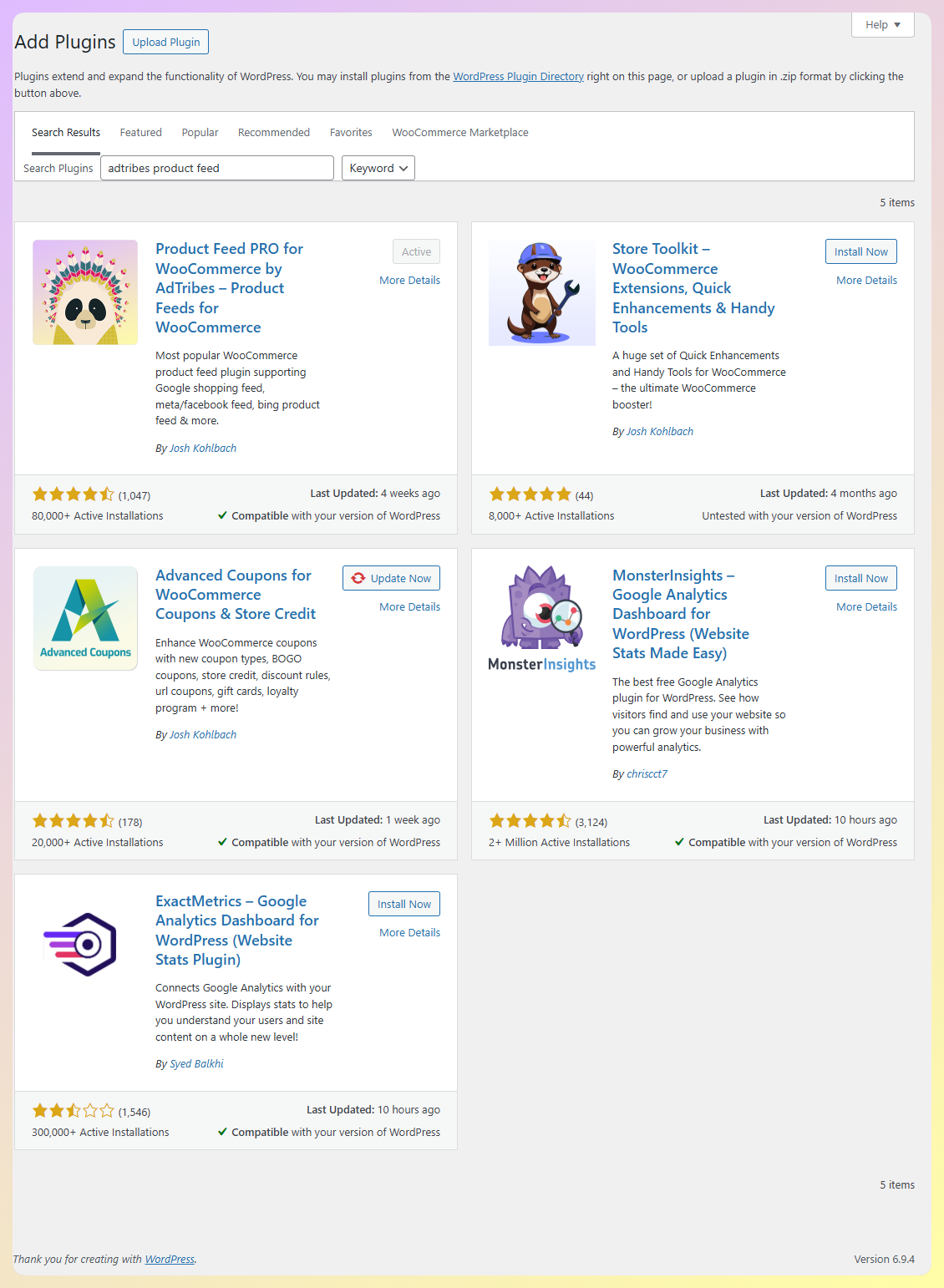
In your WordPress dashboard, open AdTribes Product Feed Pro and create a new feed. To do so, navigate to Product Feed > Create feed.
If you don’t have the plugin yet, you can get AdTribes Product Feed Pro for free and install it like any other WordPress plugin.
Step 2: Select Merkandi as your channel
Choose your country, then pick Merkandi from the channel list. The Merkandi channel uses XML for this feed, so your product data is formatted for Merkandi’s import process.
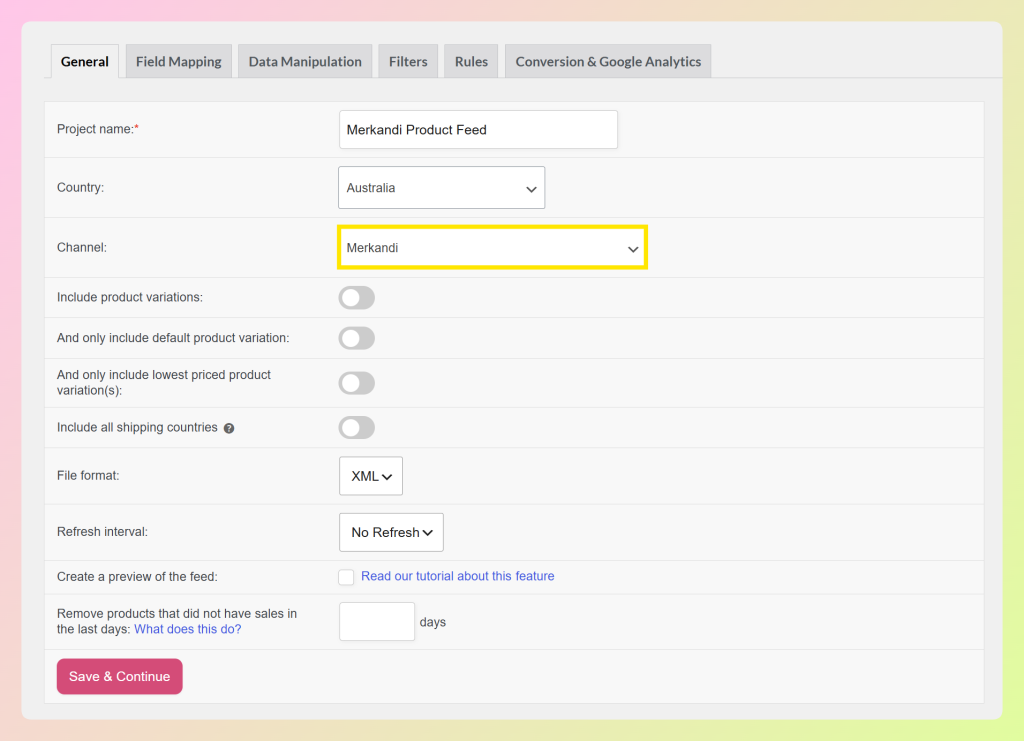
Before moving on, you can also review the optional settings in the General tab. For example, you can set how often the feed should refresh, which helps keep your Merkandi product data aligned with changes in WooCommerce.
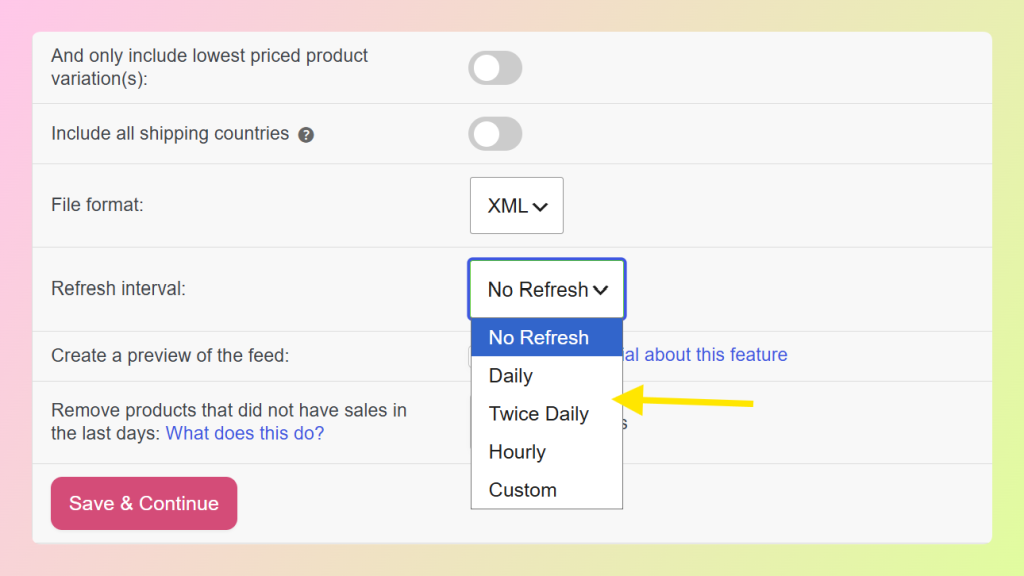
If you need more control over your feed schedule, AdTribes Product Feed Elite gives you access to custom refresh intervals.
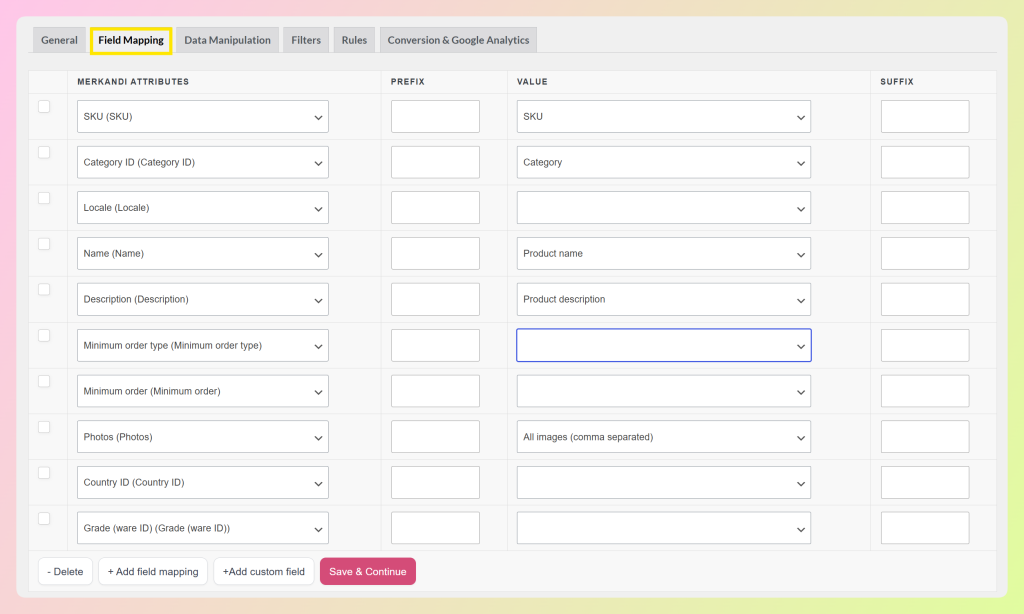
Step 3: Configure your field mapping
This is where you match your WooCommerce product data to Merkandi’s fields. The main Merkandi fields include:
- SKU: Your unique identifier for each product.
- Merkandi category: The category your product belongs to, chosen from Merkandi’s category list.
- Product name and description: Your product title and details.
- Minimum order: The smallest quantity or value a buyer can order.
- Price and currency: Your wholesale price and the currency it’s in.
- Product images: Up to seven images per product.
- Country and condition: Where the goods are stored and the product’s grade or condition.
AdTribes Product Feed Pro handles the main feed structure for you, then lets you review and adjust the field mapping before generating the feed. Some Merkandi fields, such as category and country, may need to be matched to Merkandi’s accepted values during setup.
Step 4: Add filters and rules (optional)
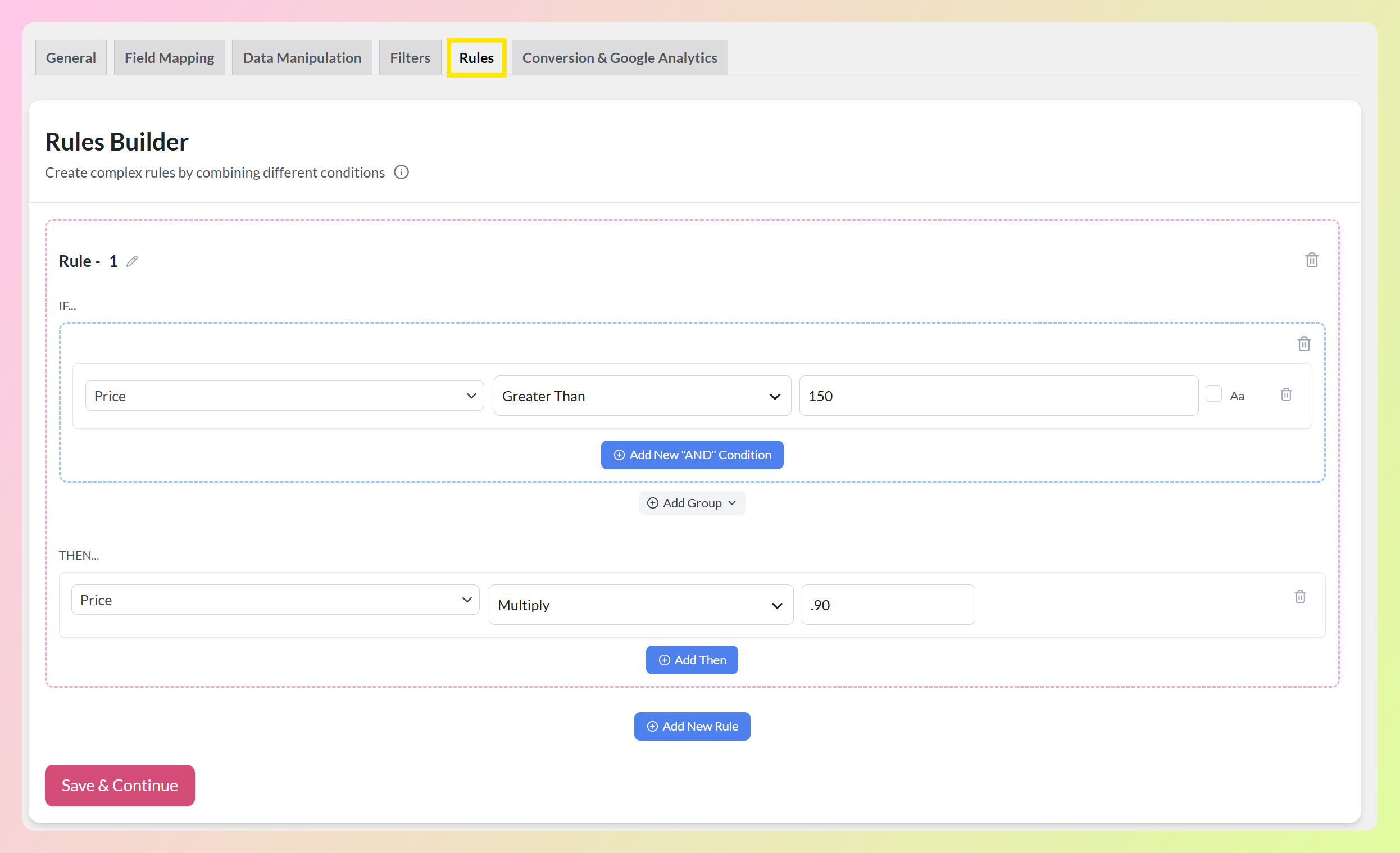
If you only want certain products in your Merkandi feed, use filters to include or exclude them. Rules can also help you adjust feed values before they’re sent. In the example below, we set up a rule that applies a 10% feed price adjustment to products above a certain price by multiplying the price by 0.90 before the feed is generated.
Step 5: Generate your feed and submit to Merkandi
Generate the feed, then copy its URL or download the file, depending on the import method you plan to use. From there, submit it through your Merkandi account and choose the import frequency available for your plan.
Frequently Asked Questions
Is the Merkandi feed free in AdTribes?
Yes. The Merkandi channel is built into AdTribes Product Feed Pro, which is free. You can create, map, and generate your Merkandi feed without a paid plan. Product Feed Elite adds extras like custom refresh intervals if you need more control over your feed schedule.
What file format does the AdTribes Merkandi channel create?
The AdTribes Merkandi channel creates an XML feed from your WooCommerce product data. This gives you a structured feed file you can use for Merkandi’s import process, without formatting the XML manually.
How does my feed get to Merkandi?
You submit it through your Merkandi account. AdTribes Product Feed Pro generates the XML feed, and you can use the import method available in Merkandi to send your product data. That keeps WooCommerce as your main product catalog while making it easier to prepare your feed for Merkandi.
Do I still manage my products in WooCommerce?
Yes. You manage your products in WooCommerce as usual, and the Merkandi feed pulls from that data each time it’s generated, so you’re not maintaining a separate catalog.
Wrapping Up
With the new Merkandi channel in AdTribes Product Feed Pro, preparing your WooCommerce products for Merkandi is much simpler. You can map your data, generate a Merkandi XML feed, and submit it through your Merkandi account without building the feed file manually.
Here’s how to get started:
- Install AdTribes Product Feed Pro for free and create a new feed
- Select Merkandi as your channel
- Map your WooCommerce fields, then generate and submit your feed to Merkandi
Ready to reach wholesale buyers? Create your WooCommerce Merkandi product feed with AdTribes Product Feed Pro and open up a new B2B sales channel. Want to see every channel AdTribes supports? Take a look at the full list of supported platforms.