
Want Google Shopping to show extra specs like material, dimensions, or warranty? Google takes these through its product_detail attribute, made for details that don’t fit a standard field.
Product Feed Pro (also available in Product Feed Elite) maps product_detail through a dedicated panel on the Field Mapping tab. This guide covers adding the detail in WooCommerce first, then mapping it to your feed.
Prerequisites
| Requirement | Details |
|---|---|
| Plugin version | Product Feed Pro 13.5.8 or later. The Field Mapping tab’s sub-attribute panel (used below) isn’t available on older versions. |
| Feed channel | A feed with the Google Shopping channel selected on its General tab. |
| WooCommerce data | At least one custom or predefined WooCommerce attribute already set on the products you want to describe, for example Material or Size. |
Add product details in WooCommerce
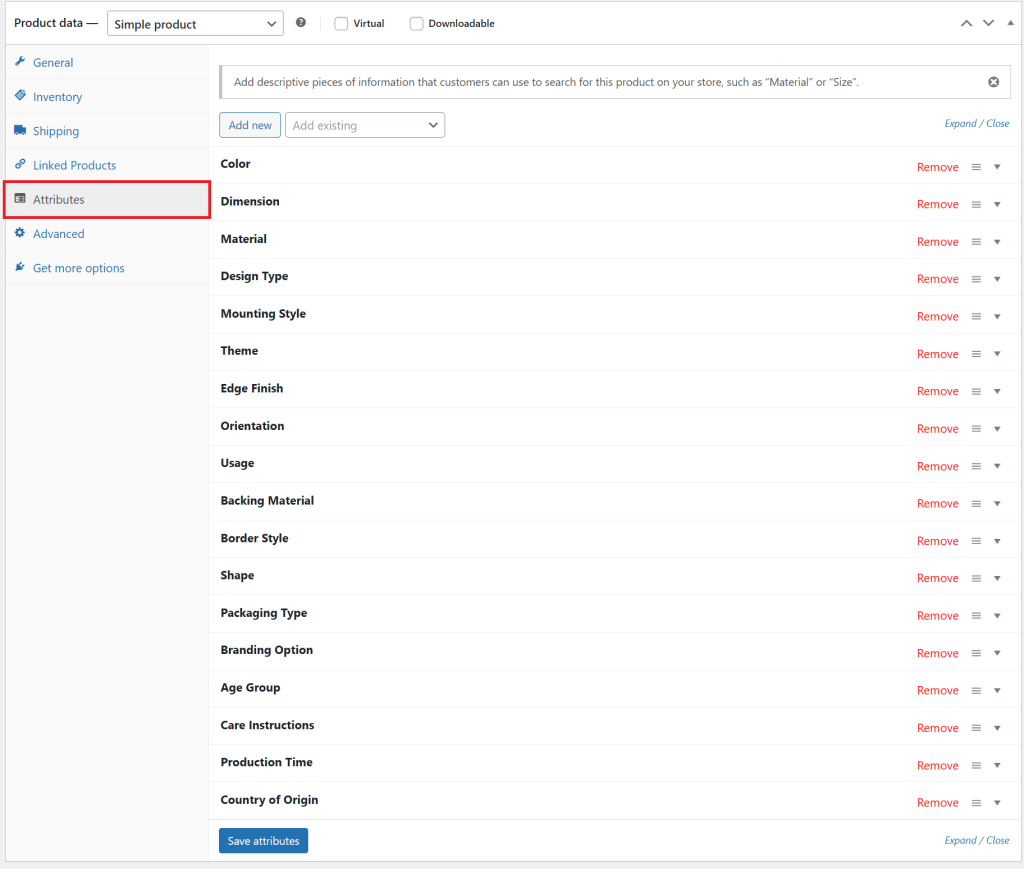
- Go to Products, select a product, then click Edit.
- Scroll to the Product data section and open the Attributes tab.
- Add your custom or predefined attribute (for example “Material” or “Size”) and enter its value.
- Click Save attributes, then Update the product.
Map product details to your feed
- In your WordPress admin menu, go to Product Feed, then open the feed that uses the Google Shopping channel.
- Click the Field Mapping tab.
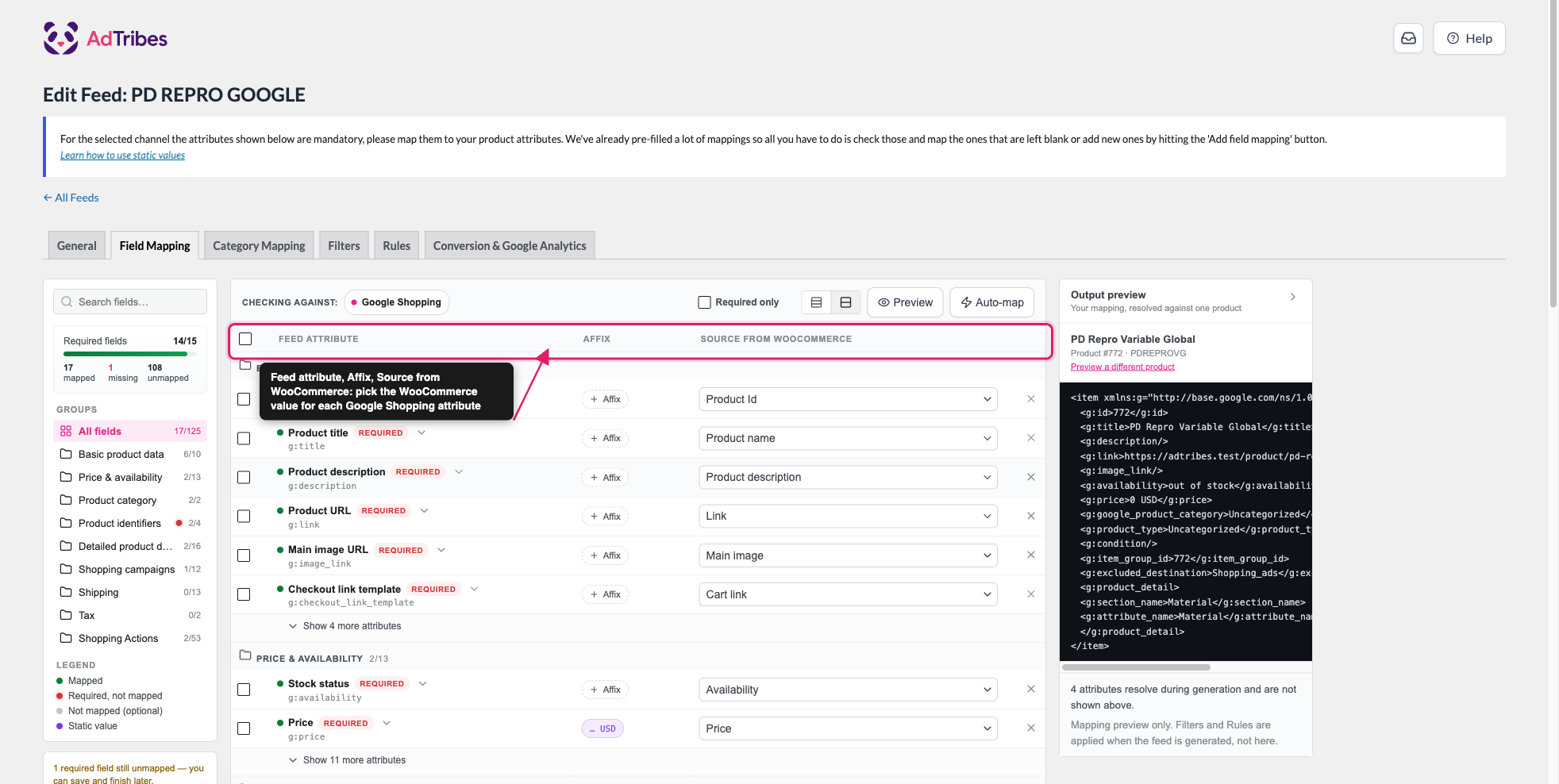
The tab lists the attributes of the feed’s own channel. The channel name shows next to Checking against: at the top.
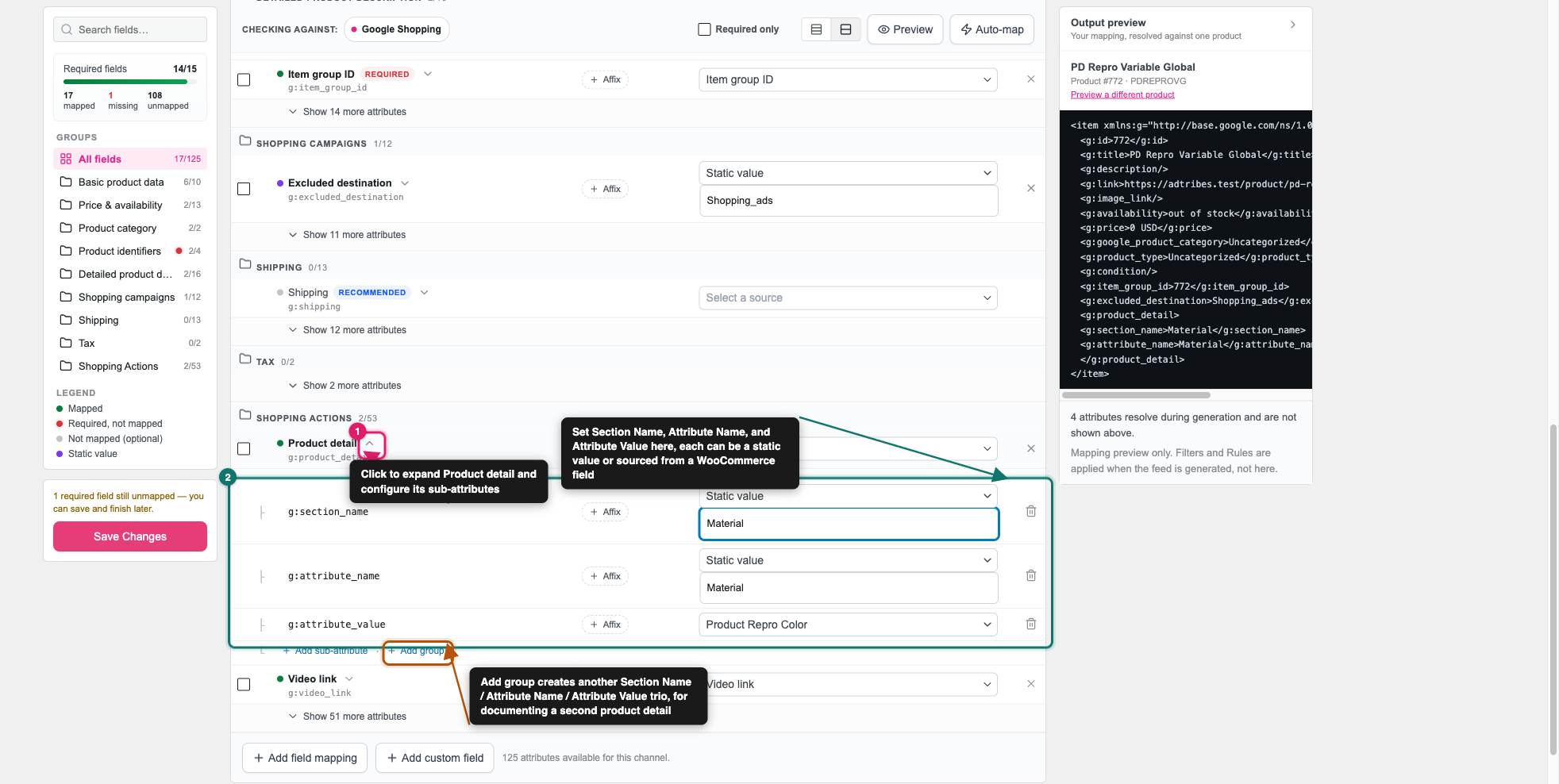
- Type “product detail” into the Search fields box to find the Product detail row.
- Click the expand arrow next to Product detail.
- Click Configure sub-attributes. Three rows appear underneath:
g:section_name,g:attribute_name, andg:attribute_value. - In the
g:section_namerow, type the label you want Google to group this detail under, for exampleMaterial. - Set the
g:attribute_namesource to Static value and type the attribute’s display name, for exampleMaterial. - Set the
g:attribute_valuesource to the WooCommerce attribute you added in the previous section. - Click Save Changes.
Product detail sits in the Shopping Actions group and has no Required badge, because Google treats it as optional. The g:section_name row is set to Static value already. Google also marks the section name as optional, but recommends it.
Preview your feed
After you save your mapping, check the result before you send the feed to Google.
- Check the Output preview panel next to the table. It shows your mapping for one real product, so you can check
<g:product_detail>before you refresh the whole feed. - Go to Manage feeds.
- Click the Refresh Feed icon for this feed.
- Open the feed’s URL and confirm the
g:product_detailentries appear for your products.
Troubleshooting
Need more help?
If you’re a Product Feed Elite user, open a support ticket to get faster support.
If you’re a Product Feed Pro user, please create a new topic on the WordPress.org forum.

