
If the law requires a safety warning, legal disclaimer, or California Proposition 65 notice on some of your products, you can send it to Google in your product feed. Product Feed Pro lets you map these consumer notices onto your Google Shopping feed, no custom code needed.
Google shows the notice to shoppers as an expandable warning section during checkout. For the full attribute spec, see Google’s consumer notice documentation.
Prerequisites
| Requirement | Details |
|---|---|
| Plugin | Product Feed Pro (free or premium); Elite is not required |
| Version | Product Feed Pro version 13.5.8 or later. Older versions show a different Field Mapping screen. |
| Feed channel | A Google Shopping feed |
| Product data | An attribute, custom field, or other product data source that holds the notice text for each product that needs one |
Map a consumer notice
Step 1: Open field mapping
Open your Google Shopping feed in Product Feed Pro, then go to the Field Mapping tab.
Step 2: Find the consumer notice rows
Search for “consumer” in the Search fields box. The table already lists three rows for this attribute under Shopping Actions: Consumer notice 1, Consumer notice 2, and Consumer notice 3. Product Feed Pro gives you three consumer notice rows per product, so you won’t need to add extra rows for this attribute.
Step 3: Open the sub-attributes
Each consumer notice row expands into two parts Google requires: the notice type and the notice message. Click the row’s arrow to expand it, then click Configure sub-attributes to reveal the g:notice_type and g:notice_message rows underneath.
Step 4: Set the notice type
The g:notice_type row’s source is already set to Static value. Type the exact notice type Google expects into the fixed-value field:
| Notice type | Value to enter |
|---|---|
| Prop 65 | prop_65 |
| Safety warning | safety_warning |
| Legal disclaimer | legal_disclaimer |
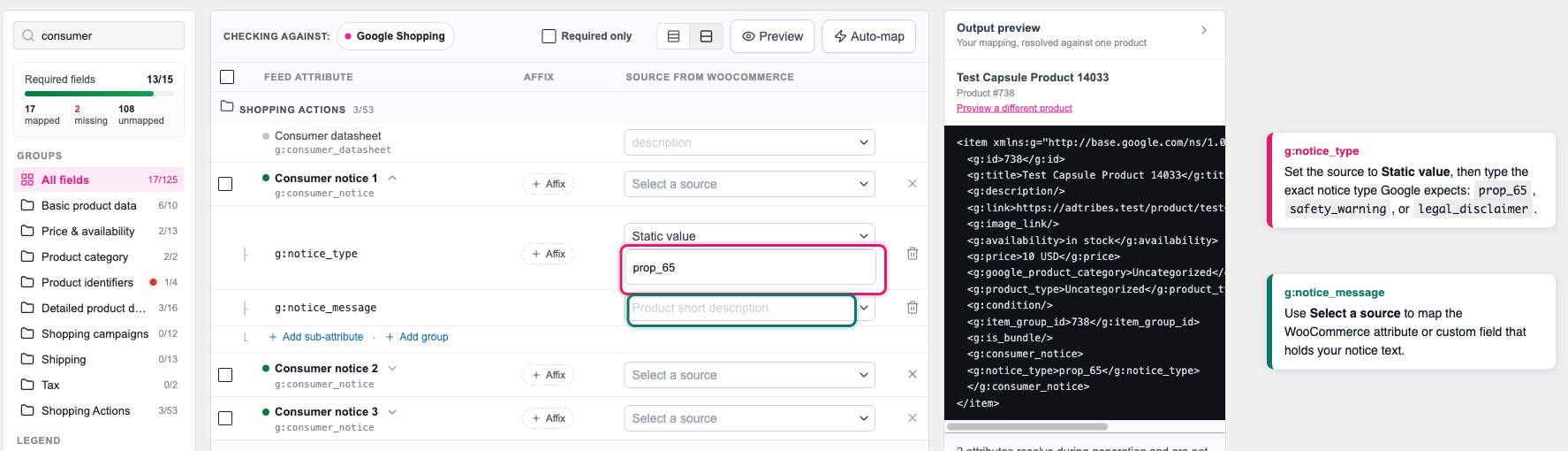
Step 5: Map the notice text
On the g:notice_message row, use Select a source to choose the WooCommerce attribute, custom field, or other source that holds your notice text. Repeat steps 3 to 5 for each additional notice you want to send, using Consumer notice 2 and Consumer notice 3.
Keep each notice message to 1,000 characters or fewer. Google only allows the <b>, <br>, <i> and <a href> HTML tags in the message, so remove any other formatting from the source text.
Step 6: Save and refresh the feed
Click Save Changes (or Save & Continue if you’re still creating the feed), then refresh the feed to regenerate the file Google Merchant Center reads.
Troubleshooting
prop_65, safety_warning, or legal_disclaimer. Product Feed Pro sends the static value you typed as-is, with no spelling correction or fallback. Open the row’s sub-attributes and check for extra spaces, a missing underscore, or the wrong casing.FAQ
prop_65, safety_warning, or legal_disclaimer. Product Feed Pro sends the g:notice_type static value to Google exactly as typed, so any other spelling reaches Google unchanged and may not be recognized.prop_65, safety_warning, and legal_disclaimer as notice types for this attribute.Need more help?
If you’re on the free version of Product Feed Pro, open a support forum thread, and our team will get back to you there.
If you’re a Premium or Elite user, open a support ticket from your account, and we’ll help you directly.

