
Google Shopping and other channels use a GTIN, UPC, EAN, or ISBN to identify your products. Without a unique identifier, your items are harder to classify and can be left out of some Shopping programs and features. This article shows how to send the WooCommerce GTIN field to your feed in Product Feed Elite or Product Feed PRO, and how to add an MPN when a product has no GTIN.
Prerequisites
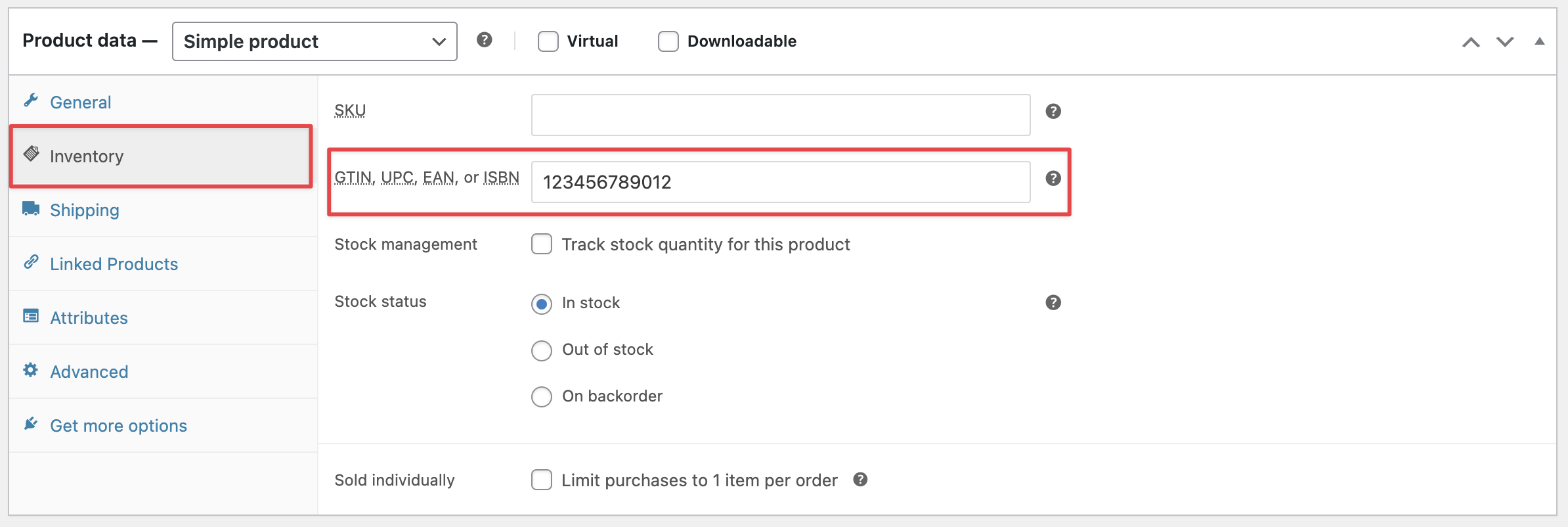
- WooCommerce 9.2 or later. This version adds the GTIN, UPC, EAN, or ISBN field to the Inventory tab of the product editor.
- Product Feed PRO or Product Feed Elite, installed and active.
- A feed that has a Gtin row in its field mapping, for example a Google Shopping feed.
- A brand for each product, mapped to the Brand row of your feed. Google needs the brand together with the GTIN or MPN. If your products have no brand field, Product Feed Elite can add one: turn on Brand on the Extra fields tab, the same way as MPN below.
How to map the GTIN field in Product Feed Elite
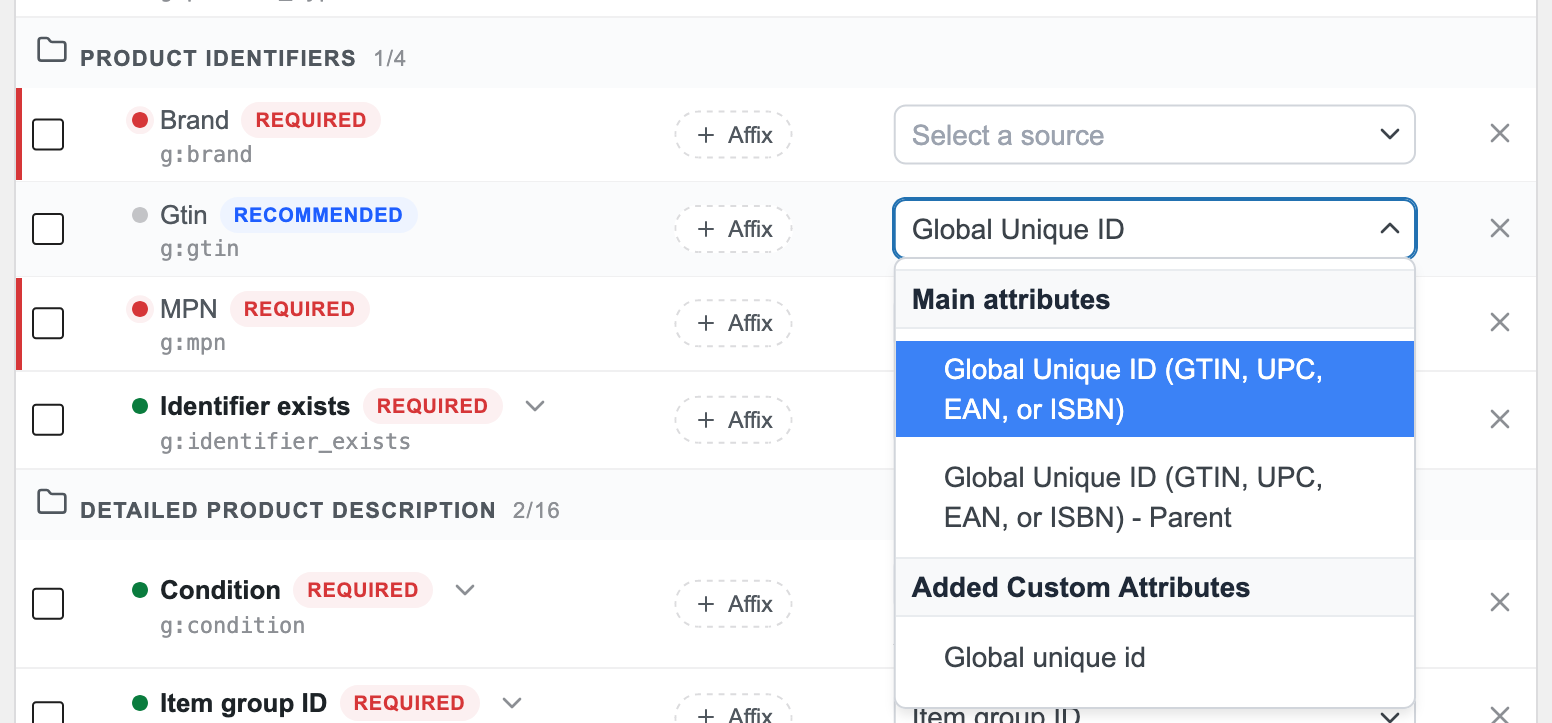
The named Global Unique ID (GTIN, UPC, EAN, or ISBN) options come with Product Feed Elite. This is the easiest way to map the field. If you use the free Product Feed PRO plugin, follow the steps in the next section instead.
- Open your feed and go to the Field Mapping step.
- In the Gtin row (g:gtin), select Global Unique ID (GTIN, UPC, EAN, or ISBN) from the dropdown.
- Click Save Changes.
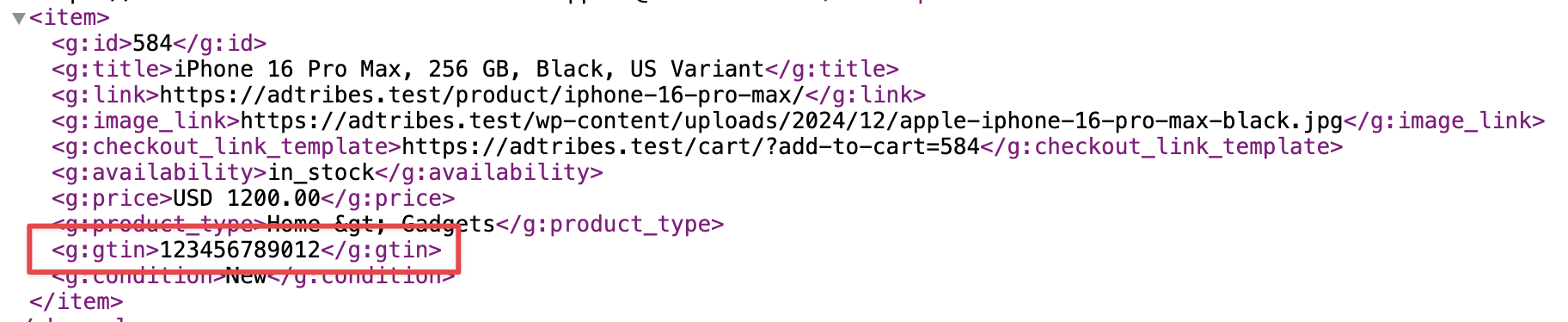
- Refresh the feed, then open it to check the g:gtin values.
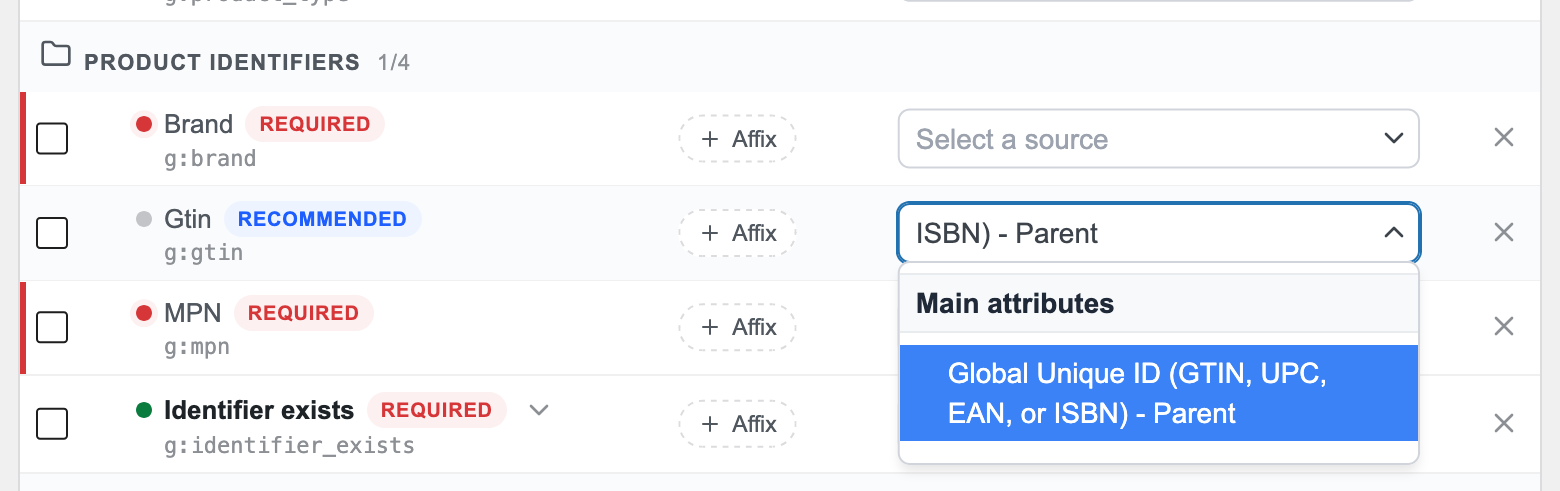
For variable products, select Global Unique ID (GTIN, UPC, EAN, or ISBN) – Parent instead if you want every variation to use the parent product’s GTIN.
How to map the GTIN field in Product Feed PRO
Product Feed PRO doesn’t have the named Global Unique ID options, but it can still read the WooCommerce GTIN field. The field shows up as a custom attribute called Global unique id.
Add a GTIN and clear the attribute cache
- Add a GTIN to at least one product in the GTIN, UPC, EAN, or ISBN field on the Inventory tab.
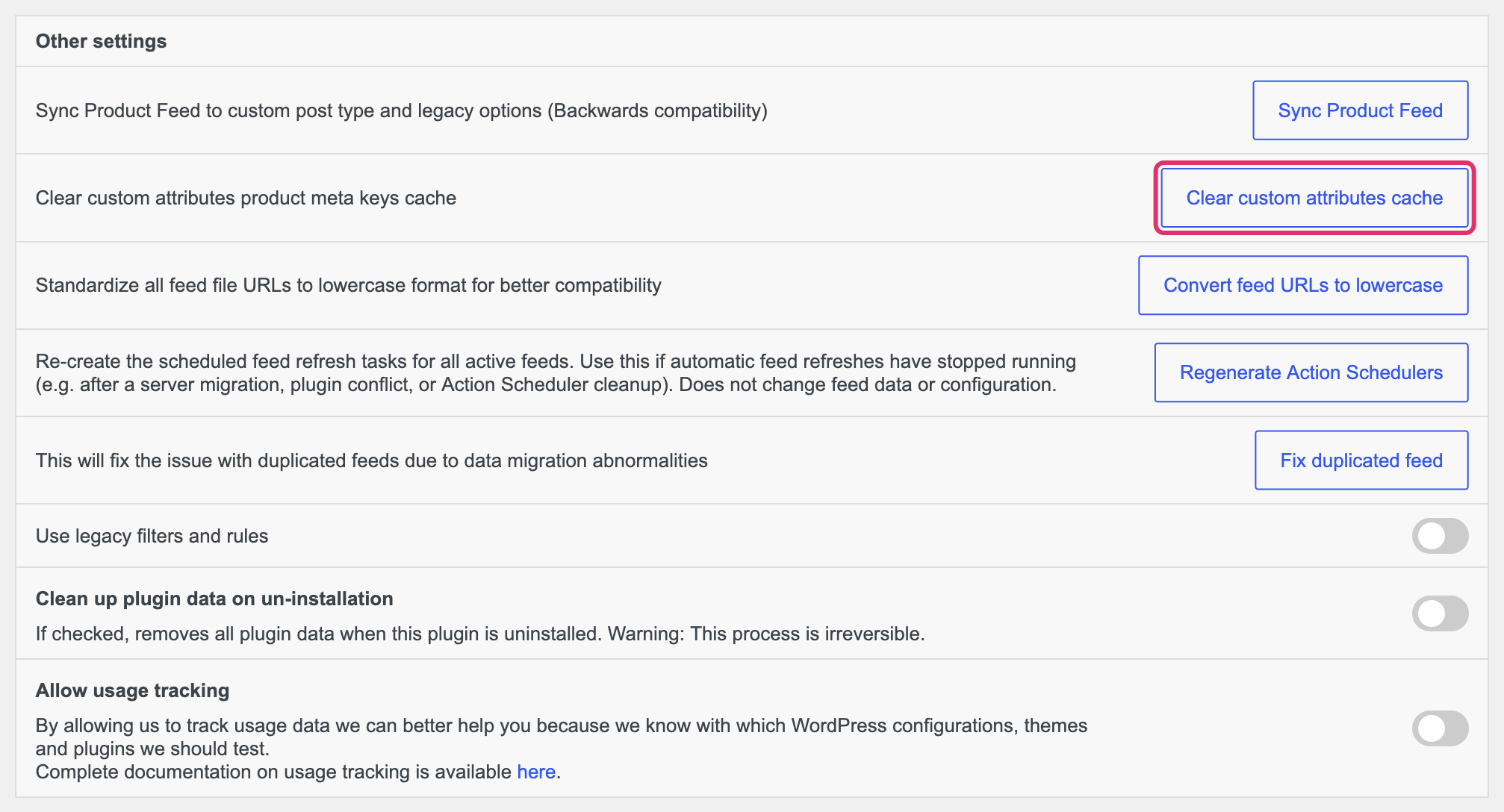
- Go to Product Feed > Settings, then click Clear custom attributes cache under Other settings.
Map the Gtin row
- Open your feed and go to the Field Mapping step.
- In the Gtin row (g:gtin), select Global unique id from the Added Custom Attributes group.
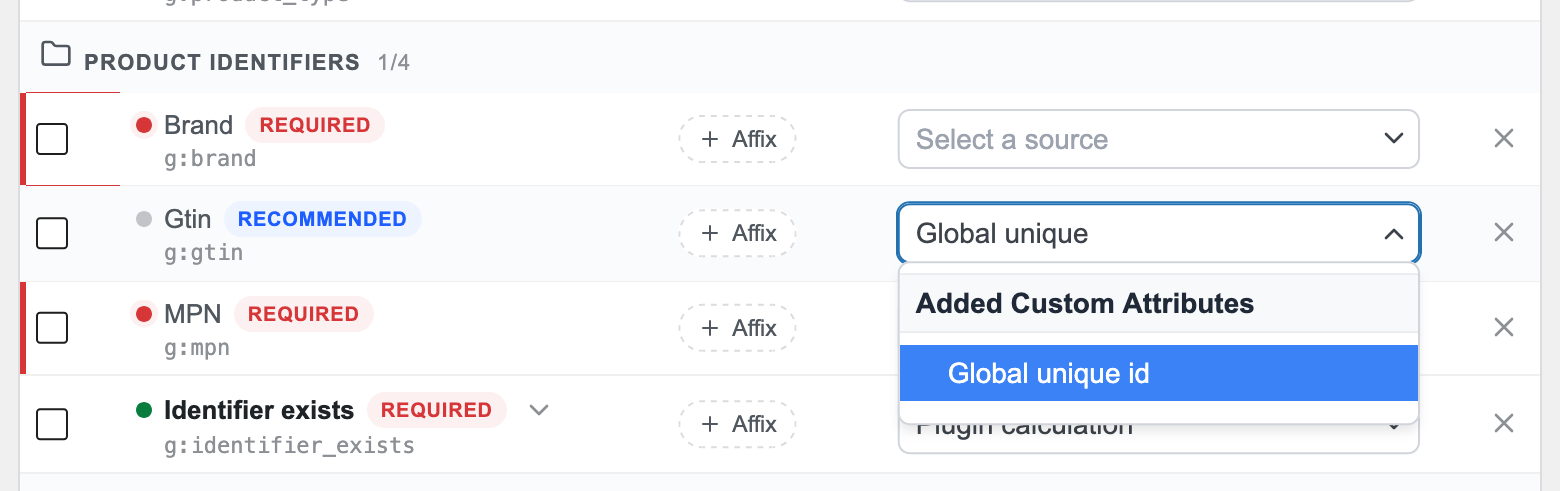
- Click Save Changes, then refresh the feed.
For variable products, a variation without its own GTIN uses the parent product’s GTIN in the feed.
How to add an MPN in Product Feed Elite
If a product has no GTIN, UPC, EAN, or ISBN, Google recommends adding an MPN (Manufacturer Part Number) instead. Google explains its rules in About unique product identifiers.
If you already keep MPNs in Yoast WooCommerce SEO, you don’t need the steps below. This works in Product Feed PRO and Product Feed Elite. In the MPN row of your feed, select Yoast WooCommerce MPN from the Main attributes group.
WooCommerce doesn’t have an MPN field, but Product Feed Elite adds one.
Turn on the MPN field
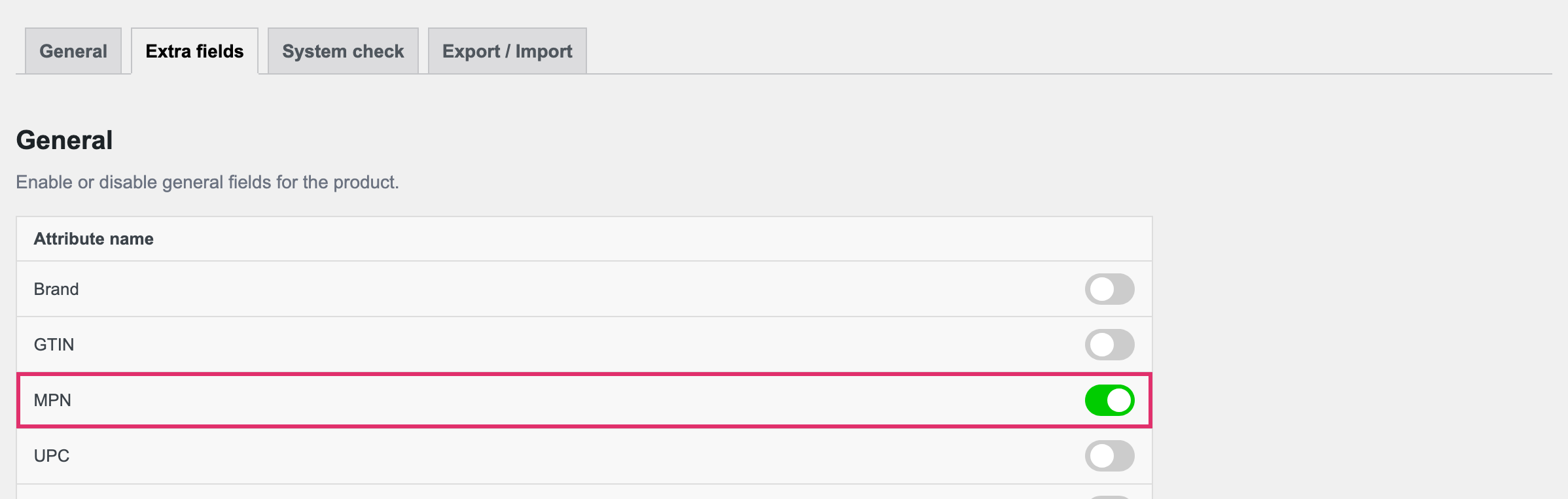
- Go to Product Feed > Settings and open the Extra fields tab.
- Turn on MPN.
Add an MPN to your products
Edit a product and enter its MPN in the MPN field on the General tab.
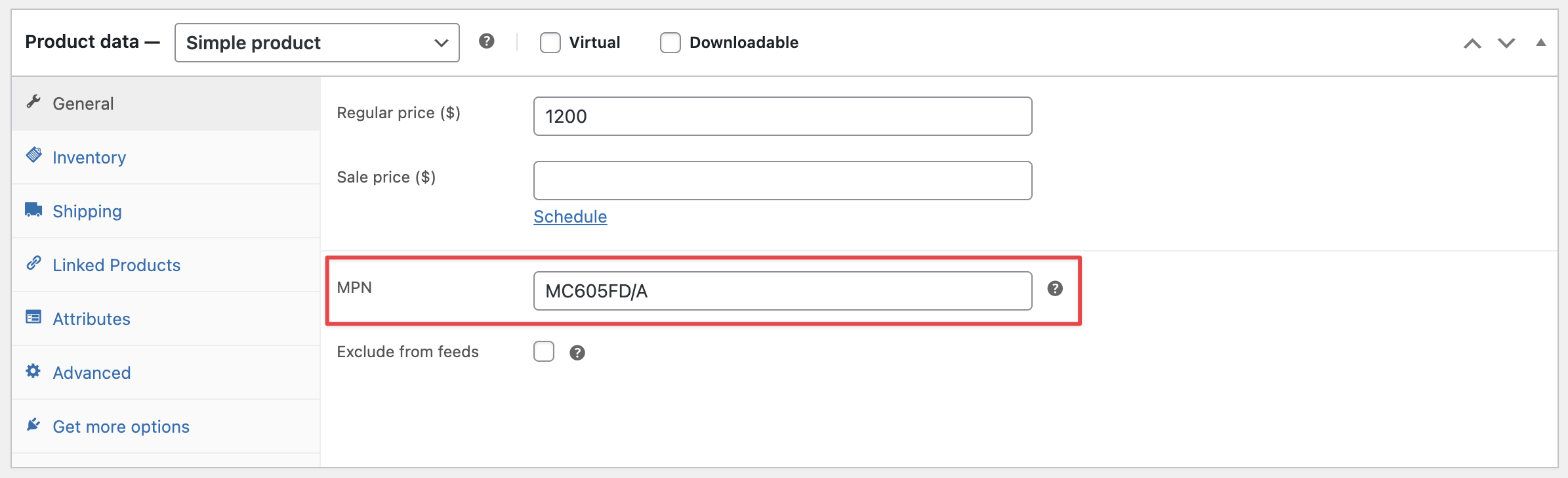
For variable products, each variation also gets an MPN field. A variation without its own MPN uses the parent product’s MPN.
Map the MPN row in your feed
- Open your feed and go to the Field Mapping step.
- Find the MPN row (g:mpn). Google Shopping feeds have one already. For other channels, add it with Add field mapping.
- Select MPN (Added Custom attribute) from the Added Custom Attributes group.
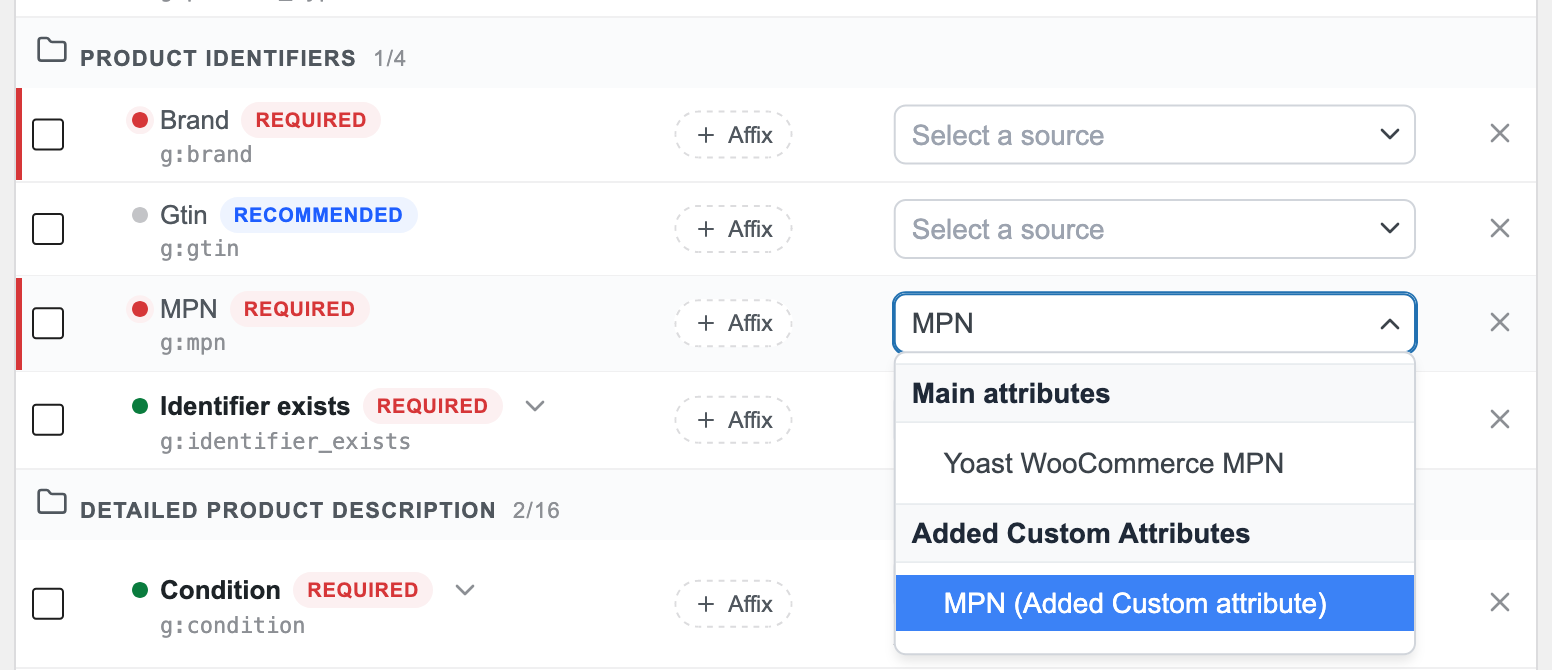
- Click Save Changes, then refresh the feed.
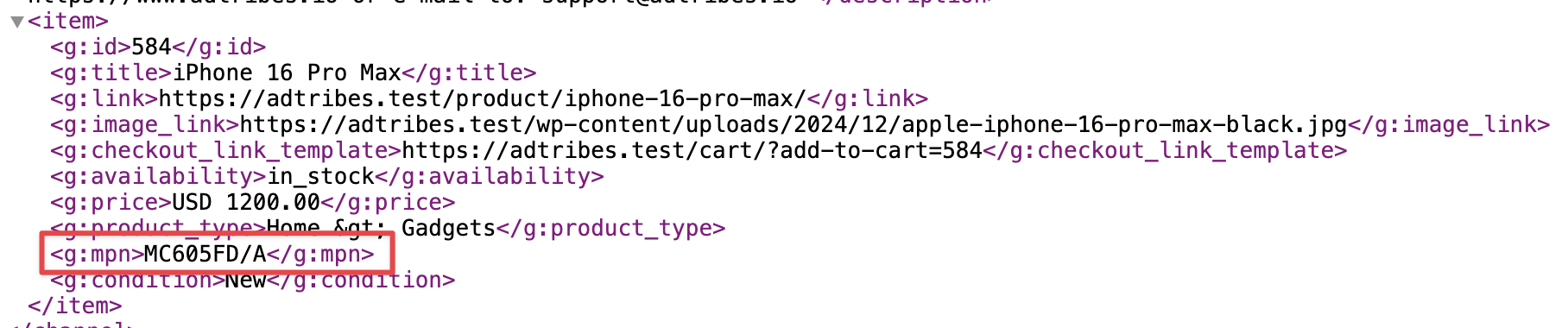
What to do if your products have no GTIN or MPN
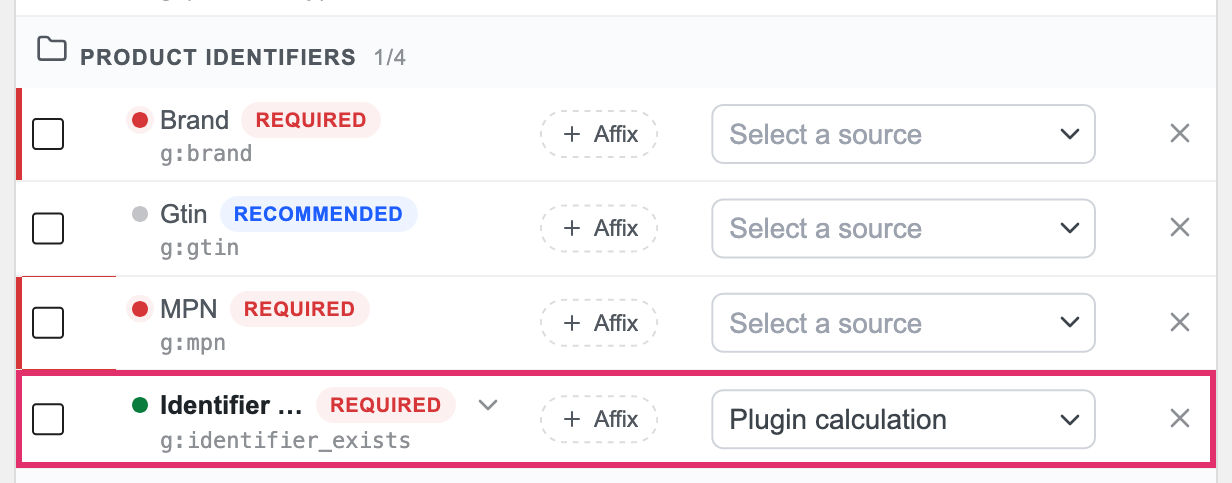
Map the Identifier exists row (g:identifier_exists) to Plugin calculation. If your feed doesn’t have this row, add it with Add field mapping.
In an XML feed, such as the default Google Shopping feed, the plugin sends “yes” for a new product that has a brand and a GTIN or MPN, and “no” for every other product. Map the Brand row too. If you don’t, products that have a GTIN are still sent as “no”. Keep the Condition row mapped as well, because the plugin only calculates this value for products that have a condition.
In a CSV, TXT, or TSV feed, the plugin sends “yes” when a product has a brand, a GTIN, or an MPN, and “no” when it has none of them.
Troubleshooting
Global unique id is not in the dropdown
Make sure at least one published product has a value in the GTIN, UPC, EAN, or ISBN field. Then go to Product Feed > Settings and click Clear custom attributes cache under Other settings. The plugin keeps its list of custom attributes for 24 hours, so a GTIN you added recently doesn’t show up until the cache is cleared.
My variations have no GTIN in the feed
In Product Feed Elite, select Global Unique ID (GTIN, UPC, EAN, or ISBN) – Parent in the Gtin row. Each variation then uses the parent product’s GTIN. In Product Feed PRO, a variation without its own GTIN already uses the parent product’s GTIN, so add the GTIN to the parent product or to each variation.
Need help?
If you have a question or run into any issues, we’re here to help.
- Premium users: Open a support ticket
- Free users: Visit our community forum

