
UTM parameters are tags you add to your product URLs so you can track where your traffic and conversions come from in Google Analytics (GA), GA4, and other analytics tools. When shoppers click a product in Google Shopping, Bing, Facebook, or another channel, the UTM parameters in the link tell you exactly which campaign, source, and medium drove that visit and ultimately, which channels perform best.
The AdTribes Product Feed plugin lets you append UTM parameters automatically to every product URL in your feed. This guide explains how to configure UTM tracking for your feeds, what each parameter does, and how to use both the built-in settings and advanced options for custom tracking.
Why Use UTM Tracking?
- Attribution: See which channels (Google Shopping, Bing, Facebook, etc.) drive clicks and sales
- Campaign optimization: Compare performance across feeds and campaigns to allocate budget
- GA4 / Google Analytics reporting: Build reports in Acquisition, Campaigns, and E-commerce
- Consistency: All product links in a feed get the same tracking structure automatically
Standard UTM Parameters
| Parameter | Purpose | Example |
|---|---|---|
| utm_source | Where the traffic comes from (platform or channel) | Google Shopping, Bing Shopping, Facebook |
| utm_medium | Type of traffic (e.g., paid, organic) | cpc, shopping, social |
| utm_campaign | Campaign or feed name | Summer_Sale, US_Google_Feed |
| utm_content | Extra detail (e.g., ad group, promotion) | product_group_1, promo_banner |
| utm_term | Often used for keywords or product identifiers | Used by the plugin for internal tracking |
The plugin appends these to your product URLs. For example:
https://yoursite.com/product/blue-widget/?utm_source=Google+Shopping&utm_medium=cpc&utm_campaign=US_FeedWhat You Need Before You Start
- Product Feed Pro or Product Feed Elite is installed and activated
- An existing feed (or a new one you’re creating)
- Google Analytics or GA4 set up on your site (optional, but recommended for using the data)
Configuring UTM Parameters in the Plugin
The plugin’s Conversion & Google Analytics tab is where you enable and configure UTM tracking for each feed.
Open the Conversion & Google Analytics Tab
- Go to Product Feed → Manage Feeds
- Click Edit on the feed you want to configure
- Click the Conversion & Google Analytics tab
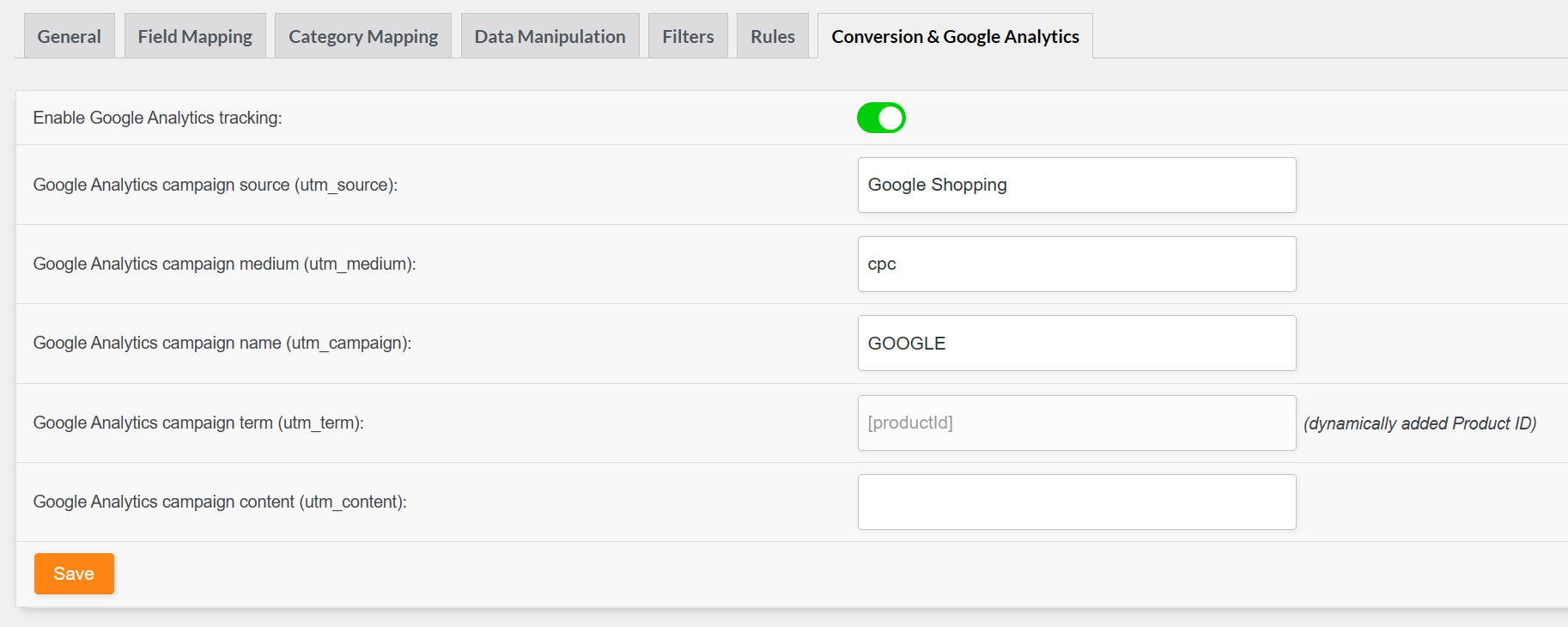
Enable Google Analytics Tracking
- Turn on Enable Google Analytics tracking
- When enabled, the plugin appends UTM parameters to every product URL in the feed
Set Your UTM Values
Configure each parameter as needed. Empty fields are omitted from the URLs.
| Setting | Description | Recommendation |
|---|---|---|
| utm_source | Campaign source (where traffic comes from) | Use the channel name, e.g., Google Shopping, Bing Shopping, Facebook Catalog Feed |
| utm_medium | Campaign medium (type of traffic) | Use cpc for paid shopping, shopping for free listings |
| utm_campaign | Campaign name | Use your feed or campaign name, e.g., US_Google_Feed, Summer_Sale |
| utm_content | Extra content identifier | Use for ad groups, product groups, or promotions |
Default values when creating a new feed:
- utm_source: Pre-filled from the channel (e.g., “Google Shopping”, “Bing Shopping”)
- utm_medium:
cpc - utm_campaign: Your project/feed name
- utm_term:
adtribes(fixed and hidden field)
Save and Generate Your Feed
- Click Save Changes (or Generate Product Feed for new feeds)
- Regenerate or refresh your feed so the new UTM parameters appear in the product URLs
Channel-Specific UTM Examples
Different channels have different suggested utm_source values. The plugin pre-fills these when you create a feed:
| Channel | Suggested utm_source |
|---|---|
| Google Shopping | Google Shopping |
| Bing Shopping | Bing Shopping |
| Facebook Catalog / Instagram | Facebook Catalog Feed |
| TikTok | TikTok |
You can change any value to match your reporting needs.
Using the Link Without Parameters Attribute
Some channels or use cases require product URLs without UTM parameters (e.g., clean links for certain marketplaces or internal systems).
The plugin provides a Link without parameters attribute (link_no_tracking) that contains the product URL with no UTM or other query parameters. In Field Mapping, you can map this attribute to the link field for feeds that need clean URLs, while still using the standard Link attribute (with UTM) for channels that support tracking.
Advanced Options
Using Rules to Modify Product URLs
If you need per-product or per-category UTM logic, you can use the Rules Builder to modify the Link attribute. Rules support Set Value (replace the entire URL) and Find and Replace (modify part of the URL). For example, use Set Value to assign a custom URL with specific UTM parameters for certain products (e.g., high-ticket items or sale categories). Rules run after UTM parameters are applied, so you can further customize URLs when needed.
Developer Filters for Custom UTM Logic
Developers can customize UTM parameters using WordPress filters:
adt_product_feed_utm_code_array– Modify the UTM array before it’s appended (e.g., add product ID toutm_content, change values per product)adt_product_feed_append_utm_code– Modify the final UTM string before it’s added to the URL
These filters receive the feed object, product ID, parent ID, and product link, so you can implement dynamic UTM logic (e.g., product-level or category-level tracking).
Viewing UTM Data in Google Analytics
Once your feed is live and UTM parameters are in your product URLs:
- GA4: Go to Reports → Acquisition → Traffic acquisition (or Campaigns) to see traffic by
utm_source,utm_medium, andutm_campaign - Universal Analytics: Use Acquisition → Campaigns → All Campaigns
- E-commerce: Use MonsterInsights or GA4 E-commerce reports to connect UTM data to product and revenue performance
For more on feed performance in analytics, see How to Track Feed Performance in MonsterInsights.
Troubleshooting Common Issues
| Issue | Solution |
|---|---|
| UTM parameters not appearing in feed | The plugin appends UTM & when the URL already contains ?. This is handled automatically. |
| URLs already have query parameters | The plugin appends UTM with & when the URL already contains ?. This is handled automatically. |
| Wrong utm_source for my channel | Edit the feed, go to Conversion & Google Analytics, and change utm_source to match your reporting. |
| Need different UTM per product | Use Rules to modify the Link attribute, or the adt_product_feed_utm_code_array filter for custom logic. |
| Channel requires URLs without UTM | Map the Link without parameters attribute to the link field instead of Link. |
Need Further Assistance?
If you need help configuring UTM tracking:
- Product Feed Elite users: Create a support ticket to reach the AdTribes support team.
- Product Feed Pro users: Open a topic in the WordPress.org forum.