
If your hosting environment throttles WordPress’s built-in task scheduler, or if you need feeds to refresh at a precise time that the plugin’s hourly, twice-daily, or daily intervals don’t match, you can drive feed refreshes from a server-level cron job instead. This gives you exact control over timing and avoids relying on visitor traffic to trigger WordPress’s scheduler.
Common symptoms: feeds stuck on old data, refresh times that drift between visits, or hosting environments that disable wp-cron.
Product Feed Pro and Product Feed Elite both support two approaches: a WP-CLI command (recommended) and a standalone PHP script for servers without WP-CLI.
Before you start
- Product Feed Pro or Product Feed Elite installed and active
- At least one product feed created and configured
- SSH or cPanel access to your server to add cron jobs
- Your feed ID (see Step 1 in either method below)
- Version 13.5.4 or later for WP-CLI support
Method 1: WP-CLI (recommended)
WP-CLI is available on most managed WordPress hosts. It’s the simplest and most reliable way to trigger a feed refresh from a server cron job. No PHP file to manage, no WordPress bootstrapping required.
Step 1: Find your feed ID
- Go to Product Feed → Manage Feeds in your WordPress admin.
- Click the feed you want to refresh.
- Look at the browser URL bar. The feed ID is the value of the
idparameter — for example,admin.php?page=adt-edit-feed&id=123means your feed ID is123.

Step 2: Disable the built-in refresh interval
To prevent the plugin’s scheduler from running a duplicate refresh alongside your cron job:
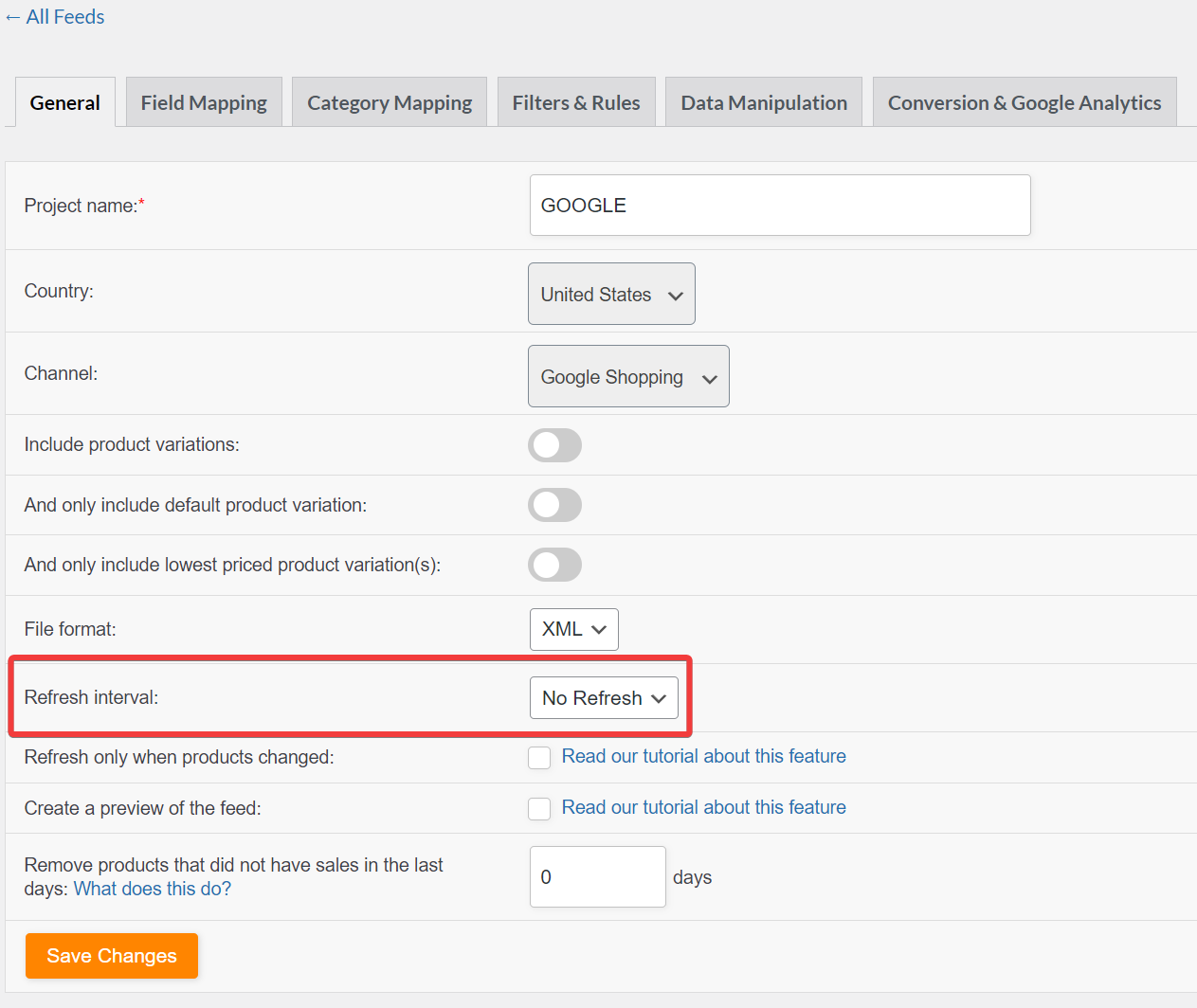
- While editing the feed, go to the General tab.
- Set Refresh interval to No Refresh.
- Click Save Changes.
Step 3: Add the server cron job
On your server, add a cron entry that runs wp adt-feed refresh at your chosen schedule. Replace /path-to-wordpress with your site’s actual root directory and 123 with your feed ID:
0 2 * * * cd /path-to-wordpress && wp adt-feed refresh 123 >> /tmp/feed-refresh-123.log 2>&1
This example runs at 2:00 AM every day. Adjust the schedule expression to match your needs.
To refresh multiple feeds in a single cron job, list their IDs separated by spaces:
0 2 * * * cd /path-to-wordpress && wp adt-feed refresh 123 456 789
Method 2: PHP script
Use this method if your server doesn’t support WP-CLI.
Step 1: Find your feed ID
Follow the same steps as in Method 1, Step 1 above. Click your feed to edit it and read the id= value from the URL.
Step 2: Create the PHP script
Create a new file called feed-refresh-123.php (replace 123 with your feed ID) and save it in your child theme directory — for example, wp-content/themes/your-child-theme/feed-refresh-123.php.
Add this code to the file, replacing 123 with your actual feed ID:
/**
 * Product Feed Generation Cron Script
 */

// Start timing
$start_time = microtime(true);

// Simple logging function
function log_message($message) {
    $timestamp = date('Y-m-d H:i:s');
    $log_entry = "[$timestamp] $message";

    error_log($log_entry);
    echo $log_entry . "\n";
}

log_message("Feed generation started");

try {
    // Load WordPress (3 levels up from wp-content/themes/your-child-theme/)
    require_once(__DIR__ . '/../../../wp-load.php');

    $feed_id = 123; // Change this to your actual feed ID

    $feed = \AdTribes\PFP\Helpers\Product_Feed_Helper::get_product_feed($feed_id);

    if ($feed) {
        $feed->generate();

        $execution_time = round(microtime(true) - $start_time, 2);
        log_message("Feed ID $feed_id generated successfully in {$execution_time}s");

    } else {
        log_message("ERROR: Failed to get feed ID $feed_id");
    }

} catch (Exception $e) {
    log_message("ERROR: " . $e->getMessage());
}
Step 3: Disable the built-in refresh interval
Follow the same steps as in Method 1, Step 2 above — set Refresh interval to No Refresh in the General tab.
Step 4: Add the server cron job
Add the following cron entry on your server, replacing the paths with your actual values:
0 2 * * * php /path-to-wordpress/wp-content/themes/your-child-theme/feed-refresh-123.php >> /path-to-wordpress/wp-content/themes/your-child-theme/feed-refresh-123.log 2>&1
This runs at 2:00 AM every day. The output is written to a log file in the same directory, so you can check if the script ran and whether it produced any errors.
To run multiple feeds independently, create a separate PHP file and cron entry for each feed.
Troubleshooting
If the log shows output but the feed still doesn’t update, verify the feed ID is correct: open the feed in WordPress admin and confirm the
id= value in the URL matches the ID in your script or WP-CLI command.wp binary may not be in your server’s PATH. Contact your host to confirm WP-CLI is available and ask for the full path. Then update your cron entry to use the full path (e.g. /usr/local/bin/wp adt-feed refresh 123).AdTribes\PFP\Helpers\Product_Feed_Helper class is only available after the plugin has loaded via wp-load.php. Make sure the require_once line points to the correct wp-load.php path. The path must match your WordPress installation root — not a subdirectory.FAQ
Need more help?
If you’re on Product Feed Elite, open a support ticket, and our team will help you configure the cron setup for your environment.
If you’re on Product Feed Pro, post your question in the WordPress.org support forum.

