
If you want your product feeds to drive meaningful results, focus on products that already prove they can sell.
Instead of promoting your entire catalog, you can limit your feed to items that customers have actually purchased. This helps ensure your ads and product listings highlight products with real sales performance, not just potential.
With Product Feed Pro, you can automatically filter your product feed to include only products with a sales history.
You can:
- Filter by sales within a specified time range
- Filter by total number of product sales
Let’s walk through how to configure both options.
Guide to Creating Performing Products Feed
Go to Product Feed Pro (or Product Feed Elite, if you’re using the premium version) → Manage Feed, and create a new feed or edit an existing one.
1. Recent Sales Filter (Sales Within a Specific Time Range)
This option allows you to automatically exclude products that have not generated sales within a defined number of days.
Where to Find It
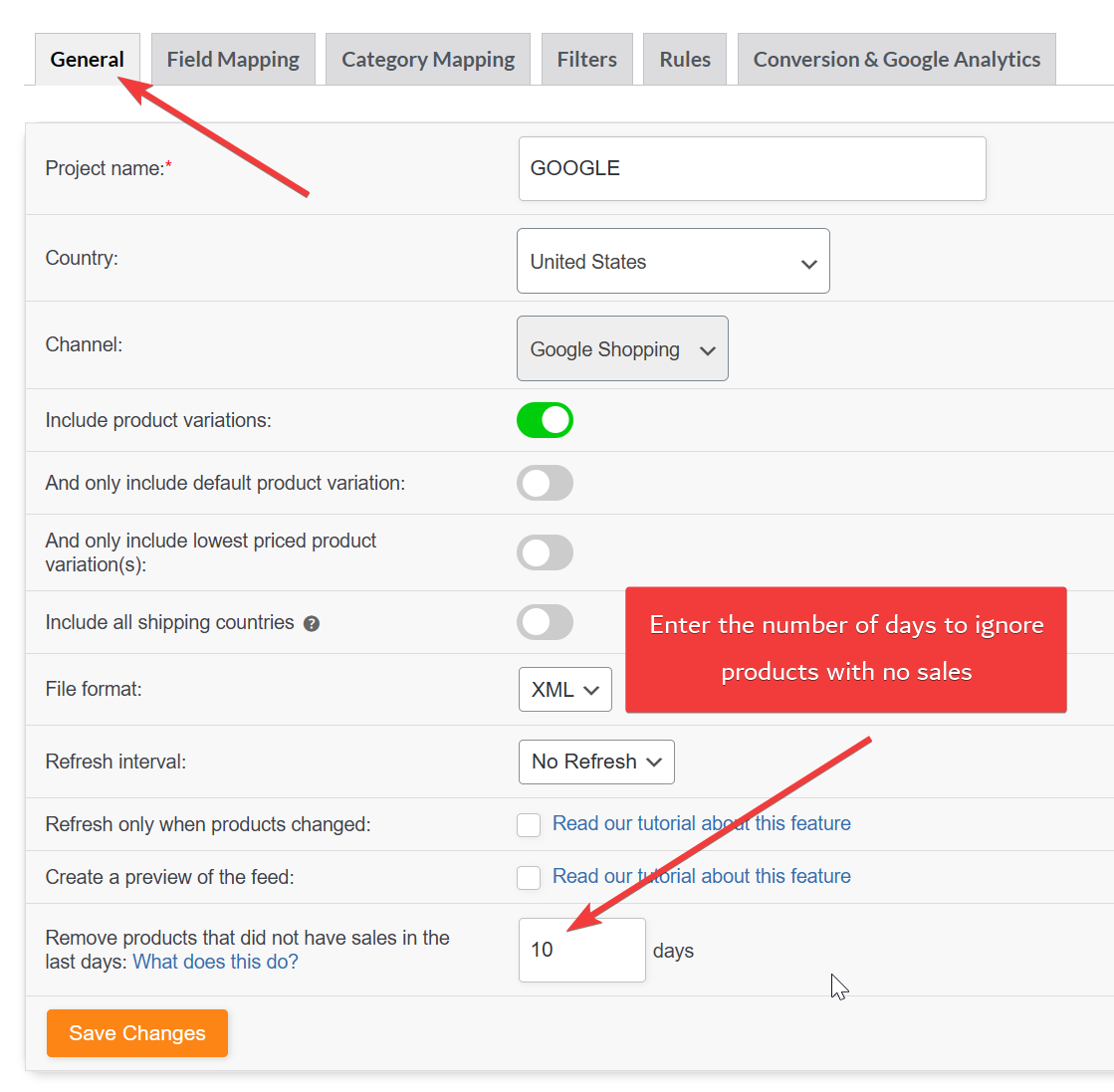
- Go to the General tab of your feed.
- Locate the option: “Remove products that did not have sales in the last X days”
- Enter the value to exclude products that did not have any sales in the last “X” number of days
How It Works
Enter the number of days in the field provided.
- If you enter 30, products that have not had a sale in the last 30 days will be removed from the feed.
- If you enter 60, only products with no sales in the past 60 days will be removed.
This filter works dynamically. Products will be included or excluded automatically based on their sales activity.
How to Disable This Feature
To completely disable this sales-based removal:
- Set the value to 0, or
- Leave the field empty
When the value is 0 or blank:
- Products will not be removed based on sales history.
- All products will remain in the feed regardless of recent sales activity.
This effectively turns the feature off.
2. Filter By Minimum Number of Orders/Product Sales
This method allows you to include only products that have reached a certain number of total orders.
Steps
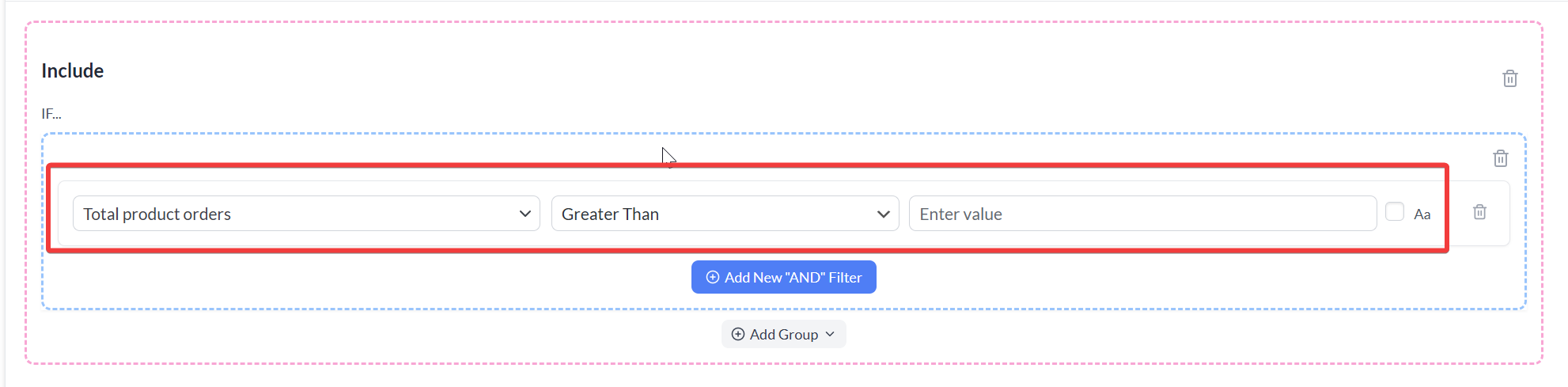
- Go to the Filters tab.
- In the “Include” section, click the Add New “AND” Filter button
- Choose the “Total Product Orders” option from the attribute list
- Select an option from the operator list according to your use case
- Enter a value in the Value field as per your requirement
For example:
- If you enter Greater Than → 10, only products with more than 10 total orders will be included in the feed.
- If you enter Greater Than or Equal To → 1, only products that have sold at least once will be included.
How to Disable This Feature
To stop filtering products by total orders:
- All products will be included again unless other filters are active.
- Simply delete the filter by clicking the trash icon next to it.
- Once removed, no minimum order restriction will apply.
Combine Example
Use‑case: “You want to create a product feed that includes only products that have been sold at least twice within the last 70 days.”
To achieve this, you need to configure both settings:
Step 1: Set the Recent Sales Window
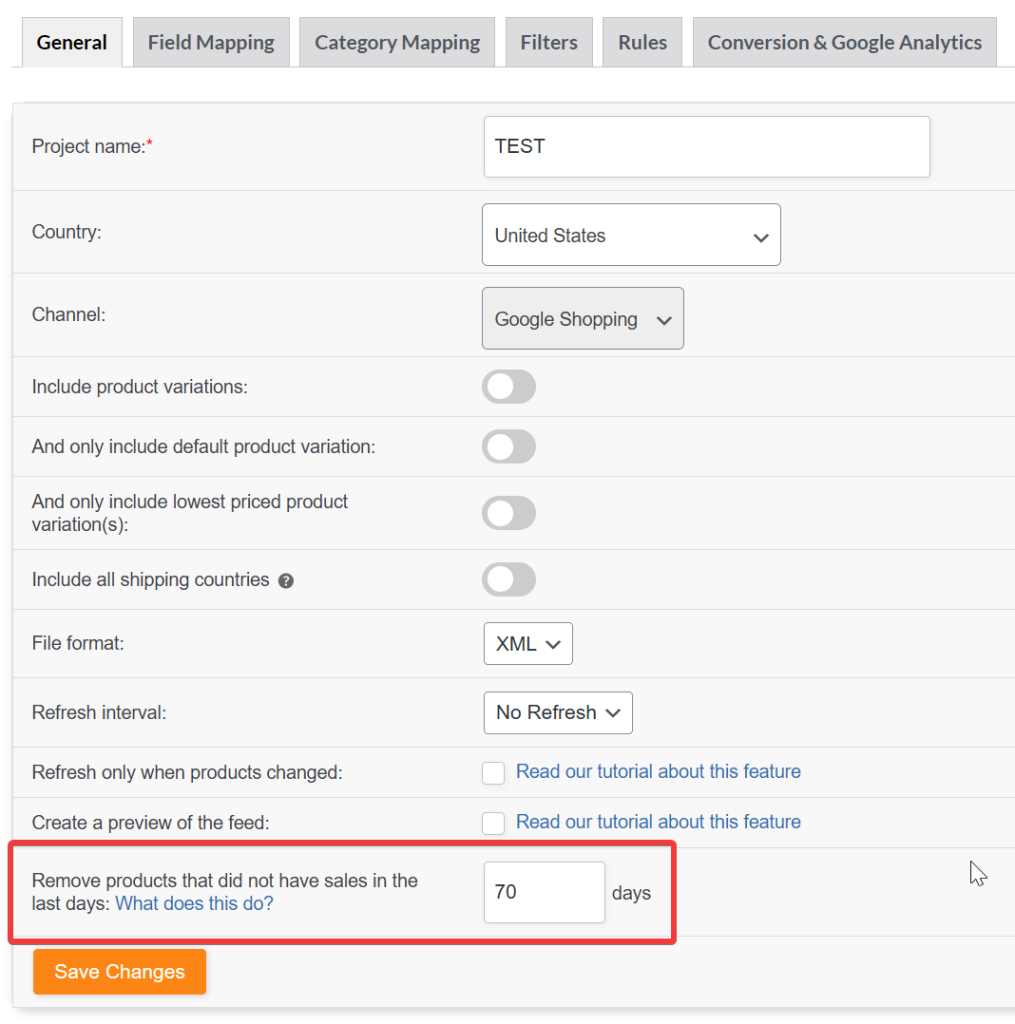
Go to the General tab and:
- Enter 70 in “Remove products that did not have sales in the last X days.”
This ensures that products with no sales in the past 70 days are excluded.
Step 2: Set the Minimum Order Requirement
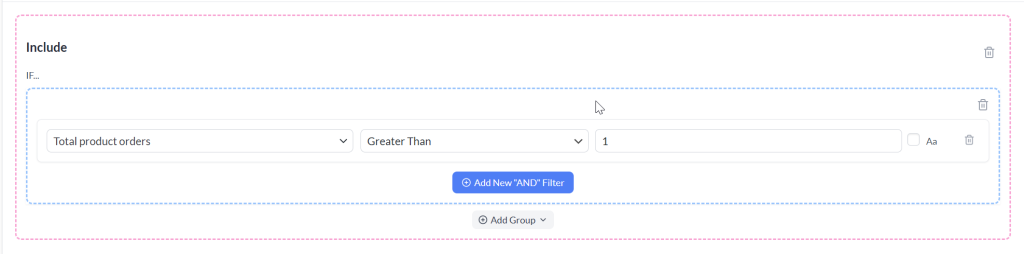
Go to the Filters tab and:
- Add a new AND filter
- Select Total Product Orders
- Choose Greater Than or Equal To
- Enter 2
This ensures only products with at least two total sales are included.
Why Both Settings Are Required
These two options control different conditions:
- The General tab setting filters based on recent activity.
- The Total Product Orders filter ensures a minimum lifetime sales threshold.
If you only set the “Remove products that did not have sales in the last X days” field and do not add a Total Product Orders filter:
- Products that never had a sale will still be excluded.
- However, products with only one historical sale may still be included if that sale happened within the time window.
Using both settings together guarantees that:
- The product has recent sales activity.
- The product has met your minimum performance threshold.
Result
Your feed will include only products that:
- Have sold at least two times, and
- Have had sales within the last 70 days
This keeps your feed focused on proven performers and avoids promoting inactive or low-performing products.
Benefits
Filtering your WooCommerce product feeds this way helps you:
- Focus ad spend on products that convert
- Improve click-through rates with stronger listings
- Keep your product feeds clean and performance-driven
Whether you are using Google Shopping, Facebook, or another sales channel, this approach ensures your campaigns promote products with a real sales track record.
Need Further Assistance?
If you need any further assistance or are having issues with filters, feel free to create a new ticket to reach out to our support team.
Please note that the ticket support system is exclusive to Product Feed ELITE users.
If you’re using only the Product Feed Pro plugin, feel free to open a new topic in the WordPress.org forum.

