
If your product titles contain words that certain channels reject, or brand names appear in inconsistent formats across your catalog, fixing each product individually isn’t practical at scale. Find & Replace rules let you set a condition and a substitution once — and the plugin applies it across your entire feed automatically, without touching a single product in WooCommerce.
Whether you’re removing restricted promotional terms, standardizing brand casing, or localizing measurement units for international markets, every option in the Find & Replace rule builder is covered below.
Jump to:
- How rules work
- Setting up a rule
- IF condition options
- THEN action options
- Practical use cases
- Troubleshooting
- FAQ
Prerequisites
Before setting up a Find & Replace rule, make sure you have:
| Requirement | Details |
|---|---|
| Plugin installed and activated | Product Feed Pro or Product Feed Elite |
| At least one feed created | Open an existing feed to access the Rules tab — create your first feed if you haven’t yet |
| Elite plan | Required only for the Set Attribute and Exclude Attribute THEN actions |
How rules work: IF / THEN
Every rule in Product Feed Pro / Elite follows an IF / THEN structure:
- IF — defines when the rule applies. You set a condition based on an attribute and its value.
- THEN — defines what happens when that condition is met. You choose an action to run on a target attribute.
For Find & Replace, the IF condition checks whether a field contains (or matches) a specific value, and the THEN action finds text within that field and replaces it with something else.
You can add multiple IF conditions to a single rule and combine them with AND or OR logic. You can also add multiple THEN actions to run several changes at once.
Setting up a Find & Replace rule
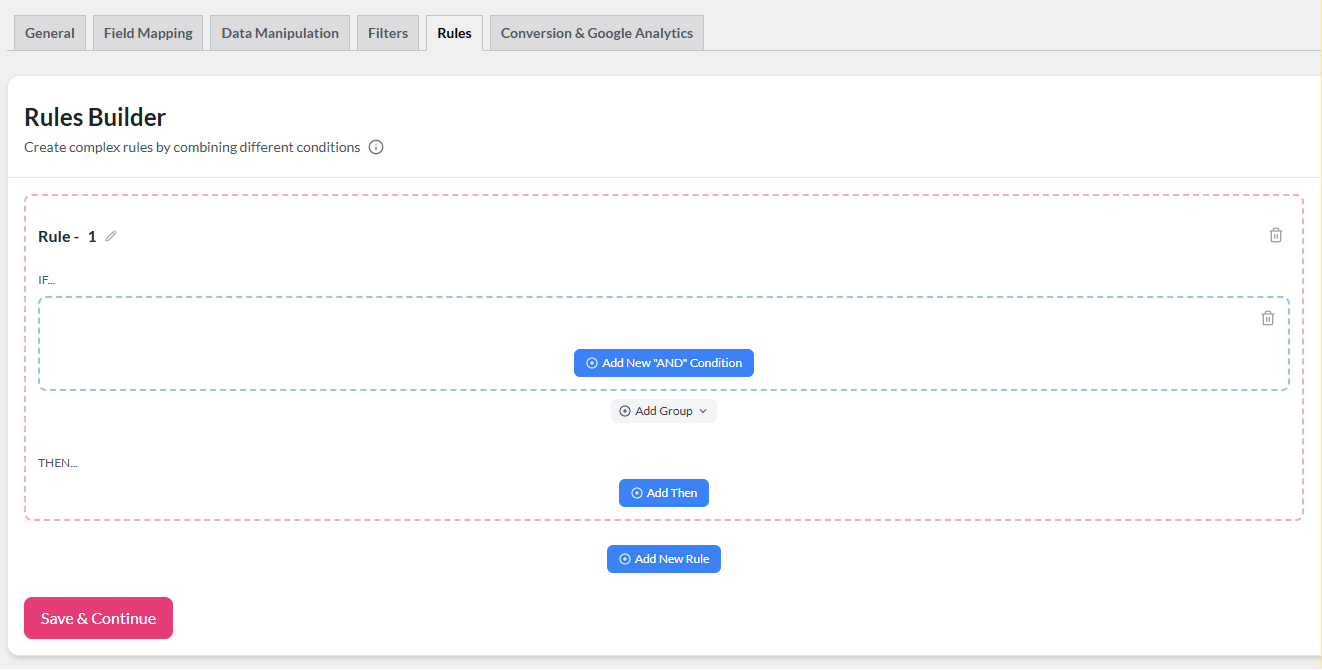
Step 1: Open the Rules tab
- Go to WP Admin → Product Feed → Manage feeds.
- Open the feed you want to edit, then click the Rules tab.
Step 2: Add a new rule
Click Add New Rule. A new rule block appears with an empty IF section and a THEN section below it.
Keep each logical change in its own rule block — this makes individual rules easier to read and troubleshoot.
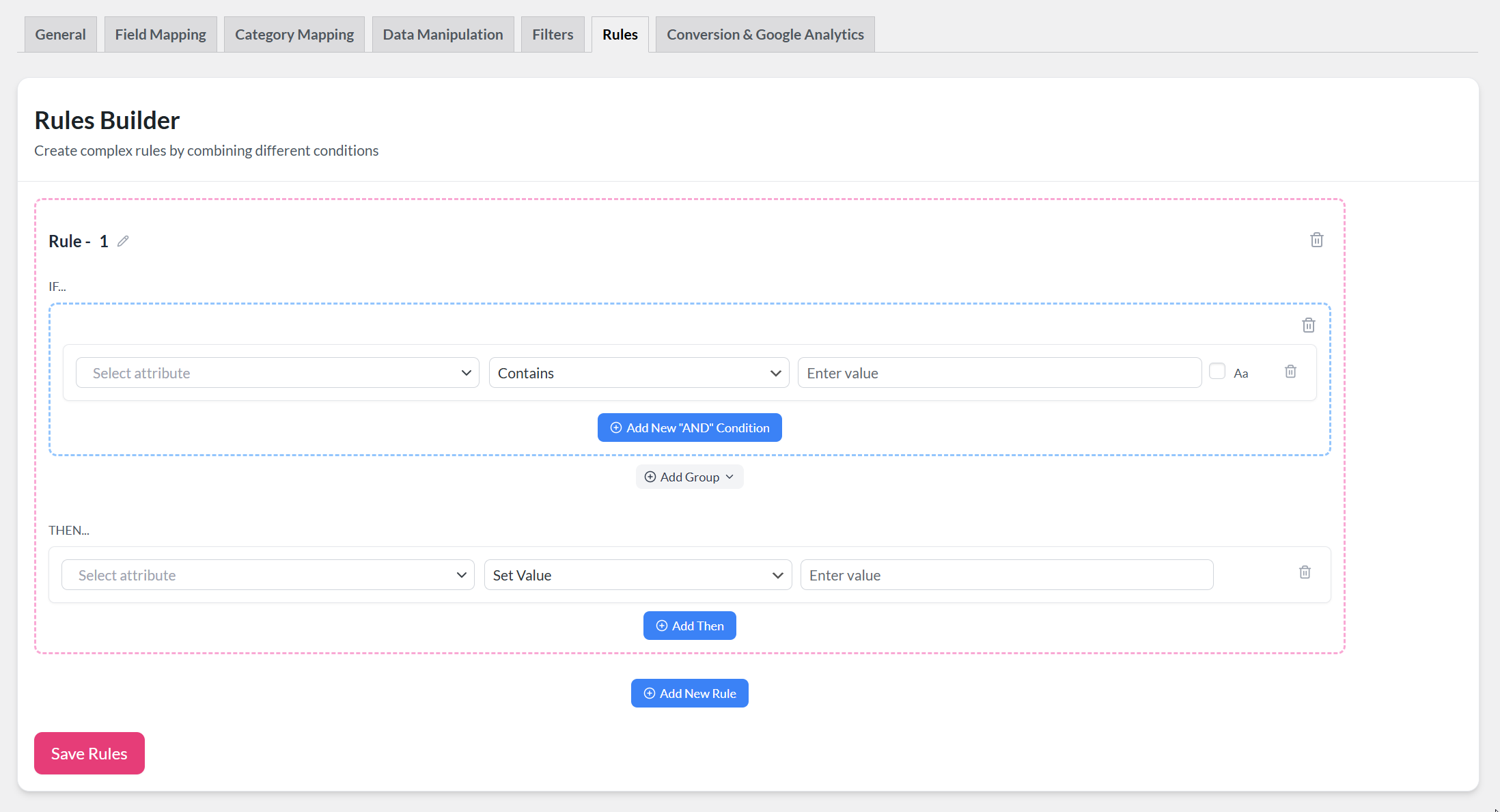
Step 3: Configure the IF condition
The IF section defines when the rule fires. Fill in three things:
- Attribute — the product field to evaluate.
- Condition — how to compare the field’s value.
- Value — the text or number to match against.
See IF Condition Options below for a full breakdown of each setting.
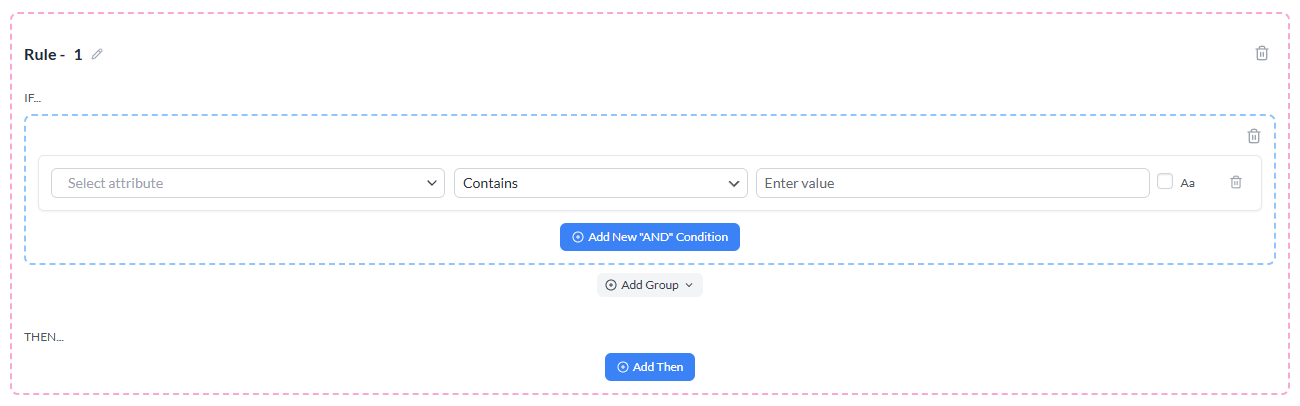
Step 4: Configure the THEN action
The THEN section defines what the rule does when the condition is met. Fill in:
- Attribute — the product field to change.
- Action — choose Find and Replace.
- Find — the text you want to locate inside the field.
- Replace with — the text you want to substitute in its place.
See THEN Action Options below for a full breakdown of each setting.
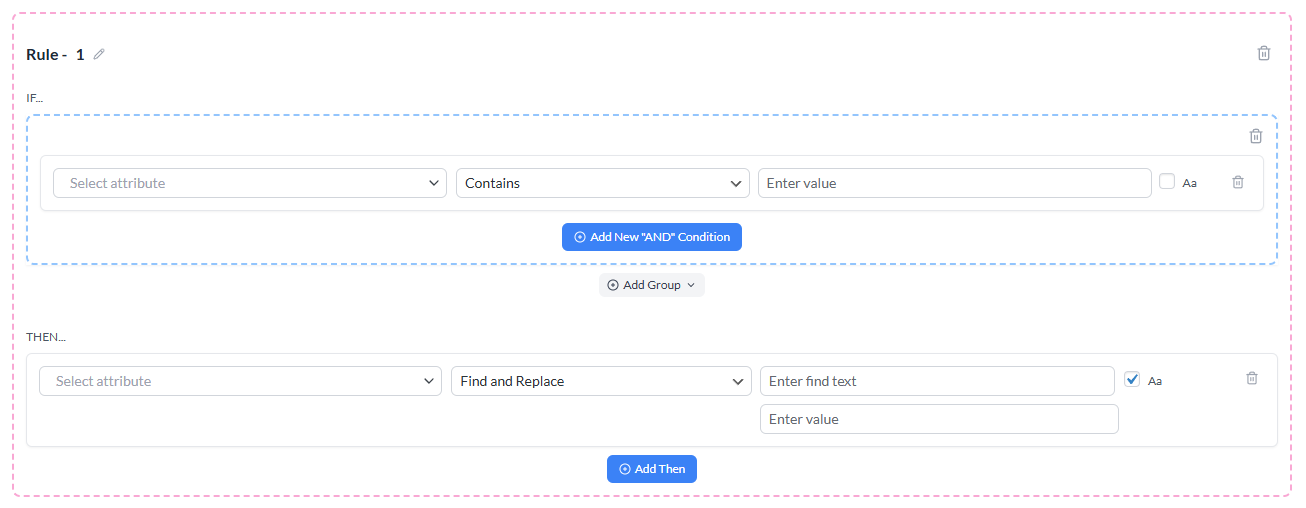
Step 5: Save and regenerate
Click Save Rules to save the rule, then regenerate the feed. The changes appear in your export file and sync to your sales channels on the next update.
IF condition options
Attribute
The Attribute dropdown in the IF section determines which product field the rule evaluates.
You can select from a wide range of WooCommerce and feed-specific attributes, including:
| Category | Dropdown labels |
|---|---|
| Identifiers | Product Id, SKU |
| Content | Product name, Product description, Product short description |
| Links | Link, Add to cart link, Cart link |
| Pricing | Price, Regular price, Sale price (and more variants) |
| Stock & Availability | Stock Status WooCommerce, Quantity [Stock], Availability |
| Product Type | Product Type, Content Type, Virtual, Downloadable |
| Physical properties | Weight, Width, Height, Length |
| Taxonomy | Category, Google category (for rules and filters only) |
| Images | Main image, Featured image, Additional image 1 –Additional image 10, All images |
| Tax | Tax status, Tax class, VAT |
| Brand & Custom fields | Brands (conditional — see note below), and any custom attributes added to your products |
Choose the attribute whose current value you want to evaluate in the condition.
Condition (Match type)
The Condition dropdown determines how the attribute’s value is compared to what you type in the Value field.
| Condition | What it checks |
|---|---|
| Contains | The field value includes the text you specify (anywhere in the string). |
| Not Contains | The field value does NOT include the text you specify. |
| Equals | The field value matches exactly what you type — character for character. |
| Not Equals | The field value does NOT match what you type. |
| Greater Than | The field’s numeric value is higher than the number you enter. Use for price or quantity fields. Returns false silently on non-numeric values (e.g., an SKU of “ABC123”). |
| Greater Than or Equal | The field’s numeric value is equal to or higher than the number you enter. Returns false silently on non-numeric values. |
| Less Than | The field’s numeric value is lower than the number you enter. Returns false silently on non-numeric values. |
| Less Than or Equal | The field’s numeric value is equal to or lower than the number you enter. Returns false silently on non-numeric values. |
| Is Empty | The field has no value. For numeric fields, a value of 0 also registers as empty. No Value field is needed when you select this. |
| Is Not Empty | The field has any value (including a non-zero one). No Value field is needed when you select this. |
Value
The Value field is where you type the text or number to match against.
- For text conditions (Contains, Not Contains, Equals, Not Equals), enter a word, phrase, or partial string.
- For numeric conditions (Greater Than, Less Than, etc.), enter a plain number (e.g.,
100or9.99). - Leave this field blank only when using Is Empty or Is Not Empty — those conditions don’t need a value.
Case sensitivity (“Aa” checkbox)
Next to the Value field, there’s a small checkbox labeled Aa. This controls whether the condition match is case-sensitive.
| Checkbox state | Behavior |
|---|---|
| Unchecked (default) | The comparison ignores capitalisation. nike, Nike, and NIKE all match. |
| Checked | The comparison must match capitalisation exactly. nike does not match Nike. |
By default, the IF condition is case-insensitive, so you don’t need to worry about capitalisation when writing your value. Only check the Aa box when you need to distinguish between uppercase and lowercase. For example, to match the abbreviation CA without also catching the word ca.
THEN action options
Attribute
The Attribute dropdown in the THEN section determines which product field the action modifies.
This dropdown contains the same attributes as the IF condition dropdown, with a few internal fields excluded. In most Find & Replace rules, you’ll set the THEN attribute to the same field as the IF attribute — for example, evaluating the title and also replacing text in the title. But you can target a different field if your rule requires it.
Action types
The Action dropdown determines the type of change to make to the target attribute.
Product Feed Pro / Elite offers several action types. Here’s what each one does:
| Action | Description | Available on |
|---|---|---|
| Find and Replace | Searches for specific text inside the field value and replaces it with other text. | Pro & Elite |
| Set Value | Overwrites the entire field value with a fixed string you provide. The original value is discarded. | Pro & Elite |
| Multiply | Multiplies the field’s numeric value by a number you enter. Useful for price adjustments. | Pro & Elite |
| Divide | Divides the field’s numeric value by a number you enter. Useful for price conversions. | Pro & Elite |
| Plus | Adds a number to the field’s numeric value. | Pro & Elite |
| Minus | Subtracts a number from the field’s numeric value. | Pro & Elite |
| Set Attribute | Copies the value from one product attribute into the target field. | Elite only |
| Exclude Attribute | Removes the target field entirely from the feed output. | Elite only |
Select Find and Replace to search for text and substitute it. Two additional fields appear specific to this action.
Find and Replace fields
When you select Find and Replace as the action, two additional fields appear in the THEN section.
Find
Enter the exact text you want to locate inside the target attribute’s value. The rule scans the field and finds every instance of this text.
- You can enter a single word, a phrase, or a partial string.
- The match is a plain-text search — regular expressions (regex) are not supported.
- Every occurrence of the Find text within the field value is replaced, not just the first one.
Replace with
Enter the text you want to substitute in place of whatever was found. This is the new value that appears in your feed.
- Leave this field blank if you want to remove the found text entirely. The rule deletes every matched occurrence with no substitution.
- You can enter any text, number, or combination of characters.
Case sensitivity (“Aa” checkbox) in the THEN section
The THEN section also has a case sensitivity checkbox, and it works differently from the one in the IF condition:
| Checkbox state | Behavior |
|---|---|
| Checked (default) | The Find text must match capitalization exactly. Searching for Nike does not replace nike or NIKE. |
| Unchecked | The Find text matches regardless of capitalization. Searching for nike replaces nike, Nike, and NIKE. |
Practical use cases
Standardizing brand names
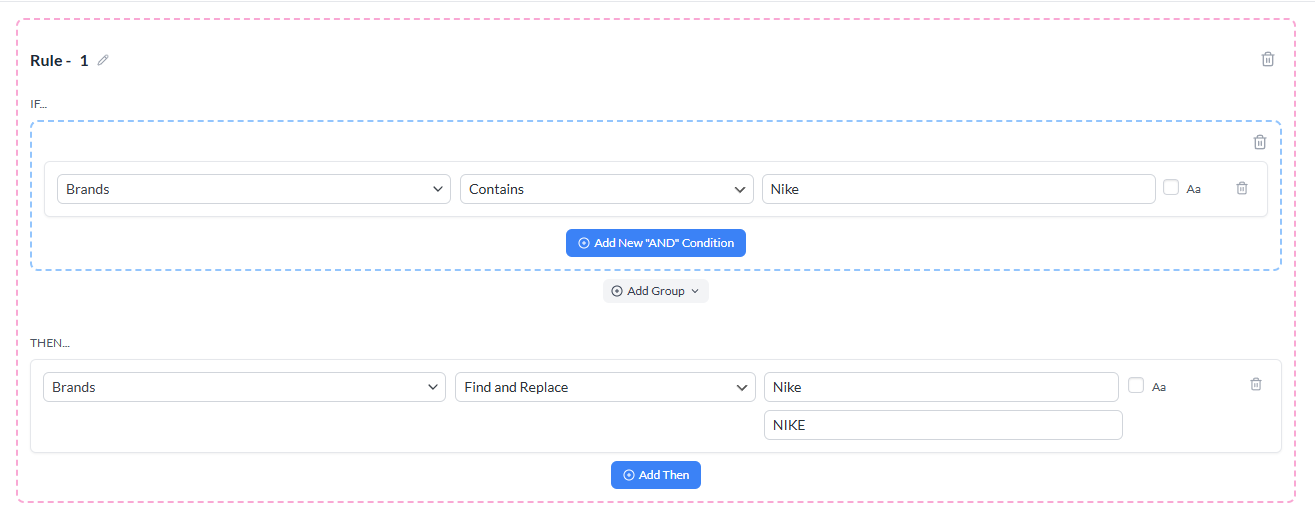
If your products list the same brand in different formats — for example, Nike, NIKE, and Nike Inc. — you can create separate Find & Replace rules for each variant, all replacing with the same canonical version.
Example rule:
- IF: Product name → Contains →
NIKE - THEN: Product name → Find and Replace → Find:
NIKE→ Replace with:Nike
Uncheck the THEN case sensitivity box and use NIKE in the Find field to catch any capitalization variant in one pass.
Removing restricted marketplace terms
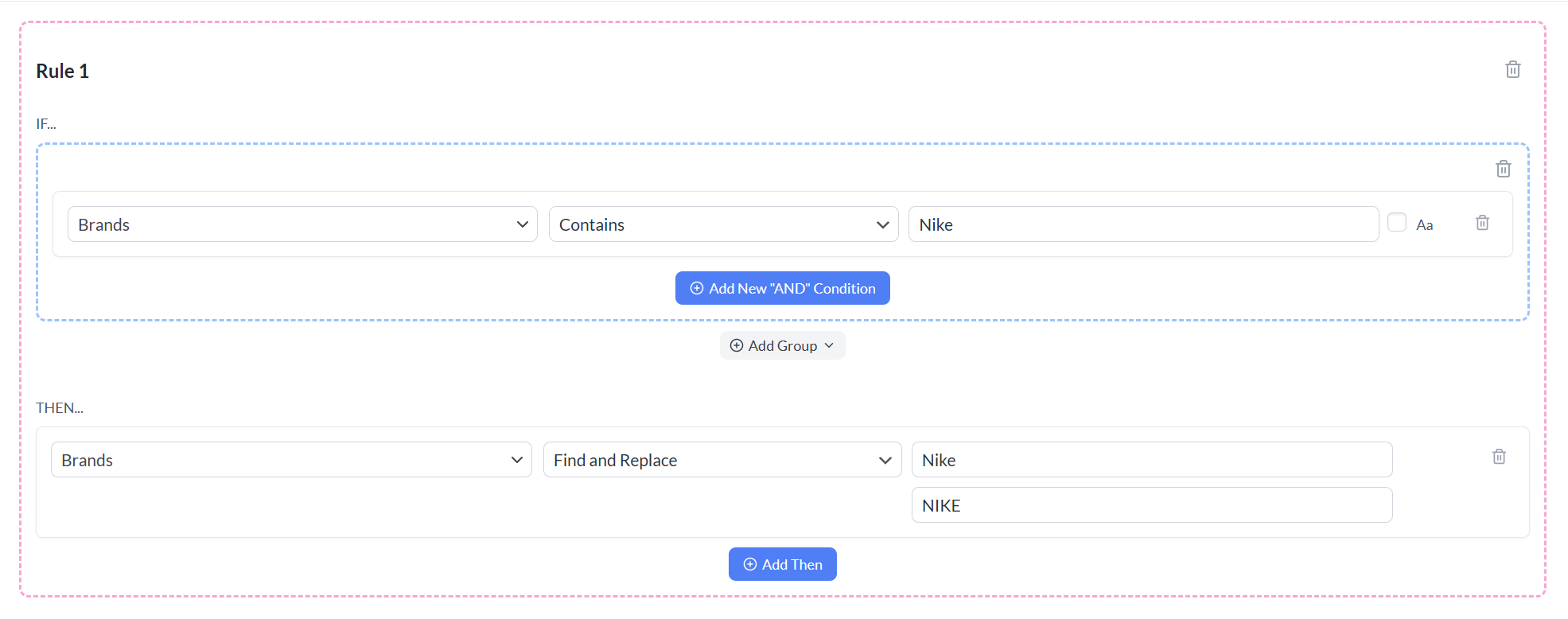
Certain channels prohibit promotional language in titles — words like “Best Price”, “Free Shipping”, or “#1 Rated”. Use Find & Replace to remove them automatically.
Example rule:
- IF: Product name → Contains →
Free Shipping - THEN: Product name → Find and Replace → Find:
Free Shipping→ Replace with: (leave blank)
Leaving the Replace with field empty deletes the matched text from the title.
Updating seasonal references
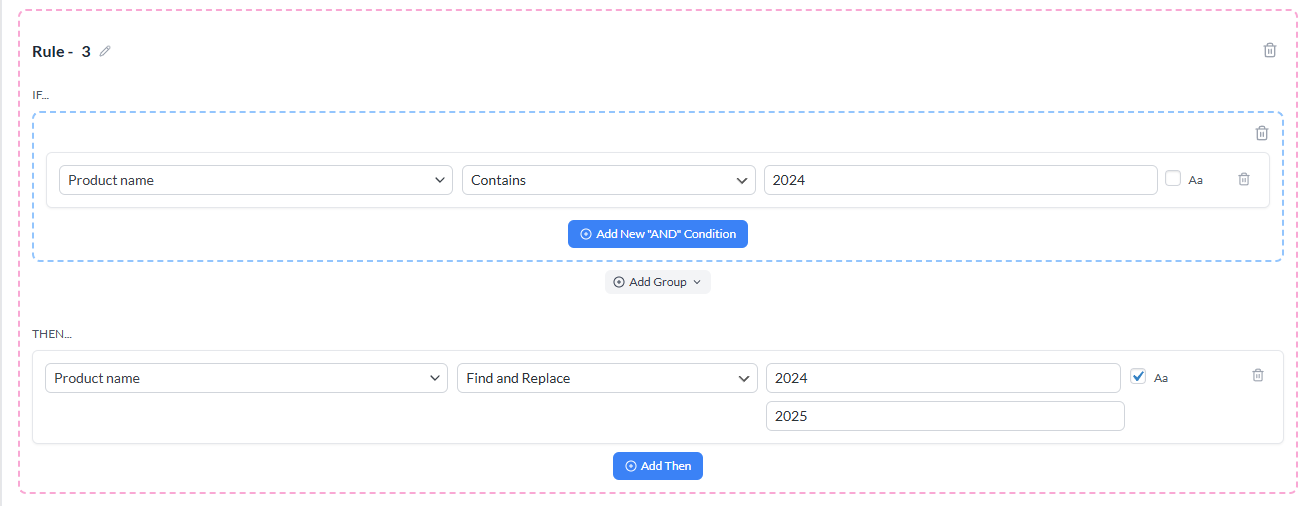
When a new year rolls around, product names that contain the old year need updating across your entire catalog.
Example rule:
- IF: Product name → Contains →
2024 - THEN: Product name → Find and Replace → Find:
2024→ Replace with:2025
Converting measurement units for international feeds
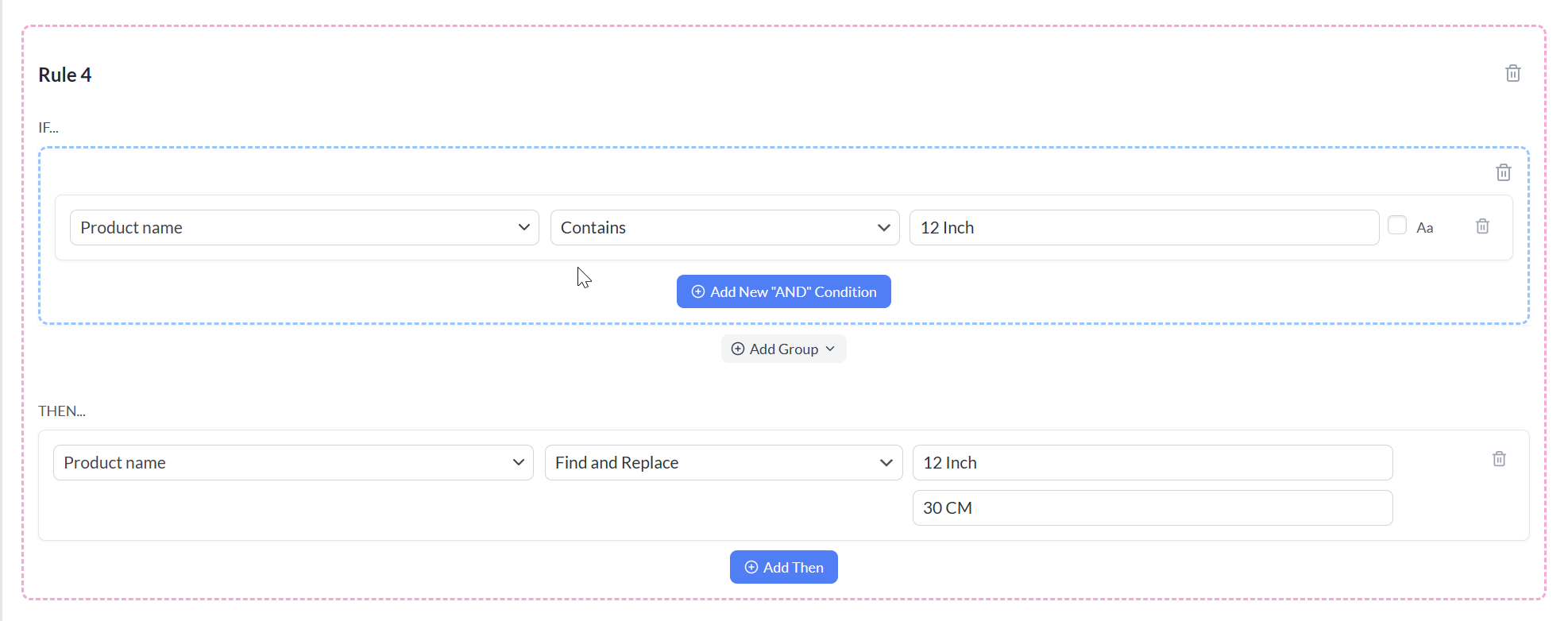
If you sell internationally, product titles may need measurement units localized for each market’s feed.
Example rule:
- IF: Product name → Contains →
12 inch - THEN: Product name → Find and Replace → Find:
12 inch→ Replace with:30 cm
Troubleshooting
– Check case sensitivity in the THEN section: The Find and Replace action is case-sensitive by default. If your Find text uses different capitalisation than the actual field value, it won’t match. Uncheck the Aa box in the THEN section to match any case.
– Regenerate the feed: Rules only apply when the feed is regenerated. Make sure you save the rule first, then trigger a fresh generation.
in will also match words like information and shipping. Use a longer, more specific phrase to narrow the match.– Multiple rules may be conflicting: Review your rules list and check whether another rule is also affecting the same attribute.
Frequently asked questions
Need more help?
If you need further assistance with Find & Replace rules or any other feed configuration, reach out to the support team.
The ticket support system is exclusive to Product Feed Elite users. Create a new support ticket to get in touch.
If you’re using Product Feed Pro, open a new topic in the WordPress.org forum.

