
Zbozi.cz and Heureka.cz both require delivery cost data in a specific XML format — not just a flat price, but a structured block that includes a recognized carrier ID, a standard delivery price, and optionally a cash-on-delivery price. Without this structure, your feed will fail validation or list products without any delivery information.
Product Feed Pro builds this XML structure automatically — but it needs your WooCommerce shipping zone to be named after a recognized Czech carrier so it can extract the right carrier ID.
Prerequisites
- Product Feed Pro is installed and active
- A Zbozi.cz or Heureka.cz feed already created in Product Feed → Manage Feeds
- WooCommerce shipping zones configured (WooCommerce → Settings → Shipping)
How it works
When the plugin generates your Zbozi.cz or Heureka.cz feed, it reads your WooCommerce shipping zones and builds a service name for each zone from three parts: the zone name, the shipping method label, and the country code. It then checks whether that service name contains a recognized Czech carrier ID — like ZASILKOVNA, DPD, GLS, or CESKA_POSTA. If it finds a match, it outputs the correct <DELIVERY_ID> in the feed. If no match is found, delivery data doesn’t output correctly — so your shipping zone name must match one of the recognized carrier IDs listed below.
Step 1: Name your shipping zone after a carrier
Go to WooCommerce → Settings → Shipping and open the shipping zone you use for Czech deliveries. Rename the zone to one of the recognized carrier IDs below — use the exact spelling, all uppercase:
| Carrier ID | Carrier |
|---|---|
ZASILKOVNA | Zásilkovna (pickup points) |
ZASILKOVNA_NA_ADRESU | Zásilkovna (home delivery) |
CESKA_POSTA | Česká pošta |
CESKA_POSTA_BALIKOVNA | Česká pošta — Balíkovna |
CESKA_POSTA_NA_POSTU | Česká pošta — na poštu |
DPD | DPD |
DPD_PICKUP | DPD Pickup |
GLS | GLS |
GLS_PARCELSHOP | GLS ParcelShop |
PPL | PPL |
PPL_PARCELSHOP | PPL ParcelShop |
WEDO_HOME | WeDo home delivery |
WEDO_ULOZENKA | WeDo Uloženka |
DHL | DHL |
FEDEX | FedEx |
UPS | UPS |
TNT | TNT |
TOPTRANS | Toptrans |
TOPTRANS_DEPO | Toptrans Depo |
GEIS | Geis |
GEIS_POINT | Geis Point |
HDS | HDS |
FOFR | Fofr |
DB_SCHENKER | DB Schenker |
DSV | DSV |
GEBRUDER_WEISS | Gebrüder Weiss |
MESSENGER | Messenger |
RABEN_LOGISTICS | Raben Logistics |
RHENUS | Rhenus |
VLASTNI_PREPRAVA | Own delivery |
VLASTNI_VYDEJNI_MISTA | Own pickup points |
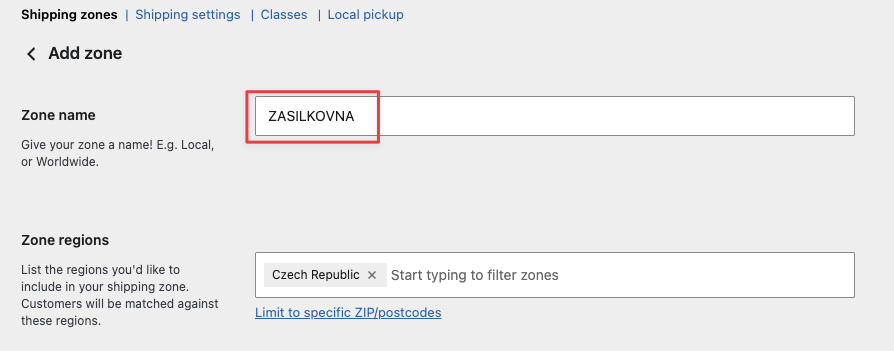
Step 2: Add your shipping methods to the zone
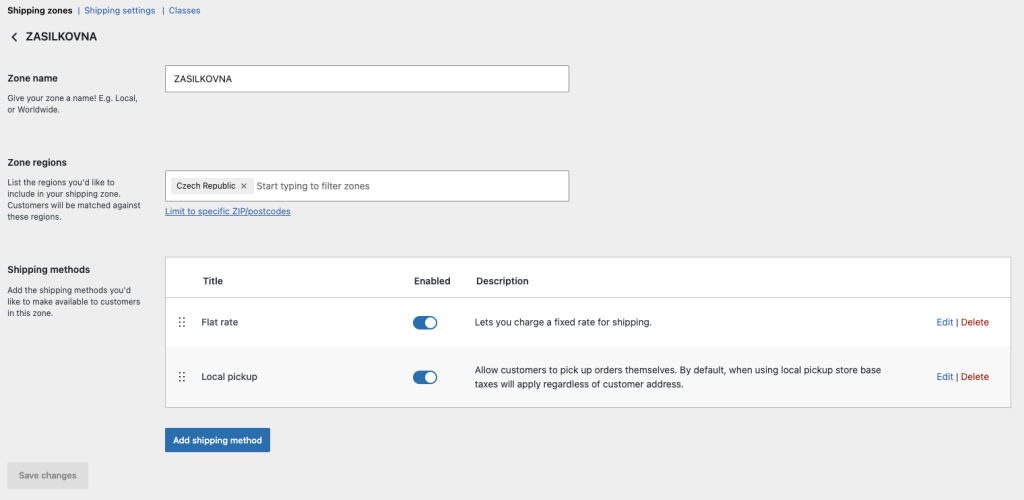
Inside the zone, add your shipping methods in this order:
- Flat rate — this becomes the standard
DELIVERY_PRICEin your feed - Local pickup — this becomes the
DELIVERY_PRICE_COD(cash-on-delivery price)
Set the flat rate cost to match what you charge for delivery to Czech customers. Save the zone when done.
Step 3: Map the DELIVERY field in your feed
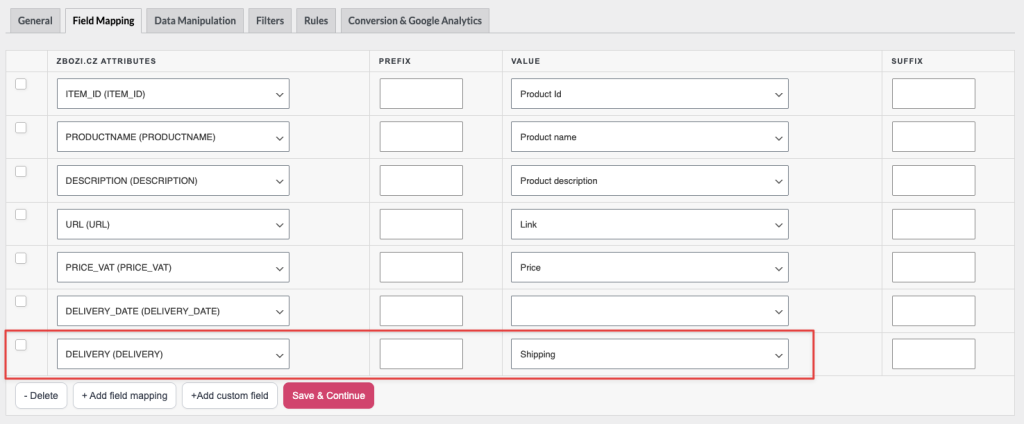
Open your Zbozi.cz or Heureka.cz feed in Product Feed → Manage Feeds, then open the Field Mapping tab.
Find the DELIVERY row and confirm it’s mapped to Shipping in the Value column. The plugin adds this mapping by default — you shouldn’t need to change it unless you’ve removed it.
Step 4: Refresh the feed
Save your feed settings and run a manual refresh from Product Feed → Manage Feeds. Once the feed is generated, each product in your Zbozi.cz or Heureka.cz XML will include a <DELIVERY> block like this:
<DELIVERY>
  <DELIVERY_ID>ZASILKOVNA</DELIVERY_ID>
  <DELIVERY_PRICE>79 CZK</DELIVERY_PRICE>
  <DELIVERY_PRICE_COD>99 CZK</DELIVERY_PRICE_COD>
</DELIVERY>
Troubleshooting
<DELIVERY> is still empty after regenerating, this may be a plugin-level issue — open a support ticket and include your feed channel name and plugin version.<DELIVERY> block in the feed.FAQ
ZASILKOVNA) instead of mapping it to Shipping. But you’ll lose the automatic price calculation — DELIVERY_PRICE and DELIVERY_PRICE_COD won’t populate automatically.VLASTNI_PREPRAVA (own delivery) or VLASTNI_VYDEJNI_MISTA (own pickup points) as fallbacks. Both are accepted by Zbozi.cz and Heureka.cz.Need more help?
If you’re on Product Feed Elite, open a support ticket.
If you’re on Product Feed Pro (free), post your question at the WordPress.org support forum.

