Reviewed by
If you manage more than a few dozen WooCommerce products, writing useful descriptions for every item can become repetitive fast. Supplier copy, one-line descriptions, and empty fields may leave Google and potential customers with less product information to work with.
Clear, product-specific descriptions provide more context about details such as size, material, color, and intended use. When creating ChatGPT WooCommerce product descriptions, the goal is not to add more words for the sake of it. It is to create accurate drafts that make each product easier to understand.
You can take the manual route with ChatGPT when you are working through a smaller batch, or use StoreAgent’s AI product description generator to write them in bulk inside WooCommerce when the catalog is larger. We will cover both approaches, then show you how AdTribes Product Feed Pro helps map and adjust the approved product data for your feed.
Why Product Descriptions Matter For Feed Performance
Product descriptions help Google understand what you are selling and which product details may be useful to shoppers. Relevant information about size, material, intended use, technical specifications, and visual features can give Google more context when finding products for a search.
Google recommends writing clear descriptions that focus only on the product. The most useful details should appear early so shoppers can understand the item even when only part of the description is displayed.
Very short descriptions can also be flagged as invalid. Descriptions should avoid promotional language, keyword lists, links, competitor comparisons, and information that does not relate directly to the product.
For WooCommerce stores, one common mistake is spending time on product titles while leaving the short and full description fields incomplete. Treating both fields as part of the same product-data workflow gives your feed more accurate information to use.
How To Use ChatGPT To Write Feed-Optimized Descriptions
Writing a few product descriptions by hand is manageable. Once the catalog grows, a repeatable process becomes much more useful. ChatGPT can help you create first drafts faster, provided you give it complete and accurate product details. If you connect ChatGPT to WooCommerce with StoreAgent’s free MCP server, it can read those details from your product data instead of you pasting them in.
Specific inputs lead to more useful drafts. Include details such as material, size, color, intended use, and target customer so the description reflects the actual product instead of falling back on generic sales copy.
Prompt 1: The basic product description
Use this when you need a straightforward product description that includes key attributes.
Write a Google Shopping product description for the following WooCommerce product. Include these details naturally: product name, material, size/dimensions, color, target customer, and primary use case. Keep it under 150 words. Use only the facts provided. Do not include promotional language or marketing buzzwords. Write in plain, factual language. Product: [Product Name] Category: [Category] Key attributes: [List attributes like material, size, color, weight] Additional verified details: [Care instructions, compatibility, certifications, or other facts]
This prompt works well for straightforward physical products. It forces ChatGPT to include the specific attributes that Google uses for query matching rather than producing vague sales copy.
Prompt 2: The product differentiator
Use this when a product has specific strengths or design details that shoppers may want to understand before choosing it.
Write a Google Shopping product description for this WooCommerce product. Focus on verified features, materials, build details, and design choices that help shoppers understand whether the product suits their needs. Do not mention competitors or compare the product with other listings. Use only the facts provided below. Keep the description under 150 words and avoid hype. Product: [Product Name] Category: [Category] Verified strengths: [List specific product strengths] Target buyer: [Who the product is designed for] Key attributes: [Material, dimensions, features, intended use]
This prompt works best when you provide concrete details rather than broad claims. Specific information such as materials, dimensions, care instructions, compatibility, and design features gives shoppers more useful reasons to consider the product.
Prompt 3: The long-tail keyword version
Use this when you want descriptions that target specific search queries beyond your product title.
Write a Google Shopping product description for this WooCommerce product. Use these relevant phrases only where they accurately describe the product: [list 2-3 phrases]. Do not force, repeat, or list them. The description should read naturally to a shopper and include only verified product information. Keep it under 150 words. Product: [Product Name] Category: [Category] Relevant phrases: [e.g., "stainless steel water bottle for hiking," "BPA-free gym bottle"] Key attributes: [Material, size, color, intended use]
This prompt helps you use language that matches how shoppers may describe the product without turning the description into a keyword list. Keep every phrase accurate to the item and remove anything that feels forced.
Prompt 4: Batch processing for large catalogs
Use this when you need to generate descriptions for many products at once.
I'm going to give you a list of WooCommerce products. For each product, write a unique Google Shopping description under 150 words. Include the product's material, size, target customer, and primary use case. Use plain language and no marketing buzzwords. Number each description to match the product number. Product 1: [Name] -- [Category] -- [Key attributes] Product 2: [Name] -- [Category] -- [Key attributes] Product 3: [Name] -- [Category] -- [Key attributes]
Start with a small batch that you can review carefully. If the responses become repetitive or less specific, reduce the batch size and group similar products by category so the prompt can use consistent terminology within each group.
As we covered in our guide to writing great product descriptions, the goal is always to be specific and useful rather than clever or salesy.
Quality Control: What To Check Before Using AI-Generated Descriptions
Treat every AI-generated description as a first draft. Before adding it to your product pages or feeds, check the details, remove filler, and make sure the copy accurately reflects the item you sell.
Check for invented product details
ChatGPT may add a specific material, temperature rating, or certification that was never included in your input. Compare every claim against your actual product data before saving the description. Details about materials, dimensions, certifications, compatibility, or performance should always match the item you sell.
Remove filler language
Even with a “no buzzwords” instruction, ChatGPT defaults to phrases like “perfect for,” “designed to,” and “whether you’re looking for.” These add word count without adding information that helps Google match your product to queries. Strip them out and replace with specific attributes.
Verify the character count
Google Merchant Center accepts descriptions up to 5,000 characters and recommends around 500 to 1,000 characters. Place important details such as size, material, intended age range, and special features within the first 160 to 500 characters. Focus on relevant product information rather than padding the description to reach a particular word count.
Watch for duplicate phrasing across products
When you batch-process descriptions, ChatGPT often recycles sentence structures across products. “This [product-type] features a [adjective] design that [benefit]” might appear in five consecutive descriptions. Vary the openings and structures manually or regenerate specific items.
For more on how AI-generated content and tags interact with your feeds, see our guide on WooCommerce tags and AI.
The Faster Route: Generate Descriptions In Bulk With StoreAgent
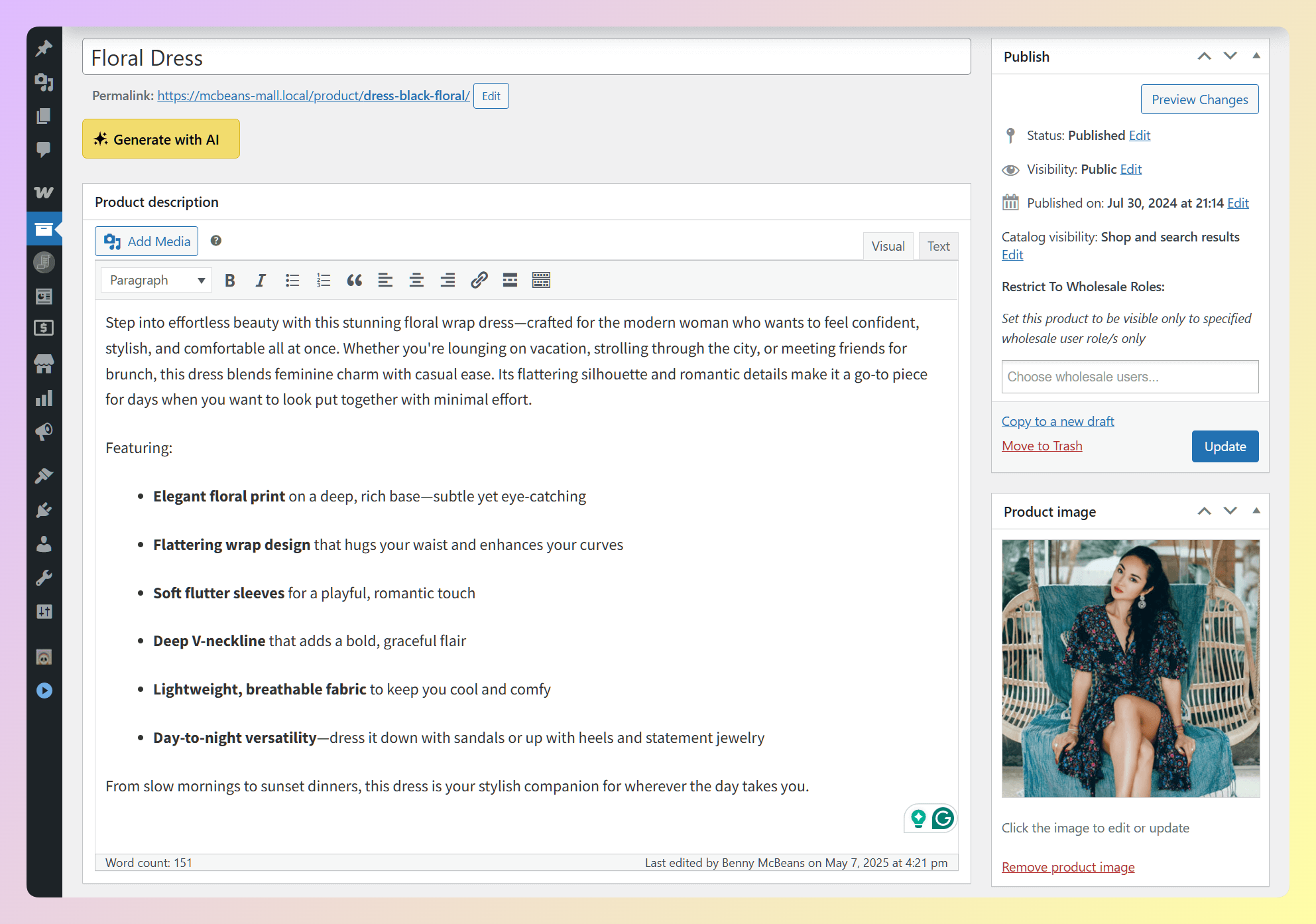
The prompts above work well when you have a manageable group of products. For a larger catalog, repeating the copy-and-paste process can quickly become tedious. StoreAgent gives you a WooCommerce-based route for generating and reviewing product descriptions in bulk.
StoreAgent is a WooCommerce product description generator that writes product descriptions straight from your existing product data. It turns your titles, specs, attributes, and images into SEO-ready descriptions without you having to feed each product into a prompt by hand.
Here is where StoreAgent can save time:
- Bulk generation: Create first drafts for dozens, or hundreds, of products at once from your WooCommerce product list instead of pasting batches into a chat window.
- No API keys, no copy-pasting: You connect your store and generate. There are no OpenAI keys to set up and nothing to move between browser tabs.
- Built for stores: It works from your real product attributes, so the output leans on the details Google uses for matching rather than generic sales copy.
- Free to start: Use the free plan to try StoreAgent’s content tools. Bulk product description generation is available on paid plans for larger catalog workflows.
The same review rules still apply. Whether ChatGPT or StoreAgent writes the first draft, run the quality checks above before anything goes live, especially the check for invented product details.
One important distinction: StoreAgent writes the approved description to the WooCommerce product. AdTribes Product Feed Pro then controls how that product data is mapped and adjusted for the feed. A practical workflow is to generate and review the base descriptions with StoreAgent, map the correct field to Google’s structured_description attribute, and use feed rules only for broader adjustments that apply across multiple products.
How To Add AI-Generated Descriptions To Your Google Shopping Feed
Once your descriptions are written and reviewed, the next step is storing them somewhere AdTribes Product Feed Pro can use. StoreAgent saves approved descriptions to your WooCommerce products. For ChatGPT-generated copy, add each final description to the appropriate product field or a dedicated custom field if you want to maintain a separate feed version.
Step 1: Review and store the approved descriptions
Check every description against the product’s actual specifications before saving it. Confirm materials, dimensions, compatibility, certifications, care instructions, and any other factual details. When you are using ChatGPT, work through the products in manageable groups and save the approved copy to the correct WooCommerce field.
Step 2: Map AI-generated descriptions correctly
Google’s product data specification requires descriptions created using generative AI to use the structured_description attribute, with the digital_source_type sub-attribute set to trained_algorithmic_media. In your Google Shopping feed, map the WooCommerce field containing your approved AI copy to the corresponding structured description fields.
Step 3: Use feed rules where they fit
Feed rules work well for broader changes that can apply to several products, such as setting one fixed description for a category or replacing a repeated phrase. They do not import a spreadsheet of unique descriptions or assemble a description from several product attributes. When each product needs its own approved copy, store that content in WooCommerce and map the field into your feed.
AdTribes Product Feed Pro includes actions such as Set Value and Find and Replace in the free plugin. Product Feed Elite adds actions such as Set Attribute, which can copy the value from another product field when a product meets your chosen conditions.
Step 4: Regenerate and review the feed
Regenerate your feed and inspect the output before submitting it to Google Merchant Center. Confirm that the correct description appears for each product, the generative-AI fields are labeled correctly, and no descriptions contain unsupported details, promotional language, or text beyond Google’s character limit.
After the updated feed is processed, review the Needs attention section in Merchant Center for any description-related issues. Corrections may take some time to appear after the feed is regenerated and processed.
Frequently Asked Questions
Are ChatGPT product descriptions allowed in Google Merchant Center?
AI-written descriptions are allowed, but they still need to follow Google’s product data requirements. For descriptions created with generative AI, use the structured_description attribute and set its digital_source_type sub-attribute to trained_algorithmic_media. The content must also be accurate, product-specific, and free from promotional text, keyword lists, unsupported claims, or misleading information.
How many product descriptions can I generate with ChatGPT at once?
There is no fixed batch size that guarantees consistent results. Start with a small group, review every description, and reduce the batch size if the output becomes repetitive or misses important product details. For a large catalog, work category by category or use StoreAgent to generate drafts directly inside WooCommerce.
Is there a faster way than ChatGPT to write descriptions in bulk?
Yes. If you do not want to run prompts across hundreds of products by hand, StoreAgent is a WooCommerce AI content tool that generates product descriptions, short descriptions, and tags from your existing product data, with no API keys or browser-tab copy-pasting. Use the free plan to try its content tools or a paid plan for bulk description generation. After reviewing the output, map the approved description field into your feed and use AdTribes feed rules only where broader adjustments fit.
Should I use ChatGPT descriptions on my WooCommerce product pages too?
You can. A product page may use richer formatting and more persuasive detail, while feed copy should make the product’s most important attributes easy to understand. However, the information submitted to Google should remain consistent with the product’s landing page. If you maintain a separate feed version, make sure it describes the same item and does not introduce claims or details that are missing from or contradicted by the product page.
Do I need ChatGPT Plus to write product descriptions?
The Free plan can handle the prompts in this guide. ChatGPT Plus provides higher usage limits, broader model and tool access, and faster responses, which may be helpful when you are working through a larger catalog. You do not need a paid plan to start drafting and reviewing WooCommerce product descriptions.
Wrapping Up
Thin or incomplete product descriptions become easier to improve when you separate drafting, review, and feed setup. ChatGPT and StoreAgent can help create first drafts, while AdTribes Product Feed Pro maps the approved product data into your feed and applies broader feed-only adjustments where rules fit.
Get AdTribes Product Feed Pro for free to map, adjust, and manage the product data sent from your WooCommerce store to Google Shopping and other supported channels.