Reviewed by
Exciting news! Our latest update in AdTribes Product Feed Elite gives you more control over what product data gets included in your feeds. With the new exclude product attribute rule, you can automatically remove specific fields like sale price, description, or other custom attributes based on the conditions you set.
It’s a smarter and easier way to keep your product feeds clean, relevant, and compliant with channel requirements.
We cover everything you need to know in this guide, including how this new feature works, when to use it, and how it can help you improve product feed performance. Let’s go!
What Are Product Attributes In WooCommerce Feeds?
Product attributes are product characteristics or information that help describe or categorize your products. These can be details like size, color, brand, or even custom attributes you’ve added to match your store’s needs.
When you generate product feeds, these attributes are mapped to define your product listings. They help channels like Google Shopping, Facebook, or Pinterest to understand your products, categorize them properly, and show them to the right people. In short, they help improve product visibility and performance on these channels.
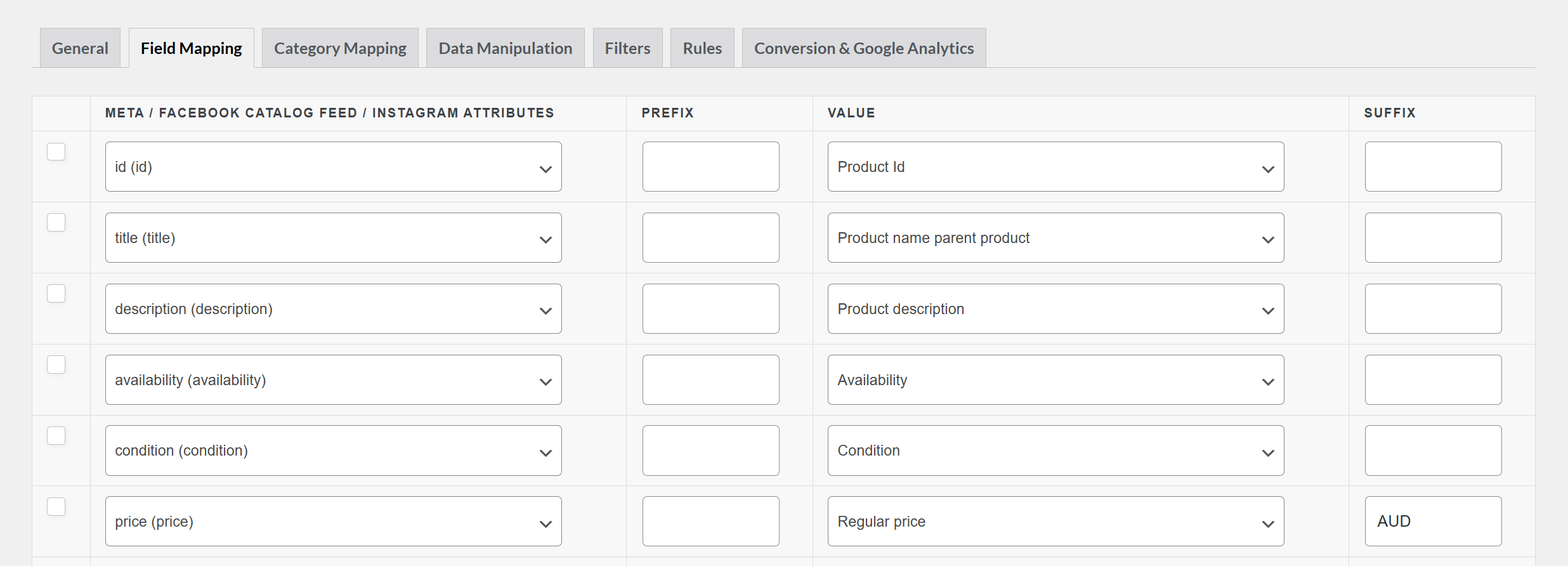
Here are some of the most common attributes you’ll encounter when generating product feeds:
- Product Title
- Description
- Price / Sale Price
- Brand
- Color / Size
- Stock Status
- GTIN / MPN / SKU
Why Exclude Product Attributes In Feeds? (How This New Feature Helps)
While product attributes are useful for giving more information about your products, not every attribute needs to appear in all your product feeds. In some cases, adding too much information can clutter your feeds or even lead to disapproval on specific sales channels.
With the exclude product attribute rule, you get more control over what data shows up in your feed, without needing to manually edit your WooCommerce product info.
Here are just a few examples of when to use this feature:
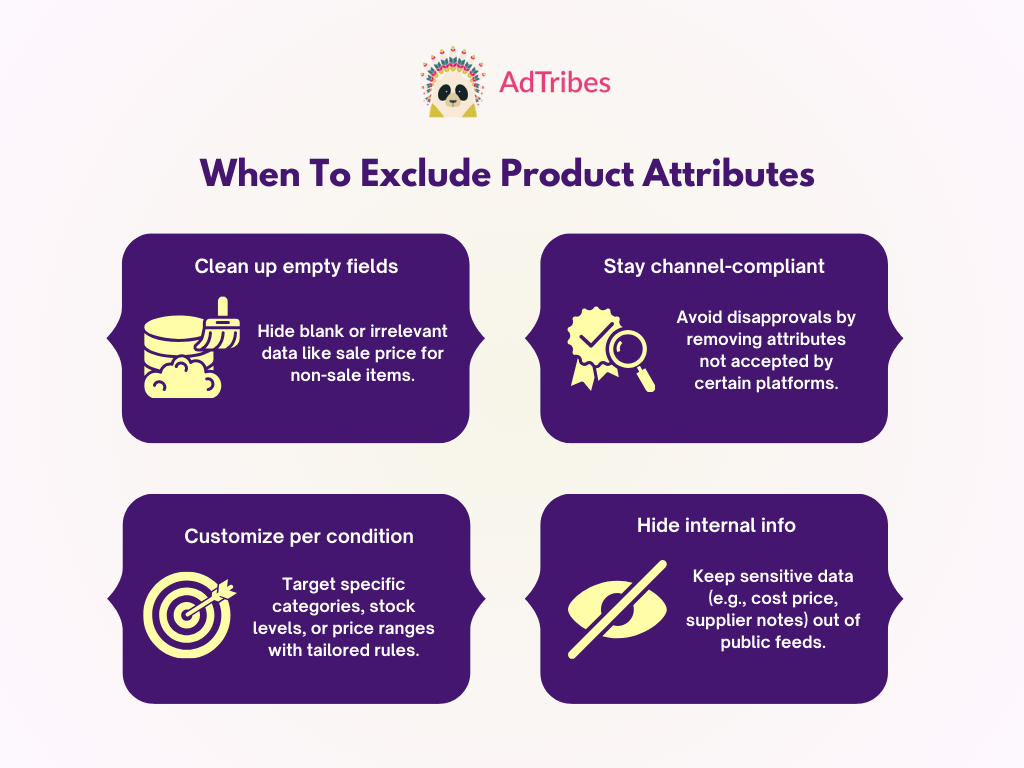
- Clean up empty fields: Automatically remove attributes that are blank or unnecessary, such as sale prices for items that are currently not on sale. This keeps your product data clean and avoids showing empty fields in your listings.
- Stay compliant with channel requirements: Some sales channels have strict attribute guidelines and might reject listings that contain specific fields. Excluding these attributes ensures your feeds are compliant and reduces the risk of disapprovals.
- Customize product feeds based on specific conditions: You may want to tweak which attributes are shown depending on product types, stock levels, price, and more. This update gives you the flexibility to make targeted changes for different campaigns.
- Hide internal data: If you’re using custom attributes to store internal notes, supplier details, or cost price, you can easily exclude them from your product feeds while keeping them available in the backend.
How To Exclude Product Attribute Fields Using Feed Rules
Now, we’ll walk you through how to find and use this new feature! Before following along, make sure that you have updated both AdTribes Product Feed Pro and Product Feed Elite to the latest version.
Step 1: Edit or create your product feed
You can use the exclude product attribute feature for both new and existing feeds. In this example, let’s assume we’re editing an existing one.
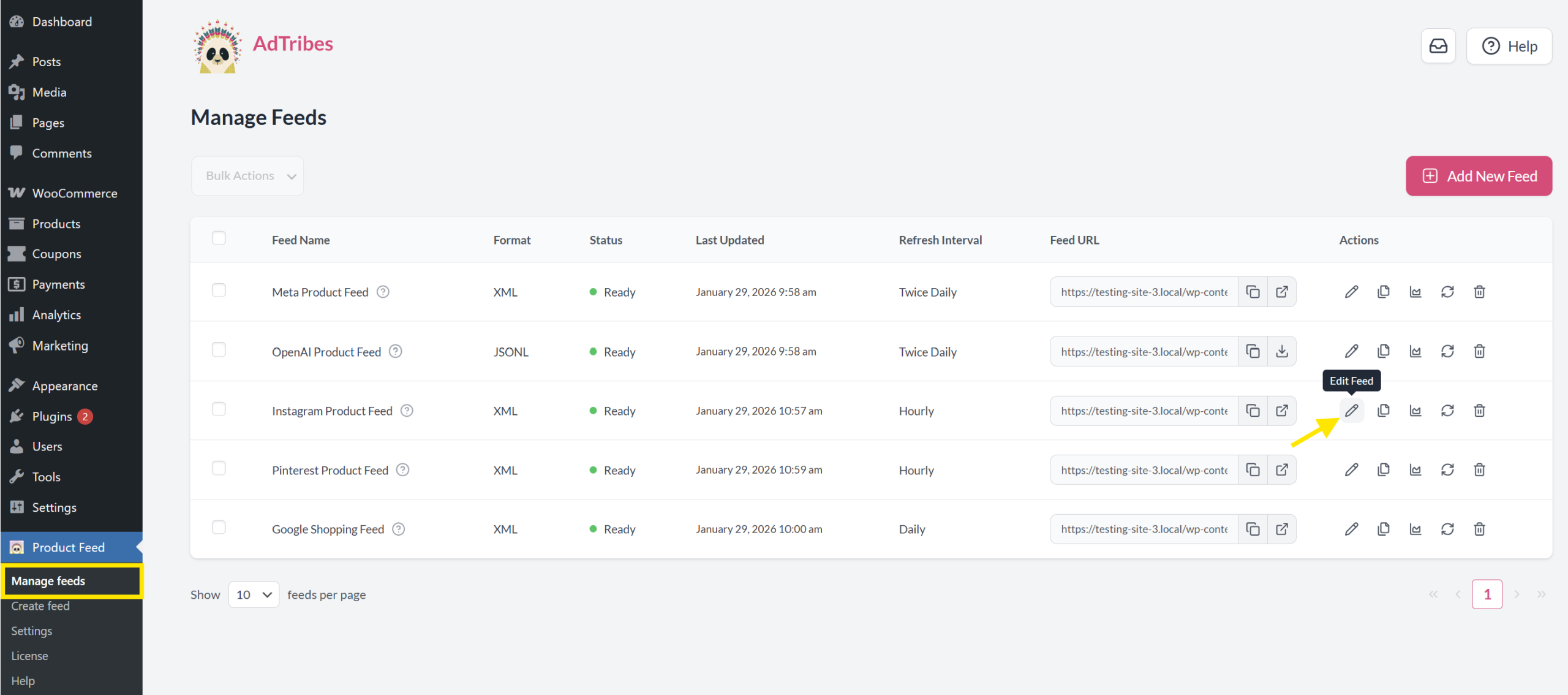
Head to Product Feeds > Manage Feeds and click Edit Feed on the feed you want to update.
Step 2: Go to the Rules tab
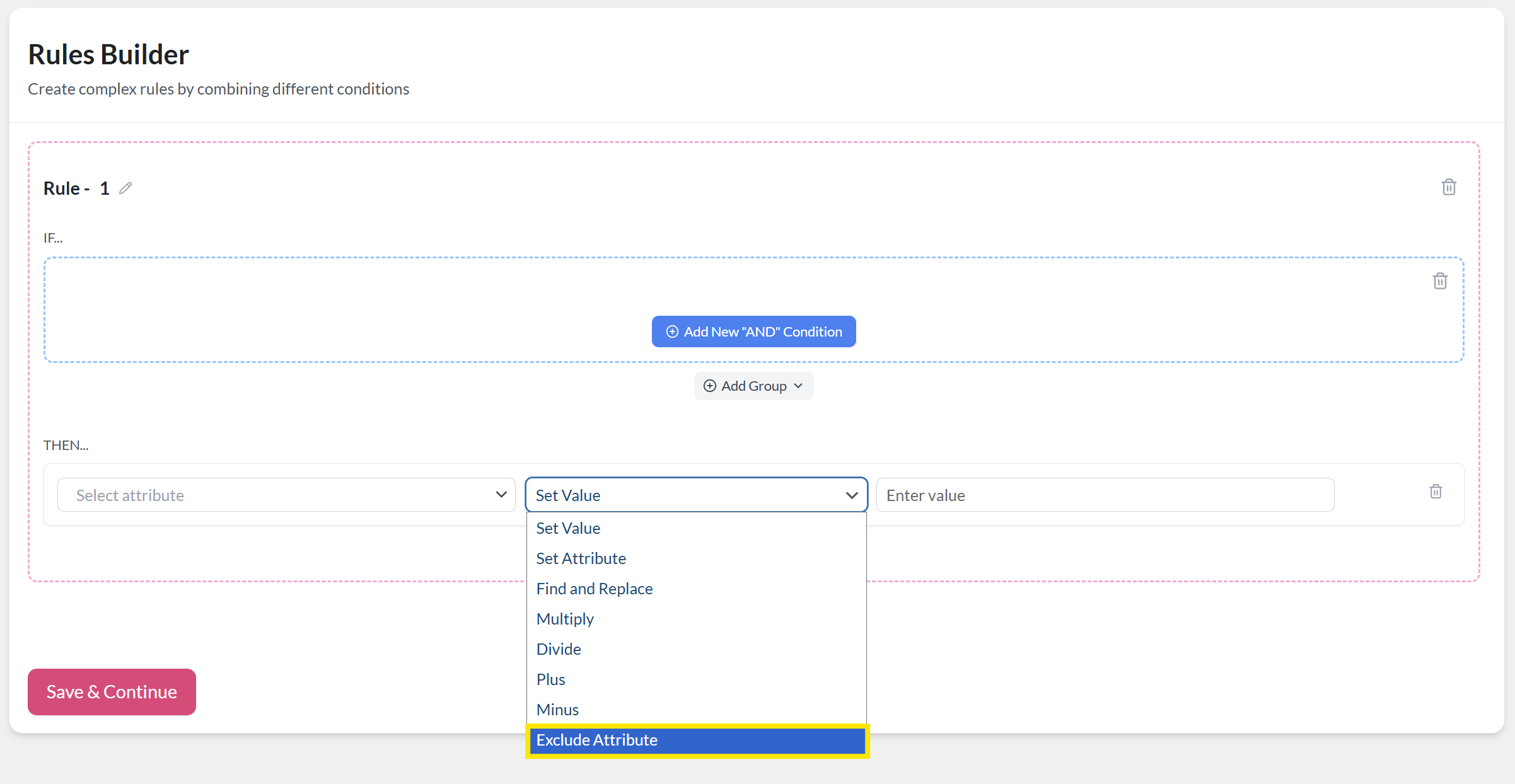
From here, go to the Rules tab. This is where you can set specific conditions that determine which attributes to exclude from specific products. The logic is simple:
- The IF section sets the condition (e.g., product belongs to a specific category, has a certain price, or contains a keyword)
- The THEN section defines the action (e.g., exclude attribute)
The latest update adds an “Exclude Attribute” option in the Then action dropdown choices.
Setting which product attribute to exclude
Let’s say you want to exclude the sale_price attribute from newly added items because they’re not on sale yet, and the field is currently empty. Including it in your feed could cause confusion or unnecessary data clutter.
Here’s how you can set that up:
- Set the IF condition: This defines when the rule should apply. In this example, we set the IF condition to: Category → Equals → New Arrivals
- Set the Then action: This tells what should happen when the condition is met. From the action dropdown, select Exclude Attribute, then choose g:sale_price from the attribute list.
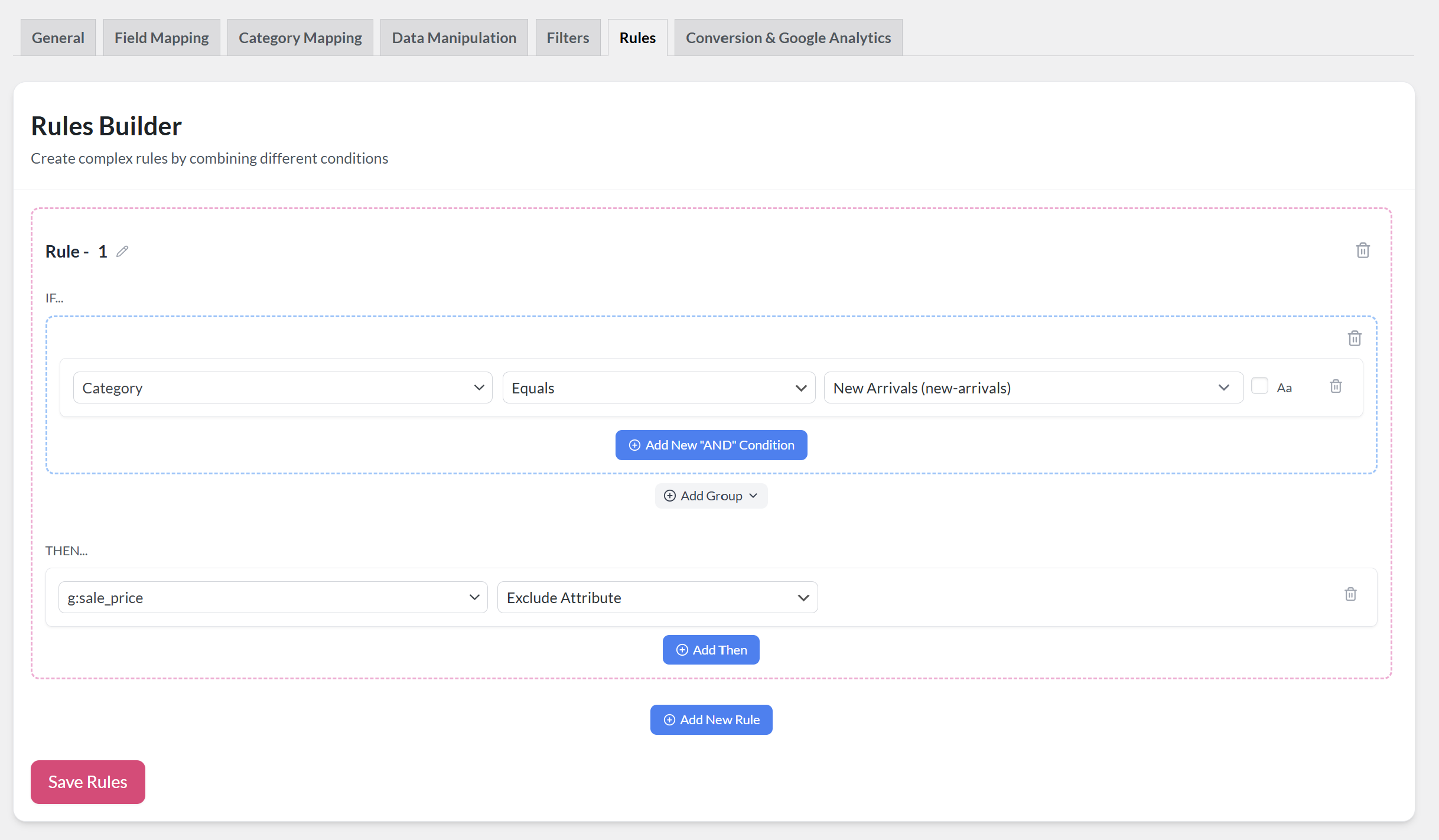
The rule we’ve set above tells the plugin to exclude the sale_price attribute from products in the “New Arrivals” category.
Don’t forget to click Save Rules once you’re satisfied with your settings.
And that’s basically it!
💡 Depending on your store’s needs or campaign goals, you can create as many rules as you need, tailored to different product categories, stock levels, and more. This new feature provides an easy way to keep your feeds clean without manually editing your actual WooCommerce product data.
New to product feeds? You can also check out our full guide on creating product feeds here.
Frequently Asked Questions
What’s the purpose of attributes in the product feed?
Attributes define important information about your products (e.g., price, title, description, brand, size). They help sales channels like Google Shopping, Facebook, and Pinterest understand what your products are, who they’re for, and how to display them. The more accurate your product attributes are, the better they will perform in search results and feed listings.
Will excluding a product attribute delete it from my WooCommerce products?
No. The exclude product attribute rule only affects product feed output and doesn’t affect your store’s data. It’s an easy way to tailor what data gets displayed on your feeds without changing anything in your store.
Can I exclude multiple attributes from the same product?
Yes. With AdTribes Product Feed Elite, you can create multiple rules that target different conditions and exclude different attributes. This gives you full control over how your product data appears and lets you tailor visibility per channel or campaign.
Wrapping Up
Our latest exclude product attribute feature gives you more flexibility and control over your WooCommerce product feeds. Now, you can easily clean up empty fields, meet specific channel requirements, and hide custom attributes without editing your product data. This helps you save time and improve feed performance with more tailored and accurate listings across sales channels.
In this guide, we covered:
- What product attributes are and why they matter in product feeds
- Why you might want to exclude certain product attributes from your feed
- How to use the new exclude attribute rule
- Answers to common questions about this feature
With AdTribes Product Feed Elite, you’re in full control over how your products appear on every channel you sell on.
We hope this article helped! Let us know if you have any questions.