
 Reviewed by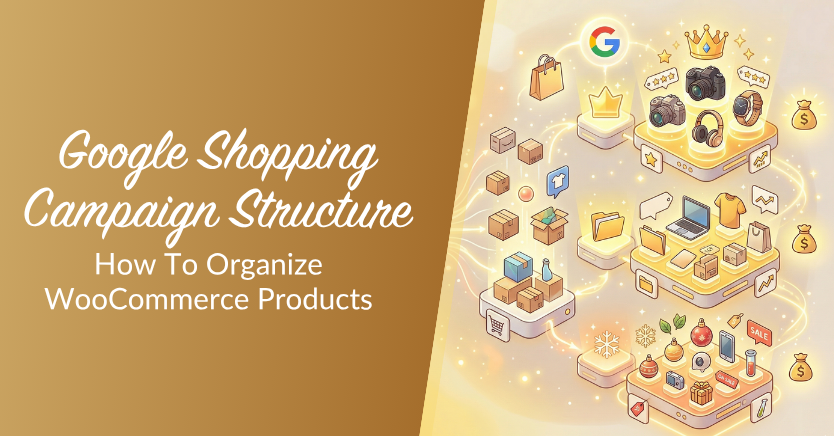
When many WooCommerce stores first launch Google Shopping ads, they put their entire catalog into one campaign, allowing every product to compete for the same budget. This setup is simple, but it often makes it harder to control spending across bestsellers, low-margin items, seasonal products, and slower-moving SKUs.
In many cases, the issue isn’t just bidding. It’s the Google Shopping campaign structure itself. Once your products are grouped more intentionally using feed data like categories, product types, and custom labels, it becomes much easier to control budget and make cleaner optimization decisions.
Here is how to structure your Google Shopping campaigns for better results.
Why Google Shopping Campaign Structure Matters For WooCommerce Stores
Campaign structure determines which products get budget priority. When all products sit in a single campaign, Google’s algorithm distributes your budget across the entire catalog. High-margin bestsellers compete for impressions with low-margin products that barely convert.
The right structure gives you control. By segmenting products into separate campaigns or product groups, you can allocate more budget to products that drive profit and less to products that do not justify the ad spend.
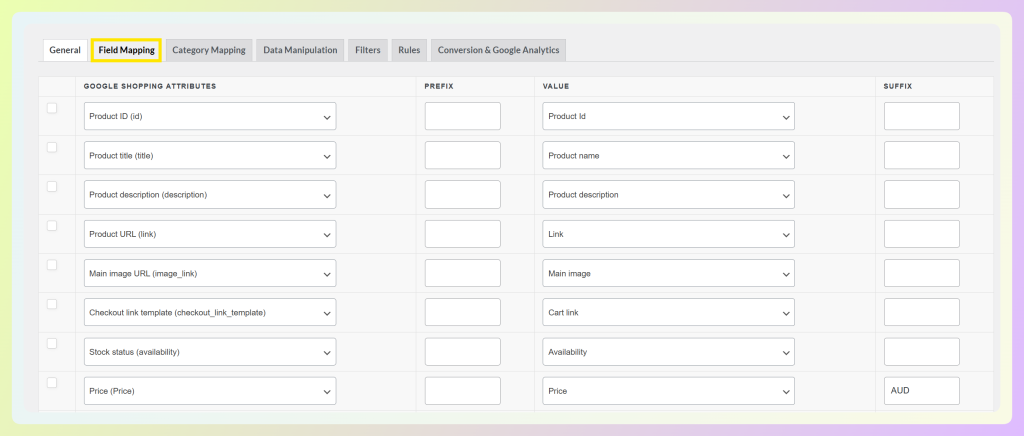
For WooCommerce stores specifically, your product feed data from AdTribes Product Feed Pro is what makes segmentation possible. The custom labels, categories, and attributes you include in your feed become the building blocks of your campaign structure.
One common issue with Shopping campaigns is trying to solve everything with bid changes before fixing product grouping. If your campaigns mix products with very different margins, priorities, or conversion patterns, the structure itself may be limiting performance.
3 Google Shopping Campaign Structures That Work For WooCommerce
There is no single correct structure. The right one depends on your catalog size, margin distribution, and how much time you want to spend managing campaigns.
Structure 1: Single Campaign (Beginners)
The simplest approach. All products in one campaign, organized by product type or category within a single ad group. This usually works best for smaller catalogs with fairly consistent margins and a simple product mix.
When to use it: You are just starting with Google Shopping, your catalog is small, and you want to learn how Shopping campaigns work before adding complexity.
When to move on: You notice certain products eating your budget without converting, or your ROAS is inconsistent across product categories.
Structure 2: Tiered Campaigns by Product Performance
Split your catalog into two or three campaigns based on historical performance or margin tiers.
- Campaign 1 (Top Tier): Bestsellers and highest-margin products. Set the highest daily budget and most aggressive bid strategy.
- Campaign 2 (Mid Tier): Products with decent sales history but lower margins. Moderate budget.
- Campaign 3 (Long Tail): New products, low-volume SKUs, and items you want to test. Lowest budget with conservative bids.
This structure can make it easier to protect budget for your strongest products while keeping lower-priority items from consuming too much spend.
When to use it: You already have enough sales data to separate your strongest performers from the rest of your catalog, and your margins or priorities vary across product groups.
Structure 3: Category-Based Campaigns
Create separate campaigns for each major product category. This gives you independent budget control and lets you set different ROAS targets for categories with different margin profiles.
- Campaign: Electronics — Lower margins, competitive bidding, conservative ROAS target
- Campaign: Accessories — Higher margins, aggressive budget, higher ROAS target
- Campaign: Seasonal — Time-limited budget for holiday or seasonal items
When to use it: Your product categories have significantly different margins and you want precise budget control per category.
How To Use Custom Labels To Power Your Campaign Structure
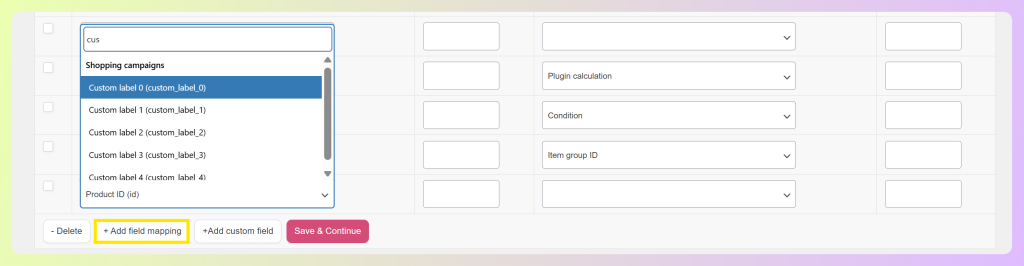
Custom labels are one of the most practical ways to turn your product feed into a clearer Google Shopping campaign structure. Google Shopping supports five custom label fields: custom_label_0 through custom_label_4. These are metadata values you attach to products that Google Ads can use for product group segmentation.
Custom labels do not appear to shoppers. They are purely for your campaign management.
Here are five practical strategies for assigning custom labels in AdTribes Product Feed Pro:
Strategy 1: Segment by profit margin. Assign values like “high_margin,” “medium_margin,” or “low_margin” based on your product cost versus selling price. In AdTribes Product Feed Pro, you can add these values to custom label fields during your feed setup so your product data is easier to segment in Google Ads.
Strategy 2: Segment by bestseller status. Label your strongest-selling products as “bestseller” and the rest as “standard.” This gives you a simple way to separate proven performers from the rest of your catalog when building your Google Shopping campaign structure.
Strategy 3: Segment by seasonality. Label products as “summer,” “winter,” “holiday,” or “evergreen.” During seasonal peaks, increase budget for seasonal campaigns and pull back on off-season items.
Strategy 4: Segment by price range. Label products by price band in a way that makes sense for your store, such as “premium,” “mid_range,” and “budget.” The exact thresholds should reflect your catalog, margins, and customer buying behavior. Different price points often convert at different rates and warrant different bid strategies.
Strategy 5: Segment by product lifecycle. Label new arrivals as “new,” established products as “core,” and discontinued items as “clearance.” New products may need more initial ad spend to gain traction, while clearance items should run with a different ROAS expectation.
In AdTribes Product Feed Pro, you can add custom label fields during your feed setup so they’re included in the product data you send to Google Merchant Center.
Performance Max vs Standard Shopping: How Campaign Structure Differs
If you are running Performance Max campaigns, the structure works differently from Standard Shopping.
Standard Shopping campaigns use ad groups with manual product group subdivisions. You create product groups based on category, brand, item ID, custom label, or product type, and set bids for each group.
Performance Max campaigns use asset groups with listing groups instead of ad groups. You still segment products using the same attributes (including custom labels from your feed), but Google’s automation handles bid optimization across all Google surfaces.
One key difference with Performance Max is that you have less manual control over how products are grouped and optimized inside the campaign. That makes clean product data even more important. Well-structured feed attributes, including custom labels, categories, and product details, give Google clearer signals for grouping products and shaping campaign decisions.
Frequently Asked Questions
How many Google Shopping campaigns should I have?
Start with one campaign if you are new to Google Shopping. As your catalog and budget grow, it often makes sense to segment products by performance, category, or margin so you can manage budget more intentionally.
Should I use Performance Max or Standard Shopping campaigns?
Both can work for WooCommerce stores, but they offer different levels of control. Standard Shopping gives you more hands-on control over product grouping and bidding, while Performance Max relies more heavily on automation and can extend reach across more Google surfaces. The better choice depends on how much control you want, how confident you are in your feed quality, and how you prefer to manage campaigns.
How do custom labels work with campaign structure?
Custom labels are values you add to products in your feed using AdTribes Product Feed Pro. In Google Ads, you then create product groups that segment by these labels. For example, if you label products as “high_margin” and “low_margin,” you can create separate product groups with different bids for each.
Can I change my campaign structure without losing data?
Yes. Changing your campaign structure does not remove your product data, but newly restructured campaigns may need time to gather data and stabilize. After major changes, give performance some time to settle before judging results too quickly.
Wrapping Up
Campaign structure starts with your product feed. The custom labels, categories, and product attributes you define in AdTribes Product Feed Pro become the building blocks that let you control how Google distributes your ad budget.
In this article, we covered:
- Why Google Shopping campaign structure matters for WooCommerce stores
- Three campaign structure approaches to consider
- How custom labels can help organize products more intentionally
- How campaign structure differs in Performance Max and Standard Shopping
- Common questions around campaign setup, control, and restructuring
Get AdTribes Product Feed Pro for free and start organizing your product data with custom labels and cleaner feed attributes. A better Google Shopping campaign structure starts with better product data.