
A missing brand name, a price that needs adjusting for a promotion, or a title that needs tweaking for one marketplace: fixing each product by hand in WooCommerce isn’t practical once your catalog grows. The Rules Builder in Product Feed Pro lets you set conditional “IF… THEN…” logic once, and it applies across your whole feed automatically, without changing your store’s actual product data.
What is the Rules Builder?
The Rules Builder is a visual tool that lets you create “IF… THEN…” logic to modify product data directly in your feed without changing your store’s original product information.
- The IF section lets you define one or more conditions that must be met for the rule to apply.
- The THEN section specifies the actions to take when those conditions are true, such as setting, appending, or adjusting attribute values.
- You can add multiple conditions and actions, and combine them using logical operators (AND/OR) for flexible, advanced feed customization.
This makes it easy to enrich, correct, or optimize your feed data for specific marketplaces or campaigns.
Accessing the Rules Builder
To access the Rules Builder:
- Navigate to the Product Feed → Manage feeds screen.
- Edit an existing feed or create a new one.
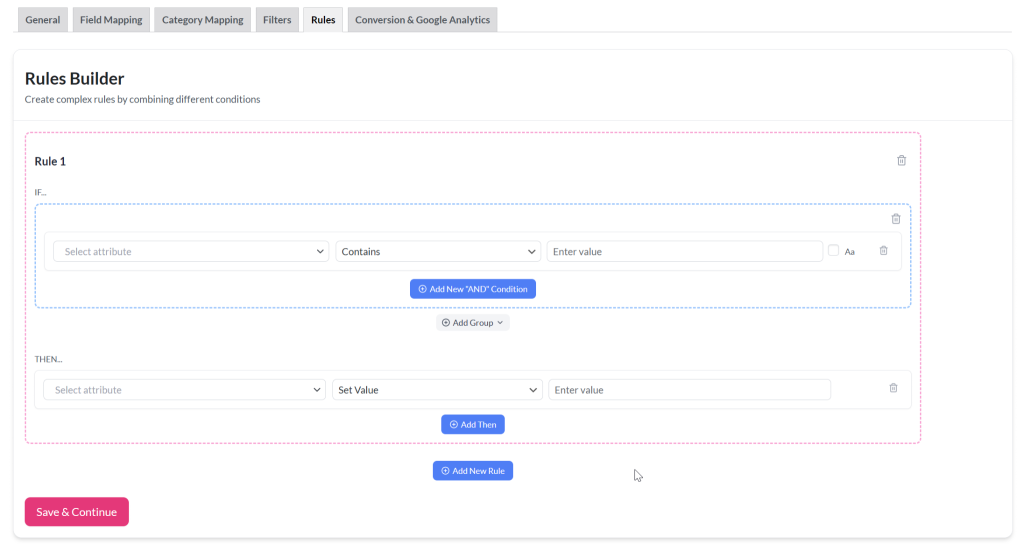
- Click on the Rules tab at the top navigation menu.
- You’ll see the Rules Builder interface.
Understanding the interface
The Rules Builder interface is designed for quick, visual creation of conditional logic. Here’s what you’ll find:
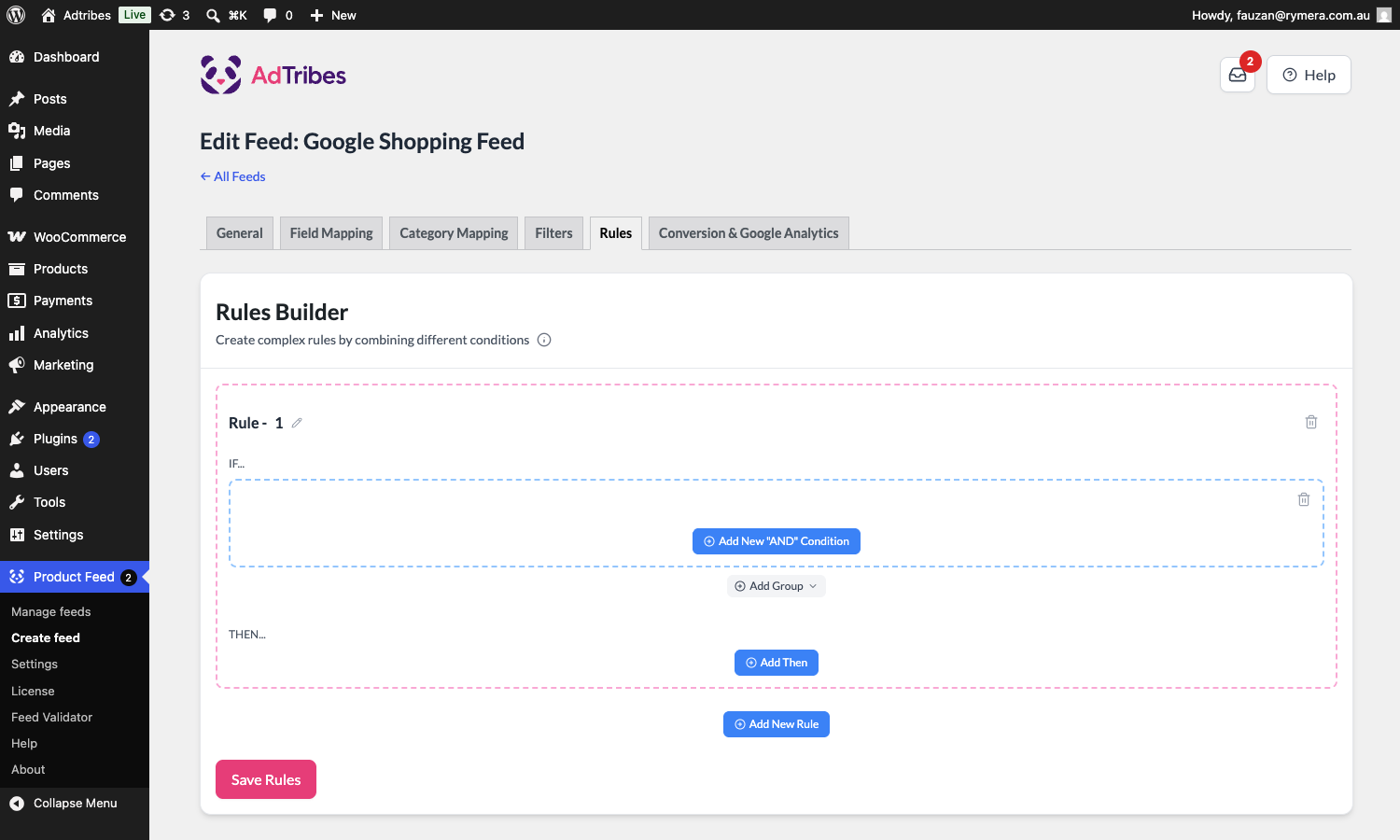
- Rule Number: Each rule is listed sequentially, so you can easily manage multiple rules in one feed.
- Condition Area (IF): A space where you can add one or more conditions by selecting attributes, operators, and values.
- Action Area (THEN): Where you define what should happen when your conditions are met.
- Add New “AND” Condition: Add another condition within the same group (all must be true).
- Add Group: Create separate condition groups connected by OR logic.
- Add Then: Apply additional actions when the same IF conditions are true.
- Add New Rule: Start a new, separate rule.
- Delete icons: Remove unwanted conditions, actions, or entire rules quickly.
Creating a rule
Step 1: Define the condition (IF…)
- In the IF section, select the attribute you want to check (e.g., Product name, Category, Price, Stock Status).
- Choose a comparison operator (e.g., Contains, Equals, Greater Than, Less Than).
- Enter the value you want to compare against (e.g., “Shoes”, “20”, “In Stock”).
- Use Add New “AND” Condition to add more conditions that must all be true.
- Use Add Group to create an OR relationship between groups of conditions.
The comparison dropdown offers the following operators:
| Operator | Description | Available on |
|---|---|---|
| Contains | Value includes the given text. | Pro & Elite |
| Not Contains | Value does not include the given text. | Pro & Elite |
| Equals | Value exactly matches the given text or number. | Pro & Elite |
| Not Equals | Value does not exactly match the given text or number. | Pro & Elite |
| Greater Than | Numeric value is greater than the given number. | Pro & Elite |
| Less Than | Numeric value is less than the given number. | Pro & Elite |
| Greater Than or Equal | Numeric value is greater than or equal to the given number. | Pro & Elite |
| Less Than or Equal | Numeric value is less than or equal to the given number. | Pro & Elite |
| Is Empty | Attribute has no value. | Pro & Elite |
| Is Not Empty | Attribute has a value. | Pro & Elite |
| Character Count Greater Than | Value’s character count is greater than the given number. | Elite only |
| Character Count Greater Than or Equal | Value’s character count is greater than or equal to the given number. | Elite only |
| Character Count Less Than | Value’s character count is less than the given number. | Elite only |
| Character Count Less Than or Equal | Value’s character count is less than or equal to the given number. | Elite only |
| In List | Value matches any item in a comma-separated list (e.g. 101, 245, 389). See How to use In List and Between conditions in Elite. | Elite only |
| Between | Numeric value falls within an inclusive range. See How to use In List and Between conditions in Elite. | Elite only |
Step 2: Define the action (THEN…)
The THEN section tells the plugin what action to take when the IF conditions are met. This is where you choose the attribute to modify and how to modify it.
- Select the Attribute to Modify: From the Select attribute dropdown, choose the feed attribute you want to change (e.g., Product name, Price, Brands).
- Choose the Action Type: From the middle dropdown, select one of the available actions.
- Enter the Value: In the Enter value field, type the text, number, or replacement value needed for the action.
- Add More Actions (Optional): Click Add Then to perform multiple actions within the same rule.
Product Feed Pro / Elite offers the following action types:
| Action | Description | Available on |
|---|---|---|
| Set Value | Replace the attribute with a specific value you enter. | Pro & Elite |
| Find and Replace | Search the attribute’s value for specific text and replace it with something else. | Pro & Elite |
| Multiply | Multiply the attribute’s numeric value by a number. | Pro & Elite |
| Divide | Divide the attribute’s numeric value by a number. | Pro & Elite |
| Plus | Add a number to the attribute’s numeric value. | Pro & Elite |
| Minus | Subtract a number from the attribute’s numeric value. | Pro & Elite |
| Set Attribute | Copy the value from another product attribute into the target field. See How to Use the “Set Attribute” Rule in Product Feed Elite. | Elite only |
| Exclude Attribute | Remove the target field entirely from the feed output. See How to Use “Exclude Attribute” Rule in Product Feed Elite. | Elite only |
| Combine Fields | Build one field’s value out of multiple attributes and fixed text, in an order you control. See How to combine and truncate feed fields in Product Feed Elite. | Elite only |
| Truncate to Character Limit | Shorten a field to a maximum number of characters, so it fits requirements like Google Shopping’s 150-character title limit. See How to combine and truncate feed fields in Product Feed Elite. | Elite only |
Step 3: Add more rules (optional)
Click Add New Rule to create additional rules for other product modifications. Each rule is processed independently.
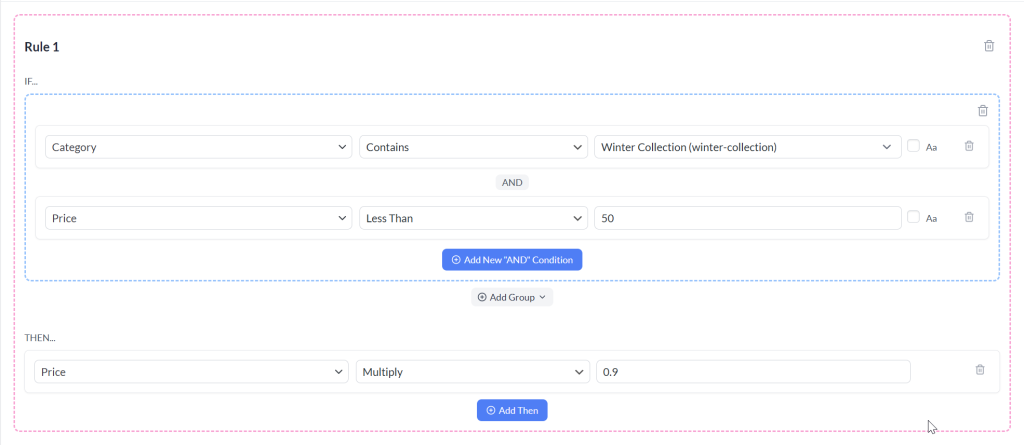
Example
IF:
- Category contains “Winter Collection”
- AND Price is less than 50
THEN:
- Reduce Price by 10%
Saving and applying rules
- Once all rules are configured, click the Save Rules button.
- Generate or refresh your feed to apply the changes.
Tips for effective rules
- Start with simple rules before adding complex AND/OR groups.
- Use specific attributes to avoid unintentionally modifying too many products.
- Test your rules by generating a small sample feed before applying them to the full product catalog.
Rules use cases
- How To Create A “If Field Y Is Empty Than Do X” Rule?
- How To Add A Field To Your Product Feed Based On Another Attribute?
- How to Add Conditional Shipping Costs to Your Product Feed
Need further assistance?
If you need any further assistance or are having issues with filters, feel free to open a support ticket to reach out to our support team.
Please note that the ticket support system is exclusive to Product Feed ELITE users.
If you’re using only the Product Feed Pro plugin, feel free to open a new topic in the WordPress.org forum.

