
Stores with large product catalogs (10,000 or more products) often face slow feed generation, timeouts, or memory exhaustion when creating product feeds. The AdTribes Product Feed plugin is built to handle unlimited products, but you need to configure it correctly for your server environment and catalog size.
This guide explains how to improve feed generation performance for large catalogs. You will learn about batch processing, server limits, scheduled generation, filtering unnecessary products, and other performance considerations.
Why large feeds are different
When you have 10,000+ products, generating a feed in a single request can exceed:
- PHP Memory Limits – Each product loads data (images, attributes, categories) into memory
- Max Execution Time – PHP scripts often timeout after 30-60 seconds
- Server Resources – Shared hosting may throttle long-running processes
The plugin uses batch processing to split feed generation into smaller chunks. Each batch runs separately, so you avoid timeouts and memory exhaustion. Furthermore, you can reduce the number of products in your feed by filtering out items you do not need for advertising.
How batch processing works
The plugin processes feeds in batches. Each batch handles a fixed number of products (the batch size). When one batch finishes, the next is scheduled automatically. This approach reduces memory use and avoids PHP timeouts.
Product Feed Pro 13.5.7 and later self-tune batch size instead of using a fixed table lookup. Each batch is timed and its memory use measured; the next batch’s size is derived from what the host just proved it can handle, and the learned size is persisted per feed so later runs start near the optimum. This is a Product Feed Pro core feature, so it applies whether or not Product Feed Elite is active. See Adaptive batch sizing below.
On earlier versions, the plugin instead used fixed default batch sizes based on your total product count:
| Product Count | Batch Size |
|---|---|
| Under 1,000 | 200 products per batch |
| 1,000-5,000 | 300 products per batch |
| 5,000-10,000 | 500 products per batch |
| 10,000-50,000 | 1,000 products per batch |
| 50,000+ | 1,500 products per batch |
These defaults were designed for reliability. Smaller batches use less memory and are less likely to hit execution limits.
Adaptive batch sizing
Starting with Product Feed Pro 13.5.7, feed generation no longer picks one fixed batch size per run from a product-count tier table. Instead, the controller times each batch and measures its memory use, then sizes the next batch from what the host just proved it can handle. The learned size is saved per feed, so subsequent runs start close to the optimum from the first batch.
Benchmark results: On an 18,201-product Google Shopping XML feed, with each batch paying a real WordPress bootstrap (as happens in production), adaptive batch sizing ran roughly 19% faster on a first run and 24% faster on a warm run, with output parity confirmed, identical product counts in every scenario.
Why the gain matters more than the benchmark suggests: The speed-up comes from eliminating per-batch round trips, not from faster per-product processing. Pure processing time per product is unchanged. Each batch pays a full WordPress-plus-plugin bootstrap and an Action Scheduler wait, so cutting a run from 19 batches to 2 removes 17 bootstraps and 17 waits. This matters most on low-traffic stores: where WP-Cron only fires on visitor hits, the wait between batches dominates total feed time, so the batch-count reduction is worth considerably more in practice than the benchmark numbers alone suggest, a useful combination for large-catalog stores that also have low traffic.
Graceful degradation on constrained hosts: If the host is memory-constrained (for example, a 128MB limit), the batch size walks down until batches fit, and the feed completes slowly instead of failing on every run. Previously, the smallest available tier was 200 products per batch, so hosts that could not handle even that size never completed a feed at all.
Configure custom batch size
If your feed gets stuck or times out, try reducing the batch size. Conversely, if you have a powerful server and want faster generation, you can increase it.
How to change the batch size
- Go to Product Feed → Settings → General
- Enable Change products per batch number
- Enter a value in Insert batch size: (e.g., 500 or 250)
- Save your settings

Recommendations:
- Timeouts: Use a smaller batch size (e.g., 250-500) so each batch finishes before your server’s max execution time
- Memory errors: Reduce batch size further (e.g., 100-200) to lower memory usage per batch
- Stable servers: You can try larger batches (e.g., 1,000-1,500) for faster total generation, but only if your server handles them without errors
More Specifically:
| Server Type | Suggested Batch Size |
|---|---|
| Shared Hosting | 200-300 |
| VPS or Cloud | 500-1000 |
| Dedicated Server | 1000-1500 |
Always test after changing the batch size. If the feed still gets stuck, reduce it further. For more details, see Batch size configuration product feed.
Check and adjust server limits
Your hosting environment imposes limits on PHP execution time and memory. These directly affect feed generation.
max_execution_time
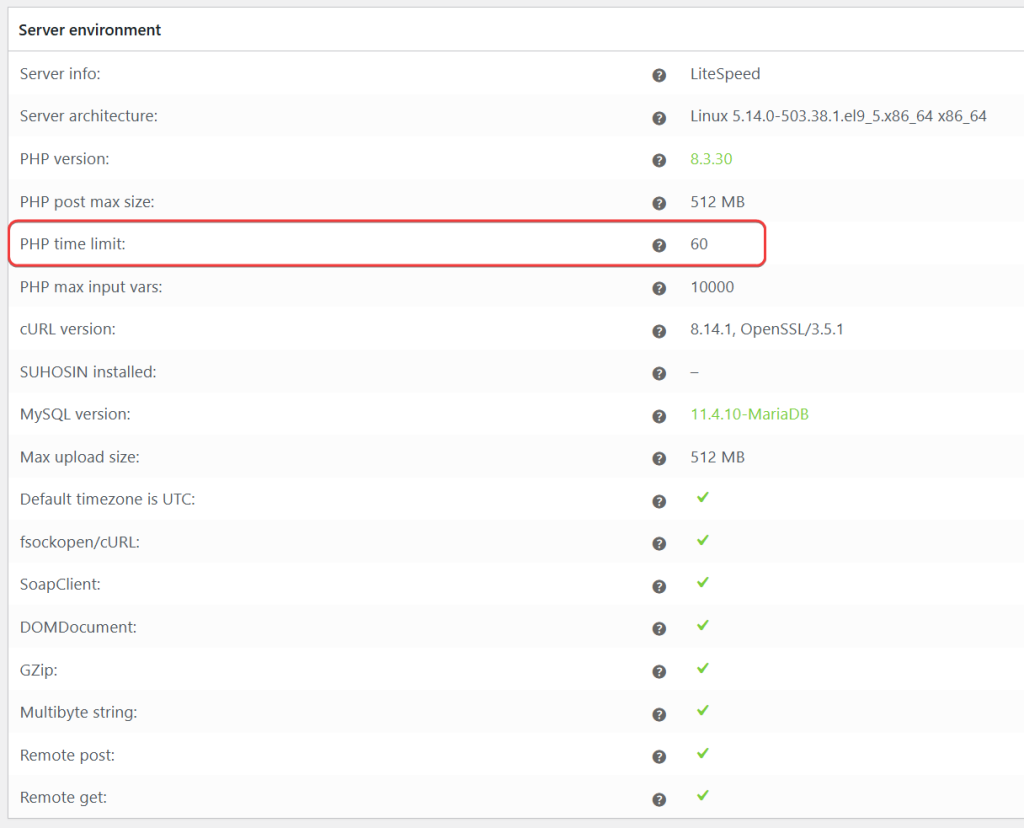
Each batch runs within PHP’s max_execution_time. If this is too low (e.g., 30 or 60 seconds), batches may be cut off before finishing.
- Recommended: At least 300 seconds (5 minutes) for large catalogs
- How to check: Go to WP Admin → WooCommerce → Status, and find the PHP Time Limit value from the Server Environment.
- How to fix: Increase the limit in your server configuration by adding
set_time_limit(300)to thewp-config.phpfile, or contact your hosting provider
memory_limit
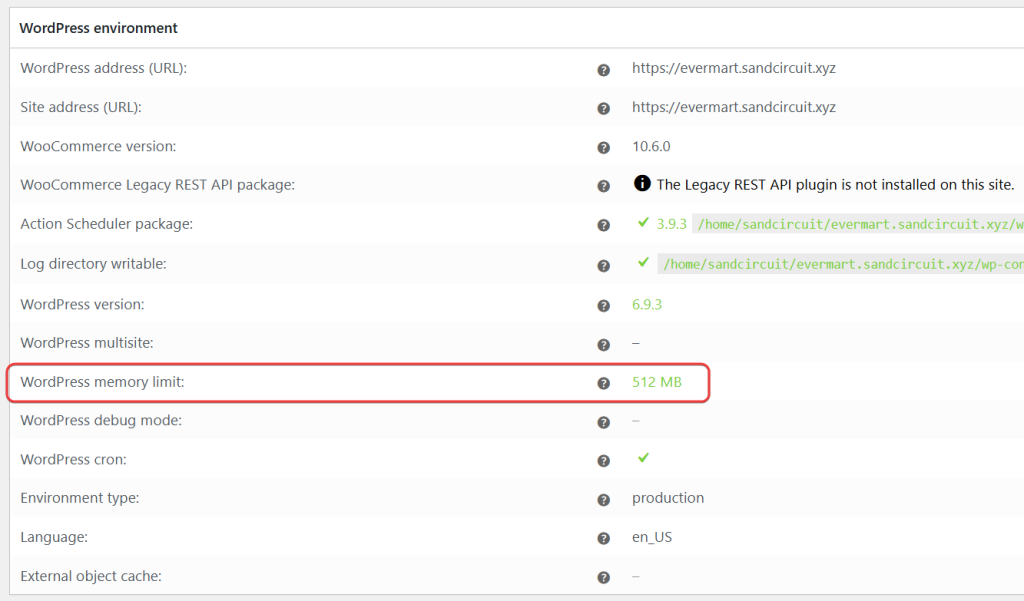
Feed generation loads product data into memory. When processing thousands of products per batch, a low memory limit can cause fatal errors or incomplete feeds.
- Recommended: 256MB or higher for 10,000+ products
- How to check: Go to WP Admin → WooCommerce → Status, and find the WordPress Memory Limit value from the WordPress Environment.
- How to fix: Increase the memory limit in
wp-config.phpby addingdefine('WP_MEMORY_LIMIT', '256M');or ask your hosting provider to increase the limit.
The plugin logs a warning when available memory is below 128MB before a batch runs (if logging is enabled). This entry appears under log source woo-product-feed-pro in WooCommerce → Status → Logs. Use this to spot potential issues.
Use scheduled generation instead of manual refresh
For large catalogs, avoid relying on manual refresh from the browser. Browser requests can time out or disconnect before all batches complete. Instead, use scheduled generation.
Refresh interval
- Edit your feed and go to the General tab
- Set Refresh interval to Hourly, Daily, or Twice Daily (Product Feed Elite also supports custom intervals)
- Save the feed
The plugin uses Action Scheduler to run feed generation in the background at the chosen interval. This is more reliable than manual refresh for large feeds.
Server cron (advanced)
For precise control or high-traffic stores, you can use a server cron job instead of the built-in scheduler. This is especially useful when:
- You want feeds to run at specific times (e.g., off-peak hours)
- Your site has low traffic, and WP cron may not run often enough
- You need to stagger multiple large feeds
For step-by-step instructions, see How to refresh product feed using cron jobs.
Disable HTTP feed generation requests
When you click Refresh on the Manage Feeds page, the plugin can trigger feed generation via HTTP requests. On large stores or constrained hosting, this can cause timeouts or incomplete feeds.
Disable HTTP feed generation requests forces feed generation to run only via Action Scheduler (or server cron). No HTTP requests are used to start or continue batches.
How to enable
- Go to Product Feed → Settings → General
- Enable Disable HTTP feed generation requests
- Save your settings

When to use:
- Your feed keeps getting stuck or timing out when you click Refresh
- You use a custom batch size (batch processing disables HTTP processing by default in that case)
- You run feeds via scheduled refresh or server cron
For more details, see What Does “Disable HTTP Feed Generation Requests” Do?.
Filter out unnecessary products
Including only the products you need in your feed reduces processing time and file size. Use filters to exclude products that are not relevant for your channel.
Common filtering strategies
| Goal | Filter Type | Example Condition |
|---|---|---|
| Include only products that are available | Include | Stock status = instock |
| Include products from a specific category | Include | Category contains [target category] |
| Include products above a certain price | Include | Price greater than X |
| Exclude out-of-stock products | Exclude | Stock status = outofstock |
| Exclude products without images | Exclude | Main image is empty |
| Exclude very low-priced products | Exclude | Price less than X |
| Exclude specific categories | Exclude | Category contains [category name] |
| Exclude specific brands or tags | Exclude | Brand/Tag contains [value] |
Fewer products mean fewer batches and faster feed generation. For step-by-step guidance, see How to create filters for your product feed.
Variable products and variations
If you use variable products, consider:
- And only include lowest priced product variation(s): One variation per product instead of all
- And only include default product variation: Further reduces product count
These options are in the feed’s General tab and can significantly cut the number of products processed.
Performance considerations summary
| Factor | Recommendation for 10,000+ Products |
|---|---|
| Batch size | Leave unset to let adaptive sizing learn (Product Feed Pro 13.5.7+); otherwise 200-500 on shared hosting, 500-1000 on VPS/dedicated |
| max_execution_time | 300 seconds or higher |
| memory_limit | 256MB or higher |
| Refresh method | Scheduled (hourly/daily) or server cron, not manual only |
| HTTP generation | Disable if feeds get stuck or timeout |
| Filters | Exclude out-of-stock, irrelevant categories, or low-value |
| Variable products | Use “lowest priced” or “default variation” when appropriate |
Troubleshooting common issues
| Issue | Solution |
|---|---|
| Feed stuck processing | Reduce batch size; enable Disable HTTP feed generation; check Help, my feed won’t update or is stuck processing! |
| Timeout errors | Increase max_execution_time to 300+; reduce batch size |
| Fatal error / memory exhausted | Increase memory_limit to 256MB+; on Product Feed Pro 13.5.7+, adaptive sizing degrades gracefully instead of failing outright |
| Fewer products than expected | Check filters and rules; see Help! I have none or less products in my product feed than expected |
| Action Scheduler failures | Go to WooCommerce → Status → Scheduled Actions; check Failed tab; increase server limits |
Need further assistance?
If you need help optimizing feed generation for your large catalog:
- Product Feed Elite users: Create a support ticket to reach the AdTribes support team.
- Product Feed Pro users: Open a topic in the WordPress.org forum.

