
If you use TranslatePress to translate your WooCommerce store, the Product Feed Translation Addon integrates with it automatically.
When active, the addon detects TranslatePress and loads the correct integration. Product Feed then pulls translated product data when generating feeds. If a translation exists, the translated title, description, URLs, and other fields appear in the feed; otherwise, it fetches the default language version. As a result, feeds remain complete while showing translated content when available.
For setup and licensing details, see Getting Started with the Product Feed Translation Addon.
Before you start
Make sure you meet the following requirements:
| Requirement | Notes |
|---|---|
| WooCommerce | Installed, active, and up to date. |
| TranslatePress | Installed and properly configured on your website. |
| Product Feed Pro | Required and active. The Translation Addon expects Product Feed Pro 13.5.3 or newer. |
| Product Feed Translation Addon | Separate plugin. The plugin automatically detects TranslatePress and loads the integration. |
Install and activate the Translation Addon only after WooCommerce and Product Feed Pro are in place. If a dependency is missing, the addon shows an admin notice and skips loading integrations.
Install and license the Translation Addon
- Download the Product Feed Translation Addon from your AdTribes account.
- In your WordPress dashboard, go to Plugins → Add New → Upload Plugin.
- Select the downloaded ZIP file, then click Install Now.
- Click Activate Plugin after the installation finishes.
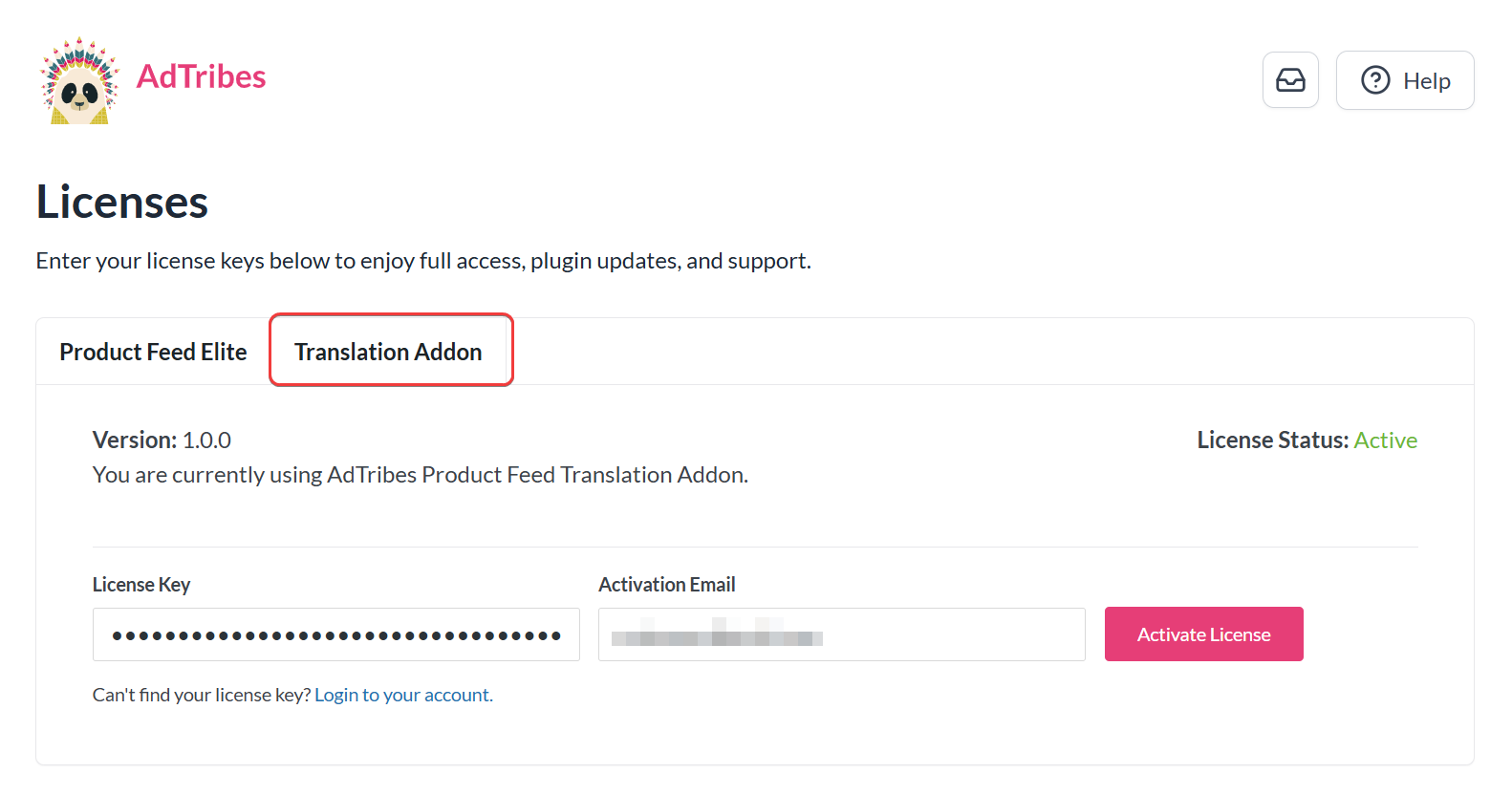
- Go to Product Feed → License.
- Open the Translation Addon tab.
- Enter your License Key and Activation Email.
- Click Activate License.
The addon doesn’t replace Product Feed Pro. It adds the TranslatePress connection so each feed can use the right language while Pro keeps handling schedules, files, and feed logic.
Choose the TranslatePress language for each feed
When TranslatePress is active, the feed General step shows the TranslatePress Language field. The addon pulls the language list from TranslatePress published languages, not hidden draft locales.
- Create a new feed under Product Feed → Create feed, or open an existing one under Product Feed → Manage feeds.
- In General, find TranslatePress Language.
- Select the language this feed should use.
- Complete mapping, filters, rules, and scheduling as usual.
- Save the feed and generate it.
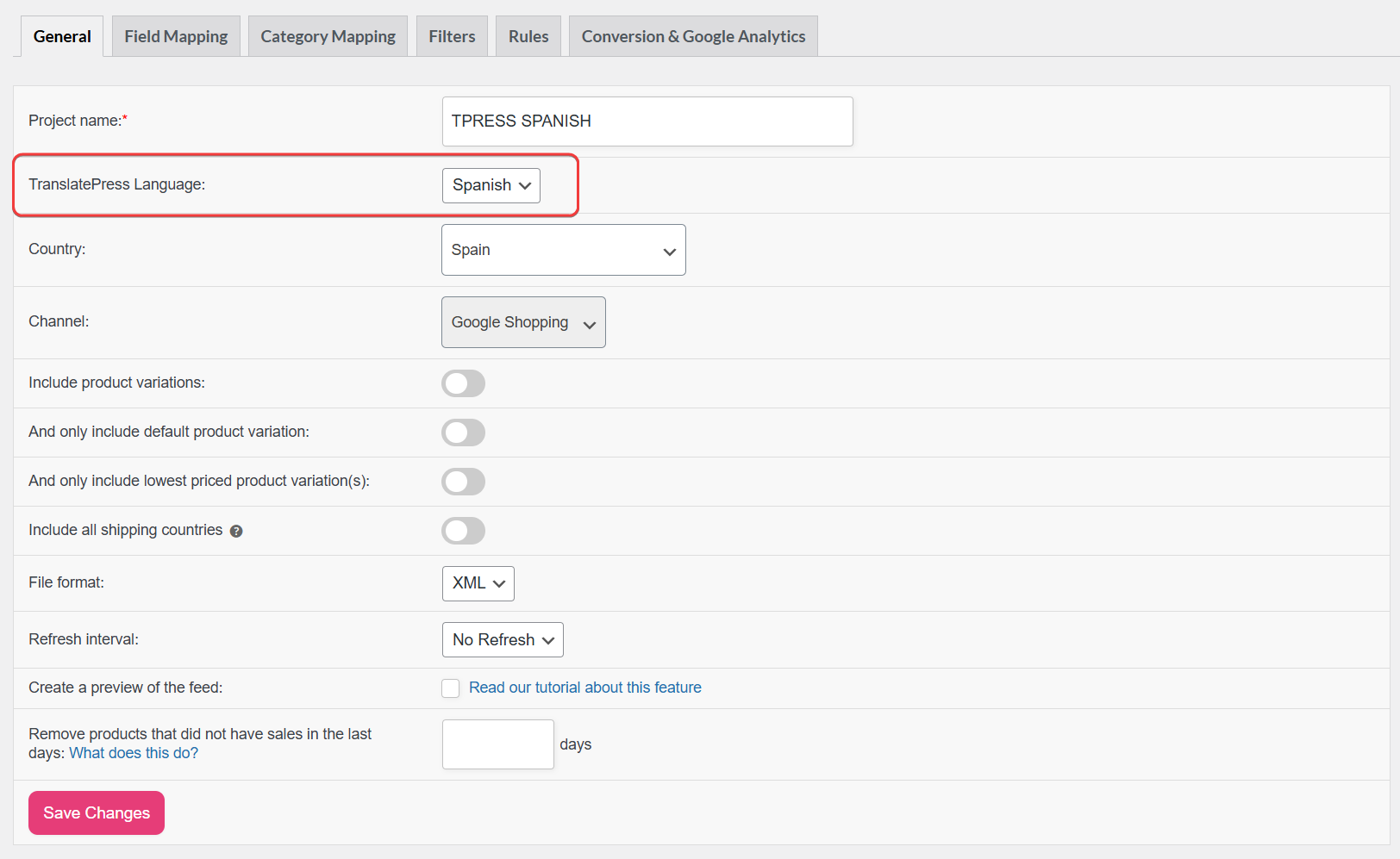
If you leave it empty or choose the default language, the integration skips translation for that feed, and the output stays in the default language.
How the integration works
When you generate a product feed in a non-default language, the addon retrieves translated titles, short descriptions, long descriptions, and product URLs directly from TranslatePress — keeping your feed content consistent with what customers see when they browse your store in that language. Category names in the feed also display in the selected language. If TranslatePress doesn’t have a translation for a product, the addon falls back to the default store language so the feed stays complete.
Best practices
- One language per feed: Create separate feeds per TranslatePress language (for example, one file for English and one for Spanish) instead of mixing languages in a single export.
- Publish languages: Only published languages appear in the feed dropdown; add or publish a locale in TranslatePress before you expect it in the list.
- Translate content in TranslatePress first: Complete translations (or machine-assisted drafts) for titles, descriptions, and URLs before you rely on a channel feed for that locale.
- Match channel setup: Point each localized feed URL to the correct Merchant Center, Meta, or other account language or country configuration.
Developer filters
To adjust strings before or after translation without editing core plugin files, use the adt_translatepress_product_data_string and adt_translatepress_product_data_string_sanitized filters.
Frequently asked questions
Troubleshooting
Need help?
If you have a question or run into any issues, we’re here to help.
Premium users: Open a support ticket. When contacting support, include your Product Feed version, TranslatePress version, and feed configuration so the team can assist you faster.
Free users: Visit the community forum on WordPress.org for help from the community.