
If your WooCommerce store uses WPML, you can build product feeds in the right language for each channel. The Product Feed Translation Addon extends Product Feed Pro with multilingual hooks so titles, descriptions, URLs, categories, and related fields follow the language selected for each feed, ready for every channel.
For a broader overview of the addon, see Getting Started with the Product Feed Translation Addon.
Prerequisites
Before you configure feeds, make sure your stack matches what AdTribes supports.
| Requirement | Notes |
|---|---|
| WooCommerce | Installed, active, and up to date. |
| WPML | WPML Multilingual CMS must be installed and active. |
| WooCommerce Multilingual | Strongly recommended so products, slugs, and store pages stay aligned per language. Product Feed Elite‘s WCML integration handles multi-currency options in feeds (see WCML and multi-currency below). |
| Product Feed Pro | Required and active. The Translation Addon expects Product Feed Pro 13.5.3 or newer. |
| Product Feed Translation Addon | Separate plugin. The plugin automatically detects WPML and loads the integration. |
Install and activate the Translation Addon only after WooCommerce and Product Feed Pro are in place. If a dependency is missing, the addon shows an admin notice and skips loading integrations.
Install and license the Translation Addon
- Download Product Feed Translation Addon from your AdTribes account.
- Use Plugins → Add New → Upload Plugin, install, then activate.
- Open Product Feed → License.
- Go to the Translation Addon tab.
- Enter your License Key and Activation Email, then click Activate License.
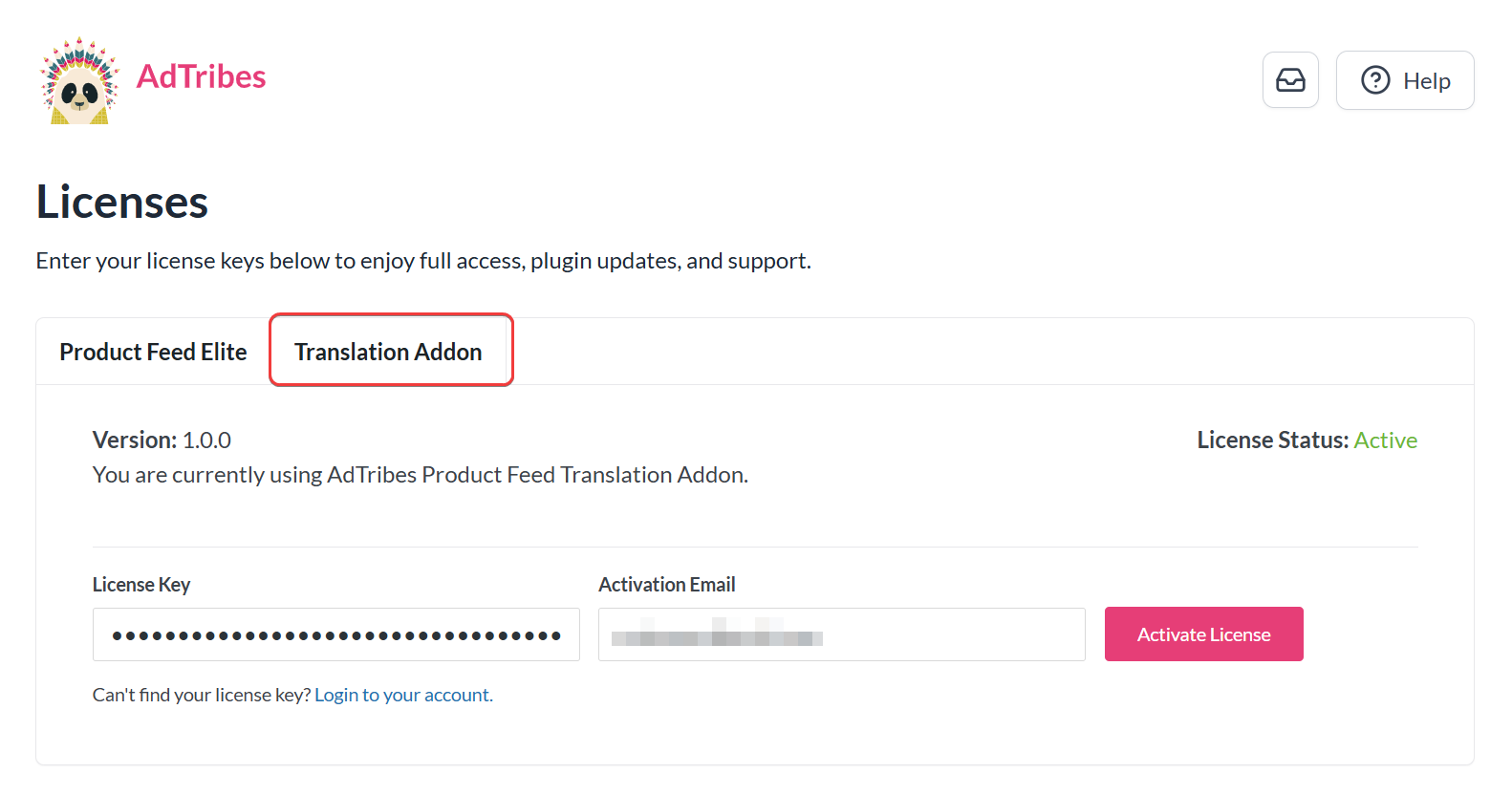
After activating the plugin, you’ll also see an Activate License admin notice across WordPress admin pages. The notice has a built-in license form, or you can click through to the same Product Feed → License → Translation Addon tab.
Keep your Product Feed Elite license active as usual. The addon does not replace Elite; it supplies the WPML integration layer while Elite continues to manage channels, rules, and schedules.
Choose the WPML language for each feed
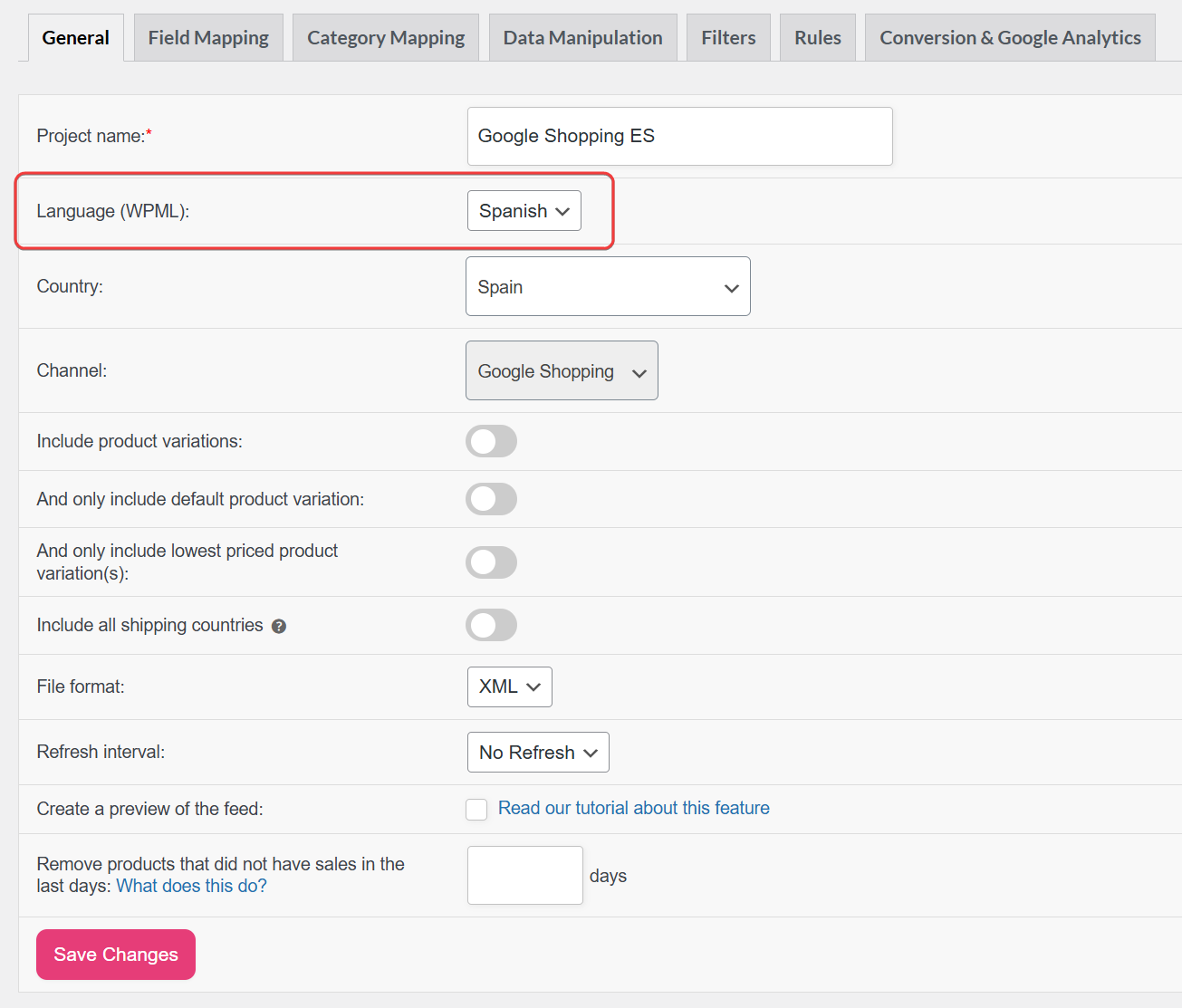
When WPML is active, the General step of a feed includes a Language (WPML) dropdown.
- Create a new feed or edit an existing one.
- In General, open Language (WPML) and pick the language this file should use (for example, English for one Merchant Center feed and German for another).
- Save the feed and complete mapping, filters, and rules as usual.
If you leave the language empty, the feed will fall back to the WPML default language when products are loaded.
When duplicating feeds, the addon copies the WPML language from the source feed, so you can duplicate the feed and change only the language if needed.
Once a language is selected, category dropdowns in the Category Mapping and Filters steps also use that language’s category names — so you map and filter against the same language the feed will export.
Cart, shop, and feed channel URLs in the output automatically use the selected language’s permalinks. Facebook Pixel events also map back to the original product ID, keeping your analytics consistent across language feeds.
Translated Elite extra fields
Standard WooCommerce fields usually follow WPML translations when the language is switched. Elite extra fields (brand, GTIN, optimized title, and similar) are stored as custom meta and require WPML Custom XML Configuration to appear on translation screens.
Follow How to Translate Extra Fields with WPML? for the exact meta keys and XML snippet.
WCML and multi-currency
WooCommerce Multilingual multi-currency features are handled by Product Feed Elite’s WCML integration, not by the Translation Addon.
The Translation Addon offers integration with WPML, Polylang, and TranslatePress for language selection in feeds. Multi-currency features from WCML continue to work through Product Feed Elite.
If you rely on per-feed WCML currency fields or related attributes, configure the currency directly in the feed settings where WCML exposes those options, alongside the WPML language.
Example: English and German Google Shopping feeds
- Install the Product Feed Translation Addon and activate its license.
- Make sure your products are translated in WPML (including any required extra fields).
- Create Feed A with language English, map attributes, and connect it to your English Merchant Center feed.
- Duplicate the feed or create Feed B with language German, keeping the same mapping where appropriate, but using a separate channel destination.
Refresh or schedule both feeds so each file contains products in a single language from start to finish.
Frequently asked questions
Troubleshooting
If you recently migrated from older Elite-only translation support, make sure the Translation Addon remains active so the integration can load.
Remember that one feed should represent one language. Duplicate feeds when generating multiple language versions.
Need help?
If you have a question or run into any issues, we’re here to help.
- Premium users: Open a support ticket
- Free users: Visit our community forum

