
If your WooCommerce store uses Polylang (or Polylang Pro), your marketing channels still expect one clear language per catalog file. The Product Feed Translation Addon extends Product Feed Pro with multilingual hooks so titles, descriptions, URLs, and taxonomies follow the language you select for each feed, ready for every channel.
This guide covers prerequisites, installing and licensing the addon, and choosing a language when you create or edit a feed. For a broader overview, see Getting Started with the Product Feed Translation Addon.
Prerequisites
Before you configure feeds, make sure your setup meets the following requirements.
| Requirement | Notes |
|---|---|
| WooCommerce | Installed, active, and up to date. |
| Polylang or Polylang Pro | Installed and properly configured on your site. |
| Polylang for WooCommerce | Strongly recommended so WooCommerce product data (titles, descriptions, and slugs) is properly translated per language. |
| Product Feed Pro | Required and active. The Translation Addon expects Product Feed Pro 13.5.3 or newer. Elite channels and features need Product Feed Elite, a separate plugin that runs alongside Product Feed Pro, with an active Elite license. |
| Product Feed Translation Addon | Separate plugin. The addon automatically detects Polylang and loads the integration when it’s active. |
Install and activate the Translation Addon only after WooCommerce and Product Feed Pro are in place. If a dependency is missing, the addon shows an admin notice and skips loading integrations.
Install and license the Translation Addon
- Download Product Feed Translation Addon from your AdTribes account.
- In your WordPress dashboard, go to Plugins → Add Plugin → Upload Plugin.
- Select the downloaded ZIP file, then click Install Now.
- Click Activate Plugin after the installation finishes.
- Go to Product Feed → License.
- Open the Translation Addon tab.
- Enter your License Key and Activation Email.
- Click Activate License.
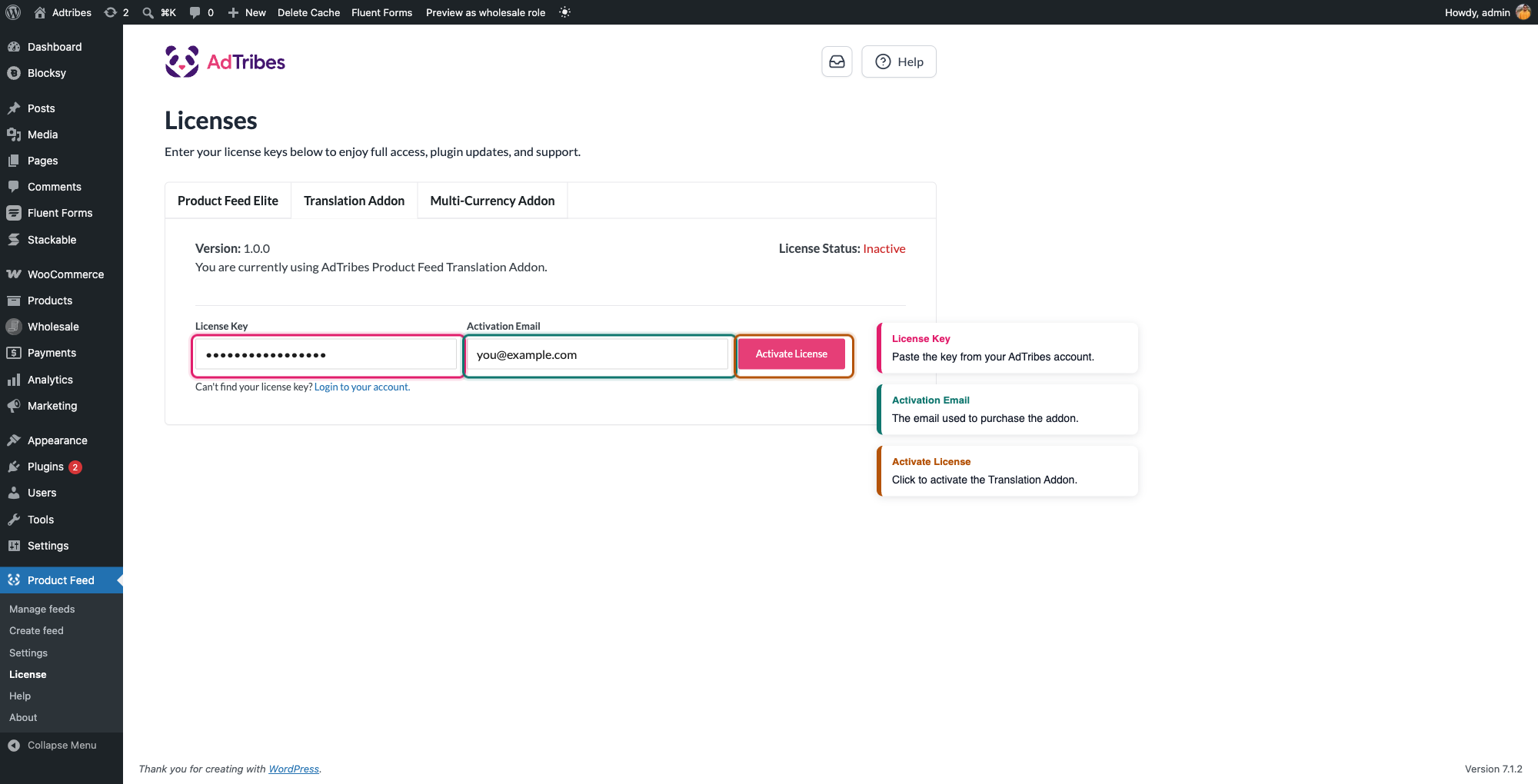
After activating the plugin, you’ll also see an Activate License admin notice across WordPress admin pages. The notice has a built-in license form, or you can click through to the same Product Feed → License → Translation Addon tab.
Similarly, keep Product Feed Elite licensed as usual. The addon doesn’t replace Elite; it supplies the Polylang layer while Elite continues to manage channels and feed logic.
Polylang integration
The Product Feed Translation Addon automatically detects Polylang when it’s active on your site. Once detected, the addon loads the appropriate integration and enables language-specific feed generation.
You don’t need any additional configuration in the plugin settings.
Choose the Polylang language for each feed
When Polylang is active, the feed General step shows the Polylang language field.
- Create a new feed from Product Feed → Create feed, or open an existing one from Product Feed → Manage feeds.
- In General, open the Polylang language dropdown and pick the language this file should use: for example, French for one channel and English for another.
- Save the feed, then complete channel selection, mapping, filters, and schedules as usual.
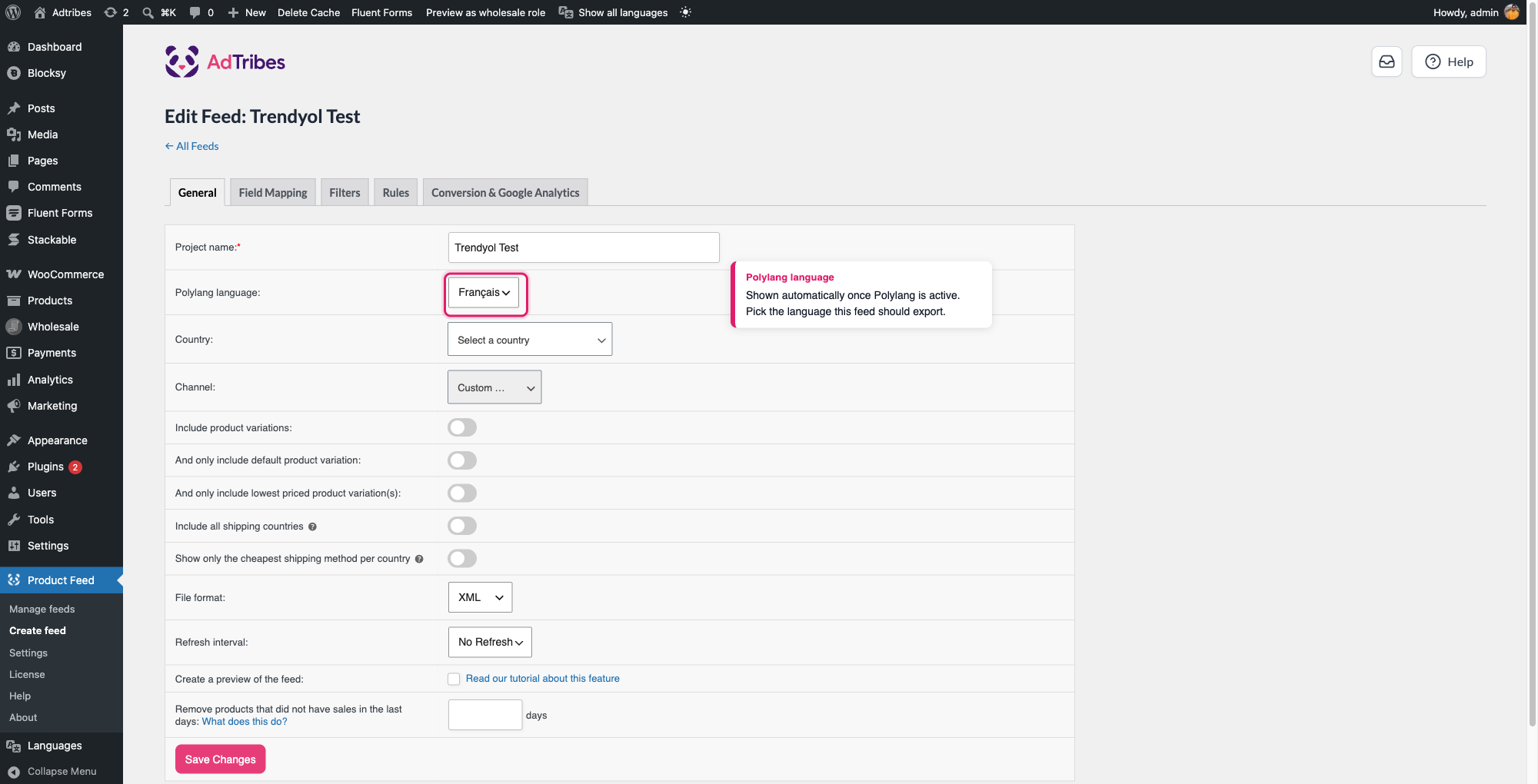
To include products of every language in one feed, choose All languages at the bottom of the dropdown. Include and exclude filters can then match translated products by their IDs. Most channels expect one language per file, so use this option only when your channel accepts mixed-language catalogs or when your filters need to reach translated products.
If the feed has no language saved, product loading falls back to Polylang’s default language.
When you duplicate a feed, the addon copies the Polylang language from the source feed, so you can duplicate and then change only the language.
Product synchronization
This integration keeps your product data consistent across languages.
No manual mapping required: You don’t need to manually map language codes or translation IDs. The addon automatically connects translated products with the correct feed language.
Automatic filtering: The Translation Addon filters your catalog and includes only the products assigned to the language you selected in the Polylang language field. If you choose All languages, the feed includes the products of every language.
Standard product attributes: The feed pulls titles, descriptions, and other product attributes directly from the translated versions provided by Polylang, so each feed uses the correct language content.
Polylang vs. WPML: what’s different
Both integrations detect their translation plugin automatically and add the same language dropdown to the feed’s General tab. Beyond that, the WPML integration does more:
| Behavior | Polylang | WPML |
|---|---|---|
| Per-feed language selection | Yes | Yes |
| Falls back to the site’s default language when no language is set on the feed | Yes | Yes |
| Category mapping filtered by the selected language | No | Yes |
| Checkout/cart links rewritten for the selected language | No | Yes |
| Facebook Pixel post ID matched to the selected language | No | Yes |
In practice this means Polylang feeds filter products and pull translated titles, descriptions, and attributes correctly, but category dropdowns and cart/pixel links in the feed output are not language-adjusted the way they are for WPML. If your channel setup depends on language-specific category mapping or cart links, verify the output for your Polylang feeds rather than assuming WPML-equivalent behavior.
Frequently asked questions
Troubleshooting
Need help?
If you have a Product Feed Elite license, open a support ticket.
If you’re using the Product Feed Pro plugin, visit the community forum on WordPress.org.

