
If you’re already using the Facebook Pixel but want more reliable conversion tracking, especially for users with ad blockers or restricted cookies, Conversions API (CAPI) helps fill those gaps.
Generate a CAPI access token in Meta, connect it to Product Feed Elite, and your store will send events from both the browser and the server.
Using both Pixel (browser) and CAPI (server) improves tracking accuracy and ensures your advertising data is more complete.
Prerequisites
Make sure the following are in place before enabling Facebook Conversions API (CAPI).
| Requirement | What this means |
|---|---|
| WooCommerce | Install and run WooCommerce with your store active. Ensure the cart, checkout, and order confirmation (thank-you) pages work correctly. |
| Product Feed Pro | Install and activate the Product Feed Pro plugin. The Facebook Pixel feature is included in Product Feed Pro. Find the relevant settings in Product Feed → Settings → General. |
| Product Feed Elite | Install, activate, and license Product Feed Elite. Elite enables the Conversions API (CAPI) and richer server-side tracking on top of the Facebook Pixel provided by Product Feed Pro. |
| Facebook Pixel ID | Get a Pixel ID from Meta Events Manager and enter it in your settings to connect your website tracking with your Meta account. |
| CAPI access token | Generate a CAPI access token in Meta Events Manager for the same Pixel (or dataset) you use in WooCommerce. See how to create your Conversions API access token below. |
The Conversions API works together with the Pixel, not as a replacement. The Pixel sends events from the browser; CAPI sends the same events from your server to improve tracking accuracy.
Create your Conversions API access token in Meta
The plugin sends server events to Meta using an access token that belongs to your Pixel (Meta is also rolling out dataset wording for the same underlying data source). Generate the token after you know which Pixel ID you will enter in Product Feed Pro.
Before you start
- Log in with a Meta account that has full control or manage access to the Business that owns the Pixel.
- If Generate access token is missing, your user likely lacks the right role on the business or Pixel. Ask a Business admin to grant access or generate the token for you.
- The numeric Pixel ID in the Product Feed setting must match the Pixel/dataset you selected when creating this token. If they differ, Meta will reject events or attribute them to the wrong source.
Steps in Events Manager
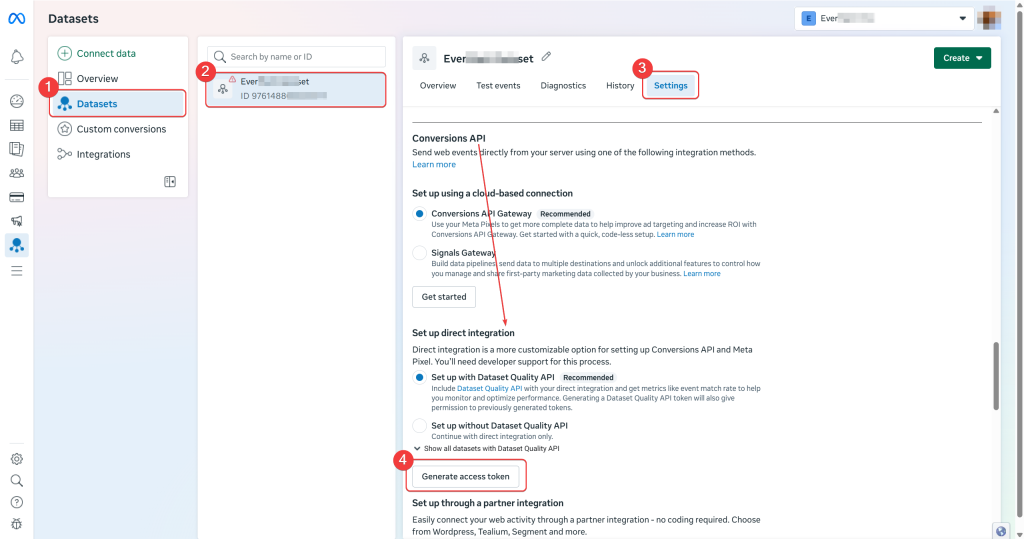
- Open Meta Events Manager.
- In the left sidebar, under Data sources (or Datasets), click the Pixel you use on your WooCommerce store.
- Open the Settings tab for that Pixel (gear icon or top Settings, depending on Meta’s layout).
- Scroll to the Conversions API section.
- Find Generate access token (it may sit under Set up manually, Set up direct integration, or similar wording Meta uses in the CAPI setup flow).
- Click Generate access token. Meta may ask you to confirm permissions or which app may use the token. Complete those prompts.
- When Meta shows the token string, click Copy. Store it in a password manager; Meta often shows it only once and you cannot retrieve the full secret again later.
- If you lose the token, click Revoke / Generate access token again in the same Conversions API area, then paste the new token into Product Feed → Settings → General → Insert your Facebook Conversion API token and save.
If you can’t see the Generate access token button
- Confirm you opened Settings on the correct Pixel (not a different ad account’s Pixel).
- Open the Overview tab and look for Set up Conversions API or Get started. Some accounts guide you through token creation via this setup flow first.
- See Meta’s guide: Get started with the Conversions API (official developer documentation). Meta may change its interface depending on region or account type, so refer to their documentation if labels differ slightly.
After you generate the token
- Never commit the token to Git, paste it into public forums, or send it by email in plain text.
- Paste it only into Product Feed → Settings → General → Insert your Facebook Conversion API token (see the steps below).
Enable the Facebook Pixel
- Go to WP Admin → Product Feed → Settings.
- Open the General tab.
- Review the settings for Facebook Pixel and Conversions API.
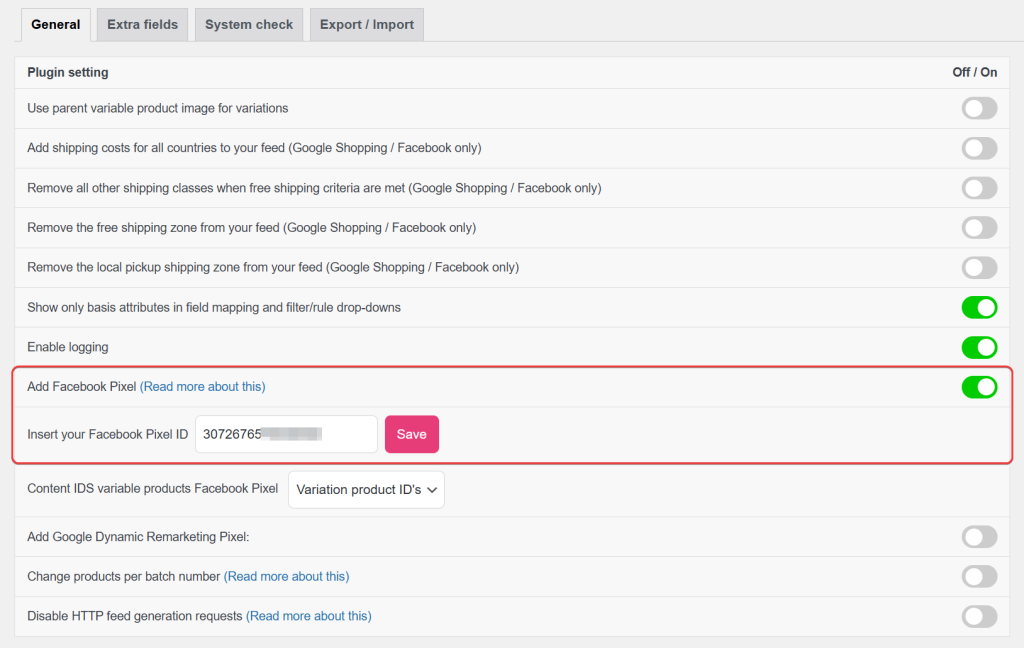
To enable the Pixel:
- Turn on Add Facebook Pixel.
- Enter your Facebook Pixel ID. Use a numeric ID greater than zero; otherwise, the plugin skips the snippet.
- Save your settings.
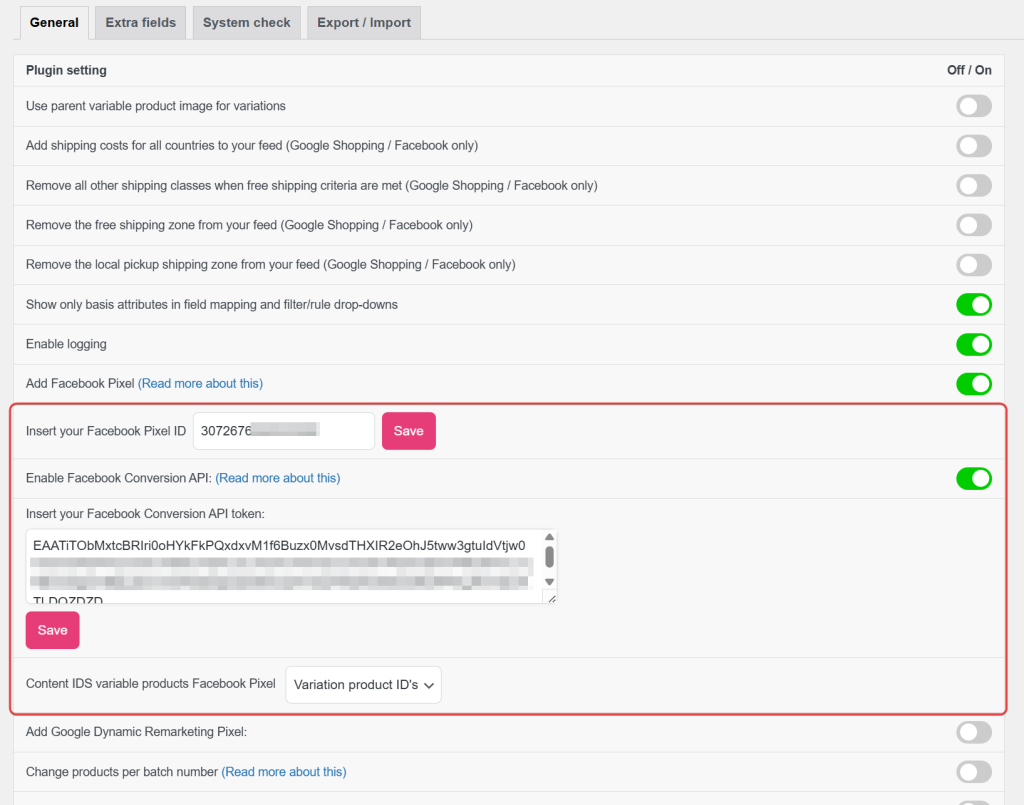
Enable Facebook Conversions API and add your token
- Toggle on Enable Facebook Conversion API.
- Paste your Conversions API access token into the Insert your Facebook Conversion API token field.
- Click Save Changes.
Once enabled, your store sends events to Meta using both:
- The Facebook Pixel (browser tracking), and
- The Conversions API (server-side tracking).
This combination improves tracking reliability and helps Meta measure conversions more accurately.
For more details, see the Read more link next to the CAPI setting.
How Conversions API works with the Facebook Pixel
When a visitor interacts with your store, Product Feed Elite can send tracking events to Meta in two ways:
- From the browser using the Facebook Pixel
- From your server using the Conversions API (CAPI)
Both methods can report the same event to Meta.
| Tracking source | What happens |
|---|---|
| Browser (Facebook Pixel) | The Pixel loads on your website and tracks visitor actions such as PageView, ViewContent, AddToCart, and Purchase. |
| Server (Conversions API) | When you enable CAPI and add a valid access token, your server sends the same event directly to Meta. |
How duplicate events are avoided
When both the Pixel and Conversions API send the same event, Meta uses a shared event ID to recognise that they refer to the same action. This lets Meta count the event only once, even when both the browser and the server report it.
Why does this improve tracking?
Your server can still send server-side events even when:
- Browsers restrict cookies
- Ad blockers prevent the Pixel from loading
- Browsers block tracking scripts
Because of this, using both the Pixel and Conversions API together can improve tracking accuracy and help Meta better match events to users and products.
Events covered (same events as the Facebook Pixel)
Product Feed Elite tracks the same event types used by the Facebook Pixel. The plugin automatically triggers these events when visitors interact with pages on your store.
| Page or situation | Event sent to Meta |
|---|---|
| Single product | ViewContent: triggered when a visitor views a product. |
| Cart | AddToCart: triggered when a product is added to the cart. |
| Checkout | InitiateCheckout: triggered when a customer starts the checkout process. |
| Order Received/Thank You | Purchase: triggered after a successful order. |
| Product category | ViewCategory: triggered when a visitor views a product category. |
| Product search results | Search: triggered when a visitor searches for products in your store. |
Product feed vs. tracking events
Your product feed and your tracking events serve different purposes.
The product feed sends your catalog data to Meta: product titles, prices, images, and IDs.
The Facebook Pixel and Conversions API send behaviour data, such as which products visitors view, add to their cart, or purchase.
When the product IDs in your feed match the Content IDs sent by events, Meta can correctly link customer actions to products in your catalog. This helps improve reporting, optimisation, and dynamic product ads.
Verify Facebook Pixel and Conversions API
After enabling the Facebook Pixel and Conversions API (CAPI), confirm that both are working correctly.
Check events in Meta Events Manager
Open Meta Events Manager and go to Test Events. Visit your store and trigger an event, such as viewing a product or completing a test purchase. You should see events coming from both:
- Browser (Facebook Pixel)
- Server (Conversions API)
Confirm events are not duplicated
When both the Pixel and CAPI send the same event, Meta automatically recognises that they belong to the same action and counts them only once.
Check server connectivity
Your hosting server must be able to send secure requests to Meta. If your server blocks these connections, CAPI events may not appear even though the Pixel still works.
Verifying both tracking methods ensures your store sends complete and reliable data to Meta for reporting and advertising optimisation.
Troubleshooting
Frequently asked questions
event_id.- Page URL: the URL of the page where the event occurred
- IP address and browser/device string (user agent): used by Meta to match events to users
- Meta click ID and browser ID (from Meta’s own
_fbcand_fbpcookies, when present in the visitor’s browser): improve event matching quality and attribution - Billing postcode and country: included for logged-in users or on Purchase events; SHA-256 hashed before sending so the raw values never leave your server
- Anonymised visitor identifier: the visitor’s WordPress account ID for logged-in users, or the WooCommerce order ID for guest purchases; SHA-256 hashed before sending
Need more help?
Product Feed Elite users: open a support ticket and our team will take a look.
Product Feed Pro users: post a new topic on the WordPress.org forum.

