Reviewed by
Building a WooCommerce variable product feed can get messy fast. A T-shirt that comes in five colors and four sizes is not just one product in your feed. Depending on the channel, it can turn into multiple line items, each with its own price, image, availability, and identifier.
If you get it wrong, your products might be disapproved, show the wrong variant in search results, or merge into confusing listings that shoppers scroll past. Google Shopping and Meta (Facebook/Instagram) both require specific attributes for variants, and their requirements aren’t identical.
This guide breaks down exactly how WooCommerce variable products should be structured for Google Shopping and Meta product feeds, and how to configure them properly in AdTribes Product Feed Pro.
Why Variable Products Are Tricky For Product Feeds
The core problem is a mismatch between how WooCommerce stores products and how advertising channels expect to receive them.
In WooCommerce, a variable product is a single parent product with multiple variations. A “Classic T-Shirt” might have variations for size (S, M, L, XL) and color (Black, White, Navy). WooCommerce stores these as a parent product with child variations underneath. The same parent-versus-variation split applies to your shop pages, which is why some merchants choose to show WooCommerce variations as single products on your storefront rather than only in the feed. If you’re running a multi-vendor store, the setup for these attributes starts one step earlier — the guide to building a fashion marketplace on WooCommerce covers how to configure global size, color, and material attributes so every vendor’s products stay consistent before you build any feeds.
Advertising channels like Google Shopping and Meta want each buyable variant as its own line item in your feed. That Classic T-Shirt needs to appear as “Classic T-Shirt – Black – Small,” “Classic T-Shirt – Black – Medium,” and so on, each with its own unique ID, price, image, and stock status.
The tricky part is connecting those individual variants back to the parent product so the channel knows they belong together. That’s where item_group_id comes in, and it’s the field most store owners either miss or misconfigure.
One common issue is submitting only the parent product instead of the individual variations. When that happens, the channel may receive incomplete variant details, which can lead to less accurate pricing, images, or product matching. Sending individual variations with a shared
item_group_idusually gives Google and Meta clearer data to work with.
How Google Shopping Handles Product Variants
Google Shopping uses a specific set of attributes to manage product variants. Understanding these is the foundation for building a correct feed.
The item_group_id attribute
item_group_id is the attribute that tells Google “these products are variations of the same item.” Every variant that belongs to the same parent product should share the same item_group_id value.
For WooCommerce, the natural choice is to use the parent product’s ID or SKU as the item_group_id for all its child variations. In Product Feed Pro, it’s still worth reviewing how your id and item_group_id fields are mapped before publishing so each variation is grouped correctly.
Required variant attributes
When you use item_group_id, Google requires at least one differentiating attribute for each variant. The supported differentiating attributes are:
- color: Required for apparel and accessories
- size: Required for apparel and accessories
- material: Optional differentiator
- pattern: Optional differentiator
- age_group: Required for apparel
- gender: Required for apparel
Each variant in the group must have a unique combination of these attributes. Two variants cannot share the exact same color, size, material, and pattern combination within the same item_group_id group.
For full details on Google’s feed field requirements, see our Google Shopping feed requirements guide. You can also review Google’s product data specification for a more in-depth breakdown of variant fields like item_group_id, color, size, and other required attributes.
Parent vs child: what to submit
For Google Shopping, you should submit the individual child variations, not the parent product. Each child variation gets its own:
- id: The variation’s unique ID (different from the parent)
- item_group_id: The parent product’s ID (shared across all siblings)
- title: Should include the variant-specific attributes (e.g., “Classic T-Shirt – Black – Large”)
- price: The specific variation’s price
- image_link: Ideally an image showing that specific variant
- availability: That variation’s stock status
- link: A URL that points to the product page with the variation pre-selected, if possible
Google will group these variants together in Shopping results, showing the most relevant variant to each searcher based on their query and browsing context.
Non-apparel variable products
Variable products outside of apparel still benefit from item_group_id. For example, a phone case that comes in different colors or a candle in different scents should still use item groups. The differentiating attributes just shift from size/color to whatever makes each variant unique (color, scent, material, etc.).
For non-apparel products, item_group_id can still be useful when products vary by details such as color or material. If your products differ in ways that are not covered by Google’s standard variant attributes, you can use product_detail to add extra product information — but it’s better to treat that as supporting data, not a direct replacement for Google’s core variant fields.
How Facebook And Meta Handle Product Variants
Meta’s product catalog system handles variants similarly to Google but with some differences in field names and behavior.
Meta’s variant structure
On Meta (Facebook Shops, Instagram Shopping, and Facebook/Instagram ads), variants are grouped using the same item_group_id attribute. The logic is the same: all variants of a single product share one item_group_id, and each variant has its own unique id.
The differentiating attributes Meta recognizes include:
- color
- size
- material
- pattern
- gender
These match Google’s attributes closely, which makes maintaining a combined or similar feed for both platforms practical.
For the full list of Meta’s required and optional fields, check our Facebook product feed specifications guide. If you want to understand how Meta groups child items into variant sets, Meta’s product variants documentation is also worth reviewing.
Key differences from Google
Meta also groups related variants using item_group_id, but the way those variants are surfaced can vary by placement, catalog setup, and ad format. Because of that, it’s safer not to assume your variant group will always appear the same way across Facebook and Instagram surfaces.
What matters most is keeping each variation cleanly structured:
- a unique
idfor each buyable variant - a shared
item_group_idfor related variants - clear variant titles
- accurate availability
- the best possible image for each variation
If you want more control over how products appear on different channels, you can create separate feeds for Google and Meta and adjust titles, rules, or images as needed. Product Feed Pro supports multiple feeds, so that flexibility is already built in.
How To Configure A WooCommerce Variable Product Feed
Product Feed Pro gives you full control over how WooCommerce variable products are included in your feeds. Here’s how to set it up correctly.
Step 1: Enable variable product inclusion
In the General Feed Settings step, enable Include product variations to add variable products to your feed.
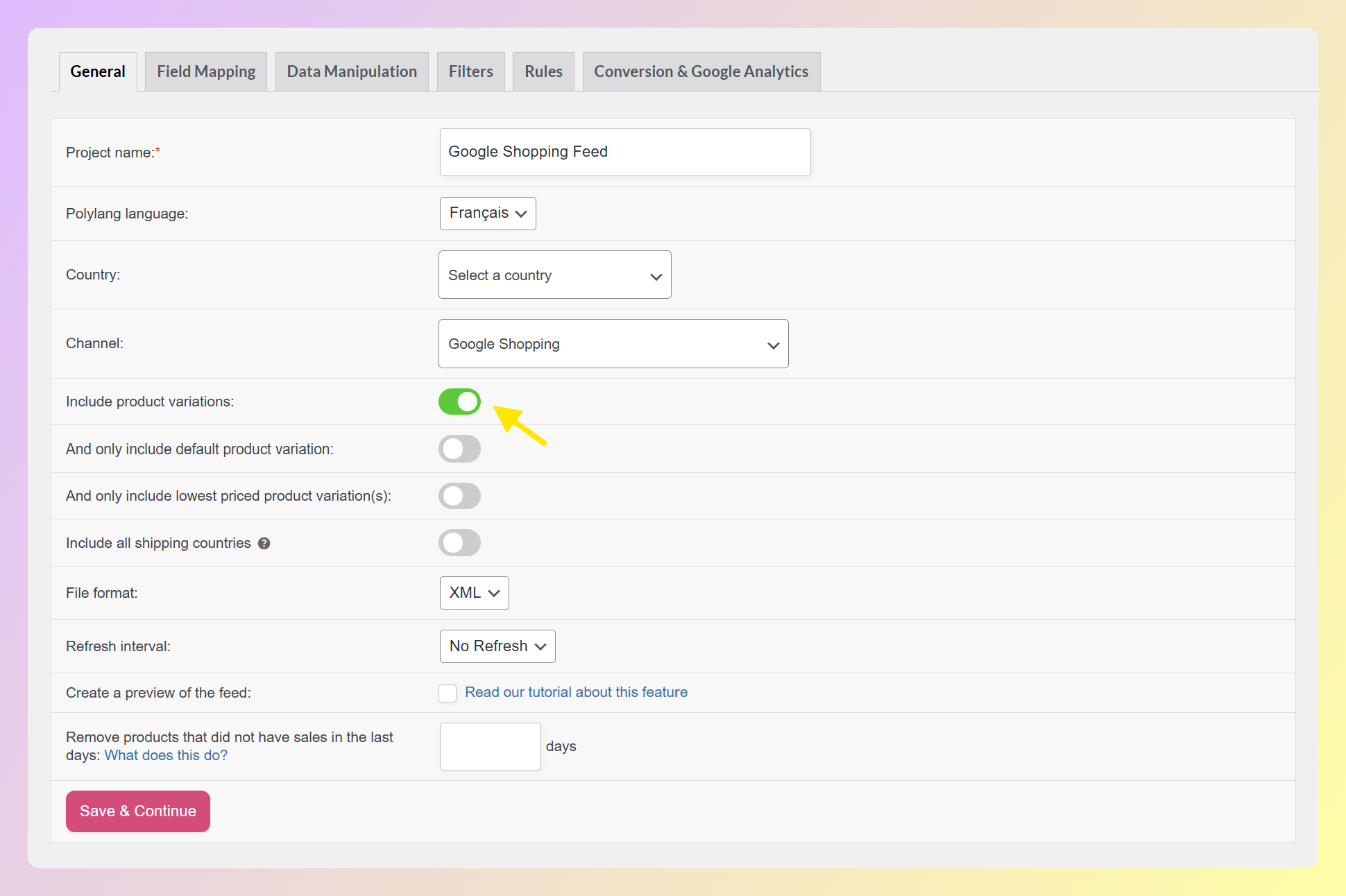
In the General tab of your feed settings, you’ll find an Include product variations toggle. Enable it to send individual variations to the channel — when this is on, the parent product is automatically excluded.
Beneath that are two optional sub-toggles:
- And only include default product variation: Limits the feed to each product’s default variation only.
- And only include lowest priced product variation(s): Limits the feed to the cheapest variation per product.
For most Google Shopping and Meta setups, enable Include product variations and leave both sub-toggles off so all variations are sent.
Step 2: Map the item_group_id field
When using a Google Shopping or Meta feed template, review how id and item_group_id are mapped before publishing.
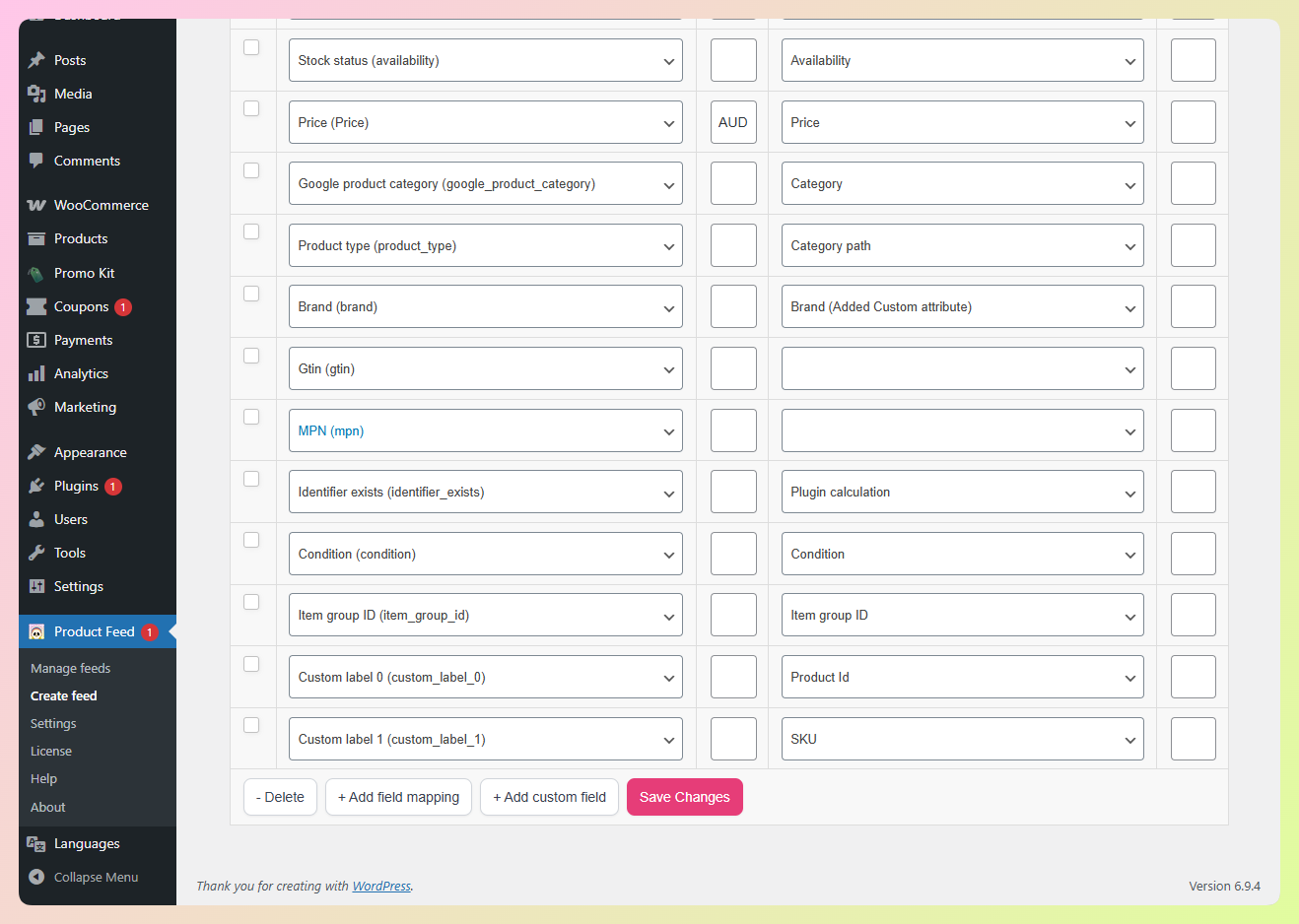
As a rule of thumb, each variation should have its own unique id, while related variants should share the same item_group_id, often based on the parent SKU or parent product ID.
This ensures Google and Meta can group your variants correctly while treating each as a distinct, buyable product.
Step 3: Configure variant attributes
Map the differentiating attributes from your WooCommerce product data. If you use WooCommerce’s built-in attribute system for things like color and size, Product Feed Pro can pull these directly:
- color mapped to your WooCommerce “Color” attribute
- size mapped to your WooCommerce “Size” attribute
- material mapped to your WooCommerce “Material” attribute (if applicable)
If your attributes use different names in WooCommerce (e.g., “Colour” instead of “Color”), use the field mapping to connect them to the correct feed attribute.
Step 4: Set up variant-specific titles
By default, WooCommerce variation titles often look like “Classic T-Shirt – Black, Large.” You can use Product Feed Pro’s feed rules to restructure these titles for better performance in ads.
A common approach is to combine the parent product title with the variant attributes in a specific order. For apparel, a good format is: [Brand] + [Product Name] + [Color] + [Size]. For example: “YourBrand Classic T-Shirt Black Large.”
Step 5: Handle variant images
If your WooCommerce variations have their own images assigned, Product Feed Pro can include variation-specific images in the feed. There is also a setting to use the parent product’s main image for variations when that better fits your setup.
For best results, assign unique images to each variant, especially for color variations. A shopper searching for a “red dress” should see a red dress in the Shopping results, not a blue one.
Common Variable Product Feed Mistakes
Even with the right tools, there are several common mistakes that cause variable product feed issues.
Submitting parent products instead of variations
This is the most frequent mistake. Submitting only the parent product means Google or Meta gets a single listing with no variant data. The result is often a price range display, a random image, and no ability for shoppers to click through to the specific variant they want.
Missing item_group_id
Without item_group_id, each variation may be treated as a separate product instead of part of a related variant group. That can make your listings less clear for shoppers and can lead to a less organized product catalog.
Duplicate IDs across variations
Every variation must have a unique id in your feed. If two variations share the same ID, the channel will either reject one or overwrite one with the other. Always use the WooCommerce variation ID (not the parent ID) as the feed item ID.
Missing variant attribute values
If you use item_group_id but don’t include the differentiating attributes (color, size, etc.), Google will flag the products with errors. Each variant in a group must have at least one attribute that distinguishes it from the others.
Ignoring out-of-stock variations
Some store owners submit all variations, including those that are out of stock, without updating the availability field. This leads to frustrated shoppers clicking through to a variant they can’t buy. Use Product Feed Pro’s filters to either exclude out-of-stock variations or ensure the availability field accurately reflects each variant’s stock status.
Frequently Asked Questions
Should I submit parent products or variations to Google Shopping?
Submit individual variations, not the parent product. Each variation should have its own unique id and share the parent’s item_group_id. This gives Google the specific pricing, images, and availability for each variant, which improves ad relevance and shopper experience.
What happens if I don’t use item_group_id?
Without item_group_id, Google and Meta treat each variation as a completely independent product. They won’t be grouped together, shoppers won’t see variant options, and you may run into issues with duplicate listings. Always include item_group_id for variable products.
Can Product Feed Pro handle WooCommerce variable products with many attributes?
Yes. Product Feed Pro supports WooCommerce’s built-in attribute system and can generate separate feed rows for active variations. You can then map the most relevant attributes and fields for the channel you’re sending the feed to.
Do I need separate feeds for Google Shopping and Meta?
You don’t strictly need separate feeds since both channels accept similar formats. However, creating separate feeds lets you optimize titles, images, and descriptions for each platform. Product Feed Pro supports multiple feeds per store, so you can generate a Google-specific feed and a Meta-specific feed from the same WooCommerce product data.
Wrapping Up
Handling a WooCommerce variable product feed correctly can make a big difference in how your products appear on Google Shopping and Meta. Once your item_group_id mapping is in place and each variation has its own attributes, images, and pricing, both channels can better understand and display the right variant.
Here’s a quick recap of what we covered:
- Why variable products are tricky for product feeds
- How Google Shopping handles product variants
- How Facebook and Meta handle product variants
- How to configure a WooCommerce variable product feed
- Common variable product feed mistakes
Ready to stop fighting with variable product feeds? Get Product Feed Pro for free and get your WooCommerce variations properly structured for Google Shopping and Meta in minutes.