
Running WP Rocket on a WooCommerce store is a smart performance move, but it’s natural to wonder whether a caching plugin can interfere with your product feeds. The good news is that Product Feed Pro and WP Rocket work well together — feed generation is entirely server-side and caching never touches your feed files. There’s one specific scenario to check: if you use the Facebook Pixel Add to Cart tracking feature, and you have WP Rocket’s Delay JavaScript execution enabled, you’ll need to add one exclusion. This article walks you through it.
How feed generation works with WP Rocket active
Product Feed Pro generates your feeds as static XML, CSV, or text files and stores them in your site’s uploads folder (at wp-content/uploads/woo-product-feed-pro/). When a channel like Google Shopping or Facebook Catalog fetches your feed, your web server delivers the file directly — no WordPress page request is involved, so WP Rocket’s page cache plays no part.
Feed schedules run through Action Scheduler on the server. They run independently of whether the page is served from cache. So automatic feed refreshes continue to work as normal.
All admin actions in Product Feed — including creating feeds, manually refreshing them, and adjusting settings — use WordPress’s admin AJAX endpoint. WP Rocket does not apply its optimisations to the WordPress admin area, so the admin panel works normally.
When WP Rocket is active, Product Feed Pro automatically registers your feed URLs as preload exclusions on WP Rocket’s side — no manual configuration needed. This prevents WP Rocket from preloading the (potentially large) feed files.
Check Delay JavaScript execution if you use Facebook Pixel
The only area where WP Rocket can affect Product Feed Pro is the Facebook Pixel feature. When you enable Add Facebook Pixel in Product Feed → Settings, the plugin loads a small script (woosea_add_cart.js) on your storefront. This script fires the Add to Cart event so Facebook can track shoppers as they add items to their cart.
WP Rocket’s Delay JavaScript execution feature holds all JavaScript until a shopper interacts with the page. If this is active and woosea_add_cart.js isn’t excluded, the Add to Cart event fires only after the first user interaction — meaning some events may not be tracked at all.
How to exclude the script
- Go to Settings → WP Rocket in your WordPress admin.
- Open the File Optimization tab.
- Scroll to the Delay JavaScript execution section.
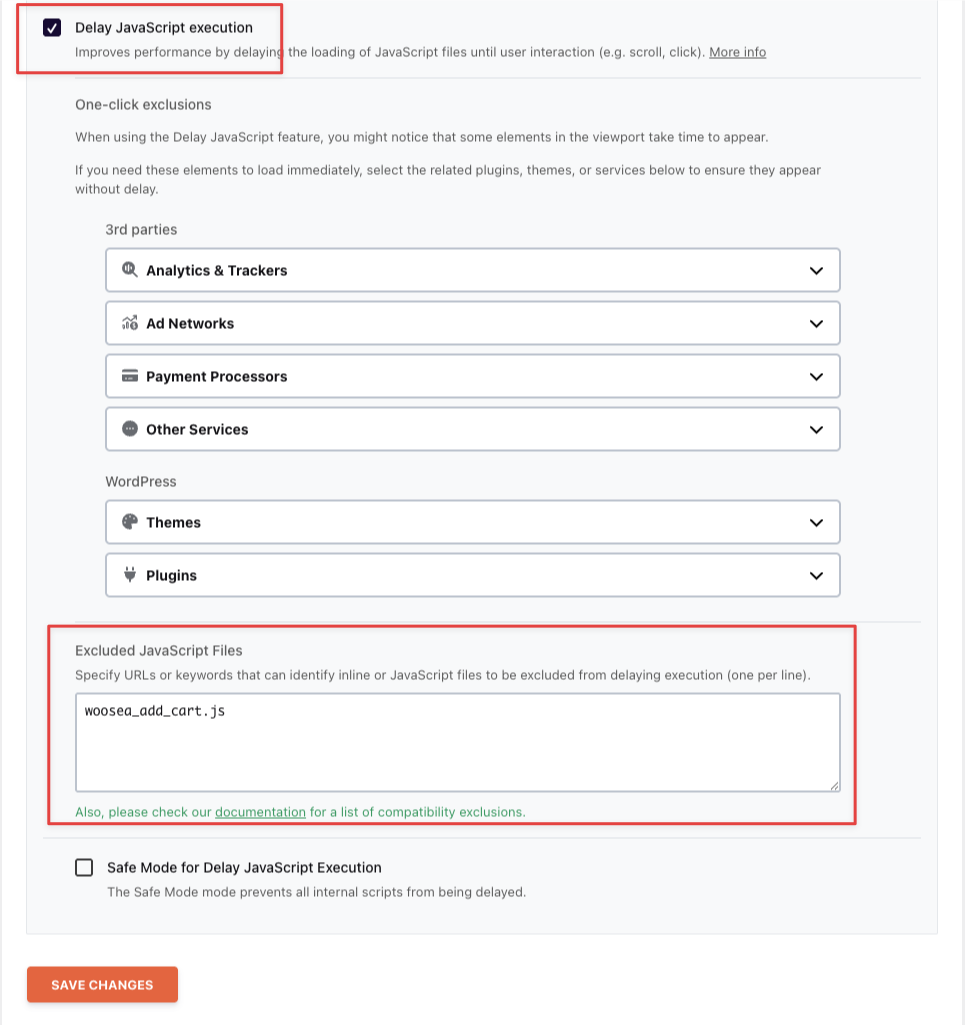
- Find the Excluded JavaScript Files field and add
woosea_add_cart.json a new line. - Click Save Changes.
Troubleshooting
woosea_add_cart.js to the Excluded JavaScript Files field and save. Also, verify that Add Facebook Pixel is enabled and your Pixel ID is entered in Product Feed → Settings.FAQ
/wp-admin/admin-ajax.php) from caching by default, which covers all of Product Feed Pro’s admin actions.Need more help?
If you’re on Product Feed Elite, open a support ticket after logging in to your account.
If you’re on Product Feed Pro (free), post your question in the WordPress.org support forum.

