Reviewed by
Most WooCommerce store owners invest real time and money into product feeds but never measure what they actually get back. They set up feeds, run shopping ads, and watch revenue come in without knowing which feeds drive profit and which ones quietly drain budget.
If you cannot measure your product feed ROI, you cannot improve it. This guide covers exactly which metrics to track, how to set up proper attribution using UTM parameters and GA4, and how to diagnose an underperforming feed so you can fix it instead of guessing.
Whether you are running feeds to Google Shopping, Facebook, Bing, or multiple channels at once, the measurement framework is the same. Let’s walk through it.
Why Measuring Product Feed ROI Matters
Knowing your product feed ROI tells you whether each channel is worth the investment and where to allocate more budget. Without measurement, you are making decisions based on gut feeling rather than data.
Product feeds cost money in two ways. First, there is the direct ad spend on channels like Google Shopping and Meta. Second, there is the time cost of setting up feeds, maintaining product data, and managing campaigns. Both need to generate enough revenue to justify the investment.
Measurement also reveals which products and categories perform differently across channels. A product that sells well on Google Shopping might underperform on Facebook, or vice versa. Without channel-level tracking, you treat all feeds as one big bucket and miss opportunities to shift spend where it converts best.
When you measure at the channel, campaign, and product level, it becomes much easier to see what is working and where to adjust. Instead of guessing, you can make feed decisions based on real performance data.
Key Metrics For Product Feed Performance
Tracking product feed performance is easier when you focus on the metrics that connect most directly to profit. Here are five practical metrics to start with.
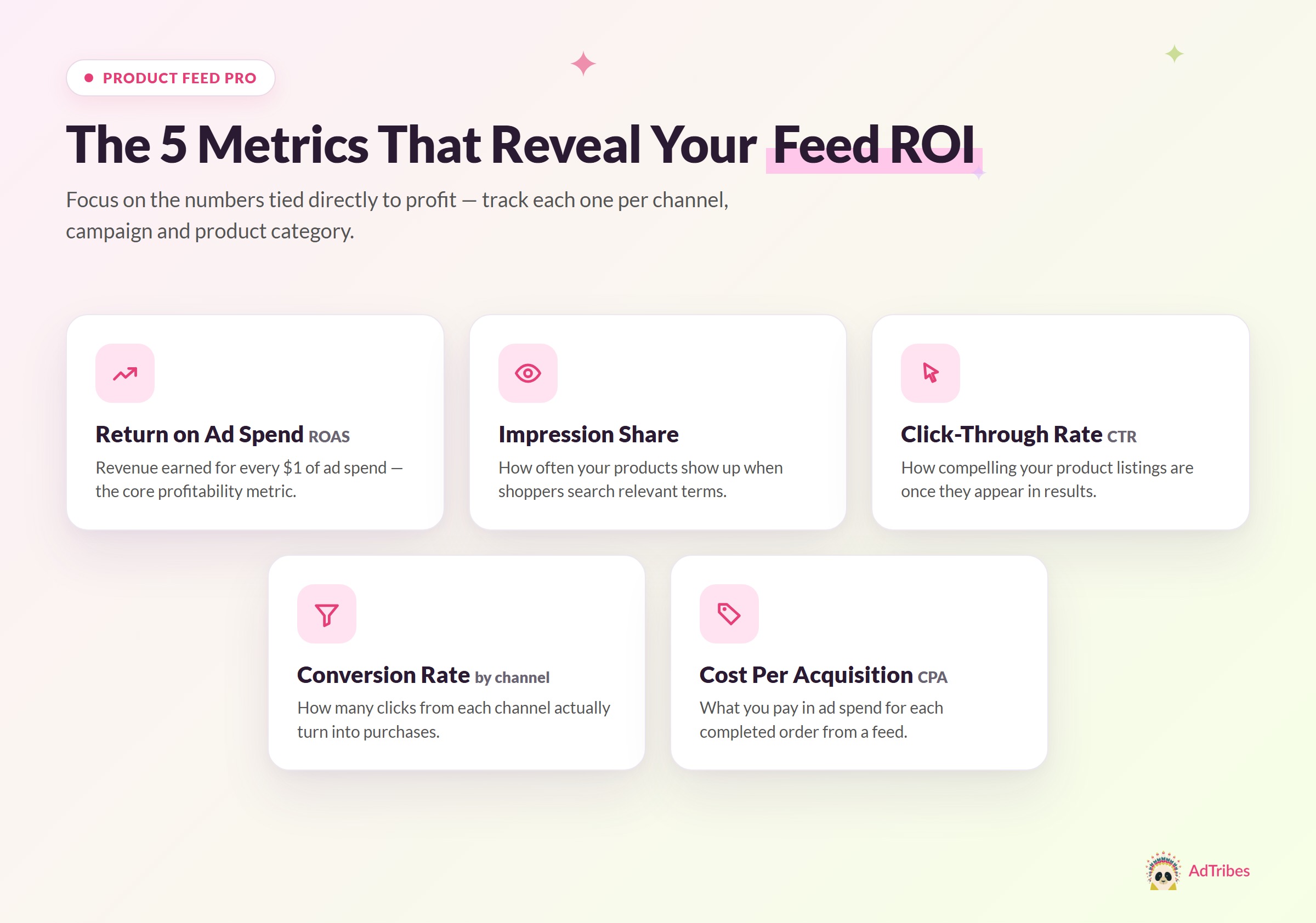
Return on ad spend (ROAS) is the core metric. It measures how much revenue you earn for every dollar spent on advertising through a feed channel. A ROAS of 4.0 means every $1 in ad spend generates $4 in revenue. Calculate it per channel, per campaign, and per product category to find your best and worst performers.
Impression share tells you how often your products appear when shoppers search for relevant terms. Low impression share means your products are not showing up, which points to feed quality issues, low bids, or budget limits. This metric is available in Google Ads and Microsoft Advertising.
Click-through rate (CTR) by product measures how compelling your product listings are once they appear. If impressions are high but CTR is low, your titles, images, or prices may not be competitive enough for the searches where your products are showing. Since CTR varies widely by category and channel, compare performance against your own account history and similar products in the same campaign.
Conversion rate by channel tracks how often clicks from each feed channel result in a purchase on your store. This metric helps you spot whether a channel is sending qualified traffic or clicks that do not turn into sales. A channel with high CTR but low conversion rate may need better targeting, stronger product pages, or more accurate feed data.
Cost per acquisition (CPA) tells you what you pay in ad spend for each completed order from a feed channel. Unlike ROAS, CPA gives you a flat per-order cost that is easy to compare against your average order margin. If your CPA is higher than your average order profit, you are losing money on every sale.
How To Set Up Tracking With UTM Parameters In AdTribes Product Feed Pro
UTM parameters are tags you add to your product URLs inside the feed. They help Google Analytics identify which platform, campaign, and channel sent each visitor to your store.
AdTribes Product Feed Pro lets you configure UTM parameters directly in each feed. You do not need to manually edit product URLs one by one. Set them once in the feed configuration, and they can be added to every product URL in that feed.
To set this up, open the feed you want to track and go to the Conversion & Google Analytics tab. Switch on Enable Google Analytics tracking, then review or update the UTM fields for that feed.
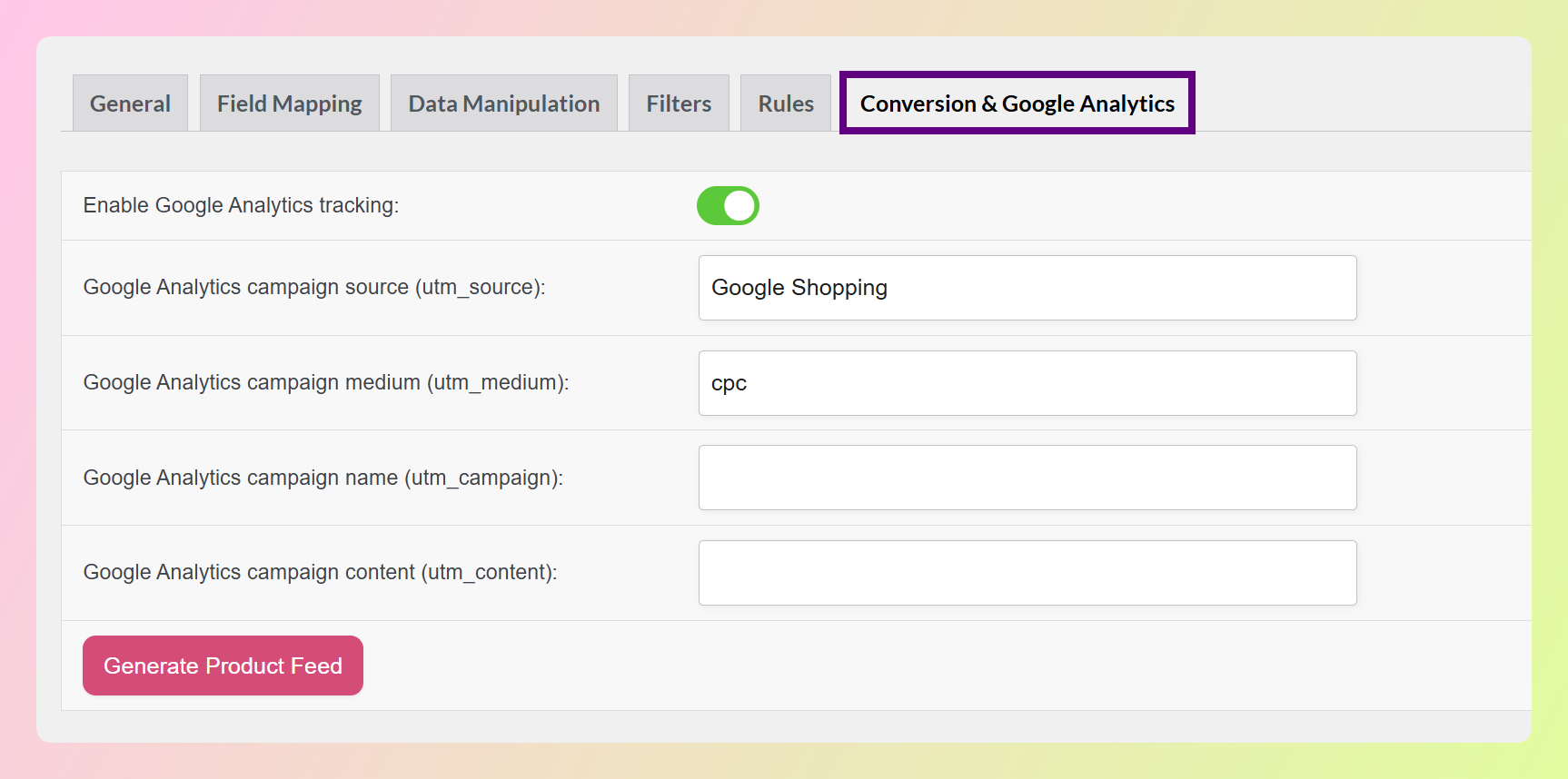
The UTM parameters you can use include:
- utm_source – the platform sending traffic, such as “google”, “facebook”, or “bing”
- utm_medium – the marketing channel type, such as “cpc” for paid traffic or “organic” for free listings
- utm_campaign – your campaign name, such as “shopping_spring_2026”
- utm_content – an optional value that can help distinguish different feed versions or campaign variations
Example URL before UTM parameters:https://yourstore.com/product/blue-running-shoes/
Example URL after UTM parameters:https://yourstore.com/product/blue-running-shoes/?utm_source=google&utm_medium=cpc&utm_campaign=shopping_spring_2026
After saving your settings, regenerate the feed so the updated tracking values can be included in your product URLs.
One important detail: use consistent naming conventions across all your feeds. If you call Google “google” in one feed and “Google” in another, GA4 treats them as separate sources. Pick a format (lowercase, no spaces) and stick with it.
For stores running feeds to multiple channels, our feed optimization guide covers additional ways to tailor your feeds per channel.
Using Google Analytics 4 To Measure Feed-Driven Revenue
GA4 is where your UTM-tagged traffic data comes together into more useful reports. Once your feeds have proper UTM parameters, GA4 can group that traffic by source, medium, and campaign so you can better understand what each feed channel contributes.
Step 1: Verify UTM data is flowing in.
Go to Reports > Acquisition > Traffic Acquisition in GA4. Filter by the utm_source values you set in your feeds. You should see sessions arriving from each feed channel. If a source is missing, check the feed URL configuration in AdTribes Product Feed Pro.
Step 2: Build a custom exploration for feed ROI.
Go to Explore > Create new exploration. Add these dimensions: Session source, Session medium, Session campaign. Add these metrics: Sessions, Purchase revenue, Ecommerce purchases, Session key event rate. Filter to include only your feed sources.
This exploration gives you a single view of revenue, purchases, and key event rate by feed channel, making it easier to compare performance across your campaigns.
Step 3: Set up channel grouping for cleaner reports.
GA4’s default channel groups may not separate your feed traffic the way you need. Create a custom channel group that isolates “Google Shopping” from “Google Organic” and “Facebook Shopping” from “Facebook Social.” This prevents your paid feed data from getting mixed into broader channel buckets.
Step 4: Track at the product level.
GA4’s ecommerce reports break revenue down by item. Cross-reference your top-revenue items in GA4 with the products in each feed to identify which specific products drive the most return per channel. Products that sell well organically but underperform in paid feeds might need feed rule adjustments. If you’re running a multi-vendor storefront, here’s how to configure GA4 for a multi-vendor marketplace so revenue can also be sliced by vendor, not just by product.
Practical tip: Once your UTM tracking is set up, review feed performance regularly instead of treating all shopping traffic as one bucket. You may find that one channel drives stronger revenue, another brings lower-quality clicks, or certain product groups deserve more budget than others.
How To Diagnose An Underperforming Feed
When a feed is not delivering the ROI you expect, the problem falls into one of three categories. Each one has distinct symptoms and different fixes. Diagnosing correctly saves you from wasting time on the wrong solution.
Low impressions point to feed quality issues
If your products are not appearing in shopping results, the feed itself is usually the problem. Common causes include:
- Disapproved products – check Merchant Center for policy violations or missing required fields
- Incorrect category mapping – products mapped to the wrong Google taxonomy get filtered out of relevant searches
- Missing key attributes – GTINs, brand, color, size, and other fields that Google uses for matching
- Feed fetch errors – the channel cannot access your feed URL or the file format is invalid
Start by checking your channel’s product diagnostics. Google Merchant Center and Facebook Commerce Manager both have dashboards showing disapproval reasons per product. Fix those first before looking at anything else.
AdTribes Product Feed Pro’s feed rules can fix most data quality issues at the feed level. Map categories, fill missing attributes, and correct formatting without editing WooCommerce.
Low CTR points to title, image, or price problems
If impressions are healthy but people are not clicking, your product listings are not compelling enough compared to competitors in the same results.
Check these in order:
- Titles – are they descriptive enough? Do they include brand, color, size, and key features? Compare your titles against what appears in the shopping carousel for the same search term.
- Images – are they clear, well-lit, and easy to understand? Clean product photography helps shoppers assess the item quickly.
- Prices – are you competitive? If similar listings are noticeably cheaper, pricing may affect whether shoppers click.
Title optimization is often one of the easiest places to start because product titles help shoppers understand what they are seeing before they click. A well-structured title that includes the brand name and key product attributes is usually more useful than a vague or overly short title. Image quality is another important factor to review, especially if your products are getting impressions but not enough clicks.
Low conversions point to landing page issues
If you are getting impressions and clicks but shoppers are not buying, the problem is on your store, not in the feed. The feed did its job by getting the click. Now the landing page needs to close the sale.
Common conversion killers:
- Slow page load speed – shoppers can compare products quickly, so slow pages can make it easier for them to leave
- Price mismatch – if the landing page price does not match what the ad showed, shoppers may lose trust or abandon the page
- Poor mobile experience – many shoppers browse and buy from mobile devices, so product pages need to be easy to use on smaller screens
- Out of stock on arrival – if your feed does not exclude or update out-of-stock products fast enough, shoppers arrive to a dead end
- Weak product pages – missing reviews, low-quality images, unclear shipping information
Check your GA4 landing page report filtered to feed traffic. Look at bounce rate and average engagement time. Pages with high bounce rates and low engagement times are the ones that need attention first.
For stores running Google Shopping ads, landing page quality can also affect campaign performance. A relevant, fast, and trustworthy product page gives shoppers a better post-click experience and can support stronger ad results over time.
Frequently Asked Questions
What is a good ROAS for WooCommerce product feeds?
A “good” ROAS depends on your margins, ad costs, operating costs, and growth goals. Start by calculating your breakeven ROAS: divide 1 by your profit margin as a decimal. For example, if your profit margin is 25%, your breakeven ROAS is 4.0 before factoring in other costs. From there, you can decide whether a feed is profitable enough to scale or needs more optimization.
How often should I review product feed performance?
Review high-level metrics (ROAS, CPA, overall revenue) weekly. Do a deeper dive into product-level and channel-level performance monthly. Run a full feed audit, checking for disapprovals, missing attributes, and optimization opportunities, quarterly. Major seasonal events (Black Friday, back to school) warrant additional reviews before and after.
Can I track free listing performance separately from paid shopping ads?
Yes. Use different utm_medium values for free and paid traffic. Set paid feeds to “cpc” and free listing feeds to “organic” or “free_listing.” In GA4, these can appear as separate entries so you can compare free listing performance against paid shopping campaigns more clearly.
Do I need separate feeds for tracking different campaigns?
Not necessarily. UTM parameters handle campaign-level tracking within a single feed. However, if you want to test fundamentally different product data (different titles, descriptions, or included products), creating separate feeds in AdTribes Product Feed Pro and giving each one unique UTM campaign values is the cleanest approach. This also lets you pause or adjust one version without affecting the other.
Start Measuring Your Feed ROI Today
Measuring product feed ROI is not optional if you want to grow your feed-driven revenue. The stores that track their numbers make better decisions about which channels to invest in, which products to promote, and where to focus optimization efforts.
Start with the basics. Add UTM parameters to every feed you run through AdTribes Product Feed Pro. Set up a GA4 exploration that shows revenue, purchases, and key event rate per feed channel. Review it weekly.
Once you have enough clean data to review, you can start seeing which feeds are performing well and which ones need work. From there, use the diagnostic framework in this guide to improve underperforming feeds and invest more confidently in the channels that are working.
Get AdTribes Product Feed Pro for free and start tracking your feed ROI with proper UTM attribution from day one.