Reviewed by
Image disapprovals are a common reason WooCommerce products get rejected in Google Merchant Center. You upload your product feed, everything looks correct, and then Google flags products for image policy violations. It’s frustrating because the error messages can feel vague, and fixing images across a large catalog can quickly become overwhelming.
The good news is that most image disapprovals come from a small set of fixable issues. Once you understand what Google actually requires and how to configure your product feed correctly, you can resolve these problems in bulk.
This guide covers the key Google Shopping image requirements, the most common violations WooCommerce stores run into, and how to manage your product images through AdTribes Product Feed Pro.
Google Shopping Image Requirements At A Glance
Google requires every product listing to include at least one image that meets specific technical and editorial standards. Here are the core requirements your WooCommerce product images need to satisfy.
Minimum resolution:
- Current enforcement: 100 x 100 pixels minimum for non-apparel products and 250 x 250 pixels minimum for apparel products
- Upcoming requirement: Google has announced a 500 x 500 pixel minimum for all product images beginning January 31, 2027
- Recommended for best results: Use the largest, highest-resolution full-size image you have, with Google recommending around 1500 x 1500 pixels or above when possible
File format and size:
- Accepted formats: JPEG, PNG, GIF (non-animated), BMP, TIFF, and WebP
- Maximum file size: 16 MB per image
- URL requirements: The image URL (image_link) must be crawlable by Googlebot and return an HTTP 200 status code
Background and framing:
- Product images should show the actual product clearly against a clean background
- Google recommends a solid white or transparent background for most product categories, while staged or lifestyle images can work when the product is clearly shown
- The product should fill 75-90% of the image frame, with no excessive whitespace or padding
- Lifestyle images are acceptable for many categories when the product is clearly visible and accurately represented
What’s not allowed:
- Placeholder or generic images (e.g., “no image available” graphics)
- Images with promotional text, watermarks, or overlays
- Images that don’t match the product being sold
- Logos or illustrations used as the main product image (with limited exceptions for certain categories)
- Borders, frames, or decorative elements added around the product
Clear, high-resolution images help products meet Google’s requirements and make Shopping listings more useful to shoppers. If you need a deeper walkthrough, see our guide to high-quality images.
Common Image Policy Violations And How To Fix Them
Most WooCommerce stores encounter the same handful of image disapprovals. Here’s what triggers each one and exactly how to fix it.
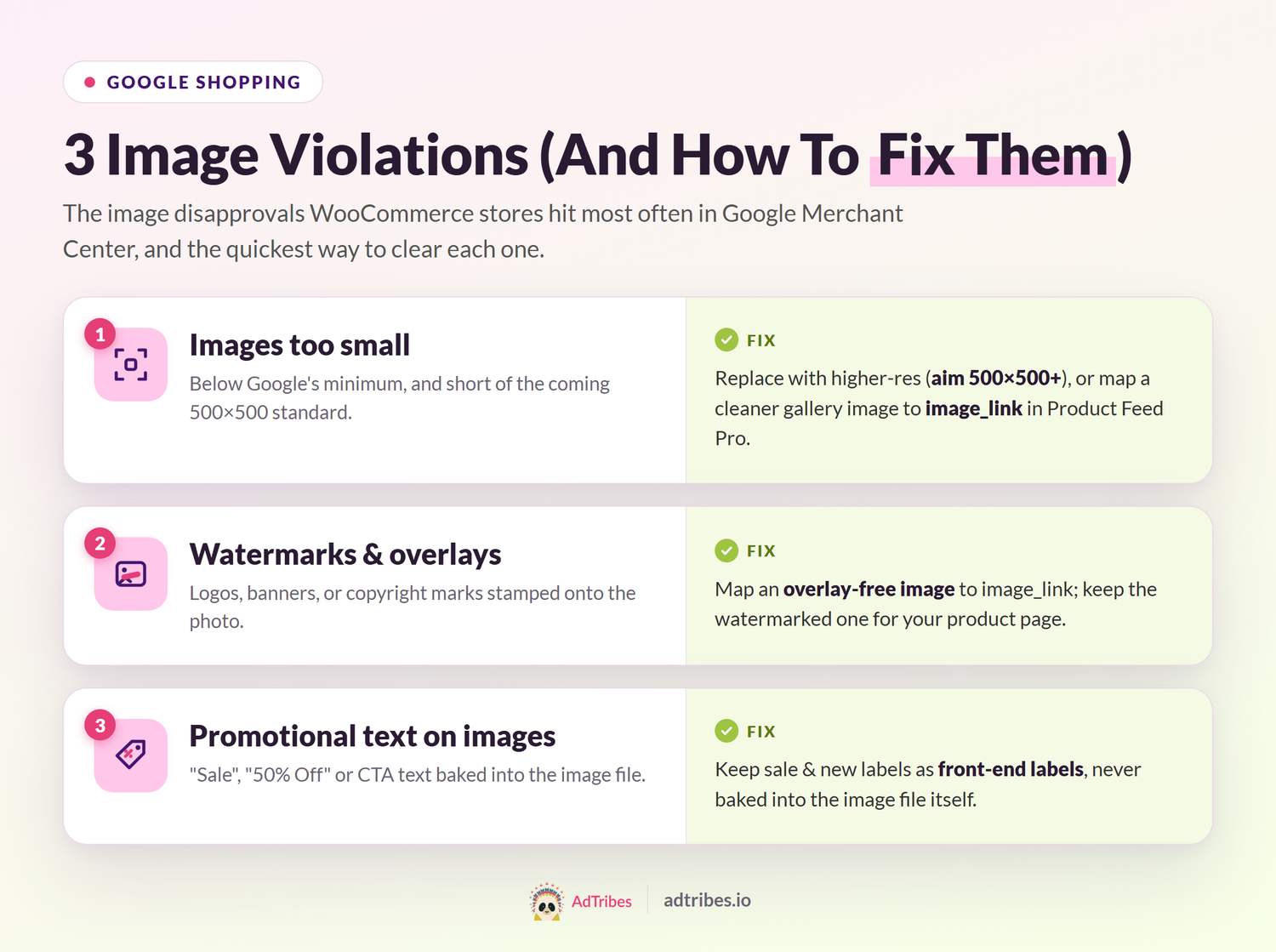
Images that are too small
This is a common violation for WooCommerce stores, especially those using older product photography or small legacy image files. Google currently rejects images below 100 x 100 pixels for non-apparel products or below 250 x 250 pixels for apparel items.
How to fix it: Start by replacing images that fall below Google’s current minimums, and prioritize images that are at least 500 x 500 pixels so your catalog is ready for the 2027 requirement. In WooCommerce, you can use the Media Library to spot small product images and update them with higher-resolution versions. If a product has a better gallery image available, AdTribes Product Feed Pro can help you map that cleaner, higher-quality image source to image_link instead of relying on the default featured image. AdTribes Product Feed Pro can also take care of this for you. If your main image is too small, it automatically pulls in a larger one from your gallery when the feed is built, so there’s no need to check every product yourself. You can switch this on in your feed settings, which the section below walks through.
Watermarks and overlays
Google does not allow text overlays, logos, or watermarks on product images used in Shopping feeds. This includes brand logos stamped on product photos, “SALE” banners, and copyright watermarks that some stores add to protect their images.
How to fix it: Create a separate set of clean product images without any overlays for your Shopping feed. In WooCommerce, you can upload these as additional product images. Then use AdTribes Product Feed Pro to select the clean version as your image_link while keeping the watermarked version on your product pages for display purposes.
Promotional text on images
This is related to watermarks but goes further. Google specifically rejects images containing promotional text like “Free Shipping,” “50% Off,” “Best Seller,” or any call-to-action text embedded in the image itself. Even small, subtle text added to a corner of the image can trigger a disapproval.
How to fix it: Review your product images for any embedded text. Common culprits include badges added by WooCommerce plugins that overlay “Sale” or “New” labels on product images. Make sure these overlays are front-end only (CSS-based) and don’t get baked into the actual image files served to Google. If your images are generated with text by a third-party tool, you’ll need clean originals for your feed.
💡 Tip: If you still want to highlight sale messages on your store, use front-end product labels instead of adding promotional text to the image file itself. For example, Advanced Promo Kit lets you add on-brand WooCommerce product labels and sale badges to your shop and product pages, so shoppers can still spot discounts, best sellers, or limited-time offers without turning your actual product photos into non-compliant feed images.
Generic or placeholder images
Google rejects products that use placeholders, “image coming soon” graphics, or generic images that do not show the actual product being sold. Every product in your feed needs an image that clearly represents the specific item in the listing.
How to fix it: Filter out products without real images from your Shopping feed entirely. In AdTribes Product Feed Pro, you can create a feed rule that excludes any product where the image URL contains placeholder keywords like “placeholder,” “coming-soon,” or “no-image.” This keeps your feed clean while you work on getting real photography for those products.
Wrong product shown in the image
This happens more often than you’d expect with variable products. Google requires the image to match the specific product variant being listed. If you sell a t-shirt in five colors but all five variants show the same blue t-shirt image, Google may disapprove the other four.
How to fix it: In WooCommerce, assign specific images to each product variation. When generating your feed with AdTribes Product Feed Pro, make sure variable products pull the variation-specific image rather than the parent product image. AdTribes Product Feed Pro handles this automatically when variation images are set in WooCommerce. It maps each variation’s image to the correct image_link in the feed.
Google Shopping Image Requirements By Product Type
Google currently applies different minimum image sizes depending on what you sell. However, because Google has announced a 500 x 500 pixel minimum for all product images beginning January 31, 2027, it’s safest to treat 500 x 500 pixels as your baseline moving forward.
Apparel and accessories:
- Current minimum image size: 250 x 250 pixels, with 500 x 500 pixels becoming the minimum for all product images beginning January 31, 2027
- Full product must be visible, including the complete garment
- Flat-lay or on-model photography both work well
- For apparel, on-model photos can help shoppers understand fit and scale when they accurately match the listed variant
Non-apparel products (electronics, home, tools, etc.):
- Current minimum image size: 100 x 100 pixels, with 500 x 500 pixels becoming the minimum for all product images beginning January 31, 2027
- Product-only images on white or light backgrounds work best
- Packaging-only images are generally discouraged unless the packaging is a key selling point (like gift sets)
Lifestyle vs. product-only images:
Both types are acceptable for Google Shopping when the product is clear, accurate, and compliant. A clean product-only image is often the safest choice for image_link, while lifestyle or staged images can be useful as additional_image_link images. This gives Google extra product views without making the main image too cluttered.
For apparel, on-model images can help shoppers understand fit, scale, and color, while flat-lay images can still work when the product is clear and accurately represented. The best choice depends on the product and how clearly the image helps shoppers evaluate it.
How To Manage Product Images In Your WooCommerce Feed
AdTribes Product Feed Pro gives you direct control over which images appear in your Google Shopping feed and how they’re mapped. Here’s how to handle the most common image management tasks.
image_link mapping:
AdTribes Product Feed Pro automatically maps your WooCommerce featured image to the image_link field in your Google Shopping feed. If you want to use a different image source, you can change the mapping in the feed configuration. This is useful if your featured image includes overlays that would violate Google’s policies but your gallery images are clean.
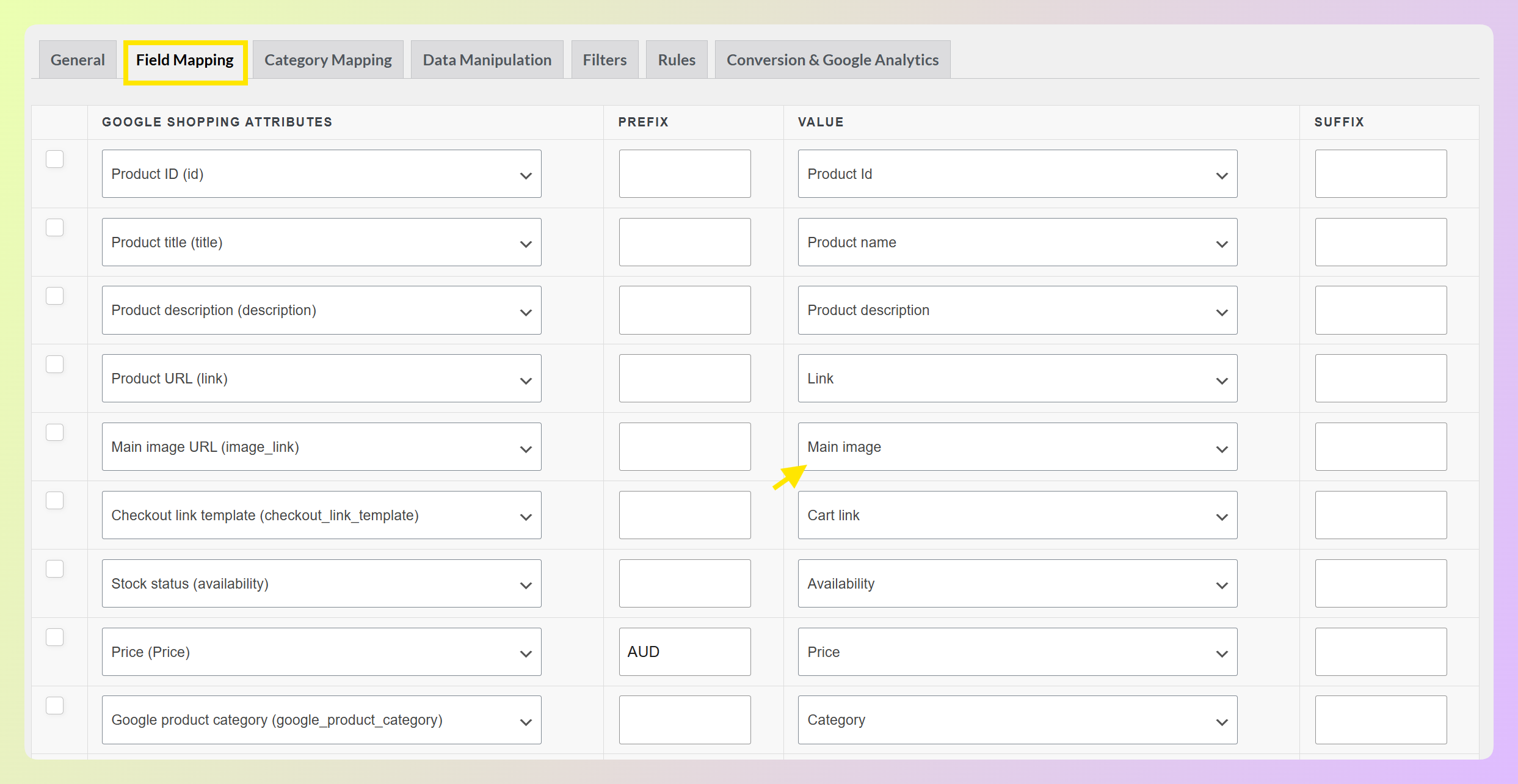
additional_image_link:
Google allows up to 10 additional images per product through the additional_image_link field. AdTribes Product Feed Pro can pull these from your WooCommerce product gallery images. Including additional images gives Google more options to display and lets shoppers see your product from multiple angles directly in the Shopping results.
Using filters and rules to manage image issues:
If certain products have image issues that would trigger disapprovals, you can use AdTribes Product Feed Pro’s filters and rules to handle them without changing your WooCommerce product data. For example:
- Exclude products with no image: Create a filter rule that removes products where the mapped image field is empty
- Replace known bad image URLs: If a subset of products uses the same placeholder URL, create a rule to swap it with a clean image URL that accurately represents the product
- Use a better image source: If a product has a clean, higher-quality gallery image, map that image source to
image_linkso Google receives the best available product photo
For stores with large catalogs, these feed-level controls let you fix image disapprovals across hundreds of products without editing each one individually in WooCommerce.
Automatic 500 x 500 image size enforcement
AdTribes Product Feed Pro can now keep an eye on image sizes for you, so undersized photos don’t slip into your Google Shopping or Facebook feed and end up rejected.
You’ll find it under Product Feed Pro > Settings > General, as a toggle labeled “Enforce minimum 500×500 image size on Google Shopping and Facebook Catalog feeds.” It’s switched off by default, so turn it on, and AdTribes Product Feed Pro handles the rest.
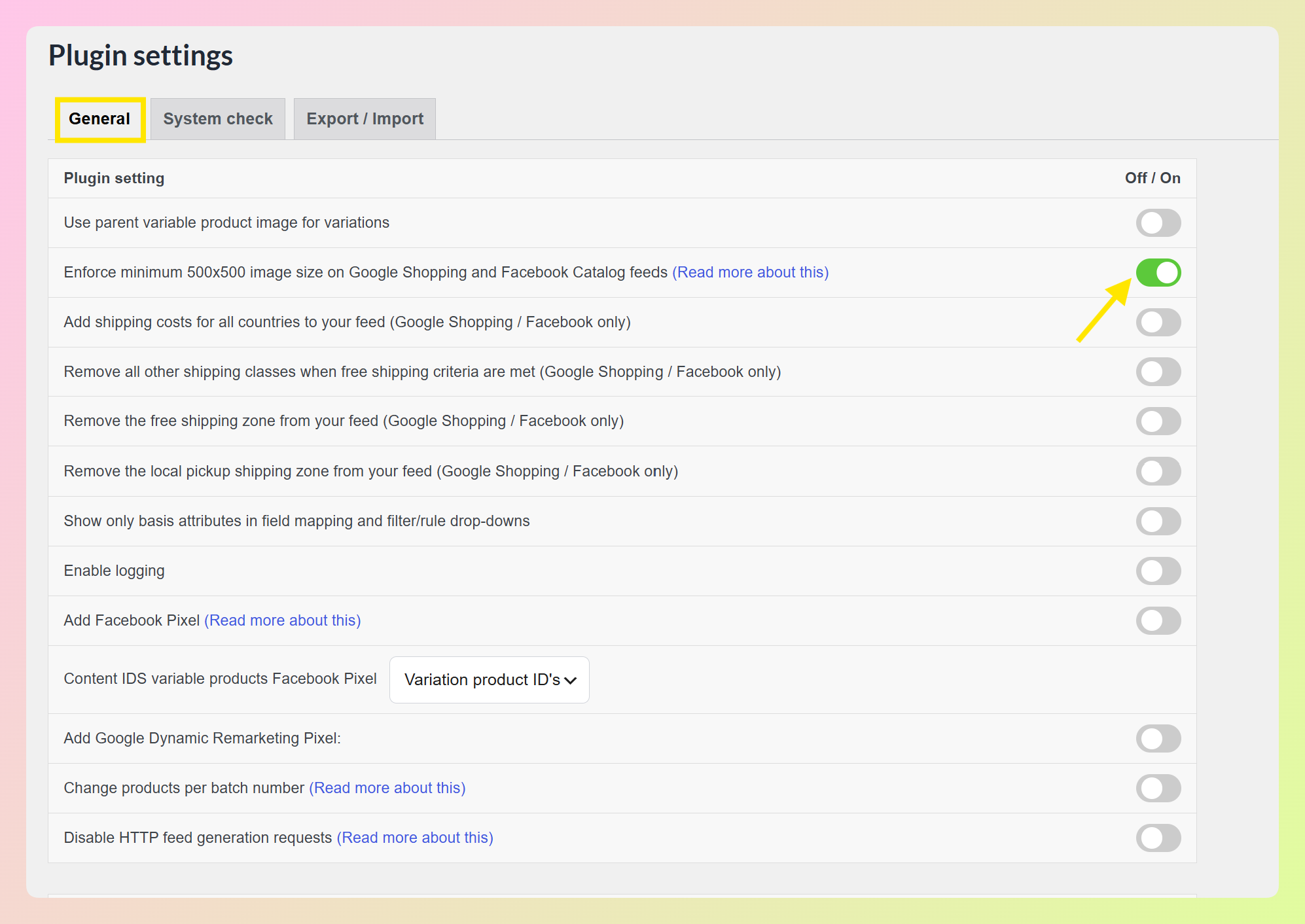
Once it’s switched on, AdTribes Product Feed Pro checks each product’s image while it builds your feed, and handles anything undersized in one of three ways:
- Keeps your main image when it’s big enough: if your featured image already meets 500 x 500 pixels, it stays as your main feed image
- Picks a gallery image instead: if your main image is too small, it uses the next gallery image that meets the 500 x 500 minimum
- Holds the product back if nothing fits: if neither your main image nor any gallery image meets the minimum, that product is kept out of the feed so it doesn’t get disapproved
This only applies to your Google Shopping and Facebook Catalog feeds, since those are the channels that enforce the 500 x 500 rule. Your other feeds, like custom XML, CSV, or Bing, stay exactly as they are.
One thing to keep in mind: products with no image at all are handled by the channel itself rather than this setting, so it’s still worth giving every product a clear, compliant photo.
Frequently Asked Questions
What is the minimum image size for Google Shopping?
Currently, Google enforces a 100 x 100 pixel minimum for non-apparel products and a 250 x 250 pixel minimum for apparel products. However, Google has announced a 500 x 500 pixel minimum for all product images beginning January 31, 2027. For best results, use the largest, highest-resolution full-size image you have, with Google recommending around 1500 x 1500 pixels or above when possible.
Can I use lifestyle images for Google Shopping?
Yes. Google accepts both product-only images and lifestyle images showing the product in use or in a real-world setting. The key requirements are that the actual product is clearly visible and identifiable, the image meets the minimum resolution, and there is no promotional text or watermarks.
How do I fix image disapprovals in Google Merchant Center?
First, check the Diagnostics tab in Merchant Center to identify which products are affected and why. Common fixes include replacing undersized images with higher-resolution versions, removing text overlays or watermarks, and ensuring variation-specific images are set for variable products. AdTribes Product Feed Pro’s feed rules let you filter out problem products or swap image sources without editing each WooCommerce product individually.
How many images should I include in my Google Shopping feed?
Include at least one high-quality image through the required image_link field. Google allows up to 10 additional images through additional_image_link. When you have useful angles, close-ups, or lifestyle shots, add them as additional images rather than forcing them into the main image. This gives shoppers a better view of the product while keeping the required image clean and compliant.
Does AdTribes Product Feed Pro enforce the 500 x 500 image requirement automatically?
Yes. AdTribes Product Feed Pro has a setting that checks your images against the 500 x 500 pixel minimum on Google Shopping and Facebook Catalog feeds. You’ll find it under Product Feed Pro > Settings > General, switched off by default. Once you turn it on, it keeps your main image when it’s big enough, uses a larger gallery image when it isn’t, and holds back any product that has no image meeting the minimum. It only affects your Google Shopping and Facebook Catalog feeds, so the rest of your feeds stay the same.
Keep Your WooCommerce Product Images Google-compliant
Meeting Google Shopping image requirements doesn’t have to be a constant battle. Most disapprovals come from a handful of preventable issues, including undersized images, leftover watermarks, and missing variation-specific photography. Fix these at the source in WooCommerce, and your feed stays clean.
Here are your key action items:
- Review the core image specs and audit your WooCommerce media library against them
- Fix the five most common violations that trigger disapprovals
- Check category-specific rules for apparel vs. non-apparel minimums
- Use feed rules to manage images in bulk without editing products one by one
- Switch on automatic image size checks in AdTribes Product Feed Pro so undersized images get caught before Google or Facebook flags them
AdTribes Product Feed Pro gives you control over how your WooCommerce images are mapped to your Google Shopping feed, from choosing the right image source to filtering out products with missing or non-compliant images. Get Product Feed Pro for free and make sure every product in your feed is set up to meet Google’s image standards.