
Your feed refreshes at the wrong time, lands a little later each day, or eats server resources on a big catalogue. If nothing about your products has changed, that work is wasted. Here you will find what happened to the old “refresh only when products changed” option, how to keep refresh load down, and how to make a refresh land at an exact time.
The “refresh only when products changed” option was removed
Older versions of Product Feed Pro had a Refresh only when products changed checkbox on the feed’s General step. It was removed in version 13.4.7, because it could stop a feed being regenerated at all. Some stores were left serving a stale feed to their channels without any warning, which is worse than a feed that refreshes more often than it needs to.
If you are looking for that checkbox, it is gone on purpose and it is not coming back in that form. Use the settings below instead.
Set a refresh interval that matches how often your products actually change
The simplest lever is frequency. A catalogue you update once a week does not need an hourly feed refresh.
- Go to Product Feed → Manage feeds and open your feed.
- On the General step, set Refresh interval.
- Click Save Changes.
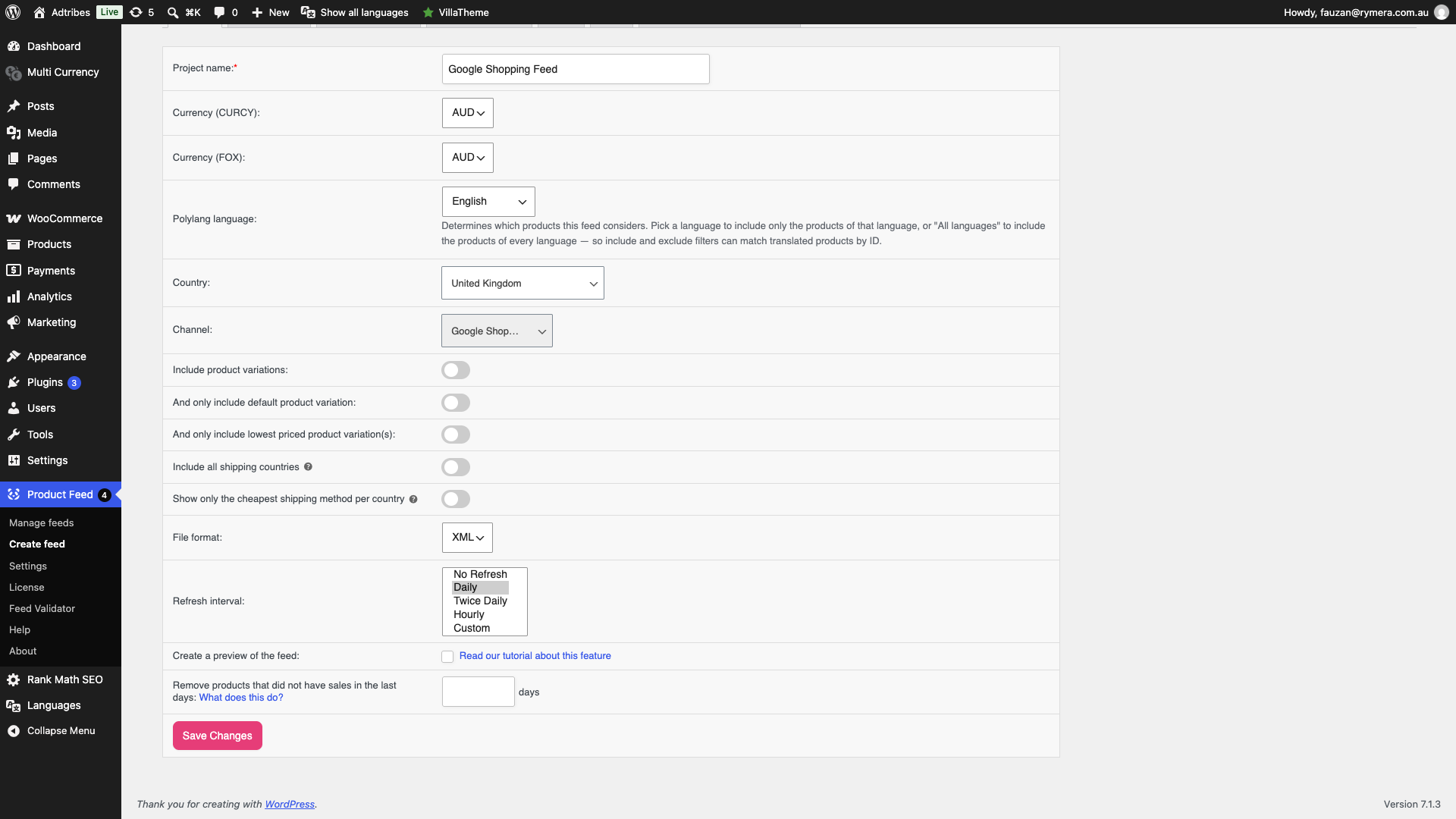
The choices are No Refresh, Daily, Twice Daily, Hourly and Custom. Pick the longest interval your channel will tolerate. For most stores that is daily.
Custom gives you finer control, such as weekdays only or specific hours. See How to Set Up Custom Refresh Interval.
Lower the load of each refresh
Two settings under Product Feed → Settings change how heavy a single refresh is, which matters more than frequency once your catalogue gets large.
- Change products per batch number: sets how many products the plugin processes per batch. Lower it if refreshes time out or exhaust memory. Raise it on a strong server to finish sooner.
- Disable HTTP feed generation requests: stops the plugin making HTTP calls to drive generation. Useful where the host blocks or throttles loopback requests.
Why refresh times drift, and how to pin them
The plugin’s own schedule cannot hold an exact time of day. Each run books the next one from the moment it actually started, plus the interval. Anything that delays a run gets carried into every run after it. WP-Cron waiting for a visitor is one cause. A server cron that only fires every 15 minutes is another, because a feed due at 00:30 cannot begin until the next tick. A few minutes of lateness a day adds up, and the start time walks forward without recovering on its own.
Daily, Twice Daily and Hourly also anchor to UTC, not to your store timezone. Daily starts at the next UTC midnight, and Twice Daily at 00:00 and 12:00 UTC.
If the feed must land at an exact local time, set Refresh interval to No Refresh, save the feed, and run the refresh from a server cron job at the time you want. See How to refresh product feeds using cron jobs. To reset a drifted schedule without cron, go to Product Feed → Settings and click Regenerate Action Schedulers. It re-creates every active feed’s schedule from its anchor.
Troubleshooting
My feed refreshes a little later every day. Open the feed, set Refresh interval to No Refresh, click Save Changes, and drive the refresh from a server cron job at the exact time. See How to refresh product feeds using cron jobs. To reset the drift without cron, go to Product Feed → Settings and click Regenerate Action Schedulers. The plugin books each next run from when the previous one started, so any delay is carried forward until the schedule is re-created.
Feeds I spaced a few minutes apart all start at the same time. Space them at least as far apart as your server cron interval, or refresh them in one cron command. A server cron that runs every 15 minutes rounds each feed up to its next tick, so feeds set for 00:35, 00:40 and 00:45 all begin at 00:45.
Refresh Feed looks like it did nothing. Wait for the row’s status to return to Ready. The Refresh Feed icon on Manage feeds queues the build and the row’s status changes while the build runs. The feed file updates when the background job finishes, not at the moment you click.
My feeds stopped refreshing on their own. Go to Product Feed → Settings and use Regenerate Action Schedulers. It re-creates the scheduled refresh tasks for all active feeds and does not change feed data or configuration. This is the usual fix after a server migration, a plugin conflict, or an Action Scheduler cleanup. It also resets a schedule that has drifted.
A refresh times out or runs out of memory. Lower Change products per batch number and try again.
My channel says the feed is stale. Your interval is too long for that channel. Shorten it, and check the feed’s last updated time on Manage feeds.
Frequently asked questions
Can I still make the feed skip a refresh when nothing changed?
No. That behaviour was removed in 13.4.7 because it could stop feeds regenerating altogether. Control the frequency instead.
Does a manual refresh respect the interval?
No. A manual refresh from Manage feeds always runs immediately, so you can keep testing configuration changes without waiting.
Why does my daily feed run at a strange hour?
Daily, Twice Daily and Hourly anchor to UTC, not your store timezone. For a fixed local time, use the Custom interval in Product Feed Elite, which has Frequency, Days and Commence fields, or run the refresh from a server cron job.
Need more help?
Elite customers get priority support. If you’re on Product Feed Elite, open a support ticket, and our team will help you tune your refresh schedule.
If you’re on the free Product Feed Pro plugin, post your question on the WordPress.org support forum, and we’ll point you in the right direction.

