
Zbozi.cz and Heureka.cz both require delivery cost data in a specific XML format: not just a flat price, but a structured block that includes a recognized carrier ID, a standard delivery price, and optionally a cash-on-delivery price. Without this structure, your feed will fail validation or list products without any delivery information.
Product Feed Pro builds this XML structure automatically. It just needs your WooCommerce shipping zone to be named after a recognized Czech carrier so it can extract the right carrier ID.
Prerequisites
- Product Feed Pro 13.5.7 or later, installed and active
- A Zbozi.cz, Heureka.cz, or Heureka.sk feed already created in Product Feed → Manage feeds
- WooCommerce shipping zones configured (WooCommerce → Settings → Shipping)
How it works
When the plugin generates your Zbozi.cz or Heureka.cz feed, it reads your WooCommerce shipping zones and builds a service name for each zone from three parts: the zone name, the shipping method label, and the country code. It then checks whether that service name contains a recognized Czech carrier ID, like ZASILKOVNA, DPD, GLS, or CESKA_POSTA. If it finds a match, it outputs the correct <DELIVERY_ID> in the feed. If no match is found, the plugin uses the first word of the service name (usually the first word of your zone name) as DELIVERY_ID, which Zbozi.cz and Heureka won’t recognize. That’s why your shipping zone name must match one of the recognized carrier IDs listed below.
Step 1: Name your shipping zone after a carrier
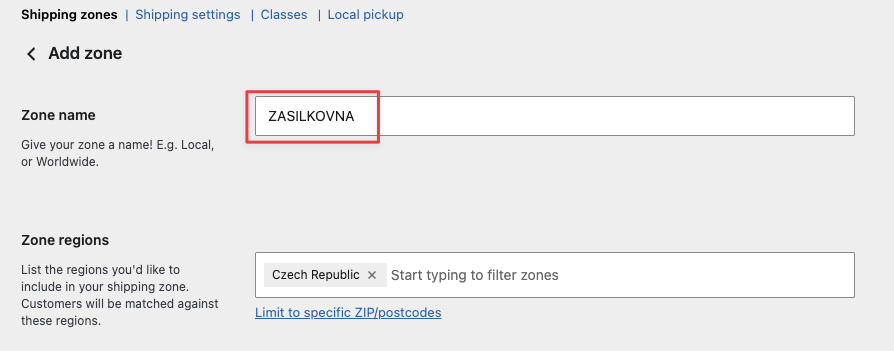
Go to WooCommerce → Settings → Shipping and open the shipping zone you use for Czech deliveries. Rename the zone to one of the recognized carrier IDs below, using the exact spelling, all uppercase:
| Carrier ID | Carrier |
|---|---|
ZASILKOVNA | Zásilkovna (pickup points) |
ZASILKOVNA_NA_ADRESU | Zásilkovna (home delivery) |
CESKA_POSTA | Česká pošta |
CESKA_POSTA_BALIKOVNA | Česká pošta: Balíkovna |
CESKA_POSTA_NA_POSTU | Česká pošta: na poštu |
DPD | DPD |
DPD_PICKUP | DPD Pickup |
GLS | GLS |
GLS_PARCELSHOP | GLS ParcelShop |
PPL | PPL |
PPL_PARCELSHOP | PPL ParcelShop |
WEDO_HOME | WeDo home delivery |
WEDO_ULOZENKA | WeDo Uloženka |
DHL | DHL |
FEDEX | FedEx |
UPS | UPS |
TNT | TNT |
TOPTRANS | Toptrans |
TOPTRANS_DEPO | Toptrans Depo |
GEIS | Geis |
GEIS_POINT | Geis Point |
HDS | HDS |
FOFR | Fofr |
DB_SCHENKER | DB Schenker |
DSV | DSV |
GEBRUDER_WEISS | Gebrüder Weiss |
MESSENGER | Messenger |
RABEN_LOGISTICS | Raben Logistics |
RHENUS | Rhenus |
VLASTNI_PREPRAVA | Own delivery |
VLASTNI_VYDEJNI_MISTA | Own pickup points |
Step 2: Add your shipping methods to the zone
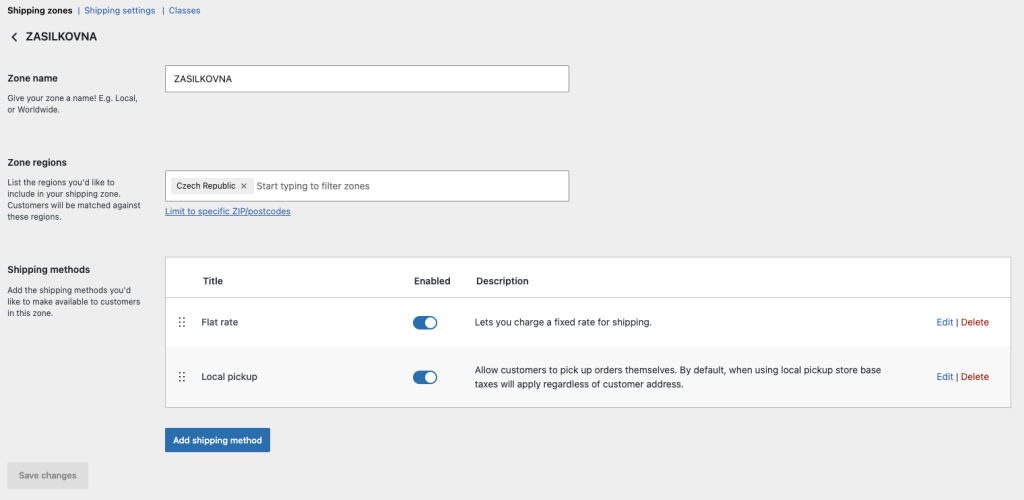
Inside the zone, add your shipping methods in this order:
- Flat rate: this becomes the standard
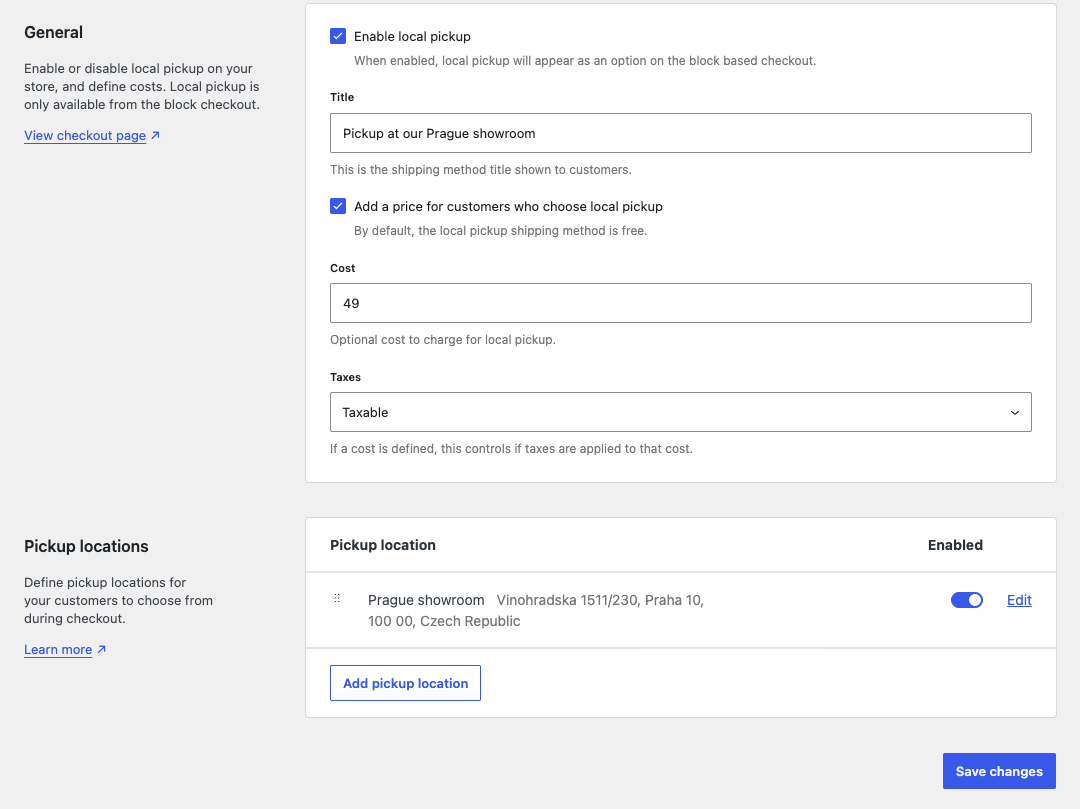
DELIVERY_PRICEin your feed - Local pickup (optional): as the second method in the zone, this becomes the
DELIVERY_PRICE_COD(cash-on-delivery price)
Set the flat rate cost to match what you charge for delivery to Czech customers. Save the zone when done.
Step 3: Map the DELIVERY field in your feed
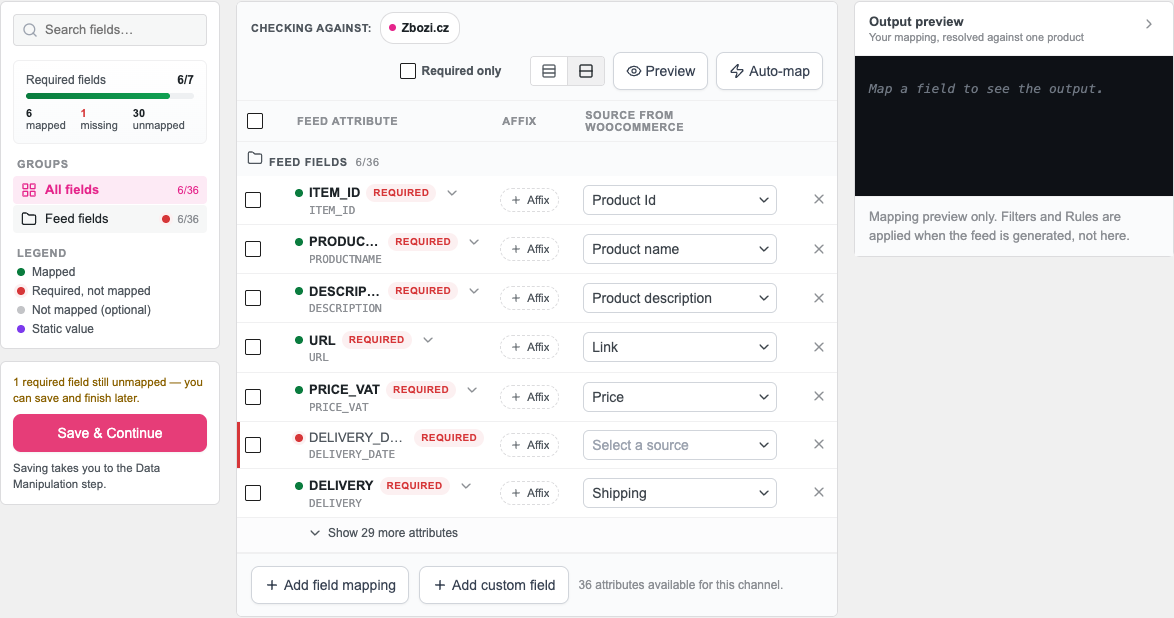
Open your Zbozi.cz, Heureka.cz, or Heureka.sk feed in Product Feed → Manage feeds, then open the Field Mapping tab.
Find the DELIVERY row and confirm it’s mapped to Shipping in the Source from WooCommerce column. The plugin adds this mapping by default. You shouldn’t need to change it unless you’ve removed it.
Step 4: Refresh the feed
Save your feed settings and run a manual refresh from Product Feed → Manage feeds. Once the feed generates, each product in your Zbozi.cz, Heureka.cz, or Heureka.sk XML will include a <DELIVERY> block like this:
<DELIVERY>
  <DELIVERY_ID>ZASILKOVNA</DELIVERY_ID>
  <DELIVERY_PRICE>79</DELIVERY_PRICE>
  <DELIVERY_PRICE_COD>99</DELIVERY_PRICE_COD>
</DELIVERY>
DELIVERY_PRICE and DELIVERY_PRICE_COD are output as plain numbers, with the EUR or CZK label stripped, since that’s the format Zbozi.cz and Heureka expect.
Troubleshooting
<DELIVERY_ID> or <DELIVERY_PRICE> is still missing after that, double check your shipping zone name matches one of the recognized carrier IDs in Step 1.<DELIVERY> block per product, built from the first shipping zone that covers the feed country. A second carrier zone for the same country doesn’t add a second block. Its flat rate becomes the DELIVERY_PRICE_COD instead, so keep one carrier zone per country.FAQ
<DELIVERY> block for Heureka.sk feeds too.<DELIVERY> block from your shipping data. A static value such as ZASILKOVNA carries no shipping data, so the feed outputs an empty <DELIVERY/>. Keep the DELIVERY field mapped to Shipping and set the carrier through the zone name.VLASTNI_PREPRAVA (own delivery) or VLASTNI_VYDEJNI_MISTA (own pickup points) as fallbacks. Both are accepted by Zbozi.cz and Heureka.cz.Need more help?
If you’re on Product Feed Elite, open a support ticket.
If you’re on Product Feed Pro (free), post your question at the WordPress.org support forum.

