Reviewed by
Most WooCommerce store owners start with the obvious channels: Google Shopping, Facebook, and maybe a few paid campaigns. Those channels matter, but they’re not the only places shoppers compare products before buying.
A comparison shopping feed helps you send your WooCommerce product data to shopping engines and price comparison platforms where customers are already weighing their options. Some channels offer free listings, while others use CPC or paid placement models. Either way, a clean feed can help you reach shoppers who are closer to making a purchase.
Below, we’ll look at how comparison shopping engines work, which platforms may fit your market, and how to set up comparison shopping feeds with AdTribes Product Feed Pro.
What Are Comparison Shopping Engines And How Do They Drive Traffic
Comparison shopping engines are platforms that aggregate product listings from multiple online stores and display them side by side, letting shoppers compare prices, features, and availability in one place.
When a shopper searches for “wireless noise-cancelling headphones” on a CSE, the platform shows listings from multiple stores with prices, images, and direct links. The shopper can then click through to your store to complete the purchase. Depending on the platform, that click may come from a free listing, a paid placement, or a CPC-based listing.
CSEs usually send traffic through two primary models:
- Free listings with optional paid promotion: Platforms like Google Shopping free listings let eligible products appear at no cost, with paid campaigns available if you want to boost visibility.
- CPC or paid listing models: Some CSEs charge when shoppers click through to your store, so it’s important to compare traffic quality, margins, and category fit before investing.
CSE traffic can be valuable because many shoppers on these platforms are already comparing specific products, prices, and retailers. That usually makes them more purchase-aware than someone casually scrolling through a social feed, but results still depend on your product data, pricing, margins, and channel fit.
For WooCommerce store owners, feeding products to CSEs is straightforward because most CSEs accept standard product feed formats (XML, CSV) that tools like AdTribes Product Feed Pro generate automatically.
Practical note: CSE traffic is different from broad awareness traffic because visitors are usually comparing specific products, prices, and retailers. That does not guarantee conversions, but it does make feed accuracy especially important: your prices, availability, images, and product titles should match what shoppers see after they click.
Best CSEs For WooCommerce Stores By Region
Not all comparison shopping engines are equal. The right platforms for your store depend on where your customers are. Here are the best CSE websites to prioritize by region.
Google Shopping free listings (global)
Google Shopping’s free listings are one of the most accessible CSE opportunities for WooCommerce stores. Since Google opened free product listings in 2020, eligible products can appear on Google surfaces at no cost. Your products may appear alongside paid listings, and shoppers can click through to your store without you paying for that free-listing click.
Setting up is straightforward: submit your product feed to Google Merchant Center and enable the free listings program. AdTribes Product Feed Pro generates Google Shopping feeds with all required attributes pre-mapped.
Google Shopping free listings are your baseline. Every WooCommerce store running a product feed should have these enabled regardless of what other CSEs you target.
Idealo (Germany and Europe)
Idealo is a major European comparison shopping platform, with strong visibility in Germany and other European markets. It is worth considering if you sell to shoppers who actively compare prices before buying.
Idealo uses performance-based CPC pricing, so review the current category costs, expected margins, and market fit before adding it to your channel mix.
Product Feed Pro includes a dedicated Idealo feed template that maps your WooCommerce fields to Idealo’s specific attribute requirements, including EAN codes, delivery times, and shipping costs by country.
PriceRunner (Scandinavia and UK)
PriceRunner is a major price comparison platform for shoppers in the Nordics and the UK. It is worth considering if you sell into markets where shoppers already use PriceRunner to compare product prices and retailers.
Merchant requirements and listing options can vary, so check PriceRunner’s current retailer terms before building your feed strategy around it.
For WooCommerce stores targeting these markets, AdTribes Product Feed Pro supports PriceRunner’s feed format with pre-built field mappings.
Kelkoo (Europe)
Kelkoo Group operates a global shopping network across multiple markets and has decades of experience in comparison shopping and ecommerce marketing.
Kelkoo is best treated as a performance-based traffic channel rather than a free listing opportunity. Before submitting products, check the current market requirements and make sure the channel fits your margins and category mix.
AdTribes Product Feed Pro includes a pre-configured Kelkoo channel that lets you map WooCommerce product data into a feed format for the platform, including category and shipping details where relevant.
Bing Shopping (US and UK)
Bing Shopping, also known as Microsoft Shopping, is easy to overlook, but it can help WooCommerce stores diversify product visibility beyond Google. Microsoft supports free product listings alongside paid shopping campaigns, giving merchants another channel to test.
Setting up Bing Shopping feeds is similar to Google: submit your product feed to Microsoft Merchant Center and review your product data requirements. AdTribes Product Feed Pro generates Bing-compatible feeds, and because Bing’s feed format closely mirrors Google’s, stores already running Google Shopping feeds can expand to Bing with minimal effort.
How To Set Up Comparison Shopping Feeds With AdTribes Product Feed Pro
AdTribes Product Feed Pro supports 250+ shopping platforms with pre-built templates, so you don’t have to build each feed from a blank file. Here’s how to create a CSE feed from your WooCommerce store.
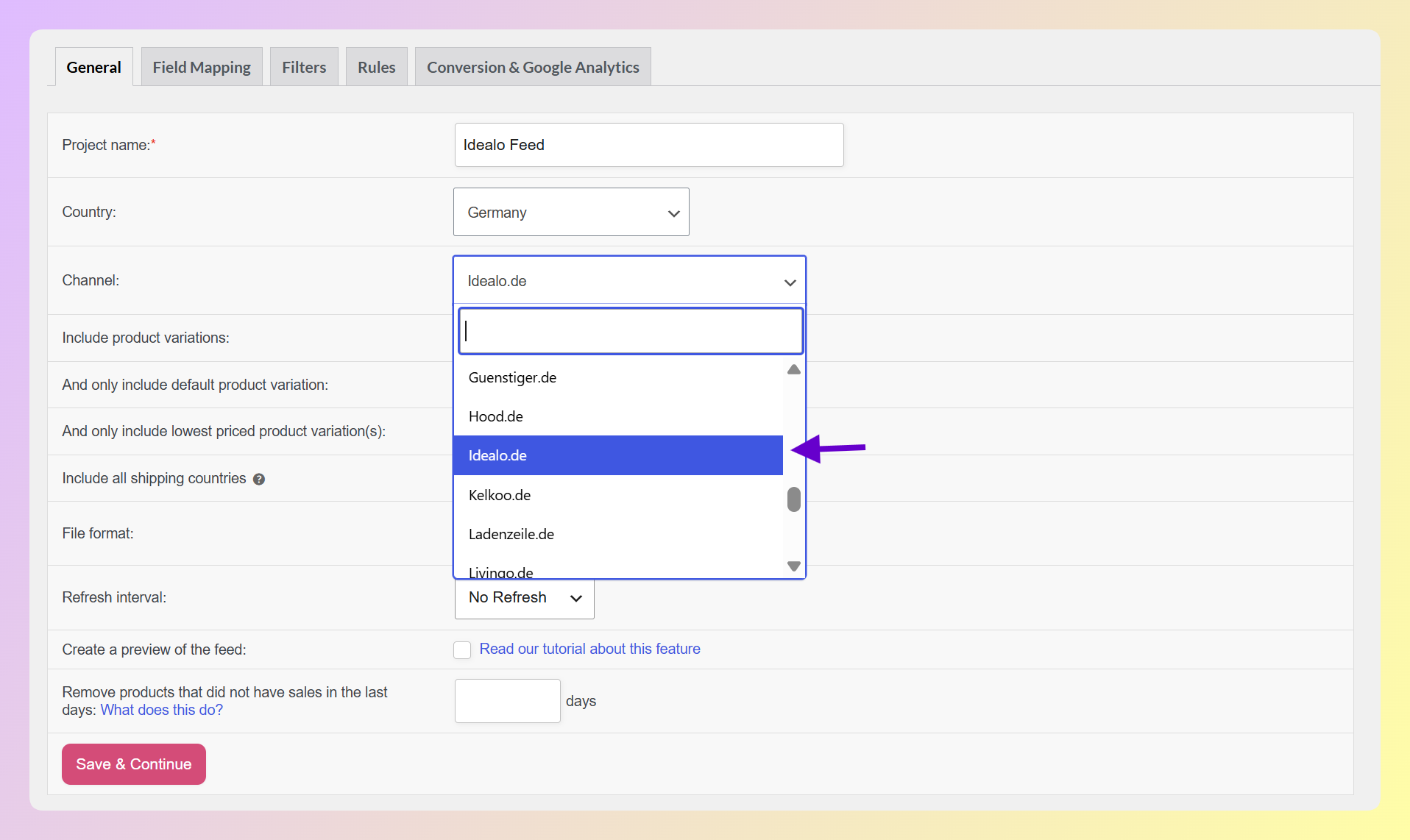
Step 1: Select the CSE template. In your WordPress dashboard, navigate to Product Feed Pro and create a new feed. Browse the channel list and select your target CSE. Product Feed Pro loads the correct feed format and required fields automatically. Each template is configured with the specific attributes that platform requires.
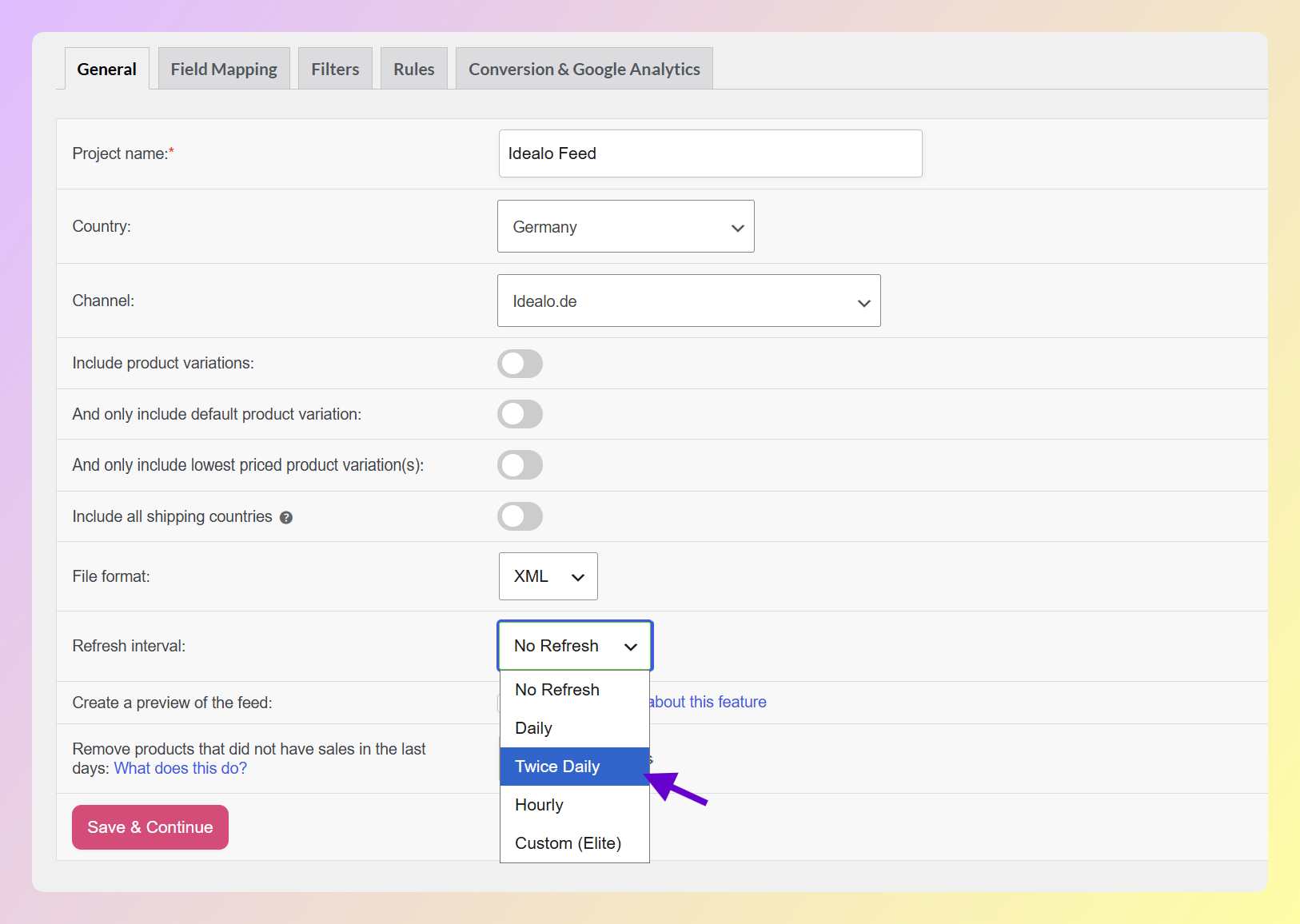
Step 2: Enable scheduled refreshes. Set your feed to refresh automatically so product data stays current. Daily refreshes work for most CSEs, and you can also refresh hourly or twice daily at no cost. If you need custom refresh scheduling, AdTribes Product Feed Elite adds more granular control.
Step 3: Configure your field mappings. Product Feed Pro pre-populates most field mappings based on the CSE you selected. Review each mapping to ensure your WooCommerce data is mapped correctly:
- Product title: Maps to your WooCommerce product name by default. You can apply rules to append brand name, size, or color for better CSE visibility
- Price: Pulls from your WooCommerce price fields. If you have sale prices active, Product Feed Pro automatically includes both regular and sale prices
- GTIN/EAN: Maps to your product’s barcode field. Many CSEs require this for product matching
- Shipping cost: Some CSEs require shipping data in the feed. Configure this based on your actual shipping rates
- Category: Product Feed Pro can map category data where the selected channel supports category mapping. For channels without a built-in taxonomy, you can still include category fields through your feed mappings or rules
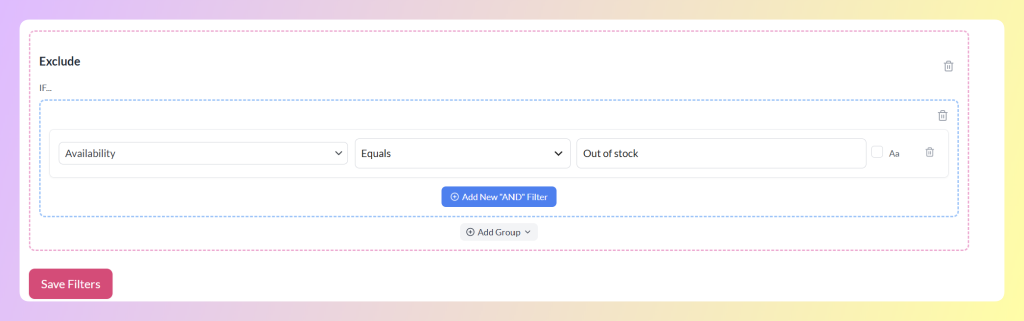
Step 4: Apply feed rules and filters. Use Product Feed Pro’s filters and rules to refine which products appear in your CSE feed and adjust product data for specific channels:
- Exclude out-of-stock products so shoppers don’t land on unavailable items
- Filter by category if certain product types don’t fit the CSE’s audience
- Set minimum price thresholds if the CSE charges per click and low-margin items aren’t worth the traffic cost
- Apply title or description modifications specific to that channel
Step 5: Generate and submit the feed URL. Generate your feed to create the file. Copy the feed URL and submit it to the CSE’s merchant portal. Each CSE has its own merchant dashboard where you register, submit your feed URL, and configure your account settings.
The pre-built templates save time because you don’t need to build every CSE feed from scratch. You can start with the default mappings, then adjust fields, filters, rules, and refresh settings based on each channel’s requirements.
Tips To Improve Comparison Shopping Feed Performance
Getting your products listed on CSEs is the first step. Optimizing your listings drives better results.
Keep pricing accurate at all times. CSE shoppers are price-comparison buyers. If your feed shows one price but your landing page shows another, you can lose the sale and risk product disapprovals or listing issues. Automated feed refreshes help reduce this risk, but double-check pricing accuracy during sales and promotions.
Maintain product availability. Nothing frustrates a comparison shopper more than clicking through to find a product is out of stock. Use Product Feed Pro’s filters to exclude unavailable products from your CSE feed. This helps protect your click budget on CPC platforms and keeps shoppers from landing on products they can’t buy.
Use high-quality product images. CSE listings are visual. Clear, professional product images usually give shoppers more confidence than dark, cluttered, or low-resolution photos. Most CSEs have image requirements, such as minimum size, format, or background guidelines, and AdTribes Product Feed Pro passes your WooCommerce product images directly into the feed.
Map categories accurately. Incorrect category mapping puts your products in front of the wrong shoppers. A “laptop stand” listed under “laptops” won’t get clicks from people actually looking for laptop stands. Take the time to verify your category mappings are accurate for each CSE, especially platforms that use their own category structure.
Write descriptive, attribute-rich titles. CSE search algorithms match shopper queries to product titles. A title like “Wireless Mouse” loses to “Logitech MX Master 3S Wireless Ergonomic Mouse, Graphite.” Include the brand, product name, key attributes (color, size, material), and model number when relevant.
Track performance by channel. Use UTM parameters in your feed URLs to help identify which CSEs are driving traffic in Google Analytics. Product Feed Pro supports UTM parameters in feed configuration, so you can separate channel traffic more clearly and compare performance based on your analytics setup.
Frequently Asked Questions
Are comparison shopping engines free to use?
Some are, some aren’t. Google Shopping free listings cost nothing when eligible products appear through free listings. Platforms like Idealo and Kelkoo typically use CPC or performance-based models. Others may offer a mix of free and paid options, so always check the current terms before submitting your feed.
How many CSEs should I list my products on?
Start with Google Shopping free listings (every store should have this). Then add one or two CSEs that match your primary market. European stores should consider Idealo or PriceRunner. US/UK stores should add Bing Shopping. AdTribes Product Feed Pro supports 250+ channels, so you can expand gradually as you see results.
Do I need separate feeds for each comparison shopping engine?
Yes. Each CSE can have its own feed format, required fields, and category requirements. Product Feed Pro handles this with pre-built channel templates, so you can create a separate feed for each platform while pulling product data from the same WooCommerce catalog.
How long does it take to see traffic from CSEs?
It depends on the platform. Some CSEs may process approved feeds quickly, while others need more time for merchant review, product checks, or category mapping. Traffic can also vary by product category, market, feed quality, and whether your listings are eligible to appear.
Expand Your WooCommerce Store’s Reach With Comparison Shopping Engines
Comparison shopping engines can help you reach beyond the channels you already use and put your products in front of shoppers who are actively comparing options. The better your feed quality, the easier it is for each platform to understand your products and show accurate details to potential customers.
AdTribes Product Feed Pro makes it easier to create comparison shopping feeds for WooCommerce across 250+ platforms. Get AdTribes Product Feed Pro for free and start building cleaner feeds for the shopping channels that fit your store.