Révu par
Les diagnostics du Centre des Vendeurs Google sont le tableau de bord qui vous indique quels produits WooCommerce sont approuvés, lesquels ont des avertissements, et lesquels sont désapprouvés ou inéligibles à l'affichage. Une fois votre boutique connectée et votre flux actif, c'est ici que vous surveillez la santé du flux, résolvez les désapprobations et identifiez les problèmes au niveau du compte avant qu'ils n'affectent la visibilité de vos produits.
Être connecté n'est que la première étape. Le vrai travail consiste à maintenir la santé de votre flux après les changements de produits, de prix, de stock, d'images et de politiques Google.
Ce guide explique ce qui se passe après la configuration : comment lire le rapport de diagnostic, prioriser les désapprobations de produits courantes et empêcher les petits problèmes de flux de se transformer en problèmes de compte plus importants. Si vous avez encore besoin de connecter votre boutique à Google Shopping, vous pouvez commencer par notre guide de configuration WooCommerce Google Shopping.
Comment lire les diagnostics du Centre des Vendeurs Google
Dans le Centre des marchands, les problèmes de produits sont généralement signalés dans la section Produits, souvent sous Actions requises dans l’interface actuelle, avec des diagnostics et des détails sur les problèmes disponibles en fonction de la vue de votre compte. Ces problèmes sont regroupés par gravité. Comprendre le niveau que vous examinez vous indique donc l’urgence de la correction. Si vous ne savez toujours pas pourquoi vos fiches n’apparaissent pas du tout, ce guide sur les produits n’apparaissant pas sur Google Shopping aborde les causes les plus courantes.
- Les problèmes de compte affectent l'ensemble de votre compte Centre des Vendeurs. Ce sont les plus graves car ils peuvent limiter la visibilité des produits sur toutes les annonces Shopping, les fiches gratuites ou le compte dans son ensemble.
- Les problèmes de flux (source de données) affectent un flux entier, généralement en raison d'un problème de formatage ou de récupération. Ceux-ci indiquent souvent quelque chose de corrigeable à la source dans votre plugin de flux de produits.
- Les problèmes d'articles affectent des produits individuels. Google les classe comme une erreur (produit désapprouvé et ne sera pas affiché), un avertissement (produit affiché mais les performances peuvent en souffrir) ou une notification (information uniquement).
Travaillez de haut en bas. Résolvez d'abord les problèmes de compte, puis les problèmes au niveau du flux, puis les erreurs au niveau de l'article. Ensuite, examinez les avertissements et les notifications : les avertissements ne bloquent pas nécessairement les produits immédiatement, mais ils peuvent toujours affecter les performances ou entraîner des problèmes plus importants plus tard. Les notifications sont généralement des améliorations suggérées, pas des blocages urgents. Lorsque vous lisez le rapport de diagnostic du Centre des Vendeurs Google de cette manière, un mur de problèmes se transforme en une courte liste de tâches prioritaires.
Problèmes de diagnostic courants et où les corriger
Une poignée de problèmes récurrents expliquent la majorité des erreurs et des désapprobations que vous verrez dans le rapport de diagnostic. L'objectif ici n'est pas de corriger chacun en profondeur, mais de reconnaître ce que le diagnostic vous dit afin que vous puissiez trier rapidement et résoudre les problèmes à la source dans votre flux WooCommerce.
- GTIN ou identifiants produit manquants : Google attend un GTIN pour les produits qu'il peut faire correspondre à une entrée de catalogue connue. Gérez-le dans AdTribes Product Feed Pro en mappant le champ GTIN, ou définissez identifier_exists sur no pour les articles véritablement sans marque ou fabriqués sur mesure.
- Violations de la politique d'image : du texte promotionnel, des filigranes, des URL d'images brisées, des images de substitution ou des images qui ne répondent pas aux exigences de Google peuvent déclencher des avertissements ou des désapprobations. Remplacez par une image de produit propre qui répond aux spécifications, puis laissez le flux se rafraîchir.
- Incompatibilités de prix ou de disponibilité : lorsque les données de votre flux ne correspondent pas à votre page produit en direct, Google peut désapprouver le produit pour données incompatibles. Un flux obsolète, un problème de mise en cache, une modification du prix de vente ou une mise à jour du stock peuvent en être la cause. Vérifiez donc à la fois votre calendrier de rafraîchissement du flux et la page produit en direct.
Étant donné que de nombreux problèmes de diagnostic commencent par des données de flux, l'approche la plus rapide consiste à détecter les problèmes avant que Google ne les voie. Si vous avez accès au Validateurs de flux d'AdTribes, vous pouvez vérifier les URL de flux prises en charge pour des problèmes tels que des champs obligatoires manquants, des URL d'images invalides et des erreurs de format avant la soumission.
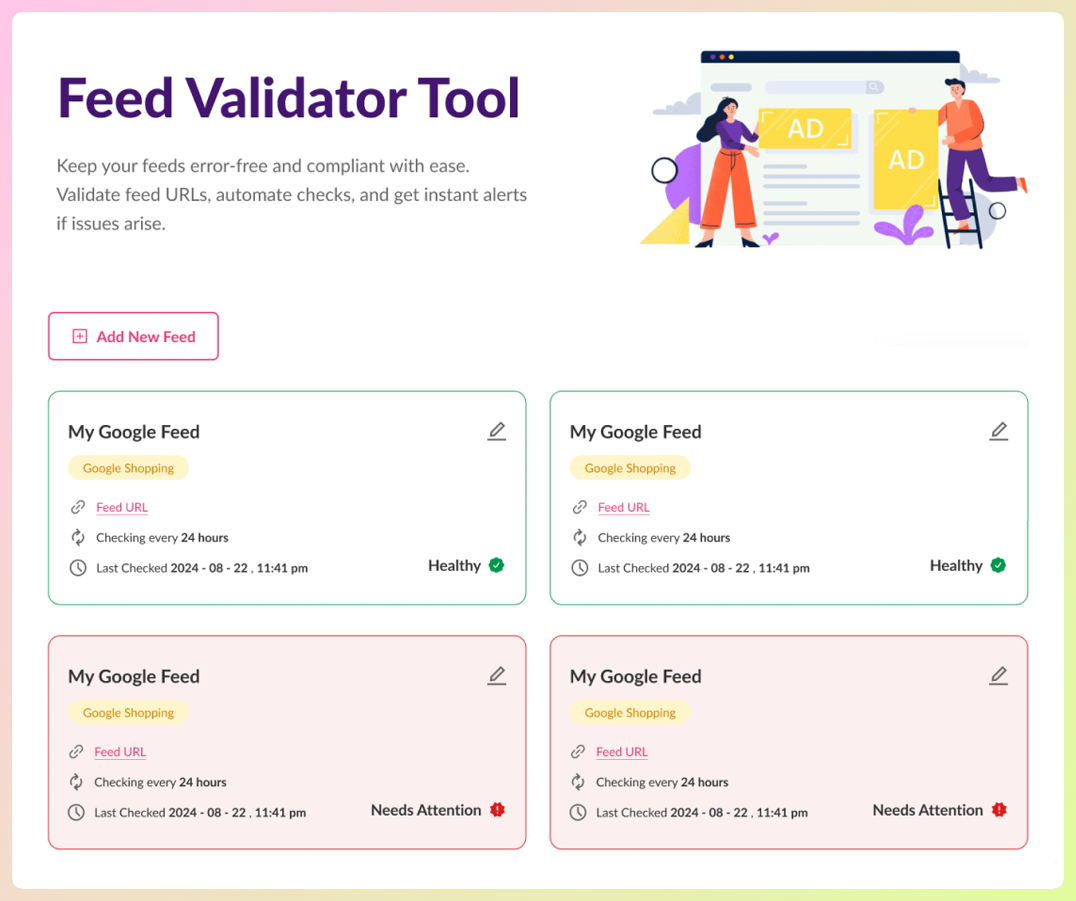
Lorsque vous avez besoin de la correction complète, champ par champ, pour une erreur spécifique, consultez nos guides détaillés : comment corriger les erreurs de flux Google Shopping et comment corriger les produits désapprouvés dans Google Merchant Center.
Prévention et récupération de la suspension de compte
Une suspension de compte est le pire scénario que les diagnostics de Google Merchant Center puissent indiquer : au lieu d'affecter un seul produit, elle peut rendre vos produits inéligibles à apparaître dans les annonces Shopping ou les listes gratuites jusqu'à ce que le problème soit résolu. Les causes courantes peuvent inclure une fausse déclaration, des incompatibilités de prix ou des incompatibilités de disponibilité généralisées, et des signaux de confiance manquants comme des informations claires de contact, de remboursement et d'expédition.
La prévention est principalement une question d'organisation. Maintenez des pages de remboursement, d'expédition et de contact précises en ligne ; assurez-vous que les prix et les stocks de votre flux restent synchronisés avec votre boutique ; et corrigez les erreurs au niveau des articles avant qu'elles n'affectent l'éligibilité des produits.
Si vous êtes déjà suspendu, notre guide de récupération de suspension Google Merchant Center vous guide étape par étape dans la demande de réintégration. Vous pouvez également consulter les propres directives de Google concernant les avertissements et les suspensions de Merchant Center pour plus de contexte sur les problèmes de compte liés aux politiques, les périodes d'avertissement et les demandes de révision.
Une routine simple pour la santé de Merchant Center
Vous n'avez pas besoin de vivre dans Merchant Center tous les jours. Une routine courte et répétable maintient un catalogue WooCommerce sain sans avoir à éteindre d'incendies quotidiennement.
- Chaque semaine : ouvrez la zone des problèmes de produits dans Merchant Center, résolvez toutes les nouvelles erreurs et désapprobations, et confirmez que votre nombre de produits approuvés n'a pas diminué.
- À chaque modification de catalogue : si vous avez accès au Validateurs de flux, exécutez une vérification après avoir ajouté des produits, modifié des prix ou lancé une promotion afin que les problèmes évidents de flux soient détectés plus tôt.
- Toujours actif : alignez votre calendrier de rafraîchissement de flux AdTribes et votre calendrier de récupération de Merchant Center afin que les données de prix et de stock restent à jour.
- Mensuel : vérifiez les avertissements pour des améliorations utiles, telles que l'ajout de GTIN valides, l'enrichissement des titres ou la correction de descriptions peu détaillées.
Traitez les diagnostics de Google Merchant Center comme un système d'alerte précoce plutôt que comme une corvée de nettoyage. Vérifiez les problèmes chaque semaine, maintenez vos données de flux à jour, et vous donnerez à vos produits une meilleure chance de rester approuvés et visibles.
Questions fréquemment posées
Combien de temps faut-il pour que les corrections soient effacées dans les diagnostics de Merchant Center ?
Une fois que vous avez corrigé un problème à la source et que votre flux est actualisé, Google doit récupérer et examiner les données mises à jour. Le délai varie selon le type de problème. Les corrections simples des données du flux peuvent être effacées après le prochain cycle d'examen, tandis que les corrections liées à la qualité des données ou aux politiques peuvent prendre plusieurs jours ouvrables, surtout si un examen manuel est nécessaire.
Quelle est la différence entre un avertissement et une erreur dans les diagnostics ?
Une erreur signifie que le produit est désapprouvé et n'apparaîtra pas tant que vous ne l'aurez pas corrigé. Un avertissement signifie que le produit est toujours affiché, mais qu'un problème de qualité des données peut limiter ses performances. Corrigez d'abord les erreurs, puis traitez les avertissements pour des gains progressifs.
Un plugin de flux de produits peut-il empêcher les désapprobations ?
Il peut en prévenir beaucoup. AdTribes Product Feed Pro vous aide à créer et à actualiser votre flux WooCommerce afin que les données de prix et de stock restent plus précises. Si vous avez accès au Feed Validator d'AdTribes, vous pouvez également vérifier les URL de flux prises en charge pour des problèmes tels que des champs obligatoires manquants, des URL d'images invalides et des erreurs de format avant la soumission.
Pourquoi tous mes produits ont-ils été désapprouvés en même temps ?
Une désapprobation soudaine et à l'échelle du compte pointe généralement vers un problème ou une suspension au niveau du compte plutôt que vers des problèmes de produits individuels. Vérifiez d'abord les problèmes au niveau du compte, puis examinez si Google a signalé une page de politique manquante, un problème de vérification, un problème de fausse déclaration ou une autre préoccupation à l'échelle du compte.
Maintenez votre flux en bonne santé dès la source
La plupart des problèmes de diagnostic commencent par les données du produit, et ils sont plus faciles à corriger là où le flux est créé. Obtenez AdTribes Product Feed Pro gratuitement pour créer et actualiser votre flux WooCommerce. Lorsque votre boutique a besoin de plus de contrôle, Product Feed Elite ajoute des options avancées comme l'accès au Feed Validator et des intervalles d'actualisation personnalisés.