
 Reviewed by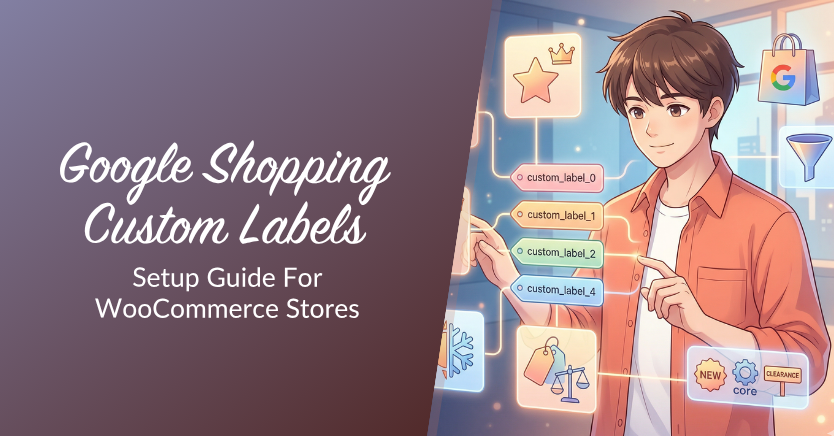
Google Shopping custom labels help WooCommerce stores segment products more strategically inside Google Ads. By grouping items based on factors like margin, seasonality, or bestseller status, you can create a campaign setup that better reflects your goals and product priorities.
In this guide, you’ll learn what Google Shopping custom labels are, why they matter, and how to set them up using AdTribes Product Feed Pro.
Let’s get started!
What Are Google Shopping Custom Labels?
Custom labels are five optional fields in your Google Shopping product feed, labeled custom_label_0 through custom_label_4. Each field can hold a text value of up to 100 characters that you define based on your business needs.
Unlike required feed attributes like title, price, and availability, custom labels do not appear to shoppers. They are invisible metadata used exclusively for organizing products within your Google Ads campaigns. Google Ads reads these labels and lets you create product groups based on their values, which means you can set different bids, budgets, and strategies for different product segments.
For example, you might use custom_label_0 to separate higher-margin products from lower-margin ones. In Google Ads, you can then create different product groups and bidding approaches for each segment.
Why Custom Labels Matter for WooCommerce Stores
Without custom labels, Google Ads gives you limited options for segmenting products. You can segment by category, brand, product type, item ID, or condition. These are useful, but they do not capture the business-level distinctions that actually drive profitability.
Your WooCommerce catalog likely includes products with wildly different margins, conversion rates, and seasonal relevance. A winter jacket and a pair of sunglasses might be in the same category, but need completely different ad strategies depending on the time of year.
Custom labels bridge the gap between your product data and your advertising strategy, allowing you to segment by any criteria that matters to your business.
💡 Custom labels are useful when you do not want every product treated the same way in Google Ads. They help you create more intentional product groupings, so bidding and budget decisions can better reflect your own business priorities.
5 Google Shopping Custom Label Strategies For WooCommerce
Here are five practical strategies you can implement today. You can use up to five custom labels simultaneously, so you can combine multiple strategies.
Use the examples below as starting points, not fixed rules. The best Google Shopping custom labels depend on your catalog, margins, seasonality, and campaign goals.
Strategy 1: Segment by Profit Margin
Assign a margin tier to each product based on your cost versus selling price.
- custom_label_0 = “high_margin” for higher-margin products
- custom_label_0 = “medium_margin” for mid-margin products
- custom_label_0 = “low_margin” for lower-margin products
In Google Ads, bid more aggressively on high-margin products since you can afford a higher cost per acquisition while staying profitable.
Strategy 2: Segment by Bestseller Status
Identify products with consistently strong sales or conversion performance and label them as bestsellers.
- custom_label_1 = “bestseller” for your top-performing products
- custom_label_1 = “standard” for everything else
Bestsellers have proven conversion rates, meaning higher ad spend on these products carries less risk. Give them priority budget allocation.
Strategy 3: Segment by Seasonality
Tag products with their seasonal relevance so you can ramp spend up and down throughout the year.
- custom_label_2 = “summer” for warm-weather products
- custom_label_2 = “winter” for cold-weather products
- custom_label_2 = “holiday” for gift-oriented products
- custom_label_2 = “evergreen” for year-round sellers
During seasonal peaks, increase budget for matching campaigns and reduce spend on off-season items.
Strategy 4: Segment by Price Range
Different price points often convert at different rates and justify different bid strategies.
- custom_label_3 = “premium” for higher-priced products
- custom_label_3 = “mid_range” for mid-priced products
- custom_label_3 = “budget” for lower-priced products
Premium products typically have higher margins and lower purchase frequency, which means fewer but more valuable conversions. Budget items may need volume-focused bidding.
Strategy 5: Segment by Product Lifecycle
Track where products are in their lifecycle to allocate budget accordingly.
- custom_label_4 = “new_arrival” for recently launched products
- custom_label_4 = “core” for products with established sales history
- custom_label_4 = “clearance” for products you want to move faster
New arrivals often need more initial ad spend to gain visibility and sales data. Clearance items should run with a different ROAS expectation since the goal is to move inventory, not maximize margin.
How To Add Google Shopping Custom Labels in AdTribes Product Feed Pro
AdTribes Product Feed Pro makes custom labels easy through its feed rules feature. No manual product editing required.
Step 1: Open your Google Shopping feed in Product Feed Pro from your WordPress dashboard.
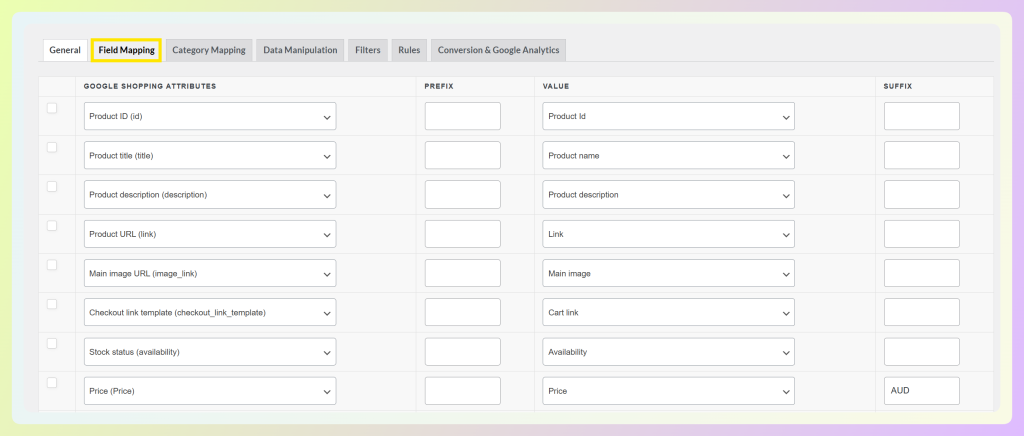
Step 2: Navigate to the Field Mapping section and click Add Field Mapping to create a new mapping row.
Step 3: In the new mapping row, open the field dropdown and search for or select the custom label field you want to use, such as Custom label 0 (custom_label_0) through Custom label 4 (custom_label_4).
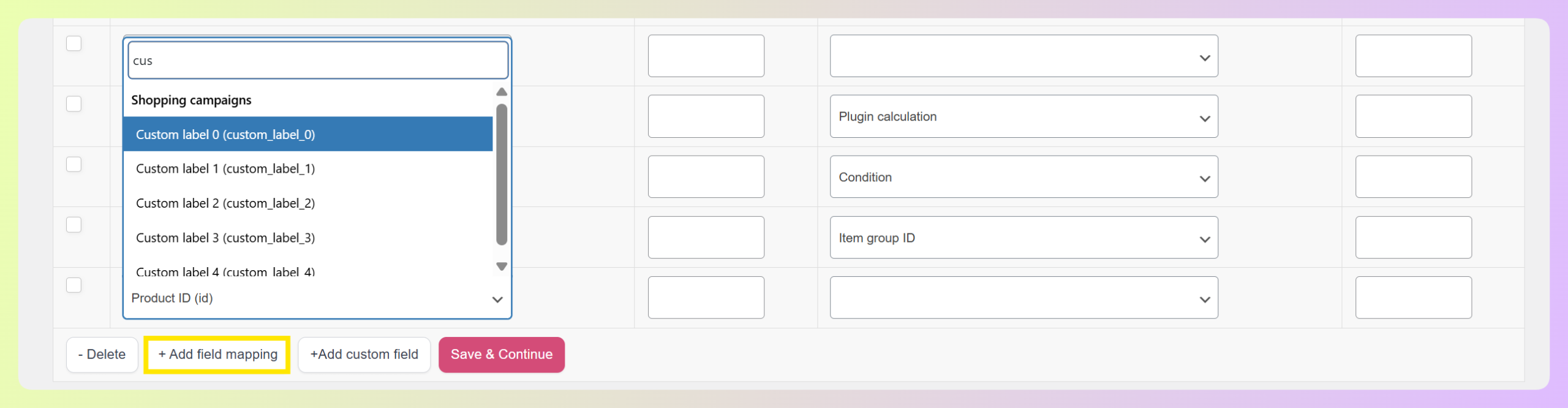
Step 4: For static labels, map the custom label field to a specific value. For conditional labels, use the Feed Rules tab.
Step 5: For more advanced conditional logic, use the Rules tab to create IF/THEN rules based on your product data. For example, you might use rules to segment products by category, price range, or product tags before assigning your label values.
A practical way to handle Google Shopping custom labels in WooCommerce is to use feed rules to assign values based on existing attributes like category, price range, or product tags. This allows you to segment products without manual editing.
Step 6: Save and regenerate your feed. Product Feed Pro applies the rules automatically every time the feed refreshes. Labels stay current as you add products, change categories, or adjust prices.
Step 7: Verify your labels in Google Merchant Center. After the next feed fetch, check a few products in Merchant Center to confirm the custom label values are appearing correctly.
How To Use Custom Labels in Google Ads Campaigns
Once your custom labels are in your feed, you use them in Google Ads to create targeted product groups.
In a Standard Shopping campaign, open your ad group and navigate to product groups. Subdivide your products by custom label instead of (or in addition to) category or brand. Google Ads shows all the values you assigned, so you can create separate product groups for “high_margin” and “low_margin” and set different bids for each.
In Performance Max campaigns, the same concept applies through listing groups within asset groups. Segment by custom label to control which products get priority in Google’s automated bidding.
The real power comes from combining labels. You might create a product group for products that are both “bestseller” AND “high_margin,” giving your most profitable, proven performers the highest bid priority.
Frequently Asked Questions
How many custom labels can I use in Google Shopping?
Google Shopping supports five custom label fields per product: custom_label_0 through custom_label_4. Each can hold a text value up to 100 characters. You can use all five simultaneously for different segmentation strategies.
Do custom labels affect how my products appear to shoppers?
No. Custom labels are invisible to shoppers. They appear only in your Google Ads account for campaign management purposes. Shoppers see your product title, image, price, and other standard attributes.
Can I change custom labels without disrupting my campaigns?
Usually, you can change custom label values without rebuilding your entire campaign. However, updating labels can change how products are grouped in Google Ads, so it is a good idea to monitor performance after the change.
Do I need Product Feed Elite for custom labels?
No. Basic Google Shopping custom labels can be set up with the free Product Feed Pro plugin, since it includes field mapping plus filters and rules. If you want more advanced feed management tools on top of that, Product Feed Elite adds helpful features like Feed Validator and custom refresh intervals, making it a strong upgrade for stores managing larger catalogs or more complex feed workflows.
Wrapping Up
Google Shopping custom labels are a practical way to make your campaigns more organized and intentional. Once set up in Product Feed Pro, they can help you group products more clearly and make budgeting and bidding decisions that better reflect your business goals.
Here is what we covered in this guide:
- What Google Shopping custom labels are and how they work
- Why custom labels matter for WooCommerce stores
- Five practical custom label strategies you can use for your store
- How to add Google Shopping custom labels in AdTribes Product Feed Pro
- How to use custom labels in Google Ads campaigns
If you’ve been wanting a clearer way to organize your product feed and campaign structure, custom labels are a great place to start. And if you’re setting up your feed in WooCommerce, Product Feed Pro can help make that process easier.
Hope this guide helped!