Reviewed by
Google Shopping feed optimization means improving your product data so Google can better understand, classify, and display your products in relevant Shopping results. The biggest wins usually come from stronger product titles, accurate categories, high-quality images, complete identifiers, and regular feed updates. AdTribes Product Feed Pro helps WooCommerce stores manage the technical side with field mapping, category mapping, filters, rules, and scheduled refreshes, so it’s easier to keep product data accurate over time.
By learning how to optimize your Google Shopping feed, you can boost your store’s visibility and improve listing performance. Save this guide, as we’ll be walking you through must-try Google Shopping feed optimization practices to help your products stand out and perform better in Shopping results.
- 10 Must-Try Google Shopping Feed Optimization Tips
- 1. Use clear, keyword-rich product titles
- 2. Write detailed product descriptions
- 3. Choose the most relevant Google product categories
- 4. Optimize product images for Google Shopping requirements
- 5. Set competitive pricing and use sale_price when relevant
- 6. Add key product attributes
- 7. Use GTINs, brand, and identifiers correctly
- 8. Refresh your feed often enough to keep product data accurate
- 9. Use custom labels to segment products for bidding
- 10. Fix feed errors and warnings regularly
- Frequently Asked Questions
10 Must-Try Google Shopping Feed Optimization Tips
Here are ten actionable feed optimization tips to help your products perform better in Google Shopping:
1. Use clear, keyword-rich product titles
Your product title is one of the first things Google (and customers) look at when deciding whether your product is relevant to a search. By providing a clear, well-structured title, you help Google match your product to search queries and encourage customers to click on your listing.
Aside from including your main keywords in the product title, consider adding relevant attributes like:
- Brand name
- Product type
- Key features or material
- Color or variant
- Size, weight, or model number
Consider following a format that fits your industry. Here’s a simple example you can use:
Brand + Product Type + Key Attribute(s) + Variant (Color/Size/Model)
For example, instead of using a generic title like “Yoga Mat,” a more optimized version would be: “Yogiflow Non-Slip Yoga Mat – Eco-Friendly TPE, 6mm Thick, Blue.”
These details give Google more context about your product and help your listing appear in relevant searches.
2. Write detailed product descriptions
Strong product descriptions help fill in the gaps that product titles can’t cover. They give Google more context about your product’s purpose, features, and real-life use cases, which makes it easier to determine when your products should appear in search results.
Here are some of the most important details to include:
- Core product features and specifications
- Who the product is for and what problem it solves
- Materials, dimensions, or technical details
- Compatibility or usage information
If your store has a large product catalog, maintaining detailed and consistent product descriptions across your listings can be a challenge. One way to speed it up is to use ChatGPT to write your WooCommerce product descriptions with prompts built around Google’s feed requirements.
Most store owners we work with solve this by using AI tools like StoreAgent’s AI product description writer to automatically craft SEO-optimized product descriptions for WooCommerce. Apart from content creation, StoreAgent also helps flag product pages with missing or overly short descriptions, helping store owners quickly identify gaps that could affect feed quality and visibility.
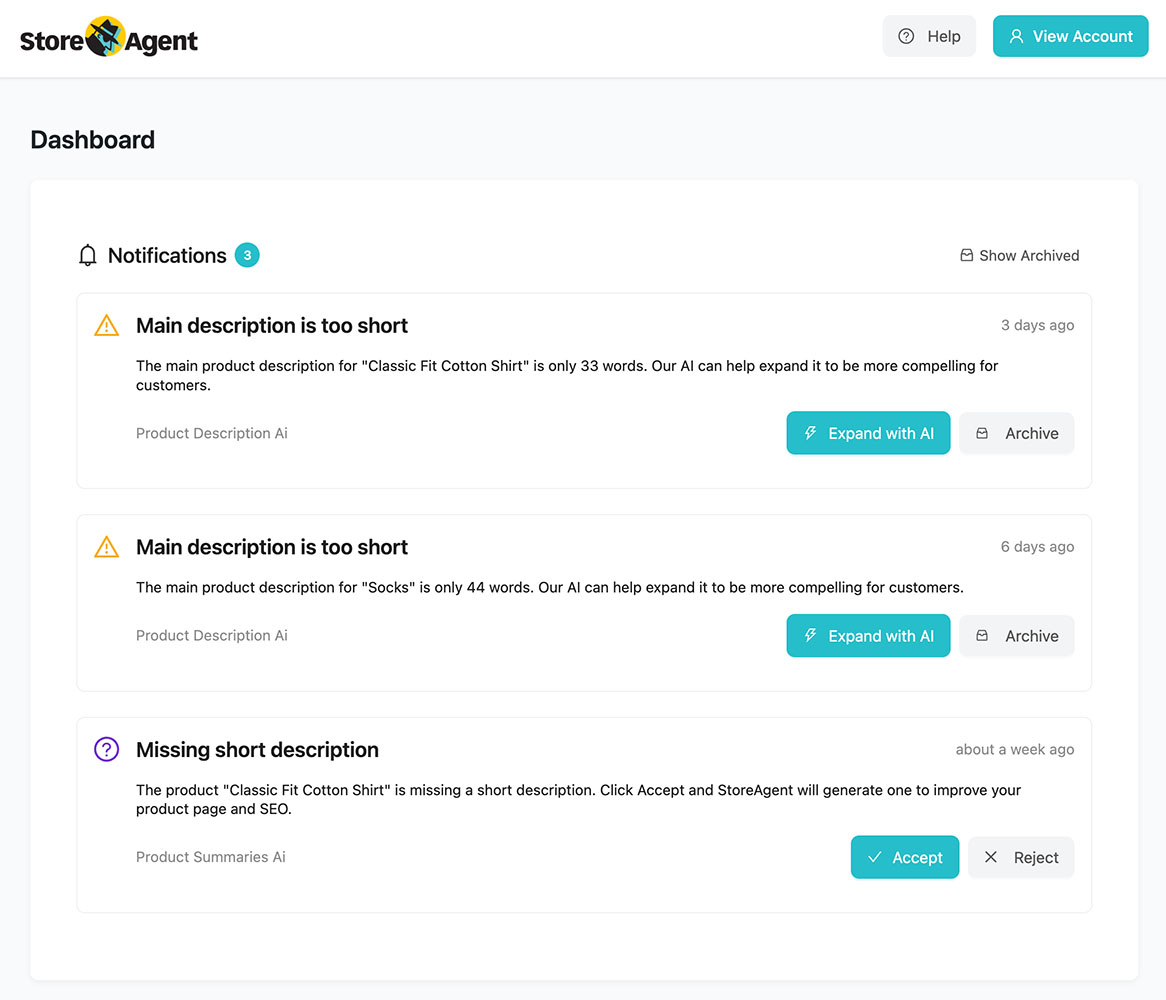
From experience, we’ve seen how tools like this help maintain description quality at scale—especially for stores managing hundreds or thousands of SKUs.
3. Choose the most relevant Google product categories
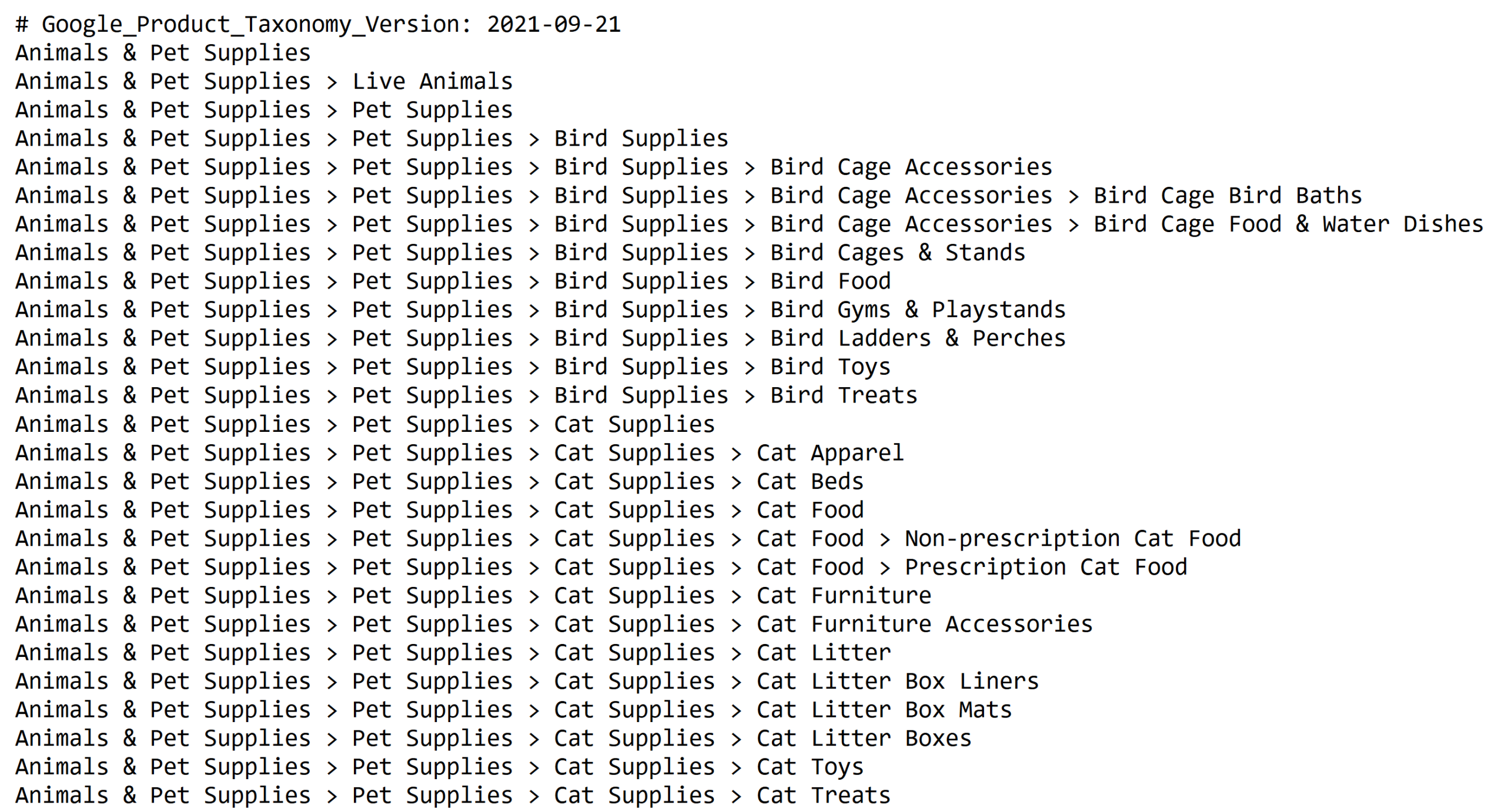
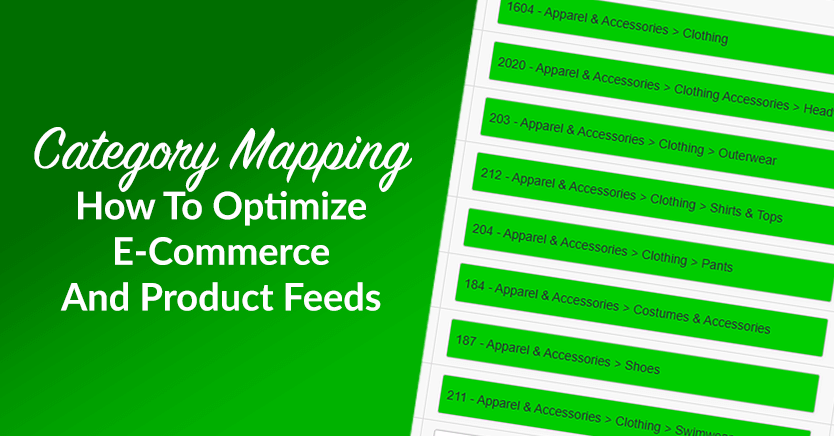
Google uses product categories to understand what you’re selling and determine when they should appear in search results. Unlike WooCommerce categories, Google product categories follow a predefined taxonomy, so selecting the closest and most specific match is important for accuracy and visibility.
You can also review Google’s official product category taxonomy, which lists all supported categories and subcategories used in Google Shopping. Take the time to review this taxonomy to ensure your products are classified correctly instead of being grouped under broad or generic categories.
Here are some key guidelines when assigning product categories:
- Choose the most specific category that accurately describes the product
- Avoid overly broad or unrelated categories
- Ensure category selections align with your actual product attributes and descriptions
Mapping the right Google categories can be time-consuming for stores with large product catalogs. This is why many of the stores we work with use AdTribes. This powerful product feed plugin allows you to map and manage Google product categories directly within your product feeds.
By keeping category assignments accurate and consistent, store owners improve feed quality and reduce misclassification in Google Shopping. It’s a critical part of your ongoing Google Shopping feed optimization strategy.
4. Optimize product images for Google Shopping requirements
Google Shopping results are highly visual—customers rely on clear, high-quality images to understand what your product is and whether it matches what they’re looking for. Because of this, product photos directly impact how your listings perform in Google Shopping.
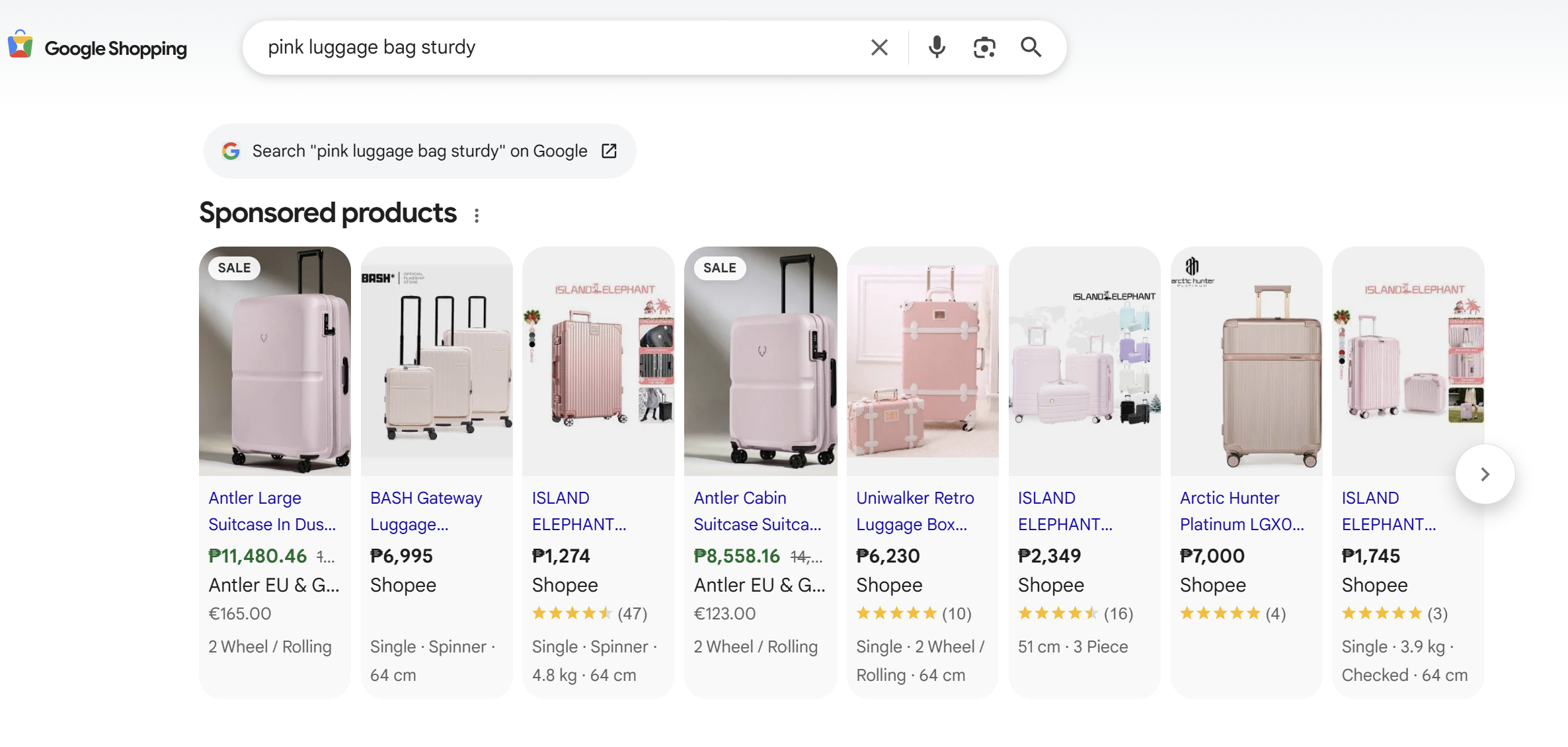
For the best results, Google recommends providing images that are near or above 1500 x 1500 pixels. They also provide an official list of minimum image requirements that products must meet to be eligible to be showcased. Following these guidelines can help prevent feed disapprovals and support better feed performance.
Here are some additional tips to consider:
- Use high-resolution images that clearly show the product
- Avoid blurry, pixelated, or low-quality photos
- Place the product on a clean, uncluttered background
- Show the product accurately without misleading angles or edits
- Avoid adding promotional text, logos, or watermarks to the image
If you’re offering multiple variants of a product, it’s best to use the correct image for each variation. Mismatched images can confuse shoppers and lead to lower engagement and product feed issues.
It’s also important to ensure your images match the exact product variant being sold. If a shopper clicks on a listing for a specific color or style, the image should reflect that option accurately. Consistent, accurate images help build trust with customers and reduce the risk of disapproval or poor engagement.
5. Set competitive pricing and use sale_price when relevant
Price is one of the most visible elements in a Google Shopping listing. Shoppers see it alongside the product image and title before they click, so it needs to be accurate and consistent with what’s shown on your product page at all times. If you sell in more than one currency, the Elite Product Feed Multi-Currency Addon lets each feed show prices in that market’s currency.
One of the most common causes of listing disapprovals in Google Merchant Center is a price mismatch — where the price in your feed doesn’t match the price on your product page. This often happens when prices are updated in your store but the feed hasn’t refreshed yet. Keeping your feed current is the most straightforward way to prevent this.
When a product is on sale, submitting the sale_price attribute alongside your regular price is worth doing. Google Shopping can display both, with the original price struck through next to the sale price. This makes the discount immediately visible to shoppers browsing results, which can draw more attention to the listing. It’s the feed equivalent of adding a sale badge on your product pages. If you also want to run special offers, like a percentage off or a free gift, that show a clickable “Special offer” tag on your listings, see our guide to Google Shopping promotions.
A few things to keep in mind when managing pricing in your feed:
- Make sure the price in your feed matches your product page price exactly, including currency formatting
- Submit the sale_price attribute whenever a product has an active sale price in your store
- Remove the sale_price from your feed when a promotion ends to avoid showing outdated pricing
- For stores selling across multiple markets, confirm that prices are formatted correctly for each target region
AdTribes Product Feed Pro can pull both the regular price and sale price from your WooCommerce product data, making it easier to keep your feed aligned with current pricing when prices change or promotions start.
6. Add key product attributes
Attributes give Google Shopping the structured data it needs to understand what your product is about and how it should be categorized. Missing or incomplete attributes can affect listing performance and prevent it from showing on relevant search results. This is why it’s important for Google Shopping feed optimization.
At a minimum, most product feeds should include the following required attributes:
- id: A unique identifier for each product
- title: A clear, descriptive product title
- description: A detailed explanation of the product
- link: The URL of the product page
- image_link: The main product image URL
- availability: Stock status (e.g., in stock, out of stock)
- price: Accurate product pricing
- brand or gtin: Product identifiers used for matching
Keep in mind that the required attributes can vary depending on the types of products you sell. For example, adding an availability date is required if your product is set to preorder. Apparel products may require attributes such as size, color, or age group.
To stay up to date, it’s always a good idea to check Google’s official product attribute requirements to confirm which attributes are required for specific product categories.
From experience, we’ve seen that stores with complete and consistent product attributes tend to encounter fewer feed errors and maintain better long-term performance.
In our case study featuring Letterbox4you, accurate attribute mapping played a key role in keeping their growing catalog aligned with Google Shopping requirements. They used AdTribes to automate product feed updates, apply rules and mappings to changing product data to ensure required attributes remained consistent across their listings.
Read the full case study here: How Letterbox4you Scaled Their UK Letterboxes Business with AdTribes
7. Use GTINs, brand, and identifiers correctly
Providing product identifiers like GTINs, MPNs, and brand helps Google Shopping accurately identify and classify your products. These identifiers help Google match your listings with the right search queries, which can increase your chances of appearing in the most relevant Shopping results. In turn, this can improve engagement and overall listing performance.
Here are some best practices when working with product identifiers:
- Use valid GTINs provided by the manufacturer whenever available
- Ensure brand names are spelled consistently across all products
- Avoid using placeholder values like “N/A” or random numbers
Whenever possible, it’s beneficial to give Google Shopping as much accurate product data as you have available. The more complete your attributes and identifiers are, the easier it will be for Google to understand your products and determine when they should appear in search results.
If you want an easier way to manage templates, field mapping, and scheduled feed updates, using a dedicated Google Shopping feed plugin for WooCommerce like AdTribes can help keep your product data aligned with Merchant Center requirements.
8. Refresh your feed often enough to keep product data accurate
Keeping your feed data current is one of the more straightforward ways to prevent avoidable listing issues. When prices, stock levels, or product details in your feed don’t match what’s on your site, Google may flag the discrepancy and affect your listing’s eligibility.
Google recommends updating your product feed at least once a day. Regular refreshes help ensure your feed stays aligned with your current product data, especially for prices and availability status.
From experience supporting WooCommerce stores, one of the most common feed issues we see is outdated stock data. A product shows as “in stock” in the feed but has already sold out in the store. Google can catch this mismatch during crawling, which then affects how the listing performs. Catching it through regular feed updates is much easier than troubleshooting after the fact.
How often you need to refresh depends on how frequently your store data changes:
- Daily refresh: A reliable baseline for most stores with relatively stable pricing and inventory
- Twice daily or hourly refresh: Worth considering for stores that update prices regularly, run time-sensitive promotions, or have fast-moving inventory
AdTribes Product Feed Pro supports standard refresh schedules including Hourly, Daily, and Twice Daily. For stores that need more precise control over refresh timing, AdTribes Product Feed Elite supports custom refresh intervals.
9. Use custom labels to segment products for bidding
Custom labels are optional feed attributes (custom_label_0 through custom_label_4) that let you assign your own values to products in your feed. They have no effect on how Google categorizes or ranks your products. Their value is in how they help you organize and manage your Google Shopping campaigns.
When you assign custom label values in your feed, those values become available as filters in Google Ads. This lets you create separate ad groups or campaigns for different product segments and set different bids for each, without restructuring your product catalog or WooCommerce categories.
Some practical ways store owners use custom labels:
- Profit margin: Tag higher-margin products so you can bid more aggressively on them relative to lower-margin items
- Seasonality: Label products that perform better at certain times of year so you can increase bids during peak periods
- Bestsellers: Separate top-performing products so their ad spend is managed independently from the rest of the catalog
- Clearance: Group products you want to move quickly and apply a different bidding strategy to them
- New arrivals: Isolate newly added products to track early performance and adjust bids as data comes in
Custom labels work alongside your standard attributes and categories — they don’t replace them. The most effective approach is to define your label strategy based on how you actually manage bids in Google Ads, then apply those labels consistently across your feed.
In AdTribes Product Feed Pro, you can configure custom label values in your feed so labels can be applied more consistently across your catalog without editing each product individually in WooCommerce.
10. Fix feed errors and warnings regularly
Feed issues can occur for a lot of reasons. Some common reasons include:
- Missing or incomplete required attributes
- Price or availability mismatches between your feed and product pages
- Disapproved images or invalid image links
- Incorrect product identifiers or category assignments
- Changes to Google Shopping requirements
To ensure the best possible performance for your product feeds, it’s important to monitor your feed consistently and address these issues. While warnings don’t always stop products from showing, fixing them helps improve overall feed quality and prevents bigger issues down the line.
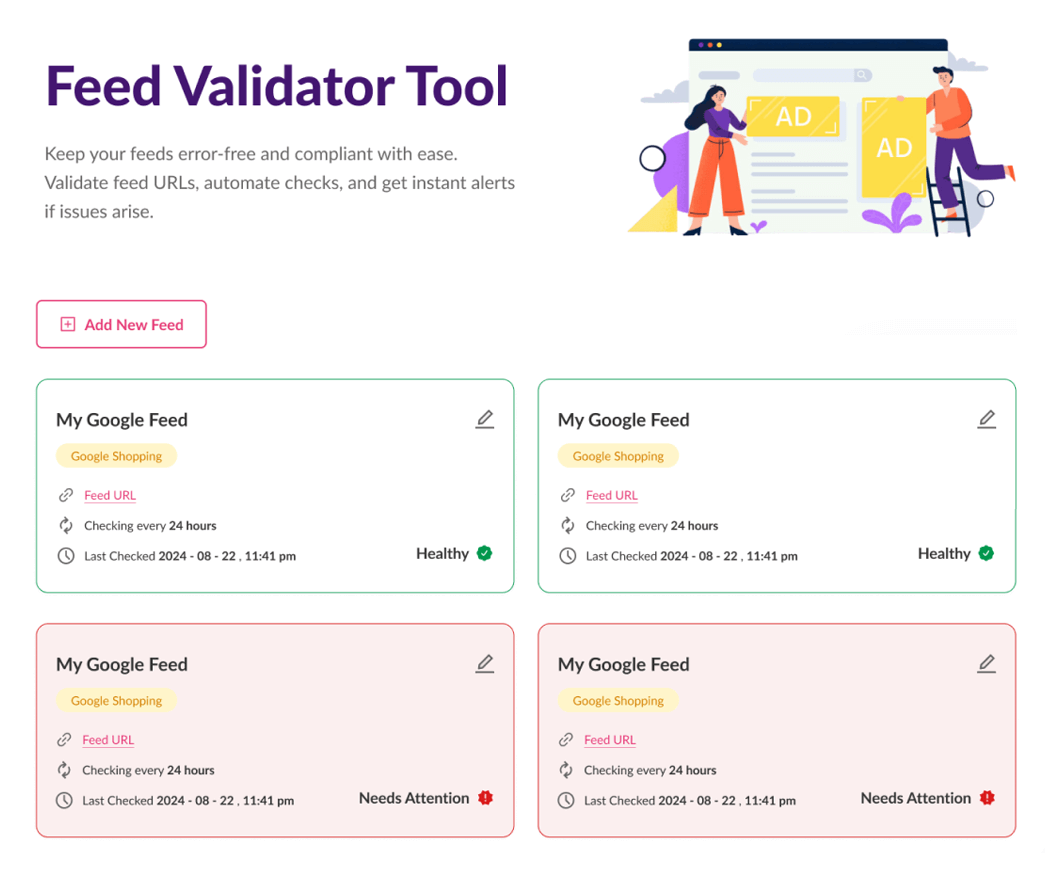
From experience supporting WooCommerce stores, we’ve seen that having visibility into product feed health makes Google Shopping feed optimization much easier. AdTribes Product Feed Elite includes the Feed Validator tool, which helps store owners identify errors and warnings in product feeds before those issues affect performance.
Frequently Asked Questions
How do I optimize my Google Shopping feed for WooCommerce?
Focus on the fundamentals that affect visibility and click-through rate most: stronger product titles, complete product descriptions, accurate Google product categories, high-quality images, valid identifiers, and regular feed refreshes. AdTribes Product Feed Pro helps WooCommerce stores manage key technical steps like field mapping, category mapping, rules, and scheduled refreshes.
What’s the most important Google Shopping feed optimization?
Product titles usually have one of the biggest impacts because they help Google understand what you’re selling and when your product should appear. A strong title often includes the brand, product type, and a few key attributes such as color, size, or material.
How often should I update my Google Shopping product feed?
Your feed should be refreshed often enough to keep pricing, availability, and product data accurate. Many stores refresh daily, while stores with more frequent changes may refresh more often. AdTribes Product Feed Pro includes Hourly, Daily, and Twice Daily refresh options, while AdTribes Product Feed Elite adds Custom refresh intervals.
What causes Google Shopping feed disapprovals?
Common causes include missing required attributes, price or availability mismatches between the feed and landing page, low-quality or invalid images, incorrect identifiers, and category or attribute issues. Reviewing Merchant Center diagnostics regularly helps catch these problems early.
Does AdTribes Product Feed Pro help with Google Shopping feed optimization?
Yes. AdTribes Product Feed Pro helps WooCommerce stores manage product data more cleanly with field mapping, category mapping, rules, filters, and scheduled refreshes. For stores that want extra feed-health checks and more advanced timing control, AdTribes Product Feed Elite adds tools like Feed Validator and Custom refresh intervals.
Wrapping Up
Google Shopping feed optimization helps your products appear more accurately and more competitively in relevant Shopping results. By improving the quality, completeness, and consistency of your product data, you make it easier for Google to understand your products and match them to the right searches. In this guide, we covered 10 practical ways to improve your Google Shopping feed:
- Writing clear, keyword-rich product titles
- Creating detailed and accurate product descriptions
- Choosing the most relevant Google product categories
- Optimizing product images to meet Google Shopping requirements
- Setting competitive pricing and using sale_price when relevant
- Adding complete and accurate product attributes
- Using GTINs, brand names, and identifiers correctly
- Refreshing your feed often enough to keep product data accurate
- Using custom labels to segment products for bidding
- Monitoring and fixing feed errors and warnings regularly
Following these steps can help improve feed quality, reduce avoidable errors, and keep your product data better aligned with Google Shopping requirements. If you want to make ongoing feed management easier, AdTribes Product Feed Pro helps WooCommerce stores manage field mapping, category mapping, filters, rules, and scheduled refreshes more efficiently.
We hope this guide helped!