Reviewed by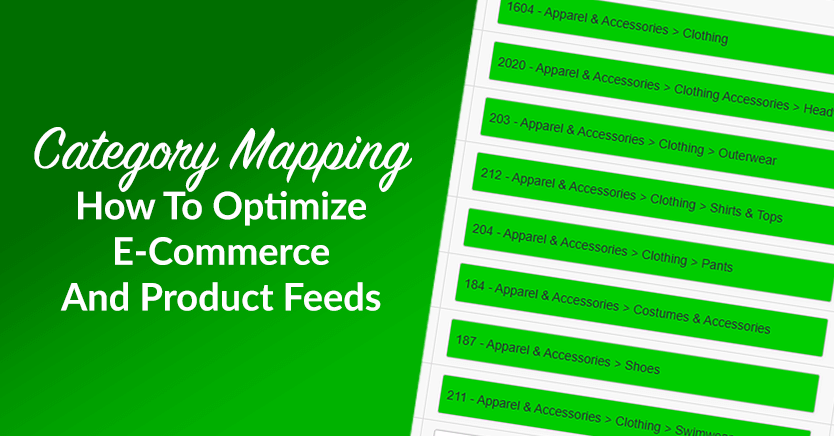
WooCommerce category mapping is the process of matching your store’s product categories to the taxonomy used by marketing channels like Google Shopping, Facebook Catalog, and Bing. This helps each platform understand where your products belong, so your product feed can meet channel requirements and appear in more relevant product results. With AdTribes Product Feed Pro, you can map WooCommerce categories during feed setup, use category suggestions, and choose the most accurate category for each feed. That makes it a key step in any Google Shopping product feed setup.
Getting your products noticed online starts with one key step: organizing them in the right categories. If you don’t map categories properly, your product feed might miss the mark, causing confusion for shoppers and sales platforms alike.
In this article, we’ll explore how category mapping works and why it’s crucial for your WooCommerce store’s success. Furthermore, we’ll show how you can use it to optimize your product feeds for better visibility and results on sales channels such as Google Shopping and Facebook.
Hungry to learn? Then read on!
- What Is Category Mapping?
- Why Is Category Mapping Essential?
- How To Map Categories
- Using A Product Feed Manager To Map Categories Easily
- Best Practices For Effective Category Mapping
- Frequently Asked Questions About WooCommerce Category Mapping
- How do I map WooCommerce categories to Google Shopping?
- Why is category mapping important for WooCommerce product feeds?
- Does AdTribes Product Feed Pro suggest Google categories automatically?
- What if my WooCommerce categories do not match Google’s taxonomy exactly?
- Can I use different category mappings for Google Shopping and Facebook Catalog?
- Does category mapping work with WooCommerce subcategories?
- Conclusion
What Is Category Mapping?
In simple terms, category mapping is the process of making sure your product categories match the ones used by a sales channel like Google Shopping, Facebook, or PriceGrabber. These platforms organize products in a set way, and mapping ensures your items fit where they belong.
For example, let’s say your store has a category called “Men’s Shirts,” which contains all your shirts for men. To successfully display these shirts on Google Shopping, it’s a good idea to map this category to Google’s predefined taxonomy: “212 – Apparel & Accessories > Clothing > Shirts & Tops.”
When you map categories like this, you ensure that your products appear in the right place on Google Shopping. Thus, you make it easier for customers looking for men’s shirts to find your items. Consequently, you boost your chances of enhancing your visibility and sales.
Would you like more information on product categories? Then check out the following guide:
What Is A Product Category And Its Role In WooCommerce? (Easy Guide)
Why Is Category Mapping Essential?
Proper category mappings play a pivotal role in helping customers find your products. Thus, they’re essential to improving your store’s performance across sales platforms.
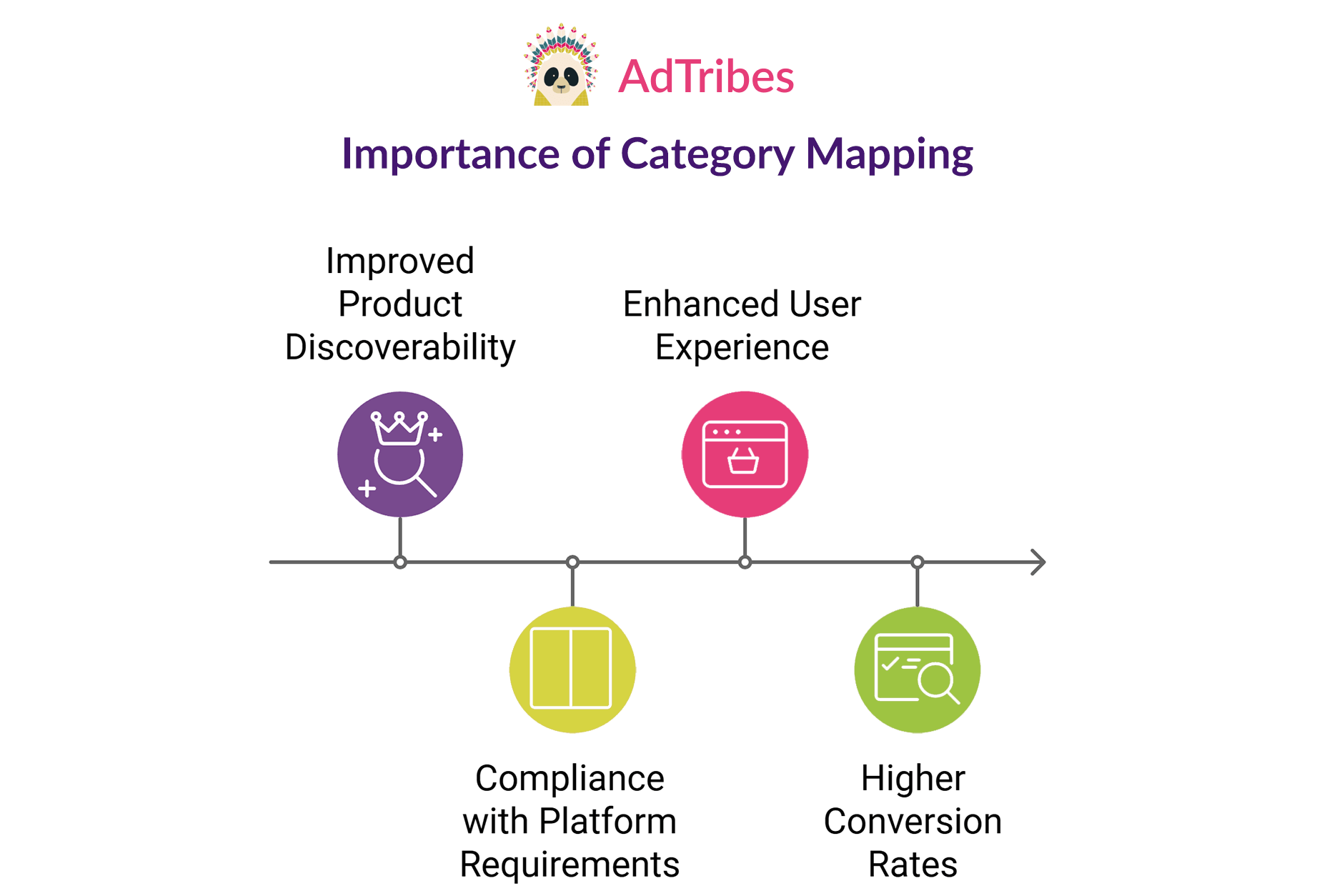
1. Improved product discoverability
Mapping categories makes it easier for customers to find your products because it ensures they appear in the right categories on sales platforms.
Imagine you’re selling fitness trackers. If you map them to a vague or general category like “Electronics,” your product might get lost among a sea of other unrelated items. But if you map it to a more specific category like “Wearable Technology,” it will be much easier for customers who are specifically looking for fitness trackers to spot your product.
In short, you must map categories effectively for your products to show up exactly where shoppers expect them to be.
2. Compliance with platform requirements
Platforms like Google Shopping have specific Google Shopping feed requirements for how product data should be submitted, including category-related attributes. These platforms have their own taxonomies, or category structures, that help them understand where your products belong. If your products are mapped incorrectly, your feed may run into avoidable issues or show products in less relevant placements.
Proper mapping categories helps ensure your products meet sales channels’ requirements. Thus, it increases the chances that your product feed will be accepted and your products will be seen by potential customers.
3. Enhanced user experience
Good category mapping isn’t just about making your products visible; it’s also about making it easier for customers to find what they’re looking for. If your products are mapped correctly, shoppers can quickly navigate the site and get to the exact category or product they want.
For example, if a customer is looking for roller skates, seeing them in the “Sporting Goods > Outdoor Recreation > Inline & Roller Skating > Roller Skates” category will make it much easier for them to find.
Remember: when customers can find products faster, they’re more likely to make a purchase, improving their shopping experience.
4. Higher conversion rates
Accurate category mapping is directly linked to better visibility, which means higher chances of making a sale.
What happens when you map your products to the right categories? Basically, they’re more likely to show up in search results when customers are looking for something specific. More visibility leads to more opportunities for customers to click, explore, and buy.
On the other hand, if your products are hard to find or listed in the wrong categories, they’re less likely to get noticed. As a result, it could lead to fewer sales.
How To Map Categories
Implementing category mapping involves observing the following strategies:
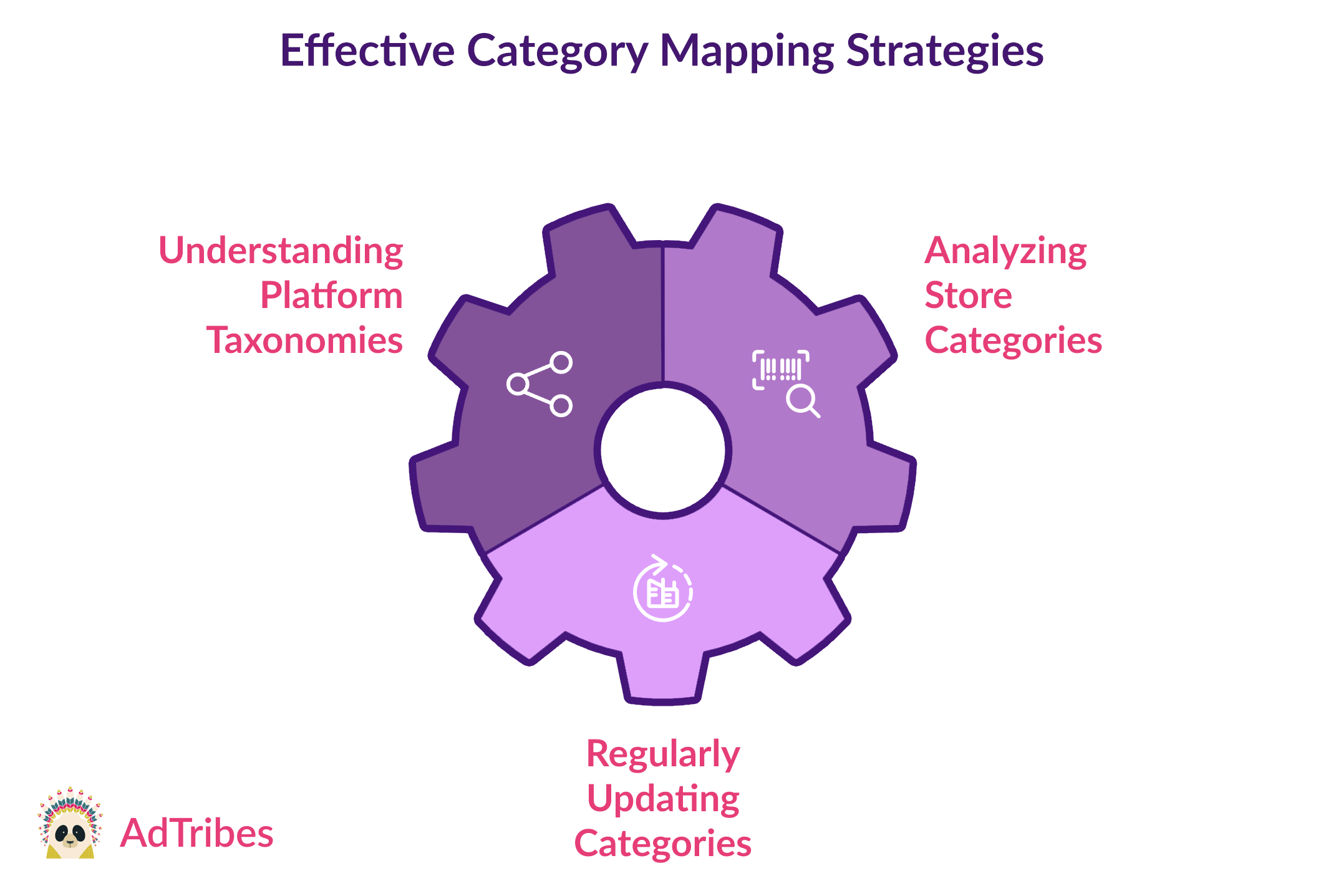
1. Understand platform taxonomies
The first step in mapping categories is understanding how each platform organizes products.
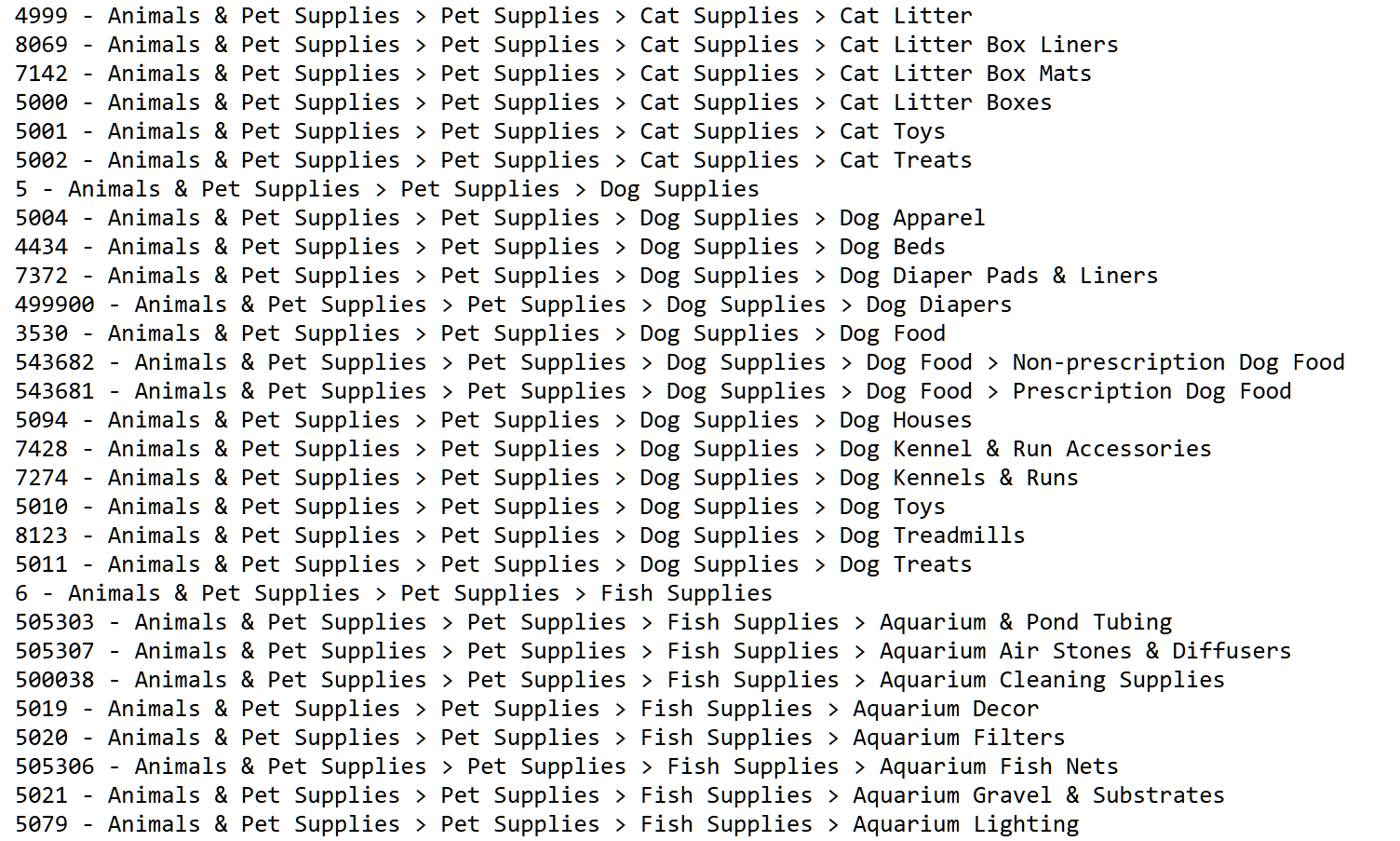
Each platform, like Google or Facebook, has its own system for categorizing products, called a taxonomy. This means they have a set structure or hierarchy of categories that products need to fit into for them to be found easily by customers. For example, Google Shopping might categorize “Dog Diapers” differently from Facebook’s, so you need to know these differences.
To find this information, take the time to research each platform’s taxonomy. Platforms often provide detailed guides explaining their category structures.
You can also use plugins or tools that pull this information automatically. This simplifies the mapping process by matching your store’s categories to the platform’s required ones (more on this below).
For a full list of Google’s taxonomies, click here.
You can download a complete list of Facebook’s taxonomies in either plain text (.txt) or spreadsheet (.csv) format.
2. Analyze your store categories
Before mapping your store’s products, take a good look at your current categories.
This means auditing your existing structure to check if your products are grouped correctly and logically. Are all the right products in the right categories? Are there any gaps or mismatches with the platform’s taxonomy?
For example, if your store has a category called “Workout Gear” but the platform uses “Fitness Equipment,” you may need to update the way you categorize your products. Fixing these issues will make it easier for customers to find your products and for your product feed to get approved by the platform.
3. Regularly update categories
Category mapping isn’t a one-time task. As your product line grows and platforms change their taxonomies, you’ll need to regularly update your mappings. This ensures that your product feed stays updated and compliant with the platforms you sell on.
For example, new categories may be added, or an existing category may be restructured. Keeping your categories updated ensures that your products are always categorized correctly, improving your chances of appearing in relevant searches and boosting sales.
Using A Product Feed Manager To Map Categories Easily
Are you feeling overwhelmed by the idea of manually mapping all your products? Well, don’t worry! After all, there are tools and plugins designed to simplify the mapping of categories.
For instance, AdTribes, a product feed solution for WooCommerce, can help you map your store categories to the right categories on different sales platforms. If you are still choosing the right tool, you can also compare WooCommerce product feed plugins before deciding which setup fits your store best.
In the following example, we’ll use AdTribes to map a WooCommerce store’s categories to Google Shopping’s:
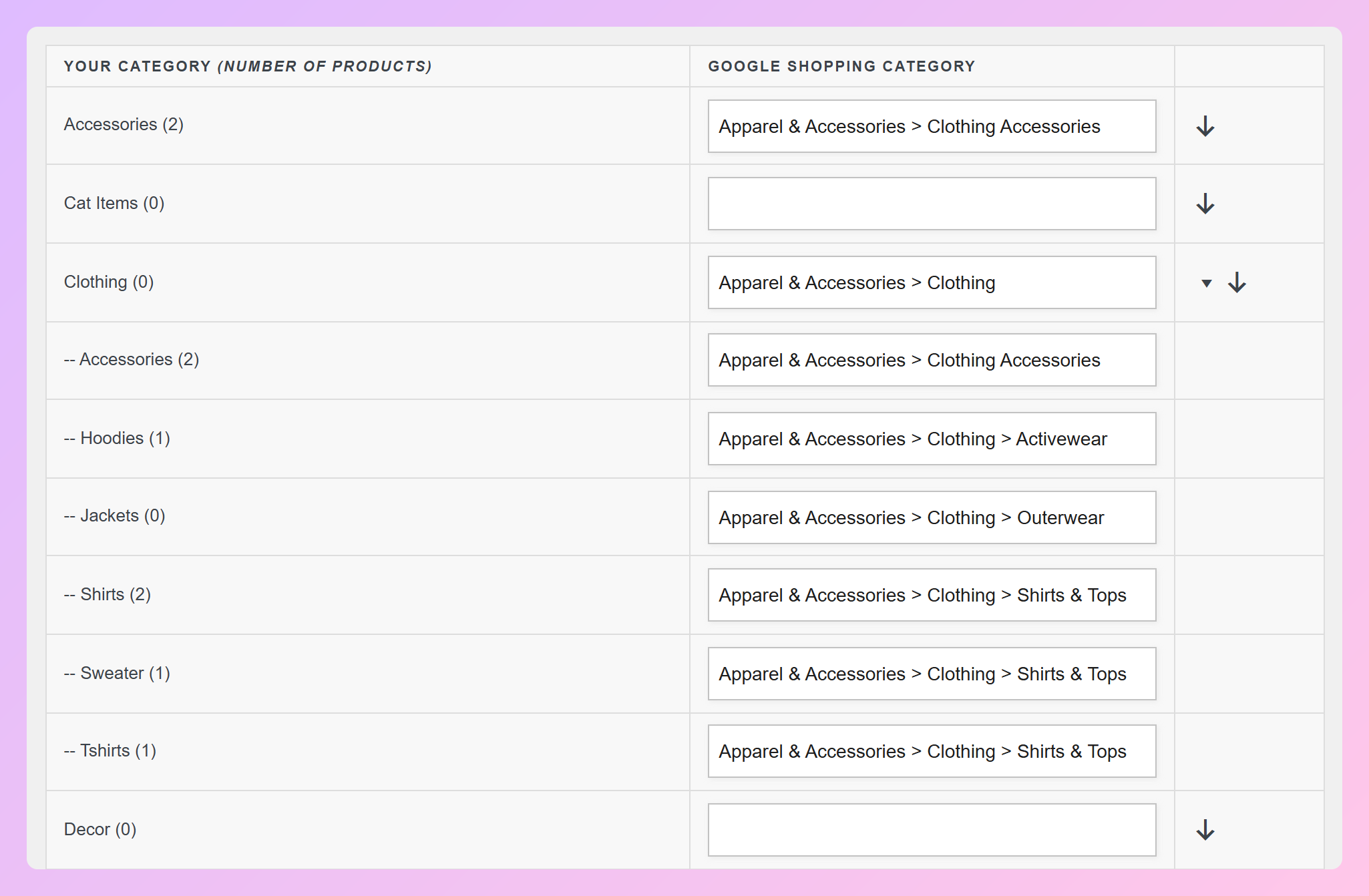
AdTribes’ Category Mapping interface comes with two columns. The one on the left lists your WooCommerce store’s categories, while the right displays Google Shopping’s.
To map a category to Google Shopping’s, start typing in the Google Shopping field next to it. AdTribes will then automatically suggest Google categories you could use. Simply pick the ones that are most appropriate for your store’s categories.
Let’s say your store has an “Accessories” category containing all your fashion accessories. To map categories accurately, it’s recommended to pick the following Google taxonomy:
167 – Apparel & Accessories > Clothing Accessories
If you want the mapping to be even more precise, you can instead select:
502988 – Apparel & Accessories > Clothing Accessories > Hair Accessories > Hair Pins, Claws & Clips
And that’s all it takes to map categories using AdTribes!
Best Practices For Effective Category Mapping
To map categories effectively, focus on being specific, avoiding overlapping categories, and regularly monitoring feed performance.
1. Be specific
When mapping your offerings, it’s always a good idea to pick the most specific category available. Remember: the more precise the category, the easier it will be for customers to find your products.
For instance, instead of just using a broad category like “Electronics,” select a more detailed one like “Wearable Technology” if that’s what fits best. This ensures your products are in the right spot where interested buyers are more likely to look.
2. Avoid overlapping categories
Make sure your products are only mapped to one category that accurately represents them. Avoid putting products in conflicting or overlapping categories, as this can confuse customers and hurt your sales.
For example, don’t map the same “Fitness Tracker” to both “Wearable Technology” and “Electronics,” as this could cause your product to show up in unrelated searches. Stick to one category that fits best.
3. Monitor feed performance
After your categories are set, keep an eye on how your product feed performs.
Use analytics to track how well your products are showing up in search results and adjust your mappings if needed. If certain products aren’t getting the attention they deserve, try updating their categories or tweaking your strategy to improve visibility and sales performance.
Remember: regular monitoring helps refine your approach over time. Luckily, AdTribes offers full integration with Google Analytics, making it simple to track your campaign performance.
Frequently Asked Questions About WooCommerce Category Mapping
How do I map WooCommerce categories to Google Shopping?
In AdTribes Product Feed Pro, open your Google Shopping feed settings and go to the Category Mapping tab. Your WooCommerce categories appear on one side, while the Google Shopping category field appears on the other. Start typing in the Google category field, review the suggested matches, and choose the most accurate Google category for each WooCommerce category.
Why is category mapping important for WooCommerce product feeds?
Category mapping helps shopping channels understand what your products are and where they belong. Accurate mappings can support better product classification, reduce avoidable feed issues, and help your products appear in more relevant placements. For Google Shopping, using the most specific applicable category is also a recommended best practice.
Does AdTribes Product Feed Pro suggest Google categories automatically?
Yes. When you type into the Google Shopping category field, AdTribes Product Feed Pro provides relevant category suggestions you can choose from. You still have control over the final mapping, so you can pick the category that best matches your WooCommerce products instead of relying on a fully automatic match.
What if my WooCommerce categories do not match Google’s taxonomy exactly?
That is common. Your WooCommerce categories are built for your store, while Google’s taxonomy is built for product classification across Merchant Center. You usually do not need to restructure your storefront categories. Instead, choose the closest and most specific Google category that describes the products in that WooCommerce category.
Can I use different category mappings for Google Shopping and Facebook Catalog?
Yes. Category mapping is handled as part of the feed setup, so you can review and adjust mappings based on the channel you are creating the feed for. This is helpful because Google Shopping, Facebook Catalog, Bing, and other channels may use different category structures or feed requirements.
Does category mapping work with WooCommerce subcategories?
Yes. You can map WooCommerce subcategories to the most relevant channel categories during feed setup. For larger category structures, AdTribes also supports cascading parent and child category mapping for Google Shopping, which can make it easier to handle related categories while still keeping your feed mappings organized.
Conclusion
Category mapping is a vital process for WooCommerce store owners who want to enhance product visibility and increase sales. When you place your products in the right categories across various sales platforms, you not only meet platform requirements but also enhance the shopping experience for your customers.
To recap, this article discussed the following major concepts:
- The definition of category mapping
- Why you should map categories
- How to map categories
- Using a product feed manager to map categories easily
- Best practices to map categories effectively
We hope we’ve answered “What is category mapping?” and addressed your other questions! Feel free to comment below if you need further clarification or assistance!