

 Reviewed by
If you’re dealing with a Google Merchant Center suspension, it usually means your products have stopped appearing across Google Shopping — and every day it stays unresolved is revenue you’re not recovering.
Most store owners make the mistake of requesting a review before fully fixing the issue. If your review fails, Google may apply a cool-down period where the review button is disabled, so you can’t request another review right away. That’s why the goal is to fix the root cause first, then request a review only when you’re truly ready.
This guide walks through the most common suspension types, how to find out why your account was suspended, how to fix it, and how to submit a successful appeal. Let’s get right into it!
- Before You Appeal: Identify Your Merchant Center Issue Type
- How To Fix a Google Merchant Center Suspension (Step-by-Step)
- How To Prevent Future Suspensions
- Frequently Asked Questions
Before You Appeal: Identify Your Merchant Center Issue Type
When people say “Google Merchant Center suspension,” they often mean one of two things: a problem affecting specific products, or a problem affecting your entire Merchant Center account. Knowing which one you have changes what you should fix and when you should request a review
Product-level vs Account-level
Product-level disapprovals affect specific products. Your account stays active, but those products stop showing on Google. These are generally fixable by correcting your product data or landing page issue, then re-uploading your feed (and requesting a review if Merchant Center prompts you).
Account-level issues affect your entire account. There are two subtypes:
- Account-level warning — Google sends you an email, gives you a warning period (7 or 28 days), and your products continue to show (though with potentially limited performance). You can request one courtesy review during the warning period.
- Account-level suspension — Your products can be disabled from Shopping surfaces, meaning they stop appearing across Google. This can happen after the warning period ends without being resolved, or immediately for egregious policy issues.
Egregious violations: Immediate suspension, no warning
According to Google’s Merchant Center policies, some violations are considered so serious that Google suspends accounts immediately — with no warning period and no prior notification. Misrepresentation is one well-known example of an egregious issue that can trigger immediate suspension.
If your account was suspended with no warning, treat it as a sign that Google believes the issue is severe (misrepresentation is one possibility, but not the only one), so it’s extra important to fully audit your site and feed before requesting a review.
| Issue Type | Warning First? | Products Affected | Review Timeline |
|---|---|---|---|
| Product-level disapproval | No | Specific products only | Up to 7 business days |
| Account warning | Yes (7 or 28 days) | All products limited | Up to 7 business days |
| Account suspension | Usually yes (7 or 28 days) or no for egregious policy issues | All products disabled | Up to 7 business days |
| Misrepresentation (egregious) | No | Entire account | Reinstated only in compelling circumstances |
How To Fix a Google Merchant Center Suspension (Step-by-Step)
If you’re dealing with a Google Merchant Center suspension, the fastest way to recover isn’t rushing to “Request review”: it’s fixing the exact issue Google flagged first. In the steps below, you’ll confirm what type of issue you have, pinpoint the policy reason, clean up what needs fixing on your site and product data, and then request a review with confidence.
If you’re using AdTribes, I’ll also point out the spots where feed checks and rules can help speed things up.
Step 1: Diagnose your suspension
Before you can fix anything, you need to know exactly what Google flagged.
Find the issue in Merchant Center
- Log in to Google Merchant Center
- Click Products in the left navigation
- Go to the Needs attention tab
- Click View setup and policy issues — account-level issues appear here in a banner
- For product-level issues, look at the status column for individual products
Google will show you the specific policy violation or requirement that triggered the suspension. Copy this exactly — you’ll need it when researching the fix and writing your appeal.
Common suspension reasons you’ll see
- Misrepresentation — Most severe; triggers immediate suspension
- Misleading or unrealistic promotions
- Price / availability mismatch (Preemptive Item Disapproval — PID)
- Missing required product information
- Shipping settings not configured
- Website policy compliance issues (missing returns policy, contact info, etc.)
- Unavailable offers — products listed but not purchasable
Step 2: Fix the underlying issue
Here’s how to address each of the most common causes of suspension. Fix the issue completely before requesting a review — a failed appeal can start a cool down period.
Misrepresentation
Misrepresentation is the most serious suspension type and the hardest to recover from. Google defines it as representing yourself, your products, or your business in a way that is not accurate, realistic, or truthful.
Common triggers:
- Impersonating another brand in your product listings, URLs, or site content
- Claiming to be an authorized reseller without documentation
- Listing products you don’t have or can’t legally sell
- Undisclosed fees or misleading pricing
- Missing or fake contact information
- Charging for products typically available for free
How to fix misrepresentation:
- Add or update your About Us page — Include your real business name, history, and what you sell
- Add full contact information — Physical address, phone number, and email. Make it easy to find
- Clarify your relationship with any brands you sell — If you’re an authorized reseller, state it clearly and be prepared to provide documentation in your appeal
- Audit all pricing — Ensure no undisclosed fees; total price must be clear before checkout
- Review your returns and refund policy — It must be visible, specific, and honored
- Use your own branding — Don’t use another brand’s logo, imagery, or identity in a way that could suggest affiliation you don’t have
📝 Important Note: Google advises against deleting your suspended account and creating a new one. A new account created for the same business may also be suspended.
Price or availability mismatch (Preemptive Item Disapproval)
This is one of the most common issues for WooCommerce stores. It happens when the price or availability in your product feed doesn’t match what’s on your website landing page.
Common causes:
- Sale prices applied in WooCommerce but feed hasn’t refreshed yet
- Currency mismatches for international feeds
- Out-of-stock products still showing as in-stock in the feed
- Feed price includes/excludes tax differently from the displayed price
How to fix:
- Set your feed to auto-refresh frequently (daily minimum; AdTribes Product Elite plans support scheduling)
- Ensure your sale price field is mapped correctly in your feed — use
sale_priceandsale_price_effective_dateattributes - Match tax inclusion/exclusion exactly between your feed and your store’s display settings
- Use AdTribes’ Feed Validator to catch mismatches before Google does
Missing required product attributes
Google requires specific fields for Shopping ads. Missing GTINs (Global Trade Item Numbers) are one of the most common causes of product disapprovals.
Required attributes that are commonly missing:
gtin— barcode/UPC/EAN; required for products sold by multiple retailersmpn— Manufacturer Part Number; required when GTIN is unavailablebrand— required for most productsimage_link— must be a direct image URL (not a page URL)availability— must be in_stock, out_of_stock, preorder, or backorder (and add availability_date when using preorder/backorder)price— must include currency code and match the website exactlyshipping— must be configured at account or item level
How to fix in WooCommerce:
- Use AdTribes’ GTIN and identifier fields to add GTINs, MPNs, and EANs to your WooCommerce products
- Use feed rules in AdTribes to set
identifier_existstofalsefor products that genuinely don’t have GTINs (handmade, custom, or unique items) - Check the Google Shopping feed requirements for the complete attribute list
Website policy compliance issues
Google’s crawler checks your landing pages for compliance. Issues that trigger disapprovals:
- Googlebot blocked — Check your
robots.txtfile; ensure it doesn’t block Googlebot or Googlebot-image - Broken links — Product page URLs in your feed return 404 errors
- Redirect issues — URLs in your feed redirect to a generic page rather than the specific product
- Missing policies — No visible returns policy, shipping information, or privacy policy
- Placeholder content — Pages still containing “Lorem ipsum” or template placeholder text
How to fix:
- Test every URL format in your feed in a browser and in Google Search Console
- Verify robots.txt at
yourdomain.com/robots.txt— ensureDisallow: /is not present - Add clear, specific returns and shipping policies accessible from every page (footer link at minimum)
- Check Google Search Console for crawl errors on product URLs
Shipping settings not configured
New accounts require shipping settings configured in GMC before an initial review can proceed. If this is your situation:
- In Merchant Center, go to Shipping and returns
- Add a shipping service for your target country
- Set delivery times and rates (flat rate, table rate, or free shipping)
- Save — your account is now eligible for the initial review
Step 3: Fix your product feed
Many GMC suspensions and disapprovals trace back to feed quality issues — errors in the data file your WooCommerce store sends to Google. Fixing the feed is often one of the most effective steps.
If you’re using AdTribes: Run the Feed Validator
Before submitting any appeal, run your feed through AdTribes’ Feed Validator (available in the Plus and Business Plans). The Feed Validator checks your feed against Google’s requirements and flags:
- Missing required attributes
- Price mismatches between feed and website
- Image policy violations (low resolution, placeholder images, watermarks)
- Availability attribute errors
- Category mapping issues
- GTIN format errors
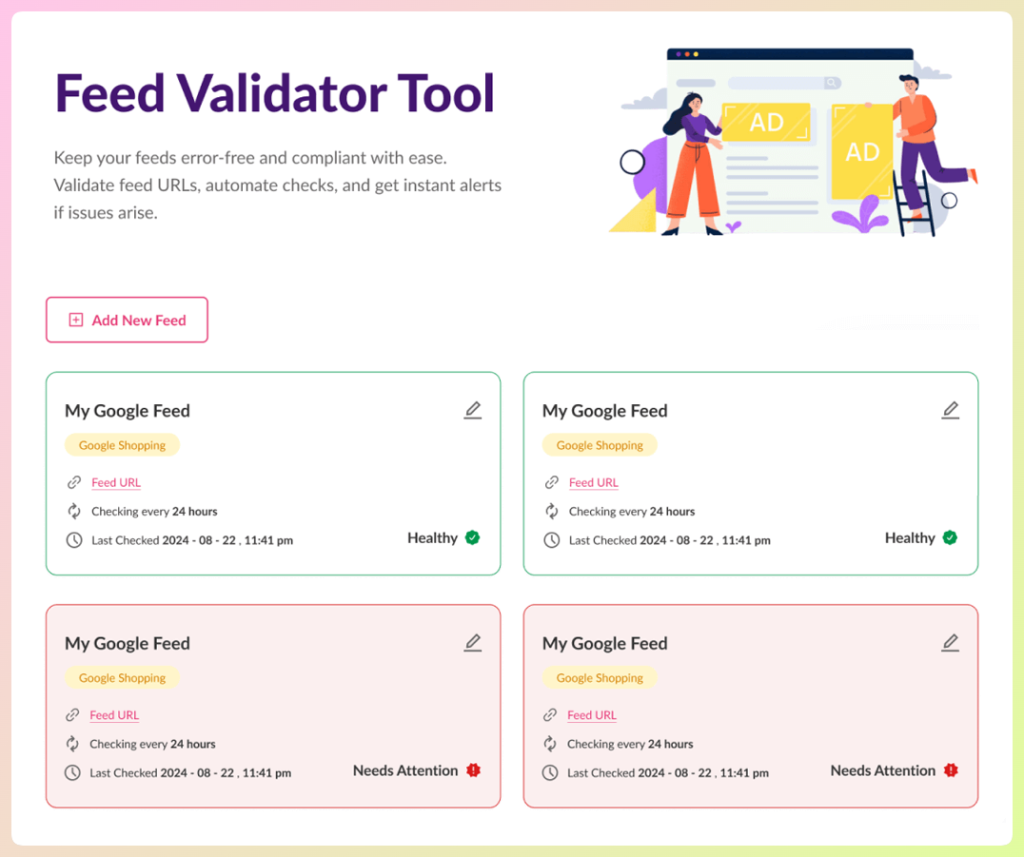
Fix every error the validator surfaces before moving to the appeal step.
Use feed rules to fill data gaps
If your WooCommerce products are missing attributes that Google requires, AdTribes’ feed rules feature lets you fill those gaps without editing individual products:
- Set a default brand name for all products missing the brand field
- Map long descriptions to the
descriptionfield when short descriptions are too brief - Set
identifier_existstonofor handmade or custom products without GTINs - Append size/color from variant attributes to product titles
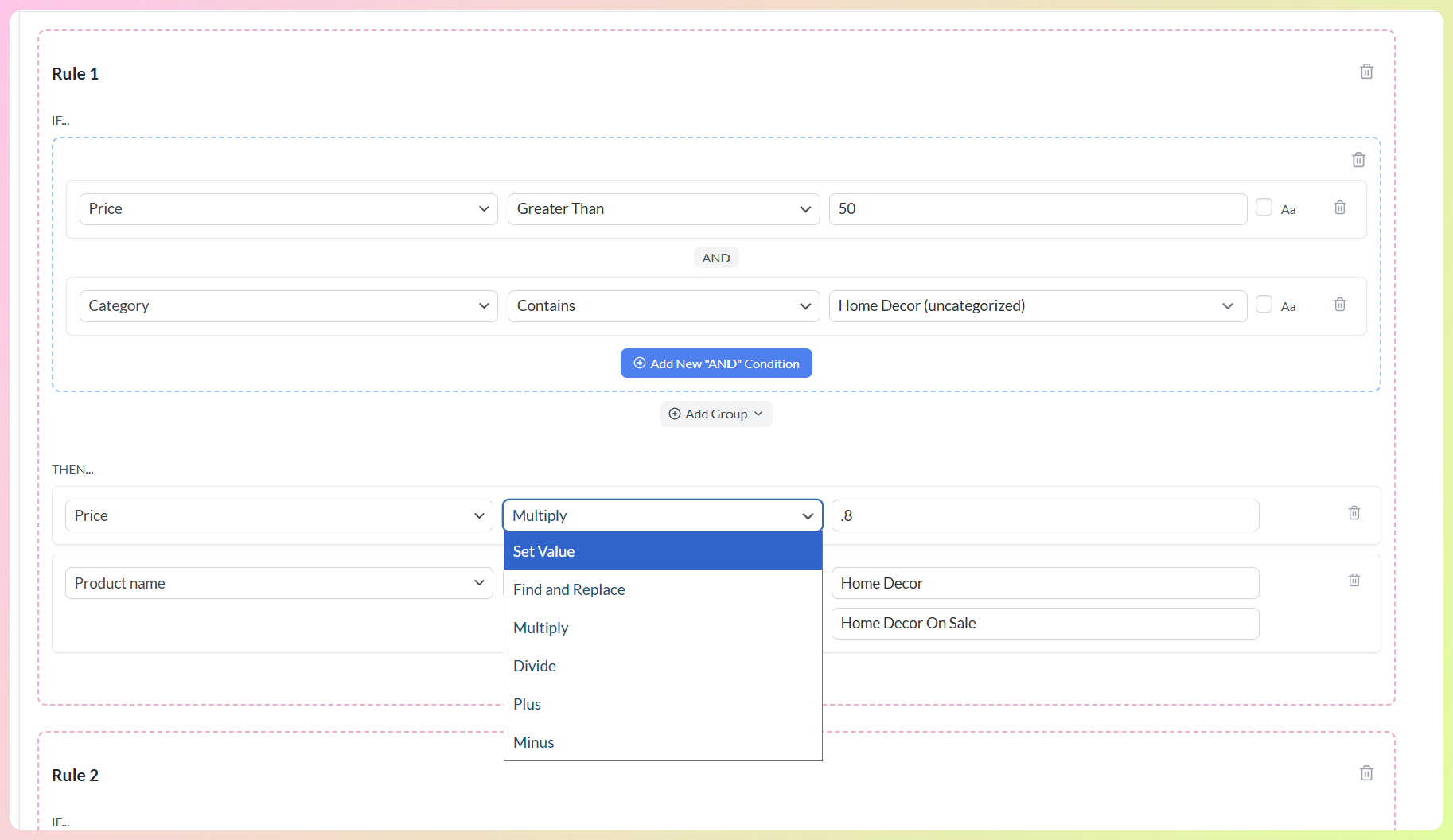
Check out our guide to Google product feed specifications for the complete field reference.
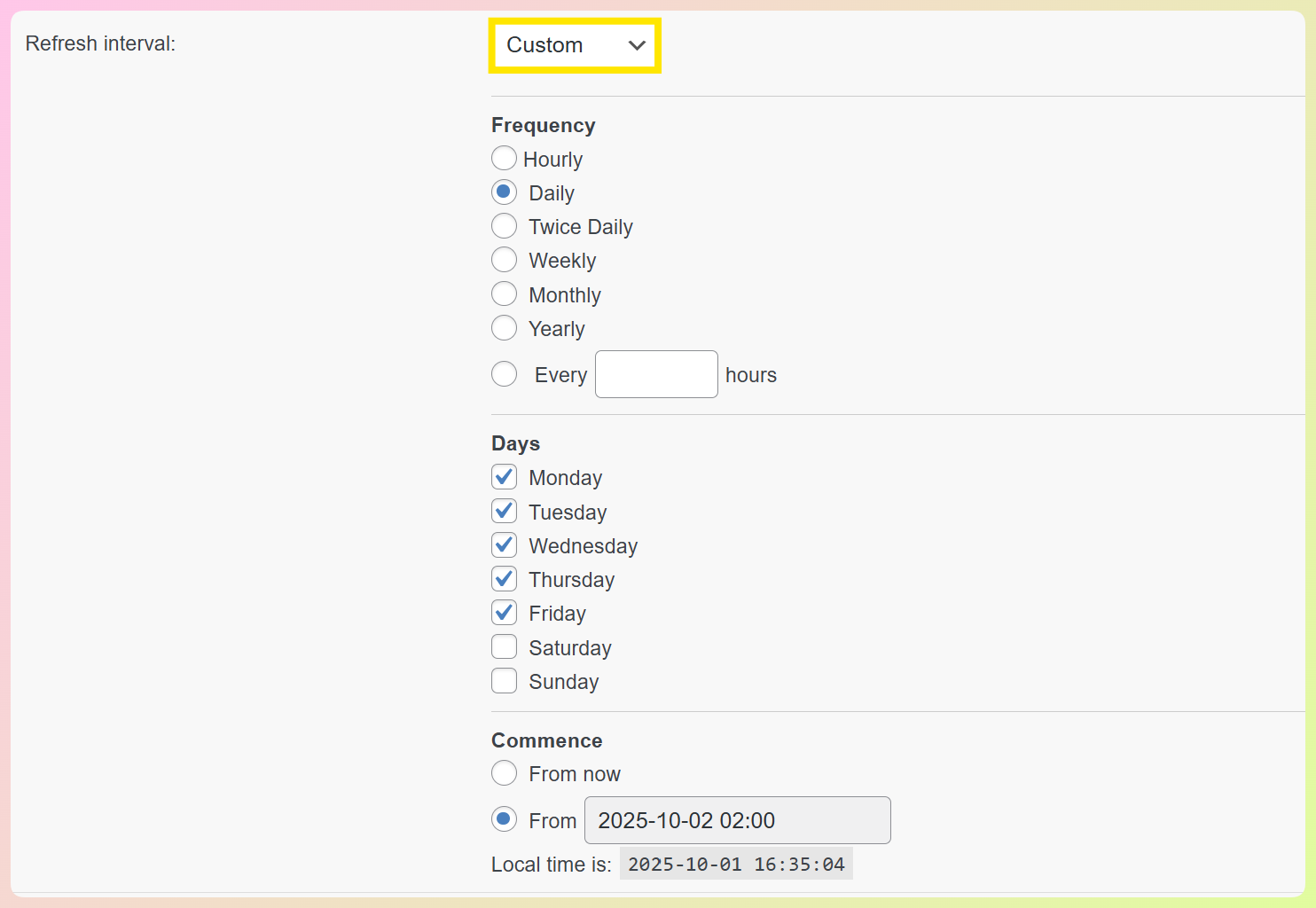
Enable automatic feed refresh
Price and availability mismatches often happen because a feed was generated once and never updated. Set your feed to refresh automatically (daily is a good baseline, and more often if you run flash sales). If you’re using AdTribes Product Feed Elite, you can schedule automatic feed refreshes so price and stock changes sync faster.
Step 4: Submit your appeal correctly
Once you’ve fixed the underlying issues and cleaned your product feed, you’re ready to appeal.
Google’s review process gives you two paths:
“I fixed the issue” — Use this when you’ve identified the violation and resolved it. This is the correct path for the vast majority of suspensions.
“I disagree with the issue” — Use this only if you genuinely believe Google made an error. Be aware: you may only have one chance to disagree with a specific issue. If your dispute is rejected, you may be locked into the cooldown period.
How to submit an account-level review
- In Merchant Center, click Products
- Under the Needs attention tab, click View setup and policy issues
- Select “I fixed the issue” (or “I disagree” if appropriate)
- Read the confirmation pop-up carefully — it describes what Google will check
- Click Request review
Reviews take up to 7 business days. You’ll receive an email when the review is complete.
The cool-down period: what it is and how to avoid it
If you exhaust your appeal options without resolving the underlying issue, Google activates a cool-down period — during which the review button is disabled, and you cannot submit another request. With each subsequent failed review, the cool-down period can increase.
The only way to avoid the cool-down is to fully resolve the issue before submitting. Use the cool-down period (if you’re already in one) to audit your site, feed, and product data thoroughly.
For misrepresentation appeals specifically
Misrepresentation appeals require additional documentation. When submitting:
- Explain your business situation clearly
- If you’re an authorized reseller, provide contracts or written agreements proving the partnership
- If the brand mentions you on their website or social channels, include links
- Complete advertiser identity verification if Google requests it
How To Prevent Future Suspensions
Getting reinstated is the immediate goal. Staying reinstated requires ongoing feed and policy hygiene.
- Run the Feed Validator before every major feed change. Anytime you add new products, change pricing structures, or update your catalog, validate the feed before Google crawls it. The AdTribes Feed Validator is on the Plus and Business plans.
- Set up automatic feed refresh. Stale feed data — prices and availability that don’t match your live website — is the most preventable suspension cause. AdTribes Elite auto-refreshes your feed on a schedule.
- Audit your website policies annually. Returns policy, shipping information, contact details, and privacy policy should be reviewed at least once a year. Google’s requirements evolve.
- Monitor your GMC account weekly. Check the Needs Attention tab in Merchant Center regularly — catch warnings during the warning period, before they escalate to suspensions.
- Keep product identifiers current. New products should have GTINs entered in WooCommerce at the time of listing, not retroactively. AdTribes’ GTIN fields make this part of your normal product creation workflow.
Frequently Asked Questions
How long does a Google Merchant Center suspension last?
After submitting an appeal, Google reviews take up to 7 business days. If approved, your products become eligible to show within 24 hours. If your appeal is rejected, you may enter a cool-down period before you can resubmit — that period varies and can grow with each subsequent failed review. There’s no fixed “suspension duration” — it depends entirely on how quickly you resolve the underlying issue.
Can I create a new GMC account if mine is suspended?
No — Google explicitly advises against this. If you create a new Merchant Center account for the same business as a suspended account, the new account is likely to also be suspended. Fix the underlying issue in your existing account and submit a proper appeal.
My products were disapproved but my account isn’t suspended — what do I do?
Product-level disapprovals are less severe than account suspensions. Fix the specific issue shown for each disapproved product (missing GTIN, image error, price mismatch, etc.), then in Merchant Center go to the product, click Fix, and select “I fixed the issue.” Approved products typically become eligible within 24 hours of a successful review.
Will using AdTribes prevent GMC suspensions?
AdTribes addresses the feed-side causes of suspensions — price mismatches, missing attributes, image errors, and availability issues — through the Feed Validator and automatic feed refresh. Website-side issues (missing policies, blocked crawlers, misrepresentation) require direct fixes to your WooCommerce site. Using both a quality feed plugin and maintaining policy-compliant product pages gives you the strongest protection against future suspensions.
Conclusion
A Google Merchant Center suspension can feel catastrophic, but for most WooCommerce stores, it’s fixable! The key is to slow down, identify what Google actually flagged, resolve the root cause completely, and then request a review only when everything is truly compliant.
Here’s what we covered in this guide:
- Identify your issue type
- Diagnose the exact policy issue in Merchant Center
- Fix the underlying cause (site, policies, product data, shipping settings)
- Clean up your product feed and reduce avoidable errors
- Request a review the right way (and avoid unnecessary cool-down periods)
If you want extra confidence before you submit a review, AdTribes can help you spot feed-related problems early with tools like the Feed Validator and rules, so you can fix issues faster and keep your listings in good standing.
Hope this guide helped!