
Accurate delivery estimates play a big role in customer trust and conversion, especially when your products appear on shopping platforms that expect precise shipping data. The Add Transit and Handling Time in the Product Feed feature in the Product Feed Pro plugin helps you include realistic shipping timelines directly in your feeds, ensuring your listings reflect how long orders actually take to process and arrive.
This guide explains how to configure transit and handling times within Product Feed Pro so your product data stays compliant with channel requirements and gives shoppers clear expectations before they buy. By setting these values correctly, you can reduce order confusion, minimize support requests, and improve the overall reliability of your product feeds.
Difference Between Transit and Handling Time
When setting up shipping information in your product feed, it’s important to understand the difference between handling time and transit time. They represent two separate parts of the delivery process.
Handling Time
Handling time is the time it takes you to prepare an order before it is shipped.
This includes:
- Processing the order
- Picking and packing the product
- Printing labels
- Handing the package over to the carrier
In short, it’s the gap between when a customer places an order and when the package actually leaves your warehouse.
Transit Time
Transit time is the time the shipping carrier takes to deliver the package after it has been dispatched.
This starts once the carrier receives the package and ends when the customer receives it.
Simple Example
If:
- You need 2 days to process and pack the order → Handling time: 2 days
- The courier takes 3 to 5 days to deliver → Transit time: 3–5 days
The total estimated delivery time shown to customers would be 5–7 days.
Keeping these two values separate helps you provide more accurate delivery estimates in your product feed and ensures better compliance with shopping platforms.
Configure Transit Time
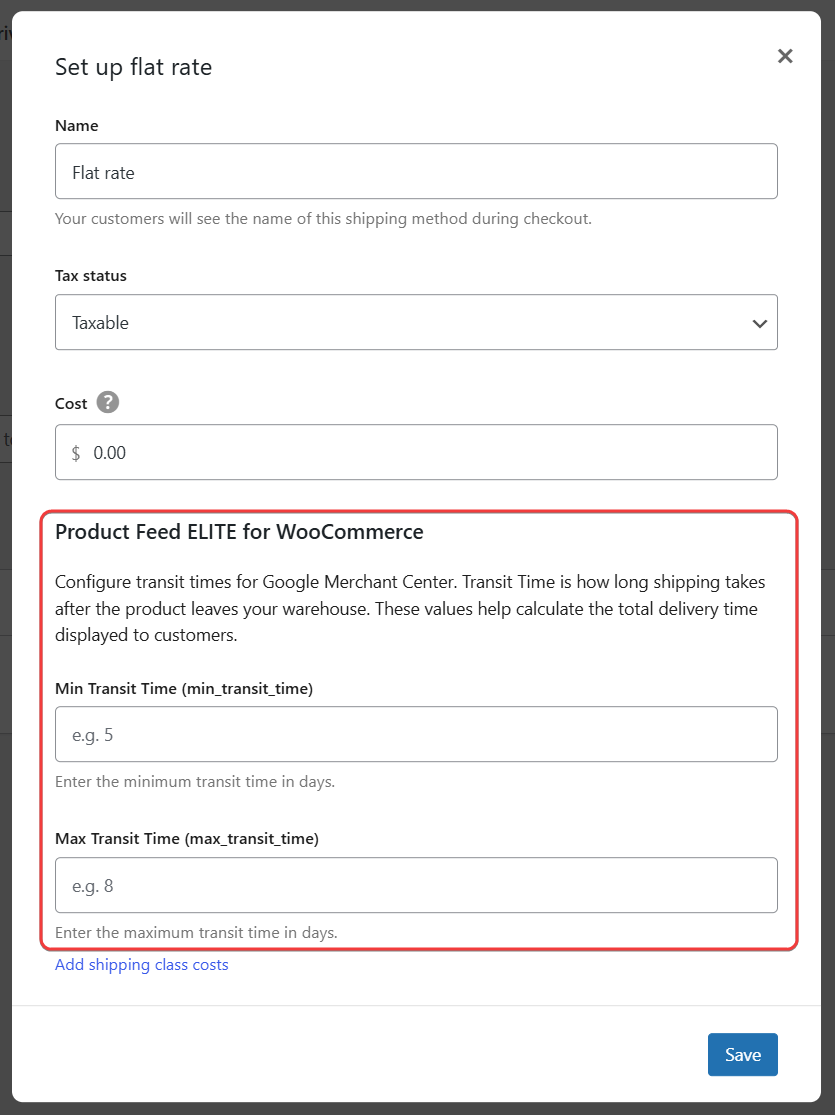
After activating the Product Feed Elite add-on, two new fields, Min Transit Time and Max Transit Time, become available inside the WooCommerce Flat Rate shipping method settings.
These fields allow you to define how long delivery takes after the order has been dispatched from your warehouse. The values you enter here are used in your product feed to calculate and send accurate delivery estimates to channels like Google Merchant Center.
How to Set Transit Time
- Go to WooCommerce → Settings → Shipping.
- Open your Shipping Zone.
- Click Flat Rate (or add a new one).
- Enter values for:
- Min Transit Time – The shortest expected delivery time (in days).
- Max Transit Time – The longest expected delivery time (in days).
- Click Save.
Example
If your courier usually delivers within 5 to 8 days after dispatch:
- Min Transit Time: 5
- Max Transit Time: 8
This range helps shopping platforms calculate a realistic delivery window for customers.
Tip: Base these values on your carrier’s actual delivery performance and average destination coverage. Avoid setting overly optimistic timelines, as inaccurate estimates can lead to customer dissatisfaction or policy issues on sales channels.
Configure Handling Time
Handling time refers to the number of days required to prepare an order before it is shipped. Since this can vary by product, it is configured at the product level in Product Feed Elite.
By default, the handling time fields are not visible on the product edit screen. You’ll need to enable them first.
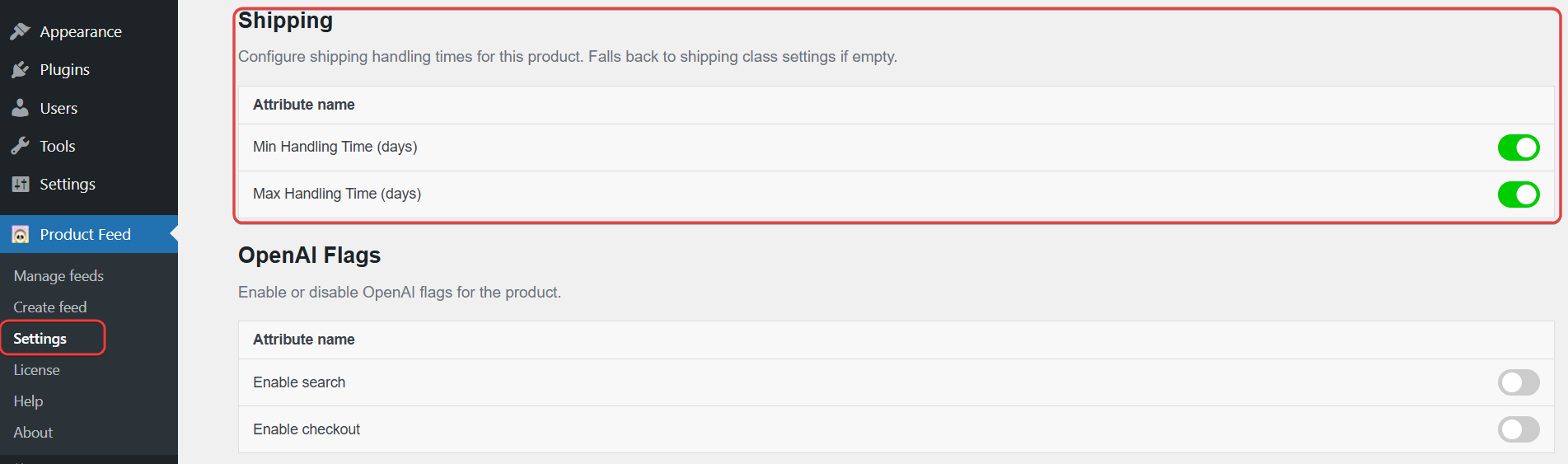
Enable Handling Time Fields
- Go to WP Admin → Product Feed → Settings → Extra Fields.
- Scroll to the Shipping section.
- Enable:
- Min Handling Time
- Max Handling Time
- Save your changes.
Once enabled, these fields will appear in the Shipping tab when editing a product
Set Handling Time for a Product
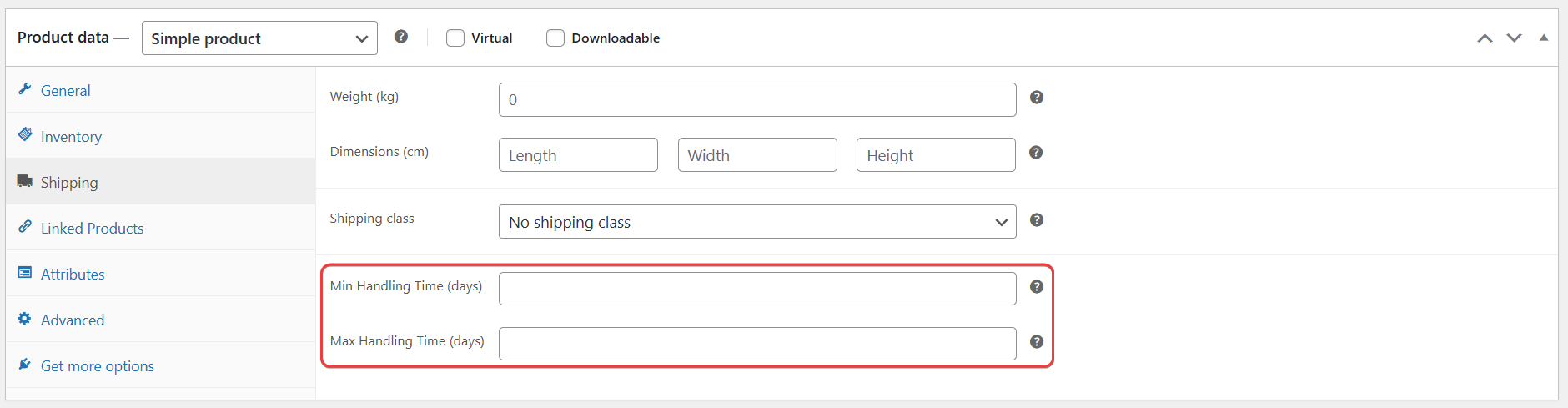
- Open any product for editing.
- Go to the Product Data → Shipping tab.
- Enter:
- Min Handling Time (days) – The minimum number of days required to prepare the order.
- Max Handling Time (days) – The maximum number of days required before dispatch.
- Update the product.
Example
If a custom-made product typically takes 2 to 4 days to prepare before shipping:
- Min Handling Time: 2
- Max Handling Time: 4
If these fields are left empty, the system will fall back to the default shipping class or global shipping settings, if configured.
Setting accurate handling times ensures your product feed reflects realistic processing durations, helping marketplaces calculate correct delivery estimates.
Mapping Fields in Feed
You do not need to map Transit Time and Handling Time separately in your feed configuration. Mapping the Shipping attribute is enough.
Once shipping is mapped, Product Feed Pro automatically includes transit and handling time values as nested attributes inside the main <g:shipping> field.

How It Works
When you map:
- Shipping → Shipping
The plugin generates structured shipping data in the feed. If transit and handling times are configured, they will be added under the <g:shipping> node automatically.
Example Output
Your feed will include shipping data like this:
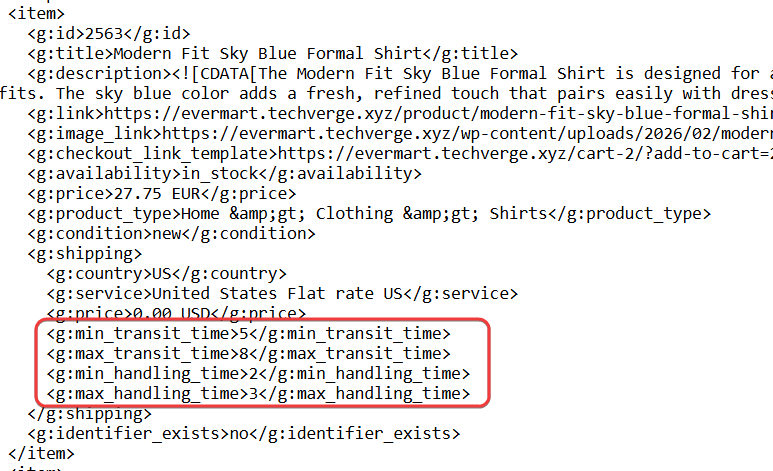
As long as the Shipping field is mapped and the time values are configured in your settings, they will be included automatically in the generated feed.
There is no additional mapping required.
Conclusion
Adding accurate transit and handling times to your product feed helps ensure customers see realistic delivery estimates before they place an order. By configuring transit time in your shipping methods and enabling handling time at the product level, you provide marketplaces with the data they need to calculate total delivery windows correctly.
Since these values are automatically included under the Shipping attribute in the feed, no extra mapping is required. Once properly configured, Product Feed Pro handles the rest.
Taking a few minutes to set this up can improve feed accuracy, reduce delivery-related confusion, and help maintain compliance with marketplace requirements.
Need Further Assistance?
If you need any further assistance with the Google Shopping feed, feel free to create a new ticket to reach out to our support team.
Please note that the ticket support system is exclusive to Product Feed ELITE users.
If you’re using only the Product Feed Pro plugin, feel free to open a new topic in the WordPress.org forum.