
If your Google Shopping listings show only one product photo, you can send up to 10 more photos from your WooCommerce product gallery. Google reads them from the additional_image_link attribute and shows them next to your main image.
This article shows how to map those gallery images in Product Feed Pro. It also explains how gallery images and videos work for variable products.
Prerequisites
| Requirement | Details |
|---|---|
| Plugin | Product Feed Pro (free or premium); Elite is not required |
| Plugin version | Product Feed Pro 13.5.8 or later for the steps below. Older versions use a different Field Mapping screen. |
| Feed channel | A Google Shopping feed with at least one WooCommerce product that has gallery images |
| Product setup | Products need gallery images uploaded in WooCommerce beyond the featured image, since additional_image_link maps to gallery images, not the main product image |
Map additional images
Step 1: Open field mapping
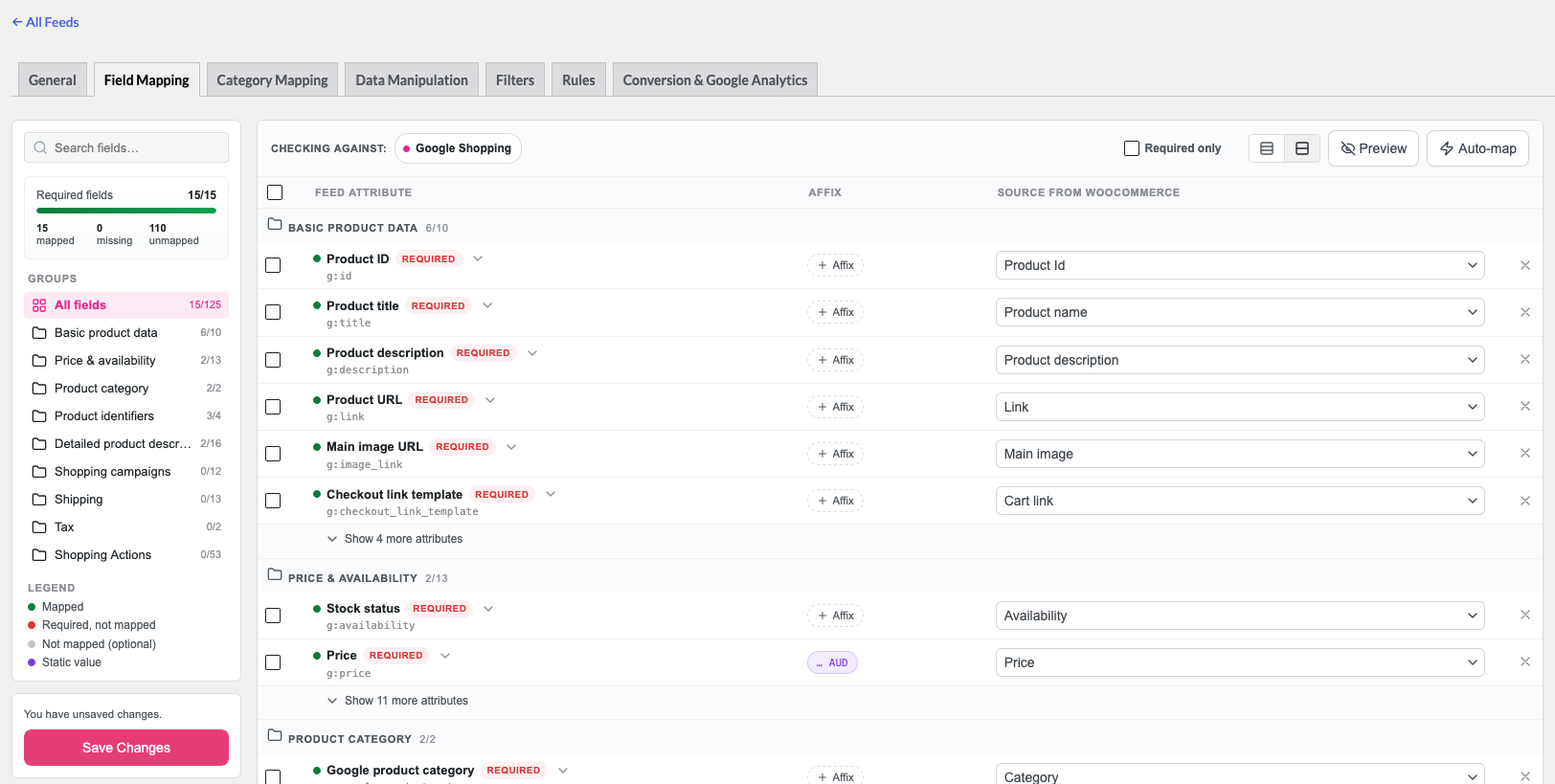
Open your Google Shopping feed in Product Feed Pro, then go to the Field Mapping tab.
Step 2: Find the additional image row
Find the Additional image URL row. The tag g:additional_image_link shows under the name.
If you don’t see the row, click Add field mapping. This shows every attribute the channel offers.
Step 3: Map the first gallery image
In the Source from WooCommerce column of that row, click Select a source, then choose Additional image 1.
Step 4: Add the other gallery images
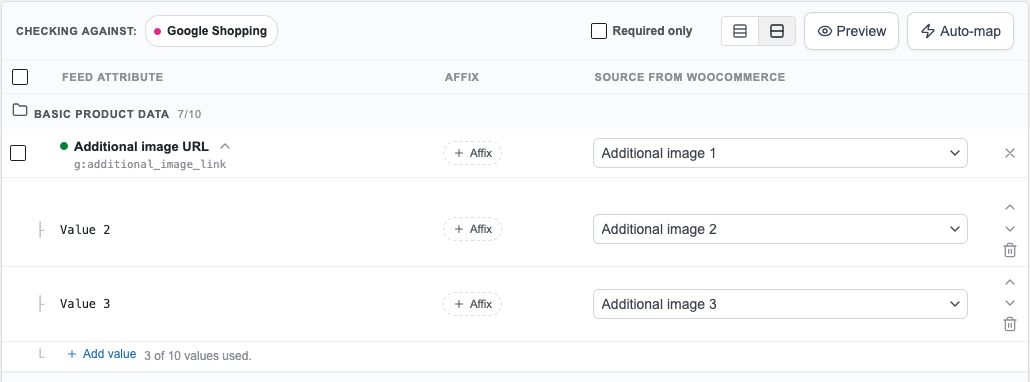
- Click the arrow next to Additional image URL to open the row details.
- Click Add value. A Value 2 row appears under the attribute.
- In the Value 2 row, choose Additional image 2 as the source.
- Repeat for each extra image, up to Additional image 10.
Google accepts up to 10 additional images, so the attribute takes up to 10 values.
Step 5: Save and refresh the feed
Click Save Changes. On a new feed, the button reads Save & Continue.
Refresh the feed to regenerate the XML or CSV file Google Merchant Center reads.
Variable products: gallery images and videos
Gallery images
When Include product variations is turned on for a feed, each variation gets its own row in the feed. For every variation row, Product Feed Pro takes the gallery images from the parent product. Additional image 1 to Additional image 10 fill from the parent gallery, so you don’t need any extra setting. To turn variations on, see How to add variable products to your product feeds.
This works the same in Product Feed Elite, because Elite runs on the Product Feed Pro feed engine.
Videos
Google Shopping feeds have a Video link attribute (g:video_link). Map it the same way as the images: find the Video link row, then choose the field that holds your video URL in Source from WooCommerce. For the full list of attributes, see Complete list of Product Feed attributes for mapping.
Custom fields saved on your products show in the Source from WooCommerce list under Added Custom Attributes. Each one is named after its field key, with underscores shown as spaces.
If you add product videos with CommerceKit, each video is attached to a gallery image, not saved in a product field. You cannot map that video directly. To send it in the feed, also save the video URL in a custom field on the product, for example with the Custom Fields panel or ACF.
On a variation row, Product Feed Pro reads the custom field from the variation first. If the variation has no value, it uses the value saved on the parent product. Save the video URL once on the parent product to send it on every variation row. To send a different video for one variation, save that URL in the same custom field on the variation.
To see how parent products and variations show in a feed, see Can I add parent (variable) products to my feed?. If you also send a feed to Meta, see Meta video attribute support for product feeds.
Troubleshooting
Version 13.5.8 brought a new Field Mapping screen. Older versions use a table with a Value column, where each extra image needs its own
additional_image_link row.additional_image_link rows mapped, and a Suffix value was set on those rows. Instead of leaving the extra slots out of the feed, the plugin wrote a node containing only the suffix text.This is fixed in Product Feed Pro 13.5.6. Update the plugin to the latest version, then refresh the feed. Slots without a matching gallery image are now left out of the feed entirely, whether or not a suffix or prefix is set.
Need more help?
If you’re on the free version of Product Feed Pro, open a support forum thread, and our team will get back to you there.
If you’re a Premium or Elite user, open a support ticket from your account, and we’ll help you directly.

