
Merkandi is a B2B wholesale and surplus goods marketplace where trade buyers search for overstock, clearance, and bulk lots. If you’re selling wholesale quantities through WooCommerce, connecting your store to Merkandi puts your products in front of buyers actively looking for that kind of stock.
Product Feed Pro includes a dedicated Merkandi XML template. It handles the required XML structure automatically, wrapping product names and descriptions in CDATA and grouping all your product images into the correct nested format.
Below, you’ll create the feed, map your product data to Merkandi’s fields, and submit the feed URL to your Merkandi seller account.
Prerequisites
Before you set up your Merkandi feed, make sure you have:
| Requirement | Details |
|---|---|
| Plugin version | Product Feed Pro 13.5.5 or later (or Product Feed Elite, which bundles Product Feed Pro) |
| Merkandi seller account | An active seller account at merkandi.com to submit and manage your feed |
| Merkandi reference IDs | Integer IDs for your product category, country, and grade. Download the CSV reference lists from merkandi.com under the “Files with IDs lists” section. |
How to create a Merkandi product feed
Step 1: Open the Create feed form
In your WordPress admin sidebar, go to Product Feed → Create feed.
Step 2: Name your feed and select the Merkandi channel
On the General tab:
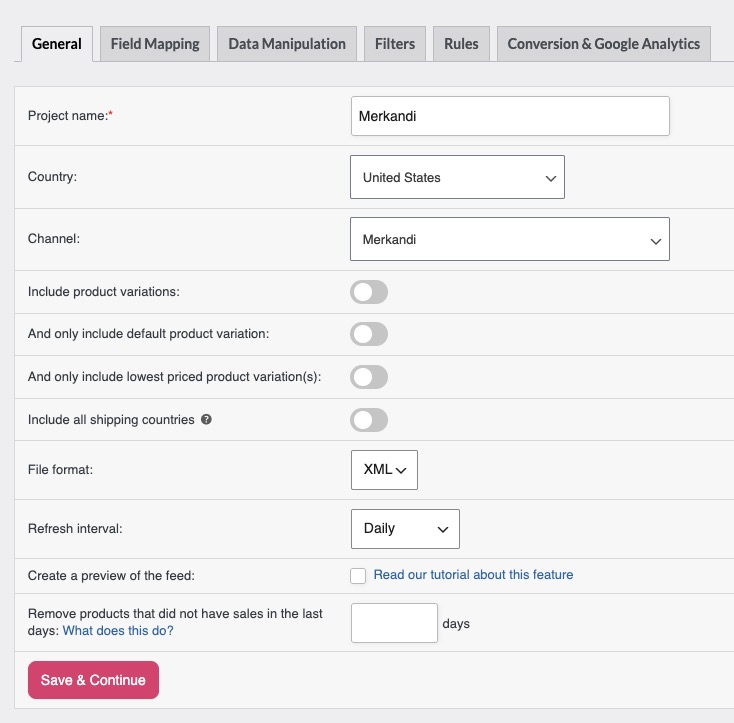
- Enter a name for your feed in the Project name field, for example
Merkandi Feed. - Open the Channel dropdown and select Merkandi.
- Click Save & Continue to move to the Field Mapping tab.
The File format field is set to XML automatically once you select Merkandi, the only format it accepts.
Step 3: Map required Merkandi attributes
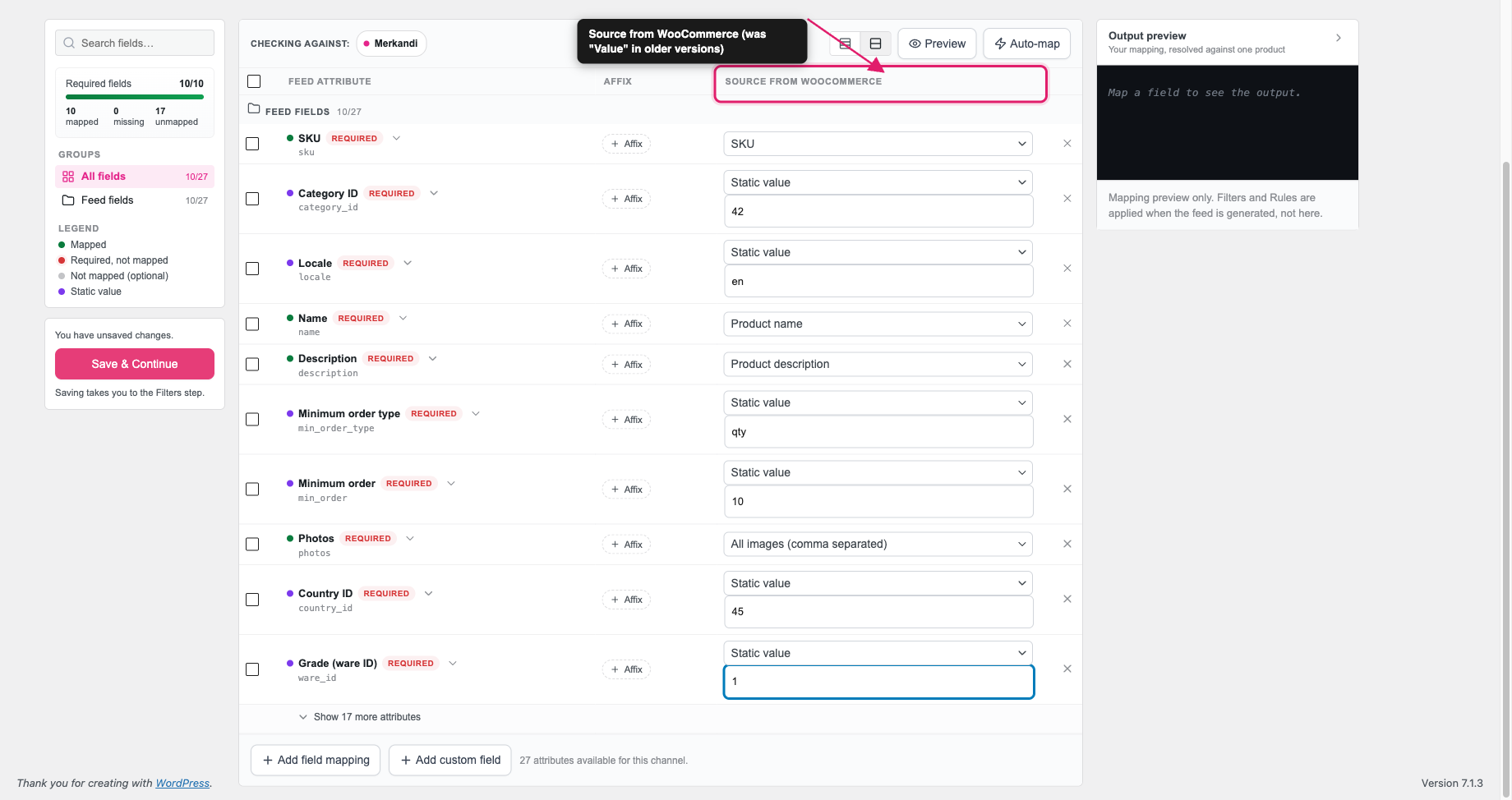
On the Field Mapping tab, the left column lists Merkandi’s feed attributes and the right Source from WooCommerce column is where you connect each attribute to a WooCommerce source or a static value.
Merkandi rejects feeds with any missing required field: every required attribute must return a value for every product.
Required fields
| Merkandi attribute | What to map |
|---|---|
| SKU | Select SKU from the Source from WooCommerce dropdown. |
| Name | Select Product name. Merkandi’s seller specification states a 70-character maximum; the plugin does not truncate this automatically. |
| Description | Select Product description. Merkandi’s seller specification states a minimum of 100 characters and a maximum of 4,000; the plugin does not enforce these limits. |
| Photos | Select All images (comma separated). The plugin includes up to seven images per product automatically. |
| Category ID | Enter a static integer from Merkandi’s category reference list (for example, 42). |
| Country ID | Enter a static integer from Merkandi’s country reference list (for example, 45 for Germany). |
| Grade (ware ID) | Enter a static integer from Merkandi’s product grade reference list (for example, 1 for new goods). |
| Locale | Enter the ISO 639-1 language code for your product data (for example, en, de, or pl). |
| Minimum order type | Enter qty if the minimum order is expressed as a quantity, or price if it is expressed as a monetary value. |
| Minimum order | Enter the minimum quantity (or value) a buyer must order (for example, 10). |
Step 4: Map optional attributes
Click Show 17 more attributes below the required fields on the Field Mapping tab to see these. The number drops as you map optional fields.
These fields aren’t required, but including them gives buyers more detail and can improve your listing performance.
| Merkandi attribute | What to map |
|---|---|
| Currency | Enter a static currency code in ISO 4217 format (for example, EUR, GBP, or USD). If omitted, Merkandi uses your account’s default currency. |
| Price | Select Price from the Source from WooCommerce dropdown. If omitted, Merkandi marks the listing as “price on request”. |
| Retail price | Enter your recommended retail price as a static value, or map to a custom attribute. |
| EAN | Map to your product’s EAN or barcode attribute. |
| Quantity | Map to your stock quantity attribute, or enter a static value. |
| Shipping days | Enter the number of days for delivery (for example, 5). |
| Promotional price | Map to your sale price attribute if you run promotions. |
| Minimum price | Enter the lowest price you’ll accept, used alongside the negotiation feature. |
| Maximum discount | Enter the maximum percentage discount you’re willing to offer (for example, 15). |
| For negotiation | Enter 1 to mark the listing as open for price negotiation, or 0 to keep the price fixed. |
| TARIC code | Enter the customs tariff code for your product category if required for your market. |
| Video URL | Map to a custom attribute that stores your product video URL. |
| Measure unit | Enter a static integer from Merkandi’s measure unit reference list. |
| Price measure unit | Enter a static integer from Merkandi’s price unit reference list. |
| Auto refresh | Enter 1 to enable automatic offer refresh (requires the Auto refresh service on your Merkandi account), or 0 to disable it. |
| Special products zone | Enter 1 to restrict your listing to Merkandi’s exclusive zone (hidden from public search), or 0 to keep it public. |
| Merkandi ID | Leave blank unless Merkandi has already assigned your offer an internal ID. |
Step 5: Apply filters and rules (optional)
Use the Filters tab to exclude products you don’t want in the Merkandi feed, such as products that are out of stock or below a minimum price. Use the Rules tab to transform values before they appear in the feed; for example, Product Feed Elite adds a Truncate to Character Limit rule you can use to keep product names within Merkandi’s 70-character limit.
For detailed instructions, see How To Create Filters For Your Product Feed? and How to Create Product Feed Rules.
Step 6: Generate the feed
- Click Save & Continue to progress through the remaining tabs.
- On the Conversion & Google Analytics tab, click Generate Product Feed to start feed generation. Product Feed Pro processes your WooCommerce catalog and produces an XML file.
- Once the feed finishes processing, go to Product Feed → Manage feeds.
- Click Copy URL next to your feed. You’ll need this URL to submit to Merkandi.
Submit your feed to Merkandi
- Log in to your Merkandi seller account at merkandi.com.
- Go to the XML import section of your seller portal (User Control Panel).
- Paste your feed URL into the import URL field.
- Choose whether to import once or repeatedly (daily, weekly, or monthly).
- Save the import configuration.
Merkandi fetches your feed on its own schedule and updates your listings automatically. When the cyclic import option is selected, the feed URL must remain permanently accessible.
Enable tiered pricing from WooCommerce Wholesale Prices Premium (optional)
If you run WooCommerce Wholesale Prices Premium and sell wholesale quantities, Product Feed Elite can export the quantity-based pricing you’ve set on each product (or on its parent variable product) as Merkandi tiered pricing instead of a flat price. Category-level and general role-level quantity pricing rules aren’t exported; set quantity pricing on the individual product for it to appear in the feed.
- Open your saved Merkandi feed from Product Feed → Manage feeds to reach its edit screen.
- On the General tab, turn on Use Wholesale Prices Premium quantity pricing for tiers.
- From the Export quantity pricing for wholesale role dropdown, select the wholesale role whose pricing rules you want to export.
- Click Save Changes.
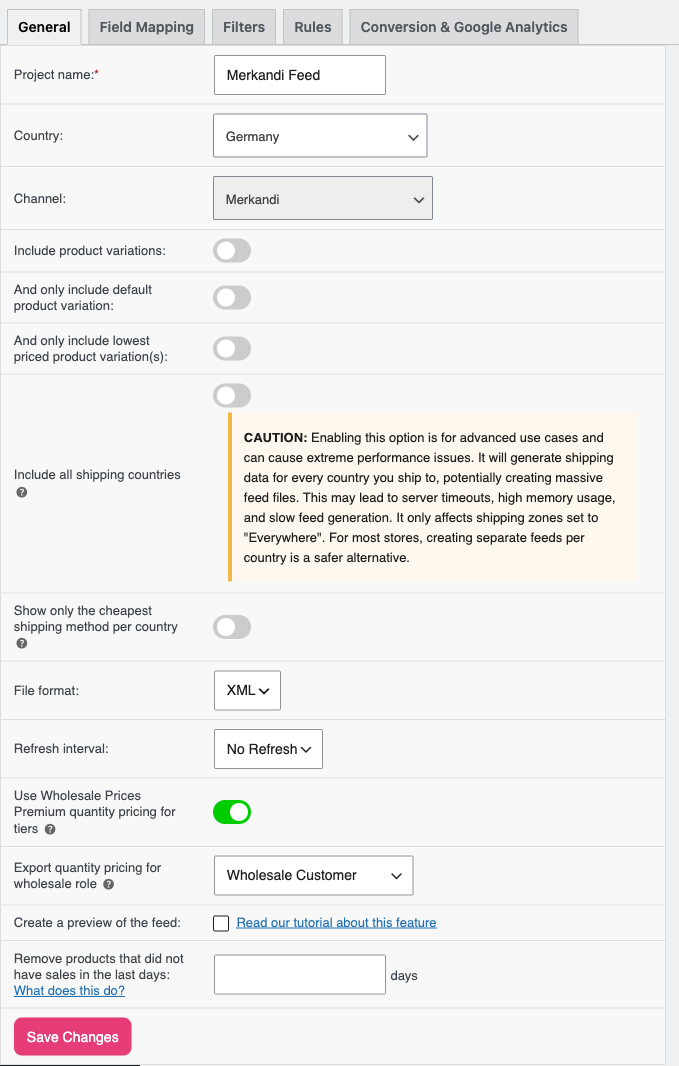
A feed carries one <pricing> block per product, so it can only export one wholesale role’s rules. Turning the toggle on without selecting a role has no effect: the feed keeps exporting the flat price until a role is chosen.
Troubleshooting
FAQ
<product> entry in the XML. This is off by default, in which case the feed lists parent products only. For detailed instructions, see How To Add Variable Products To Your Product Feeds?For any other wholesale pricing plugin, tiered pricing works through the
adt_merkandi_pricing_tiers filter: when a plugin populates it, the feed outputs a <pricing> block with quantity-from, quantity-to, and a price for each tier, and the flat Price field is omitted automatically. Contact your pricing plugin’s support team for details on enabling that integration.Need more help?
If you’re on Product Feed Elite, you can open a support ticket, and the team will help you get your Merkandi feed working.
If you’re on Product Feed Pro, post your question in the WordPress.org support forum.

