
If your products carry extra data in ACF or other custom fields, you can pull it straight into your product feeds. This guide shows you how to surface those custom fields in the mappable fields list and map them into your feed, including using them in rules and filters. AdTribes does not have an official ACF integration, but a small workaround makes it work with both Advanced Custom Fields (ACF) and other custom product meta.
The most common issue store owners run into is that ACF fields do not appear under the Mappable Fields section when building a feed. This happens because the plugin caches your product attributes, and newly created custom fields are not automatically detected. Clearing that cache forces the plugin to re-scan your products and pick up the new fields.
Once your ACF fields are visible in the mappable fields list, you can use them exactly like any other product attribute – map them to feed fields, include them in rules, and apply them as filters.
Requirements
- AdTribes Product Feed Pro or Product Feed Elite installed and active
- Advanced Custom Fields (ACF) plugin installed and active – the free version from the WordPress.org repository is sufficient
- At least one ACF field group configured to display on WooCommerce products
- At least one product with ACF field values populated
Step 1: Create your ACF field group
Start by creating a new ACF field group. Navigate to Custom Fields > Add New in your WordPress admin. Give the group a name, then configure the Location Rules so the fields appear on Post Type > is equal to > Product. This ensures your custom fields are attached to WooCommerce products.
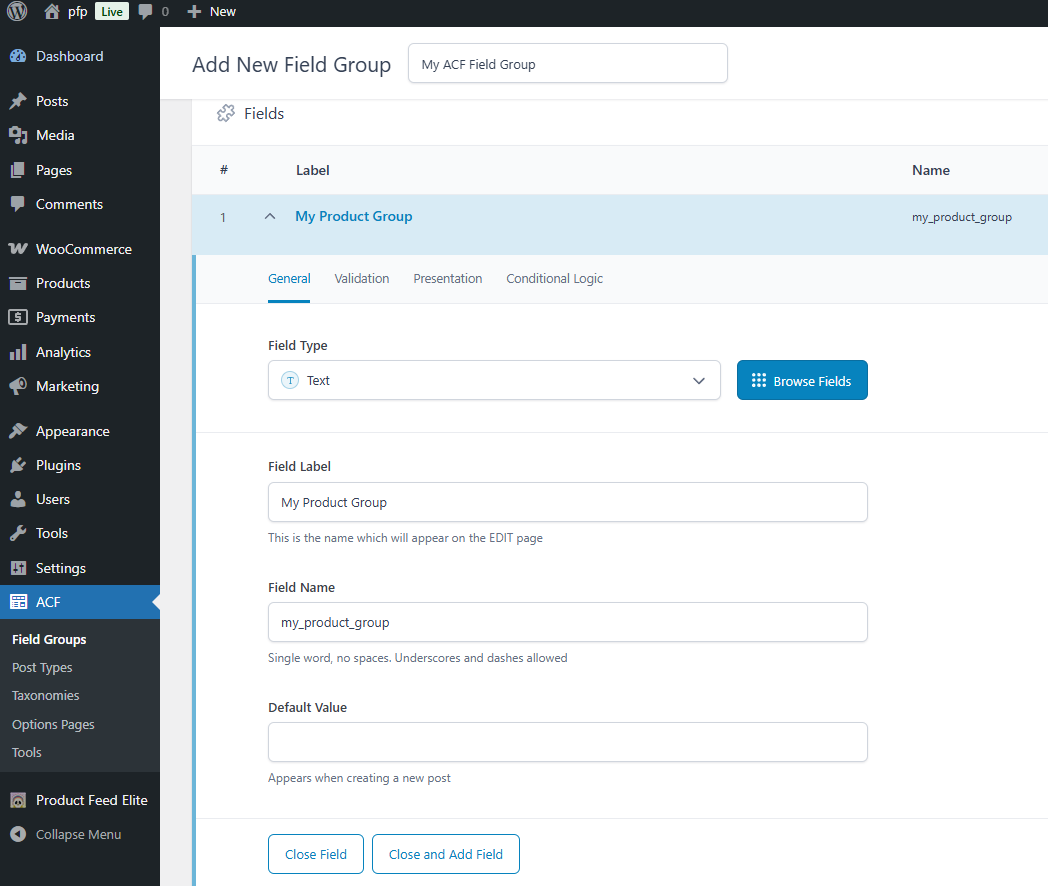
Add the fields you need to the group – for example, a text field for a custom label or a number field for a custom weight value. Save the field group when you’re done.
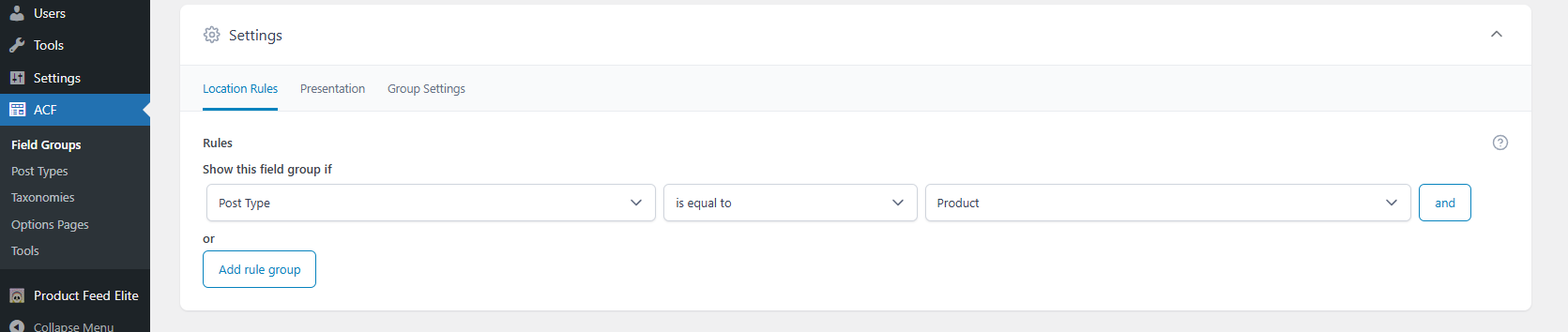
Step 2: Populate the fields on your products
With the field group saved, go to any product in Products > All Products and open it for editing. Scroll down to find your custom ACF fields below the standard product data. Enter values for each field that you want included in your feed.
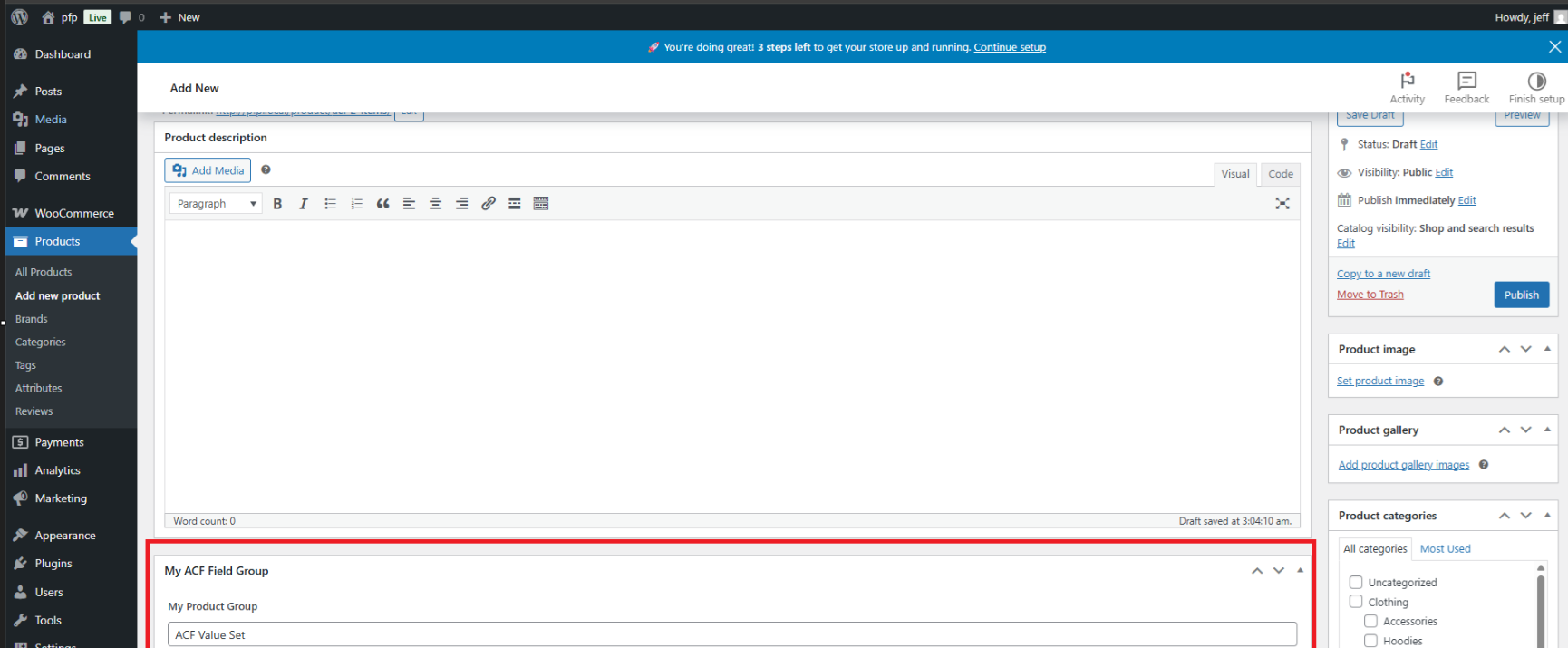
Make sure to update the product after entering your values. Repeat this for any products you want the custom field to appear on.
Step 3: Clear the custom attributes cache
By default, ACF fields will not appear in the Mappable Fields list when you’re configuring a product feed. This is because AdTribes caches your custom attributes for performance reasons and does not automatically detect new fields added by third-party plugins.

To make your ACF fields appear, navigate to Product Feed Pro/Elite > Settings and click the Clear custom attributes cache button.

Step 4: Map your ACF fields in the feed
After clearing the cache, return to your feed configuration and open the Mappable Fields section. Your ACF fields should now appear in the list – they may appear as two separate entries (with slightly different key names).
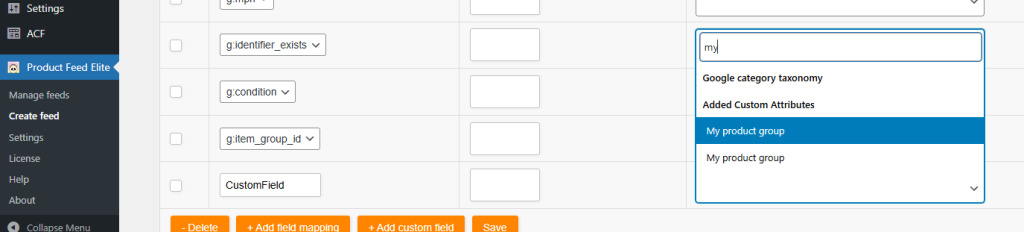
Select the first entry for your ACF field and map it to the appropriate feed attribute. Save the feed and refresh it to verify that the custom field value is populating correctly in the feed output.

If the value does not appear after refreshing, go back to the mappable fields and try the second entry for the same ACF field. The correct key depends on how ACF stores the field internally.
Using ACF fields in rules and filters
Once your ACF fields are visible in the mappable fields list, they are also available to use in Rules and Filters. This lets you include or exclude products based on custom field values, or manipulate the field output before it appears in your feed.


Frequently asked questions
I cleared the cache but my ACF fields still do not appear in Mappable Fields. What should I try?
First, confirm that at least one product has the ACF field populated with a value – the plugin only detects fields that have data saved against a product. If the field is empty on all products, it will not be indexed. After populating a value on at least one product, go to Product Feed Pro/Elite > Settings and click Clear custom attributes cache again, then return to your feed configuration and check the Mappable Fields list.
Why does my ACF field appear twice in the Mappable Fields list?
ACF stores field data in two ways: once under the field’s name key and once under an internal reference key prefixed with an underscore. Both keys can appear in the mappable fields list. The first entry is typically the correct one to use, but if values are not populating in your feed, switch to the second entry and refresh the feed.
Will I need to clear the cache every time I add a new ACF field?
Yes. Any time you add a new custom field – whether from ACF or any other plugin – you need to clear the custom attributes cache so AdTribes can detect the new field. Existing fields that are already cached will not be affected.
My ACF field maps correctly but the value is empty in the feed output. Why?
This usually means the product you’re testing does not have a value saved for that ACF field, or you have selected the wrong key from the two available entries. Check the product in the editor to confirm a value is saved, then try switching to the alternative key in the mappable fields list and refreshing the feed.
Can I use ACF fields that contain arrays or repeater field data?
AdTribes maps simple text, number, and select-type ACF fields reliably. Complex ACF field types such as Repeaters, Flexible Content, and Relationship fields store data as serialized arrays, which are not straightforward to map to a single feed attribute. For these field types, you may need a developer to create a custom snippet that flattens the data into a simple value before it can be used in a feed.
Does this work with ACF Pro or only the free version?
The workaround works with both the free ACF plugin and ACF Pro. The key difference is that ACF Pro includes additional field types (such as Repeater and Gallery) that may not map cleanly, as noted above. Standard field types from both versions work the same way.
Can I use this same approach for custom meta fields added by other plugins?
Yes. The custom attributes cache clearing process works for any custom product meta, not just ACF fields. If another plugin adds custom data to your products and it does not appear in the mappable fields list, clearing the cache is the correct first step. The field must have a value saved on at least one product to be detected.
Do my ACF field values update automatically in the feed when I edit a product?
Feed files are generated on a schedule or on demand. Updating a product’s ACF field values does not immediately update the live feed file – you need to refresh the feed manually from AdTribes > Feeds by clicking Refresh, or wait for the next scheduled generation cycle.
I can see the ACF field in Mappable Fields but it is not available in Rules or Filters. Is that normal?
No – if the field appears in Mappable Fields after clearing the cache, it should also be available in Rules and Filters. If it is missing, try clearing the cache again and then reopening the feed configuration. If the issue persists, make sure the field has a value saved on at least one product and contact support.
Is there an official ACF integration planned for AdTribes?
There is currently no official ACF integration. The workaround described in this article is the supported method for using ACF fields in product feeds. If an official integration becomes available, it will be announced in the plugin release notes.
Need help?
If you need any further assistance with mapping ACF fields or custom product meta in your product feeds, feel free to open a support ticket to reach out to our support team.
Please note that the ticket support system is exclusive to Product Feed Elite users.
If you’re using only the Product Feed Pro plugin, feel free to open a new topic in the WordPress.org forum.

