
If you’ve already activated Product Feed Elite, you might assume the Product Feed Translation Addon is licensed too. It isn’t — the addon ships with its own key and needs separate activation before AdTribes can treat your site as fully entitled for it.
Activate your key before setting up multilingual feeds. An unlicensed addon won’t receive updates or qualify for support. For installation and multilingual setup, see Getting Started with the Product Feed Translation Addon.
Before you start
| Requirement | Why it matters |
|---|---|
| Product Feed Pro | Active and recent. The shared License screen lives under the Product Feed admin menu. |
| Translation Addon plugin | Installed and activated, so the Translation Addon tab appears on that screen. |
| Plan, key, and email | Available on Plus and Business plans. Use the email tied to your AdTribes account and the key from My Account. If you lost them, see How Do I Retrieve My License Keys?. |
Also, the addon expects Product Feed Pro 13.5.3 or newer. If dependencies fail, fix those first; otherwise, the addon may not load its full admin integration.
Step 1: Open the Licenses page
Go to Product Feed → License.
If you’re using a multisite network, open the license screen from Network Admin on the main site when your setup expects network-level licensing.
Step 2: Open the Translation Addon tab
The Licenses page shows several tabs at the top of the license box. Each tab represents an AdTribes product installed on your site, such as Product Feed Elite or Translation Addon.
- Click the Translation Addon tab.
- Check the Version and License Status — both update after you activate in the next step.
If you only see a generic upsell tab, confirm that Product Feed Pro is active and that the Translation Addon plugin is activated.
Step 3: Enter your credentials and activate
- In License Key, paste the Translation Addon key from your AdTribes account.
- In Activation Email, enter the purchase or account email AdTribes has on file.
- Click Activate License.
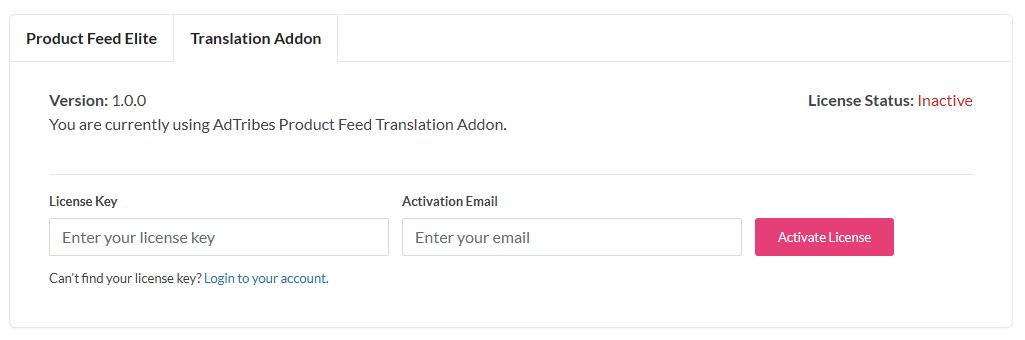
On success, a confirmation notice appears and the page reloads after a few seconds.
If activation fails, read the error text in the notice. Common causes include a typo in the key, the wrong email, an expired subscription, or the server being unable to reach AdTribes.
Step 4: Verify activation
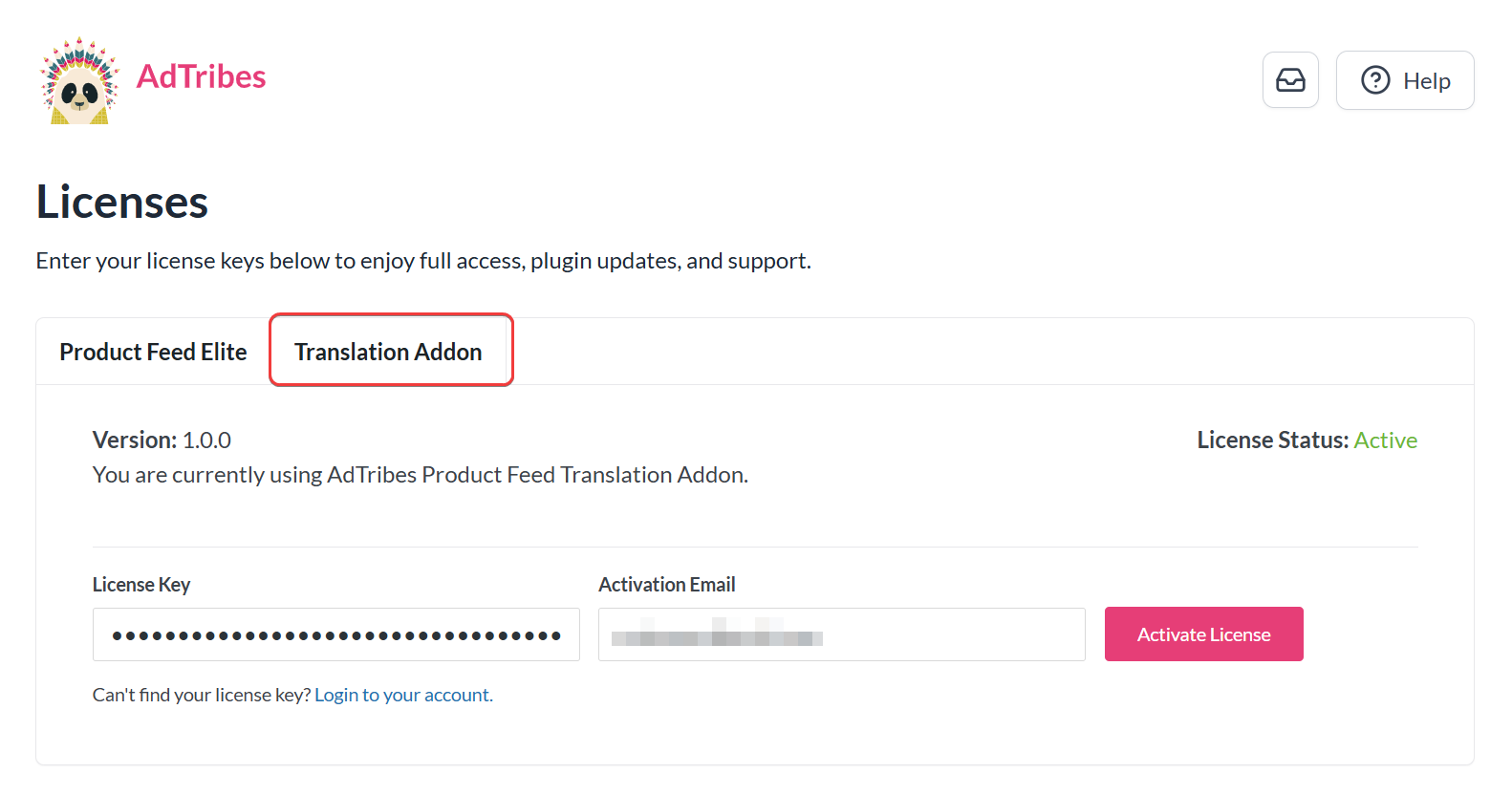
Stay on the Translation Addon tab and check the License Status.
| Status | What it means |
|---|---|
| Active | Your license is successfully activated, and the Translation Addon is ready to use. |
| Inactive | The license has not been activated yet, or the validation failed. Enter your license key and activation email, then activate the license again. |
| Expired (with expiry date) | Your license has expired and needs to be renewed to continue receiving updates and support. Use the Renew Now link if it appears. |
Why licensing matters
The in-plugin license notice says a valid license helps you fully activate the addon and get automatic updates, technical support, and premium features. Here is what that means in practice:
Automatic updates: Premium AdTribes plugins generally check for a valid, active license before they deliver updates through WordPress. Keeping the Translation Addon licensed helps you stay on supported versions.
Support: You need an active license and subscription when contacting support. That way, the team can verify your product and assist you properly.
Site registration: Activation ties this site URL to your license on AdTribes servers, which also enforces activation limits on your plan.
Frequently asked questions
Troubleshooting
Need help?
If you have a question or run into any issues, we’re here to help.
- Premium users: Open a support ticket
- Free users: Visit our community forum
When contacting support, include your site URL and a screenshot of any error message.

