
Upgrading your Product Feed subscription lets you unlock more features and higher limits without setting anything up from scratch. You’ll do everything from your Adtribes account, and the change takes effect right after purchase.
Steps to Upgrade
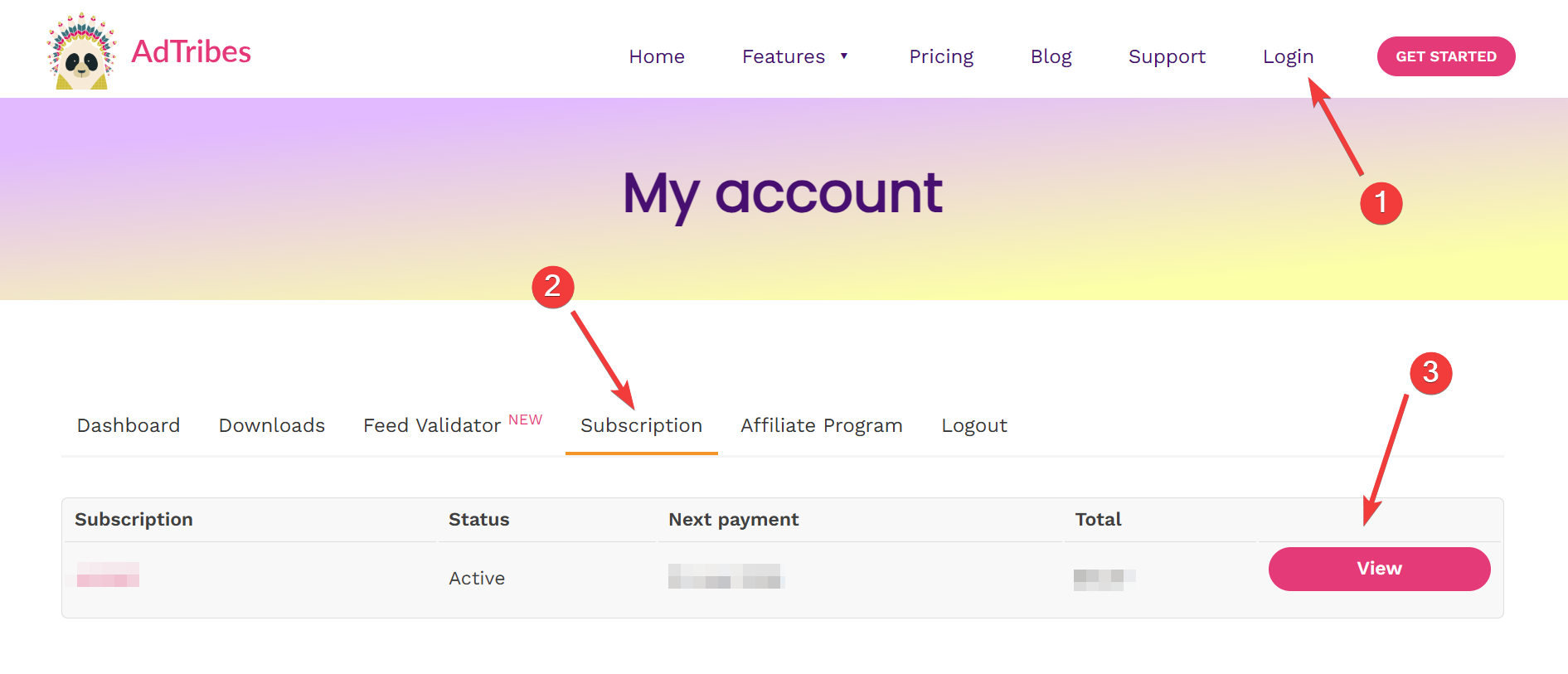
Sign in to the Adtribes Account that holds the subscription you want to upgrade. Go to Account → Subscription, find your Product Feed subscription, and click View to open the details.
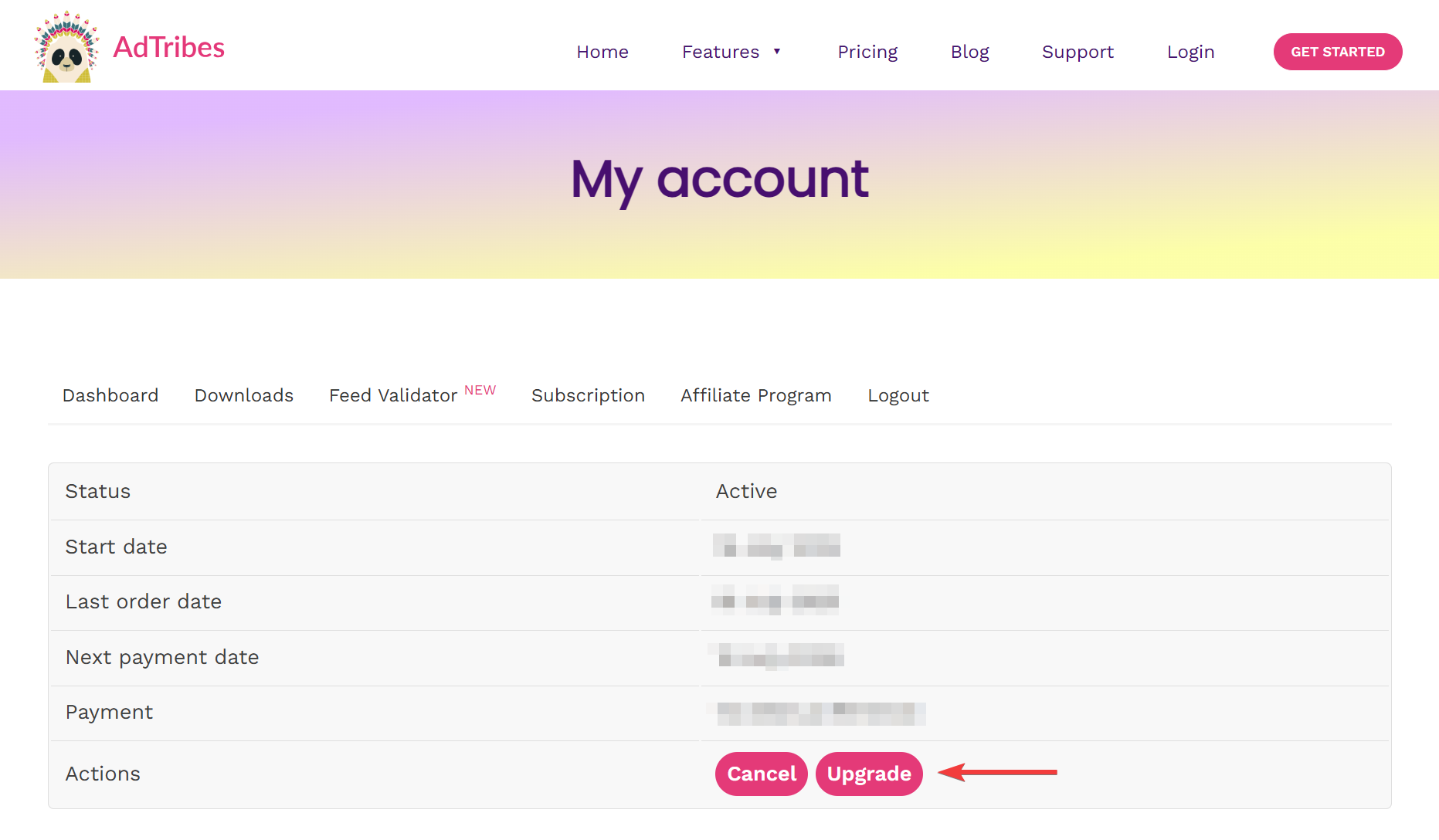
Click Upgrade on the subscription details page
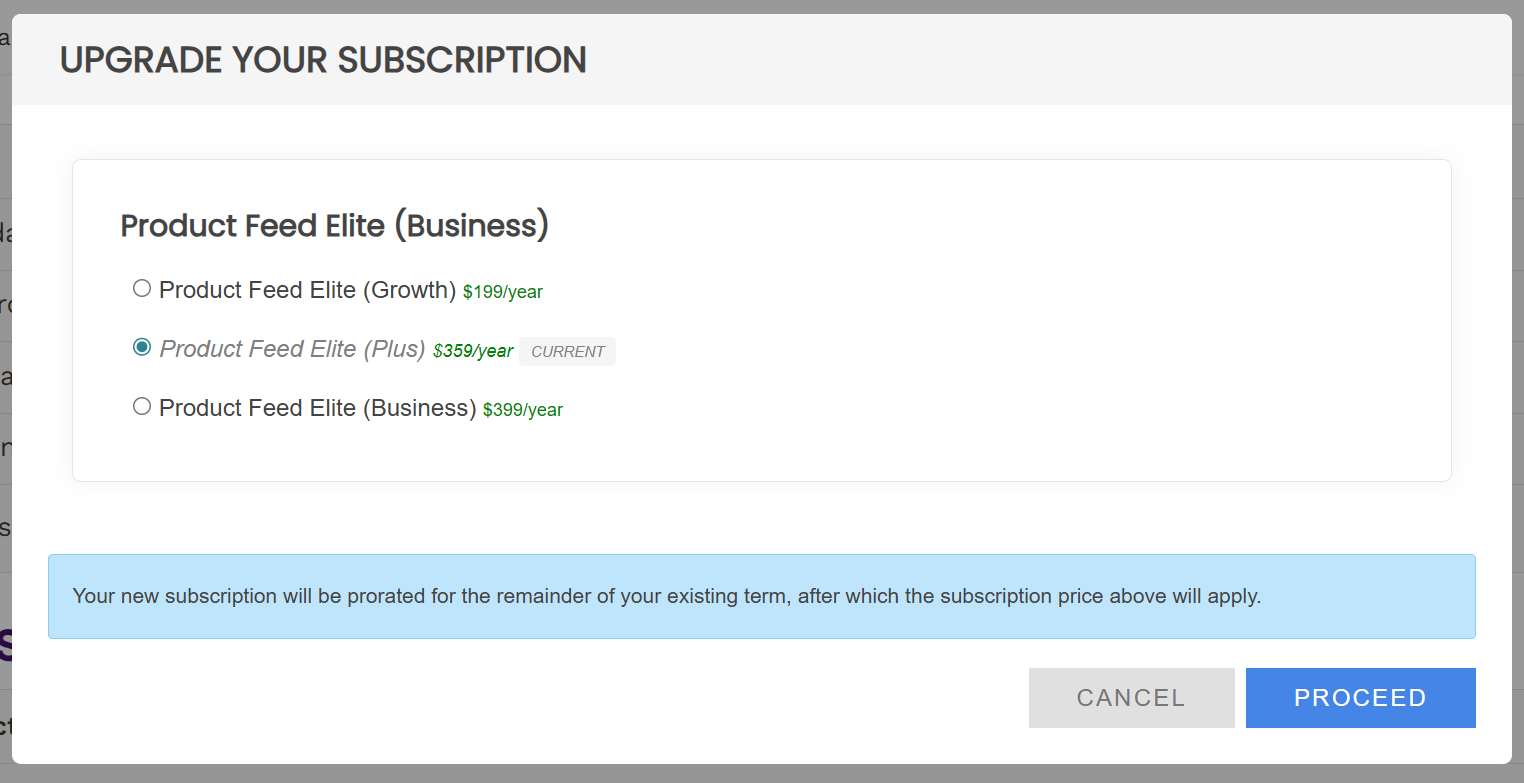
In the pop-up, select the plan that fits your needs, and click Proceed to complete the upgrade.
You’ll see the new plan on the Subscription page. A confirmation email and invoice will be sent to your account email.
That’s it. From Account → Subscription, open your Product Feed subscription with View, click Upgrade, choose a plan, and hit Proceed to finish. If you run into any issues, contact support, and they’ll help you complete the upgrade.
What each plan includes
| Plan | Sites | Included |
|---|---|---|
| Growth | 1 | Product Feed Elite |
| Plus | 3 | Product Feed Elite, Translation Add On, Multi-Currency Add On |
| Business | Unlimited | Product Feed Elite, Translation Add On, Multi-Currency Add On |
The Plus and Business plans already include both add-ons. If you are on Plus or Business you do not buy the Translation Add On or the Multi-Currency Add On separately. Each one arrives as its own license key, and a key only activates the plugin it belongs to.
What an upgrade costs and when it takes effect
You pay the difference rather than the full price of the new plan. The unused time on your current plan is credited against the new one, so the amount at checkout is prorated.
An upgrade does not start a new subscription and does not shorten the term you have already paid for. Your next renewal is charged at the full price of the new plan. Check the renewal date shown at checkout, and on the subscription afterwards, because a switch can move it.
Your existing license key keeps working. The site limit on it changes to match the new plan.
The Upgrade button only appears while the subscription is active. If you do not see it, open a support ticket and we will look at the subscription with you.
Multisite needs the Business plan
On a WordPress multisite network the license is checked across the whole network, so only a plan with unlimited site activations works. That is the Business plan. Growth and Plus are both refused on multisite, even when you only enable the plugin on one site in the network. See Activating the license key in a multisite network.
If you have a legacy Elite license
The steps above cover the current Growth, Plus and Business plans. A legacy Product Feed Elite subscription cannot be switched to the current plans from your account, so there is no Upgrade button for that move.
Both add-ons are still available for legacy Elite licenses, and there is also a route onto the current plans. Open a support ticket and tell us which add-on you need and how many sites you run. We will confirm which option fits your subscription.
Need help?
If you have a question or run into any issues, we are here to help.
- Premium users: Open a support ticket
- Free users: Visit the Product Feed Pro community forum

