
Providing multiple high-quality images of your products is one of the most effective ways to improve your Google Shopping performance. While your primary image captures attention, the additional_image_link attribute allows potential customers to see different angles, close-ups, or the product in use. By mapping your WooCommerce product gallery to your feed using Product Feed PRO, you can display up to 10 additional images per product, helping you build trust and increase click-through rates.
Guide to Map Additional Image
1. Access Your Feed Mapping
Navigate to the Product Feed Pro plugin in your WordPress dashboard. Open the feed you wish to edit or create a new one. Proceed to the Field Mapping section, where you define which WooCommerce data corresponds to Google’s requirements.
2. Add the Additional Image Attribute
Google allows for multiple additional images. To include them, you must add a new row for each image you want to provide:
- Click on the + Add field mapping button.
- In the Google Shopping Attribute column (left side), select Additional image URL (additional_image_link) from the dropdown.
3. Map to the Product Gallery
Once the attribute is selected, you need to tell the plugin where to pull the data from:
- In the Value column (right side), search for and select Additional image 1.
- Repeat this process for as many images as you have in your gallery, mapping “Additional image 2” through “Additional image 10” as needed.
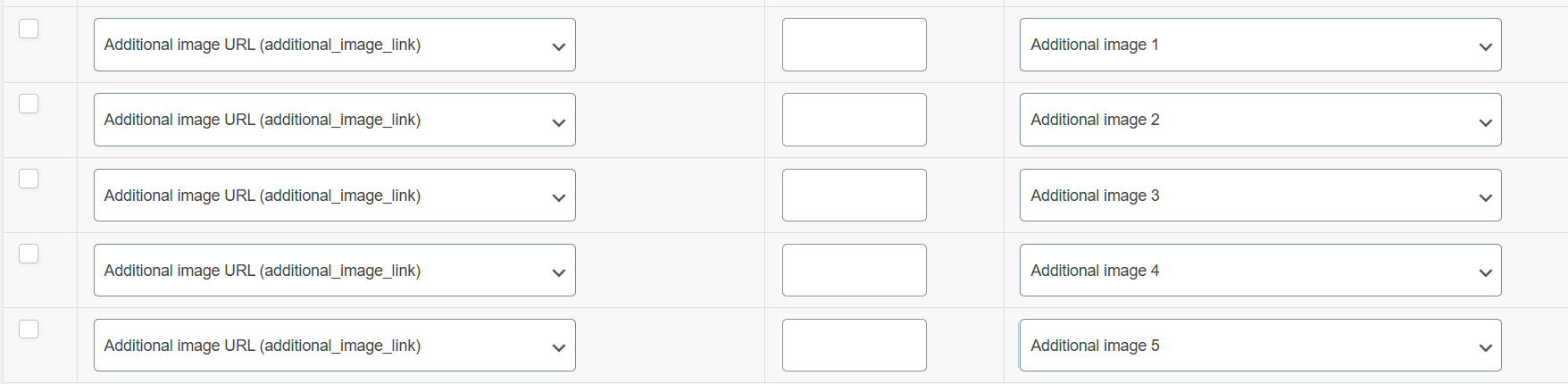
4. Verify the Mapping Logic
As shown in the configuration screenshot, your setup should look like this:
additional_image_link—>Additional image 1additional_image_link—>Additional image 2additional_image_link—>Additional image 3
5. Save and Refresh
After mapping the desired number of gallery images, scroll to the bottom of the page and click Save. Finally, refresh your feed to ensure the new image URLs are included in the XML or CSV file sent to Google Merchant Center.
Conclusion
Mapping additional images ensures that your product listings are as comprehensive as possible. By following these steps, you successfully transition your WooCommerce product gallery into a powerful marketing tool on Google Shopping. This small technical adjustment can significantly impact your store’s visibility and conversion potential.
Need Further Assistance?
If you need any further assistance or are having issues with filters, feel free to reach out to our support team.
Product Feed PRO Users: If you are using the free version, feel free to open a new topic in the WordPress.org forum for community-based support.
Product Feed ELITE Users: Please note that the ticket support system is exclusive to Elite users. You can create a new ticket to reach out to our support team directly.