
A vague delivery estimate makes shoppers hesitate at checkout. Google Shopping fixes that by showing a delivery window right on your ad, and it builds that window from two numbers you control: how long you take to prepare an order, and how long the carrier takes to deliver it.
Product Feed Elite lets you set both and send them straight to your feed, so shoppers see a realistic delivery estimate before they click through.
Handling time is the time between when a customer places an order and when you hand the package to the carrier. Transit time is the time the carrier then takes to deliver it. Google Merchant Center adds the two together to show the shopper a delivery window: for example, 2 days of handling time plus 3 to 5 days of transit time shows up as a 5 to 7 day delivery estimate.
Prerequisites
| Requirement | Details |
|---|---|
| Plugin | Product Feed Elite active and licensed |
| WooCommerce | A shipping zone with at least one Flat rate shipping method, if you want to set transit time |
| Feed channel | Google Shopping. Transit and handling time attributes are only available for this channel |
Turn on handling time fields
- In your WordPress admin, go to Product Feed → Settings.
- Open the Extra fields tab.
- In the Shipping section, turn on Min Handling Time (days) and Max Handling Time (days).
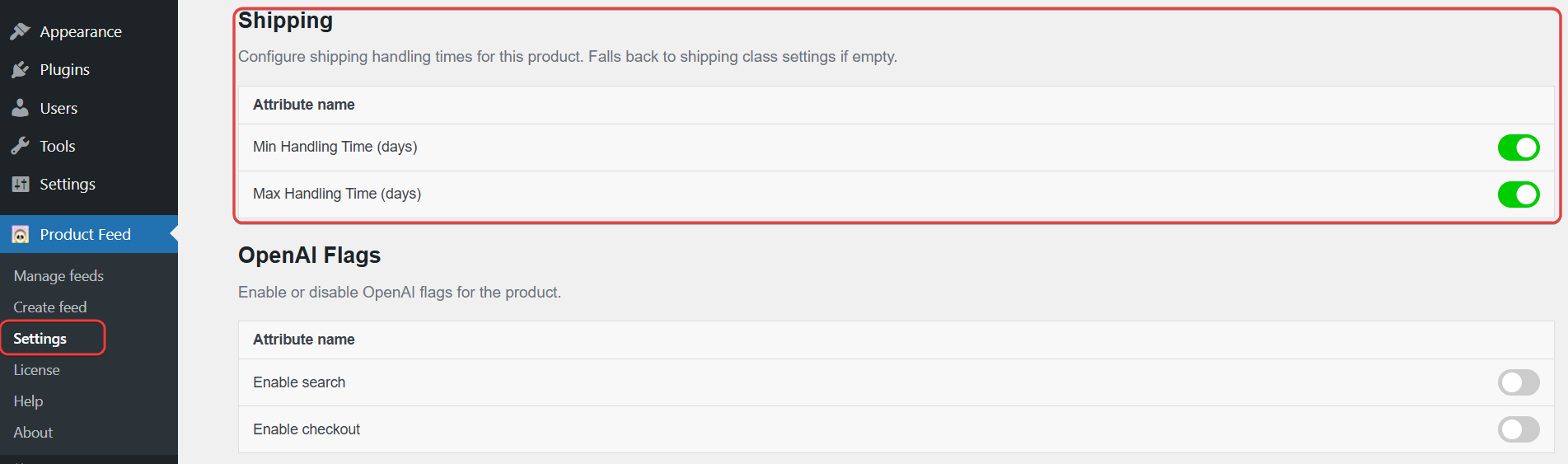
Set handling time on a product
- Open the product for editing.
- Go to the Product data → Shipping tab.
- Enter values in Min Handling Time (days) and Max Handling Time (days).
- Click Update.
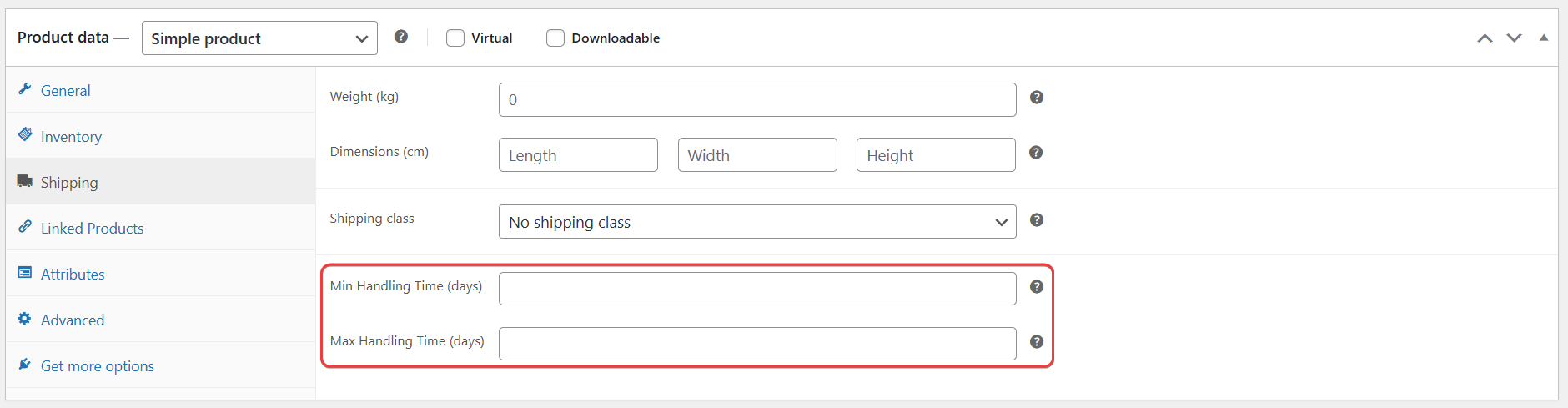
Set a handling time default for a shipping class
Set this once per shipping class instead of on every product that uses it.
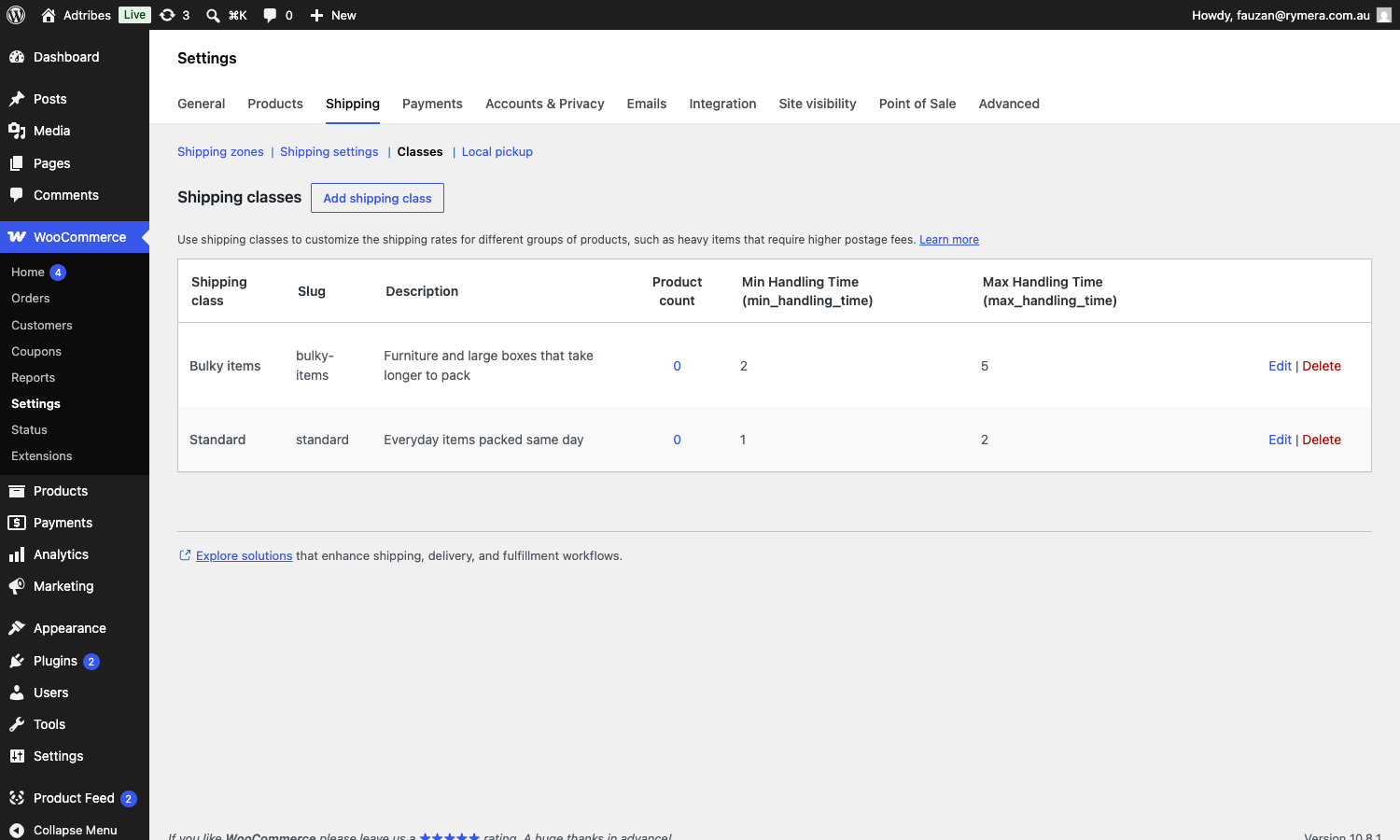
- Go to WooCommerce → Settings → Shipping → Classes.
- Click the shipping class you want to update.
- Enter values in Min Handling Time and Max Handling Time.
- Click Save changes.
Any product in this shipping class that has no product-level handling time uses these values instead.
Set transit time
Transit time is set on the shipping method itself, not on individual products. If a store has more than one shipping zone or Flat rate method, set transit time on each one you want reflected in the feed.
- Go to WooCommerce → Settings → Shipping.
- Open the shipping zone you want to update.
- Click the Flat rate method.
- Under Product Feed ELITE for WooCommerce, enter values in Min Transit Time and Max Transit Time.
- Click Save changes.
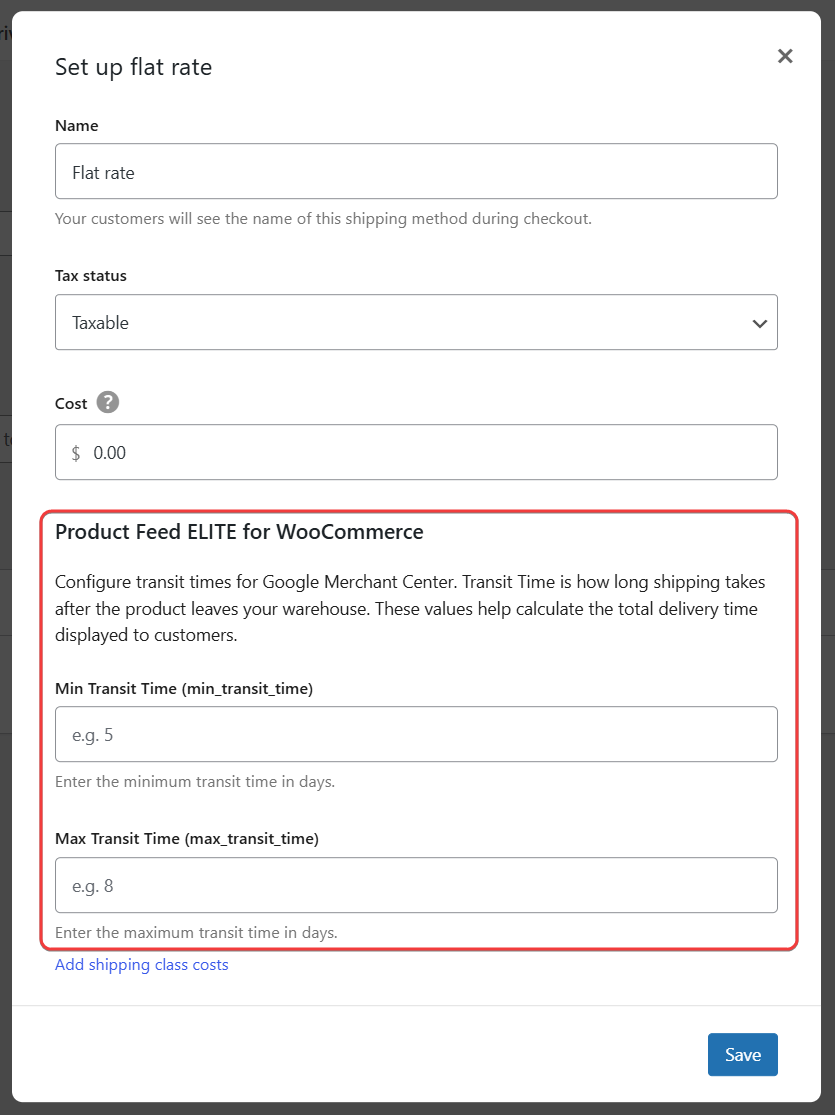
Map the values in your feed
You can map these values into your Google Shopping feed either of two ways:
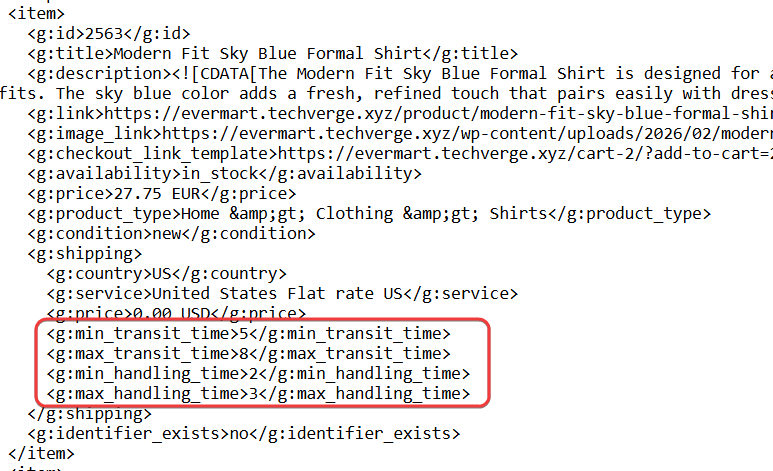
- Map the Shipping attribute. The plugin automatically nests transit and handling time as
g:min_transit_time,g:max_transit_time,g:min_handling_time, andg:max_handling_timeinside<g:shipping>, alongside shipping cost and destination. - Map the four attributes on their own. Use Minimum handling time, Maximum handling time, Minimum Transit Time, and Maximum Transit Time if you want to send these values without mapping shipping cost or destination through the same attribute.

For detailed instructions on mapping attributes, see Complete list of Product Feed attributes for mapping.
Example output
Mapping the Shipping attribute produces feed output like this, with transit and handling time nested under <g:shipping>:
Troubleshooting
FAQ
Need more help?
If you’re on Product Feed Elite and need a hand, open a support ticket and our team will help you sort it out.
If you’re using the free Product Feed Pro plugin, post your question on the WordPress.org support forum and the community or our team will get back to you.

