
A well-optimized product feed is the foundation of any successful Bing Shopping campaign. Bing Shopping (powered by Microsoft Advertising) gives you access to hundreds of millions of daily searches across Bing, Yahoo, DuckDuckGo, and other search engines in Microsoft’s network. Bing’s audience tends to be slightly older and more affluent, with higher average online spending, making it a valuable complement to Google Shopping.
This guide walks you through creating and submitting your first product feed for Bing/Microsoft Shopping using Product Feed Pro or Product Feed Elite for WooCommerce, from data preparation to troubleshooting common issues.
Understanding Bing Shopping: The “What” and “Why”
Why Use Bing Shopping?
- Extended reach: Access searches on Bing, Yahoo, DuckDuckGo, and Microsoft partner sites
- Different audience: Often older, more affluent shoppers with higher purchase intent
- Free and paid listings: Support for both free product listings and paid Bing Shopping Ads
- Lower competition: Often less crowded than Google Shopping, with potential for better ROI
What is a Product Feed?
A product feed is a structured data file (typically XML, TXT, or CSV) containing your products and their attributes. Each product is a row, and each attribute (title, price, ID, etc.) is a column. Microsoft Merchant Center uses the same feed format as Google Shopping, so if you already have a Google feed, the setup is very similar.
What You Need Before You Start
- A Microsoft Advertising account: Create one at ads.microsoft.com. This is where you’ll manage Shopping campaigns.
- A Microsoft Merchant Center catalog: Your product feed will be uploaded here. It’s the hub for all your product data for Bing Shopping.
- WooCommerce store: With Product Feed Pro or Product Feed Elite installed and activated.
Building Your Feed
To create a new feed, open your WordPress Dashboard and go to Product Feed → Manage Feeds, then click Add New Feed.
As a shortcut, you can also go directly to Product Feed → Create Feed.
General Settings
In the General Settings step, configure the basic feed options:
| Setting | Recommendation |
|---|---|
| Project Name | Give your feed a clear name (e.g., BING_US) |
| Country | Choose your target country (e.g., United States) |
| Channel | Select Bing Shopping |
| Include Product Variations | Enable for variable products (e.g., different sizes/colors) |
| Only Include Default Product Variation | Use to limit to the default variation only |
| Only Include Lowest Priced Variation(s) | Use if you want one variation per product |
| Include all shipping countries | Enable if you wish to have all shipping methods from all shipping zones |
| File Format | XML (recommended), CSV, or TXT |
| Refresh Interval | Hourly, daily, or no refresh, based on how often your catalog changes |
| Create a Preview of the Feed | Recommended: generate a test feed before submission |
| Remove Products Without Sales | Optional: exclude products that haven’t sold within X days |
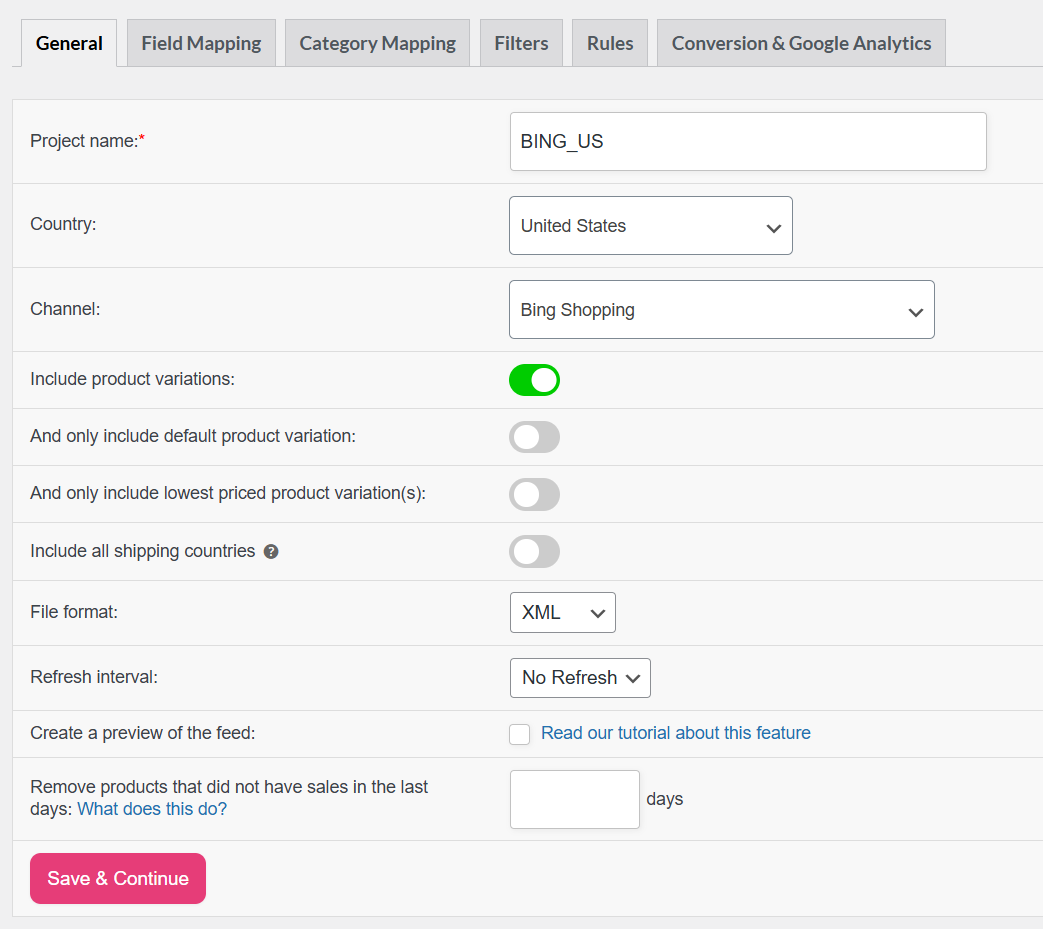
Click Save & Continue to proceed to Field Mapping.
Field Mapping
Bing Shopping uses the same attribute structure as Google Shopping. The plugin pre-maps the most important attributes; however, you should review and adjust them for your specific store.
Required Fields
| Bing Attribute | Default Mapping | Best Practice |
|---|---|---|
| id | Product ID | Use a unique, stable identifier. Never use SKU unless it’s always unique and never changes. |
| title | Product Name | Match your landing page title. Variation details (color/size) auto-append. No promotional text. |
| description | Product Description | Buyer-relevant facts. Avoid repetitive or marketing jargon. |
| link | Link | Product URL. UTM parameters can be auto-appended for tracking. |
| image_link | Main Image | High-quality, clear images. Required for approval. |
| price | Price | Keep default unless using sale prices (map to Regular Price + add Sale Price) or VAT handling (map to Price incl. VAT or Price excl. VAT). |
| shipping | Shipping | Required for Bing. Map to your WooCommerce shipping zones. |
| item_group_id | Item Group ID | Required for variations; links variants to the parent product. |
Important Optional Fields
| Attribute | Recommended Mapping | Best Practice | Purpose |
|---|---|---|---|
| brand | Brands | Map to “Brands” (dynamic attribute), which is WooCommerce’s Brands taxonomy | Improves product matching and grouping. Map to Brands taxonomy if available. |
| gtin | Global Unique ID (GTIN, UPC, EAN, or ISBN) | Map to Global Unique ID. Never use SKU. Use MPN if no GTIN. If neither exists, plugin auto-sets identifier_exists=no | Global Trade Item Number (UPC, EAN, ISBN). Use manufacturer-assigned values only. |
| mpn | MPN | Map to MPN (Custom attribute). Don’t use internal SKUs. If absent, plugin auto-sets identifier_exists=no | Manufacturer Part Number. Required if no GTIN. |
| identifier_exists | Plugin calculation | Leave default. Plugin auto-sets “yes” or “no” from GTIN, Brand, and MPN. Optional but helps avoid disapproval if any are missing. | Tells Google about identifier availability. |
| availability | Availability | Auto-sets stock status in Bing Shopping format | Stock status (in_stock, out_of_stock, preorder). |
| condition | Condition | Keep the default as “new,” or map to Condition (Custom Attribute) if using extra fields. | new, refurbished, or used. |
| product_category | Category | Map products to the closest Google product taxonomy category. | Improves ad targeting and product discovery. |
| product_type | Category path | Use your store’s category hierarchy (e.g., Electronics > Accessories > Chargers). | Helps campaign organization and reporting. |
| sale_price | Sale Price | Provide the discounted price when running promotions. Ensure it’s lower than the regular price. | Displays promotional pricing to attract buyers. |
| sale_price_effective_date | Sale Price Effective Date | Specify the start and end time of the sale using the correct date format | Controls when the promotional price appears. |
Bing-Specific Attributes
| Attribute | Purpose |
|---|---|
| adwords_grouping | Group products for campaign organization. |
| adwords_label | Custom labels for campaign targeting. |
| adwords_redirect | Custom redirect URL. |
| custom_label_0 to custom_label_4 | Additional labels for segmentation. |
| seller_name | Your store/seller name. |
Note: For fixed values (e.g., condition = “new”), select Static Value and enter the value. Add more fields via + Add Field Mapping.
Click Save & Continue to proceed to Category Mapping.
Category Mapping
Map your WooCommerce categories to the Google product taxonomy (Bing uses the same taxonomy). On the left, you’ll see your categories; on the right, type at least four characters to get taxonomy suggestions. Map all categories for better performance and fewer disapprovals.
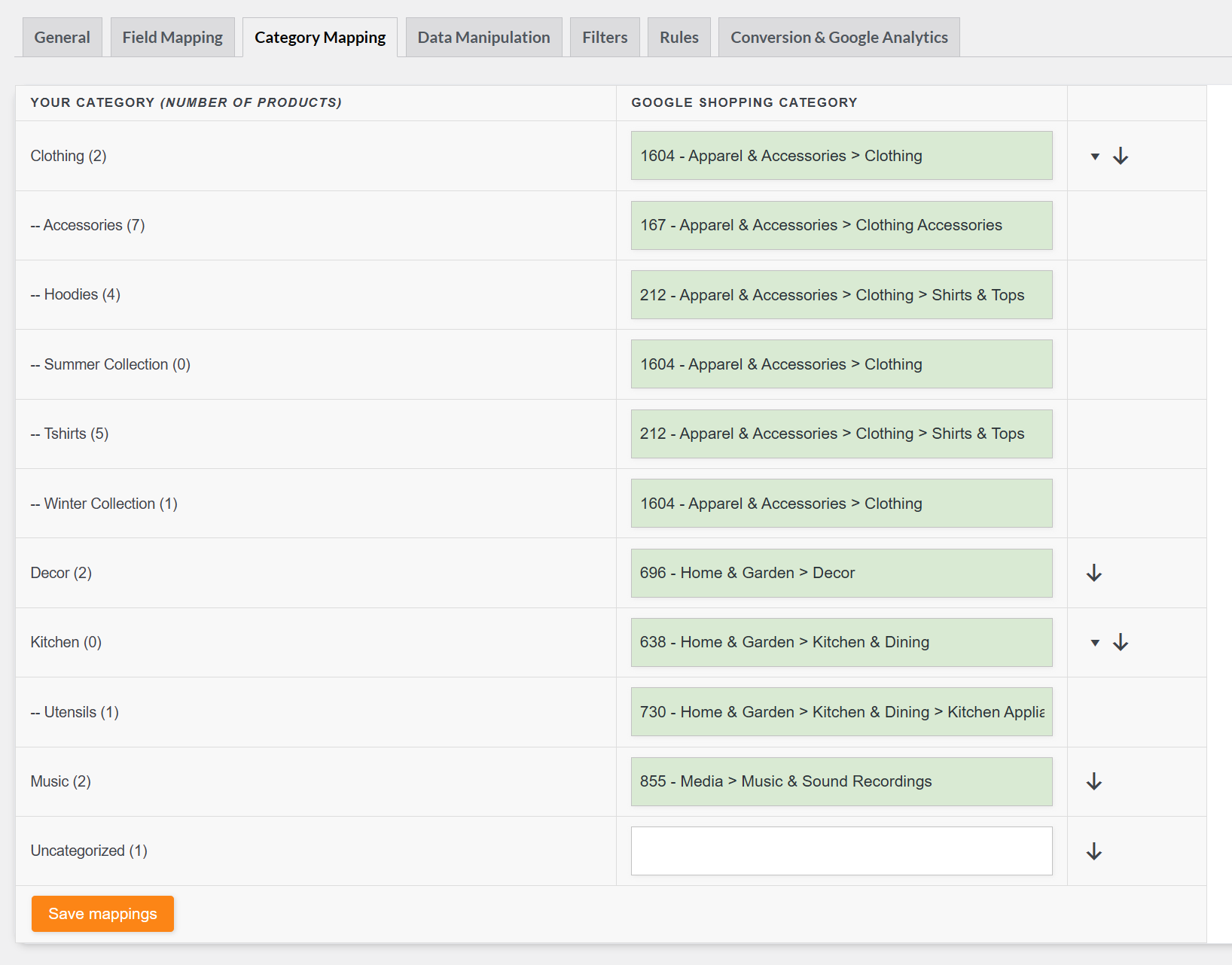
Click Save & Continue to proceed to Filters.
Filters
Filters let you include or exclude products based on conditions. Common use cases:
- Filter by price range, stock status, or custom attributes
- Include only products from specific categories or brands
- Exclude out-of-stock or low-margin items
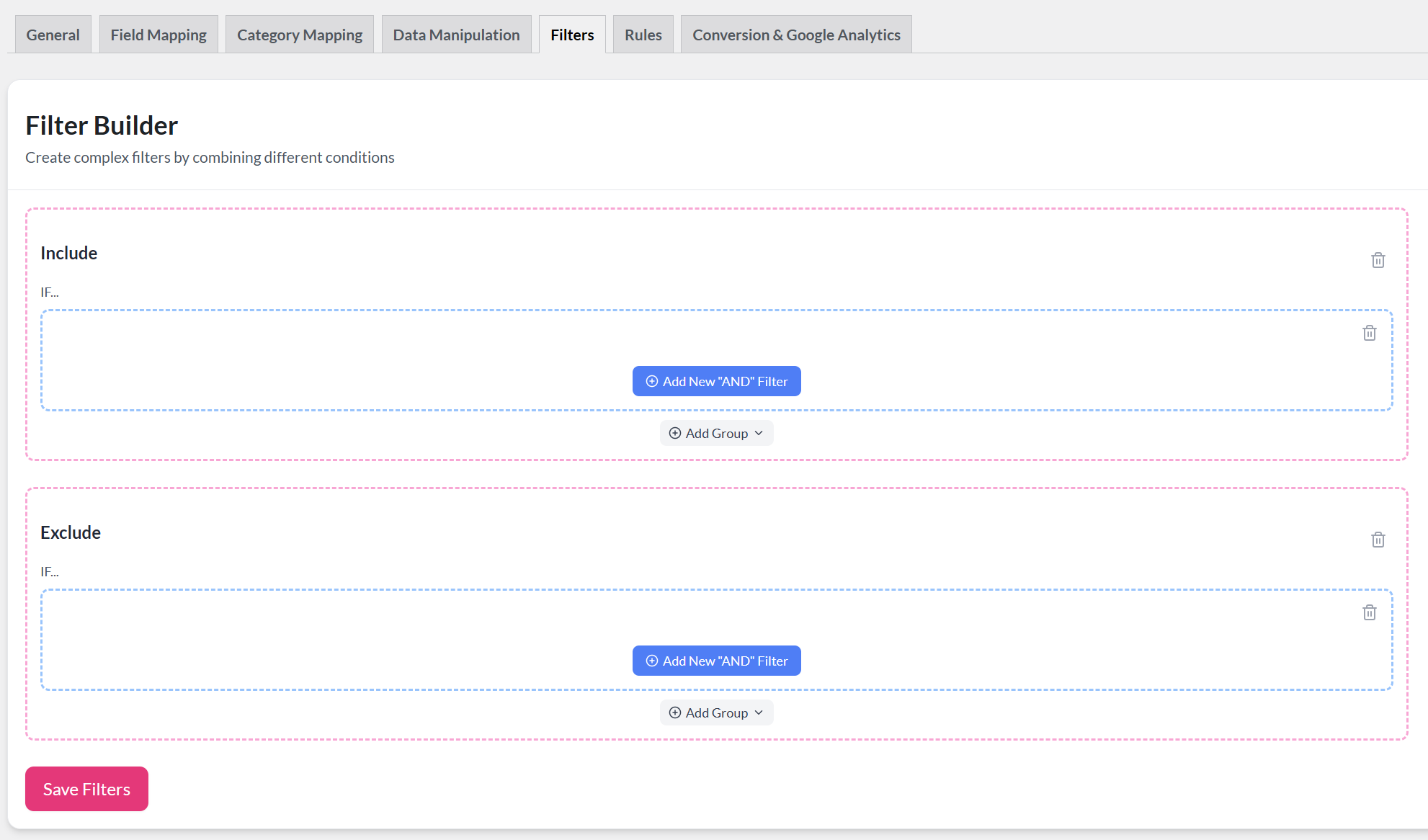
For step-by-step guidance, see How to Create Filters for Your Product Feed.
Rules
Rules let you dynamically adjust product data using “IF… THEN…” logic. Use them to:
- Set fallback values when fields are empty
- Standardize attributes (e.g., “blk” → “Black”)
- Adjust pricing for certain categories
- Add or change values (e.g., prepend “Buy Now:” to titles)
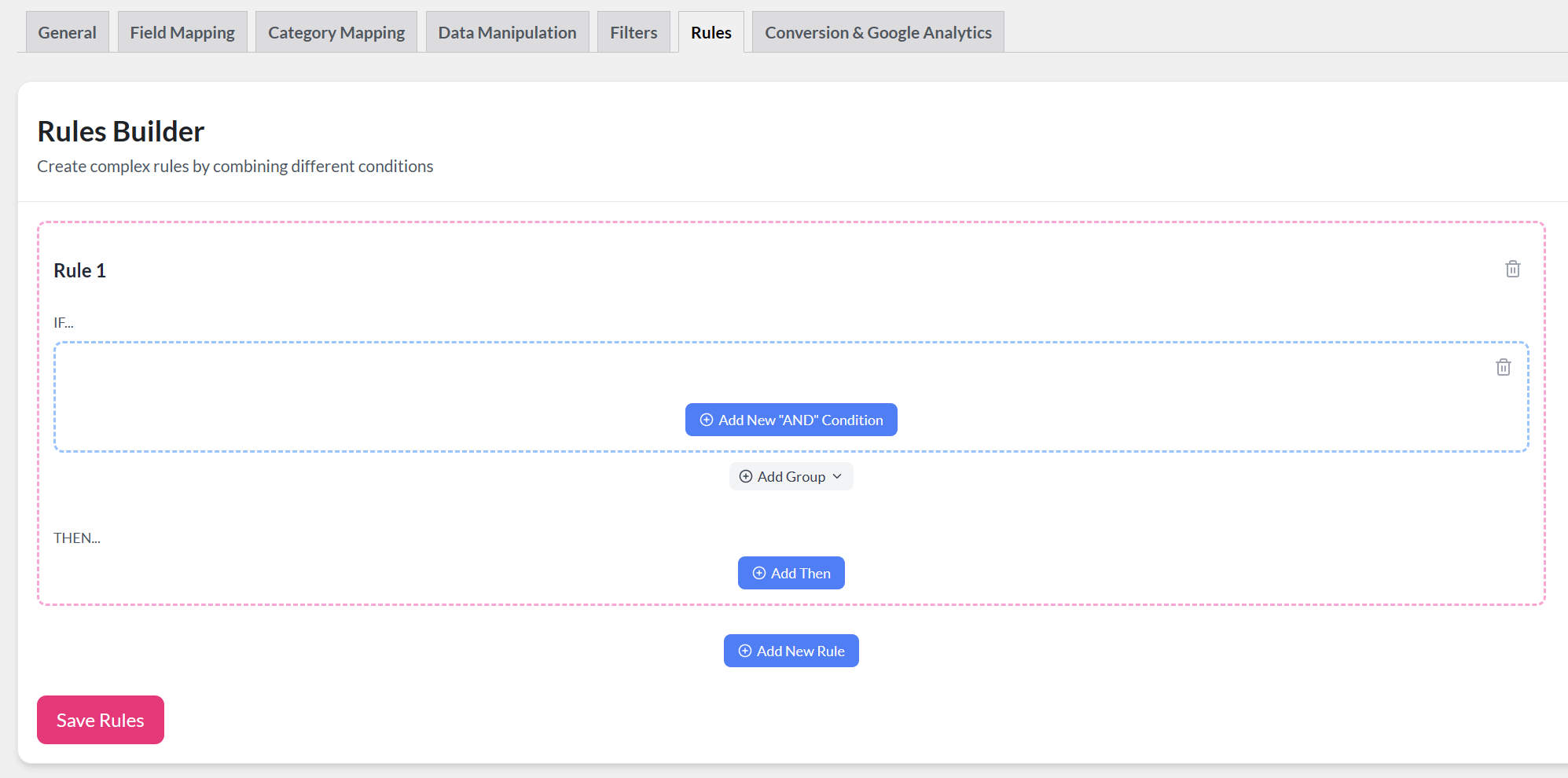
See How to create rules for details.
Conversion & UTM Parameters
Enable UTM parameters to track product performance. Configure:
- utm_source – Default: “Bing Shopping”
- utm_medium – e.g., “cpc” or “shopping”
- utm_campaign – e.g., feed title or campaign name
- utm_content – Product groups or promotions
Once configured, generate your feed. Under Manage Feeds, you can:
- View and copy the feed URL
- Refresh manually
- Duplicate for a new feed
- Edit settings
- Delete unused feeds
Upload to Microsoft Merchant Center
- Go to merchants.microsoft.com (or ads.microsoft.com and navigate to Merchant Center) and sign in with your Microsoft account.
- Navigate to Products in the left sidebar.
- Click Add Products to add your feed.
- Choose Add products from a file.
- Enter your feed URL in the “Enter a link to your file” field. Your feed URL (from Product Feed Pro → Manage Feeds) looks like:
https://yoursite.com/wp-content/uploads/woo-product-feed-pro/xml/bm1dusuz0ss0asp66c3ufjezeygwome2.xml - Click the pen icon under Edit Schedule to set how often Microsoft should fetch your feed (e.g., every 24 hours, weekly, or monthly).
- Select your target country, language, and marketing channels (Shopping ads, free listings, etc.).
- Skip Add authentication information unless your feed URL requires login credentials.
- Click Continue to confirm and upload.
After completing these steps:
- Your feed will begin processing.
- Within 24–48 hours, you can check Products → Diagnostics for errors, warnings, or disapprovals.
- Once approved, your products will appear in Bing Shopping based on your campaign and listing settings.
Troubleshooting Common Issues
| Issue | Solution |
|---|---|
| Missing shipping data | Bing requires shipping. Map the shipping field to your WooCommerce zones or add a static value (e.g., “US::0.00 USD”). |
| Products not appearing | Check feed URL is accessible, required fields are mapped, and categories are correct. |
| Feed stuck processing | See Help, my feed won’t update or is stuck processing!. |
| Fewer products than expected | Check filters and rules. See Help! I have none or less products in my product feed than expected. |
| GTIN/MPN errors | Use manufacturer-assigned values only. See How to Fix GTIN Errors. |
Need Further Assistance?
If you need help with your Bing Shopping feed:
- Product Feed Elite users: Create a support ticket to reach the AdTribes support team.
- Product Feed Pro users: Open a topic in the WordPress.org forum.