Revisado por
AdTribes Product Feed Elite ahora te ofrece dos nuevas formas de crear filtros y reglas más específicos. Con En lista, puedes comparar varios valores en las condiciones del feed de productos introduciéndolos como una lista separada por comas. Con Entre, puedes comparar valores numéricos que caigan dentro de un mínimo y un máximo.
Esto facilita la selección de un conjunto elegido a mano de IDs de producto, SKUs u otros valores de campo exactos sin crear una condición separada para cada uno. También puedes cubrir un rango completo de precios, cantidad en stock o peso con una sola fila.
En esta guía, te mostraremos cómo funcionan ambas condiciones en los constructores de Filtros y Reglas, y luego te guiaremos sobre cómo configurar cada una.
Cómo funcionan las nuevas condiciones 'En lista' y 'Entre'
'En lista' y 'Entre' aparecen en el menú desplegable central de cada fila de condición, junto con opciones como 'Contiene', 'Igual a' y 'Mayor que'. Cada una comprueba si un producto coincide con los valores que introduces.
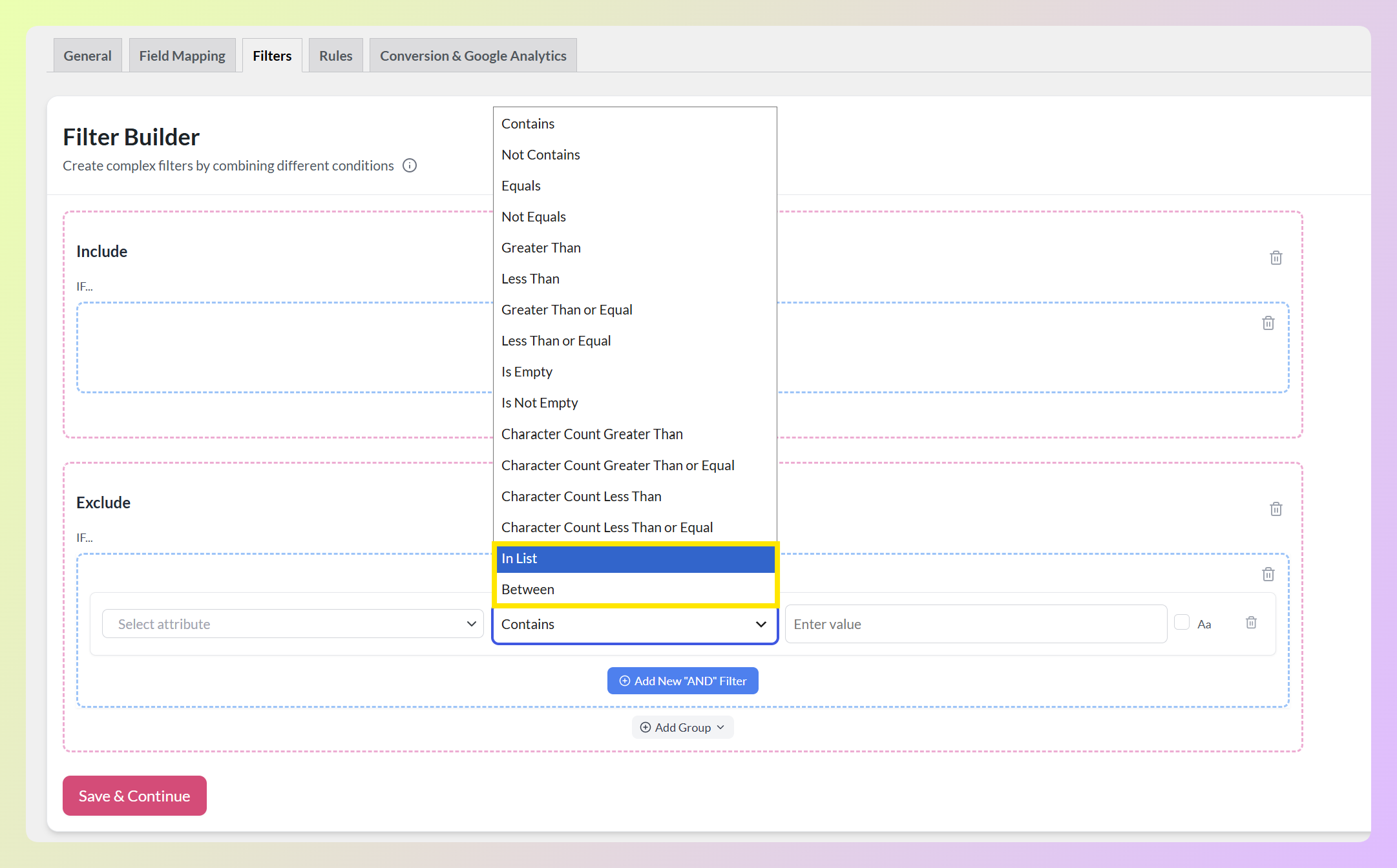
- En la lista coincide cuando tu campo elegido es igual a cualquier valor de una lista separada por comas que escribas.
- Entre coincide cuando un campo numérico cae dentro de un rango que estableces.
Ambas condiciones te ayudan a evitar apilar varias filas similares. En la lista reemplaza las condiciones de coincidencia exacta repetidas con una lista separada por comas, mientras que Entre cubre los extremos inferior y superior de un rango numérico en una sola condición.
Cómo funciona el cuadro de valor
La fila de condición mantiene el mismo diseño, con un cuadro de valor para tu entrada. En la lista usa la indicación familiar de Introducir valor.
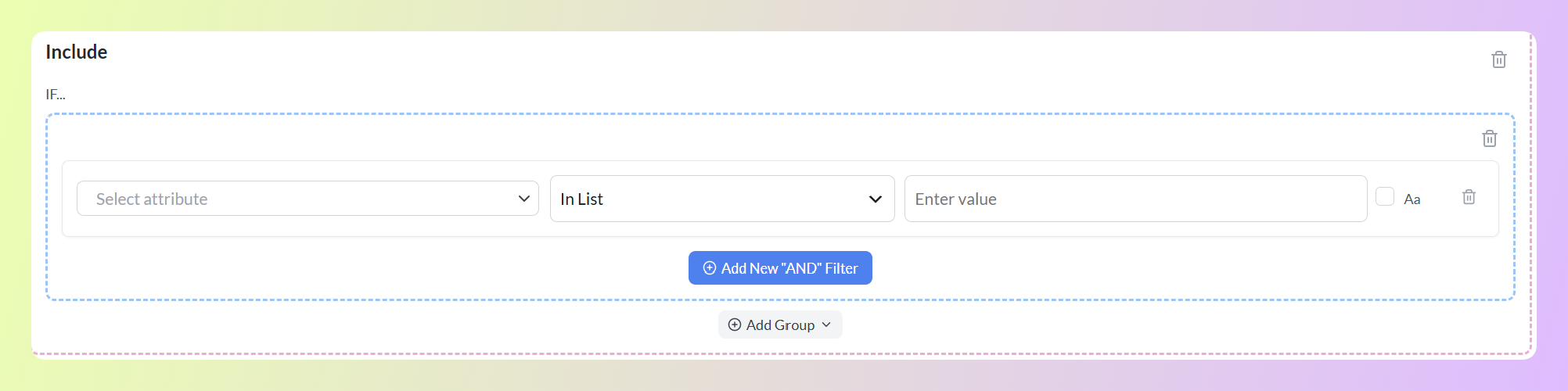
Entre muestra Mín,Máx (ej. 100,200) para que el formato requerido sea claro.

Para En la lista, separa cada valor con una coma. Entre espera dos valores numéricos: el mínimo y el máximo del rango. Los espacios adicionales alrededor de las entradas se ignoran, por lo que 101, 245 , 389 funciona igual que 101,245,389.
Dónde puedes usarlos
Ambas condiciones están disponibles en las pestañas Filtros y Reglas. La diferencia es lo que sucede cuando un producto coincide:
| Dónde lo usas | Qué decide la coincidencia |
|---|---|
| Pestaña Filtros | Si el producto se incluye o se excluye del feed. |
| Pestaña Reglas | Si la acción SELECCIONADA THEN se ejecuta para ese producto. |
Supongamos que estás ejecutando una promoción en un grupo de productos seleccionados a mano. En la pestaña Filtros, una fila En la lista que contenga esos IDs de producto puede limitar el feed a ese grupo. En la pestaña Reglas, la misma condición puede aplicar una acción seleccionada solo a esos productos.
Ambas condiciones están disponibles con todos los planes de Product Feed Elite: Growth, Plus y Business.
Cómo hacer coincidir una lista de valores con En la lista
Empecemos con un feed que solo debe contener un conjunto particular de productos. Dirígete a tu panel de WordPress > Product Feed, haz clic en Editar en el feed con el que deseas trabajar y abre la pestaña Filtros.
El Creador de Filtros tiene secciones separadas de Incluir y Excluir. Incluir controla qué productos pueden entrar en el feed, mientras que Excluir elimina los productos que coinciden con sus condiciones. Cada sección tiene su propia área SI, y puedes agregar condiciones con Agregar Nuevo Filtro “Y”.
Agrega una fila en la sección Incluir, elige el atributo con el que deseas hacer coincidir, luego selecciona En la lista en el menú desplegable de condiciones. En este ejemplo, seleccionamos Marca.
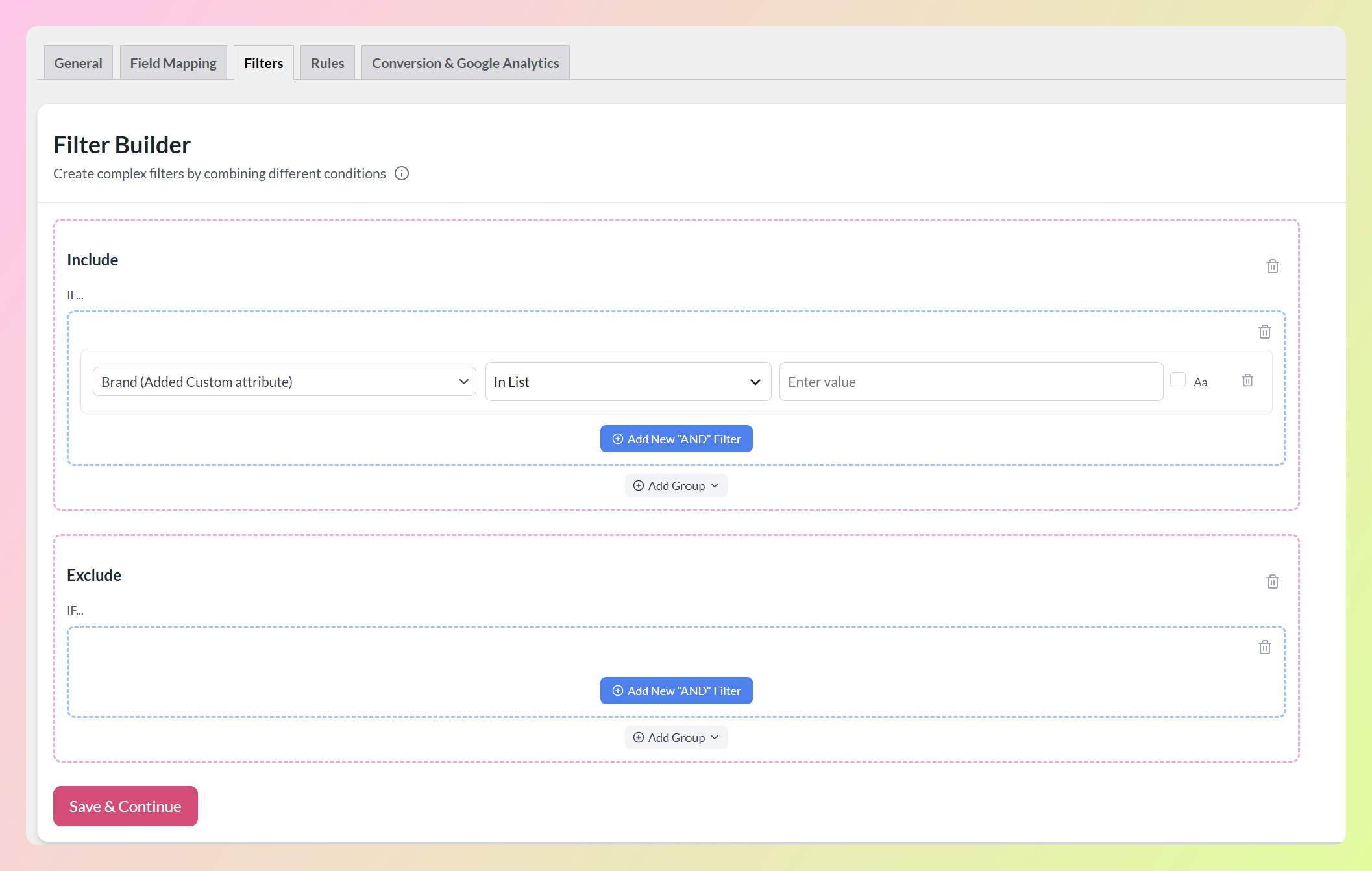
Ahora escribe los nombres de las marcas en el cuadro Introducir valor, separados por comas. En nuestro ejemplo, introdujimos Nike,Adidas,Puma.
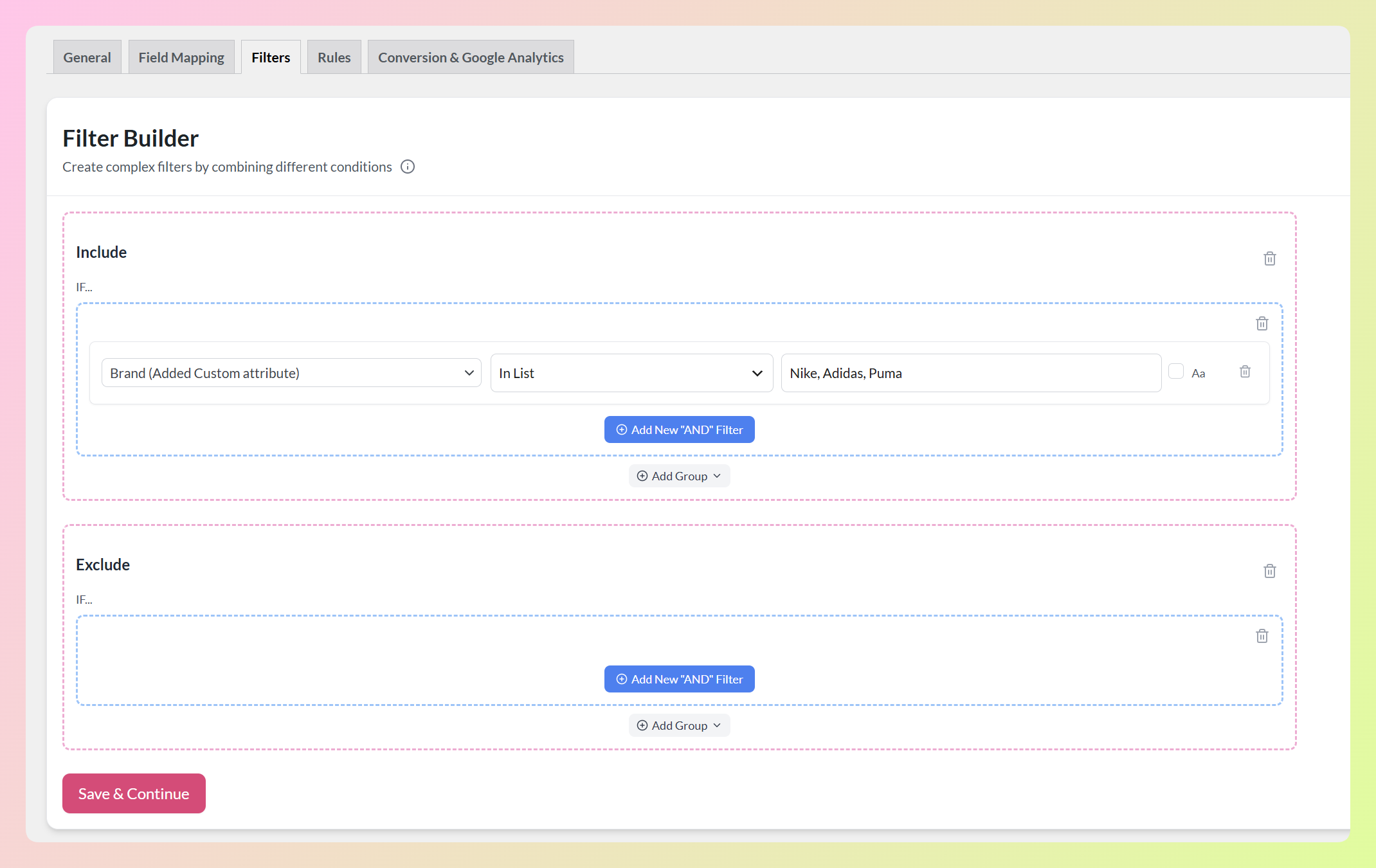
La fila completada dice Marca, En Lista, seguido de las tres marcas que queremos dirigir. Los productos con un valor de Marca coincidente satisfacen esta condición de Inclusión.
En Lista comprueba cada entrada como un valor completo en lugar de una coincidencia parcial. Por ejemplo, Nike coincide con un valor de Marca de Nike, pero no coincidirá con un valor más largo que solo contenga la palabra. Para coincidencias parciales, usa Contiene. La casilla Aa al final de la fila controla la sensibilidad a mayúsculas y minúsculas.
Puedes usar En Lista con cualquier atributo disponible, no solo con ID de producto. Es especialmente útil para campos con valores claros que deseas que coincidan exactamente, como IDs de producto, SKUs o nombres de marca.
🎯 CONSEJO PRO: En Lista también funciona en la sección Excluir. Por ejemplo, puedes introducir varios nombres de marca en una fila cuando quieras dejar fuera todas esas marcas de un feed en particular.
La misma condición está disponible en la pestaña Reglas, donde puedes usarla para decidir a qué productos se aplica una acción ENTONCES. Allí, el botón dice Añadir Nueva condición “Y”, pero la fila de condición funciona de la misma manera.
Cómo hacer coincidir un rango de números con Entre
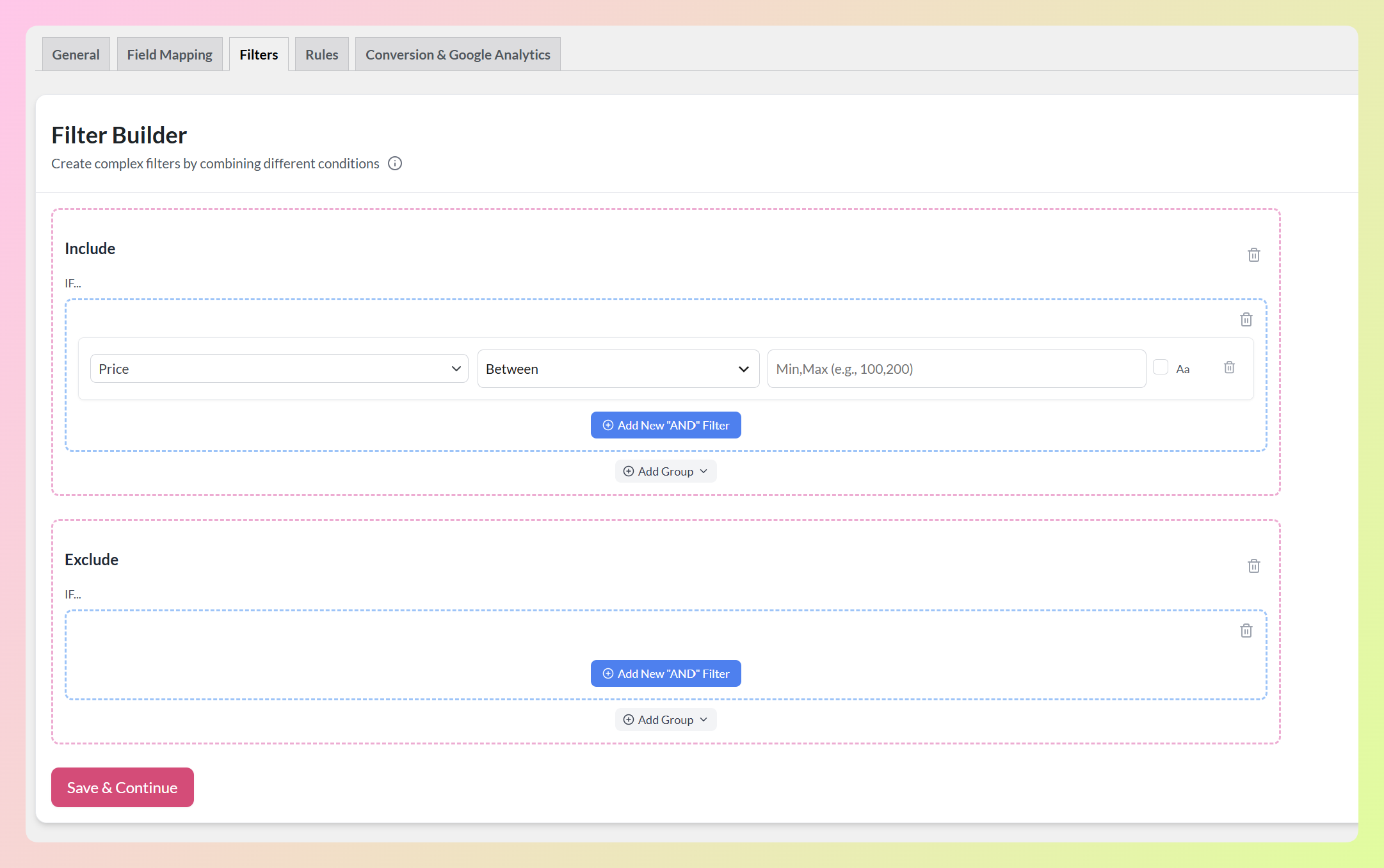
Entre sigue una configuración similar, pero está diseñado para rangos numéricos en lugar de listas de valores exactos. En la sección Incluir de la pestaña Filtros, añade un nuevo filtro y elige el atributo numérico que deseas usar. Para este ejemplo, seleccionamos Precio. Luego elige Entre en el menú desplegable de condiciones.
El cuadro de valor ahora muestra Mín,Máx (ej. 100,200), mostrando el formato que espera la condición. Introduce los valores mínimo y máximo separados por una coma.
En nuestro ejemplo, introdujimos 100,200. La fila completada dice Precio, Entre y 100,200.
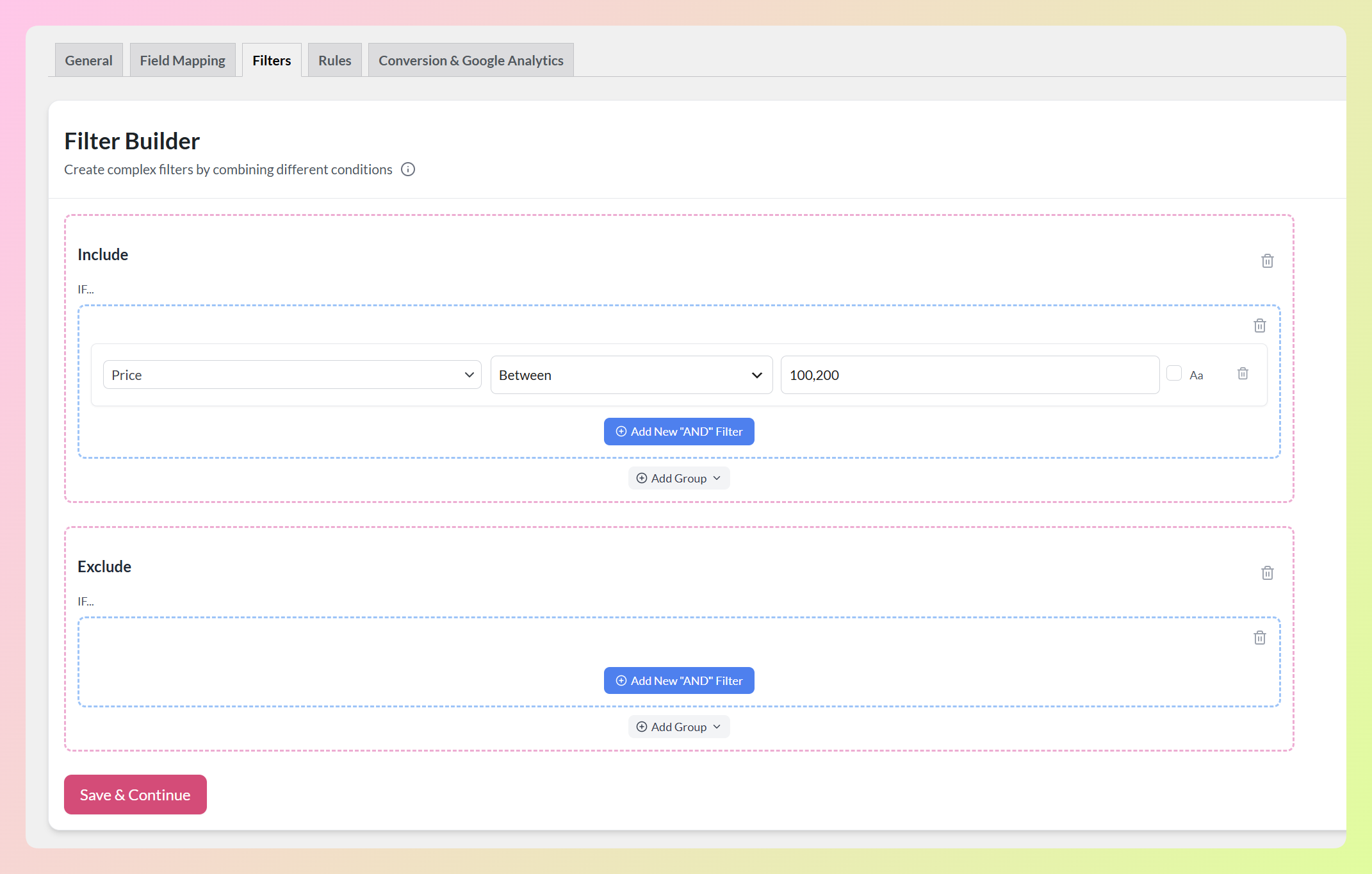
Los productos con un precio de 100 a 200 satisfacen esta condición de Inclusión, mientras que los productos fuera del rango no. Ambos extremos del rango cuentan como coincidencia, por lo que los productos con un precio exacto de 100 o exacto de 200 también se incluyen.
También puedes usar Entre con otros atributos numéricos, como precio de oferta, cantidad en stock o peso. Esto lo hace útil siempre que necesites dirigir productos dentro de un rango numérico específico.
Si introduces primero el número mayor, Entre sigue leyendo el rango previsto. Por ejemplo, 200,100 funciona igual que 100,200.
Preguntas Frecuentes
¿Puedo usar 'En lista' y 'Entre' tanto en Filtros como en Reglas?
Sí. Ambos aparecen en el menú desplegable de condiciones en la pestaña Filtros y en la pestaña Reglas. En Filtros, una coincidencia decide si el producto se incluye o se excluye del feed. En Reglas, una coincidencia decide si la acción ENTONCES se ejecuta en ese producto.
¿Puedo escribir una lista separada por comas en la condición 'Igual a' en su lugar?
'Igual a' compara el valor completo exactamente como lo escribes, por lo que una lista separada por comas se trataría como un valor largo en lugar de varios. 'En lista' es la opción diseñada para comparar con una lista, así que selecciónala en el menú desplegable de condiciones y tus valores se leerán como entradas separadas.
¿'En lista' coincide con texto parcial?
No, cada entrada se compara en su totalidad. Esto mantiene tus listas predecibles, ya que una entrada corta no puede coincidir accidentalmente con un valor más largo. Si deseas una coincidencia parcial, usa la condición 'Contiene' en su lugar.
¿La condición 'Entre' incluye el mínimo y el máximo?
Sí. Ambos extremos del rango cuentan como coincidencia, por lo que un rango de 100,200 incluye productos en exactamente 100 y exactamente 200, así como todo lo que está en medio.
¿En qué atributos puedo usar la condición 'Entre'?
Puedes usar 'Entre' con atributos que contienen valores numéricos, como precio, precio rebajado, cantidad en stock o peso. Para comparar varios valores exactos en lugar de un rango numérico, usa 'En lista'.
¿Cuántos valores puedo poner en una condición 'En lista'?
'En lista' no muestra un límite fijo de elementos. Agrega los valores relevantes para tu filtro o regla, sepáralos con comas y actualiza la lista cada vez que cambie tu selección de productos.
¿Estas condiciones cambian los datos de mis productos de WooCommerce?
No. Los filtros y las reglas actúan sobre tu feed tal como se genera, por lo que cambian lo que tu canal recibe, no los productos almacenados en tu tienda. También se configuran por feed, por lo que una condición en un feed no afectará a los demás.
Conclusión
En Lista y Entre hacen que las condiciones del feed de productos sean más fáciles de gestionar. En Lista coincide con un conjunto de valores exactos en una fila, mientras que Entre cubre un rango numérico usando un mínimo y un máximo. Esto hace que tus filtros y reglas sean más fáciles de escanear, revisar y actualizar más tarde.
En esta guía, hemos aprendido:
- Cómo funcionan las nuevas condiciones En Lista y Entre
- Cómo hacer coincidir una lista de valores con En Lista
- Cómo hacer coincidir un rango de números con Entre
Con Product Feed Elite 5.1.0, ambas condiciones están listas para usarse en los constructores de Filtros y Reglas. Prueba En Lista la próxima vez que necesites seleccionar varios valores exactos, o Entre cuando quieras cubrir un rango numérico.
¿Tienes alguna pregunta sobre esta actualización? Háznoslo saber en los comentarios. ¡Estaremos encantados de ayudarte!