Reviewed by
TikTok has grown into a serious discovery and shopping channel for ecommerce brands. On Black Friday alone, U.S. sales on TikTok Shop reportedly hit $100 million in a single day. With approximately 1.59 billion monthly active users spending an average of 58.4 minutes per day on the app, TikTok has become far more than an entertainment platform. It is also a place where products get discovered, shared, and purchased — a sign that social commerce is one of the defining online marketplace trends of 2026 for any seller trying to reach buyers outside their own storefront.
This guide covers everything you need to get started with TikTok WooCommerce: why TikTok matters for store owners, two different ways to sell, step-by-step setup for both TikTok Product Ads and TikTok Shop, growth strategies, and how to build an optimized product feed with AdTribes.
Jump to:
- Why sell on TikTok?
- Two ways to sell on TikTok with WooCommerce
- Is TikTok Shop available in your country?
- Part 1: TikTok product ads setup (5 steps)
- Part 2: TikTok Shop setup (7 steps)
- 5 ways to grow your business with TikTok WooCommerce
- Building your TikTok feed with AdTribes
- Optimizing your TikTok product listings
- FAQ
Why Sell On TikTok?
TikTok is not just another social media channel to manage. For WooCommerce store owners, it represents a fundamentally different kind of sales opportunity. Here is why.
Strong sales potential
According to The Wall Street Journal, TikTok Shop generates approximately $1 billion in monthly sales in the U.S. alone. Single-day events like Black Friday have reportedly reached $100 million in sales, according to Business Insider. For WooCommerce merchants, that is a strong sign that TikTok is no longer just a discovery platform. It is also a serious commerce channel.
High shopper engagement
According to Business Insider, an estimated 59% of TikTok users have made direct purchases through the app. By late 2024, the U.S. had approximately 47 million social commerce users on TikTok, per Semrush’s ecommerce statistics report. Shoppers on TikTok are not just browsing. They are buying.
Gen Z and millennial power
According to Forbes, adults aged 18 to 24 are 3.2 times more likely than average to shop on TikTok Shop. The 25 to 34 age group is 1.8 times more likely. If your products appeal to younger demographics, TikTok is where they are already spending their time and money. According to Capital One Shopping, an estimated 79% of U.S. TikTok Shop sales occur in beauty and health product categories, but fashion, home goods, and electronics are growing fast.
Built-in virality
According to CNBC, an estimated 49% of users have purchased items after seeing them on TikTok. The platform’s algorithm can push products to massive audiences very quickly, which is one reason trends on TikTok can turn everyday items into viral bestsellers.
TikTok For WooCommerce: Two Ways To Sell
Most guides treat TikTok selling as a single setup. It is not. There are two meaningfully different options, and which one you choose determines how your store operates.
The following table is illustrative and summarizes the two selling modes at a high level. Features and requirements may evolve as TikTok updates its platform.
| TikTok Product Ads | TikTok Shop | |
|---|---|---|
| What it is | Run product ads using your WooCommerce catalog | Sell natively inside the TikTok app |
| Checkout happens | On your WooCommerce store | Inside TikTok (TikTok handles it) |
| Order management | In WooCommerce | In TikTok Seller Center |
| Fulfillment | You handle shipping | You handle shipping (managed via TikTok) |
| Requirements | TikTok Business account + catalog | TikTok Shop merchant account (ID/business verification) |
| Best for | Driving traffic to your WooCommerce store via ads | Native shopping experience; TikTok algorithm promotion |
TikTok Product Ads let you sync your WooCommerce catalog to TikTok Ads Manager and run dynamic product ads. Customers click an ad and land on your WooCommerce checkout. Your store handles everything. This is the simpler path.
TikTok Shop is native selling inside the TikTok app. Customers browse, add to cart, and check out without ever leaving TikTok. TikTok takes a commission, manages payment processing, and the order appears in Seller Center. This offers greater organic discovery through TikTok’s shopping feed but requires more setup and business verification.
Most WooCommerce store owners start with TikTok Product Ads to validate the channel, then add TikTok Shop once they have confirmed TikTok converts for their product category.
Is TikTok Shop Available In Your Country?
Before investing time in setup, confirm that your country is supported.
At the time of writing, TikTok for Business lists TikTok Shop availability in markets including the United States, United Kingdom, Indonesia, Malaysia, Philippines, Singapore, Thailand, Vietnam, Mexico, Brazil, Ireland, Spain, France, Italy, and Japan. Availability can change over time, so it is best to verify your eligibility directly in TikTok Seller Center before you begin.
If TikTok Shop is not available in your market, you may still be able to run TikTok Product Ads through a supported TikTok Ads account. Ads availability is broader than TikTok Shop, but it still depends on TikTok’s supported markets and your account setup.
To verify your current country’s eligibility: Visit TikTok Seller Center and begin the registration. If your market is supported, you will be able to continue with onboarding from there.
Part 1: Setting Up TikTok Product Ads (Catalog + Pixel)
This setup syncs your WooCommerce product catalog to TikTok Ads Manager and adds the TikTok Pixel for conversion tracking. It is the foundation for running any type of TikTok ad against your products.
Step 1: Install the TikTok for WooCommerce plugin
In your WordPress dashboard, go to Plugins > Add New and search for “TikTok for WooCommerce.” Install and activate the free official plugin, built by TikTok and WooCommerce.
Step 2: Connect your TikTok business account
After activation, navigate to WooCommerce > TikTok in your dashboard. Click Get Started and connect your TikTok Business account. If you do not have one, you will be prompted to create one at business.tiktok.com. It is free to set up.
Step 3: Install the TikTok pixel
The plugin guides you through adding the TikTok Pixel to your store. Select your TikTok Ads Manager account and choose or create a Pixel. Enable Advanced Matching (email and phone hashing) to improve attribution accuracy.
The TikTok for WooCommerce integration supports key commerce tracking through the TikTok Pixel and Events API, including actions such as product views, add to cart activity, checkout starts, and purchases. This data helps with retargeting, audience building, and campaign optimization.
Step 4: Sync your product catalog
In the TikTok plugin settings, connect your product catalog to TikTok Ads Manager. The plugin syncs your WooCommerce products, prices, images, and availability to TikTok’s catalog system.
For best results, use AdTribes alongside the native plugin. AdTribes gives you feed rules to optimize titles, descriptions, and custom fields that TikTok uses for dynamic product ads. More on this in the feed setup section.
Step 5: Verify and test
Return to your TikTok Ads Manager catalog and verify that products are appearing with correct titles, prices, and images. Use TikTok’s Pixel Helper browser extension to confirm the pixel is firing on your key pages.
What We’ve Seen: A mistake we’ve seen repeatedly is store owners syncing their catalog to TikTok and assuming the titles and images will look good in the TikTok feed without checking. TikTok’s product card format crops images differently than Google Shopping, and titles that work well on Google can look truncated or awkward on TikTok. We always recommend reviewing your first 10 to 20 listings in the TikTok catalog before going live with ads.
Part 2: Setting Up TikTok Shop (Native In-App Selling)
TikTok Shop requires more setup than the ads pathway, including business verification that typically takes a few business days. Plan accordingly.
Step 1: Create your TikTok seller center account
Go to seller.tiktok.com and sign up as a seller. You will need a TikTok account (personal or business) to authenticate.
Step 2: Confirm your country eligibility
During registration, select your selling region. If your country is not supported, registration cannot be completed. TikTok will inform you at this step.
Step 3: Complete business verification
TikTok requires identity or business verification before your shop goes live. Depending on your account type:
- Individual sellers: Government-issued photo ID
- Business sellers: Business registration documents, tax number, or equivalent
Upload the required documents. TikTok’s review typically takes a few business days. You will receive an email when approved.
Step 4: Connect your WooCommerce store
Once verified, continue the TikTok Shop onboarding flow inside the TikTok for WooCommerce integration. From there, you can connect your TikTok account, authorize TikTok for Business, and link your WooCommerce store to your Seller Center setup.
Step 5: Set up shipping in seller center
In Seller Center, configure your warehouse address and shipping methods. You can connect third-party logistics providers (3PLs) if you use one. TikTok Shop requires you to set up your shipping profile before products can go live.
Step 6: Sync your product catalog
With your WooCommerce store connected, initiate a catalog sync. Your products, prices, images, and variants are imported into TikTok Seller Center.
Important: TikTok reviews each product listing individually. Items in restricted categories (certain health products, age-restricted goods, etc.) may be flagged or rejected depending on your region. Check TikTok’s prohibited and restricted products list for your selling country before syncing.
Step 7: Verify product status and go live
In Seller Center, review your product listing statuses. Approved products can be published immediately. Flagged products will show the reason for review. Address any issues and resubmit.
Once products are live, they are eligible to appear in TikTok’s shopping feed, on your TikTok profile’s shop tab, and in shoppable videos and lives.
5 Ways To Grow Your Business With TikTok WooCommerce
Getting your products on TikTok is step one. Growing your sales requires a strategy. Here are five proven approaches for WooCommerce store owners.
1. Run smart campaigns with your synced catalog
With your product catalog synced to TikTok, you can create ads directly from your existing WooCommerce product data. You do not need to re-upload product details for each campaign. Dynamic product ads pull titles, images, and prices from your feed automatically, which means your ads always reflect your current inventory and pricing.
Start with a small daily budget on a broad audience to let TikTok’s algorithm identify who is most likely to buy. Once you have conversion data, narrow your targeting based on what is working. The key advantage here is that your WooCommerce catalog becomes the single source of truth. Update a price or swap an image in WooCommerce, and your TikTok ads reflect the change automatically through your product feed.
2. Try different ad formats
TikTok supports several ad formats, and what works for one product category may not work for another. Test:
- In-feed video ads that appear naturally in the For You feed
- Product cards that showcase individual items with pricing
- Collection ads that let users browse multiple products from a single ad
- Spark Ads that boost existing organic content as paid promotion
We recommend testing at least two formats per product category to find what resonates with your audience.
3. Collect leads before pushing for the sale
Not every TikTok user is ready to buy on first contact. Instead of going straight for the sale, consider running campaigns that capture leads. Offer a discount code in exchange for an email signup, or promote a free guide related to your product category.
This builds your customer list with people who have already shown interest in what you sell. You can then nurture them through email before making the ask.
4. Retarget past visitors
The TikTok Pixel tracks user behavior after they click your ads or visit your store. Use this data to create retargeting campaigns aimed at people who:
- Viewed a product page but did not add to cart
- Added to cart but did not complete checkout
- Purchased once but have not returned
Retargeting typically produces lower cost-per-acquisition than cold campaigns because these users already know your brand.
What We’ve Seen: One thing we commonly see: store owners install the TikTok Pixel and run ads but never set up retargeting audiences. The Pixel is collecting valuable behavioral data from day one. If you wait weeks to create your retargeting campaigns, you have already missed the chance to re-engage your earliest visitors. Set up your retargeting audiences at the same time you launch your first campaign.
5. Promote trending products
Products with strong visual appeal perform better on TikTok. If certain items in your catalog are trending or have viral potential, prioritize them in your TikTok campaigns. Leverage trending sounds, hashtags, and content formats to amplify visibility.
Keep an eye on TikTok’s Creative Center for trending content ideas in your category. Products that tap into an active trend can see significantly higher engagement than evergreen product ads. When a trend aligns with something in your catalog, move fast. Create content around it, boost it with Spark Ads, and feature the product prominently in your TikTok WooCommerce feed.
Building Your TikTok Product Feed With AdTribes
Whether you are running TikTok Product Ads or TikTok Shop, the quality of your product data determines whether your listings get approved, rank well, and convert.
AdTribes’ TikTok product feed template is pre-configured to meet TikTok’s catalog requirements, with automatic field mapping, category mapping, and auto-refresh.
Step 1: Install AdTribes
If you have not already, install AdTribes Product Feed Pro from your WordPress dashboard. AdTribes Product Feed Pro already gives you a strong starting point for building WooCommerce product feeds, while AdTribes Product Feed Elite adds more advanced feed controls and premium features for stores with more complex needs.
Step 2: Create a new feed and select the TikTok template
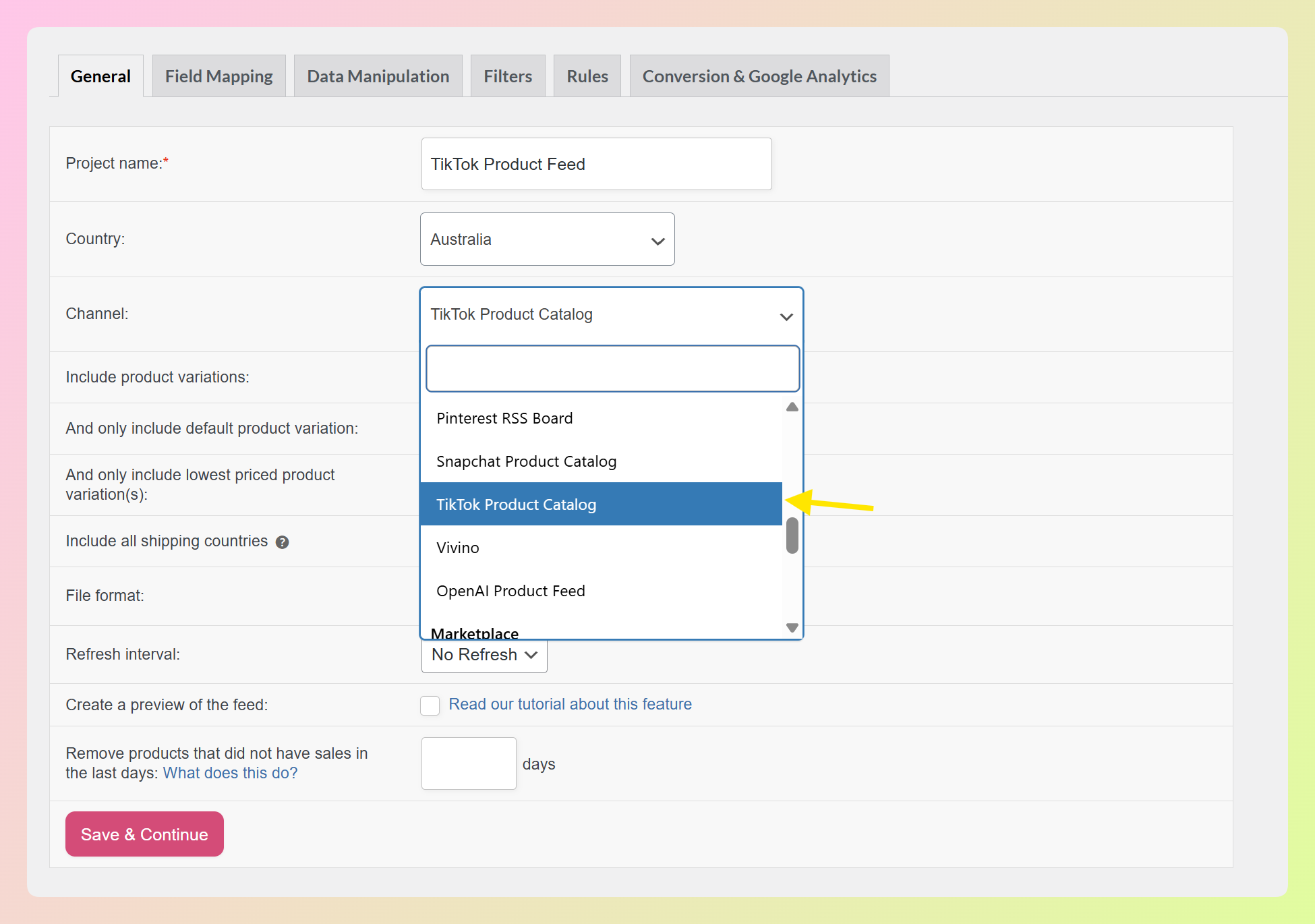
In your WordPress dashboard, go to Product Feed > Create feed. Give your feed a name and choose your country, then open the Channel dropdown, search for “TikTok”, and select TikTok Product Catalog.
Step 3: Set up auto-refresh
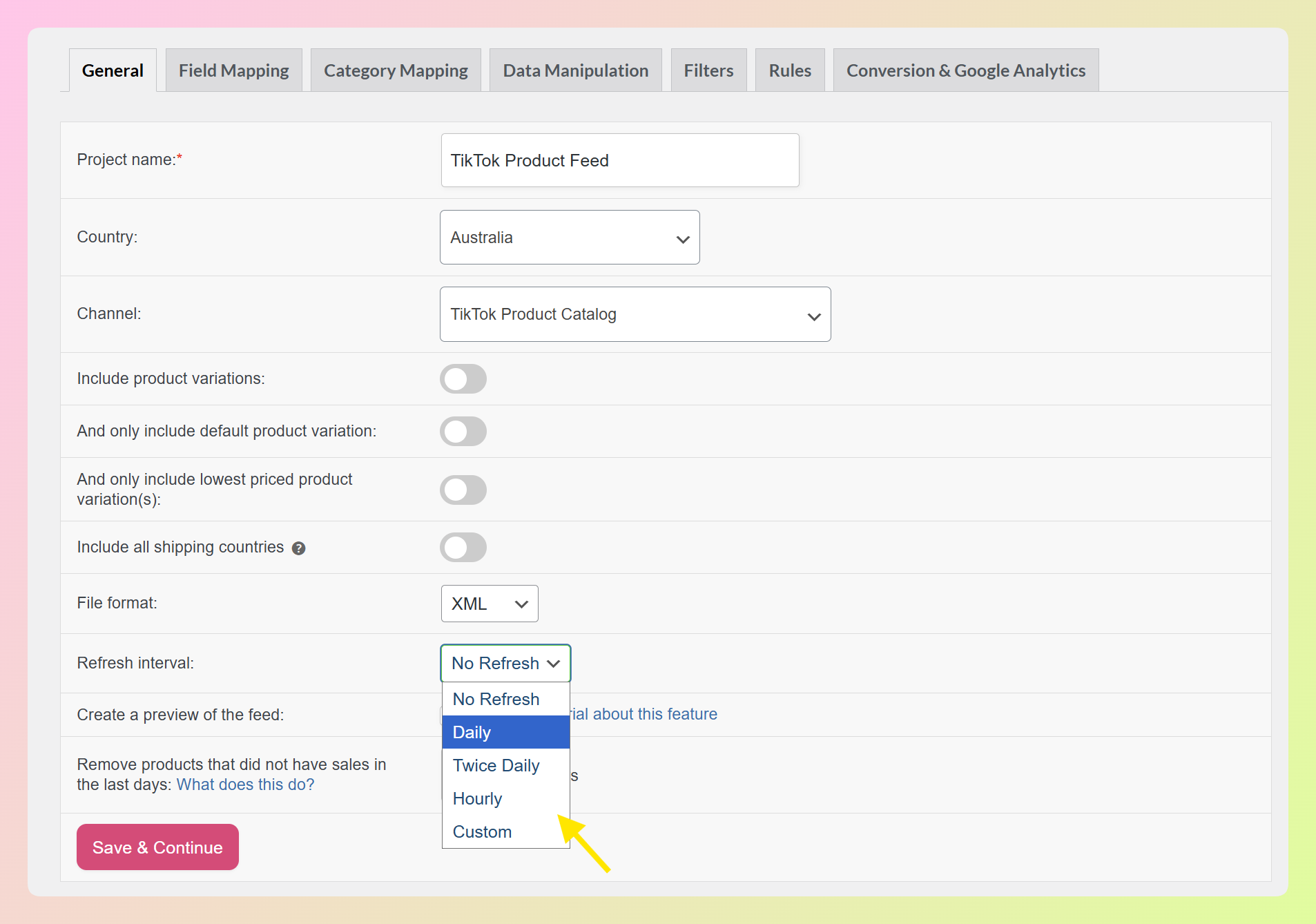
Under General, configure an automatic refresh schedule that matches how often your catalog changes. For many stores, a daily refresh is a practical starting point for keeping prices and stock levels current. If you need more advanced scheduling flexibility, AdTribes Product Feed Elite is the better fit.
Step 4: Map your product fields
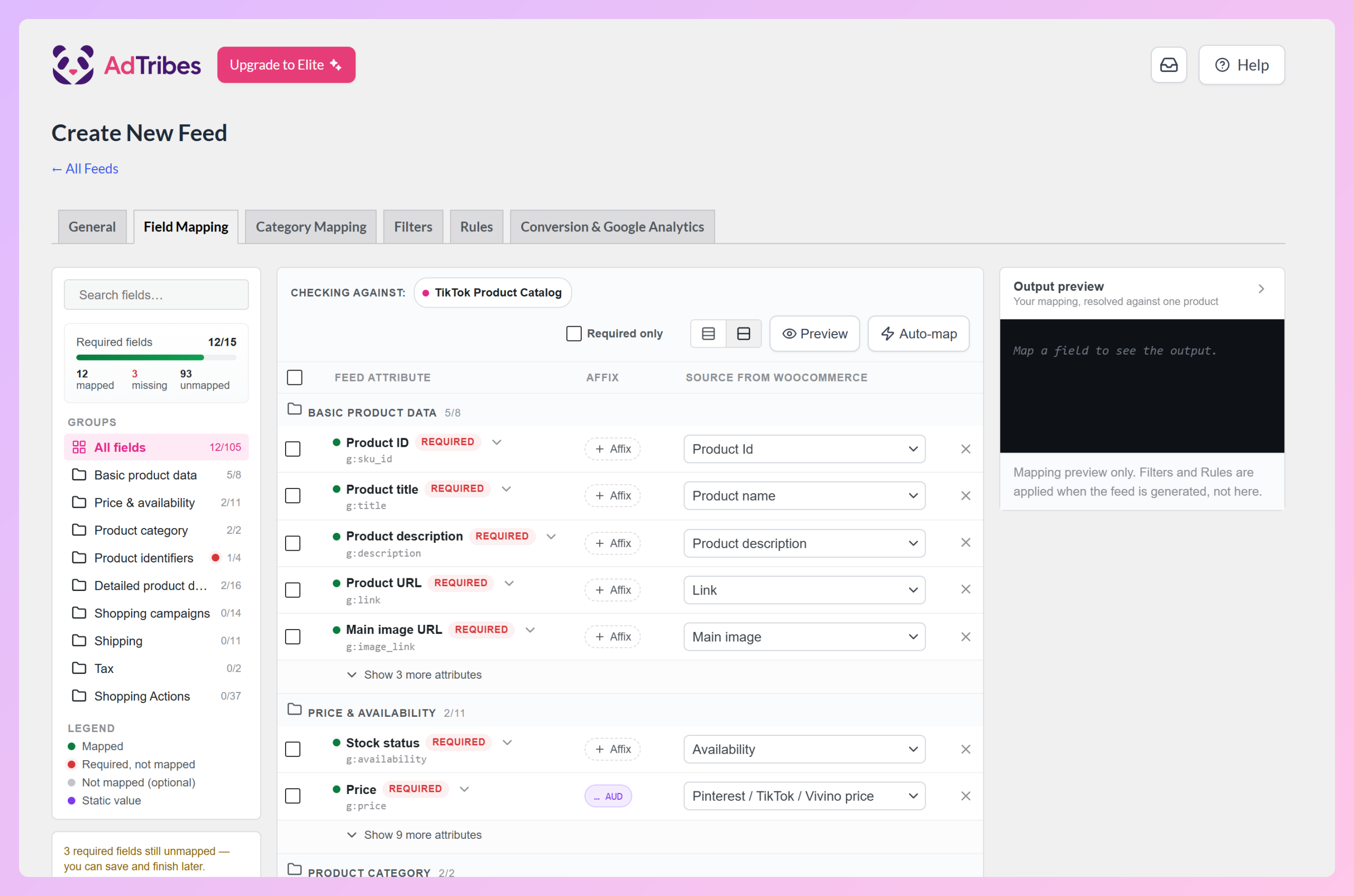
Open the Field Mapping tab. AdTribes Product Feed Pro prefills most TikTok attributes for you, the Required fields counter shows what’s still missing, and Auto-map fills in common fields with one click. Review these key fields:
- Title: Your product name; TikTok uses this for search and relevance
- Description: Product description; aim for 100+ characters
- Price: Must match what is displayed on your product page
- Availability: In stock / out of stock / preorder
- Image link: Primary product image URL (minimum 500x500px; square preferred)
- Brand: Product brand (use your store name if no specific brand)
- Category: Mapped to TikTok’s category taxonomy
To fill gaps in your WooCommerce data, use + Affix on any row to add a prefix or suffix, such as your brand name in front of product titles. You can also change the source in each row’s dropdown, or use the Rules tab for conditional changes like rewriting titles in a single category.
Step 5: Map your WooCommerce categories to TikTok categories
Click into the Category Mapping tab. Type the first few characters of each WooCommerce category and AdTribes will suggest the closest matching TikTok category. Accurate category mapping improves your listing’s discoverability in TikTok’s shopping feed.
One thing merchants should watch for is that TikTok’s category taxonomy can be much more granular than the categories used in WooCommerce. Taking the time to map broad categories like “Women’s Clothing” to more specific TikTok subcategories can improve product organization and help listings align better with TikTok’s shopping feed structure.
Step 6: Enable UTM tracking
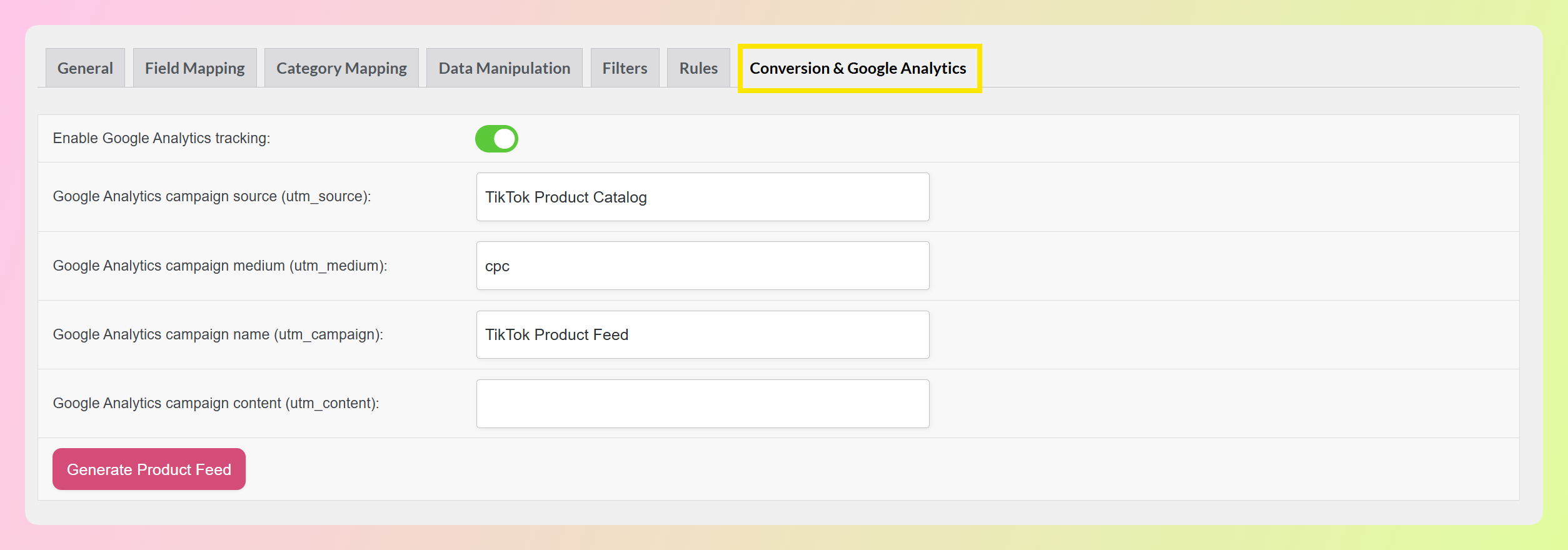
Open the Conversion & Google Analytics tab and turn on Enable Google Analytics tracking. AdTribes then tags your TikTok product URLs with source, medium, and campaign data, which is essential for understanding how TikTok traffic converts in Google Analytics 4.
Step 7: Run the feed validator
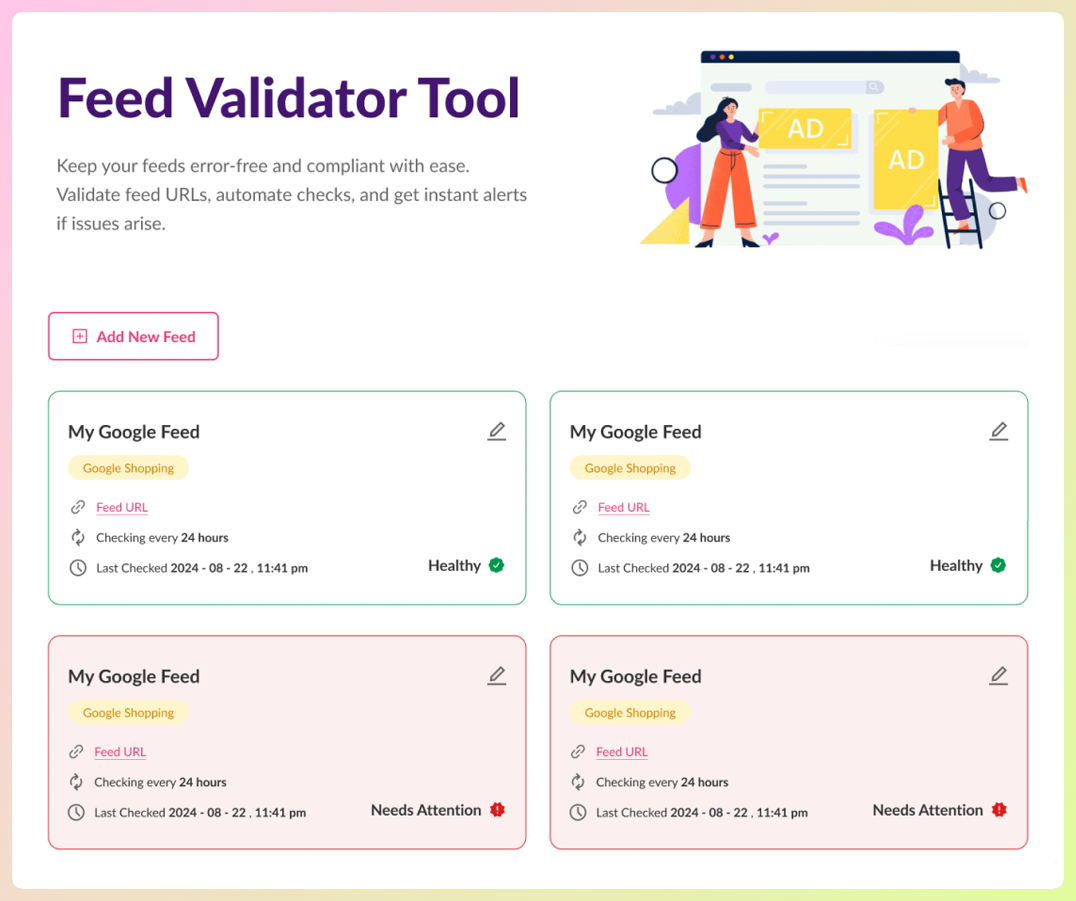
If you are using AdTribes Product Feed Elite, the Feed Validator can help you catch issues such as missing required fields, image problems, or pricing mismatches before submission. It is a helpful extra check when you want more confidence in your feed quality.
Optimizing Your TikTok Product Listings
Getting your feed live is the start. These optimizations improve performance:
Product titles
TikTok’s search algorithm uses your product title for matching. Include: brand + product type + key attribute (color, size, material). For example, “Nike Air Max 90 — White/Black — Men’s Size 10” rather than just “Air Max 90.”
Images
TikTok prefers square images (1:1 ratio) with a clean white or neutral background. Lifestyle images can be used as additional images but the primary image should show the product clearly against a plain background. Minimum resolution: 500x500px; 1000x1000px or higher is recommended.
Pricing
Your TikTok feed price must match the price on your WooCommerce product page exactly. Price mismatches are a common reason for product disapprovals. If you run sales, make sure your feed auto-refreshes to reflect current prices.
Category accuracy
Miscategorized products surface less often in TikTok’s shopping feed. Take time to map each WooCommerce category to the most specific matching TikTok category. “Women’s Dresses” rather than just “Clothing.”
Descriptions
Write product descriptions that work for TikTok’s audience. Keep them concise but informative, with the most important details in the first 100 characters. TikTok shoppers scan quickly. Lead with what makes the product unique, then follow with specifications. Avoid copying your standard WooCommerce descriptions word for word. TikTok buyers respond to a more conversational, benefit-driven tone.
Stock accuracy
Nothing damages your TikTok Shop reputation faster than selling out-of-stock items. Ensure your feed auto-refreshes frequently enough to reflect real-time inventory. If you run flash sales or limited drops, increase your refresh frequency during those periods to avoid overselling.
For more TikTok content strategy tips, see AdTribes’ TikTok marketing tips guide.
Frequently Asked Questions
Do I need TikTok Shop to run TikTok product ads?
No. TikTok Product Ads (catalog ads, dynamic product ads) run through TikTok Ads Manager and only require a synced product catalog and TikTok Pixel. TikTok Shop (native in-app checkout) is a separate feature that requires a Seller Center merchant account and business verification.
Can I use AdTribes without the TikTok for WooCommerce plugin?
Yes. AdTribes Product Feed Pro can generate a TikTok-formatted product feed that you can upload to TikTok Catalog Manager or Seller Center. The official TikTok for WooCommerce plugin is still useful if you also want the native TikTok integration, including pixel setup and TikTok Shop onboarding. Many stores use both together: the official plugin for connection and tracking, and AdTribes for feed control and optimization.
How long does TikTok Shop product approval take?
Individual product reviews typically take a few business days after submission. Products in higher-risk categories (health, beauty, food) may take longer. Merchant account verification also takes a few business days and must be completed before any product listings are reviewed.
Does AdTribes support TikTok Shop for variable products (sizes, colors)?
Yes. AdTribes supports WooCommerce variable products in your TikTok feed, which is helpful when your catalog includes sizes, colors, or other variations. Your final feed output will still depend on how your products and attributes are configured in WooCommerce and in your feed settings.
What is the difference between TikTok Product Ads and TikTok Shop?
TikTok Product Ads drive traffic from TikTok to your WooCommerce store. Customers check out on your site, and you manage everything through WooCommerce. TikTok Shop lets customers browse and buy directly inside the TikTok app without leaving. TikTok handles payment processing and takes a commission. Most store owners start with Product Ads and add Shop later.
Conclusion
TikTok can be a strong growth channel for WooCommerce stores, but the best setup path depends on how you want to sell. Some stores will do best starting with TikTok Product Ads, while others may be ready to add TikTok Shop once their market and operations are a fit.
Either way, stronger product data gives you a better chance of keeping listings accurate, improving feed quality, and creating a smoother path to performance over time. That is where AdTribes can help.
Start with AdTribes Product Feed Pro if you want a simpler way to build and optimize your TikTok feed. If you need more advanced feed controls and premium features, AdTribes Product Feed Elite is the next step.