
Keeping your Google Merchant Center account accurate is important for product approvals and smooth Shopping performance. One common misunderstanding is that removing or excluding a product from your product feed automatically deletes it from Google Merchant Center. It doesn’t work that way.
Google keeps previously submitted items even when they no longer appear in your feed. This applies especially when using plugins like our Product Feed PRO, which control only feed output, not product deletion inside Merchant Center.
Below is a clear guide on the correct ways to delete or hide products depending on how they were added.
How Product Deletion Works in Google Merchant Center
Before diving into the steps, it’s important to understand how Merchant Center behaves:
Google does not delete previously submitted products just because they were excluded from a new feed.
This is normal. Google stores old products until one of the following happens:
- You manually delete them (manually added items only)
- You send a delete request via the Content API
- You resubmit them with availability =
out_of_stock - They expire automatically after a period without updates
This means that simply excluding a product in the Product Feed Pro plugin will not remove it from Google Merchant Center.
How to Delete or Hide a Product
Method 1: Delete a Manually Added Product
This works only for items you created directly inside Merchant Center.
- Sign in to Google Merchant Center.
- Go to Products & stores → Products.
- Open the item you want to delete.
- Click the Delete product button, located in the right Status section.
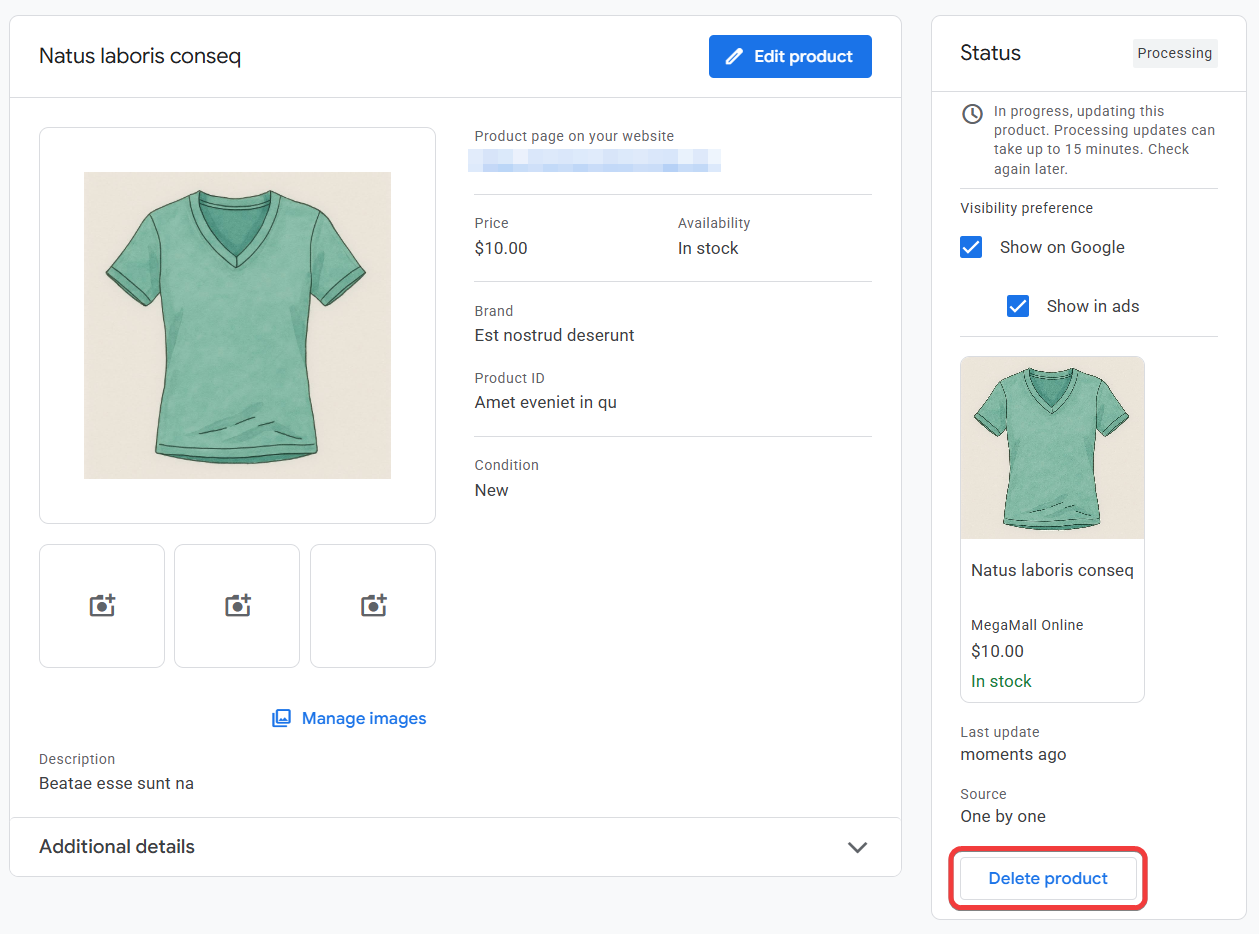
Products that came from feeds cannot be deleted this way.
Method 2: Removing Feed-Based Products When Using the AdTribes Product Feed PRO Plugin
If your products come from WooCommerce through our Product Feed PRO plugin, Google Merchant Center receives them as feed-submitted items. Feed-submitted products behave differently, and removing them requires a different approach.
Here’s what you need to know.
Why excluded products don’t disappear from the Merchant Center
When you exclude an item in the Product Feed PRO plugin, it stops appearing in the feed, but Google keeps the previously submitted product because:
- Google assumes you simply didn’t update that product today.
- The plugin cannot send deletion commands.
- Google only deletes a product when it receives an explicit delete action or the product expires.
So even if you exclude a product or category from the feed, it will still appear in Merchant Center until it expires or you delete it through the Content API.
A. Excluding Products From the Feed (Stops updates but does not delete the product)
The Product Feed PRO plugin lets you exclude products based on:
- Category
- Tags
- Product attributes
- Stock status
- Manual product selection and many more
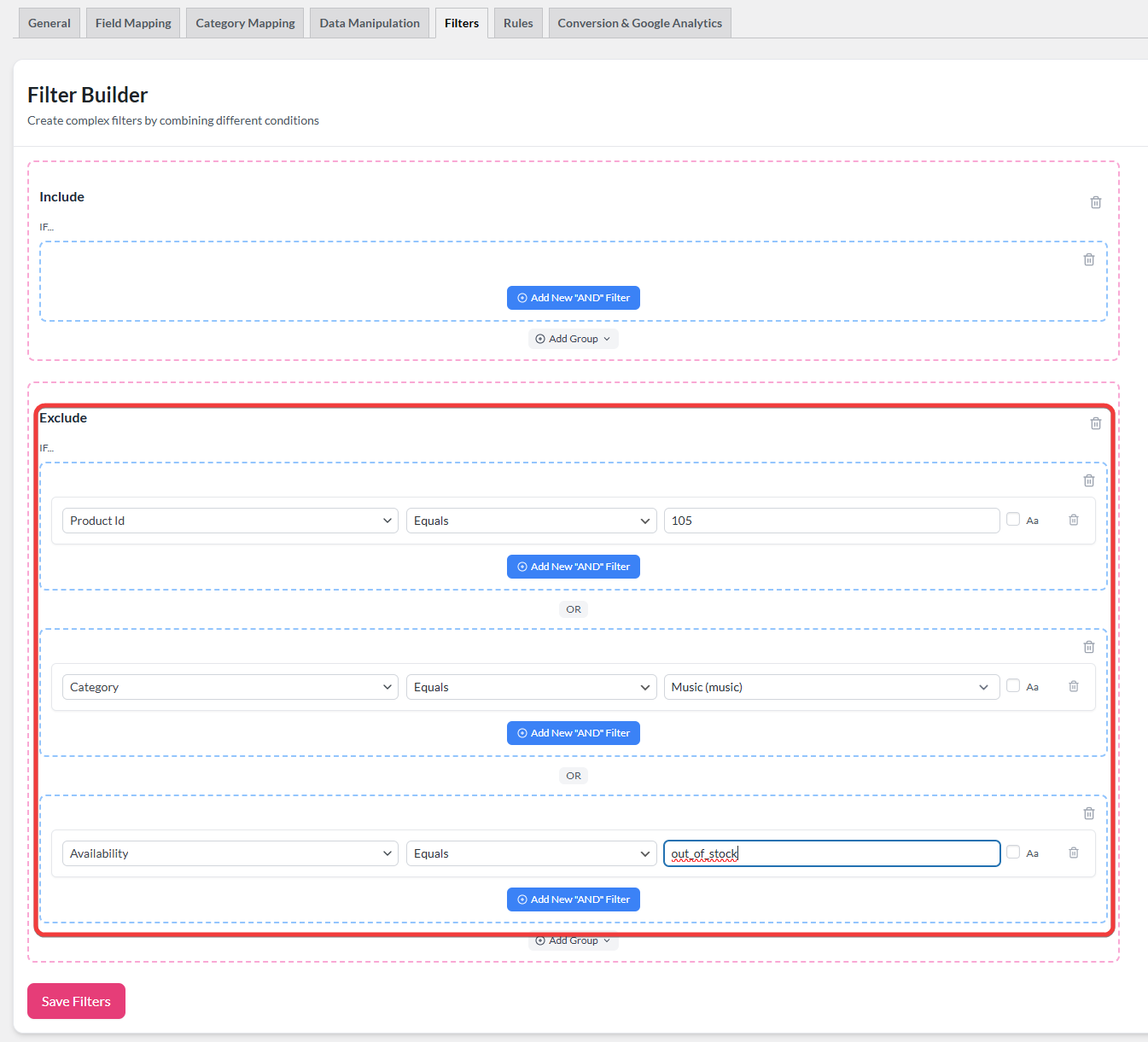
When a product is excluded:
- It is removed from the feed file
- Merchant Center no longer receives updates for it
- Google keeps the last known version of the product
- The product eventually becomes expired, but it is not deleted
This is normal behavior and cannot be changed through WooCommerce or the plugin.
B. Switching a Product to Out of Stock (Hides it from appearing in Shopping ads)
The next best option is to mark products as Out of Stock, which the plugin will send to Google.
Setting a product to Out of Stock:
- Stops the item from showing in Shopping ads
- Keeps it in Merchant Center for reference
- Avoids product disapproval issues
- Does not delete the item
This is a practical choice when you want a product inactive but still visible in Merchant Center for reporting or internal use.
C. Permanently Deleting Products Using the Google Content API (The only true deletion method)
If you need products permanently removed from Merchant Center right away, the only method that actually deletes a feed-based product is:
Sending a delete request through the Google Content API for Shopping.
The Product Feed Pro plugin does not support delete actions, so this requires manual API usage or switching to a feed service that offers it.
Steps involved:
1. Set up API access
You’ll need:
- A Google Cloud project
- Content API for Shopping enabled
- OAuth credentials or a service account
2. Identify the product’s ID
This is usually your WooCommerce product ID or SKU, depending on your feed settings.
3. Send a delete request
A standard delete call looks like this:
DELETE https://shoppingcontent.googleapis.com/content/v2.1/{merchantId}/products/{productId}
What happens next:
- The product is removed from the Merchant Center immediately
- It will not reappear unless a feed resubmits it
- This is the only reliable method for instant deletion of feed-based items
Method 3: Temporarily Hiding a Product Without Deleting It
If your goal isn’t to delete the product but to stop it from appearing in Shopping:
Set the product to Don’t Show on Google inside Merchant Center
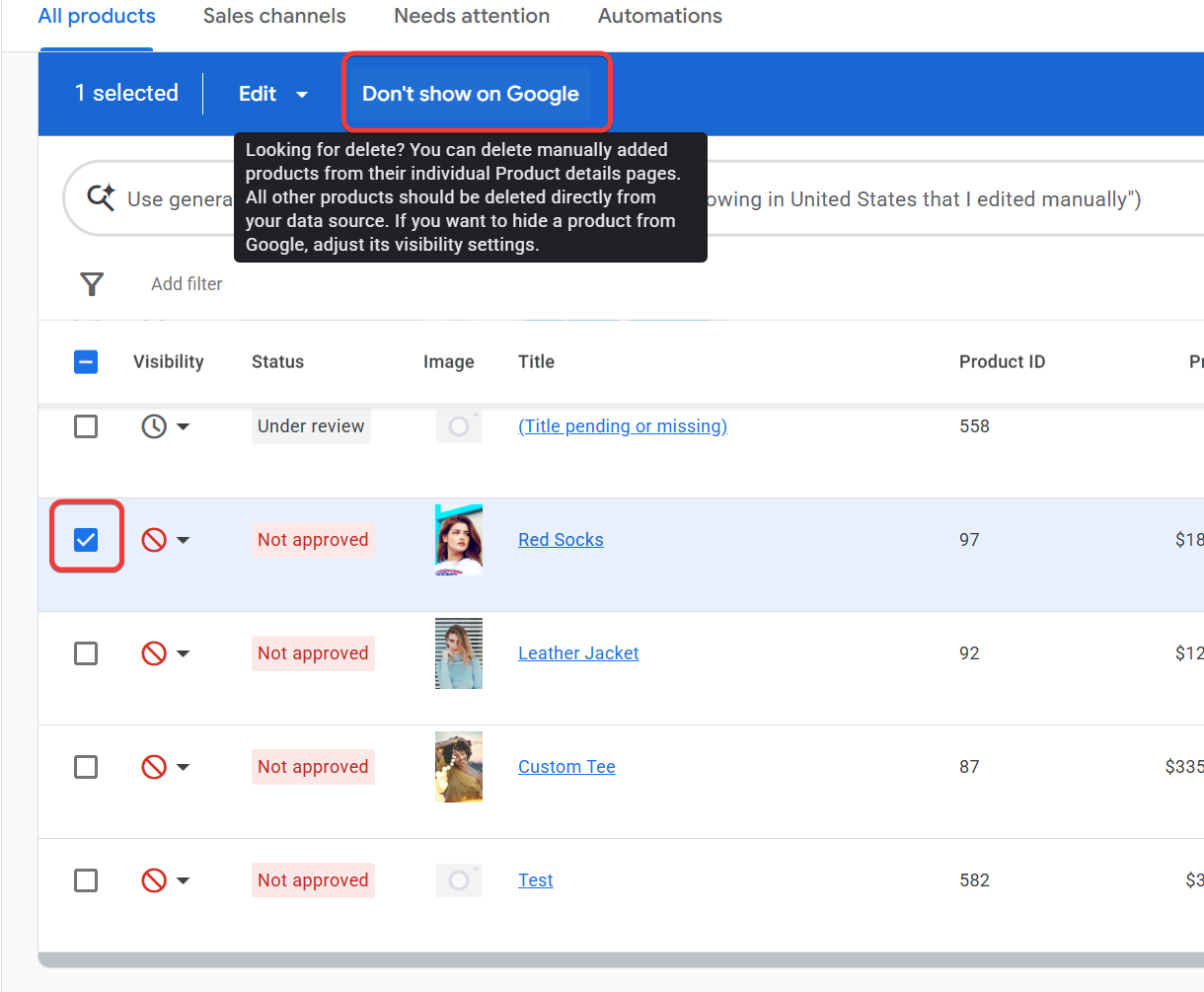
- OR set the product to Out of Stock in WooCommerce
These options hide the product from customers without removing it from your account.
Understanding Product Expiration in Merchant Center
If a product stops receiving updates because it was excluded from your feed:
- Merchant Center will eventually mark it as expired. Most feed-based products will expire after 30 days of not receiving updates.
- Expired items do not appear in Shopping
- They stay in the Merchant Center account for reference
- They are not deleted automatically
This is normal and expected behavior.
Conclusion
Deleting a product in Google Merchant Center depends entirely on how the product was created. Manually added products can be removed from within the interface, but feed-based products require different handling. When using WooCommerce with the Product Feed PRO plugin, excluding a product from your feed won’t delete it from Google. It simply stops updates until the product expires.
Permanent deletion requires using the Content API or a tool that supports API-based removal.
Need Further Assistance?
If you need any further assistance, feel free to create a new ticket to reach out to our support team.
Please note that the ticket support system is exclusive to Product Feed ELITE users.
If you’re using only the Product Feed Pro plugin, feel free to open a new topic in the WordPress.org forum.

