
A feed that stops, skips products, or shows errors in Google Merchant Center costs you sales. This guide lists the most common Product Feed Pro and Product Feed Elite problems and the fix for each. Start with the first steps, then go to the problem that matches yours.
Prerequisites
- A working WooCommerce store with Product Feed Pro or Product Feed Elite active.
- Administrator access to the WordPress dashboard, including WooCommerce > Status (for logs and scheduled actions) and the Product Feed > Settings page.
First steps for any feed issue
Check for plugin or theme conflicts
Conflicts with third-party plugins or themes are among the most common causes of issues. To identify a conflict:
- Deactivate all plugins except:
- WooCommerce
- Product Feed Pro and/or Product Feed Elite
- Switch to the default Storefront theme.
- Re-test the issue.
- If the issue no longer occurs, reactivate your other plugins and theme one at a time until the conflict reappears.
This process isolates the source of the conflict and identifies whether a third-party extension is responsible.
Verify plugin versions
Ensure all relevant plugins are updated to the latest versions. Updates frequently contain fixes for known issues.
View our changelog for more information:
Review error logs
Error logs provide detailed insights into the root cause of issues.
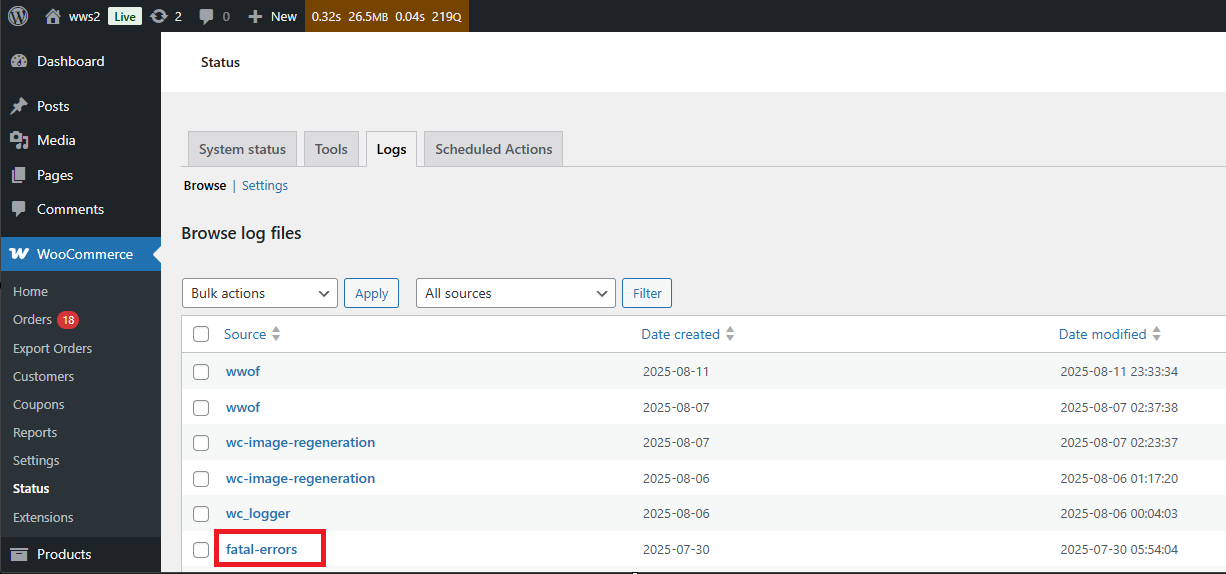
- Navigate to WooCommerce > Status > Logs.
- Look for a file named fatal-errors.
- Review the file for relevant error messages indicating the source of the problem.
Common feed issues and resolutions
My feed is stuck
Feeds may become stuck if the server prematurely terminates the process or if a conflict occurs.
Recommended actions:
- Create a new feed or duplicate the existing feed.
- Stop and manually refresh the feed.
- If automatic refreshes stopped running, click Regenerate Action Schedulers under Product Feed > Settings. This re-creates the scheduled refresh tasks for all active feeds and does not change your feed data.
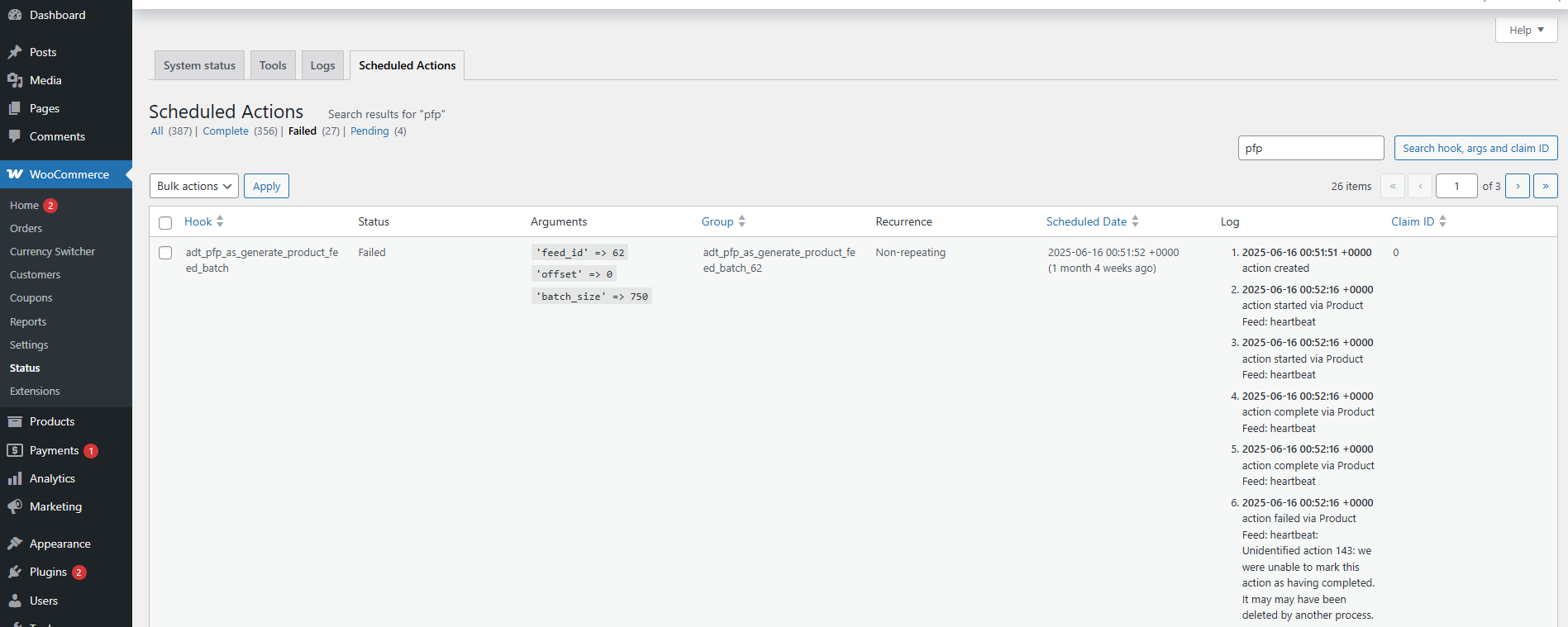
- Review failed scheduled actions under WooCommerce > Status > Scheduled Actions > Failed.
Missing ACF custom fields
Advanced Custom Fields (ACF) is not officially integrated with Product Feed Pro/Elite. In some cases, mappable custom fields may not appear.
Resolution:
- Clear the product attribute cache by clicking Clear custom attributes cache under Product Feed > Settings.

The feed XML file returns a 404 error
Some servers automatically rename file names to lowercase, which can cause XML file access errors.
Resolution:
- Go to Product Feed > Settings.
- Under Other settings, click Convert feed URLs to lowercase.
- Refresh the feed.

My feed doesn’t have all my products
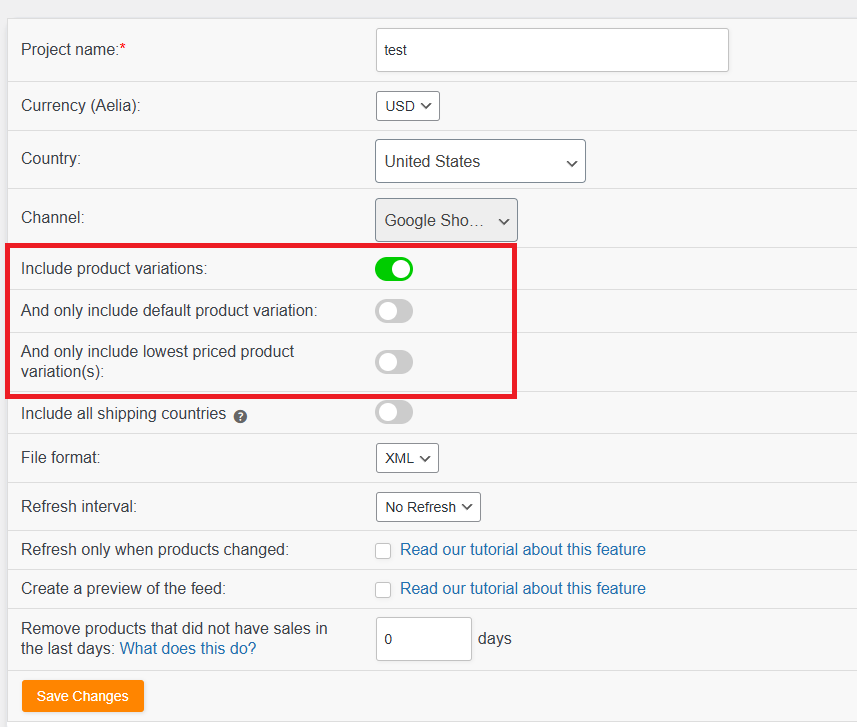
If not all products appear in the feed, review the following. The variation options are on the feed’s General tab.
- Are rules or filters excluding products?
- Is Include product variations turned on?
- Are the missing products a custom type that’s not currently supported?
- Is And only include default product variation turned on?
- Is And only include lowest priced product variation(s) turned on?
For additional information, see the troubleshooting article for missing products.
An attribute is missing from the feed for some products
Product Feed Pro only writes an attribute when the product has a value for it. If the mapped field is empty for a product, that attribute is left out of the product’s entry in the XML feed. This is expected, not an error.
In CSV and TXT feeds, every mapped attribute gets its own column header, so the column is always there. A product with no value for an attribute gets a blank cell in that column.
There is one exception. In Product Feed Pro 13.5.8 or later, weight, height, length, and width are still written as an empty element when you map them to the product’s weight or dimension fields.
Sale price is the most common example. A product only has a sale price while it’s on sale, so products that aren’t on sale have no sale_price in the feed. That’s fine for Google: its sale price specification lists sale_price as optional and only asks for it when a product is on sale.
A static value can’t force an empty attribute into the feed either. A static value that is left empty is dropped the same way.
Resolution:
- To send both prices to Google, map g:price to Regular price and g:sale_price to Sale price. See how to properly add sale prices to your Google Shopping feed.
- To fill in a fallback when a field is empty, create a rule with the Is Empty condition. The Set Value action fills in a fixed value. To copy the value of another field instead, use the Set Attribute action, which needs Product Feed Elite. See how to create an “if field Y is empty, then do X” rule.
- If a channel rejects products because an attribute is missing, check that channel’s product specification to see if the attribute is required. Then map a field that always has a value. The complete list of Product Feed attributes for mapping shows the fields you can use.
The feed refresh uses too much server resources
Product Feed Pro/Elite relies on WooCommerce Scheduled Actions, which are optimized for stability and resource efficiency.
By default, the plugin picks the batch size for you from your number of published products. If server resource usage is still too high, set a smaller batch size:
- Go to Product Feed > Settings.
- Turn on Change products per batch number.
- Enter a smaller number in Insert batch size: and click Save.

For the default batch sizes and how to pick a value, see the batch size configuration guide.
Verify: after lowering the batch size, run a manual feed refresh and confirm under WooCommerce > Status > Scheduled Actions that the feed actions complete without failing, and that no new entries appear in the fatal-errors log.
Feed generation is slow on stores with many orders
On stores with a large order history, feed generation could be slow because the total product orders query (used for the total_product_orders attribute) ran on every product, even when no feed mapped that attribute.
Resolution:
- Update Product Feed Pro to version 13.5.0 or later. From this version the query only runs when a feed actually maps total_product_orders in its attributes, filters, or rules, so most stores skip it entirely.
- If you do map total_product_orders and still need faster generation, reduce the batch size as described above.
Verify: after updating, run a manual feed refresh and confirm that feed generation completes noticeably faster, with feed actions clearing normally under WooCommerce > Status > Scheduled Actions.
Google Merchant Center reports a price mismatch
This occurs when the price in the XML feed differs from the price visible on the product page.
Recommended checks:
- Compare the feed price with the product URL in an incognito browser.
- If accurate, request a re-sync in Google Merchant Center or wait for data to refresh.
You can learn more in the guide on fixing Google’s product price mismatch issue.
Facebook catalog or feed shows duplicate items
Duplicate product listings may occur when using WPML or similar translation plugins.
See the guide on fixing duplicate products in the Facebook catalog for WPML translations.
Need help?
If issues persist after following the steps above, please contact support. Before submitting a ticket, send your debug log or system report to support. If the report is lengthy, please attach it as a file.
- Product Feed Pro (free users): post on the WordPress.org support forum.
- Product Feed Elite (premium users): reach our team through the AdTribes support page for priority support.

