
If empty, nameless feeds keep appearing on your Product Feed Pro Manage Feeds page, cluttering your dashboard, there are two known causes. Both are covered below, along with the steps to clear the existing blanks and stop new ones from appearing.
Cause 1: A scheduled action with an invalid feed ID
Normally this shouldn’t happen, but a scheduled action can sometimes create a feed with an invalid feed_id value of 0. Each time that happens, it adds another empty feed entry to your dashboard.
Cancel the scheduled action:
- Go to WP Admin → WooCommerce → Status → Scheduled Actions → Pending.
- Search the pending actions list for the hook
adt_pfp_as_generate_product_feed. - Check whether that action has a
feed_idof0. That’s the root cause of the blank feeds.

If you find one, cancel it right away to stop it from generating more blank feeds.
Then clean up any existing blanks:
- Go to Product Feed → Settings.
- On the General tab, scroll to the Other settings section.
- Click Fix duplicated feed.
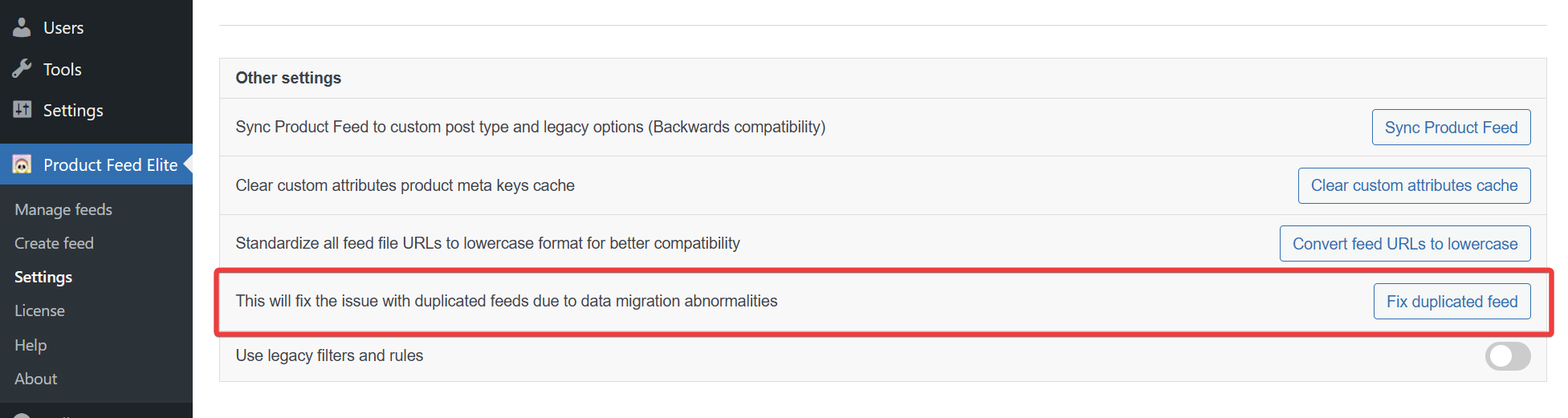
A success message appears once it finishes.
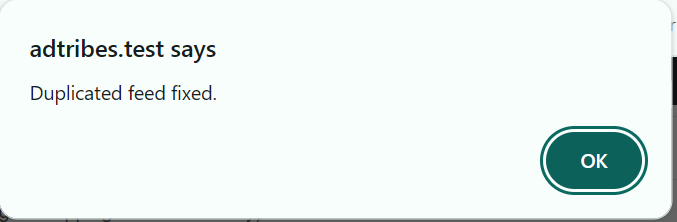
This clears out feeds created by migration issues or scheduling anomalies, including the blanks from this cause.
Cause 2: Sync Product Feed created blank duplicates
If you clicked Sync Product Feed (same Other settings section) and saw a fresh batch of blank feeds appear every time, that was a separate bug, fixed in the versions below.
Here’s what was happening: Sync Product Feed is meant to enrich feeds that Product Feed Pro had already migrated into its current storage format, adding extra data like Product Feed Elite field manipulation rules and multi-currency settings. Instead, whenever it couldn’t match an existing feed, it inserted a brand new blank one rather than skipping that entry. A related bug on the Product Feed Pro side also stopped Sync Product Feed from restoring your real feed data, so re-running it never fixed anything, it just created more blanks. Running Fix duplicated feed cleared them temporarily, but the next Sync Product Feed click brought them straight back.
The fix: update to Product Feed Pro 13.5.7 and Product Feed Elite 5.1.0 or later. Then, once you’re on those versions:
- Run Fix duplicated feed as described under Cause 1 above to clear any leftover blanks.
- Click Sync Product Feed once more to confirm it restores your real feed data cleanly, with no new blanks.
You shouldn’t need to run either button again after that. Sync Product Feed no longer creates a feed unless one already exists to enrich.
Need more help?
If you’ve worked through the cause that matches your situation and blank feeds keep appearing, open a support ticket if you’re on Product Feed Elite, and our team will take a closer look at your feed data.
If you’re using the free version of Product Feed Pro, head to the WordPress.org support forum and start a new topic. Include your Product Feed Pro version and whether Product Feed Elite is active.

