Reviewed by
Providing accurate delivery estimates is crucial for both customer satisfaction and Google Merchant Center compliance. Great news! Our latest update to AdTribes Product Feed Elite lets you set order handling time and shipping transit time in WooCommerce.
With these new settings, you can clearly define how long it takes to process and deliver orders. It’s a powerful way to manage customer expectations, optimize your product feeds, and ensure your listings meet Google Shopping requirements.
In this guide, we’ll walk you through what this new feature does, why it matters, and how to easily set everything up in WooCommerce. Let’s go!
What Are Order Handling & Shipping Transit Times? (Feature Overview)
With the latest update to AdTribes Product Feed Elite, you can now add order handling and shipping transit times to your WooCommerce products. These two values describe two important stages of your order fulfillment process:
- Order handling time indicates how long it takes for your business to prepare an order before it’s shipped. This includes picking, packing, or production time for custom items.
- Shipping transit time, on the other hand, refers to how long a package takes to travel from your warehouse to the customer after it has been shipped.
These two values give customers a complete picture of when their orders are expected to arrive. Once configured, these details are automatically included in your product feeds, giving platforms like Google Shopping the detailed delivery information they need to display your listings correctly.
Why Set Order Handling Time & Shipping Transit Time? (Benefits)
Setting order handling and shipping transit times can help improve the performance and visibility of your product feeds. Most importantly, it can help you build trust with customers by setting clear delivery expectations from the start.
Here’s how it can benefit your store:
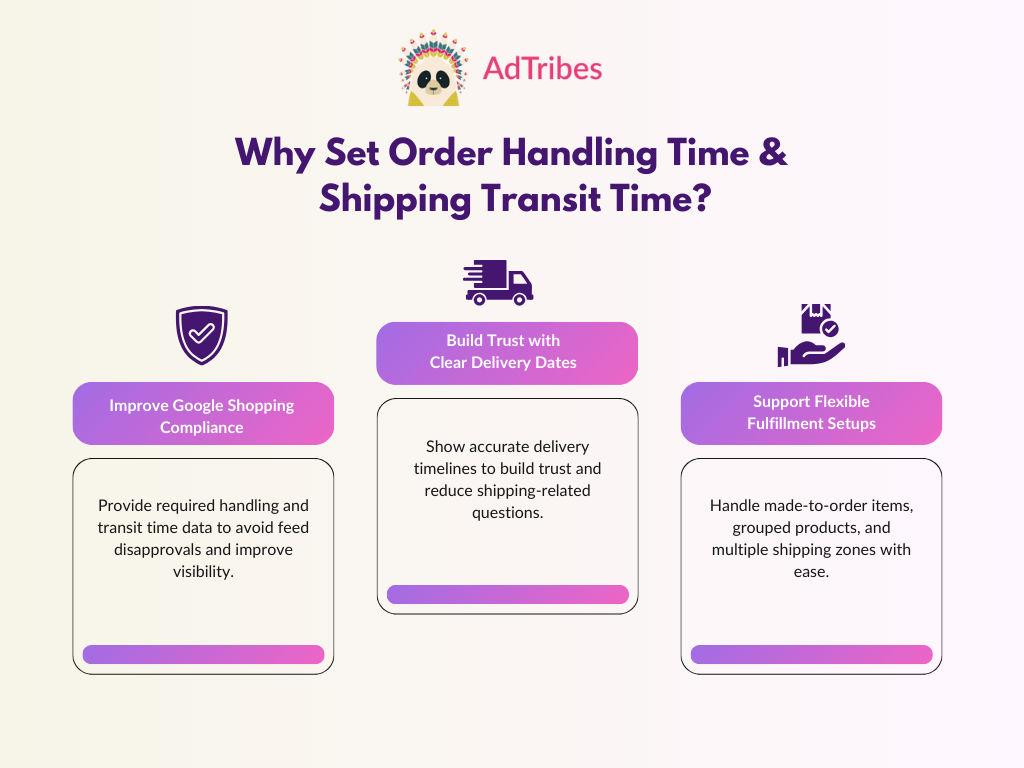
Improves Google Merchant Center compliance
Google Merchant Center requires accurate shipping information from sellers, including order handling time and transit time. If these fields are missing from your product feeds, your listings may be disapproved, flagged, or perform poorly in search results.
Adding these values in WooCommerce keeps your feed fully compliant with Google’s shipping policies, which helps avoid disapprovals and ensures your listings appear in relevant searches.
Builds customer trust with clear delivery expectations
According to industry insights, 62% of customers consider accurate delivery dates as more important than fast shipping. By setting order and handling times, you set clear expectations and help customers understand when their order will arrive. This level of transparency builds confidence in your store and minimizes shipping-related support queries.
Support complex fulfillment scenarios
Shipping and delivery can vary depending on what you sell and where you ship to. If you’re selling made-to-order items, pre-order products, or shipping to multiple zones, this new feature gives you the flexibility to reflect those nuances in your product feeds. Now, you can:
- Set product-level handling time for made-to-order or high-demand items
- Define shipping class handling time for groups of similar products
- Configure transit time for flat rate shipping methods
How To Set Order Handling Time In WooCommerce
Now that we understand why it’s important to set order handling and shipping transit times, let’s get right into action!
📝 Before following along with our tutorial, make sure that you have updated to the latest version of AdTribes Product Feed Elite and Product Feed Pro.
Let’s look into how to set order handling time first.
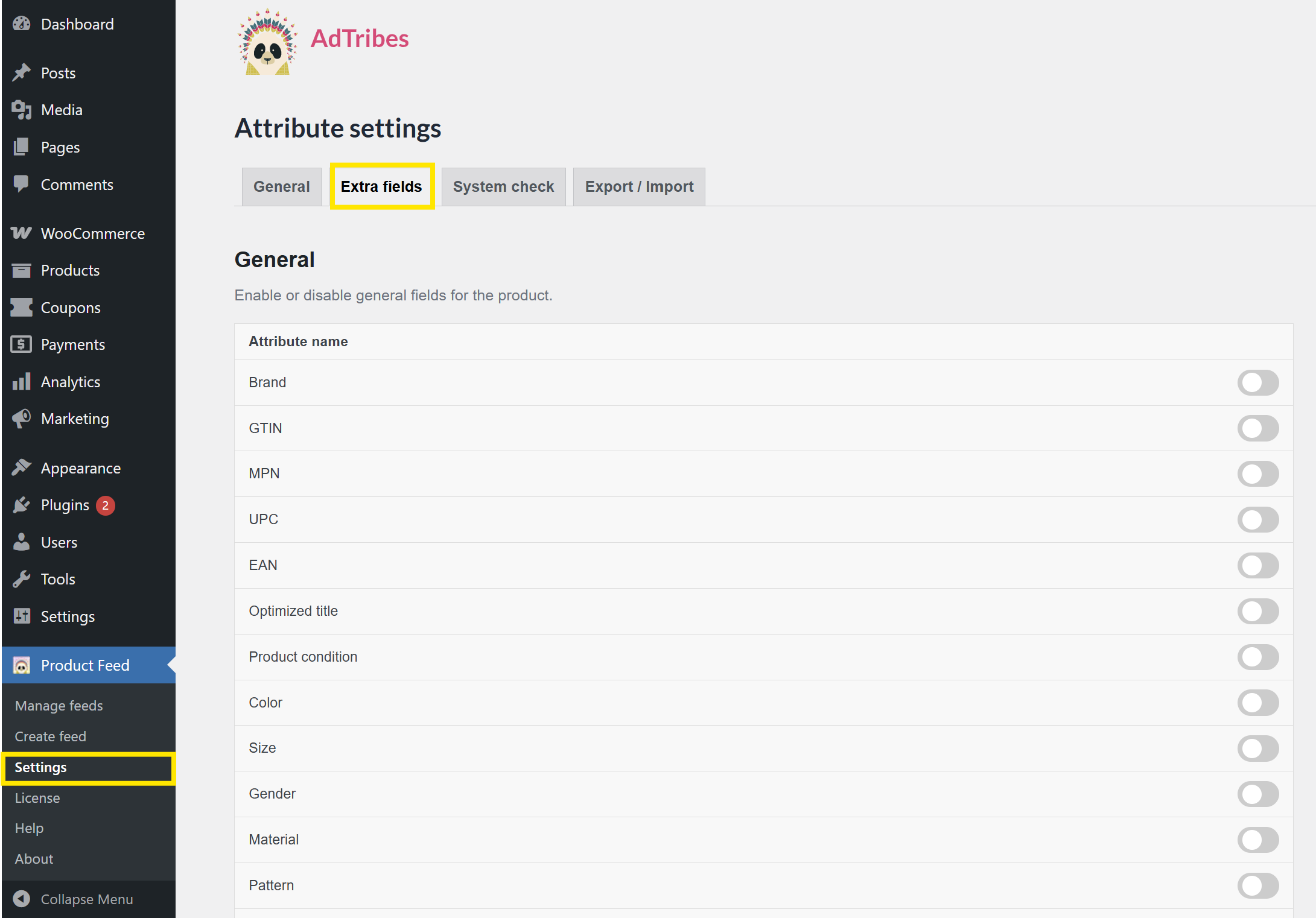
Step 1: Enable extra fields in Settings
The first thing you need to do is enable the order handling time fields in the Settings page. Head to your WordPress dashboard > Product Feed > Settings > Extra Fields.
From here, scroll down to Shipping and enable:
- Minimum Handling Time (days)
- Max Handling Time (days)
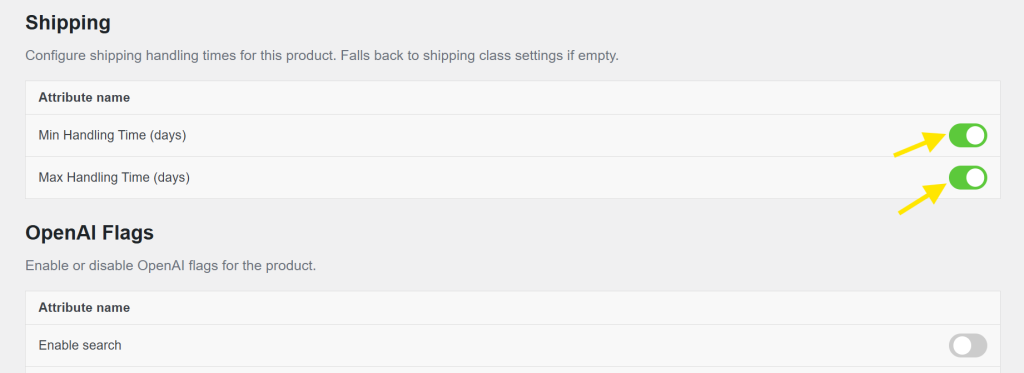
Once these fields are enabled, you’ll be able to set handling times per product or per shipping class, depending on your store’s fulfillment setup.
Step 2: Set order handling time
You can set order handling times for individual products or by using shipping classes. Let’s walk through both options and when it’s best to use them.
Setting order handling time on the product level
Defining handling times for individual products is especially helpful if you’re selling backordered products or made-to-order goods that require different handling times.
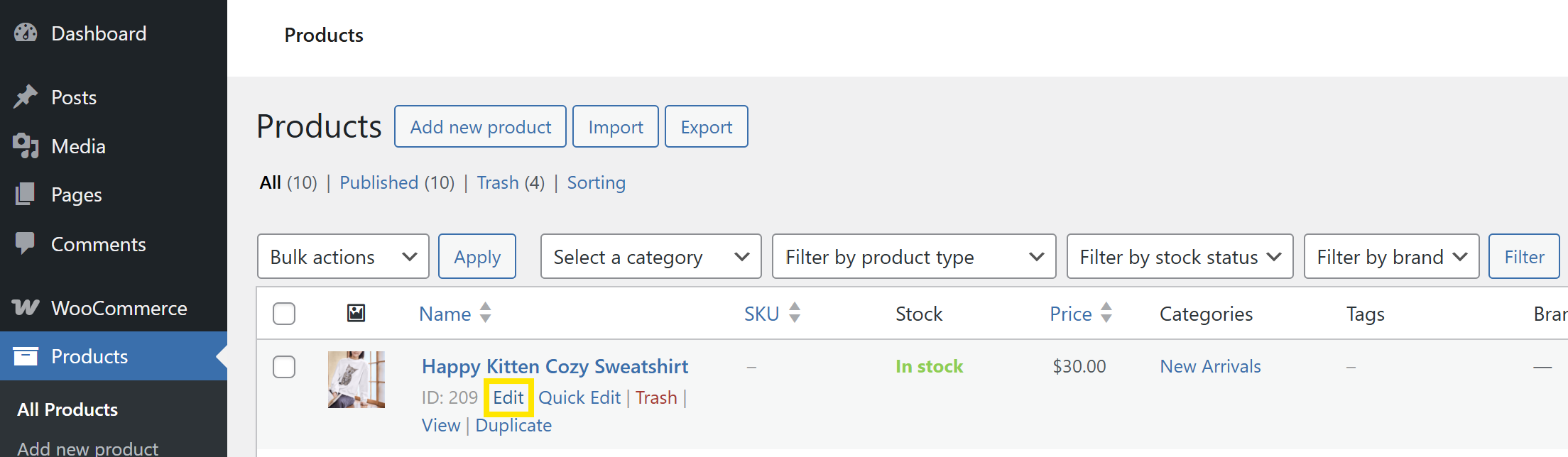
To do this, head to your WordPress dashboard > WooCommerce > Products > All Products. Then, click Edit on the item you want to modify.
Then, scroll down to the Product Data panel and go to the Shipping tab. From here, you can set values for these two fields:
- Min Handling Time (days): The shortest number of business days it takes you to process the order
- Max Handling Time (days): The longest number of business days it might take for you to process the order
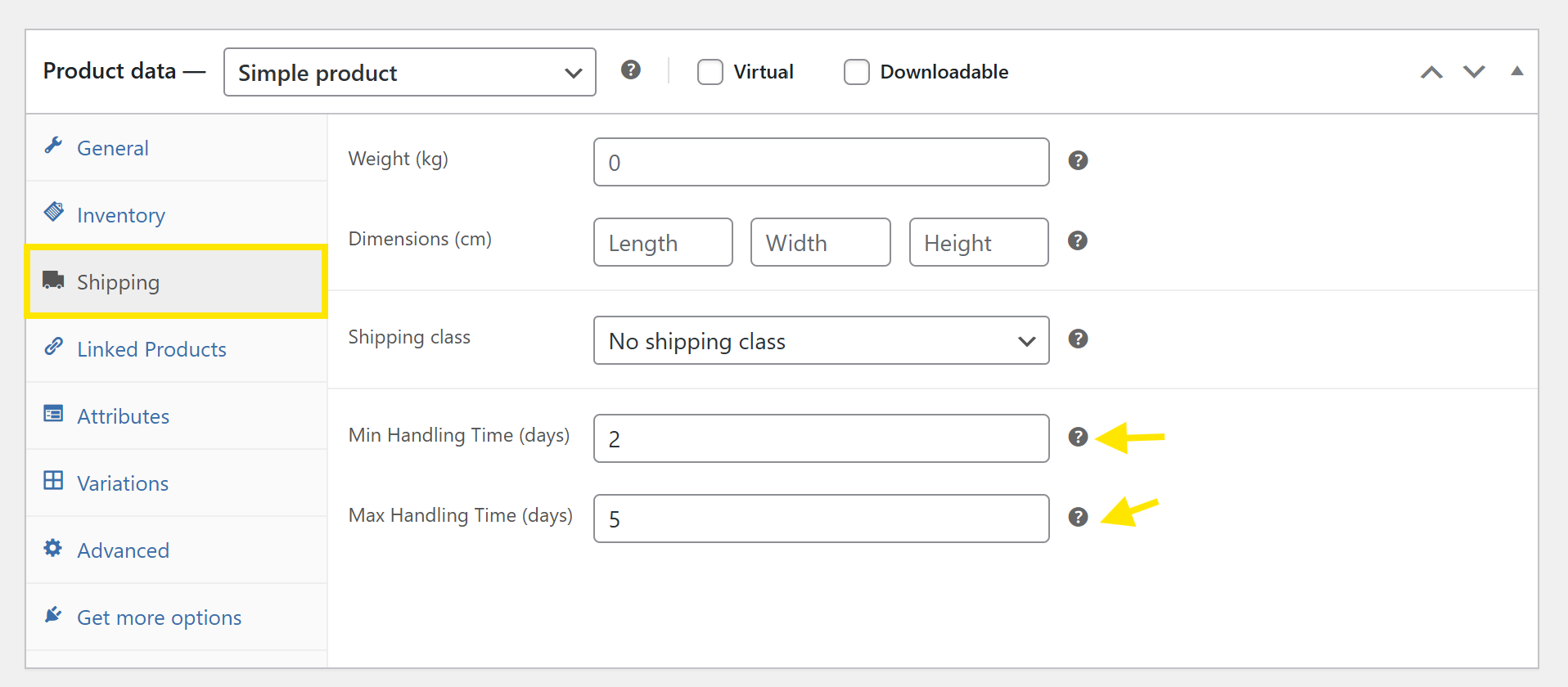
For instance, if you usually ship this product within 2-5 business days after the order, you’d enter:
- Min Handling Time (days): 2
- Max Handling Time (days): 5
Don’t forget to click Update once you’ve made your changes!
Setting order handling time using shipping classes
If you have a group of products that have the same handling time (such as items in “Heavy” or “Fragile” categories), setting order handling times using shipping classes is a great choice. It allows you to define handling times in bulk, which saves you time and ensures consistency.
Consider this option if:
- You want to avoid setting times manually for each product
- You have grouped shipping classes for products with similar fulfillment timelines
To set order handling times using shipping classes, head to your WordPress dashboard > WooCommerce > Settings > Shipping > Classes tab.
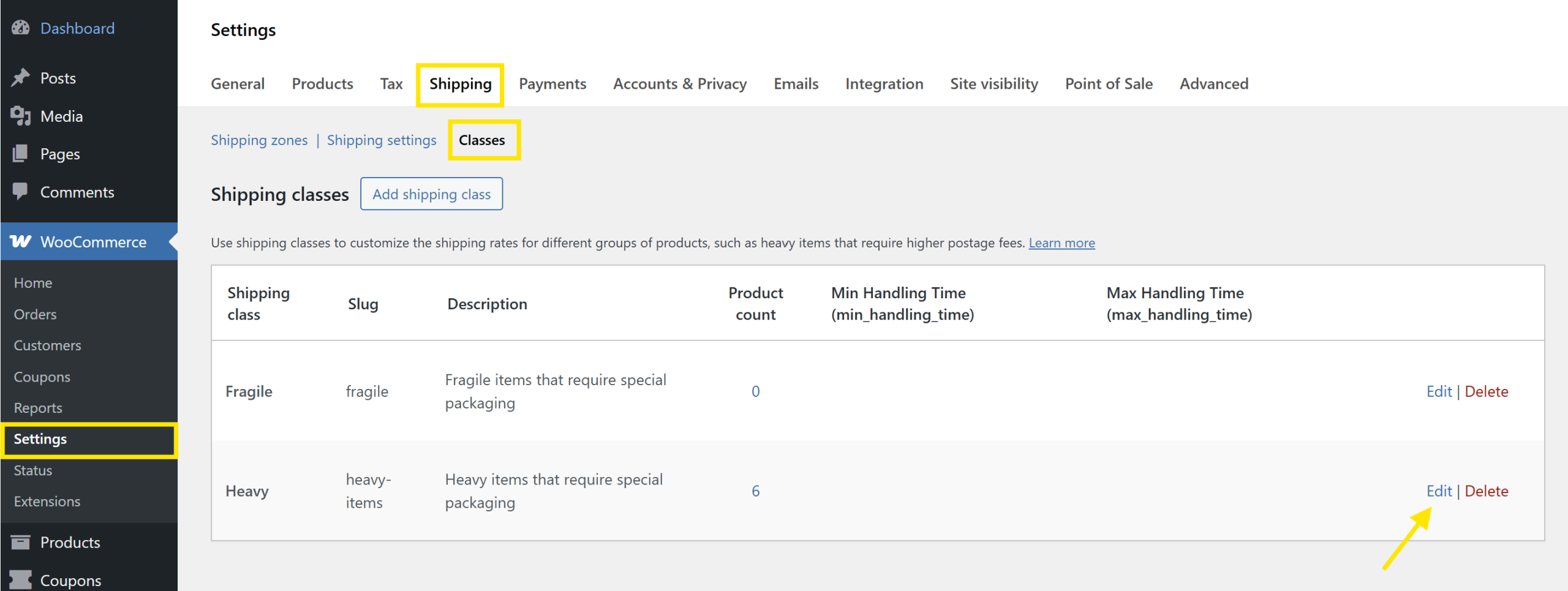
From here, choose the shipping class you want to modify and click Edit. You’ll notice two new fields in the pop-up editor:
- Min Handling Time (min_handling_time): The minimum number of business days it takes you to ship items in this class
- Max Handling Time (max_handling_time): The maximum number of business days it might take to ship items in this class
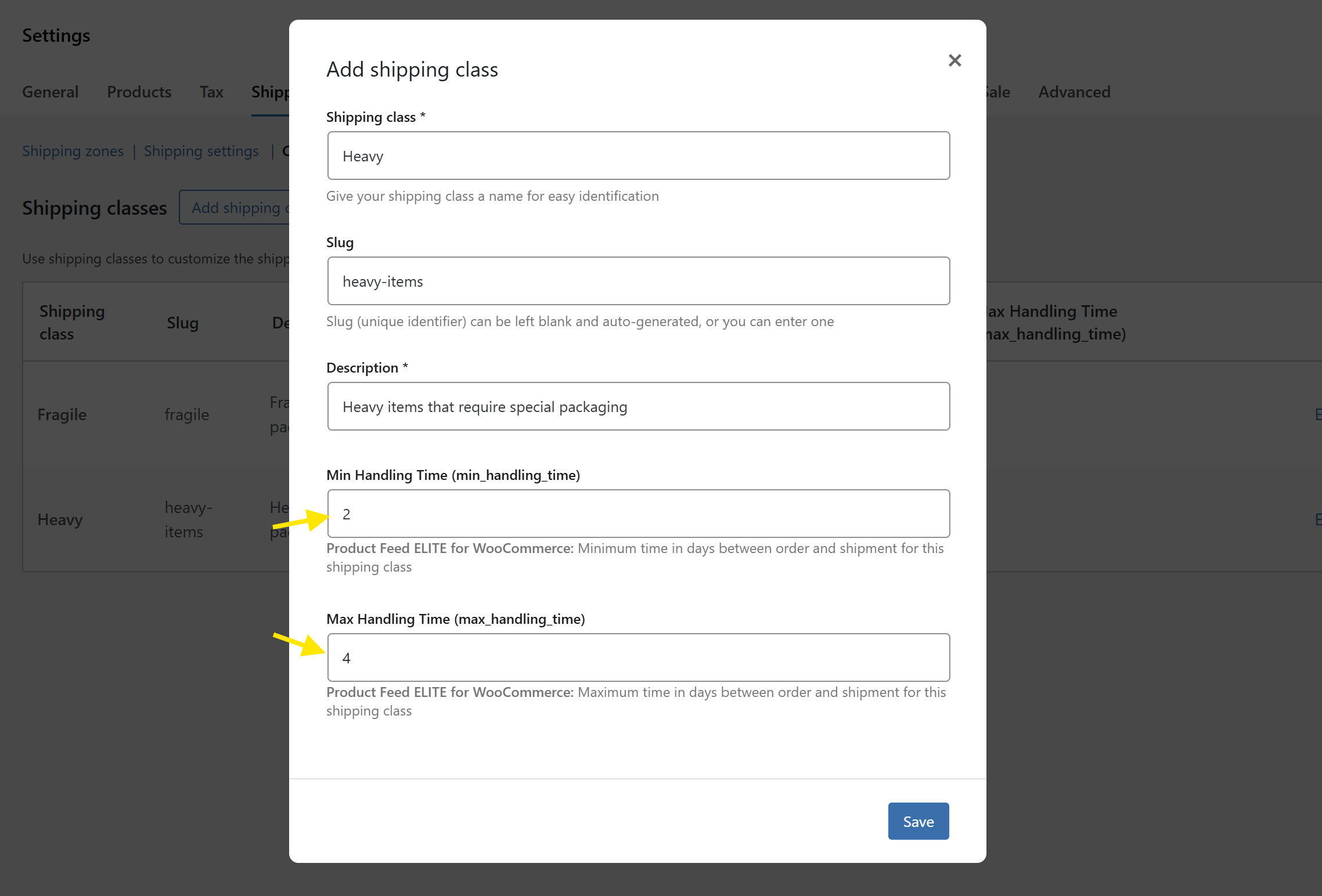
For example, if it usually takes 2-4 business days to ship items for the Heavy shipping class due to special packing needs, you can enter:
- Min Handling Time (min_handling_time): 2
- Max Handling Time (max_handling_time): 4
Once you’re happy with your changes, click Save! And that’s it. These values will automatically be included the next time you generate your product feeds.
💡 IMPORTANT NOTE: The handling time set at the product level takes precedence over the shipping class values. If the product-level handling times are not set, the plugin will fall back to the shipping class values. If both are empty, no handling time will be included.
How To Set Shipping Transit Time In WooCommerce
Once you’ve set up your order handling times, it’s time to define your shipping transit time. This tells platforms like Google Merchant Center how long it typically takes for an order to reach your customer after it has been shipped. This is set at the shipping method level in WooCommerce.
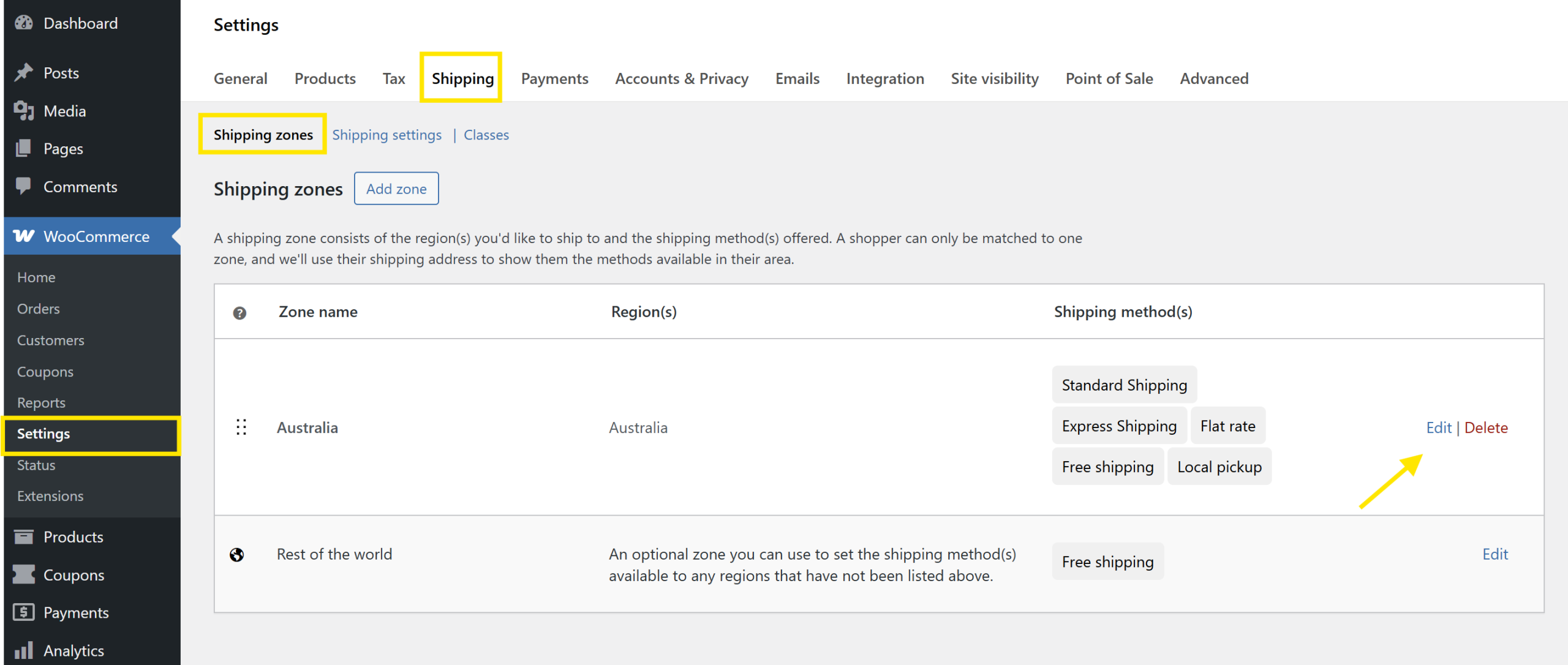
From your WordPress dashboard, head to WooCommerce > Settings > Shipping. From here, choose the Shipping Zone you’d like to edit.
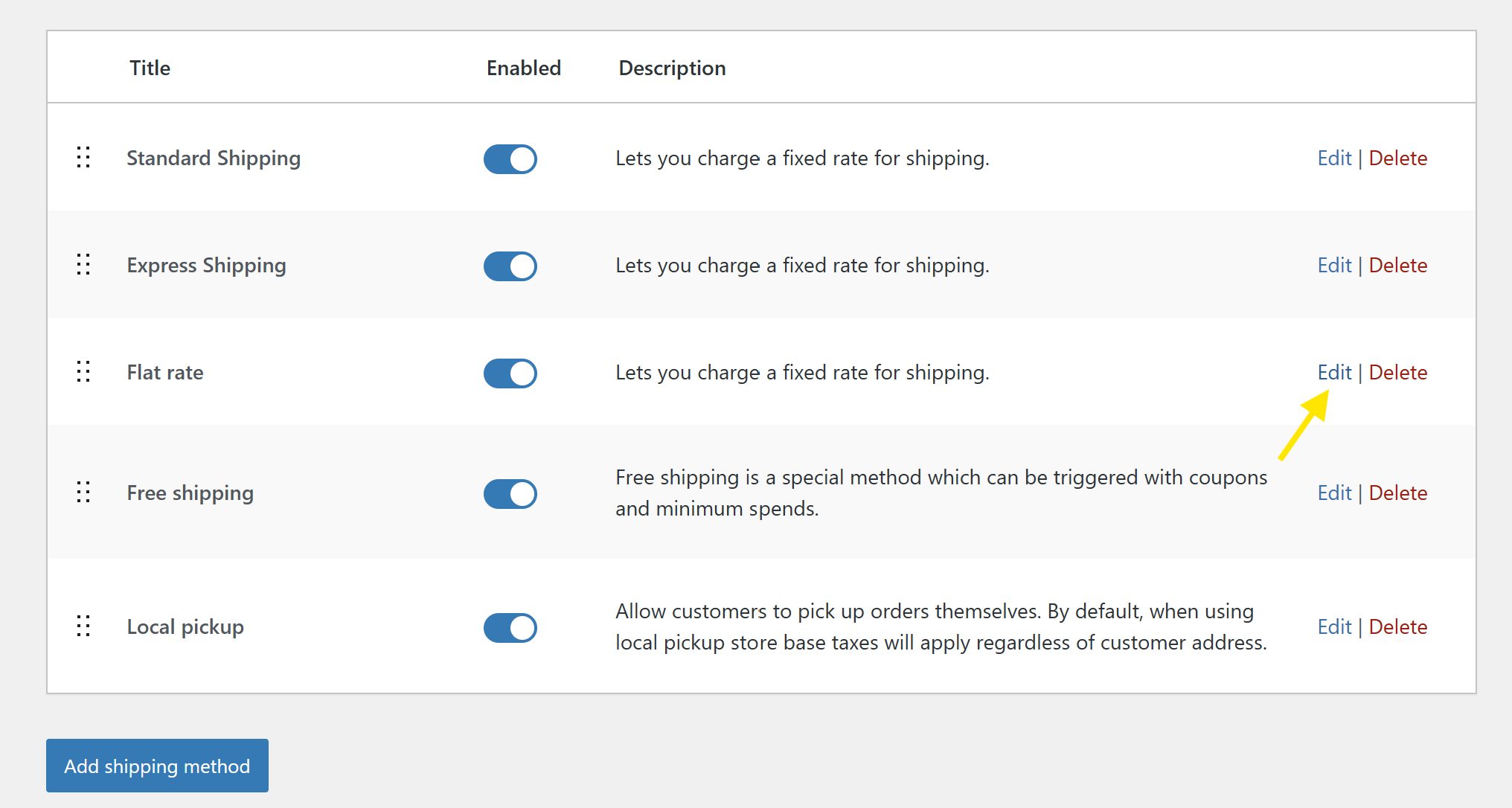
From here, click Edit on the Shipping Method you’d like to configure.
Scroll down to the Product Feed ELITE for WooCommerce section to find the shipping transit time fields:
- Min Transit Time (min_transit_time): The minimum number of business days it typically takes for delivery
- Max Transit Time (max_transit_time): The maximum business days it might take (include buffer for delays)
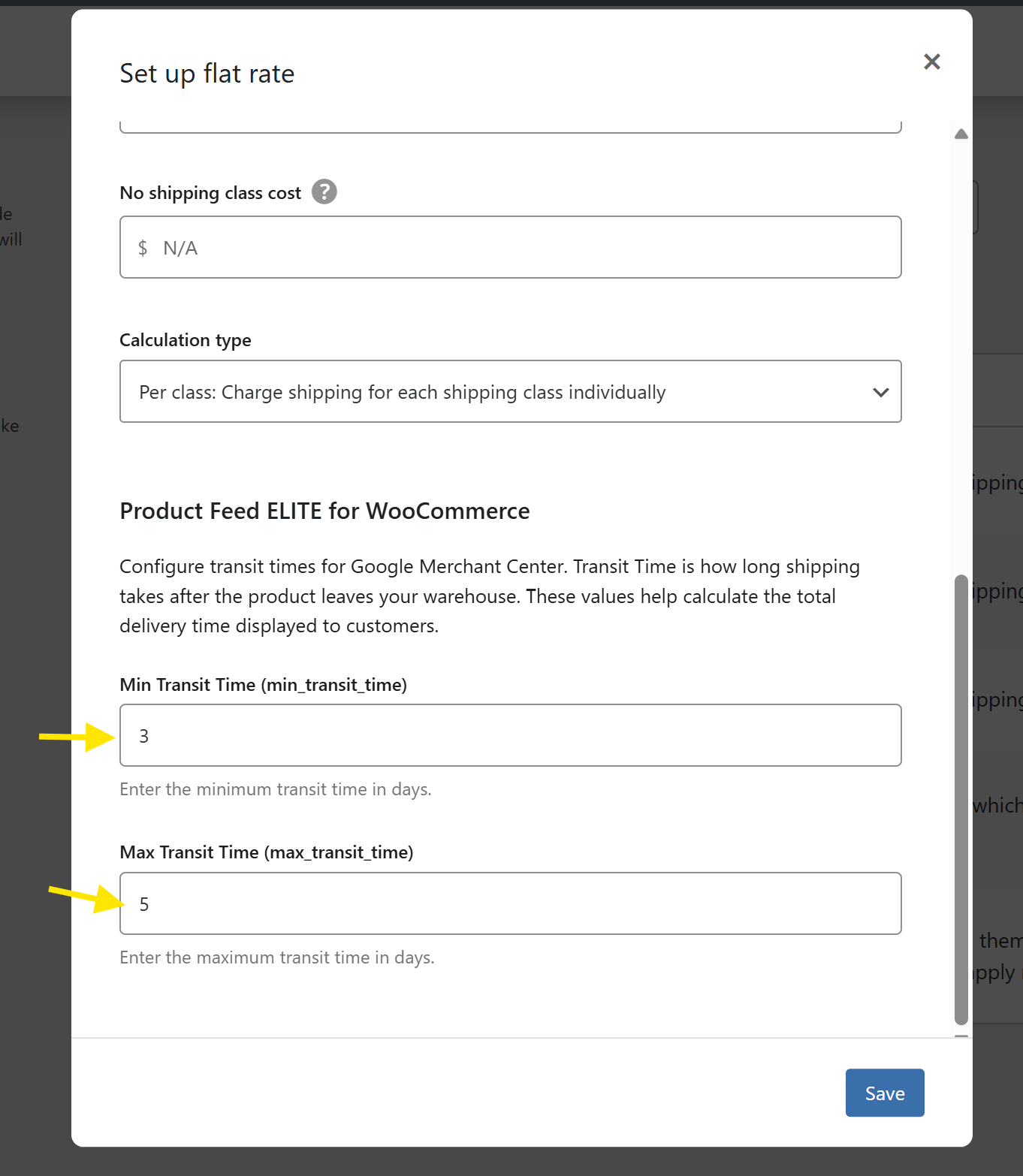
For instance, if shipping to this zone takes 3-5 business days, enter:
- Min Transit Time (min_transit_time): 3
- Max Transit Time (max_transit_time): 5
Once you’re happy with your settings, click Save. And that’s it! You can repeat this process for other shipping methods you’ve set.
💡 IMPORTANT NOTE: Shipping transit time can only be configured for Flat Rate and other fixed-rate shipping methods (e.g., Standard, Express).
Frequently Asked Questions
What is transit time in shipping?
Transit time refers to the number of business days it takes for an order to reach the customer after it has been shipped. This value usually depends on the shipping method and destination, and starts the moment the order leaves your warehouse.
What is handling time?
Order handling time refers to the amount of time it takes for a business to prepare an order before it gets shipped. This includes how much time it takes to process the order, pack it, or even make the item if the product is custom or made-to-order. Handling time is measured in business days and starts once the order is received.
What happens if I don’t set any handling or transit times?
If you don’t set handling time and transit time for your WooCommerce products, those fields will be left empty in your product feed. Your feed will still work, but they won’t include delivery estimates. This could affect how your products are displayed or approved on platforms like Google Shopping.
How do handling and transit times affect Google Shopping performance?
Order handling and transit times help Google display accurate delivery dates to shoppers, match your products to searches, and evaluate your product feed for completeness. This can help boost the visibility of your products, reduce feed disapproval, and increase your chances of getting clicks and conversions.
Wrapping Up
Providing clear order handling time and shipping transit time in WooCommerce helps you build trust with customers and ensure product feed compliance with Google Merchant Center. Our latest update to AdTribes Product Feed Elite makes the setup quick and easy!
In this guide, we walked you through:
- What handling and transit times are and why they matter
- The benefits of adding them to your product feeds
- How to set order handling time per product or by shipping class
- How to set shipping transit time per shipping method
AdTribes gives you the tools you need to optimize your product feeds and boost product visibility across platforms like Google Shopping.
Hope this guide helped! Let us know if you have any questions. 🙌